

Automatize o gerenciamento de lançamentos e os relatórios de receita no AppKit do MemberPress usando a API de desenvolvedor do Google Play.
Este guia o orienta na vinculação de seu projeto do Google Cloud, na criação de uma conta de serviço, na geração de uma chave JSON e na conexão com o plug-in MemberPress AppKit.
Compreensão dos requisitos da conta de serviço
Os requisitos da conta de serviço definem as configurações necessárias para o acesso e o gerenciamento automatizados da API do Google Play Console.
Ativação do acesso à API permite que o MemberPress AppKit interaja com o Google Play Console de forma programática. A autenticação da conta de serviço fornece acesso automatizado seguro aos recursos de gerenciamento de aplicativos.
Automação do gerenciamento de versões permite uploads de compilação e configuração de lançamento sem interação manual com o console. Os fluxos de trabalho automatizados simplificam os processos de atualização e envio de aplicativos.
Acesso a relatórios de receita fornece recuperação de dados financeiros para fins de análise e relatórios. As contas de serviço acessam a receita de assinatura e as informações de transação de forma programática.
Configuração de permissão concede recursos específicos a contas de serviço para necessidades operacionais. A configuração adequada das permissões garante que as contas de serviço possam executar as tarefas de gerenciamento necessárias.
Autenticação de chave JSON usa arquivos de credenciais seguros para verificação da conta de serviço. Os arquivos de chave autenticam as solicitações de API sem expor as senhas das contas.
Vinculação do projeto Google Cloud
A vinculação do projeto Google Cloud conecta o AppKit do MemberPress aos serviços da API de desenvolvedor do Google Play.
- Em seu administrador do WordPress, navegue até Painel de controle > MP AppKit > Configurar > Configurações do Android > Conectar sua conta de desenvolvedor do Google.
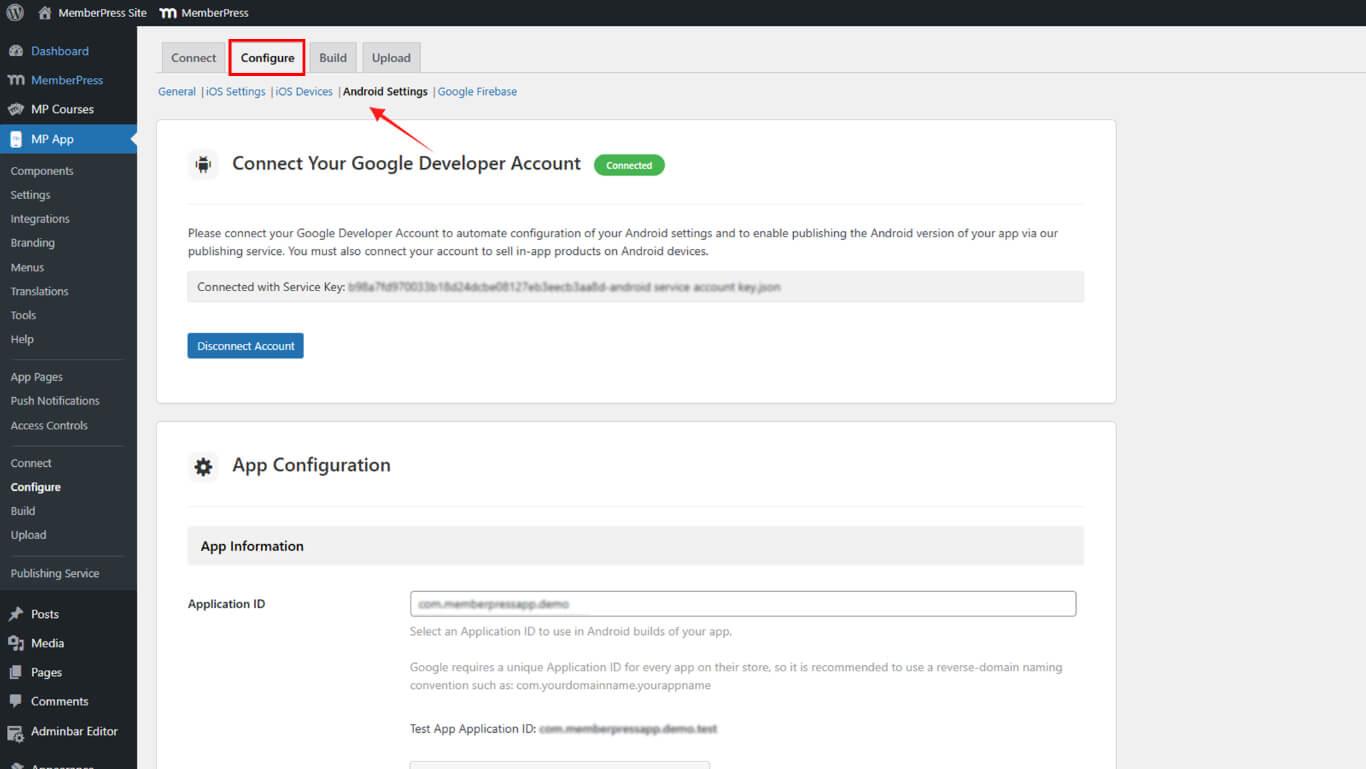
- Quando solicitado, selecione Link do projeto existente ou Criar novo projeto na caixa de diálogo do Google Cloud.
- Confirme se seu projeto está vinculado antes de continuar.
Criação de conta de serviço
A criação da conta de serviço estabelece a identidade para interações automatizadas da API com o Google Play Console.
- Na página Acesso à API no WordPress, clique em Criar nova conta de serviço.
- Na janela pop-up do Google Cloud, clique no botão Google Cloud Platform link.
- Selecione seu projeto e clique em Criar conta de serviço.
- Digite um Nome e clique em Criar.
- Abaixo de Selecione uma função, escolha Básico > Proprietário, em seguida, clique em Continuar.
- Clique em Feito para finalizar a configuração da conta de serviço.
Geração de chave JSON
A geração de chaves JSON cria credenciais de autenticação para acesso à API da conta de serviço.
- De volta à página API Access, localize sua nova conta de serviço e clique em ⋮ > Manage Keys (Gerenciar chaves).
- Clique em Add Key > Create New Key (Adicionar chave > Criar nova chave).
- Selecione JSON para o tipo de chave e clique em Criar.
- Clique em Feito para fechar a caixa de diálogo de gerenciamento de chaves.
Concessão de permissões do console do Play
As concessões de permissão do Play Console permitem que a conta de serviço execute operações de gerenciamento específicas.
- Ainda em Acesso à API, clique em Conceder acesso ao lado de sua conta de serviço.
- Habilite as seguintes permissões:
- Exibir informações do aplicativo e fazer download de relatórios financeiros;
- Visualizar dados financeiros, pedidos e cancelamentos;
- Gerenciar pedidos e assinaturas;
- Criar/Editar/Excluir aplicativos de rascunho;
- Liberação para produção;
- Excluir dispositivos e usar a assinatura do aplicativo Play;
- Liberação de aplicativos para pistas de teste;
- Gerenciar trilhas de teste e listas de testadores;
- Gerenciar a presença na loja.
- Clique em Convidar usuário e depois Enviar convite.
Chave de conexão no AppKit MemberPress
A conexão de chave conclui a configuração da autenticação da conta de serviço no WordPress para operações automatizadas de API.
- No WordPress, vá para Painel de controle > MP AppKit > Configurar > Configurações > Acesso à API da conta de desenvolvedor.
- Abaixo de Conecte sua conta de serviço, clique em Carregar chave JSON e selecione o arquivo baixado.
- Clique em Salvar alterações.
Confirme se o status da conexão mostra “Conectado“.










 PT
PT  EN
EN  ES
ES  FR
FR  DE
DE 