

MemberPress A preparação de aplicativos Android para a Google Play Store exige conformidade com as políticas do programa de desenvolvedores do Google. As etapas de configuração garantem a funcionalidade adequada do aplicativo e reduzem o risco de rejeição durante a análise.
Este documento explica como preparar o aplicativo no AppKit do MemberPress, definir as configurações do Google Play Console e preencher todas as declarações necessárias antes do envio.
Entendendo os requisitos do Google Play
O envio para a Google Play Store exige configurações específicas e conformidade com a política antes da aprovação da revisão. Os aplicativos devem incluir políticas de privacidade, classificações de conteúdo, declarações de segurança de dados e recursos adequados de gerenciamento de contas. A configuração de compras no aplicativo, as opções de exclusão de contas e os contratos legais são obrigatórios para o envio. A preparação adequada reduz o risco de rejeição e acelera os prazos de aprovação.
Configuração de compras no aplicativo
A configuração de compras no aplicativo permite a monetização por meio do faturamento do Google Play, quando aplicável.
- Navegue até Painel de controle > MP AppKit > Componentes.
- Alternar Compras no aplicativo para Em se estiver vendendo conteúdo por meio do aplicativo.
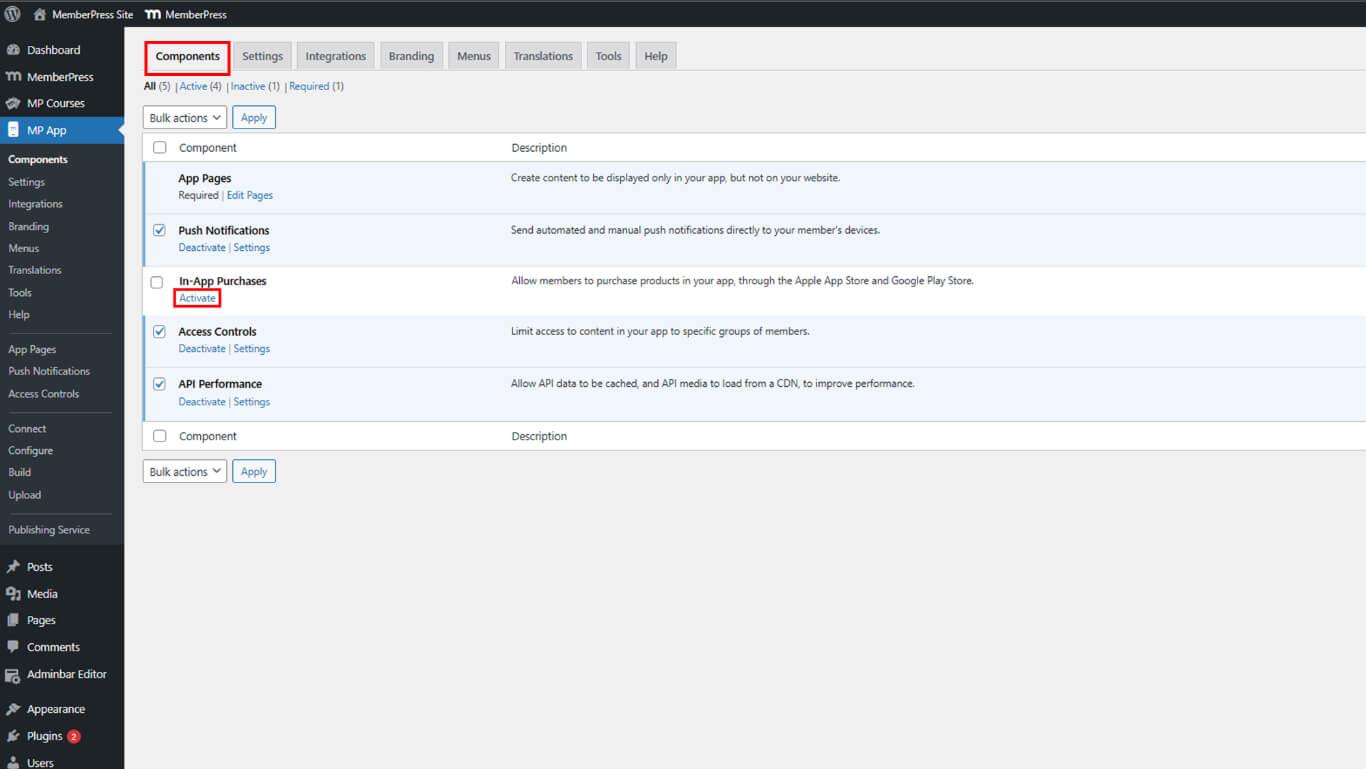
- Clique em Salvar alterações.
- Configure produtos in-app seguindo a documentação de compras in-app.
Geração de compilação de versão do Android
A geração de compilação de versão cria o pacote do aplicativo para envio ao Google Play.
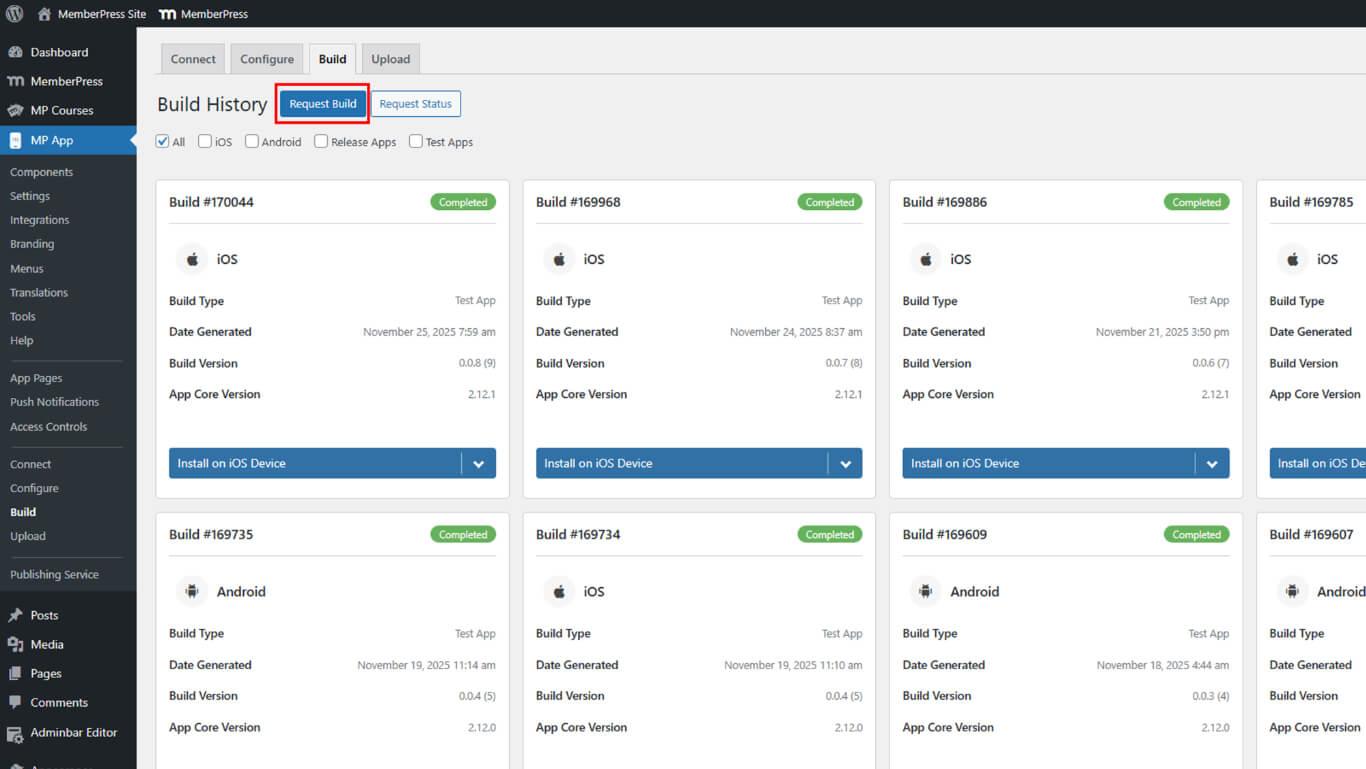
- Navegue até Painel de controle > MP AppKit > Construir.
- Clique no botão Solicitar compilação botão.
- Verifique o Android como a plataforma.
- Selecione Lançar aplicativo como o tipo de compilação.
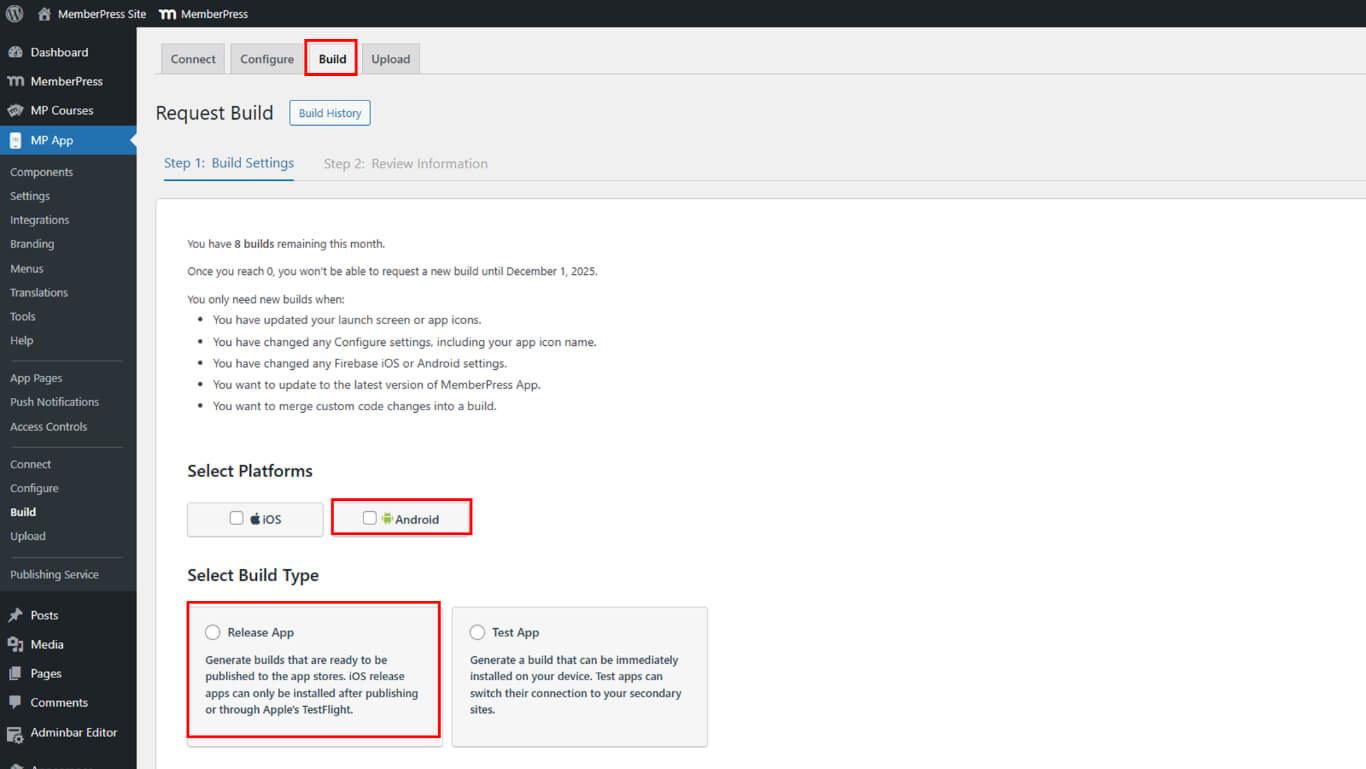
- Clique em Próximo para prosseguir com a configuração da compilação.
- Clique em Enviar solicitação de compilação para enviar a solicitação de compilação.
- Monitorar o progresso da construção em Histórico de construção.
- Aguarde o status de conclusão da compilação.
Normalmente, a conclusão da construção ocorre dentro de 5 a 10 minutos após o envio da solicitação.
Registro do ID do aplicativo
O registro do ID do aplicativo reserva o identificador no Google Play Console.
- Navegue até Painel de controle > MP AppKit > Configurar > Configurações do Android após a conclusão da construção.
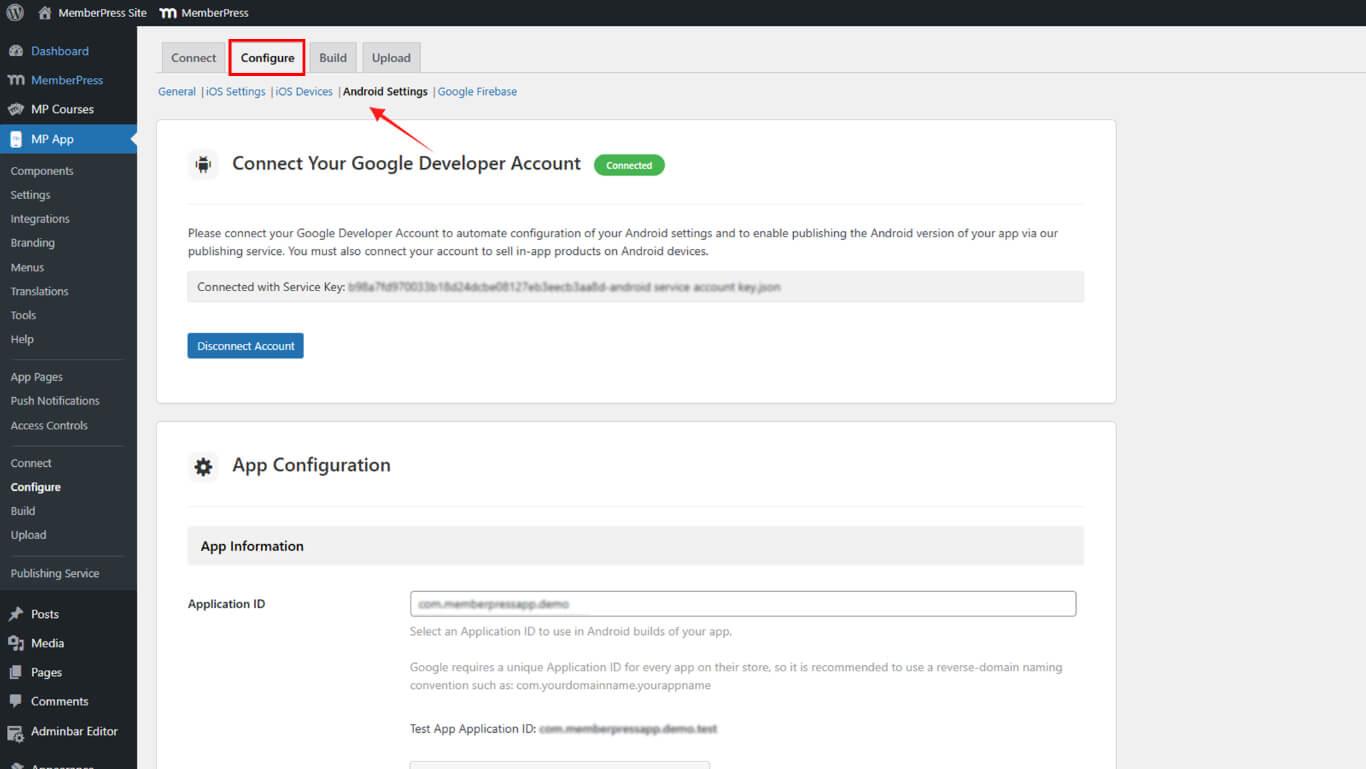
- Localize o ID do aplicativo campo.
- Revise o ID do aplicativo configurado.
- Faça o download do arquivo AAB em Histórico de construção.
- Faça login no Google Play Console em play.google.com/console.
- Navegue até Teste e liberação > Produção.
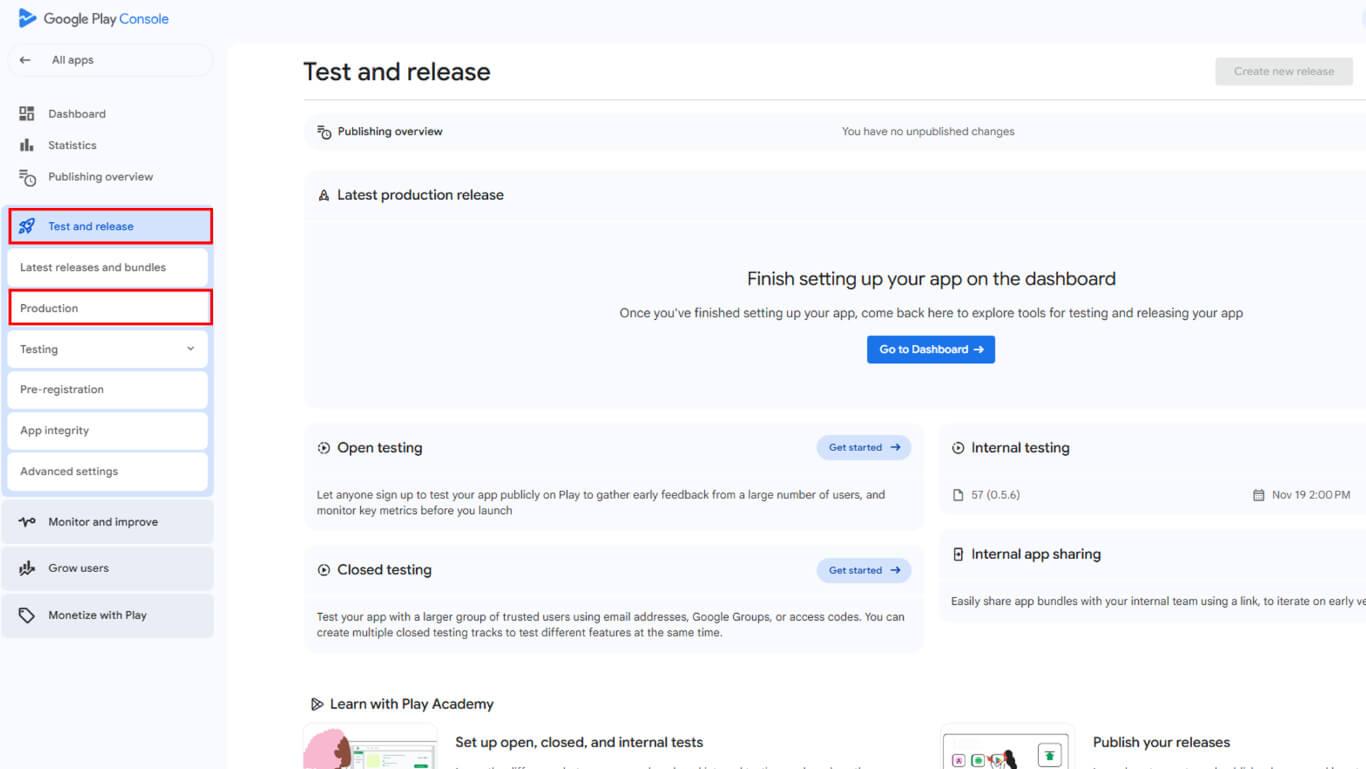
- Clique em Criar nova versão para iniciar a criação da versão.
- Carregue o arquivo AAB para registrar o ID do aplicativo.
- Clique em Salvar para finalizar o registro do Application ID.
O registro do ID do aplicativo evita conflitos de identificadores com outros aplicativos na Google Play Store.
Convite à equipe de publicação
O convite da Equipe de Publicação permite a revisão profissional e a assistência na submissão.
- Faça login no Google Play Console em play.google.com/console com sua conta de desenvolvedor.
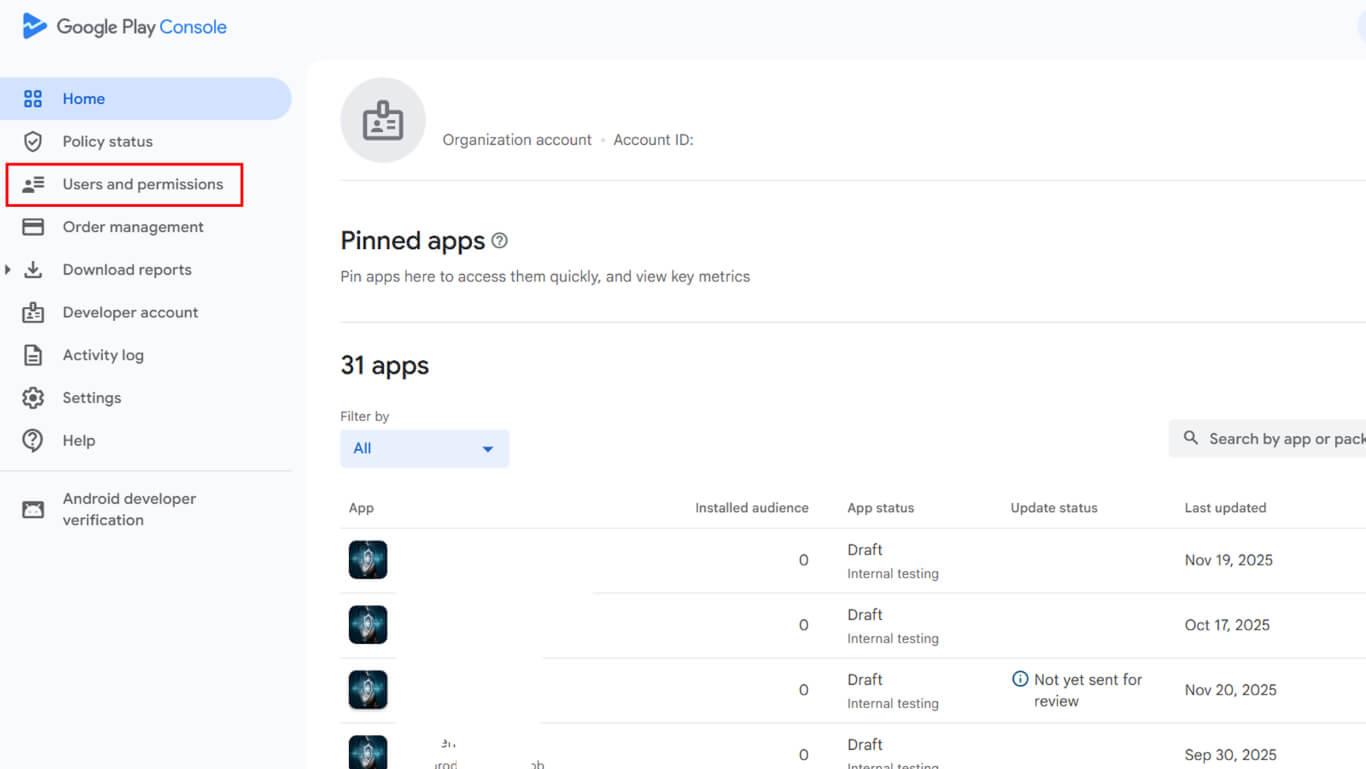
- Navegue até Usuários e permissões na barra lateral.
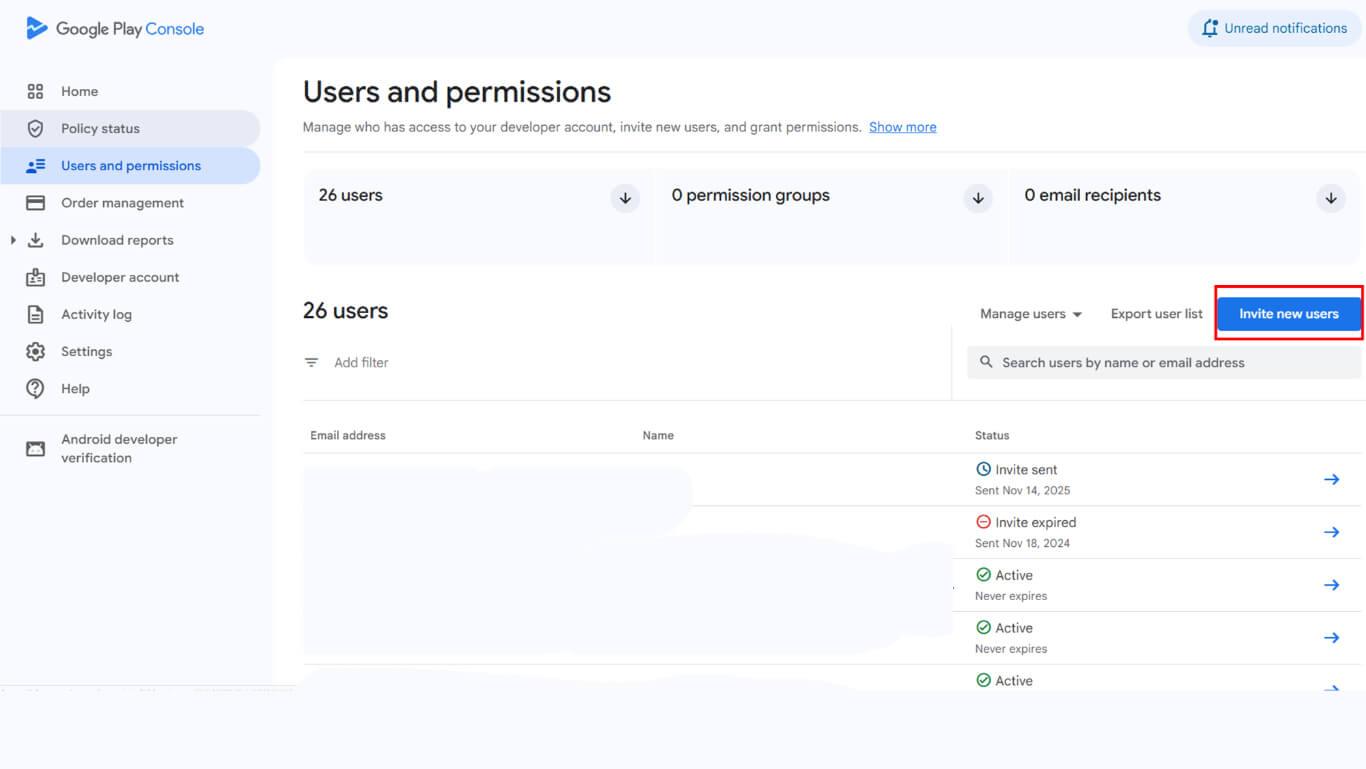
- Clique no botão Convidar novos usuários botão.
- Entrar appsup@memberpress.com no campo de endereço de e-mail.
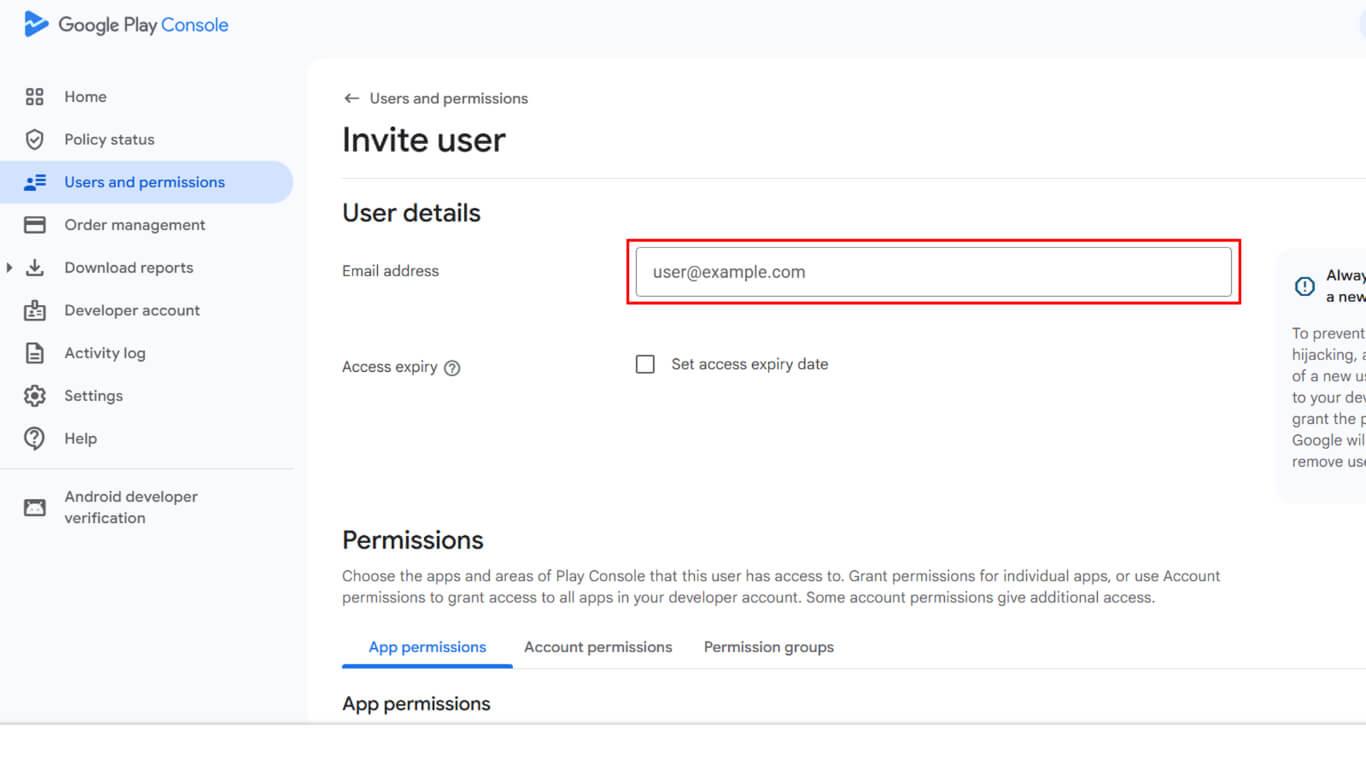
- Verifique o Acesso expirado está desmarcada.
- Navegue até a seção Adicionar aplicativo seção.
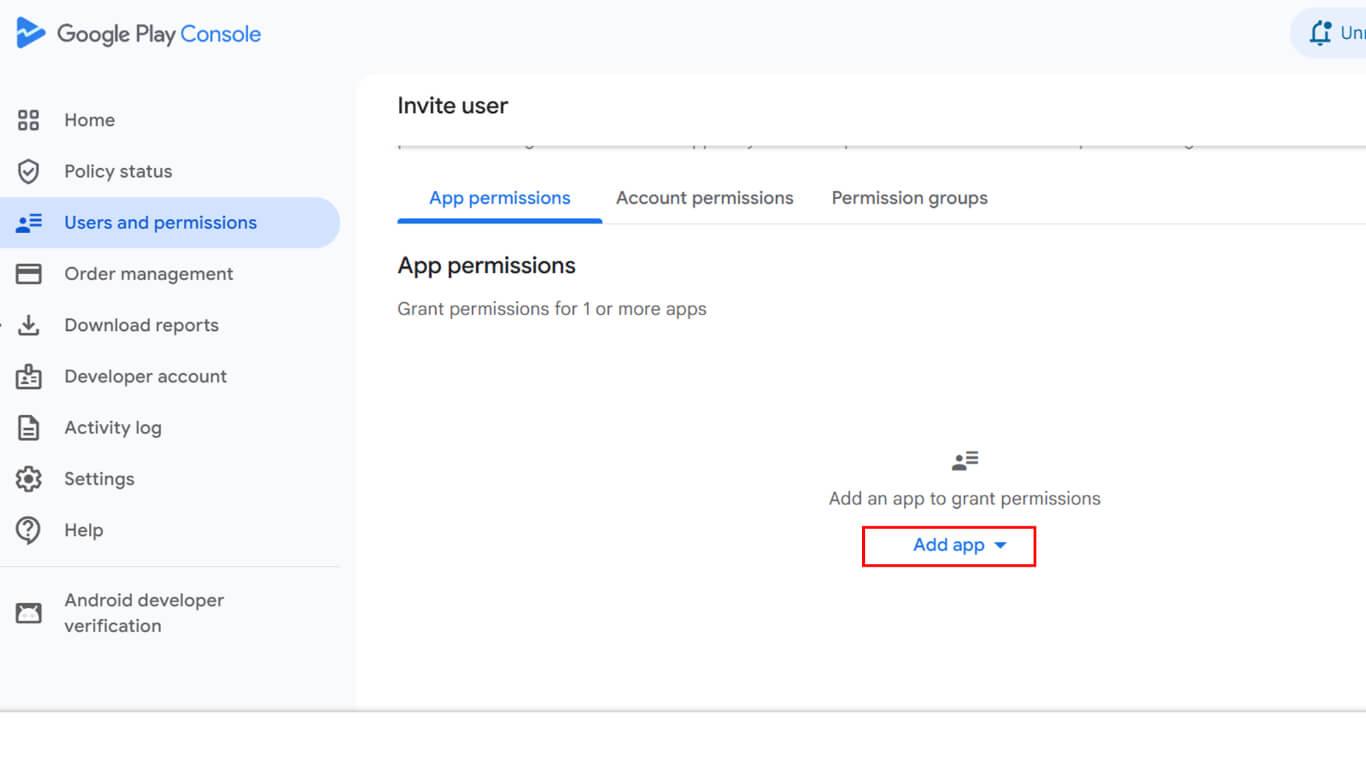
- Selecione o aplicativo na lista de aplicativos disponíveis.
- Selecione Administrador permissões para a equipe de publicação.
- Clique em Convidar usuário para enviar o convite.
Configuração do conteúdo do aplicativo
Em Painel de controle do Google Console > Monitorar e melhorar > Política e programas > Conteúdo do aplicativo:
- Política de privacidade - Digite um URL público válido e clique em Salvar.
- Acesso ao aplicativo - Se for necessário fazer login, forneça credenciais de teste e instruções para os revisores; caso contrário, selecione Acesso total.
- Anúncios - Declare se seu aplicativo contém anúncios.
- Classificação de conteúdo - Preencha o questionário e envie-o.
- Público-alvo - Selecione a faixa etária correta.
- Aplicativo de notícias - Indique se seu aplicativo se qualifica.
- Segurança de dados - Declare como você coleta, compartilha e protege os dados do usuário.
- Aplicativos governamentais - Marque como aplicável ou não.
- Recursos financeiros - Declare quaisquer serviços financeiros.
- Aplicativos de saúde - Declare quaisquer características relacionadas à saúde.
- Padrões de segurança para crianças - Forneça um link público, se necessário.
- ID de publicidade - Para aplicativos MemberPress, selecione Yes (Sim).
Configuração da listagem de lojas
A configuração da listagem da loja fornece informações e ativos do aplicativo exibidos para possíveis usuários na Google Play Store.
- Nome do aplicativo - Mantenha-o claro e sem símbolos.
- Descrição curta e completa - Resuma os recursos de forma clara.
- Ícone do aplicativo - 512×512 px, PNG/JPG.
- Gráfico de recursos - 1024×500 px, PNG/JPG.
- Capturas de tela - 2-8 por tipo de dispositivo, proporção 16:9 ou 9:16, PNG/JPG. Inclua capturas de tela do tablet, se aplicável.
Configuração da disponibilidade de países e regiões
A configuração de disponibilidade regional determina onde o aplicativo aparece nas listagens da Google Play Store.










 PT
PT  EN
EN  ES
ES  FR
FR  DE
DE 