

O complemento MemberPress AppKit leva os sites de associação do MemberPress para plataformas móveis, oferecendo aos membros acesso conveniente por meio de aplicativos iOS e Android. Para os clientes que preferem uma abordagem mais prática, o MemberPress oferece um serviço Done-For-You (DFY), no qual a equipe do MemberPress gerencia todo o processo de criação e configuração do aplicativo.
Para configurar notificações push e outros serviços em nuvem para o aplicativo móvel, a equipe da MemberPress precisa de acesso de proprietário ao projeto do Google Cloud Console. Este documento fornece instruções passo a passo para conceder à MemberPress as permissões necessárias.
Entendendo as funções do Google Cloud IAM
O Google Cloud usa o Gerenciamento de Identidade e Acesso (IAM) para controlar o acesso aos recursos. As principais funções relevantes para essa configuração são:
- Proprietário: Acesso total a todos os recursos e configurações, incluindo a capacidade de gerenciar permissões IAM;
- Editor: Editar acesso a todos os recursos, mas não pode gerenciar permissões IAM;
- Visualizador: Acesso somente leitura a todos os recursos.
A equipe MemberPress requer o Proprietário função para configurar o Firebase, notificações push e outros serviços para o aplicativo móvel.
Pré-requisitos
Antes de prosseguir, os seguintes requisitos devem ser atendidos:
- Um ativo Projeto Google Cloud;
- Acesso de proprietário ou administrador IAM ao projeto do Google Cloud Console.
Concedendo acesso de proprietário MemberPress
- Navegue até a seção Console do Google Cloud e faça login com o Organização Credenciais do proprietário (o usuário que criou a organização).
- Na barra superior, a partir do menu suspenso do projeto, selecione o projeto associado ao aplicativo móvel.
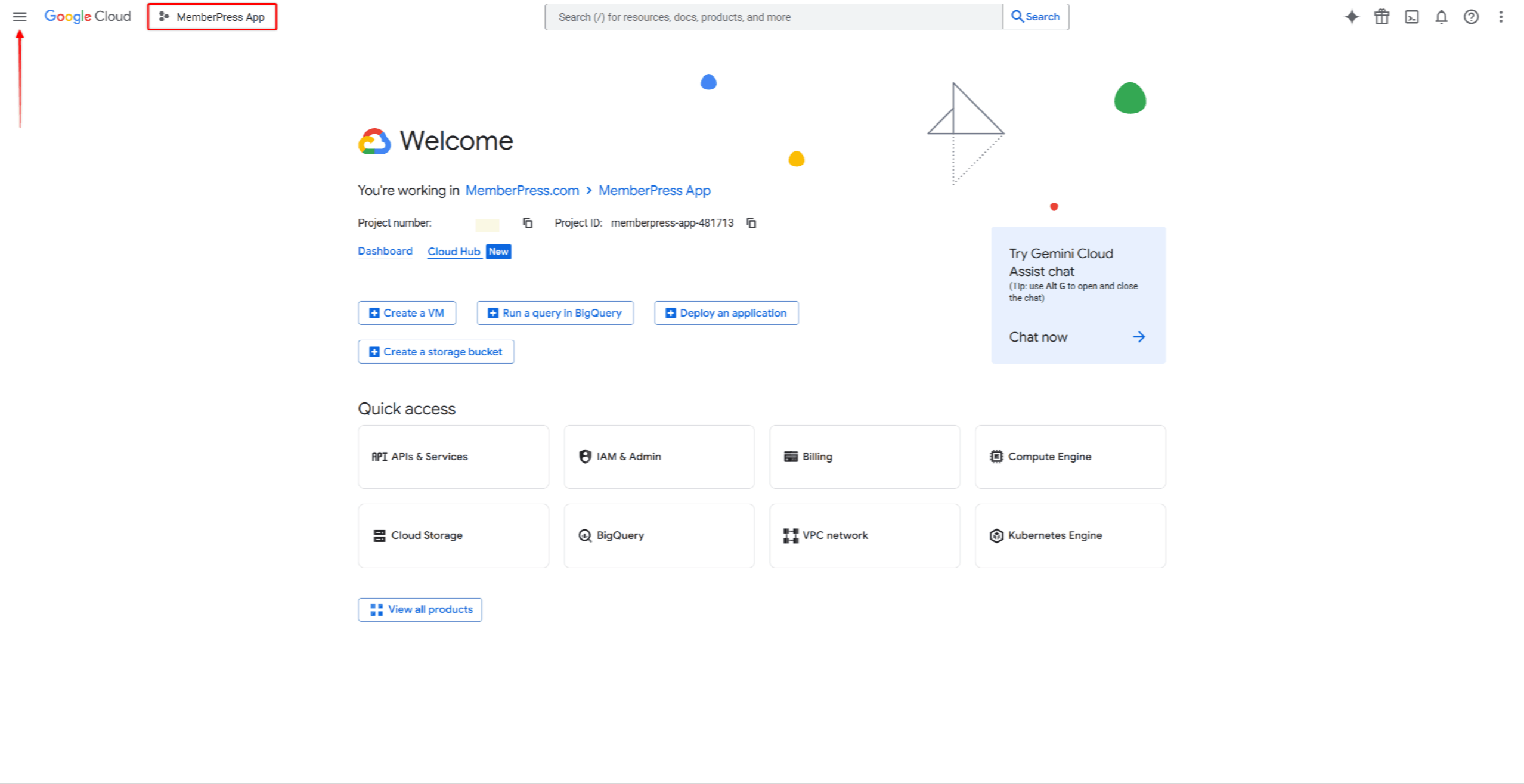
- Em seguida, clique no ícone de hambúrguer para abrir o menu de navegação.
- No menu de navegação à esquerda, clique em IAM e Administração.
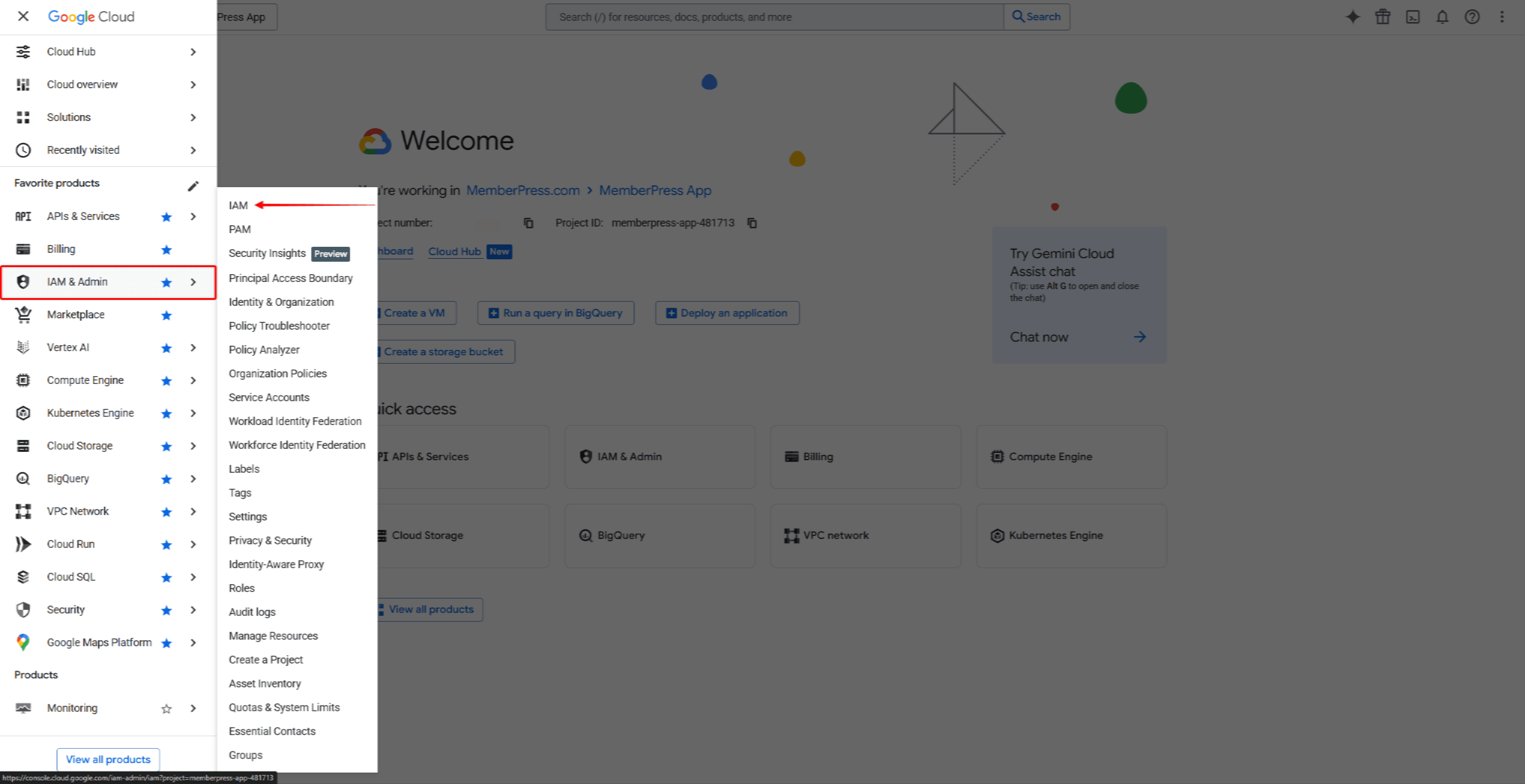
- Clique em IAM no submenu.
- Clique no botão Conceder acesso botão na parte superior da página.

- No Novos diretores campo, insira: appsup@memberpress.com
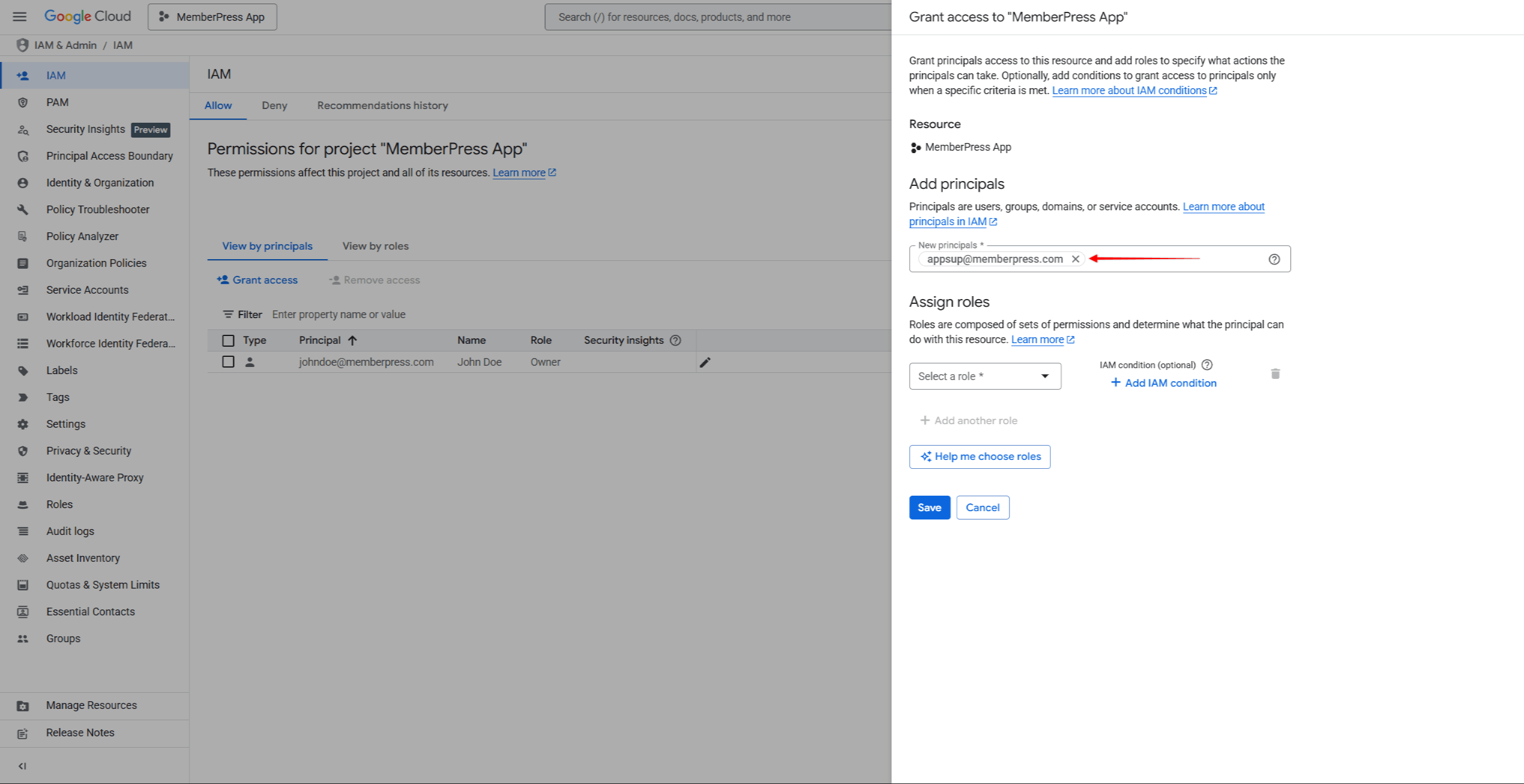
- Clique no botão Selecione uma função menu suspenso. Selecione Proprietário do Básico categoria de funções ou pesquise o termo “Proprietário” no campo de pesquisa.

- Clique em Salvar para conceder as permissões.
O A equipe MemberPress receberá automaticamente uma notificação por e-mail. sobre o acesso concedido. O as permissões entram em vigor imediatamente.
Observações importantes
- A função de Proprietário concede acesso total a todos os recursos do projeto, incluindo a capacidade de gerenciar as permissões de outros usuários.
- Ao contrário dos convites no App Store Connect e no Google Play Console, as permissões do Google Cloud IAM não exigem aceitação. O acesso é concedido imediatamente após o salvamento.
- O acesso concedido não expira, a menos que seja revogado manualmente.
Verificando o acesso
Após conceder acesso, verifique se a equipe MemberPress aparece na lista de membros do IAM.
- Voltar para IAM e Admin > IAM no Google Cloud Console.
- Procure por appsup@memberpress.com na lista de membros.
- Verifique se o Proprietário função está listada no Função coluna.
Solução de problemas
- O botão “Grant Access” (Conceder acesso) não está visível ou está desativado: Verifique se a conta que está sendo usada tem permissões de proprietário ou administrador do IAM no projeto. Somente usuários com essas funções podem gerenciar permissões do IAM.
- O endereço de e-mail não foi aceito.Certifique-se de que inseriu o endereço de e-mail correto (appsup@memberpress.comO e-mail deve estar associado a uma conta Google válida.
- O projeto não está visível no seletor de projetos: Verifique se a conta tem acesso ao projeto. Se o projeto foi criado em uma conta diferente, solicite acesso ao proprietário do projeto.
- A função de proprietário não está visível no seletor de funções: Percorra a lista de funções ou utilize a função de pesquisa. O Proprietário A função está listada em Básico funções. Observe que algumas políticas da organização podem restringir a concessão da função de Proprietário.
Revogação do acesso
Após a conclusão do serviço DFY, o acesso pode ser revogado, se desejado.
- Navegue até a seção Console do Google Cloud e faça login.
- Selecione o projeto no menu suspenso do projeto.
- Na barra lateral esquerda, clique em IAM e Admin > IAM.
- Encontre o appsup@memberpress.com entrada na lista de membros.
- Clique no botão Editar principal ícone (lápis) ao lado da entrada.
- Clique no botão Excluir ícone ao lado do Proprietário função.
- Clique em Salvar para remover as permissões.
Como alternativa, para remover todo o acesso:
- Encontre o appsup@memberpress.com entrada na lista de membros.
- Marque a caixa de seleção ao lado da entrada.
- Clique em Remover acesso na parte superior da página.
- Confirmar a remoção na caixa de diálogo.










 PT
PT  EN
EN  ES
ES  FR
FR  DE
DE 