

Die MemberPress-Erweiterung „Kursquizze“ speichert alle Ihre Quizfragen in einer gemeinsamen Bibliothek. Jede Frage, die Sie in einem beliebigen Quiz erstellen, steht Ihnen auf Ihrer gesamten Website zur Wiederverwendung zur Verfügung.
In diesem Dokument wird erläutert, wie Sie Ihre Fragenbibliothek auf dem Bildschirm „Fragen“ verwalten können. Es behandelt die Wiederverwendung von Fragen in verschiedenen Quizzen sowie das Hinzufügen von Tags, das Archivieren und das Löschen von Fragen. Außerdem wird die einmalige Nachvervollständigung erläutert, die nach der Aktualisierung der Add-ons erforderlich ist.
Für diese Funktionen sind die neuesten Versionen der MemberPress-Kurse sowie die Add-ons „Course Quizzes“. Aktualisieren Sie bei der Aktualisierung immer zuerst das Add-on „MemberPress Courses“.
Der Fragenbildschirm
Auf dem Bildschirm „Fragen“ werden alle Quizfragen Ihrer Website aufgelistet. Um darauf zuzugreifen, navigieren Sie zu Dashboard > MP-Kurse > Fragen.
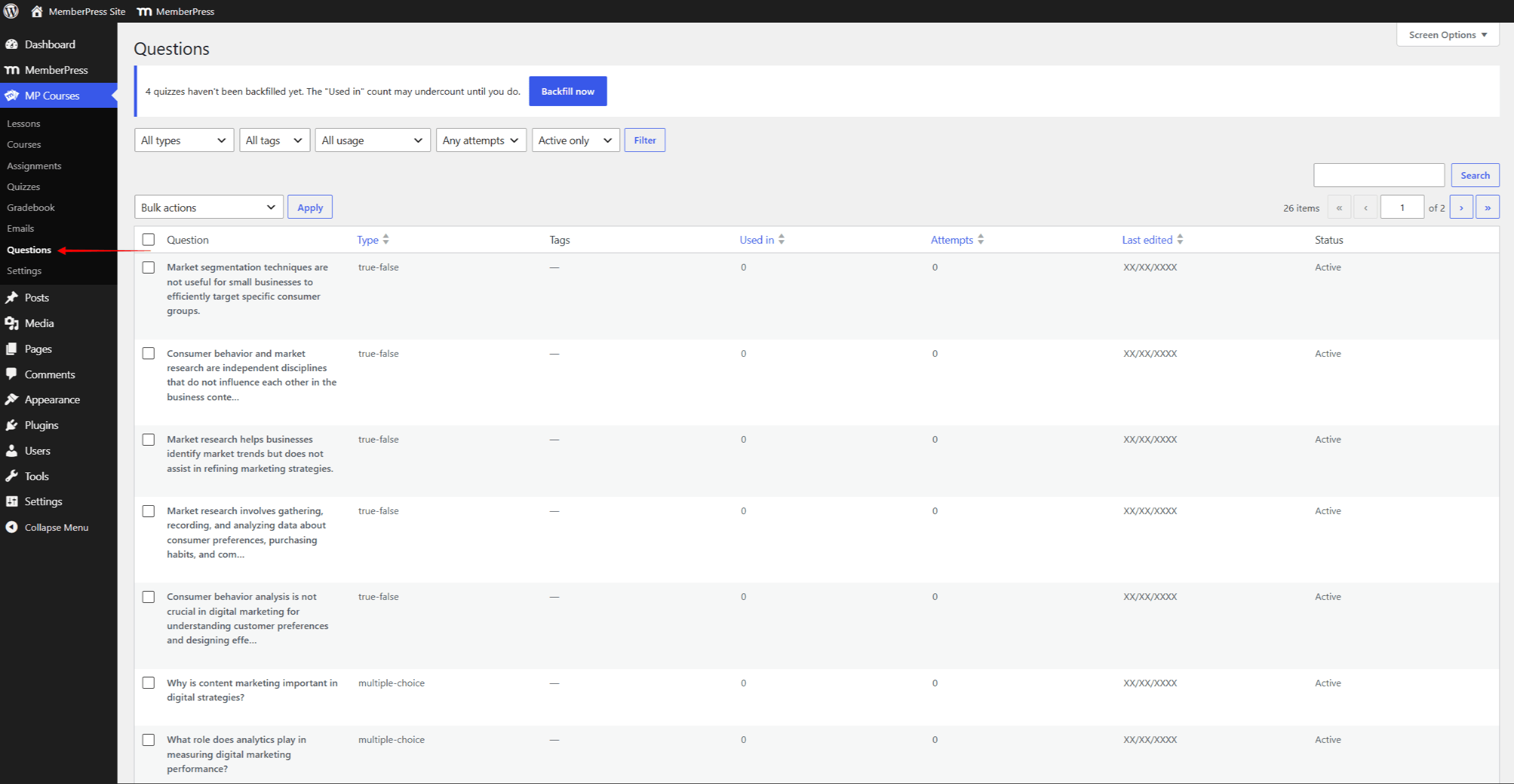
Die Liste enthält für jede Frage die folgenden Spalten:
- Frage: Der Fragetext;
- Typ: der Fragetyp (z. B. Multiple-Choice, Freitext);
- Tags: alle der Frage zugewiesenen Tags;
- Verwendung: die Anzahl der Quizze, in denen die Frage direkt gestellt wird;
- Versuche: die Anzahl der abgegebenen Quizversuche, die diese Frage enthalten;
- Zuletzt bearbeitet: das Datum der letzten Änderung der Frage;
- Status: Gibt an, ob die Frage aktiv oder archiviert ist.
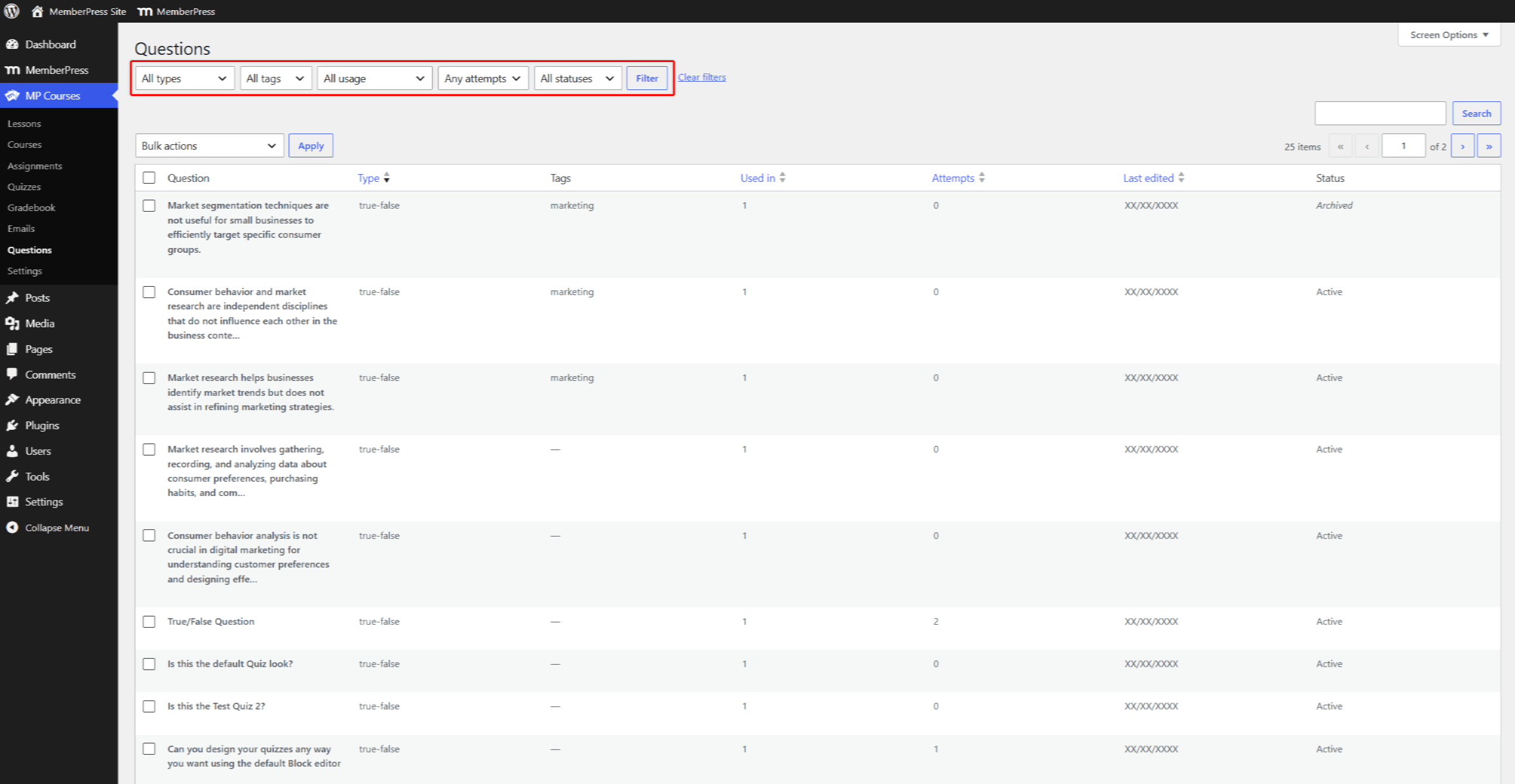
Sie können die Liste sortieren, indem Sie auf das Typ, Verwendet in, Versucheund Zuletzt bearbeitet Spaltenüberschriften. Außerdem verfügt die Seite über ein Suchfeld und Filter. Mit den Filtern können Sie die Liste nach Fragetyp, Tag, Nutzung, Versuchen und Status eingrenzen.
Um eine Frage zu bearbeiten, bewegen Sie den Mauszeiger darüber und klicken Sie auf die “Im Quiz bearbeiten” Link. Dadurch wird das Quiz mit der entsprechenden Frage im Quiz-Editor geöffnet. Fragen, die keinem Quiz zugeordnet sind, verfügen nicht über einen Bearbeitungslink.
Sie können diese Fragen weiterhin bearbeiten, indem Sie sie einem beliebigen Quiz hinzufügen. Fügen Sie die Frage einem Quiz hinzu, bearbeiten Sie sie und speichern Sie das Quiz. Entfernen Sie anschließend den Fragenblock aus dem Quiz und speichern Sie das Quiz erneut. Ihre Änderungen bleiben erhalten.
Fragen zur Tag-Vergabe
Mithilfe von Tags lassen sich die Fragen in Ihrer Bibliothek in Gruppen einteilen, beispielsweise nach Thema oder Schwierigkeitsgrad. Der Block „Fragenbank“ nutzt Tags, um seine zufälligen Fragenpools zusammenzustellen.
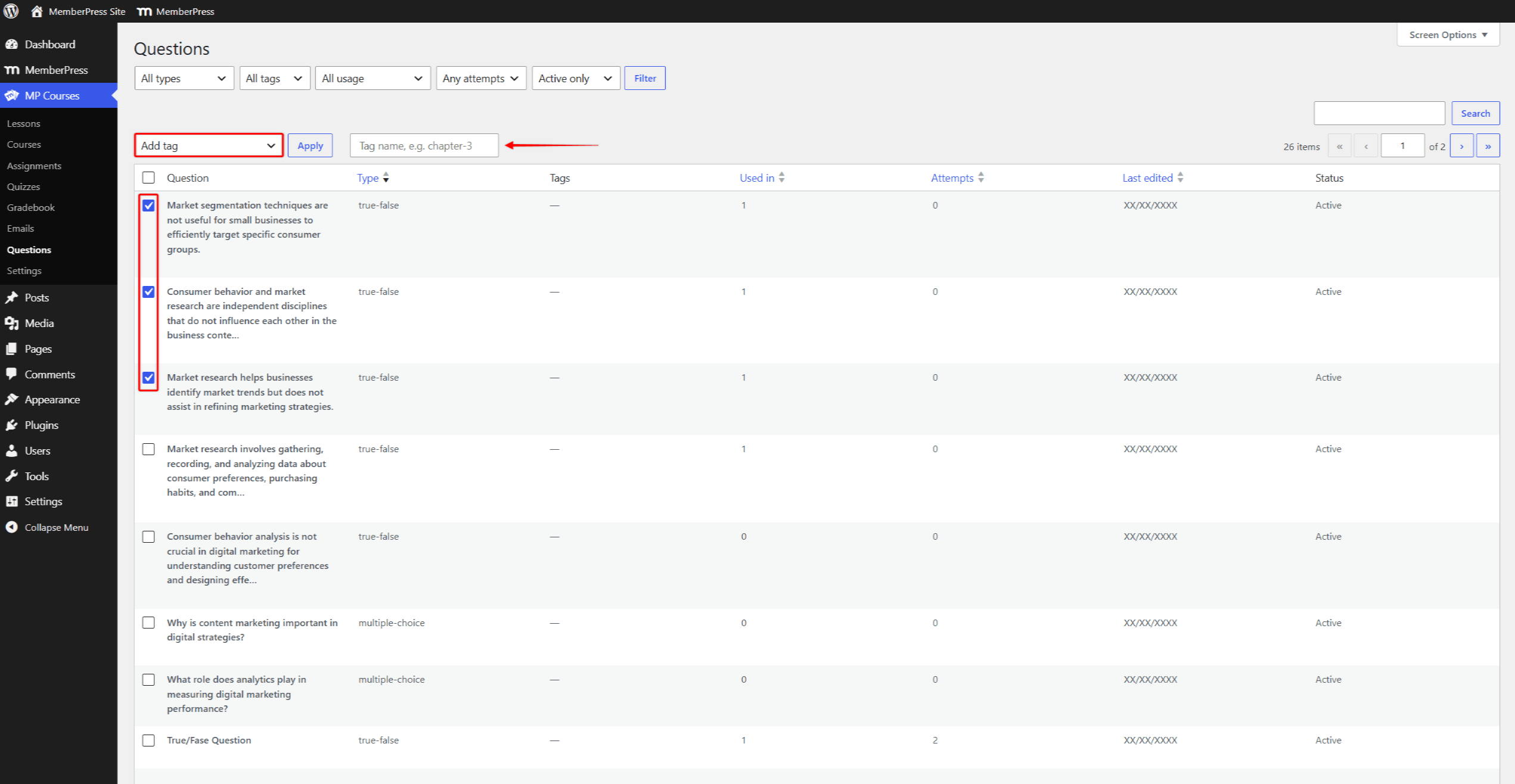
Sie können jede Frage einzeln in den Blockeinstellungen im Quiz-Editor kennzeichnen. Alternativ können Sie auf dem Bildschirm „Fragen“ mehrere Fragen gleichzeitig kennzeichnen:
- Navigieren Sie zu Dashboard > MP-Kurse > Fragen.
- Aktivieren Sie die Kontrollkästchen neben den Fragen, die Sie mit Tags versehen möchten.
- Öffnen Sie die Massenaktionen Dropdown-Menü und wählen Sie die “Tag hinzufügen” Option. Dadurch wird das Tag-Feld neben der Dropdown-Liste angezeigt.
- Geben Sie den Tag-Namen ein im Feld und klicken Sie auf die Schaltfläche Bewerbung Schaltfläche. Das Tag wird allen ausgewählten Fragen hinzugefügt.
Fragen in verschiedenen Quizzen wiederverwenden
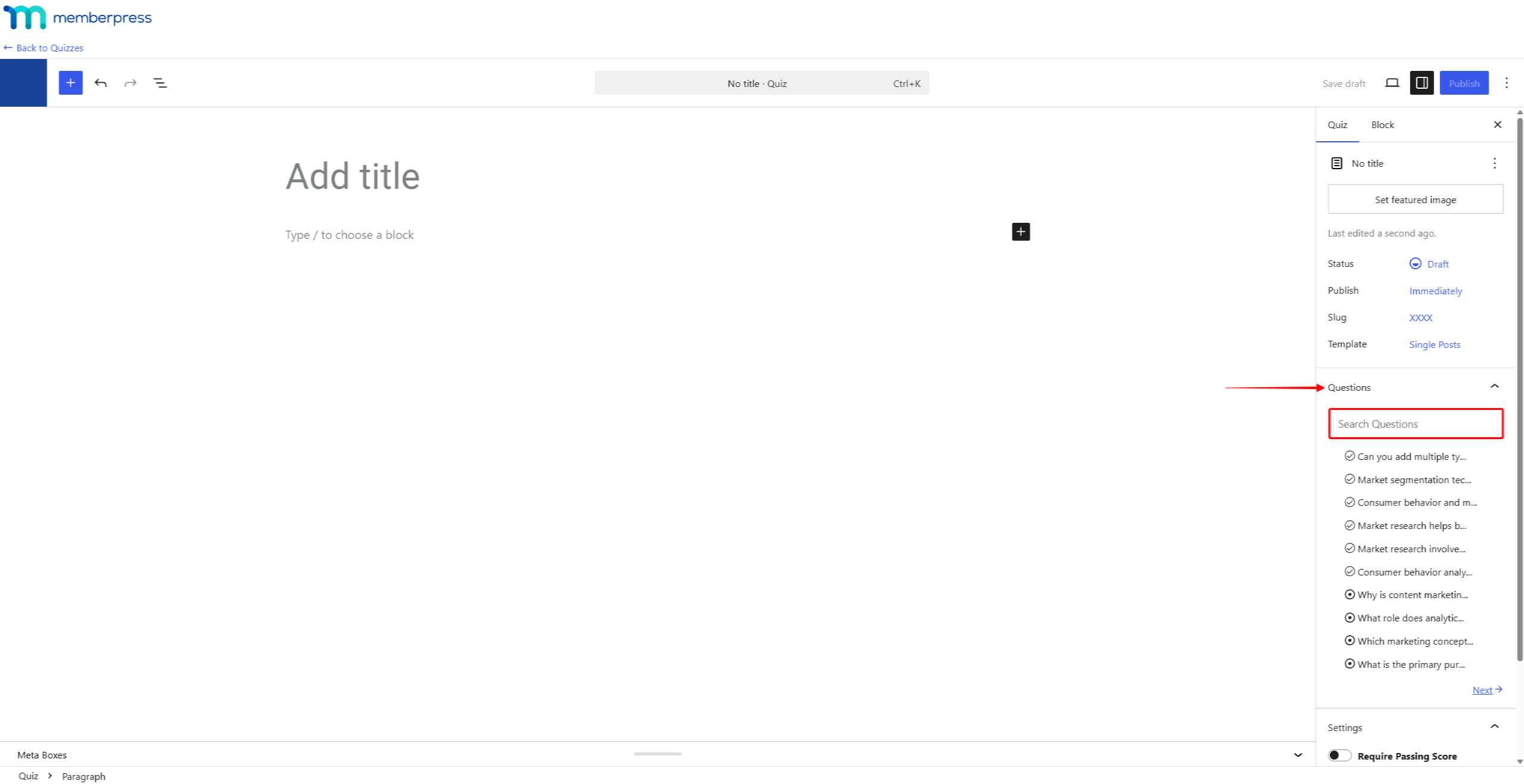
Sie können jede vorhandene Frage wiederverwenden, wenn Quizze erstellen oder bearbeiten. Der Quiz-Editor bietet die Fragen Bereich in der rechten Seitenleiste. In diesem Bereich werden alle Fragen auf Ihrer Website aufgelistet; außerdem gibt es ein Suchfeld und eine Seitennavigation.
Wenn Sie mit der Maus über eine Frage im Fenster fahren, werden drei Symbole angezeigt. Das erste Symbol blendet den vollständigen Text der Frage ein. Durch erneutes Klicken wird die Frage wieder ausgeblendet. Mit den beiden anderen Symbolen fügen Sie die Frage zu dem Quiz hinzu, das Sie gerade bearbeiten:
- “Anhängen” (das Plus-Symbol): Fügt die vorhandene Frage zum Quiz hinzu. Die Frage bleibt in allen Quizzen, denen sie zugeordnet ist, gemeinsam verfügbar;
- “Duplikat” (das Kopiersymbol): Erstellt eine eigenständige Kopie der Frage und fügt die Kopie dem Quiz hinzu.
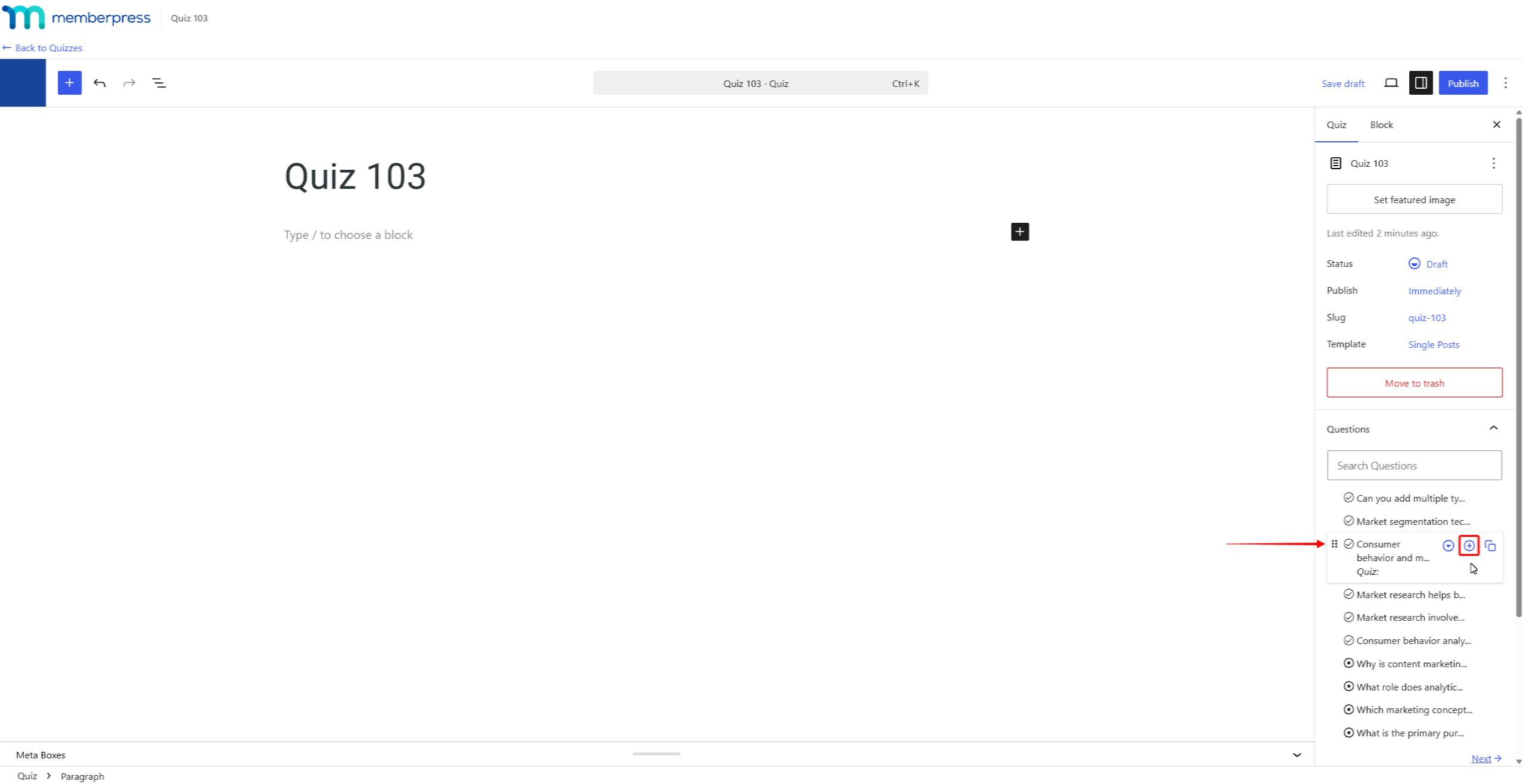
Fragen, die in keinem Quiz verwendet werden, zeigen ebenfalls die “Löschen” Option (das Papierkorbsymbol). Mit dieser Option wird die Frage endgültig von Ihrer Website entfernt.
Wenn Sie eine verknüpfte Frage bearbeiten, werden Ihre Änderungen auf alle Quizze angewendet, mit denen sie verknüpft ist. Der Quiz-Editor zeigt bei jeder verknüpften Frage einen Hinweis an, der die Anzahl der verbundenen Quizze angibt. Im Gegensatz dazu werden durch die Bearbeitung einer duplizierten Frage nur die Änderungen an dieser Kopie übernommen.
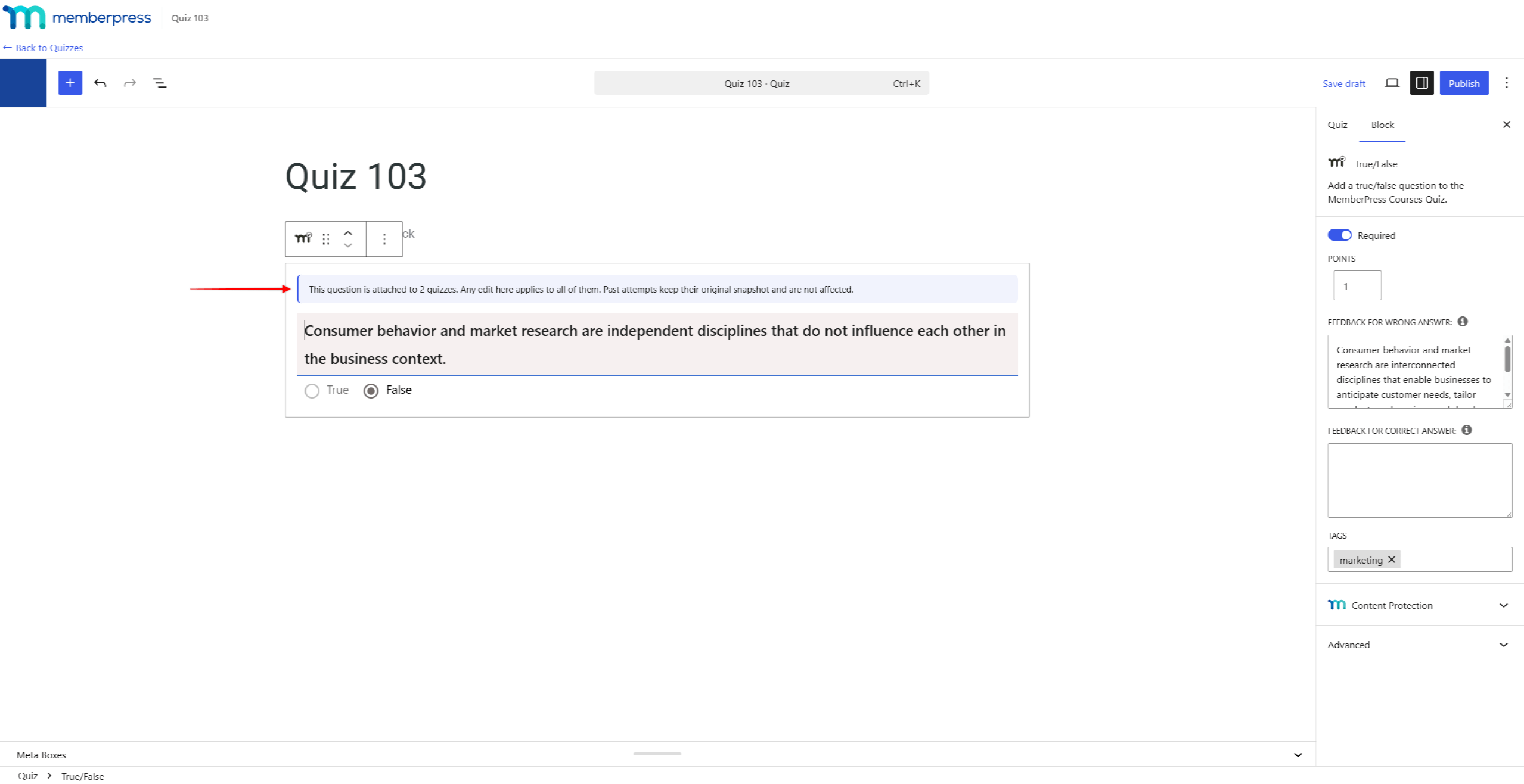
Das Bearbeiten gemeinsam genutzter Fragen hat keinerlei Auswirkungen auf die eingereichten Antworten Ihrer Studierenden. Bei früheren Antworten werden die Fragen immer so angezeigt, wie sie zum Zeitpunkt der Einreichung erschienen sind. Dies gilt auch, wenn Bewertung der eingereichten Versuche im Notenbuch.
Fragen archivieren und löschen
Im Laufe der Zeit verlieren manche Fragen ihre Aktualität. Sie können diese Fragen durch Archivierung außer Betrieb nehmen oder nicht mehr verwendete Fragen endgültig löschen.
Fragen zur Archivierung
Durch das Archivieren wird eine Frage für die zukünftige Verwendung deaktiviert. Archivierte Fragen werden aus dem Fragenbereich im Quiz-Editor und aus allen Fragenpools der Fragenbank entfernt. Daher können sie nicht mehr neuen Quizzen hinzugefügt oder in neue Durchläufe übernommen werden.
Um eine Frage zu archivieren, bewegen Sie den Mauszeiger auf dem Bildschirm „Fragen“ über die Frage und klicken Sie auf die Archiv Link. Um eine archivierte Frage wiederherzustellen, verwenden Sie den Aus dem Archiv entfernen Link. Beide Aktionen sind auch als Massenaktionen verfügbar.
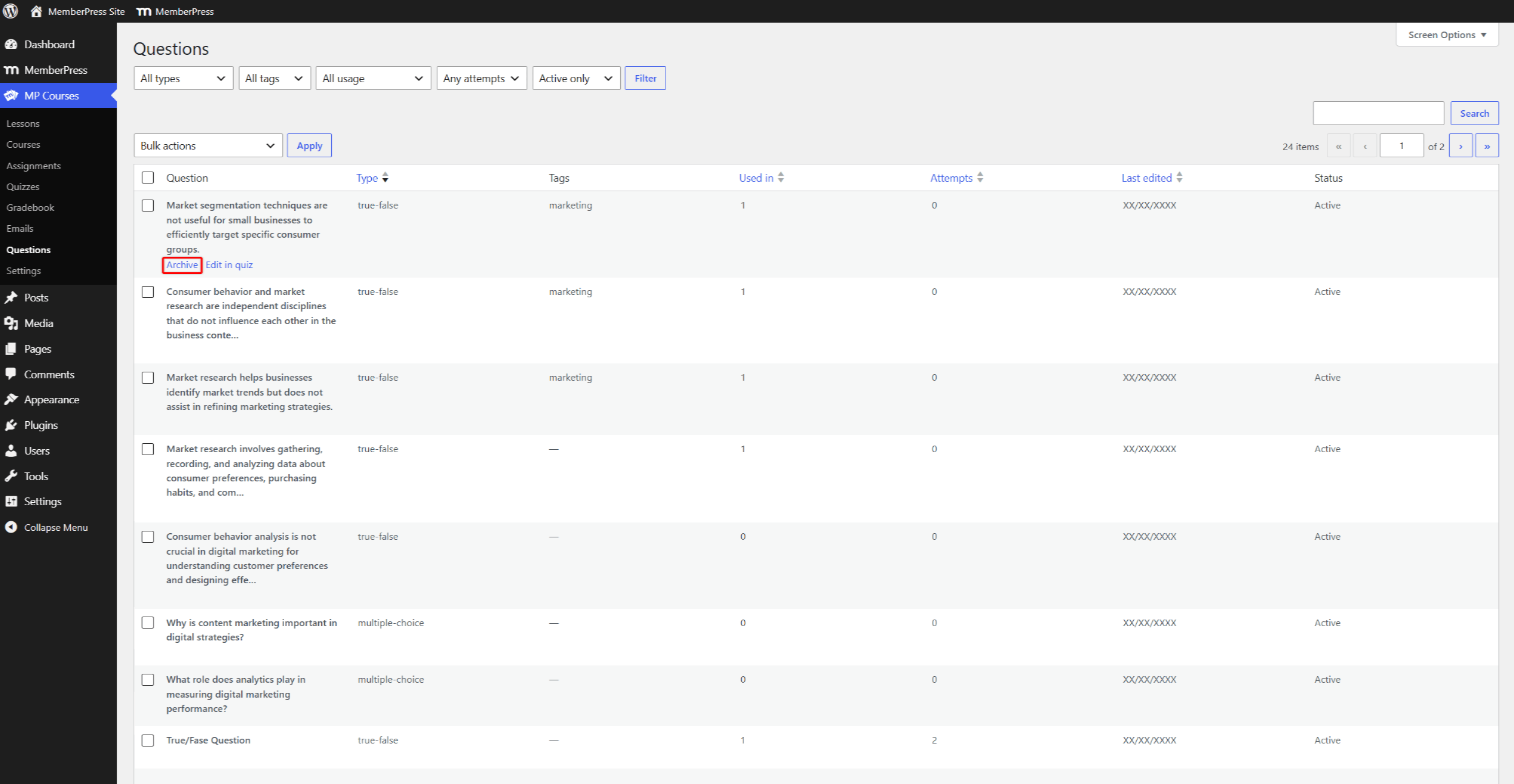
Standardmäßig werden auf dem Bildschirm „Fragen“ nur aktive Fragen angezeigt. Um archivierte Fragen zu finden, stellen Sie den Filter „Status“ auf “Nur archiviert” oder “Alle Status” Option.
Fragen löschen
Durch das Löschen wird eine Frage endgültig von Ihrer Website entfernt. Zum Schutz Ihrer Daten erlaubt MemberPress nur das Löschen von Fragen, die nicht in Gebrauch sind. Eine Frage kann nur gelöscht werden, wenn sie in keinem Quiz enthalten ist und keine eingereichten Antworten vorliegen.
Um eine nicht verwendete Frage zu löschen, bewegen Sie den Mauszeiger darüber und klicken Sie auf die Schaltfläche Löschen Link. Aktive Fragen zeigen diesen Link nicht an und können nur archiviert werden.
Die “Endgültig löschen (nur sicher)” Mit der Massenaktion werden alle ausgewählten, nicht verwendeten Fragen auf einmal gelöscht. Ausgewählte Fragen, die noch verwendet werden, werden übersprungen und in einer Meldung aufgeführt.
Nachvervollständigung von Fragen nach der Aktualisierung
Nach dem Update auf die Add-on-Versionen mit der gemeinsamen Fragenbibliothek müssen bestehende Quizze einmalig nachgetragen werden. Durch das Nachtragen werden Ihre bestehenden Fragen mit der neuen Bibliothek verknüpft. Dabei werden weder Quizinhalte noch Versuche verschoben oder gelöscht.
Solange ein Quiz noch nicht vervollständigt ist, werden die Fragen möglicherweise mit einer niedrigeren Verwendet in Anzahl. Auf dem Bildschirm „Fragen“ wird ein Hinweis mit der Anzahl der ausstehenden Quizze angezeigt:
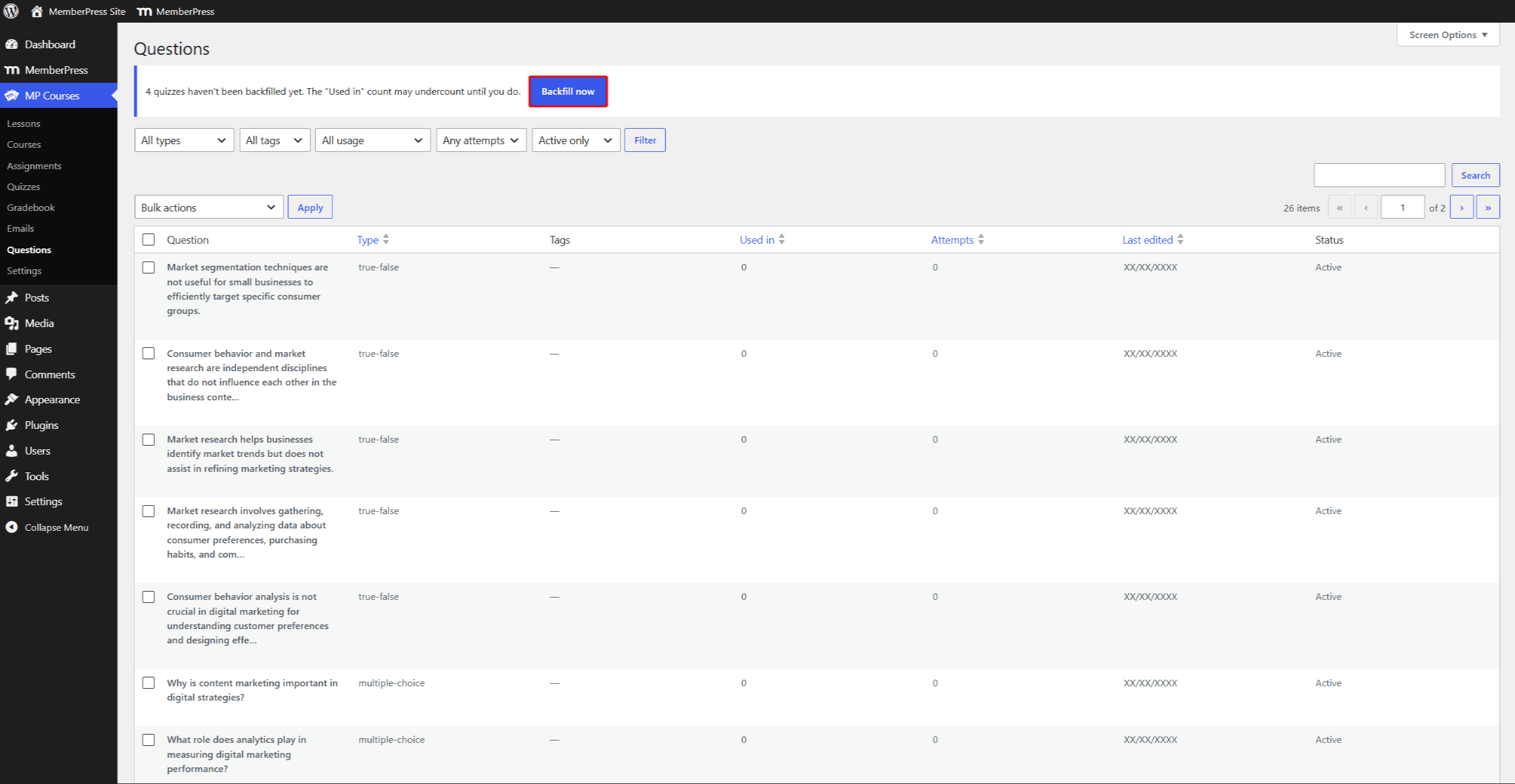
- Navigieren Sie zu Dashboard > MP-Kurse > Fragen.
- Klicken Sie auf die “Jetzt verfüllen” Schaltfläche in der Mitteilung.
- Lassen Sie die Seite geöffnet während die Verfüllung läuft. In der Anzeige wird kurz der Fortschritt der Verfüllung angezeigt.
- Sobald der Vorgang abgeschlossen ist, verschwindet die Meldung. Auf Websites mit vielen Quizzen kann es etwas länger dauern, bis die Daten wiederhergestellt sind.
Einzelne Quizze werden ebenfalls automatisch nachgetragen, wenn Sie sie im Quiz-Editor öffnen oder speichern.
Doppelte Fragen in der Bibliothek
Nach dem Update werden auf dem Bildschirm „Fragen“ möglicherweise mehrere Kopien derselben Frage angezeigt. In früheren Versionen des Add-ons wurde bei der Wiederverwendung einer Frage immer eine Kopie erstellt. Alle diese vorhandenen Kopien bleiben als separate Fragen erhalten.
Sie können die Bibliothek aufräumen, indem Sie die nicht benötigten Kopien archivieren oder löschen. Kopien, die in keinem eingereichten Versuch verwendet wurden, können bedenkenlos gelöscht werden. Verwenden Sie künftig die “Anhängen” Möglichkeit, Fragen wiederzuverwenden, ohne Kopien zu erstellen.
Nützlicher Blogbeitrag
Einen Überblick über die Vorteile der Nutzung der MemberPress-Quizzes-Fragenbank finden Sie in unserem entsprechenden Blogbeitrag: MemberPress-Fragenbank: Eine intelligentere Methode zum Erstellen und Verwalten von Quizzen.










 DE
DE  EN
EN  ES
ES  FR
FR  PT
PT 