

Der Blog Posts AppKit-Block zeigt ausgewählte WordPress-Bloginhalte in einem Karussell auf benutzerdefinierten App-Seiten an. Dieser Block bewirbt Artikel und bietet direkten Zugriff auf den Blog innerhalb der MemberPress Mobile App.
In diesem Dokument wird erklärt, wie Sie den Blog-Posts-Block hinzufügen, sein Design anpassen, Inhalte filtern und eine Vorschau des Layouts anzeigen.
Den Blogpost-Block verstehen
Der Blog Posts-Block erstellt scrollbare Karussells mit Blog-Inhalten auf App-Seiten. Der Block unterstützt die Filterung nach Kategorien, Tags, Autoren oder Datum. Bestimmte Beiträge können manuell zur Anzeige ausgewählt werden. Das Karussellformat fördert die Entdeckung von Inhalten durch horizontales Swipen.
Hinzufügen des Blog-Blocks
Sie können die App-Seiten mit dem blockbasierten (Gutenberg) App Pages Editor:
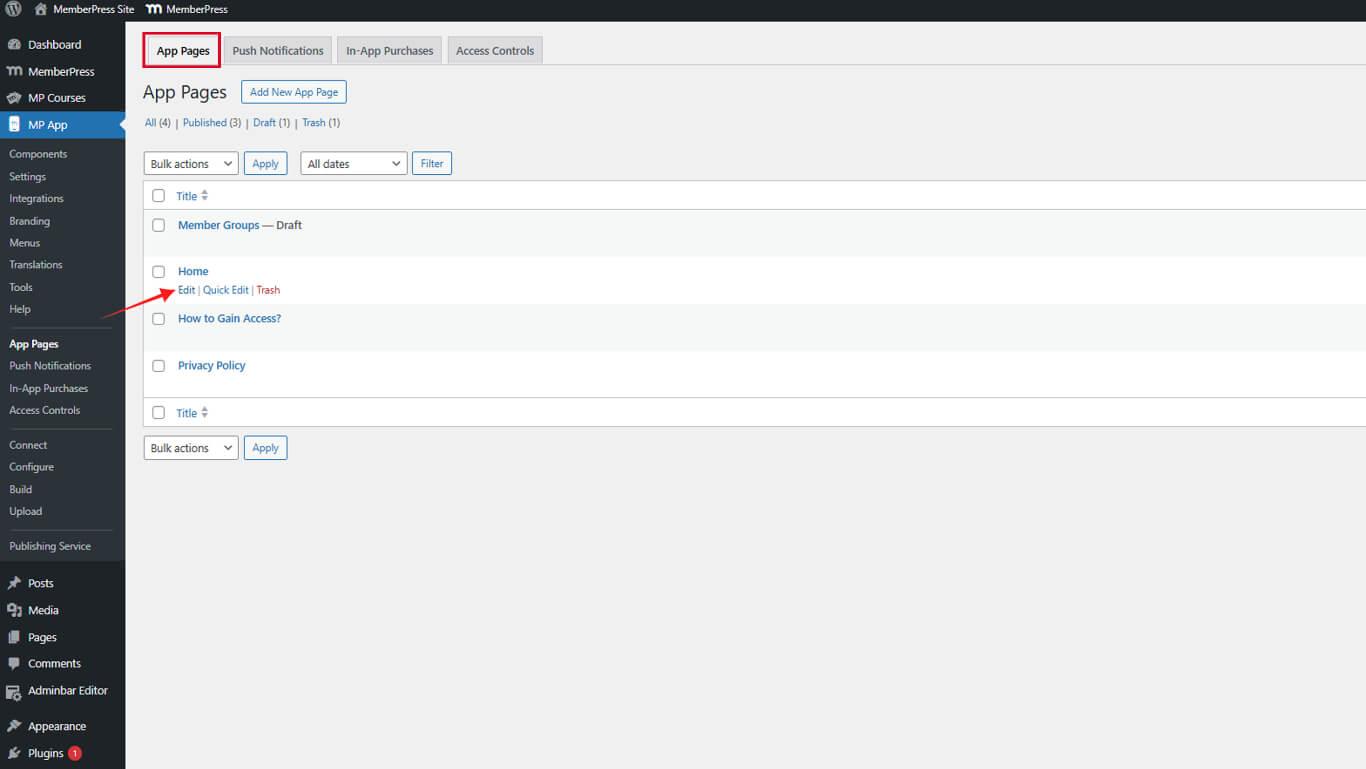
- Navigieren Sie zu Dashboard > MP AppKit > App-Seiten.
- Suchen Sie die App-Seite wo Sie den Blog-Posts-Block hinzufügen möchten.
- Bewegen Sie den Mauszeiger über den Namen der Anwendungsseite, um weitere Optionen anzuzeigen, und klicken Sie auf bearbeiten.
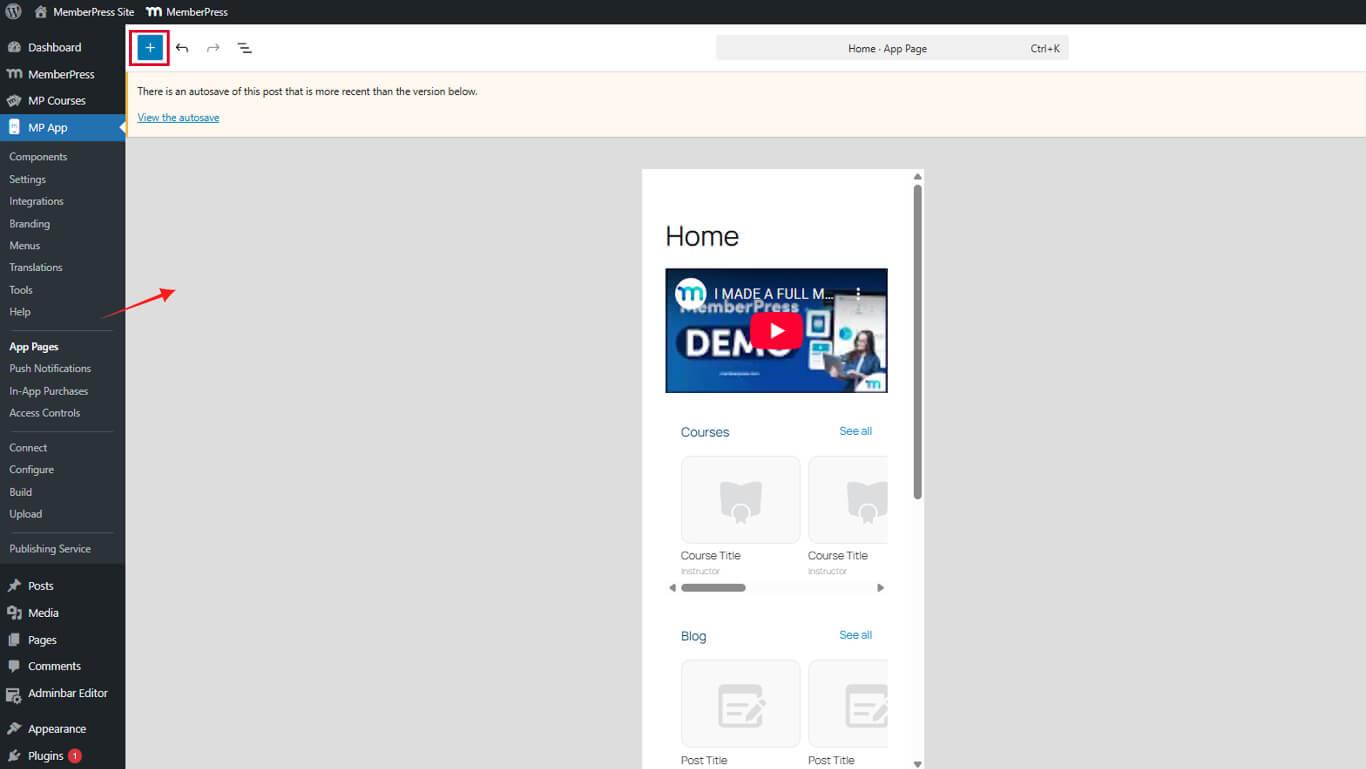
Innerhalb des App-Seiten-Editors kann der Blog-Beiträge blockieren wird durch den Block-Inserter hinzugefügt:
- Klicken Sie auf die + Symbol im Editor der App-Seite, um einen neuen Block einzufügen.
- Blättern Sie zum MemberPress AppKit Blöcke Abschnitt.
- Wählen Sie die Blog-Beiträge Block aus den verfügbaren Blöcken.
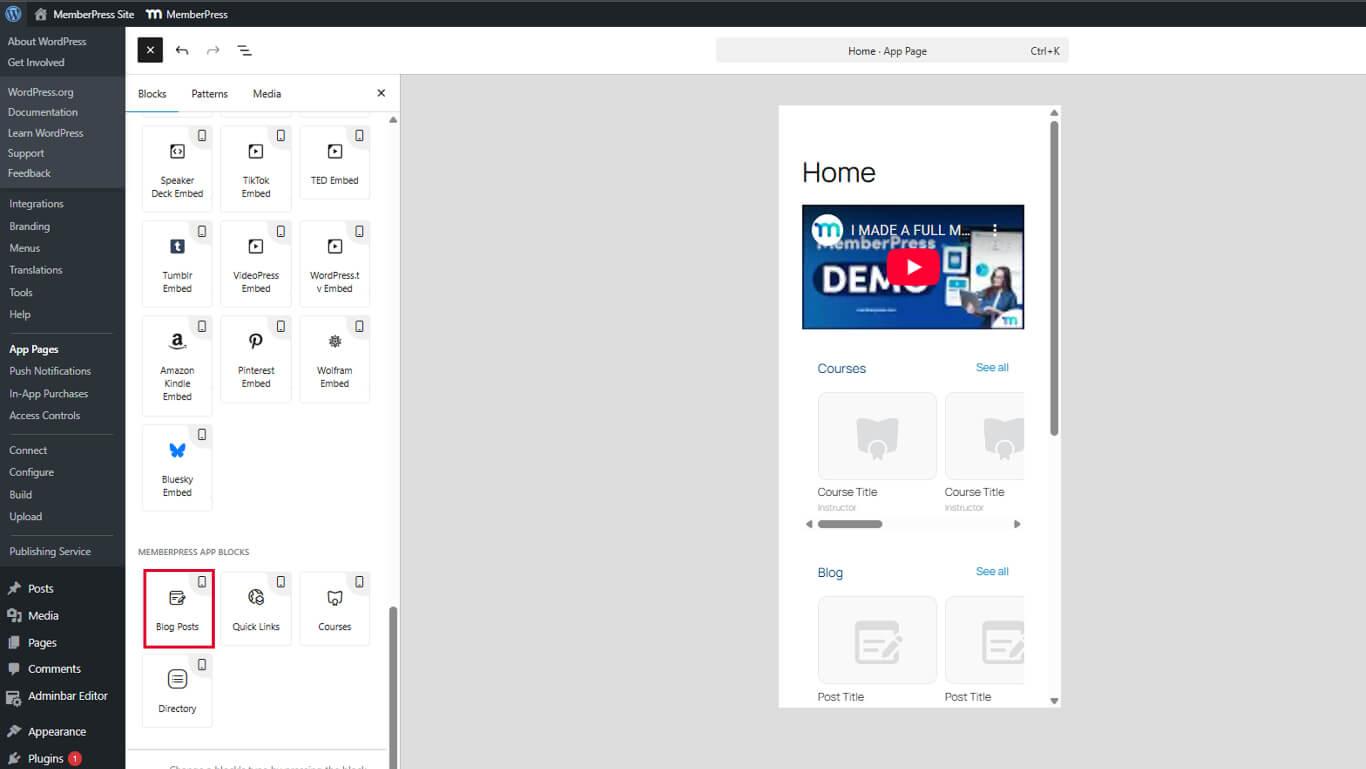
- Ziehen Sie den Block an die gewünschte Position auf der Seite.
Blogbeiträge anpassen
Nach dem Hinzufügen sollten Sie die Blogbeiträge anpassen. Sie können die Farben anpassen und festlegen, welche Beiträge in welcher Reihenfolge angezeigt werden sollen. Sie können den Block über die Einstellungen in der rechten Seitenleiste konfigurieren:
- Innerhalb des App-Seiten-Editors, Wählen Sie den Block Blogbeiträge die Sie konfigurieren möchten.
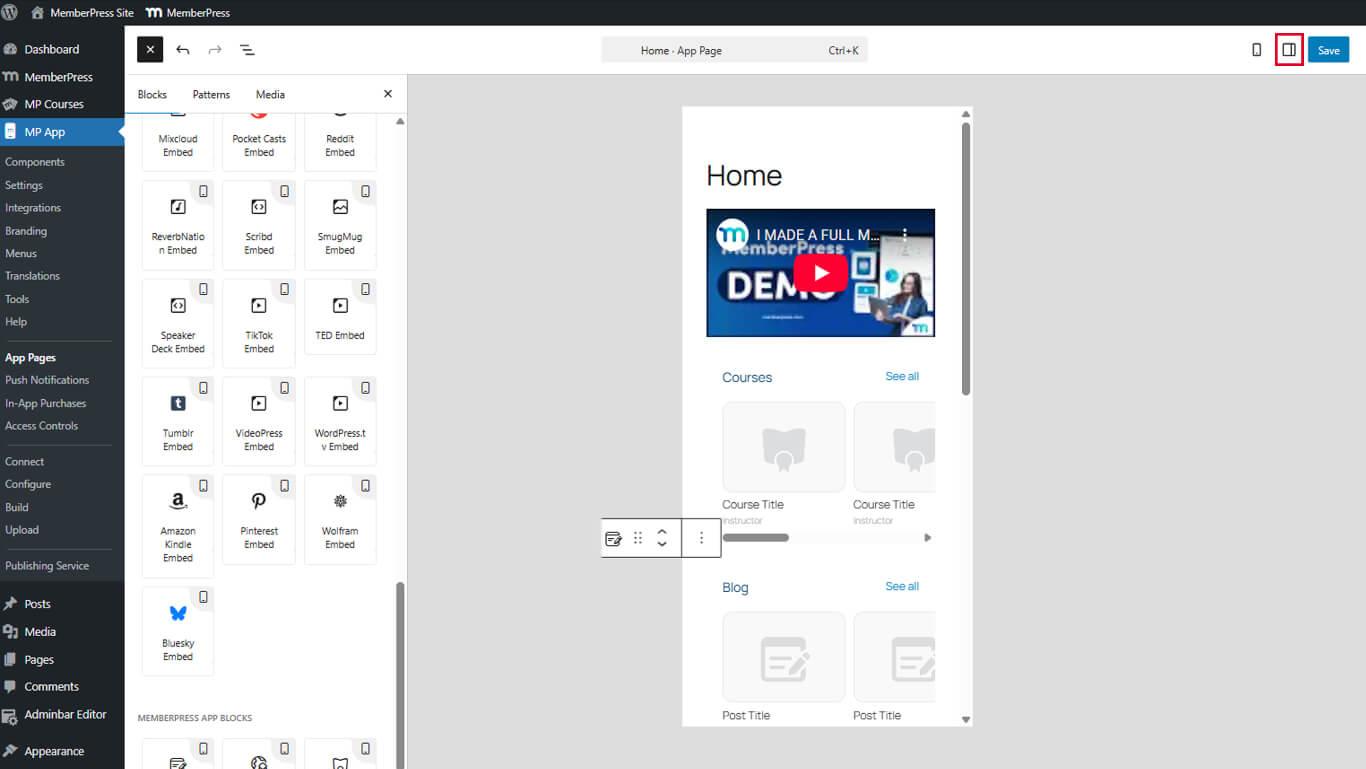
- Suchen Sie die Einstellungen in der rechten Seitenleiste.
Blocktitel und Farben
Beginnen Sie mit der Anpassung des Blocktitels und der Farben:
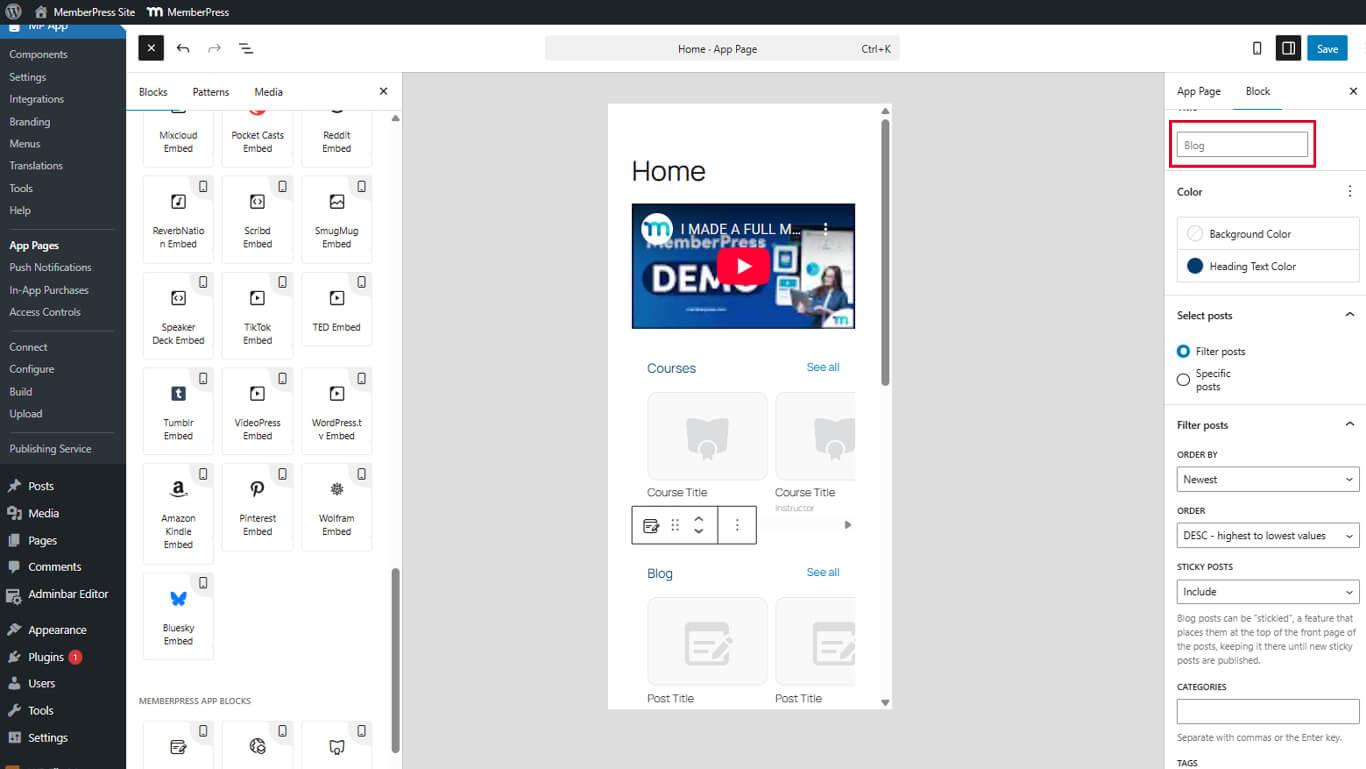
- Finden Sie die Titel und den Text, den Sie oben im Blo anzeigen möchteng.
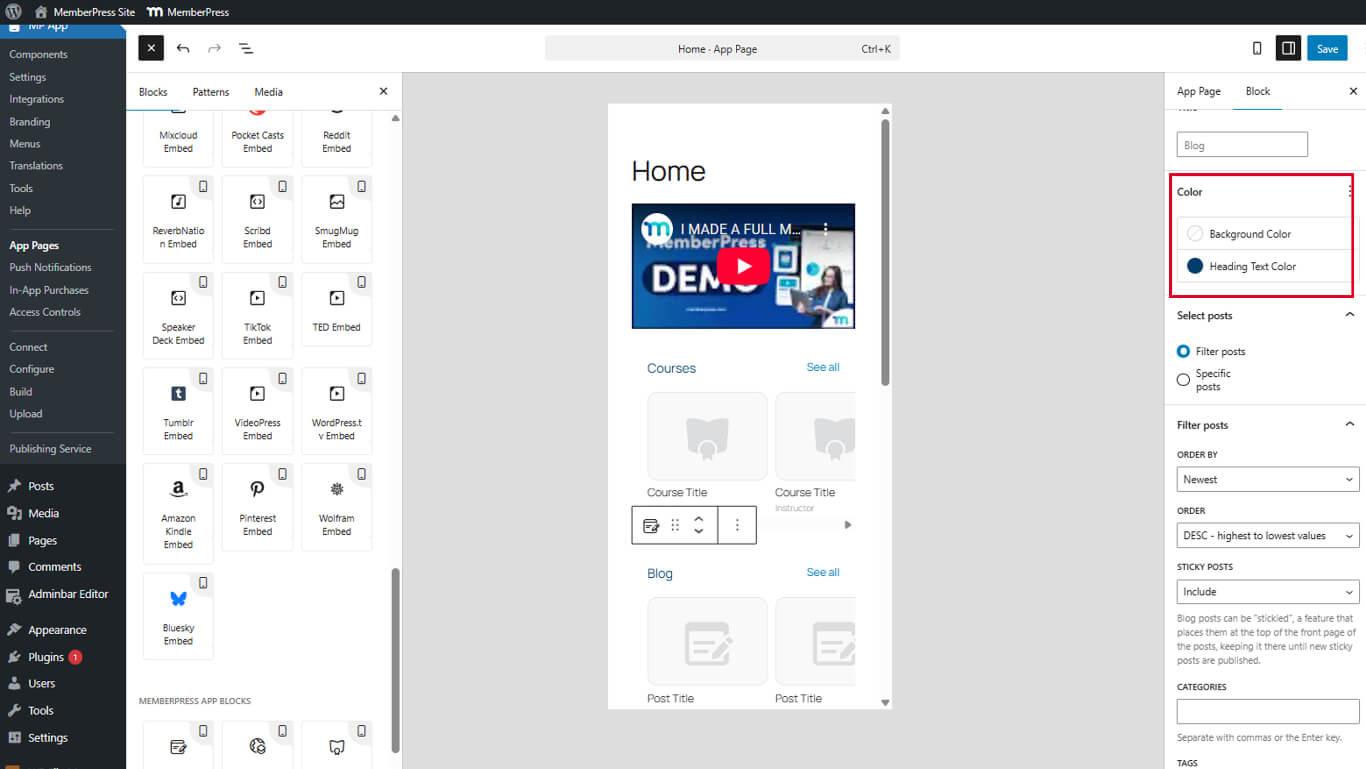
- Als nächstes wird unter dem Farbe Panel können Sie die Überschrift Textfarbe und Hintergrundfarbe Optionen.
- Wählen Sie eine Farbe mit dem Farbwähler oder wählen Sie transparent.
- Klicken Sie auf Update um die Änderungen zu speichern.
Beiträge mit dem Filter Beiträge auswählen
Im Rahmen der Posten auswählen können Sie sich für die Verwendung der Beiträge filtern Option. Die Beitragsfilterung zeigt Inhalte auf der Grundlage bestimmter Bedingungen an.
Die Option Beiträge filtern bietet mehrere Anpassungsmöglichkeiten:
- Wählen Sie den Block Blogbeiträge im Editor.
- Suchen Sie den Block Einstellungen Tafel.
- Wählen Sie Beiträge filtern um Filteroptionen zu konfigurieren.
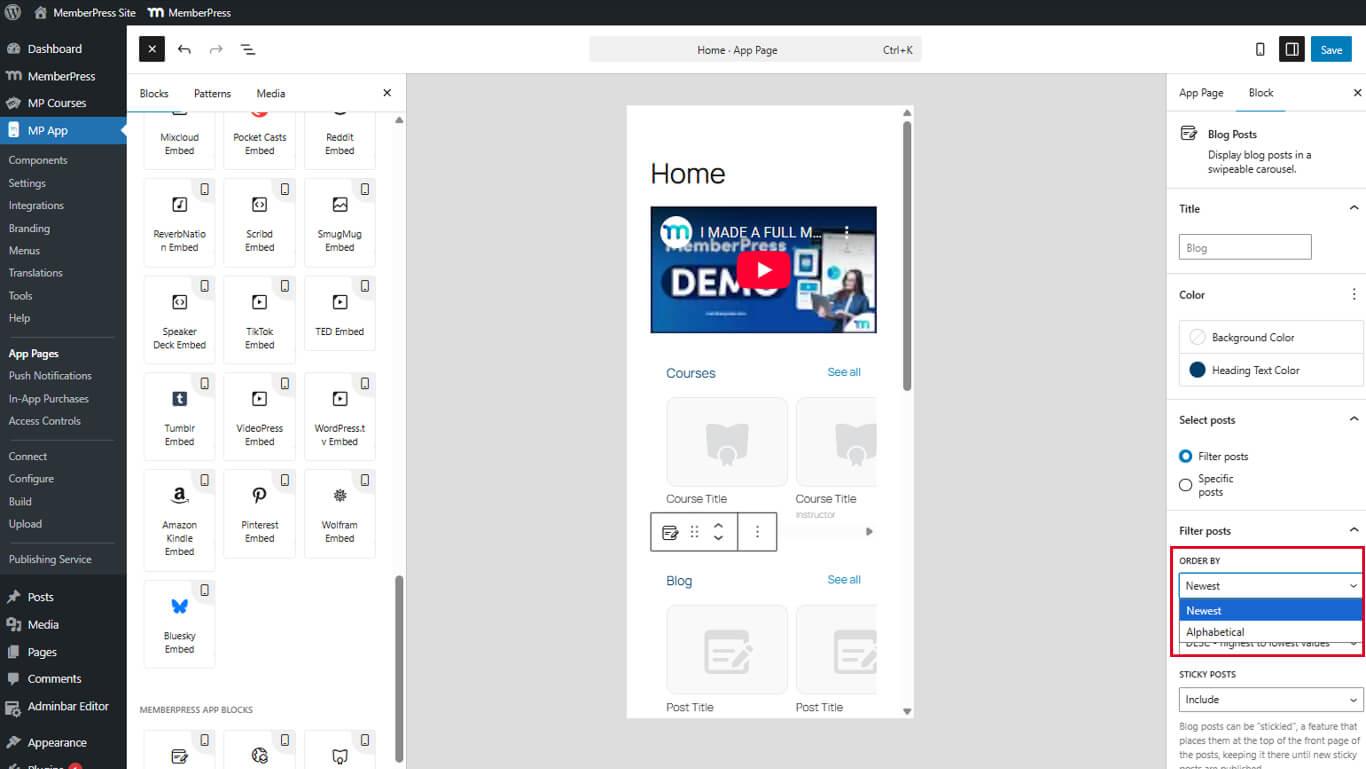
- Bestellen nach um nach Neuestes oder Alphabetisch zu sortieren.
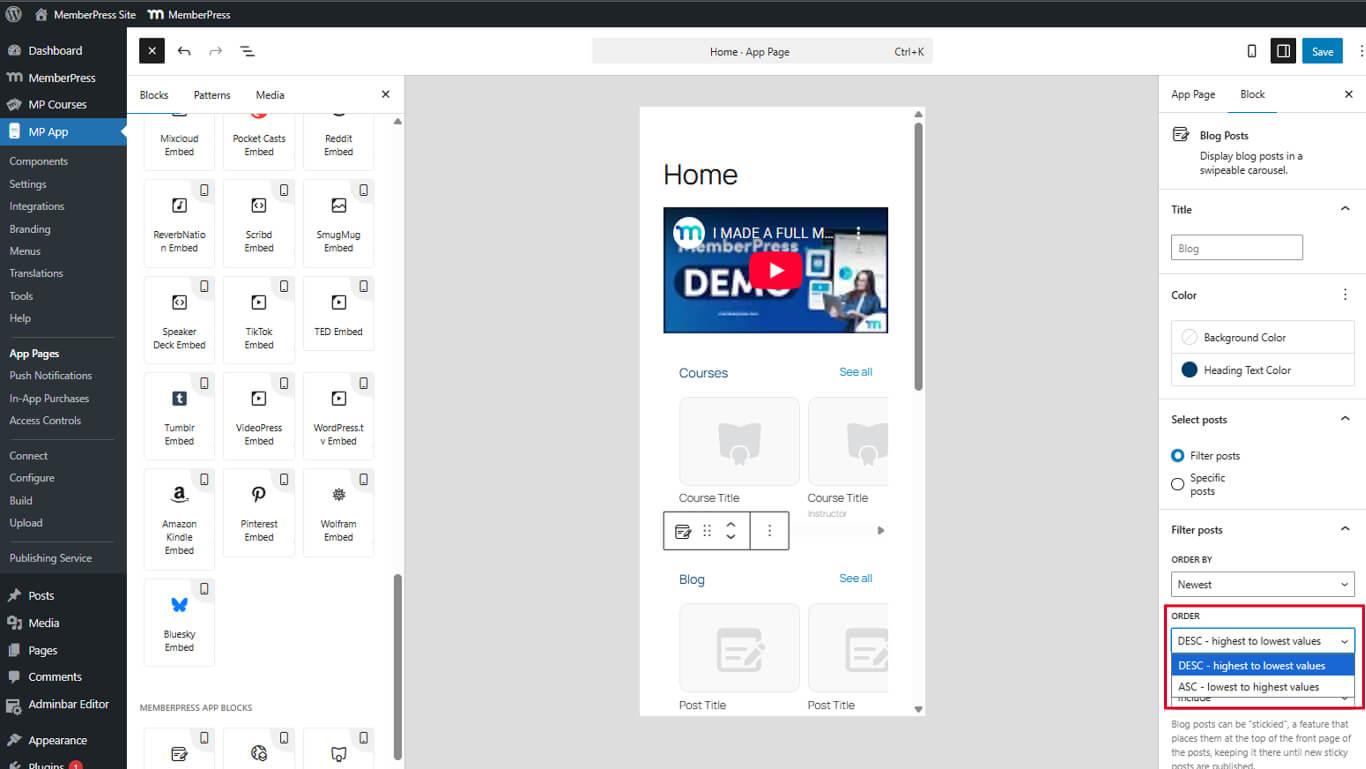
- Bestellung um aufsteigend oder absteigend anzuordnen.
- Klebrige Beiträge um Beiträge einzuschließen, auszuschließen oder nur klebrige Beiträge anzuzeigen.
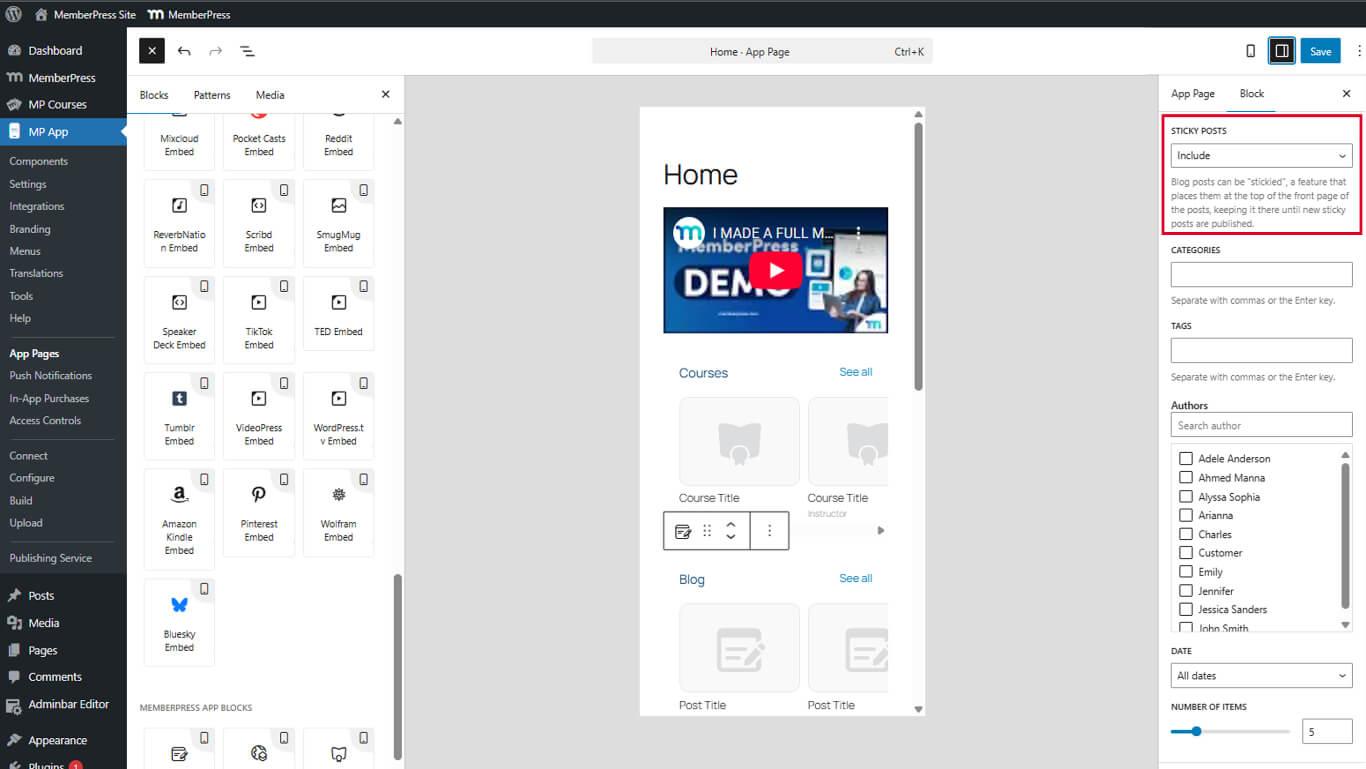
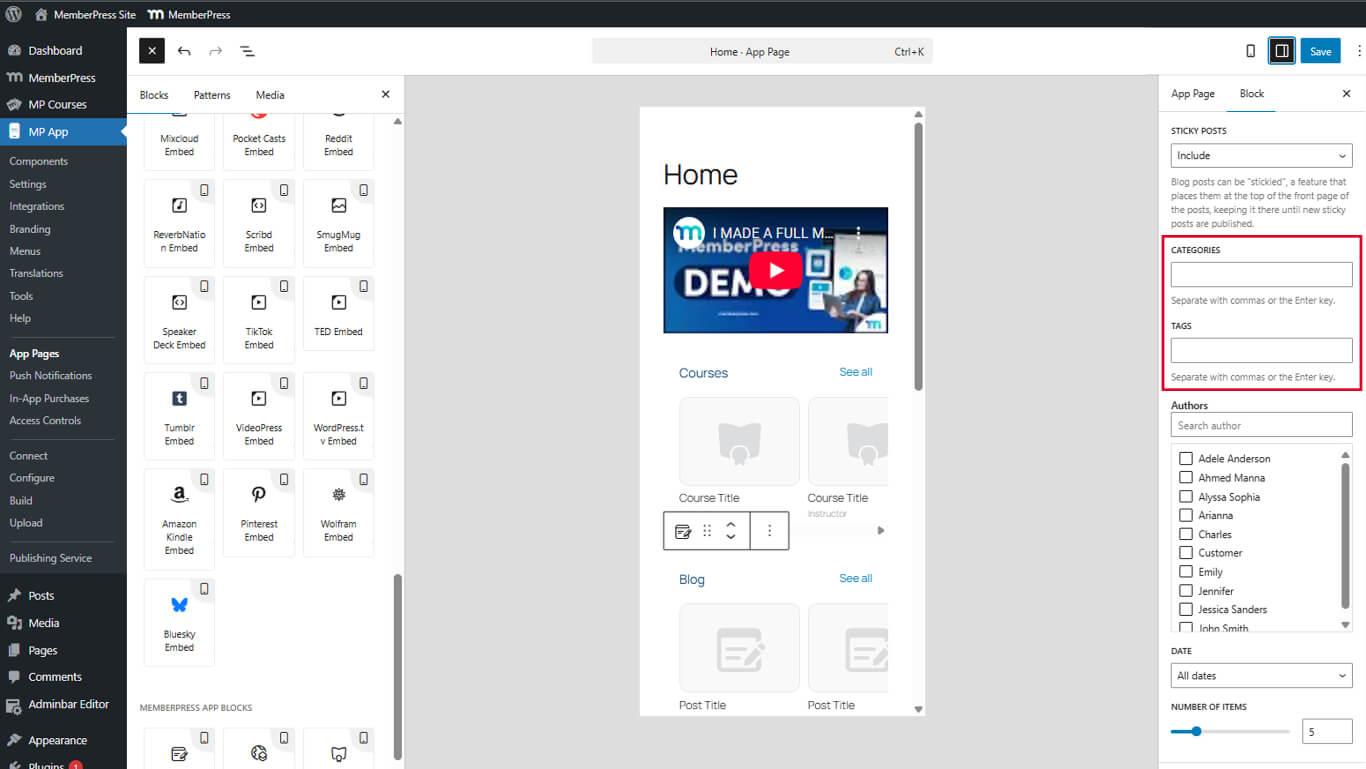
- Kategorien/Tags um nach kommagetrennten Kategorien oder Tag-Slugs zu filtern.
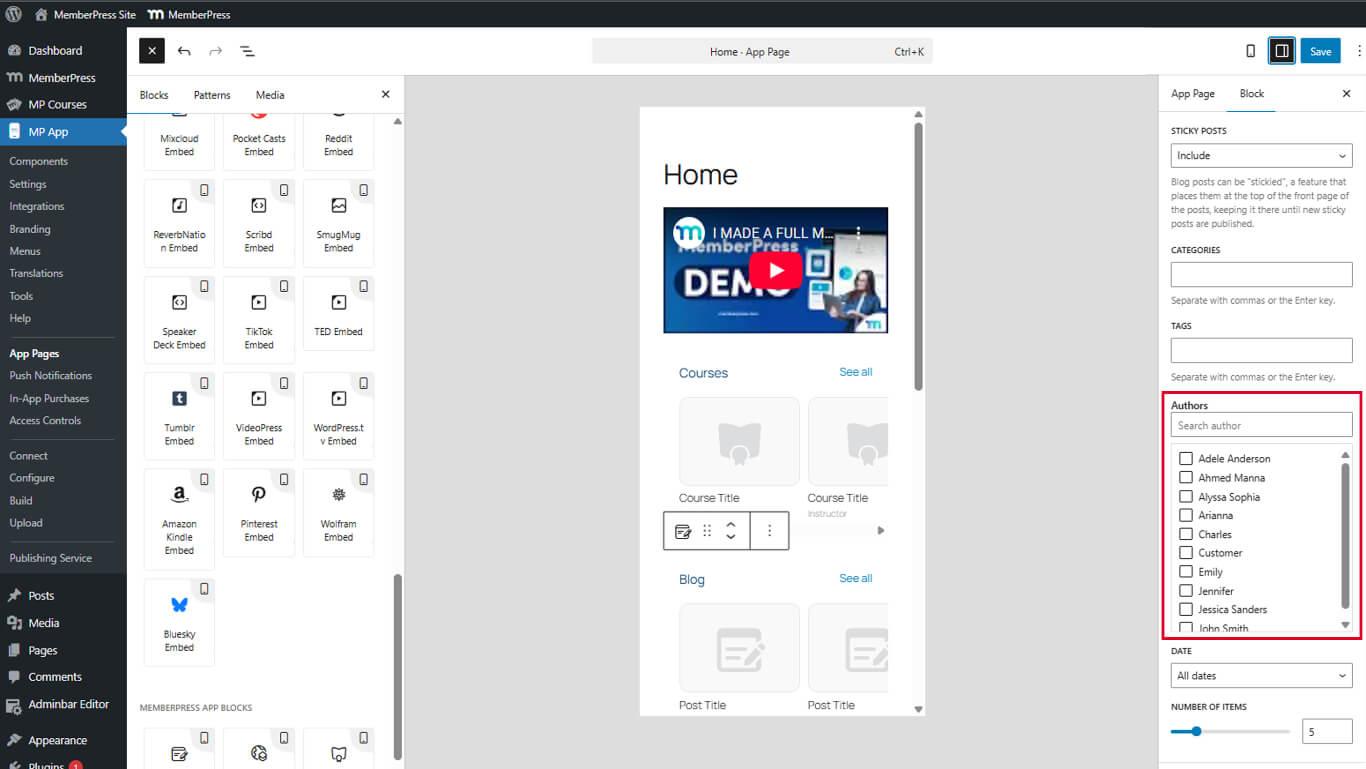
- Autoren um nach kommagetrennten Autorennamen zu filtern.
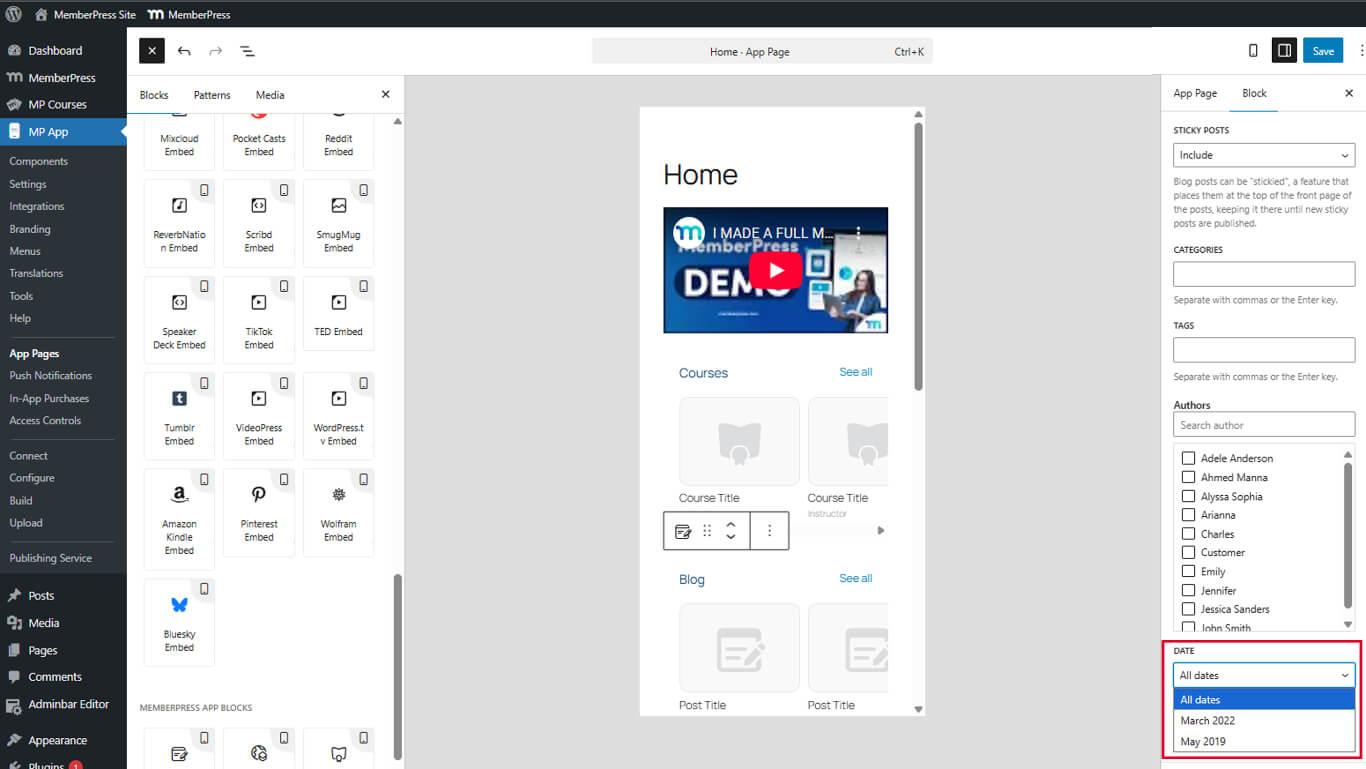
- Datum um Beiträge nach Datumsbereich zu filtern.
- Zu zeigende Artikel um die Anzahl der sichtbaren Karussellelemente festzulegen.
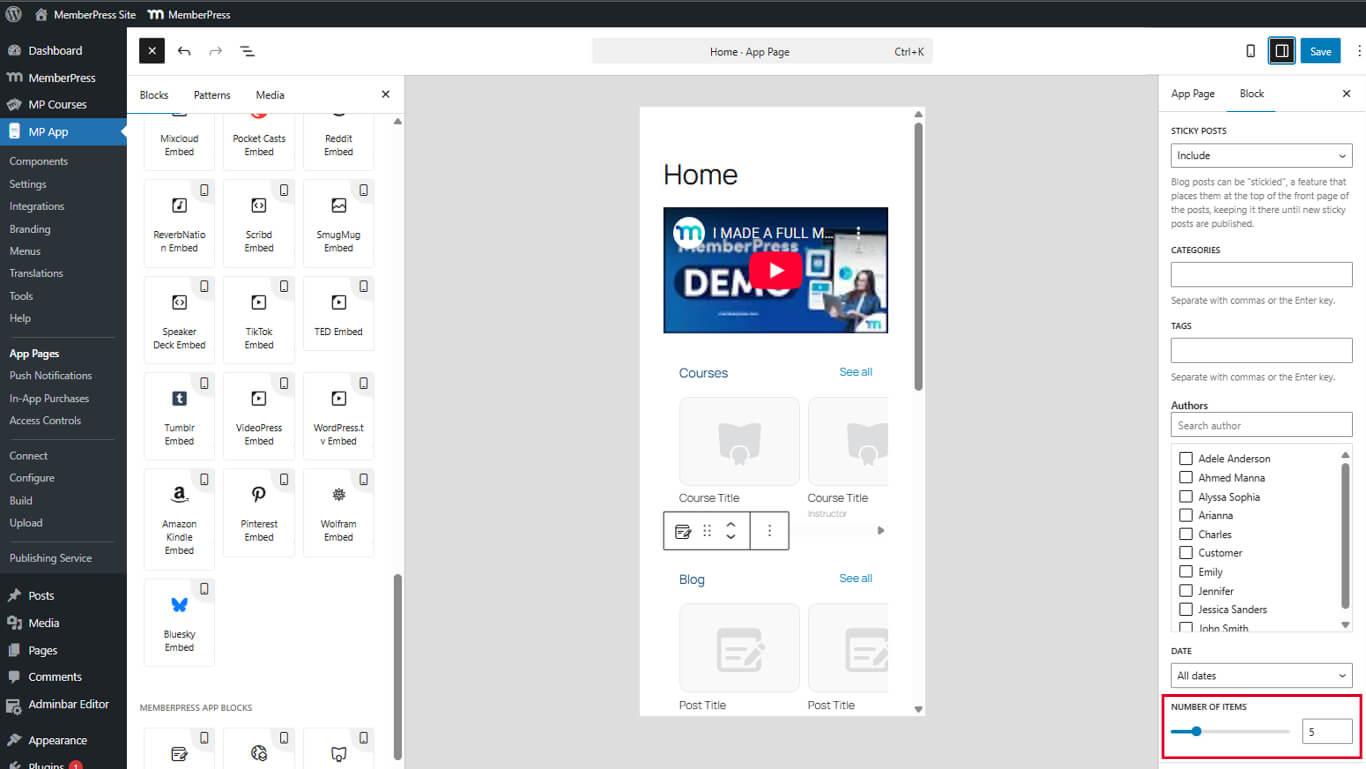
- Klicken Sie auf Update um die Seite zu speichern.
Beiträge auswählen, indem bestimmte Beiträge angezeigt werden
Die spezifische Beitragsauswahl zeigt manuell ausgewählte Blogeinträge an.
- Wählen Sie im Editor den Block Blogbeiträge aus.
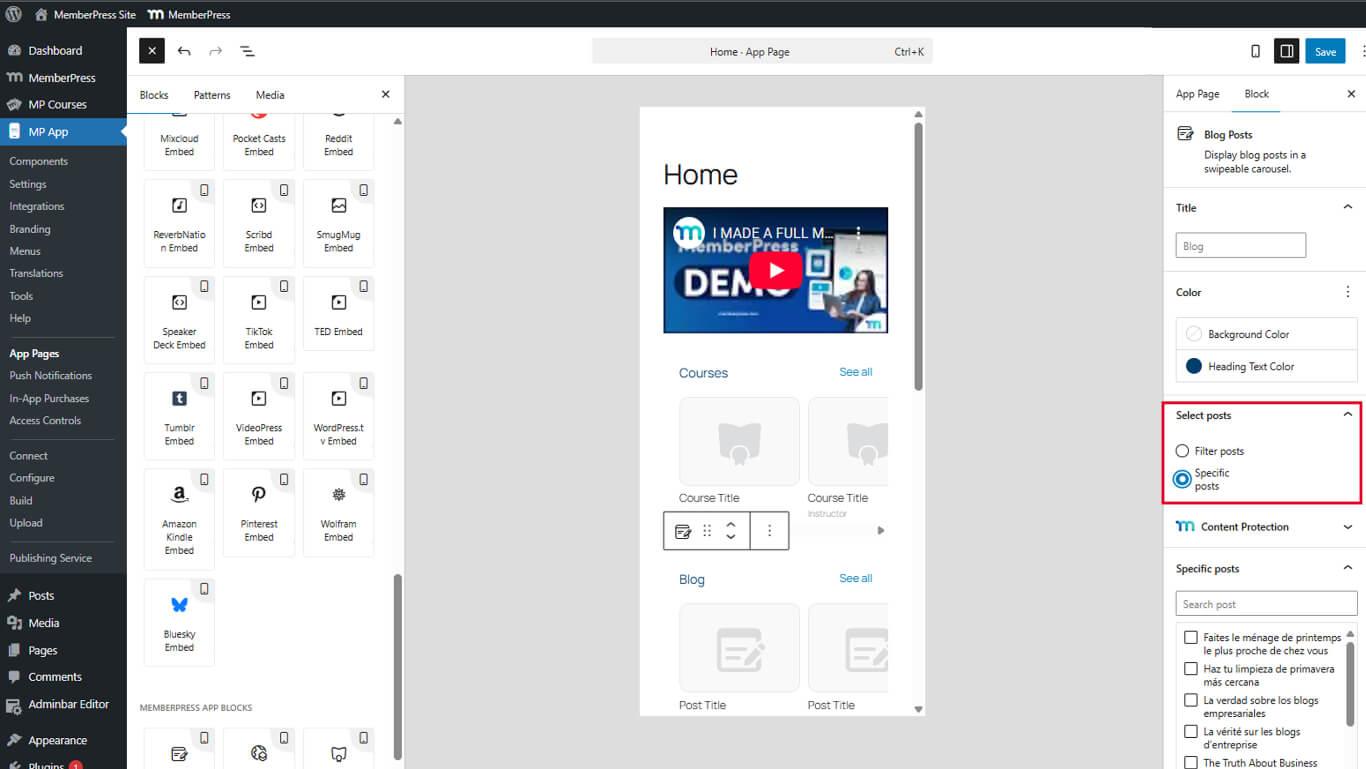
- Suchen Sie die Posten auswählen im Bereich Einstellungen.
- Wählen Sie Besondere Stellen.
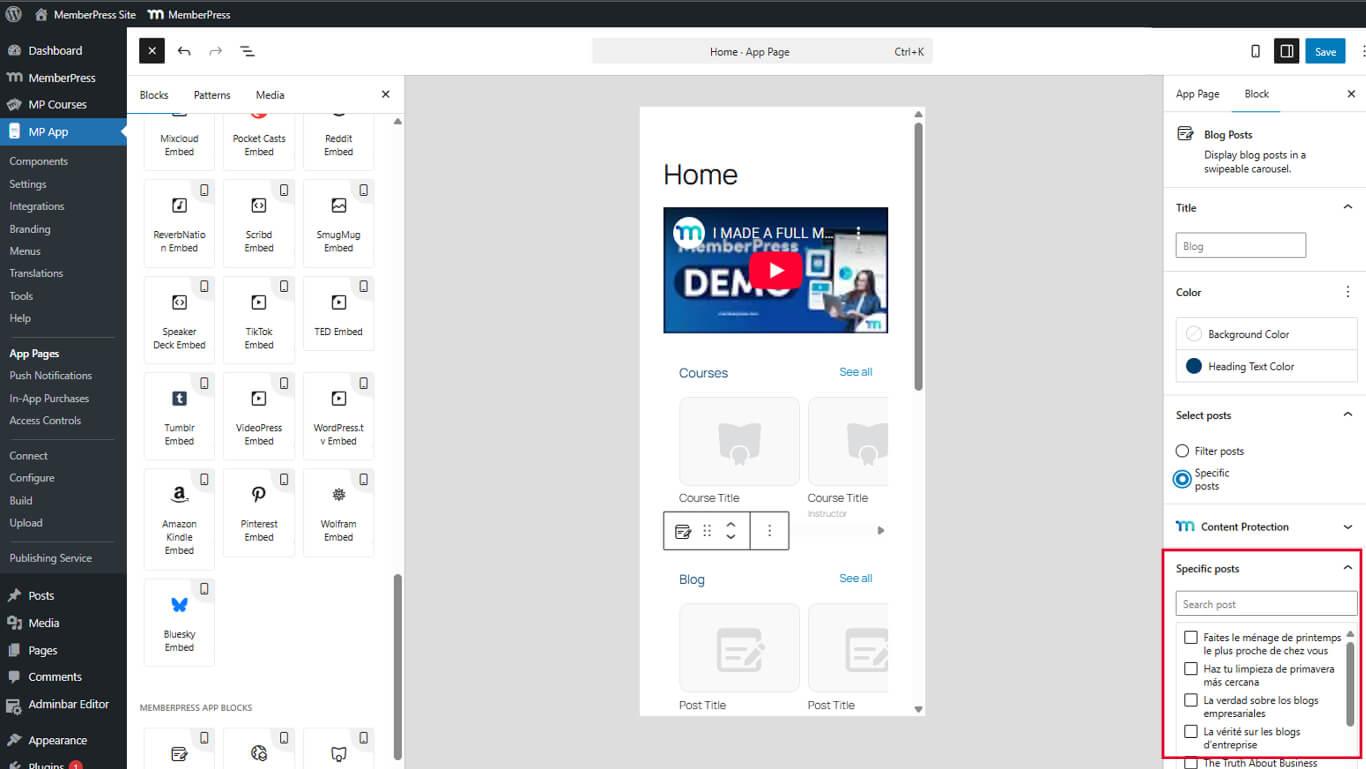
- Klicken Sie auf die Besondere Stellen um die Beitragsauswahl zu öffnen.
- Aus der verfügbaren Liste, die Blogbeiträge auswählen die Sie anzeigen möchten.
- Klicken Sie auf Bestätigen Sie oder Bewerbung um die Auswahl abzuschließen.
- Speichern Sie die Änderungen, indem Sie auf die Schaltfläche Update Taste.
Die Auswahl eines bestimmten Beitrags hat Vorrang vor allen anderen Filterkriterien, wenn sie aktiviert ist.
Speichern und Vorschau
Die Blockkonfiguration muss gespeichert und die App neu gestartet werden, um die Änderungen anzuzeigen.
- Klicken Sie auf Aktualisierung im Editor der App-Seite um die Änderungen zu speichern.
- Schließen Sie die MemberPress iOS/Android-App mit Gewalt vollständig auf dem mobilen Gerät.
- Öffnen Sie die App erneut um die Konfiguration der Seite neu zu laden.
- Navigieren Sie zu der Seite mit dem Block Blogbeiträge.
- Überprüfung die Karussellanzeige und die Anordnung der Posten.
- Horizontal wischen, um Karussellartikel durchsuchen.
- Tippen Alle sehen um das vollständige Blog-Archiv zu öffnen, falls verfügbar.
Das Karussell wird automatisch aktualisiert, wenn neue Blogeinträge veröffentlicht werden, sofern die Filterung konfiguriert ist.










 DE
DE  EN
EN  ES
ES  FR
FR  PT
PT 