

MemberPress Android App testing le permite probar su aplicación con usuarios seleccionados antes de un lanzamiento público. Las nuevas cuentas individuales de Google Developer creadas después del 13 de noviembre de 2023 deben completar los requisitos de las pruebas cerradas antes del acceso a la producción.
Este documento explica cómo crear pistas de pruebas cerradas, añadir evaluadores, gestionar versiones y solicitar acceso a producción.
Comprender los requisitos de las pruebas cerradas
Google Play Store exige la realización de pruebas cerradas para las nuevas cuentas de desarrollador individuales registradas después del 13 de noviembre de 2023. Las pruebas cerradas implican que al menos 12 probadores utilicen la aplicación durante un mínimo de 14 días consecutivos. El acceso a la pista de producción solo se desbloquea una vez completadas y aprobadas las pruebas cerradas.
Las cuentas de desarrollador de organizaciones están exentas de los requisitos de pruebas cerradas. Las cuentas de desarrollador registradas antes del 13 de noviembre de 2023 también están exentas de las pruebas cerradas obligatorias. Las cuentas individuales creadas después de la fecha del requisito deben completar las pruebas cerradas antes de la publicación en producción.
Creación de una pista de pruebas cerrada
La creación de una pista de pruebas cerrada establece el entorno de pruebas para la distribución previa al lanzamiento de la aplicación.
- Inicie sesión en Google Play Console en play.google.com/console.
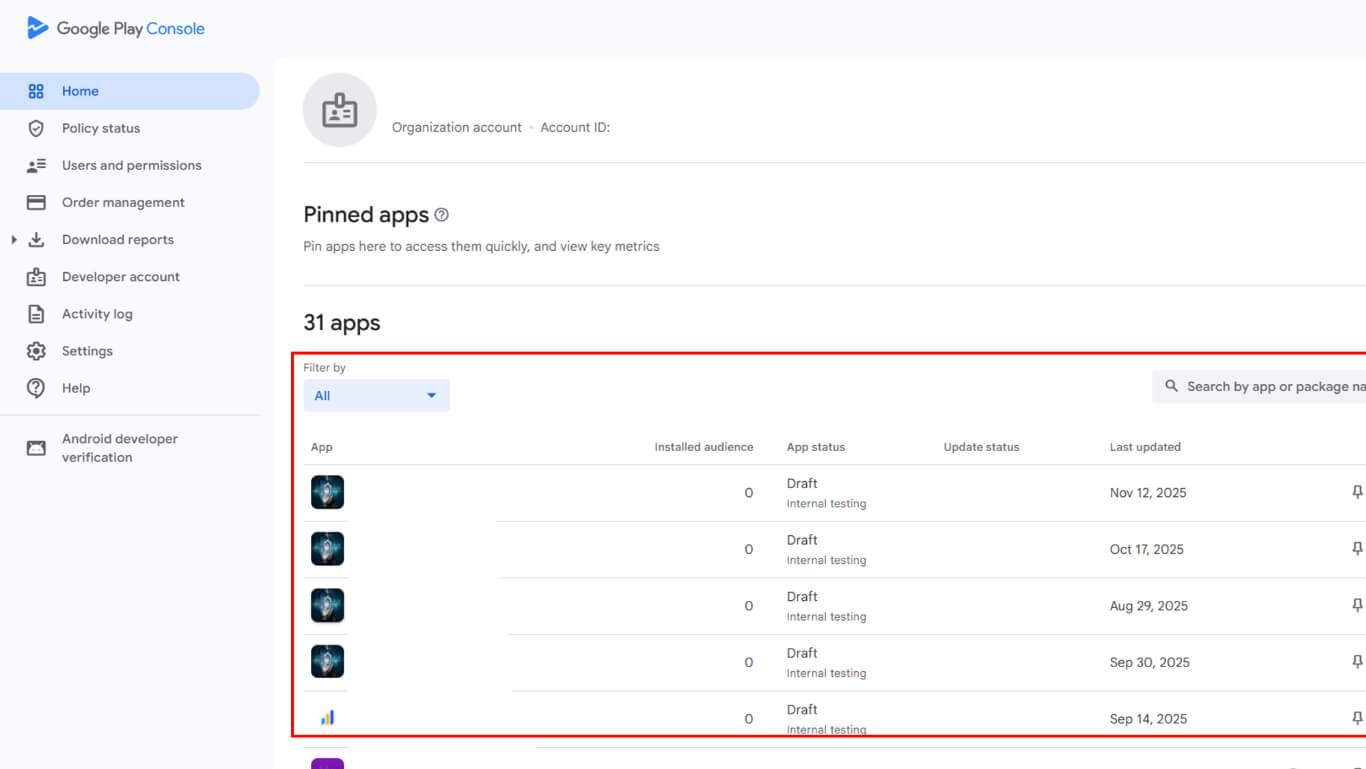
- Selecciona la aplicación de la lista de aplicaciones.
- Vaya a Versión > Pruebas > Pruebas cerradas en la barra lateral izquierda.
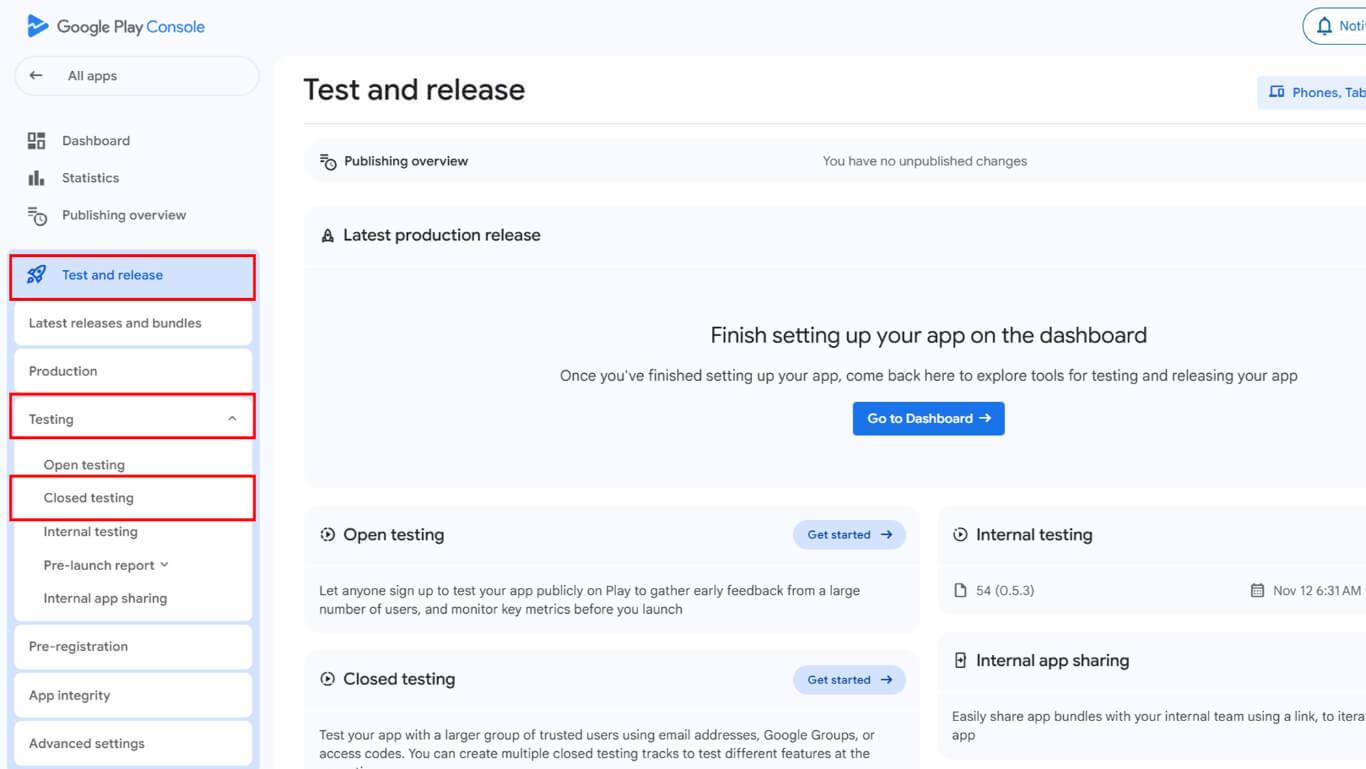
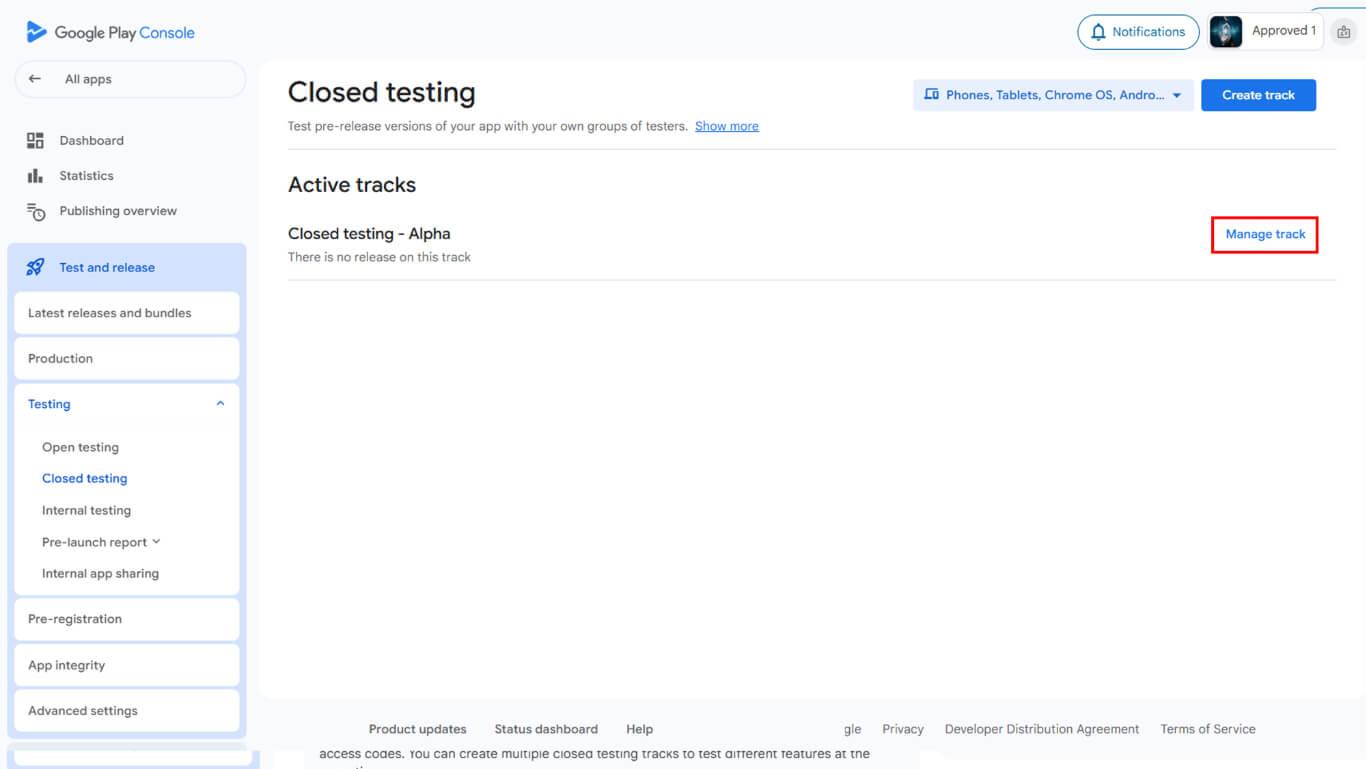
- Revise las pistas de pruebas activas disponibles.
- Haga clic en Gestionar pista si existe una pista disponible.
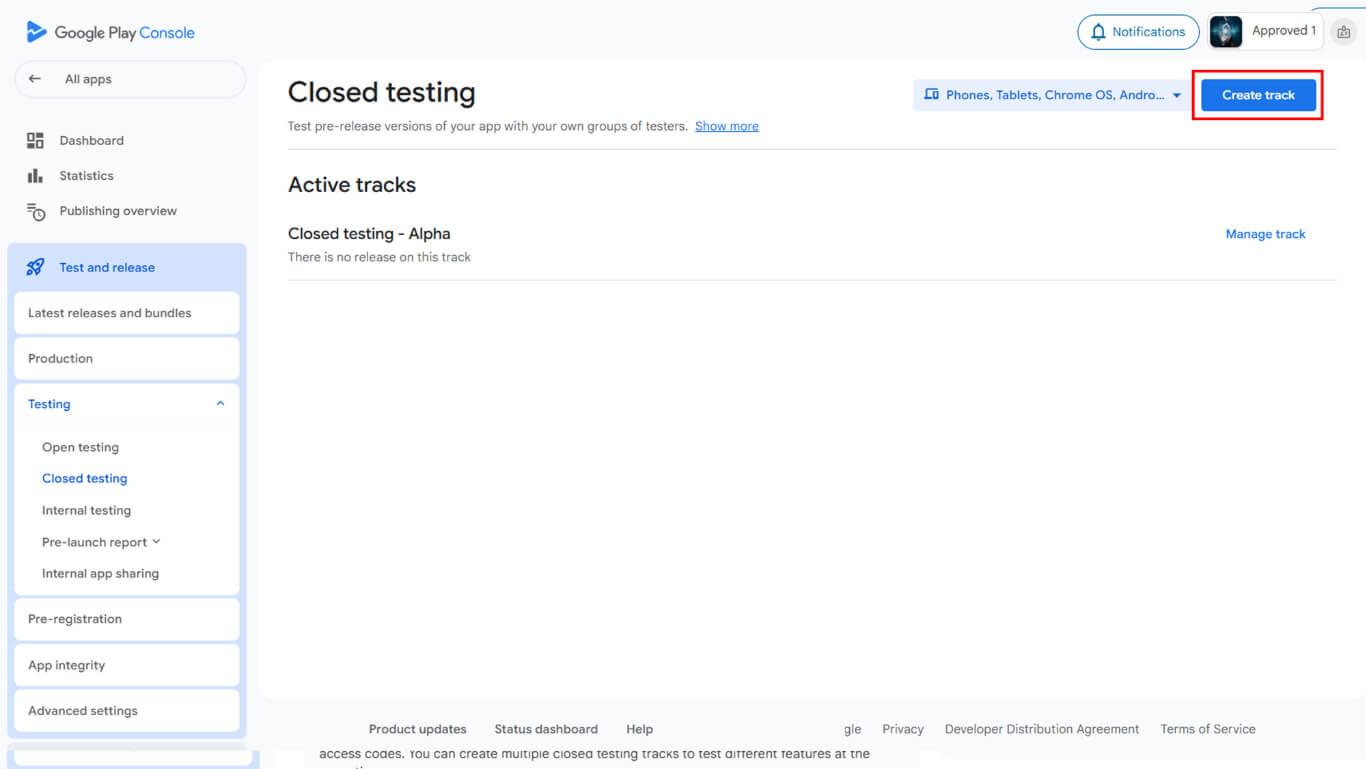
- Haga clic en Crear pista si se crea una nueva pista de pruebas.
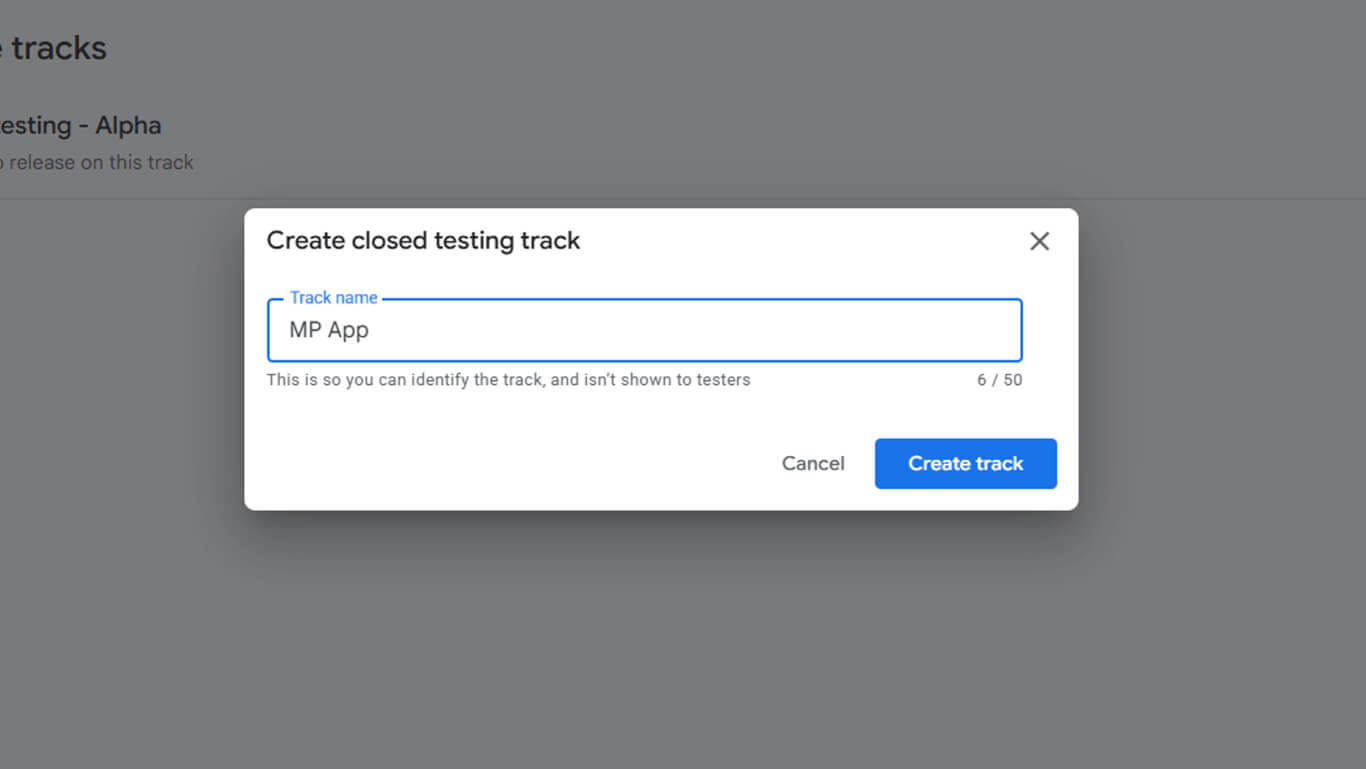
- Introduzca un nombre descriptivo en el campo Nombre de la pista campo.
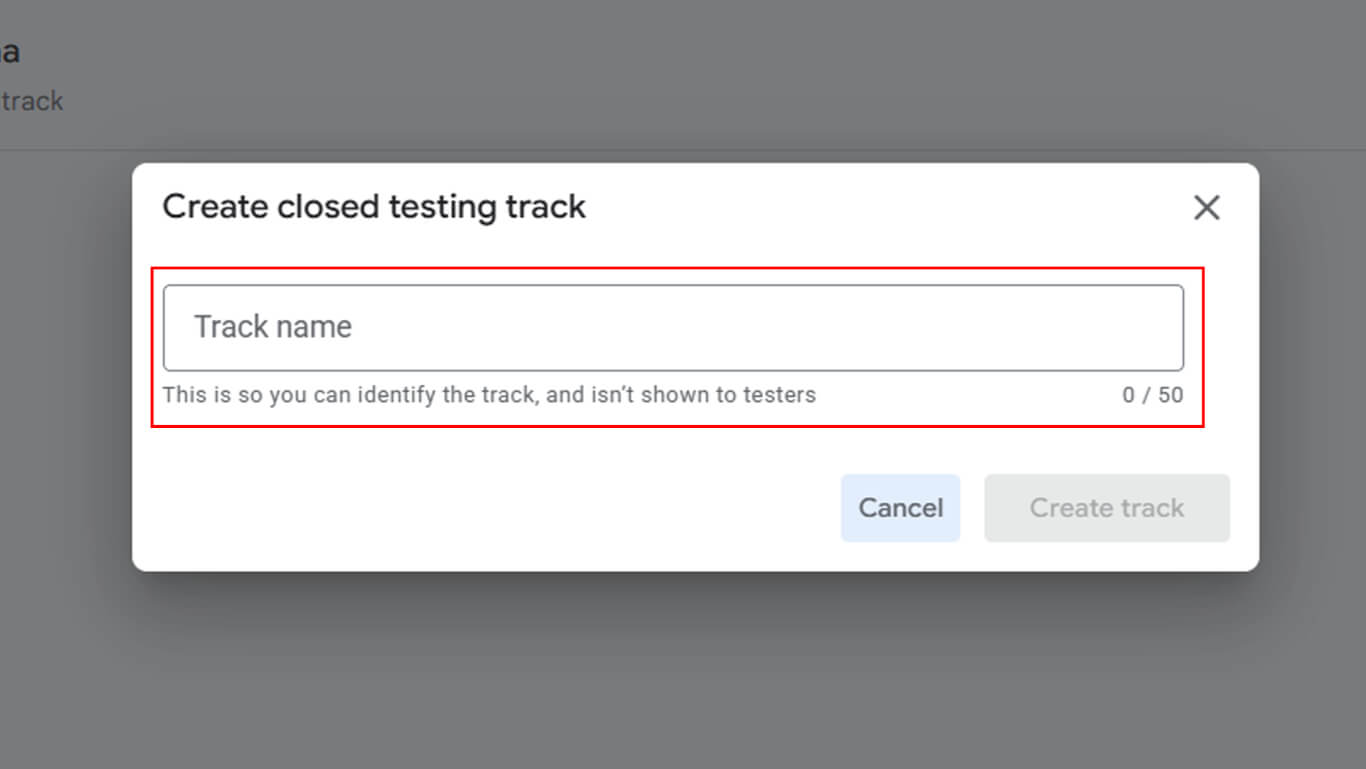
- Haga clic en Crear pista para finalizar la creación de la pista.
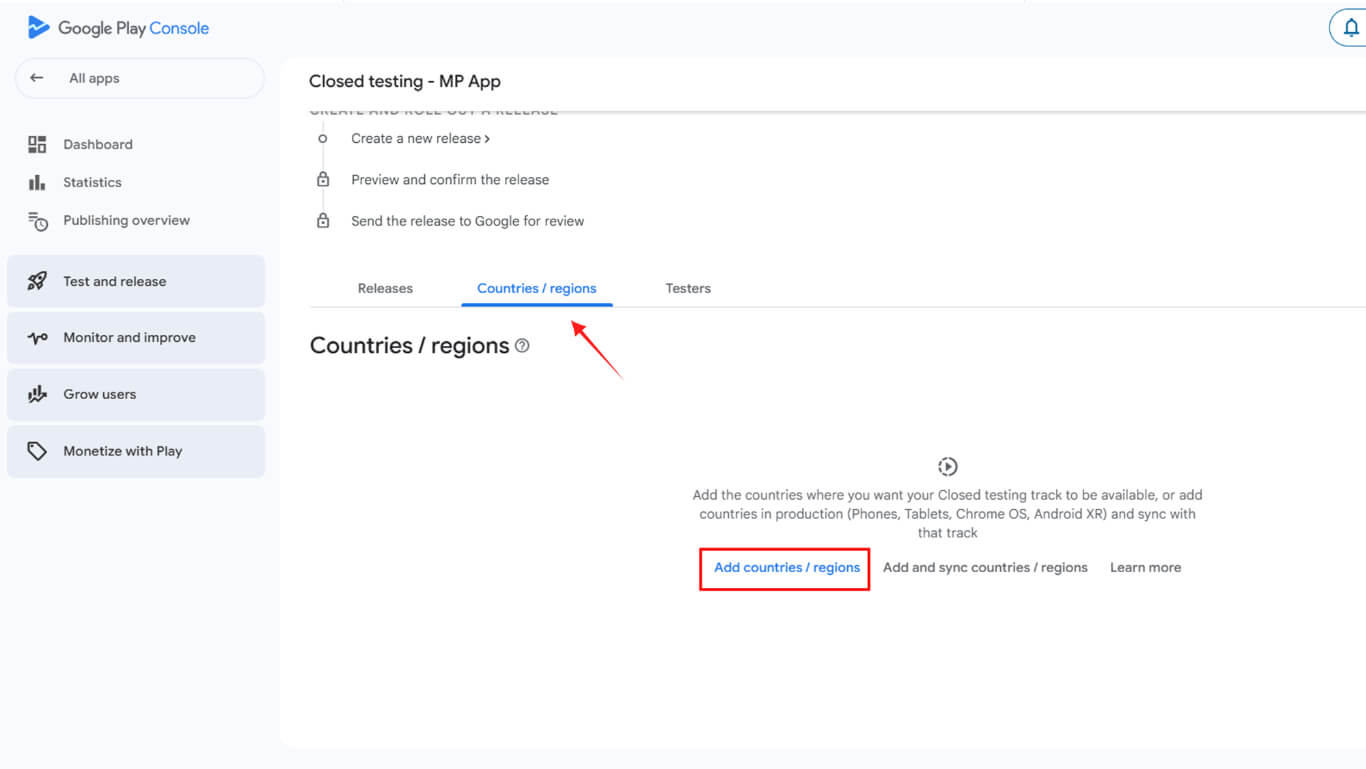
- Navegue hasta el Países/Regiones ficha.
- Haga clic en Añadir Países/Regiones.
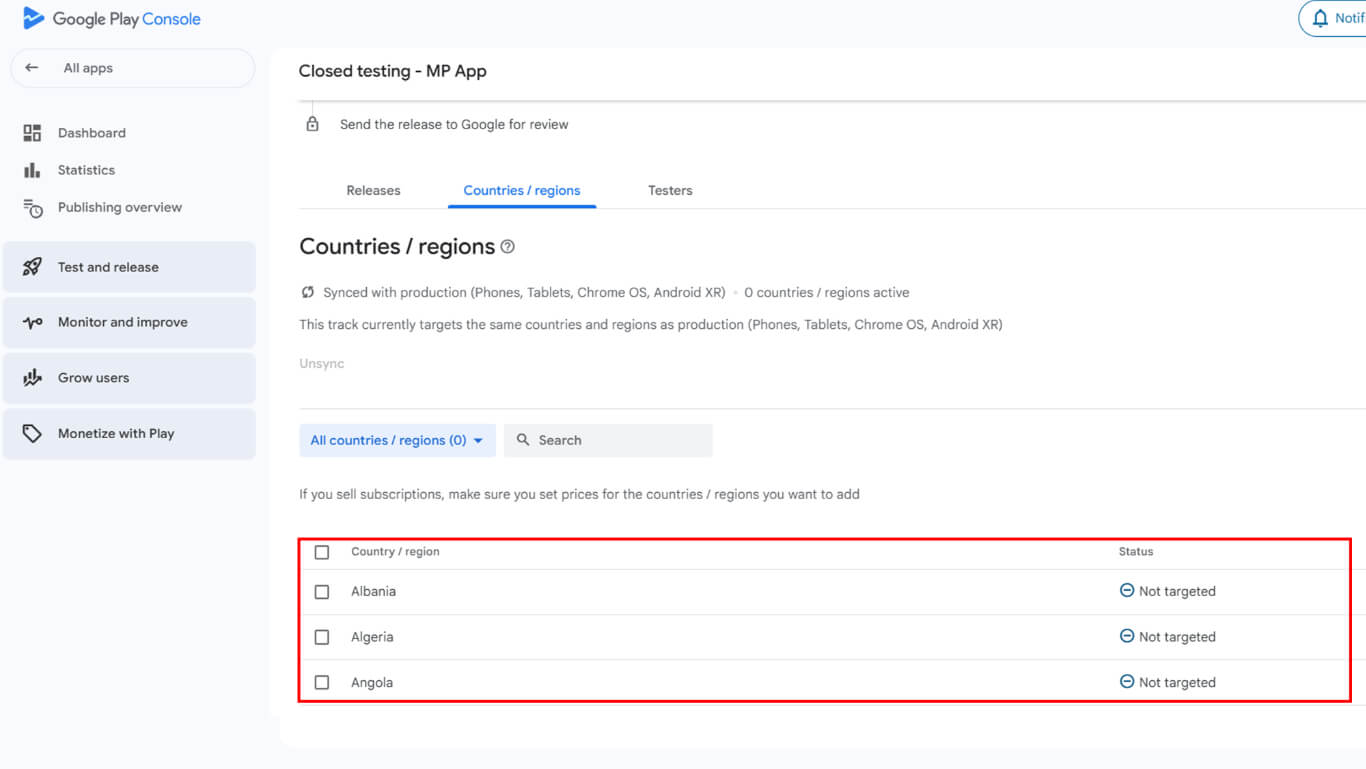
- Seleccione los países en los que la aplicación debe estar disponible para las pruebas.
- Marque la casilla para seleccionar todos los países para la disponibilidad global de las pruebas.
Añadir probadores a la prueba cerrada
La adición de probadores permite a determinados usuarios acceder a la aplicación y probarla.
- Vaya a la pestaña Probadores de la pista de pruebas cerrada.
- Revisar las listas de correo electrónico existentes
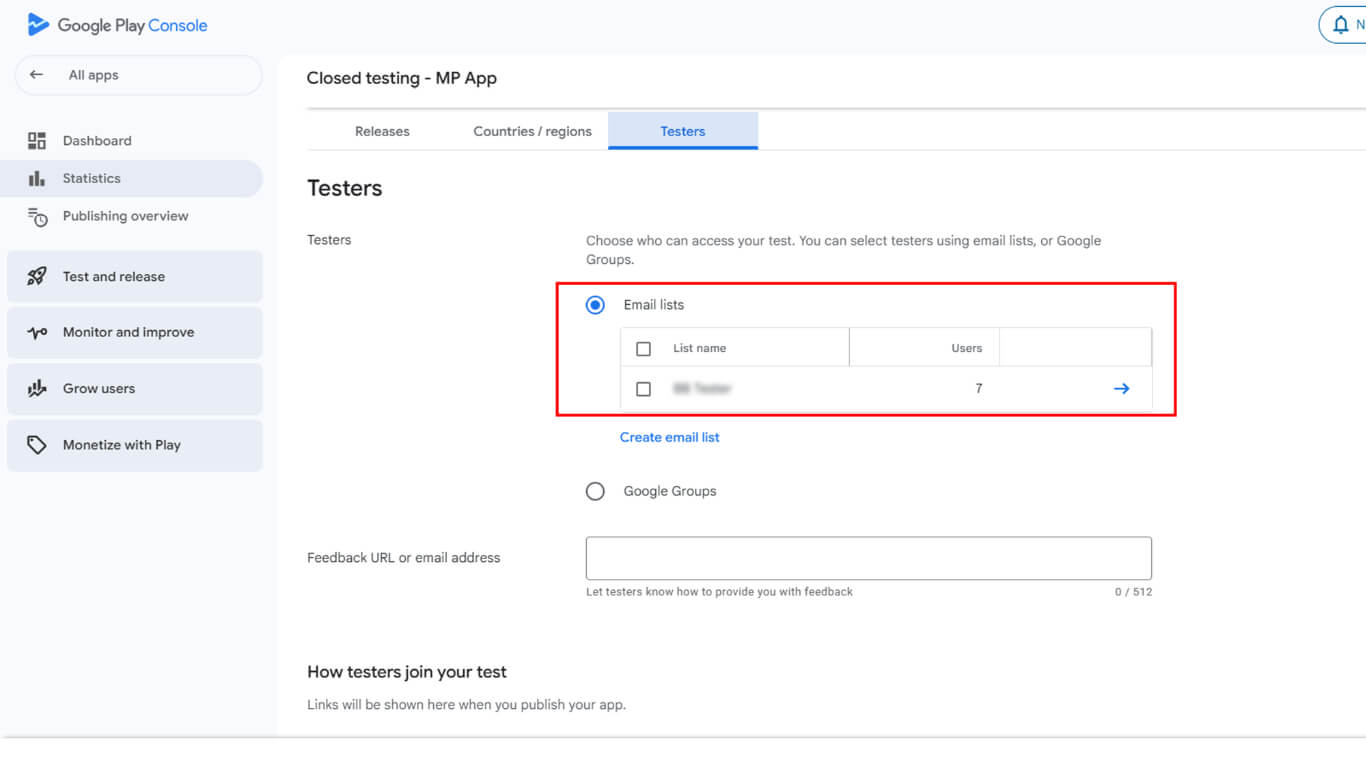
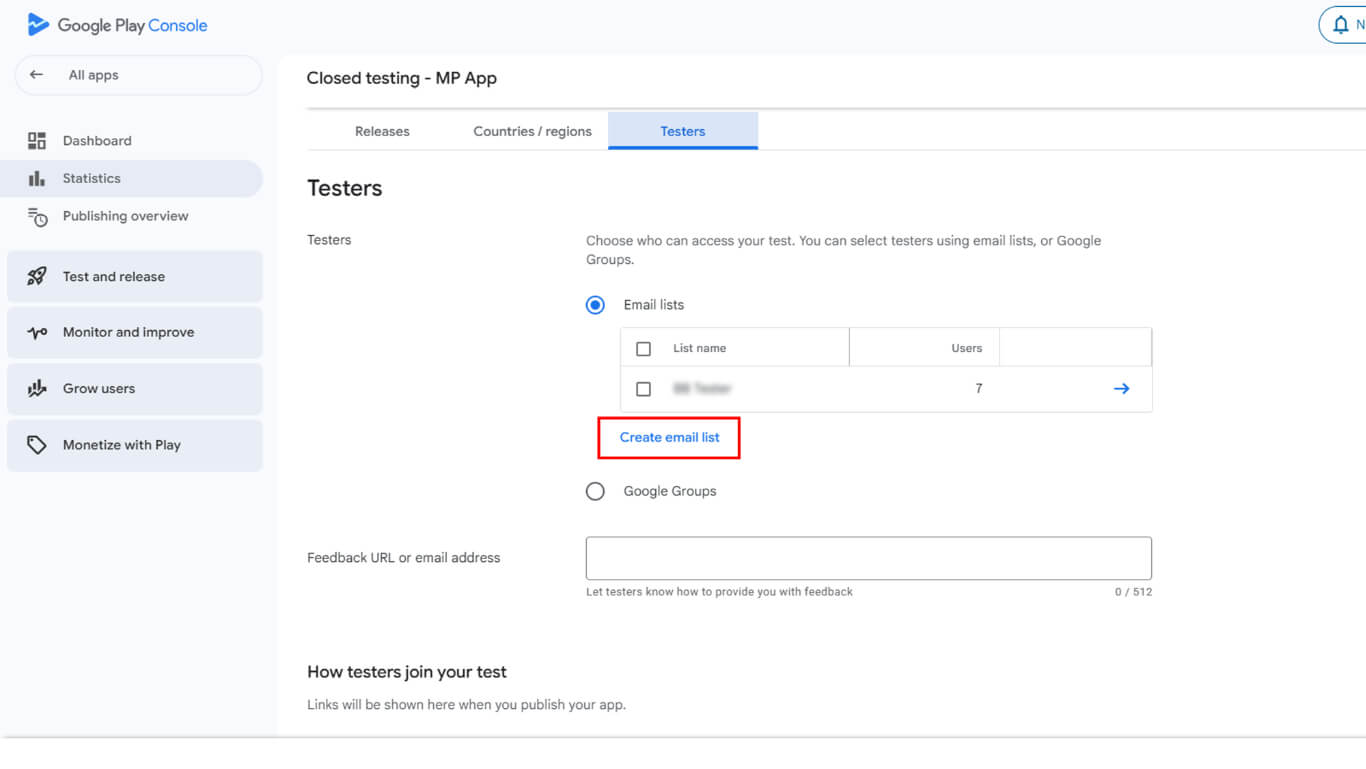
- O haga clic en Cree Lista de correo electrónico.
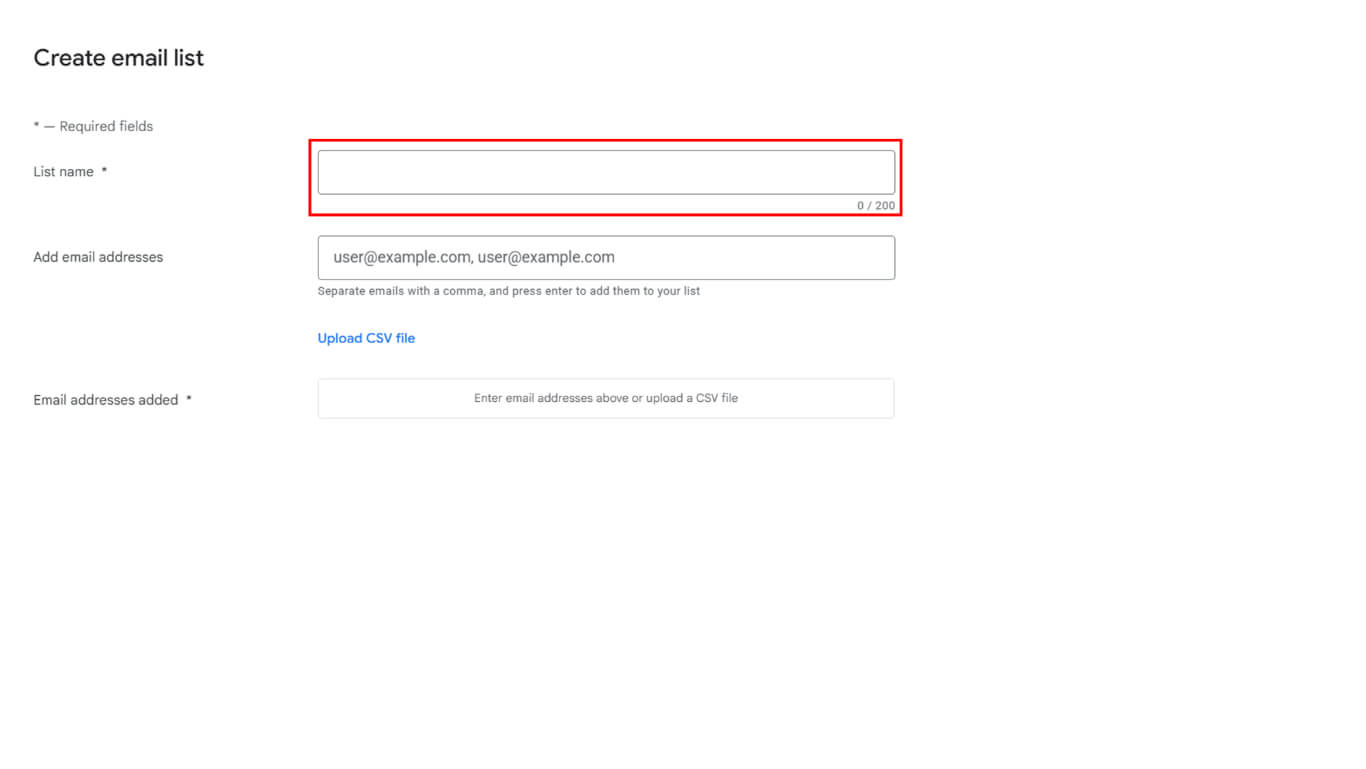
- Introduzca un nombre descriptivo en el campo Campo Nombre de la lista.
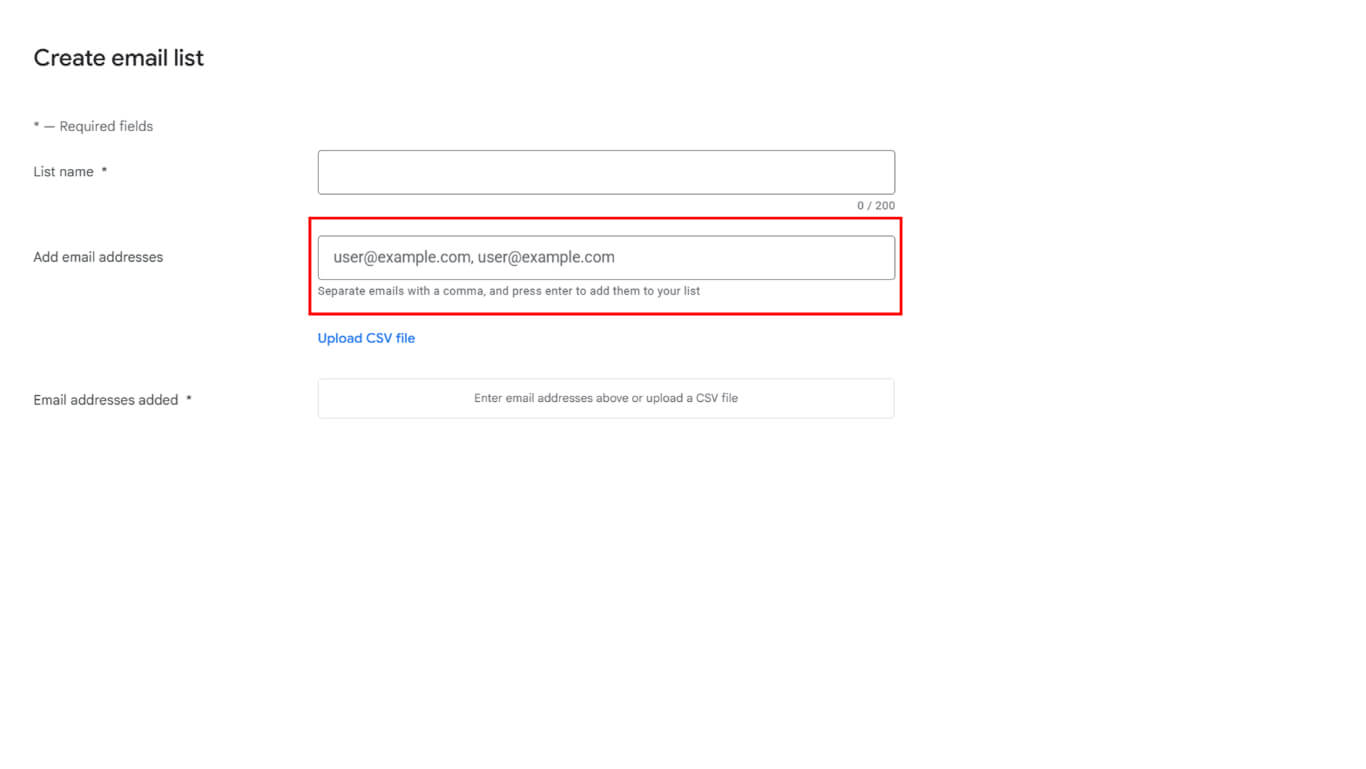
- Añada al menos 12 direcciones de correo electrónico a la lista de probadores o cargue una lista CSV.
- Haga clic en Guardar cambios para almacenar la lista de correo electrónico.
- Haga clic en Crear para finalizar la creación de la lista.
- Introduzca una dirección URL o una dirección de correo electrónico para que los evaluadores envíen sus comentarios.
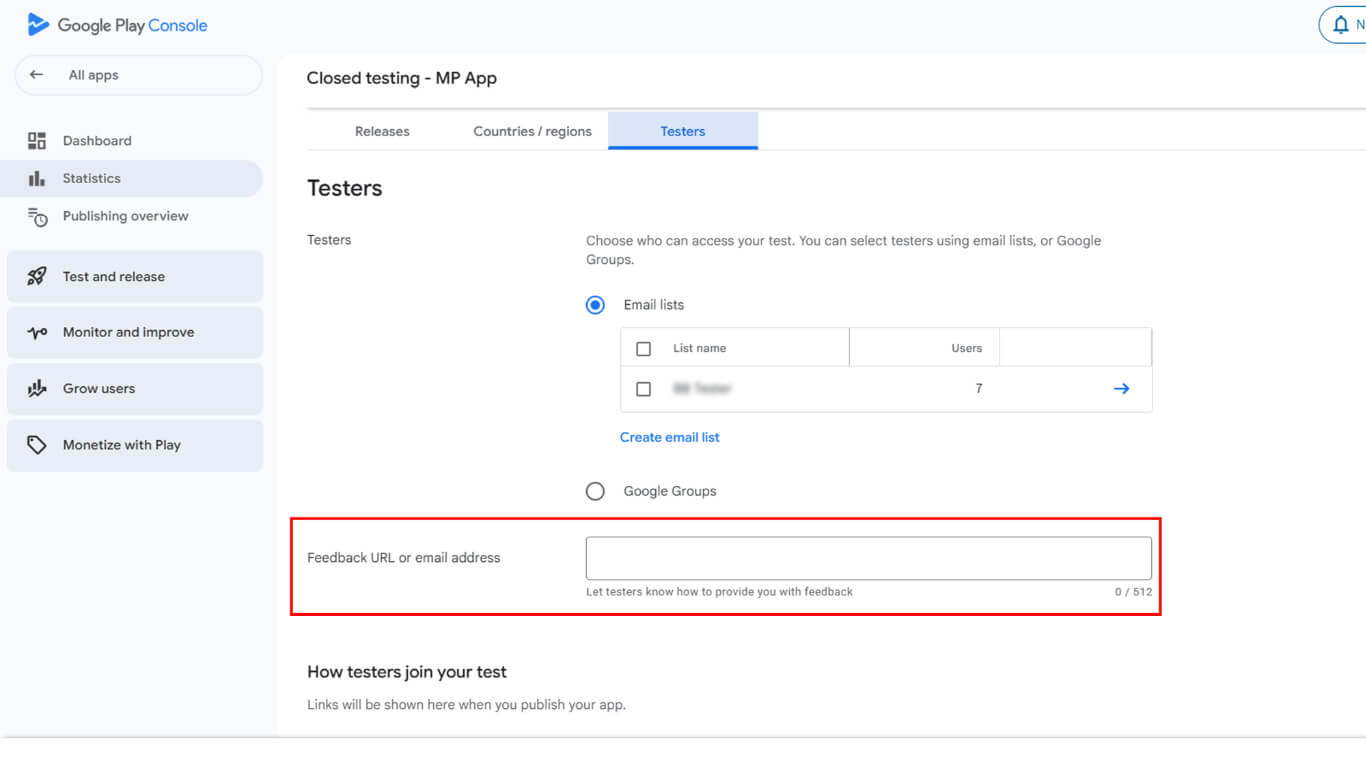
- Haga clic en Guardar para almacenar la información de respuesta.
- Haga clic en Ir a Resumen cuando se le solicite.
Creación de una nueva versión para pruebas cerradas
La creación de la versión prepara la compilación de la aplicación para su distribución a los probadores.
- Vaya a la pista de pruebas cerrada en Google Play Console.
- Haga clic en el botón Crear nueva versión botón.
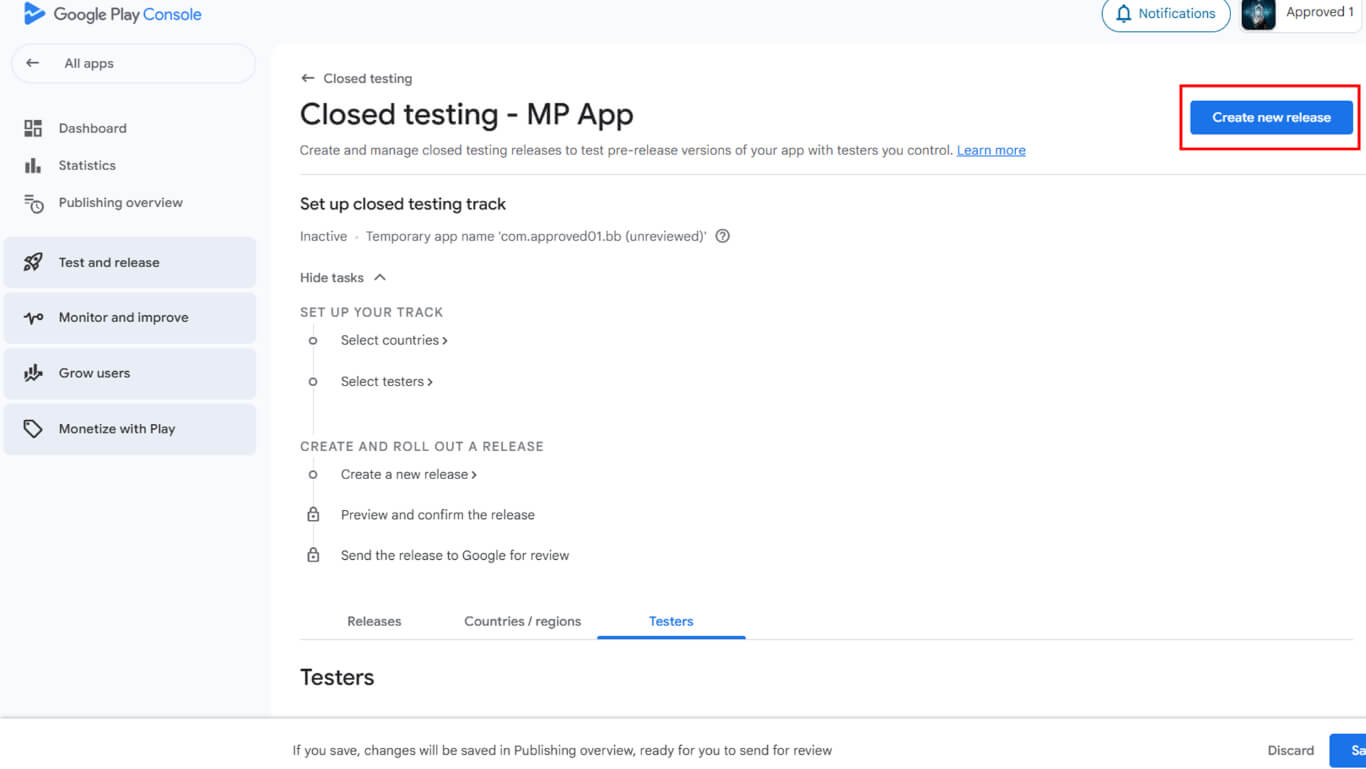
- Desplácese hasta el Paquetes de aplicaciones sección.
- Haga clic en Cargar para seleccionar el archivo AAB del dispositivo.
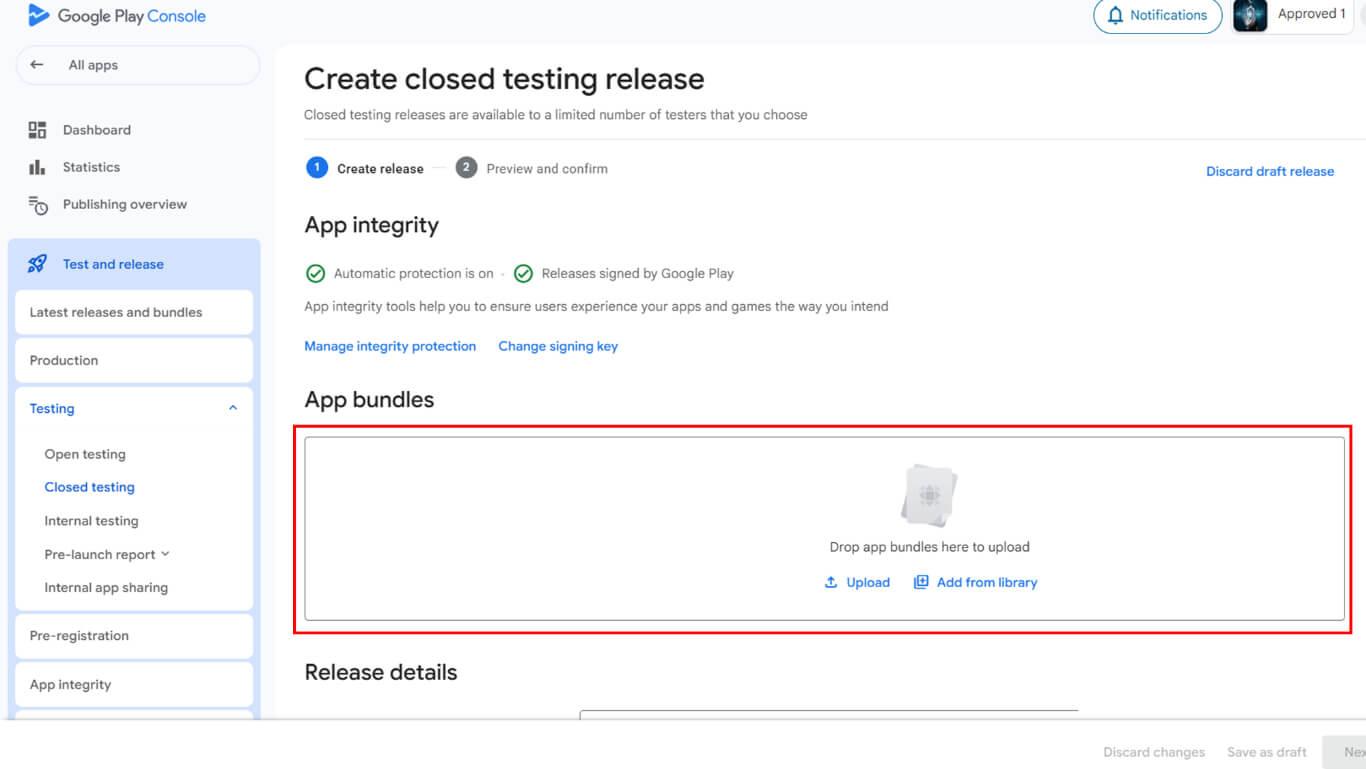
- También puede seleccionar un AAB existente de la biblioteca.
- Haga clic en Añadir a la publicación después de seleccionar la construcción.
- Navegue hasta el Detalles de la publicación sección.
- Compruebe que el número de versión rellenado automáticamente es correcto.
- Entre en Notas de la versión describir cambios o características.
- Haga clic en Siguiente para proceder a la revisión.
- Haga clic en Guardar para almacenar la información de liberación.
- Haga clic en Ir al resumen en la ventana emergente de confirmación.
- Haga clic en Enviar cambios para su revisión para someterlo a aprobación.
- Confirme el envío en el cuadro de diálogo de confirmación.
Configuración de las pruebas de licencia
Las pruebas de licencia restringen el acceso a la aplicación a los probadores autorizados durante el periodo de pruebas.
- Vaya a Todas las aplicaciones en la barra lateral izquierda de Google Play Console.
- Haga clic en Configuración > Prueba de licencias en la navegación.
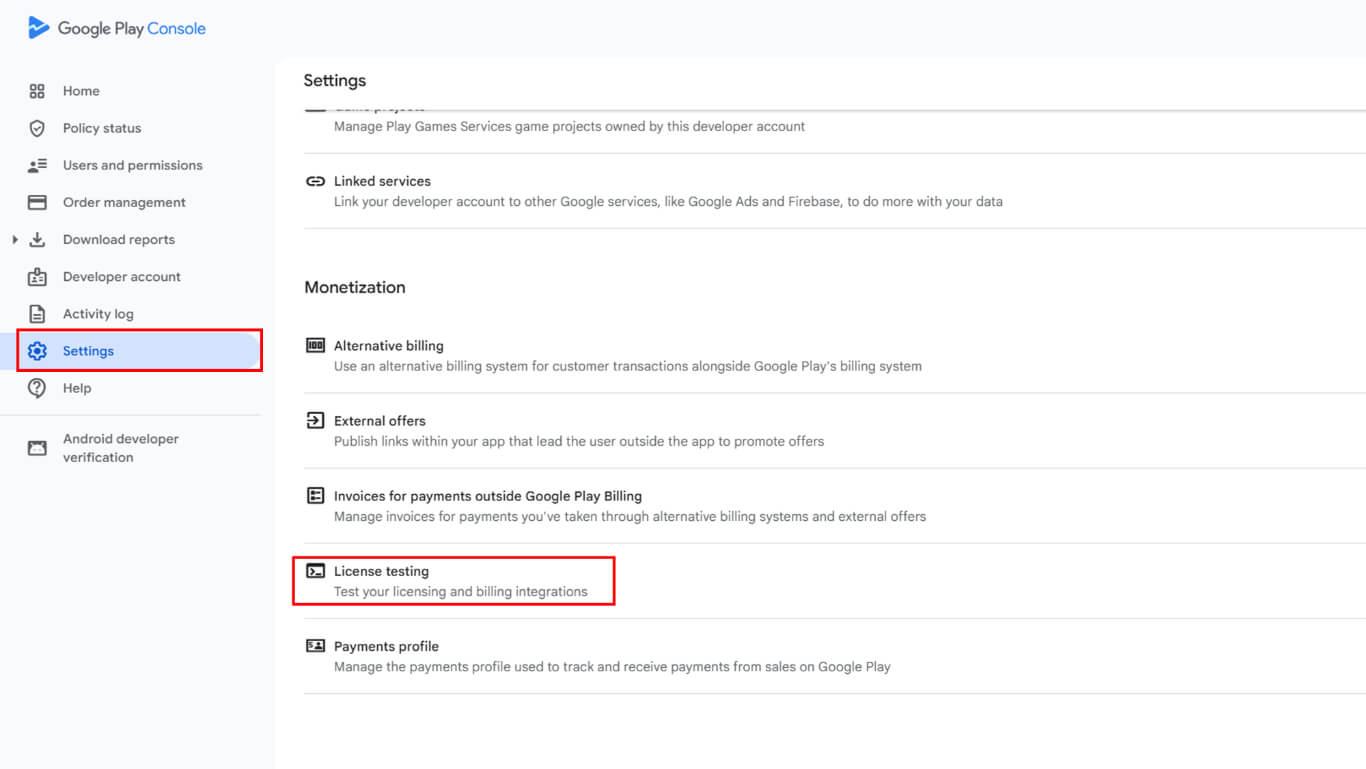
- Seleccione las listas de correo electrónico de los probadores entre las opciones disponibles.
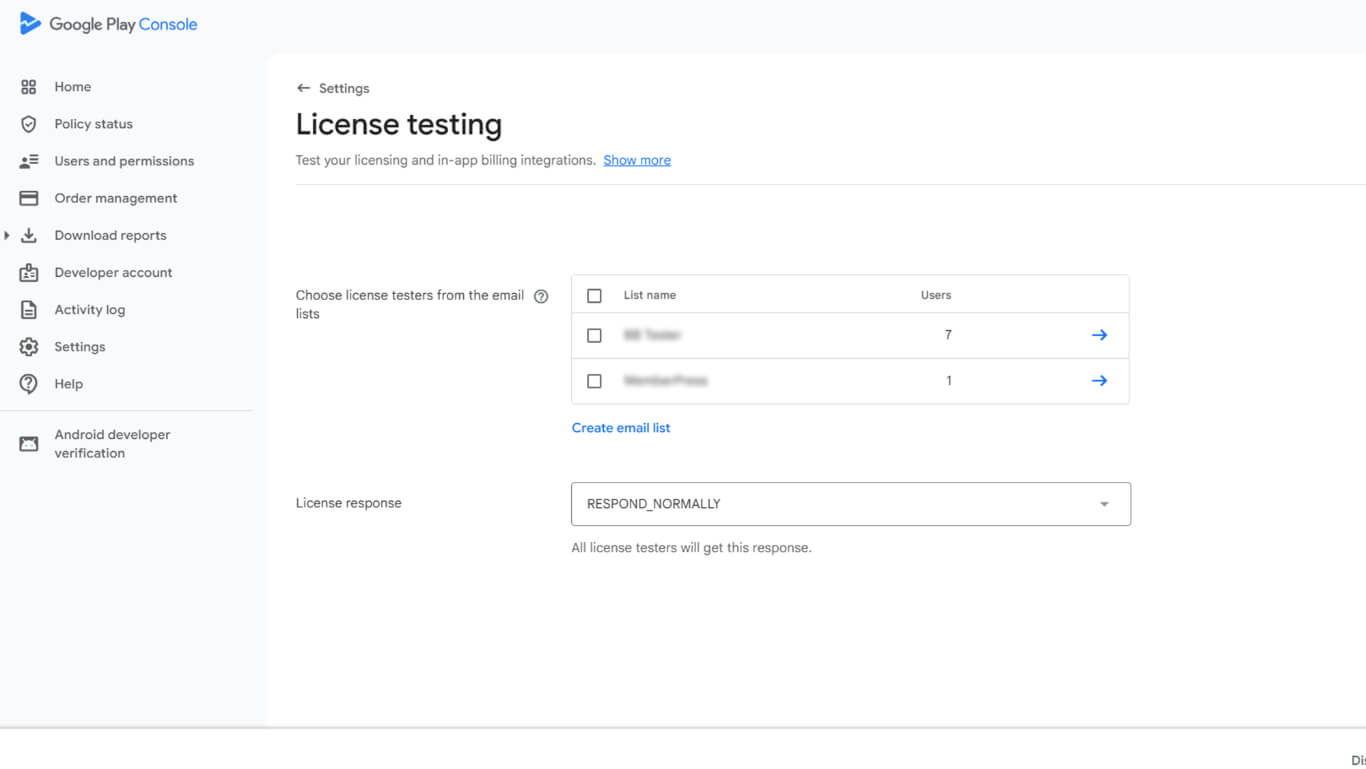
- Haga clic en Guardar cambios para finalizar la configuración de las pruebas de licencia.
Las pruebas de licencia garantizan que sólo los probadores autorizados puedan instalar y acceder a la aplicación durante la fase de pruebas cerradas.
Periodo de pruebas cerrado de 14 días
La ejecución del periodo de pruebas recoge comentarios y valida la funcionalidad de la aplicación antes de su producción.
- Espere la confirmación de la aprobación de Google de la versión de prueba cerrada.
- Copie el enlace de la prueba desde la vista general de la pista de pruebas cerrada.
- Comparta el enlace de la prueba con los 12 o más probadores por correo electrónico.
- Verifique que los probadores optan a la prueba cerrada a través del enlace.
- Supervise la participación de los probadores durante el periodo mínimo de 14 días.
- Recopile los comentarios de los probadores a través del canal de comentarios designado.
- Revisar los comentarios para identificar mejoras antes del lanzamiento de la producción.
- Asegúrese de que al menos 12 probadores utilizan activamente la aplicación durante 14 días consecutivos.
Solicitud de acceso a la producción
Las solicitudes de acceso de producción desbloquean la vía de producción para el lanzamiento público de aplicaciones.
- Vaya al panel de control de la aplicación en Consola de Google Play una vez completados los requisitos de las pruebas.
- Haga clic en el botón Solicitar producción botón.
- Revise el cuestionario de solicitud de acceso a la producción.
- Responda a las preguntas sobre el proceso y los resultados de las pruebas cerradas.
- Proporcione detalles sobre las funciones y características de la aplicación o el juego.
- Confirmar la preparación de la producción y las normas de calidad.
- Haga clic en Enviar para enviar la solicitud a Google para su revisión.
- Espera a la decisión de revisión de Google sobre el acceso a la producción.
Google suele revisar las solicitudes de acceso de producción en un plazo de 7 días o menos. La pestaña de producción se desbloquea tras la aprobación, lo que permite preparar el lanzamiento público.
Publicación después del acceso a la producción
La preparación de la liberación de la producción sigue a la aprobación del acceso a la producción.
- Navegue hasta el Producción pista en Google Play Console después de la aprobación.
- Haga clic en Crear nueva versión en la pista de producción.
- Sube el archivo AAB de compilación final de la aplicación.
- Detalles completos de la versión, incluida información sobre la versión y notas de la versión.
- Guarde la configuración de la versión de producción.
- Vaya a Panel de control > MP AppKit > Servicio de publicación > Google Play Store en WordPress.
- Haga clic en Enviar para crear una solicitud de publicación.
- El equipo de publicación gestiona el envío de aplicaciones a Google Play Store.
- Manténgase informado por correo electrónico del estado de los envíos.
El equipo de publicación se encarga de la presentación final de la aplicación y de la comunicación con el equipo de revisión de Google Play Store.










 ES
ES  EN
EN  FR
FR  DE
DE  PT
PT 