

Ce document explique comment configurer et tester le mode bac à sable de PayPal Complete Payments avec MemberPress. Le test en mode bac à sable vous permet de vérifier la configuration avant d'accepter des paiements réels.
PayPal Sandbox - Vue d'ensemble
La connexion de PayPal Complete Payments à MemberPress vous permet d'accepter les paiements des membres du monde entier. L'installation prend en charge les paiements uniques et récurrents pour différents modèles d'adhésion.
PayPal Sandbox est une zone de test qui copie le système de paiement réel. Cependant, il ne traite pas les frais réels. Par conséquent, vous pouvez tester les flux et les paramètres de paiement en utilisant des numéros de cartes de test au lieu des détails de paiement réels.
Il est conseillé de tester l'environnement de test de PayPal avant d'accepter des paiements en direct. Cependant, le test de l'environnement de test est facultatif. Pour ne pas effectuer de test et se connecter directement à la production, voir Comment connecter les paiements complets PayPal à MemberPress.
Conditions préalables
Avant d'effectuer des tests avec l'Environnement PayPal, assurez-vous que vous disposez des éléments suivants
- MemberPress Plan de croissance ou d'échelle activé sur le site ;
- A PayPal Compte de développeur (création gratuite) ;
- Une passerelle PayPal Complete Payments créée dans les paramètres MemberPress ;
- Au moins un l'adhésion créé à des fins de test.
Création de comptes de l'Environnement de test
Le bac à sable PayPal nécessite des comptes de test séparés pour le commerçant (Business) et l'acheteur (Personal). Ces comptes de bac à sable n'existent que dans la zone de test.
Création d'un compte d'entreprise dans l'écrin de verdure
- Tout d'abord, connectez-vous à l'application PayPal Tableau de bord du développeur.
- Cliquez ensuite sur Outils de test dans le menu de gauche. Cliquez ensuite sur Comptes de l'Environnement.
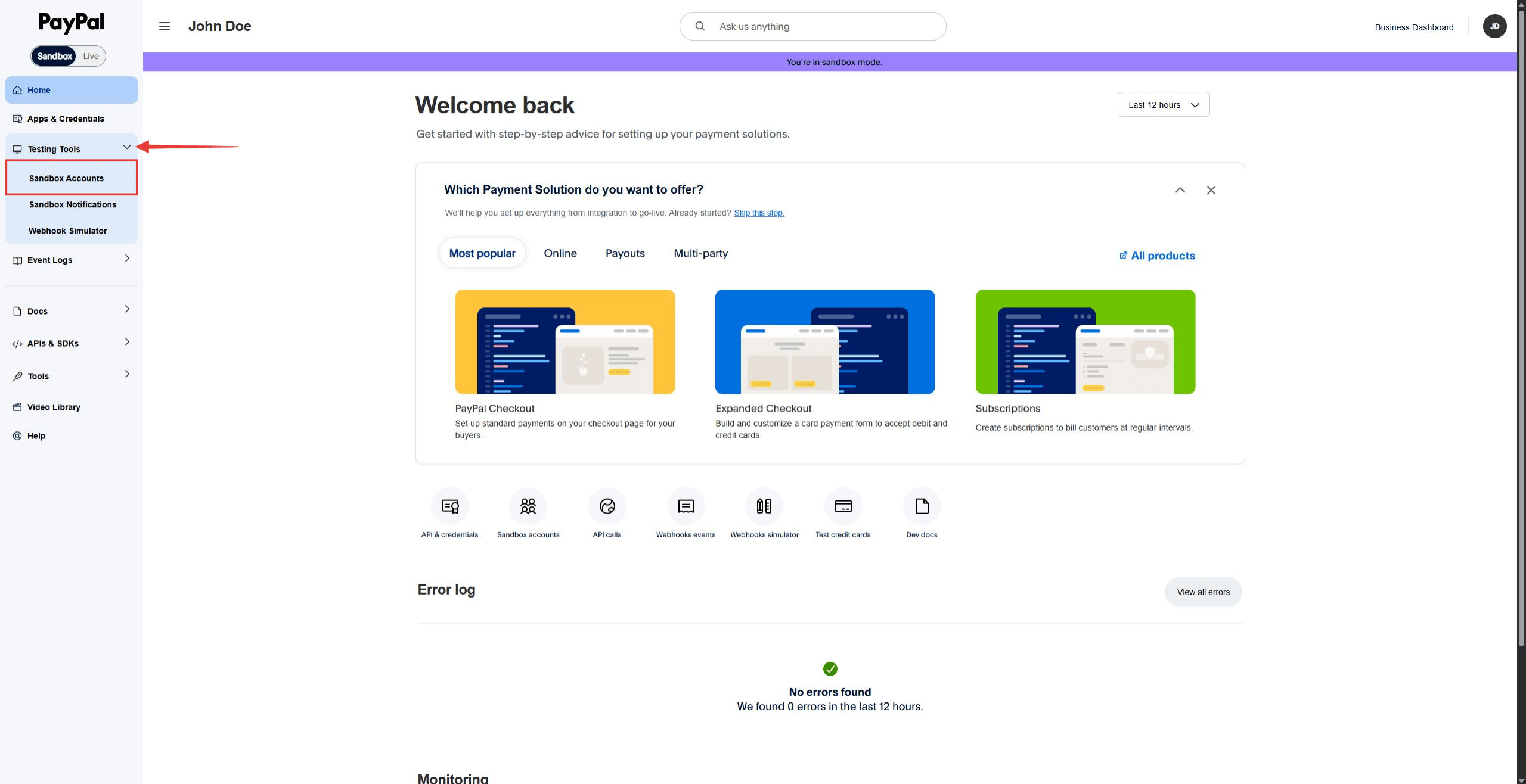
- Cliquez sur le bouton Créer un compte bouton.
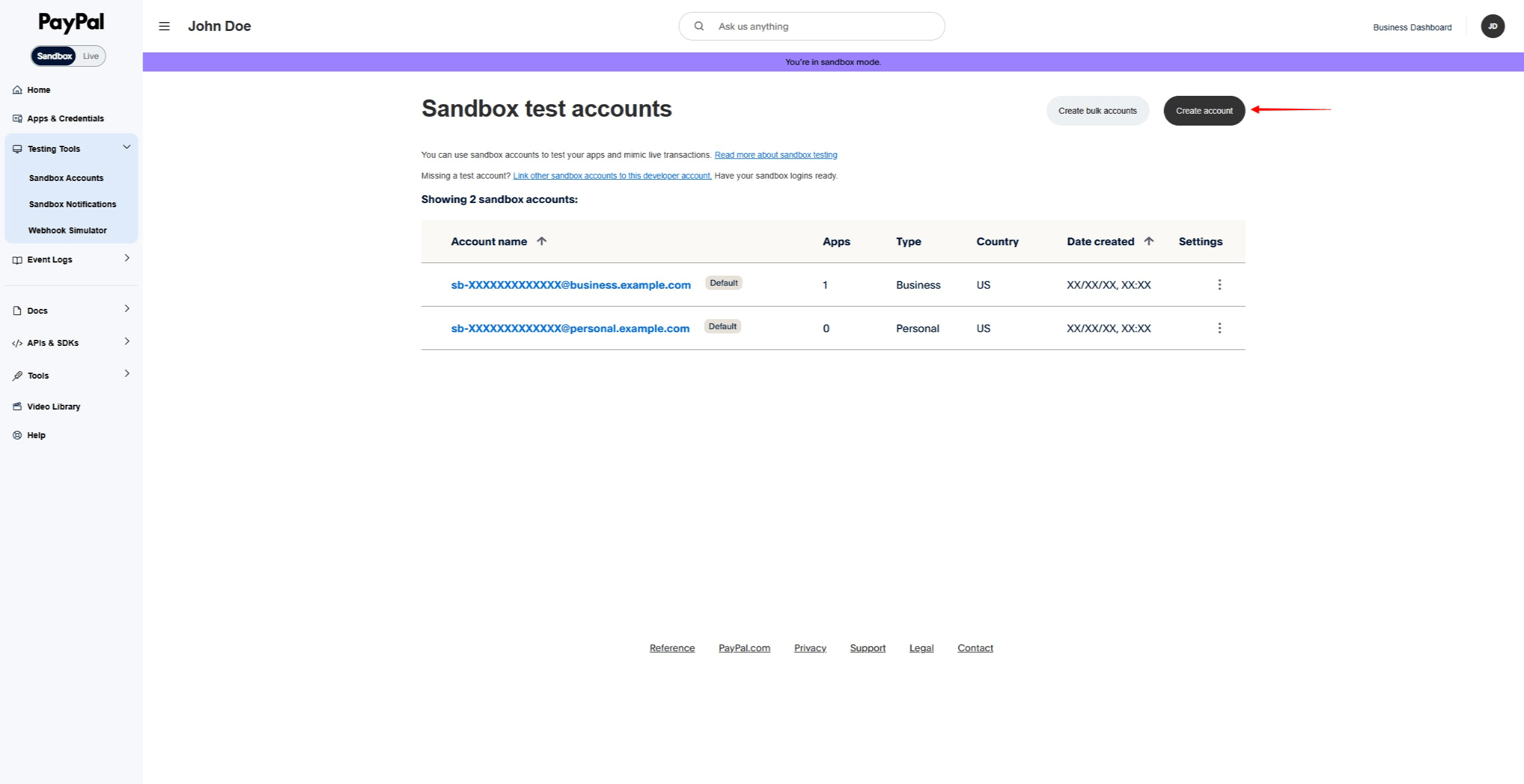
- Sélectionner Entreprises comme type de compte.
- Sélectionner un Pays/Région pour le marchand test.
- Enfin, cliquez sur Créer pour créer le compte Business du bac à sable.
Création d'un compte personnel de l'Environnement de test
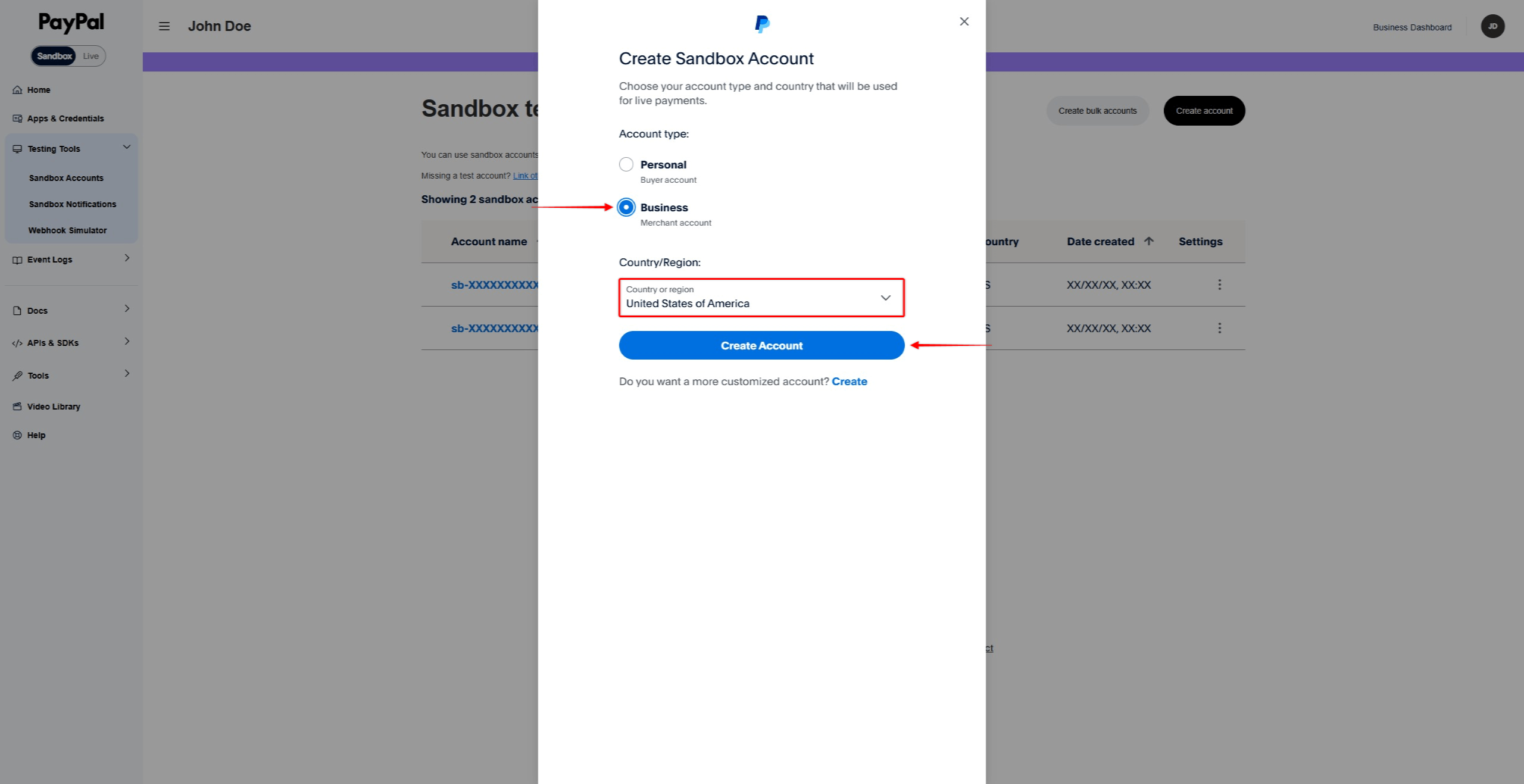
- Sur le site Comptes de l'Environnement page, cliquez sur Créer un compte.
- Sélectionner Personnel comme type de compte.
- Sélectionner un Pays/Région pour l'acheteur test.
- Cliquez sur Créer pour faire du bac à sable un compte personnel.
Visualisation des détails du compte de l'Environnement de sable
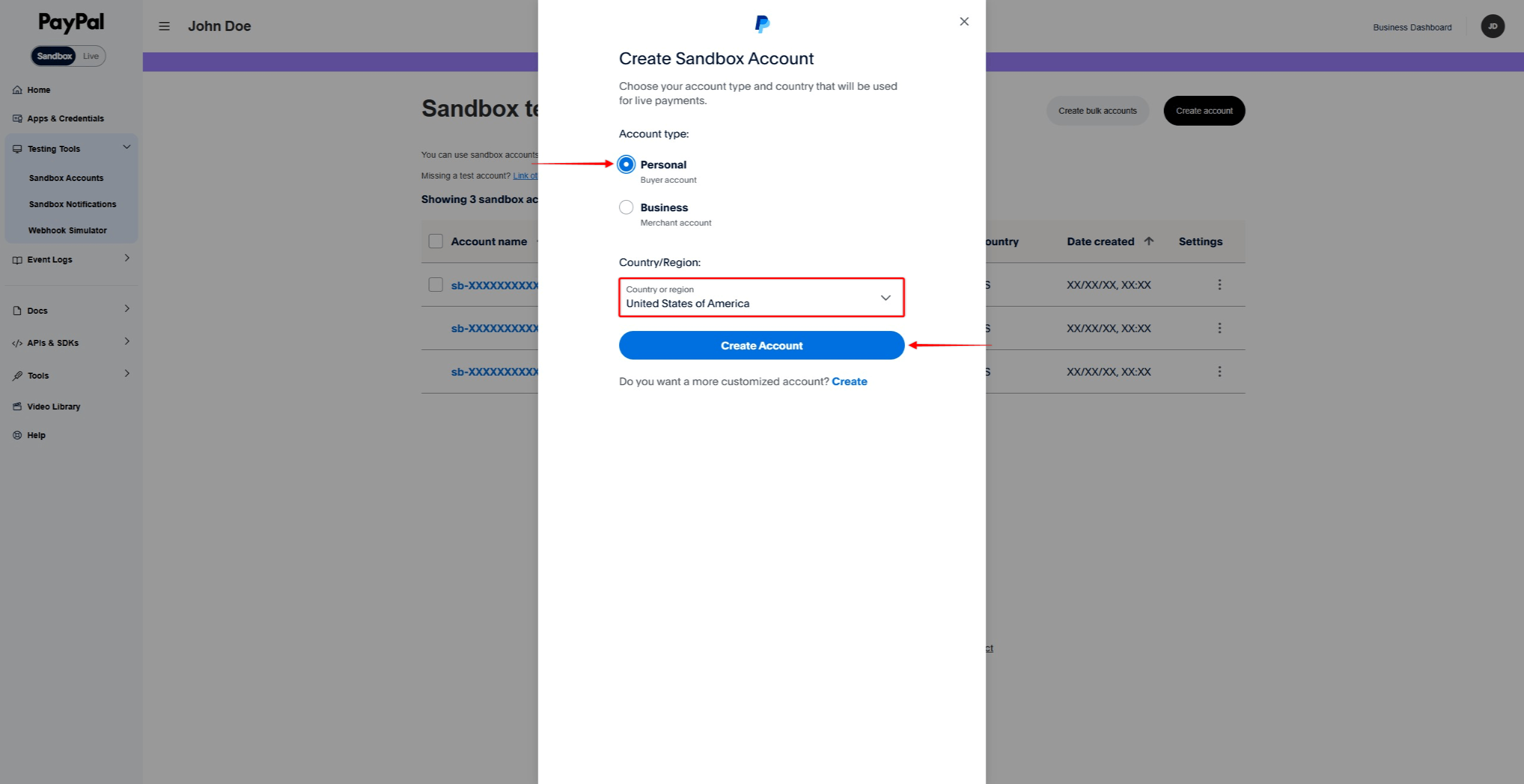
- Sur le site Comptes de l'Environnement recherchez le compte que vous souhaitez consulter.
- Cliquez sur le menu à trois points (…) à côté du compte.
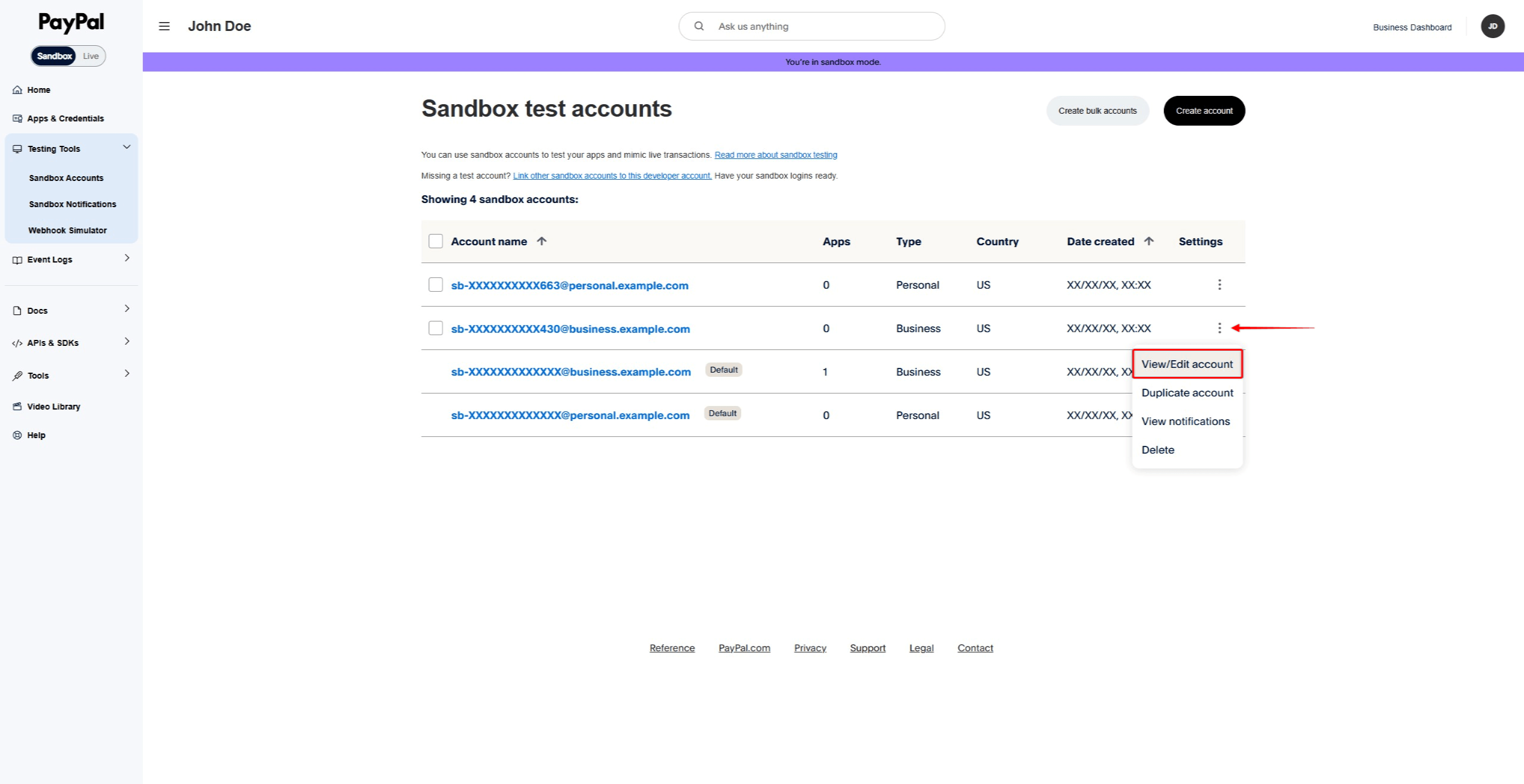
- Cliquez sur Voir/modifier le compte.
- Notez l'adresse électronique et le mot de passe créé par le système.
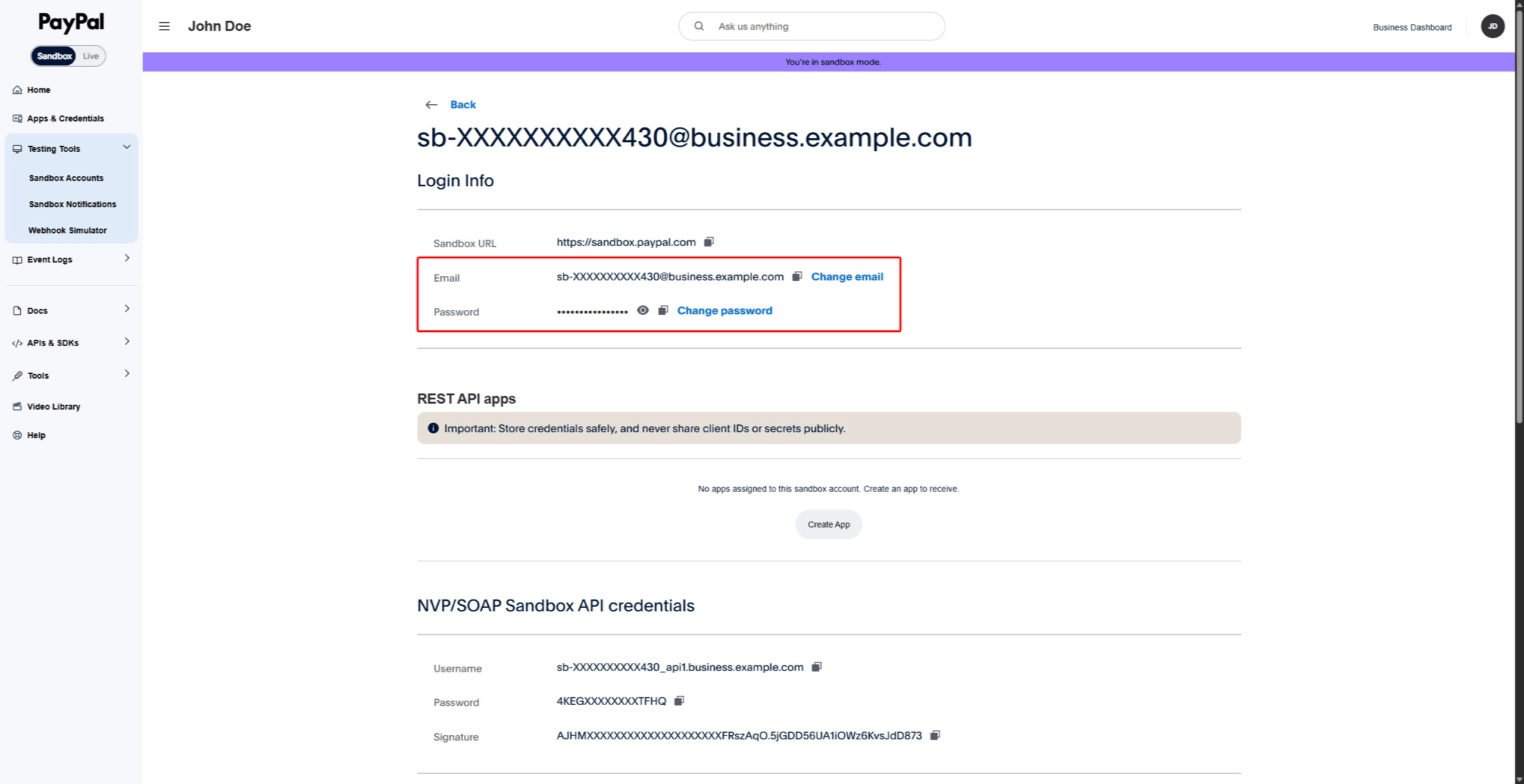
Connexion d'un bac à sable MemberPress à un bac à sable PayPal
Une fois les comptes bac à sable créés, vous pouvez maintenant connecter MemberPress à la zone bac à sable de PayPal. Au cours de la procédure de connexion, vous devrez vous connecter à l'aide de votre compte d'entreprise de l'écrin de sable. Utilisez l'adresse électronique et le mot de passe que vous avez trouvés dans la section “Afficher les détails du compte bac à sable” ci-dessus.
Vous pouvez vous connecter à votre compte Business sandbox avant de démarrer la connexion. Sinon, PayPal vous demandera de vous connecter pendant le processus de connexion.
Connexion du compte de l'Environnement de test
- Ouvrez un autre onglet du navigateur et connectez-vous à votre site web WordPress.
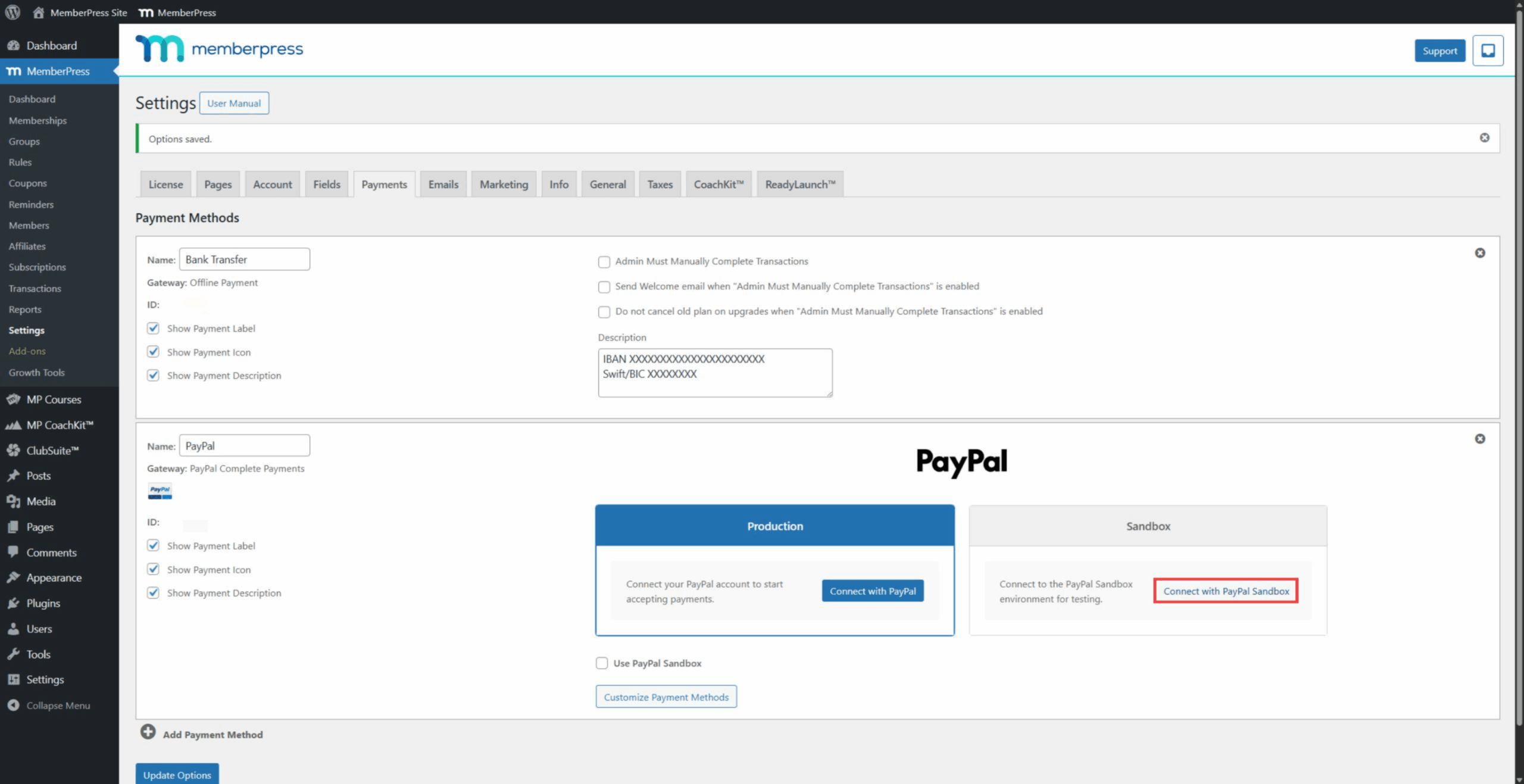
- Aller à Tableau de bord > MemberPress > Paramètres > Paiements tabulation.
- Cliquez sur la passerelle PayPal Complete Payments pour développer ses paramètres.
- Dans le cadre de la Bac à sable Cliquez sur la section Connexion avec PayPal bouton.
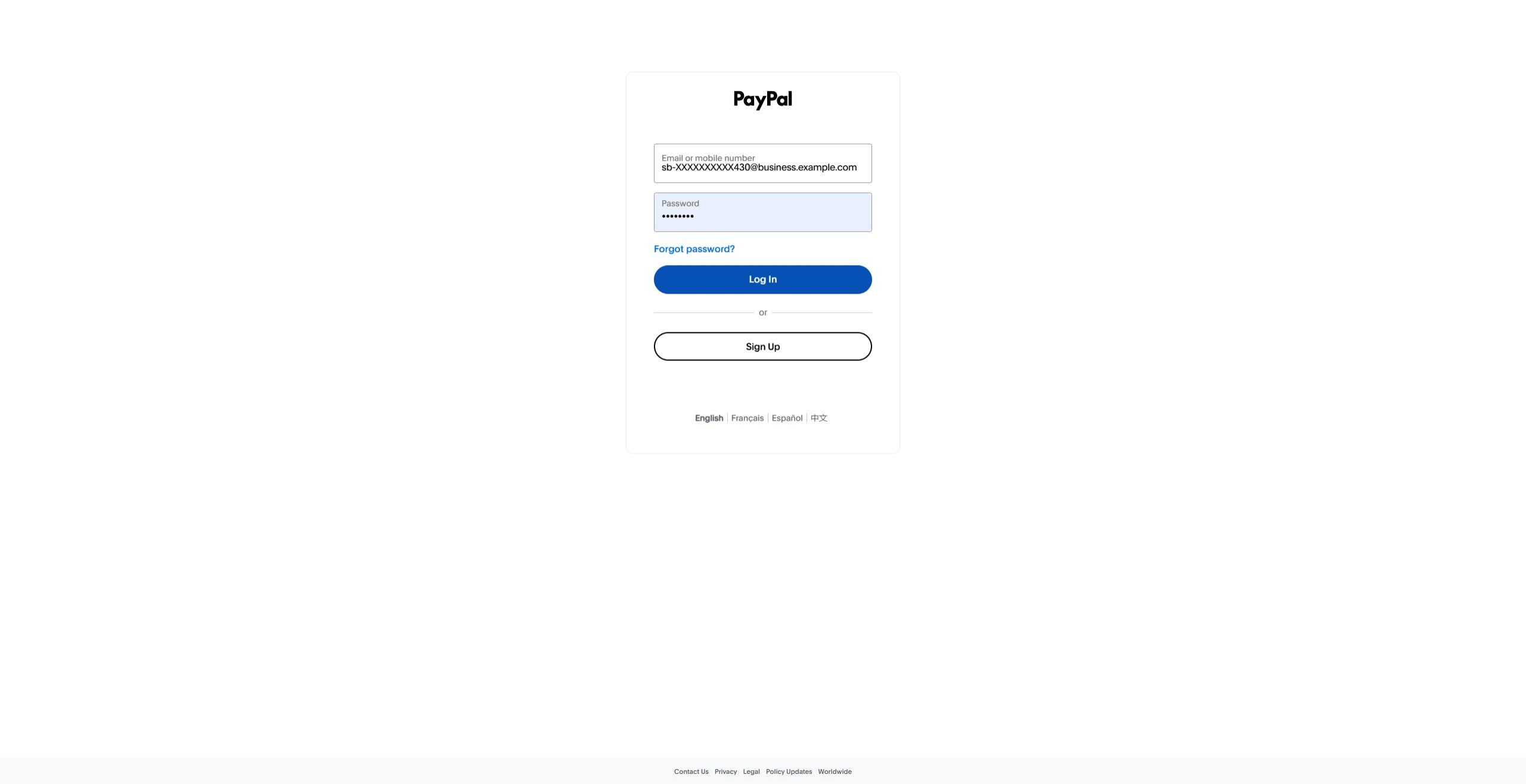
- Si vous n'êtes pas encore connecté, connectez-vous avec les détails de votre compte Sandbox Business. Utilisez l'adresse électronique et le mot de passe figurant dans les informations sur le compte.
- Accordez les autorisations et terminez la connexion.
- Ensuite, PayPal redirige vers la page de configuration de MemberPress.
- Vérifier le Utiliser l'Environnement de test PayPal pour activer les paiements de test.
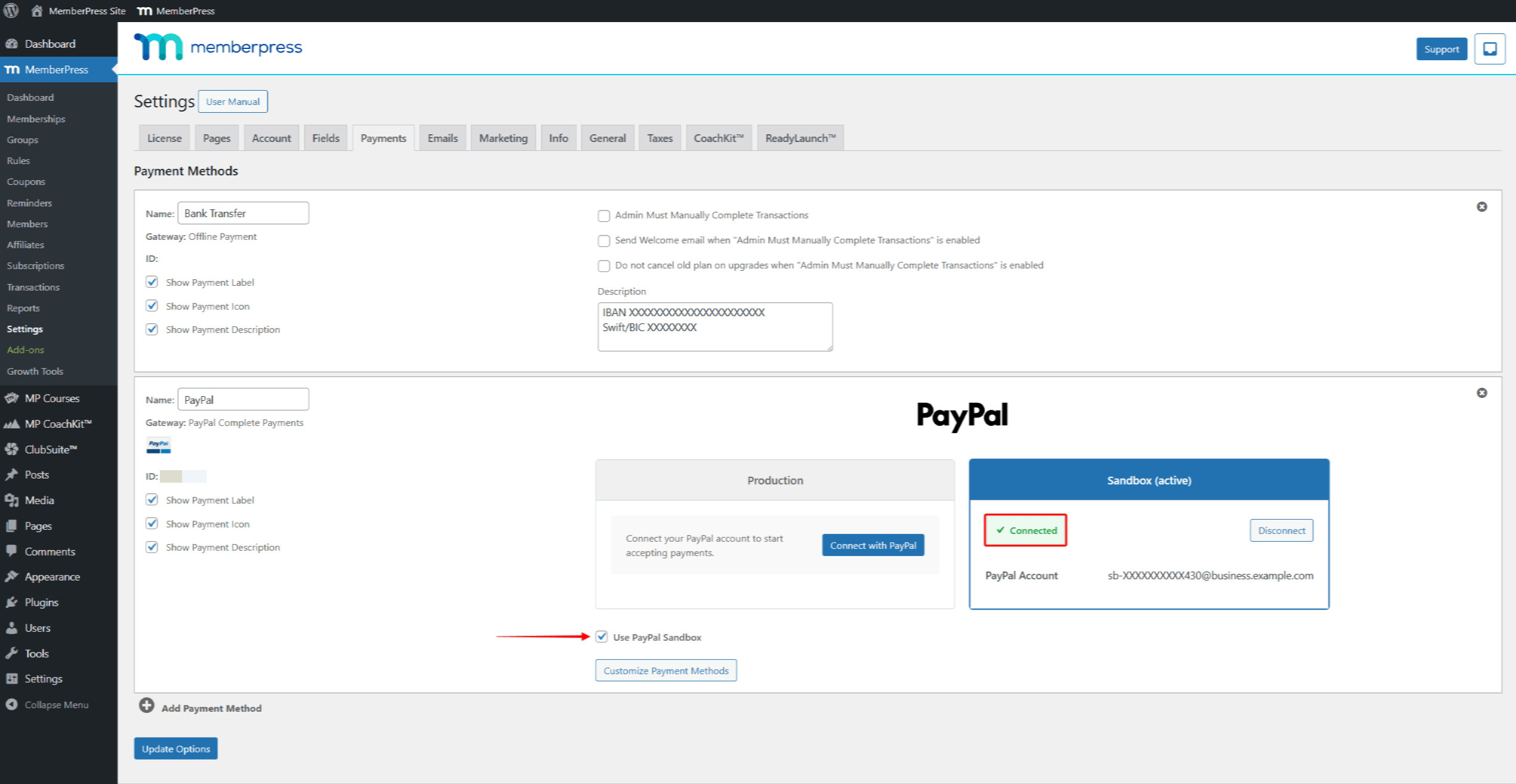
- Cliquez sur Options de mise à jour à épargner.
Test des paiements PayPal
Une fois l'Environnement de test connecté et activé, vous pouvez maintenant tester le flux de paiement. Vous utiliserez le compte personnel de l'Environnement de test que vous avez créé précédemment pour les tests. Lors du paiement, vous pouvez utiliser une carte de crédit, un compte bancaire ou le solde de PayPal.
Gestion des modes de paiement des tests
Pour gérer les méthodes de paiement des tests pour votre compte Personal Sandbox :
- Aller à PayPal Developer Dashboard > Testing Tools > Sandbox Accounts.
- Recherchez votre compte Personal Sandbox dans la liste.
- Cliquez sur le menu à trois points (…) à côté du compte.
- Cliquez sur Consulter/modifier le compte.
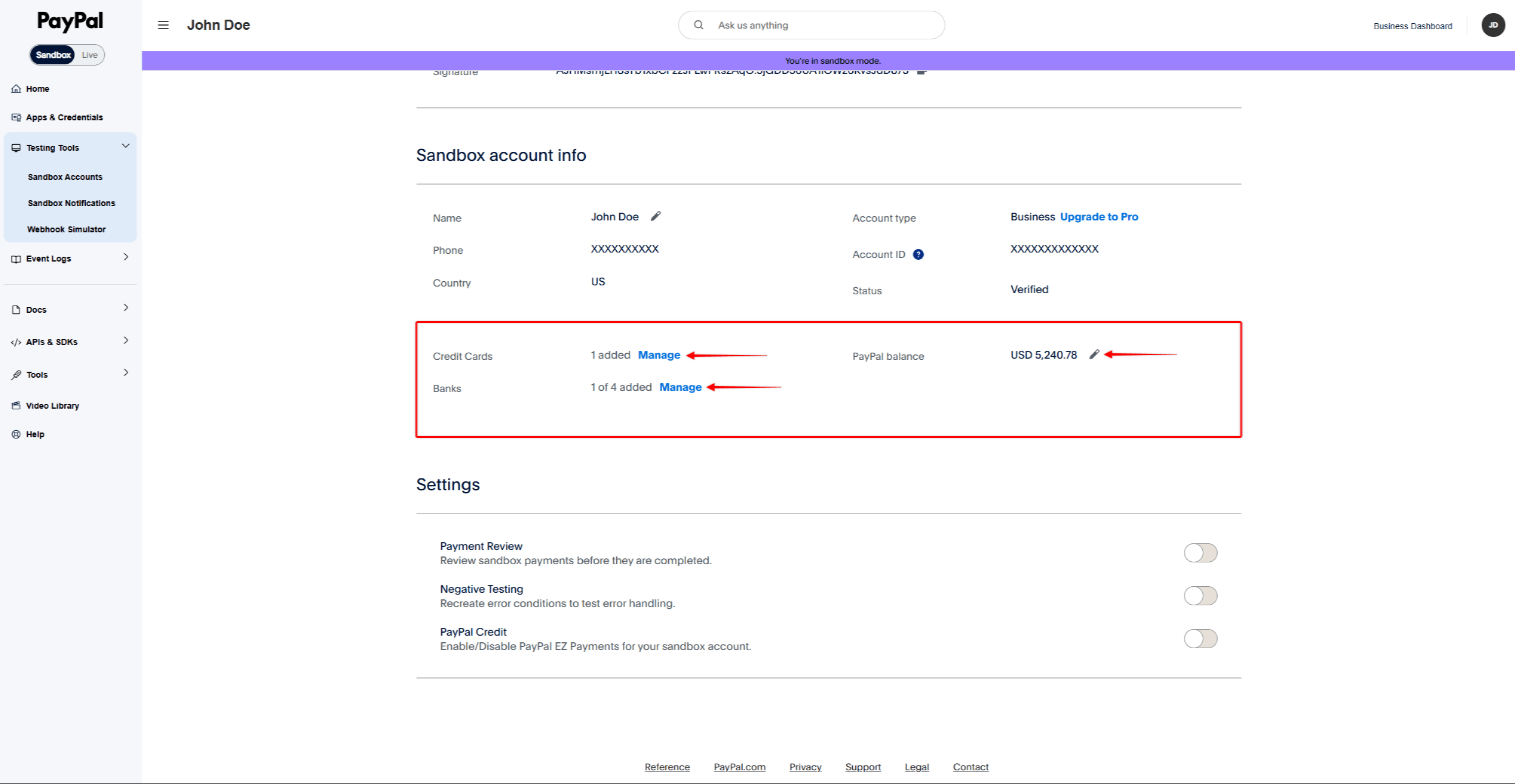
- Faites défiler vers le bas jusqu'à la rubrique “Informations sur le compte de l'écrin de sable” section.
- Gérez les méthodes de paiement de vos tests :
- Cartes de crédit - Cliquez sur Gérer pour ajouter ou modifier des cartes de crédit de test ;
- Banques - Cliquez sur Gérer pour ajouter ou modifier des comptes bancaires de test ;
- Balance PayPal - Cliquez sur l'icône du crayon pour modifier la balance de test.
Traitement d'un paiement test
- Tout d'abord, ouvrez une nouvelle fenêtre privée ou incognito dans votre navigateur.
- Accédez à la page d'inscription d'une adhésion existante ou d'une adhésion test.
- Remplir le formulaire d'enregistrement avec les détails de l'utilisateur du test.
- Cliquez sur le bouton PayPal pour ouvrir la fenêtre contextuelle de paiement.
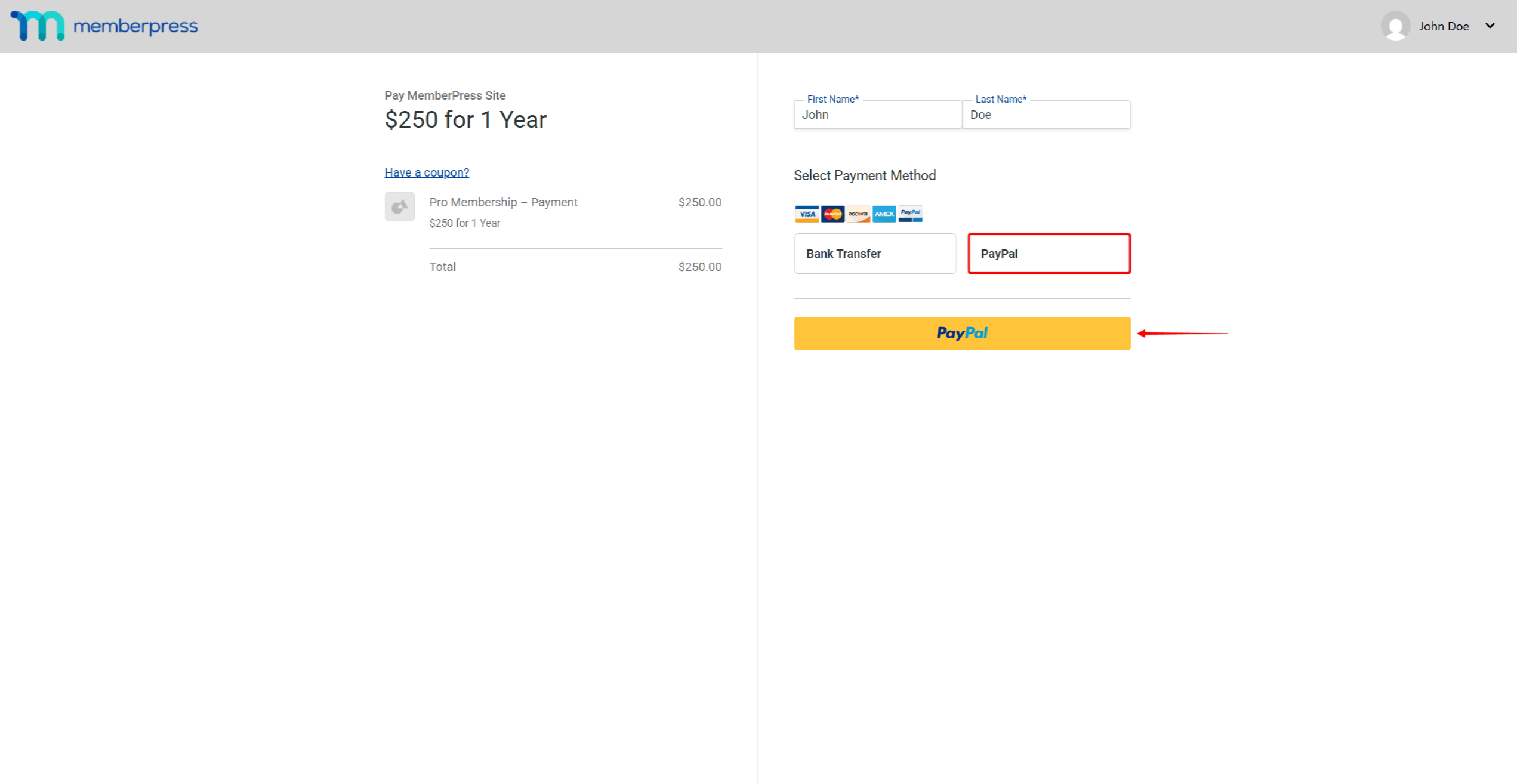
- Connectez-vous avec les détails du compte personnel du bac à sable.
- Effectuez le paiement dans la fenêtre pop-up.
Vérification des transactions de test
Après avoir effectué le paiement test, vérifiez la transaction dans MemberPress et PayPal.
En MemberPress :
- Aller à Tableau de bord > MemberPress > Transactions.
- Recherchez la transaction test dans la liste.
- Vérifier que le statut de la transaction indique Compléter.
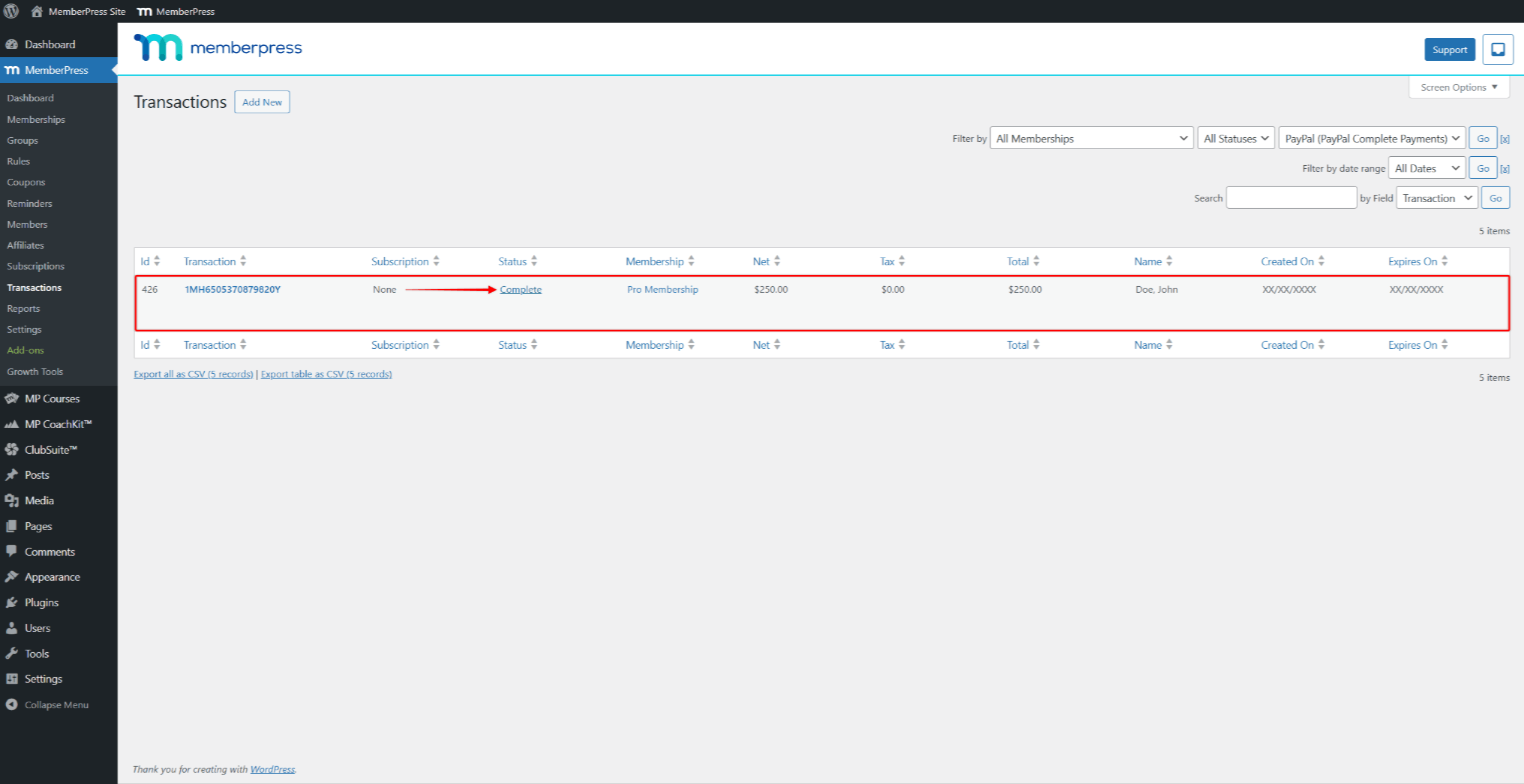
Pour les abonnements récurrents, vérifiez également l'abonnement à l'adresse suivante Tableau de bord > MemberPress > Abonnements.
Dans le tableau de bord de l'Environnement PayPal :
- Aller à https://sandbox.paypal.com/.
- Connectez-vous en utilisant les informations d'identification de votre compte Business Sandbox (e-mail et mot de passe).
- Naviguez jusqu'à Activité > Toutes les transactions.
- Recherchez la transaction test dans la liste et vérifiez que les détails correspondent.
La connexion fonctionne correctement si les transactions apparaissent à la fois dans l'Environnement MemberPress et PayPal.
Tester d'autres modes de paiement
Par défaut, le bouton PayPal est activé. Vous pouvez activer d'autres options de paiement pour les tester en mode bac à sable.
Activation des options de paiement
- Aller à Tableau de bord > MemberPress > Paramètres > Paiements tabulation.
- Cliquez sur la passerelle PayPal Complete Payments pour développer ses paramètres.
- Cliquez sur le bouton Personnaliser les modes de paiement sous les sections Production et Sandbox.
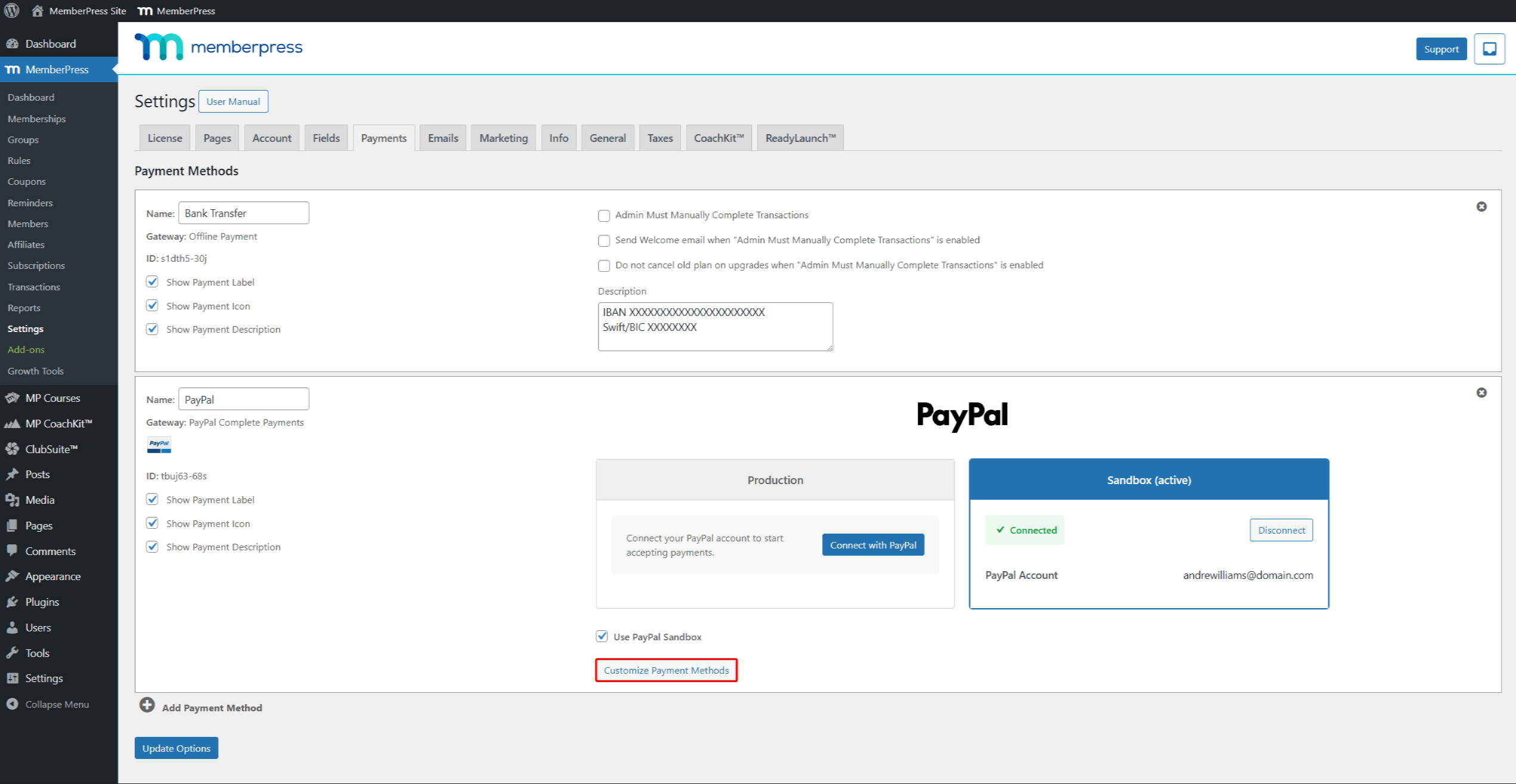
- Dans la fenêtre contextuelle, activez les méthodes de paiement que vous souhaitez tester.
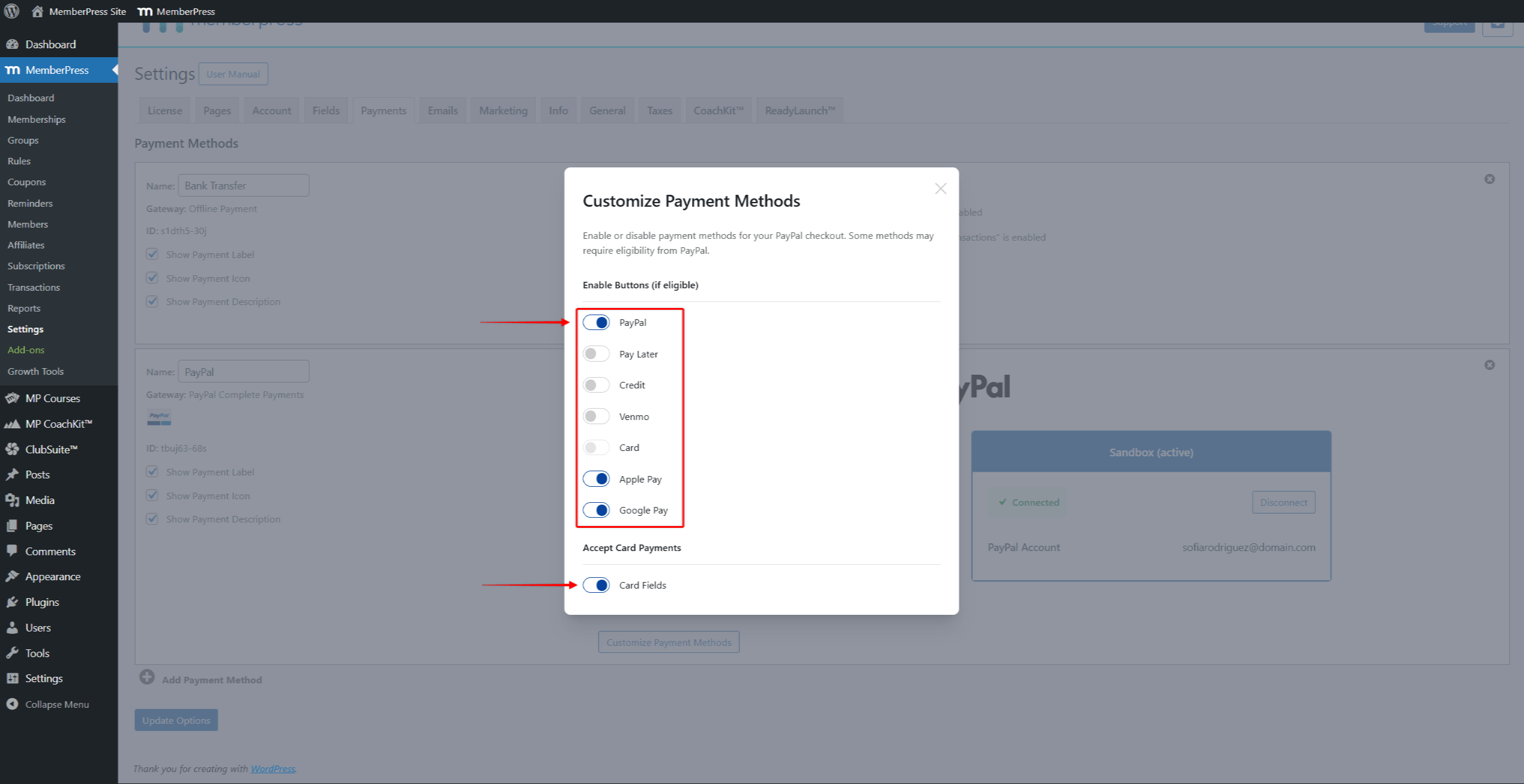
- Cliquez en dehors de la fenêtre pour la fermer.
- Cliquez sur Options de mise à jour pour enregistrer vos modifications.
Test des paiements par carte
Pour tester les paiements par carte, activez la fonction Carte ou Champs de cartes sous “Accepter les paiements par carte” dans la fenêtre contextuelle "Personnaliser les méthodes de paiement".
PayPal fournit des numéros de cartes de test pour les tests Sandbox. Pour obtenir la liste complète des cartes de test, consultez le site web de la Commission européenne. Documentation de test de la carte PayPal.
Tester d'autres options de paiement
PayPal prend en charge des options de paiement supplémentaires telles que Venmo, Pay Later, Apple Pay et Google Pay. Chaque option a des exigences spécifiques :
- Venmo - Créez un compte personnel dans le bac à sable américain et utilisez la devise USD. Venmo cache les autres régions ;
- Payer plus tard - Nécessite une devise prise en charge (USD, GBP, EUR, AUD) et un montant minimum d'achat ;
- Apple Pay - Nécessite la configuration du compte PayPal du commerçant ;
- Google Pay - Ne fonctionne que pour les paiements uniques. PayPal masque Google Pay pour les adhésions récurrentes.
Pour obtenir des instructions détaillées sur les tests, consultez le site PayPal Documentation de caisse.
Passage à la production
Une fois les tests réussis, vous pouvez activer les paiements en direct :
- Naviguez jusqu'à Tableau de bord > MemberPress > Paramètres > Paiements tabulation.
- Dans le cadre de la Production de votre passerelle PayPal Complete Payments, connectez votre compte PayPal Business en direct (et non le compte Sandbox Business).
- Décochez la case Utiliser l'Environnement de test PayPal case à cocher.
- Cliquez sur Options de mise à jour pour enregistrer vos modifications.
Désormais, les utilisateurs peuvent s'inscrire à vos adhésions et payer par l'intermédiaire de PayPal.
Résolution des problèmes liés à l'utilisation de l'bac à sable
Écran vide lors de la connexion - Tout d'abord, ouvrez le tableau de bord de l'Environnement de test dans un autre onglet. Ensuite, cliquez sur Connect in MemberPress.
Impossible de se connecter au bac à sable - Utilisez les détails du compte sandbox à partir du tableau de bord du développeur. N'utilisez pas les données de connexion habituelles de PayPal.
Les boutons de paiement n'apparaissent pas - Vérifier que Utiliser l'Environnement de test PayPal est coché. Vérifiez également que l'état de l'Environnement de test est connecté.
Carte de test refusée - Assurez-vous que vous utilisez des numéros de carte de test valides provenant de la base de données de l Documentation de test de la carte PayPal. Utilisez également une date de péremption future.
Venmo n'apparaît pas - Créez un compte personnel dans le bac à sable américain et utilisez la devise USD.
Transaction non enregistrée - Vérifiez qu'il n'y a pas de transactions en cours. Vérifiez également qu'aucun pare-feu ne bloque PayPal. Vérifiez que le journal de débogage de WordPress ne contient pas d'erreurs.










 FR
FR  EN
EN  ES
ES  DE
DE  PT
PT 