

Este documento explica como configurar e testar o modo Sandbox do PayPal Complete Payments com o MemberPress. O teste no modo sandbox permite que você verifique a configuração antes de aceitar pagamentos reais.
Visão geral do Sandbox PayPal
A conexão do PayPal Complete Payments ao MemberPress permite que você aceite pagamentos de membros do mundo todo. A configuração suporta pagamentos únicos e recorrentes para diferentes modelos de associação.
O PayPal Sandbox é uma área de teste que copia o sistema de pagamento ativo. No entanto, ele não processa cobranças reais. Como resultado, você pode testar fluxos e configurações de pagamento usando números de cartão de teste em vez de detalhes de pagamento reais.
É recomendável fazer testes com o PayPal Sandbox antes de aceitar pagamentos em tempo real. No entanto, o teste de sandbox é opcional. Para ignorar o teste e conectar-se diretamente à produção, consulte Como conectar pagamentos completos do PayPal ao MemberPress.
Pré-requisitos
Antes de testar com o PayPal Sandbox, certifique-se de que você tenha:
- MemberPress Plano de crescimento ou escala ativado no local;
- A PayPal Conta de desenvolvedor (livre para criar);
- Um gateway PayPal Complete Payments criado nas configurações do MemberPress;
- Pelo menos um filiação criado para testes.
Criação de contas de sandbox
O PayPal Sandbox precisa de contas de teste separadas para o comerciante (Business) e o comprador (Personal). Essas contas de sandbox só existem na área de teste.
Criação de uma conta comercial Sandbox
- Primeiro, faça login no Painel de controle do desenvolvedor do PayPal.
- Em seguida, clique em Ferramentas de teste no menu à esquerda. Em seguida, clique em Contas Sandbox.
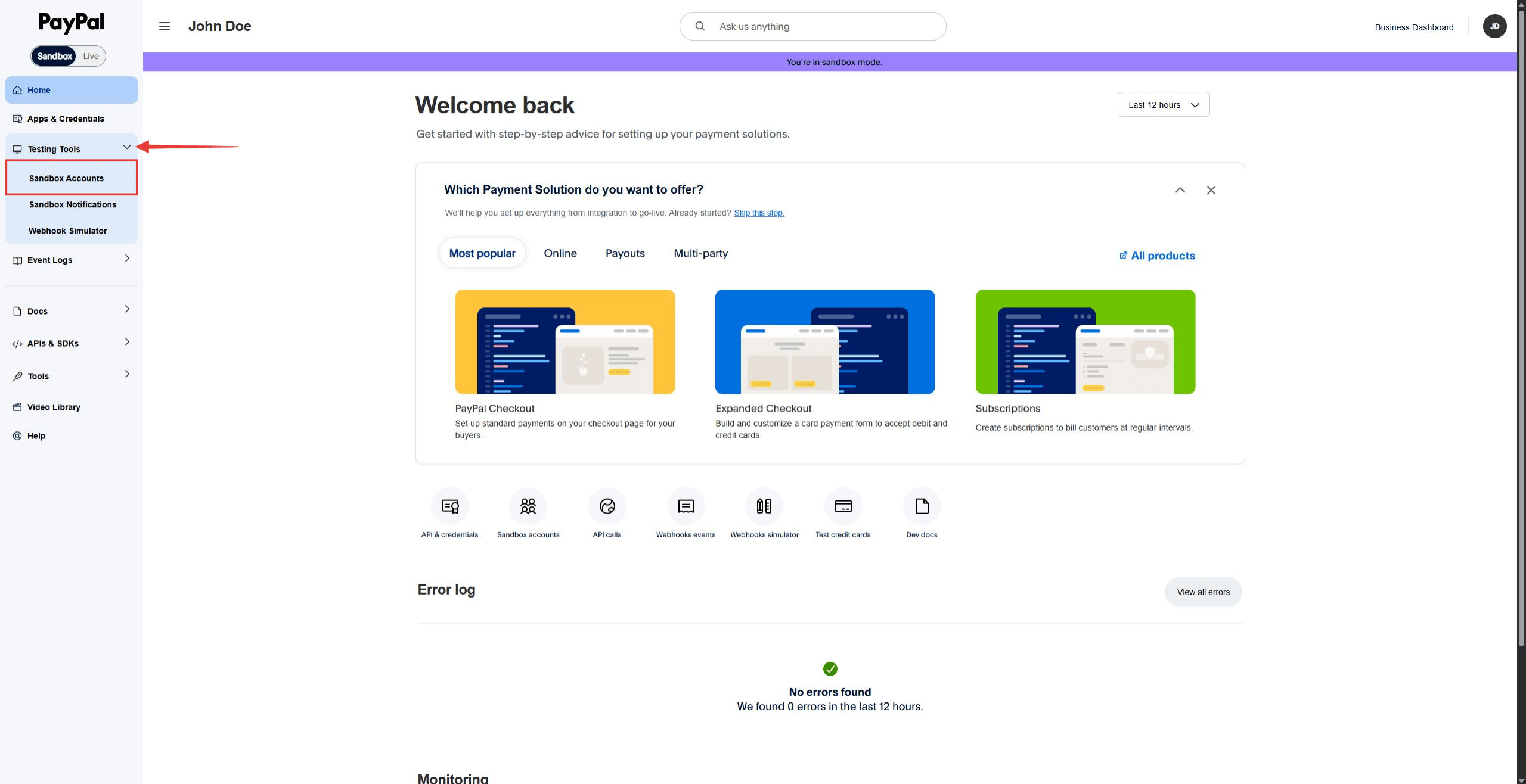
- Clique no botão Criar conta botão.
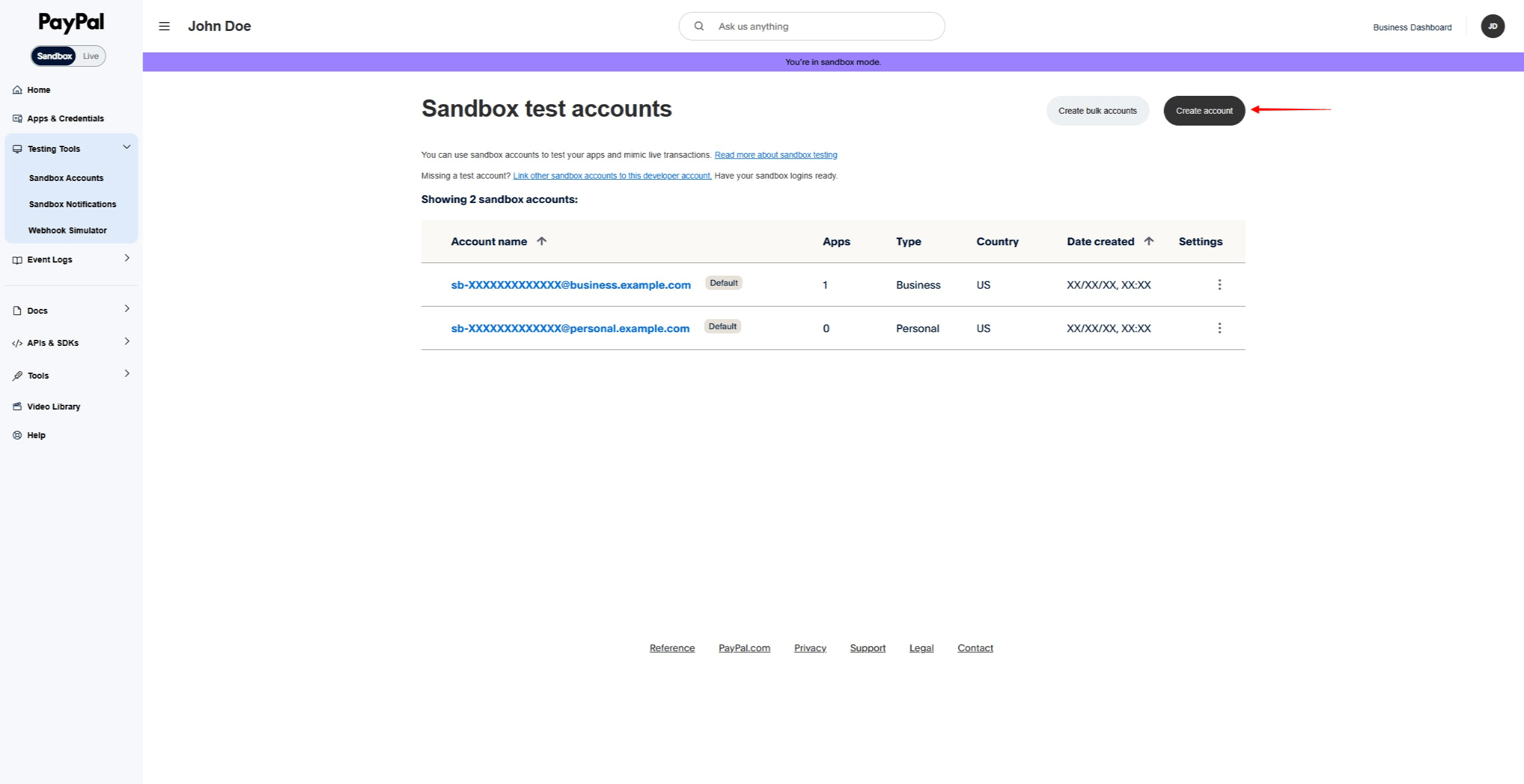
- Selecione Negócios como o tipo de conta.
- Selecione um País/Região para o comerciante de teste.
- Por fim, clique em Criar para criar a conta Business da sandbox.
Criação de uma conta pessoal Sandbox
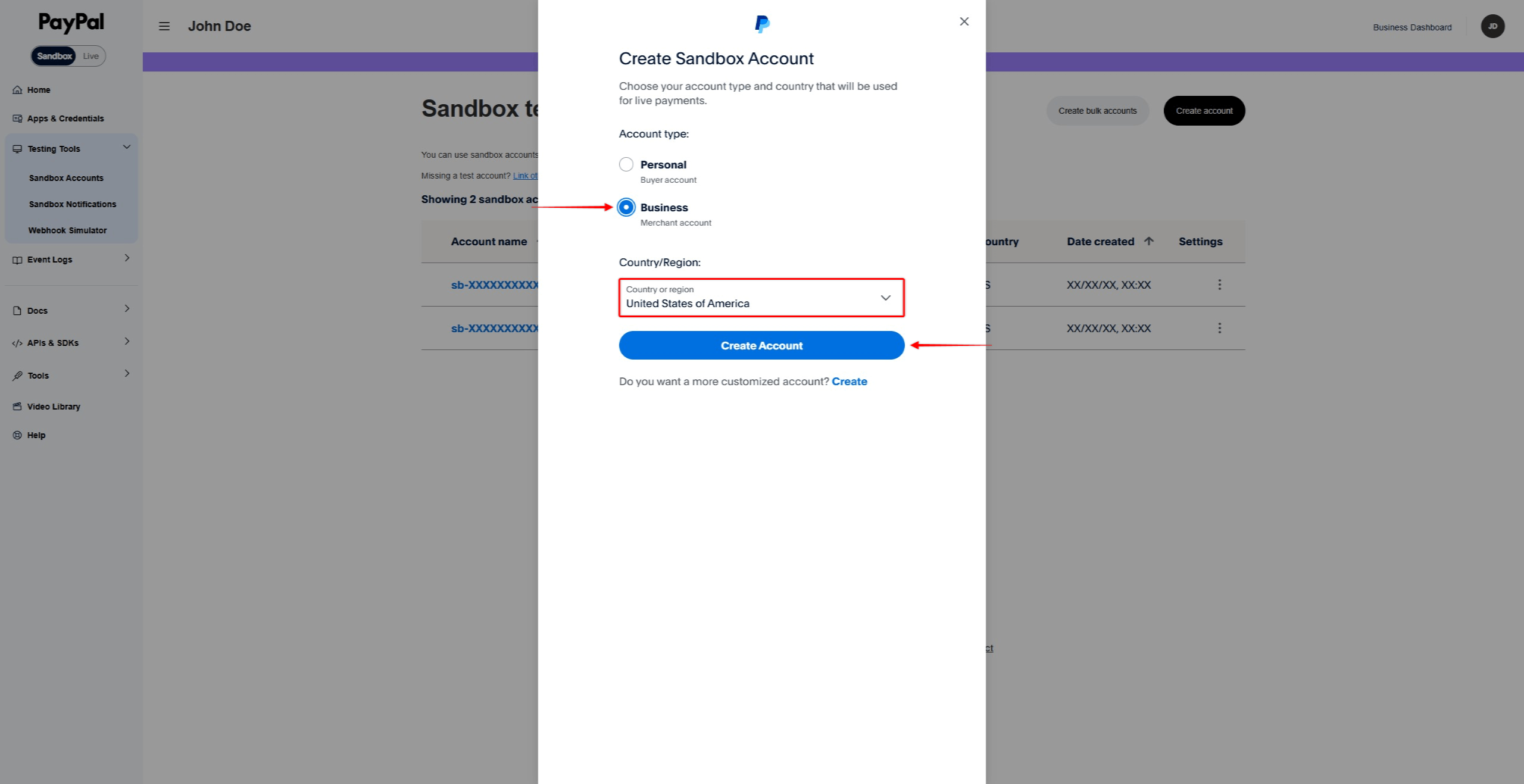
- No Contas Sandbox página, clique em Criar conta.
- Selecione Pessoal como o tipo de conta.
- Selecione um País/Região para o comprador de teste.
- Clique em Criar para criar a conta pessoal da sandbox.
Visualização dos detalhes da conta Sandbox
- No Contas Sandbox localize a conta que deseja visualizar.
- Clique no menu de três pontos (…) ao lado da conta.
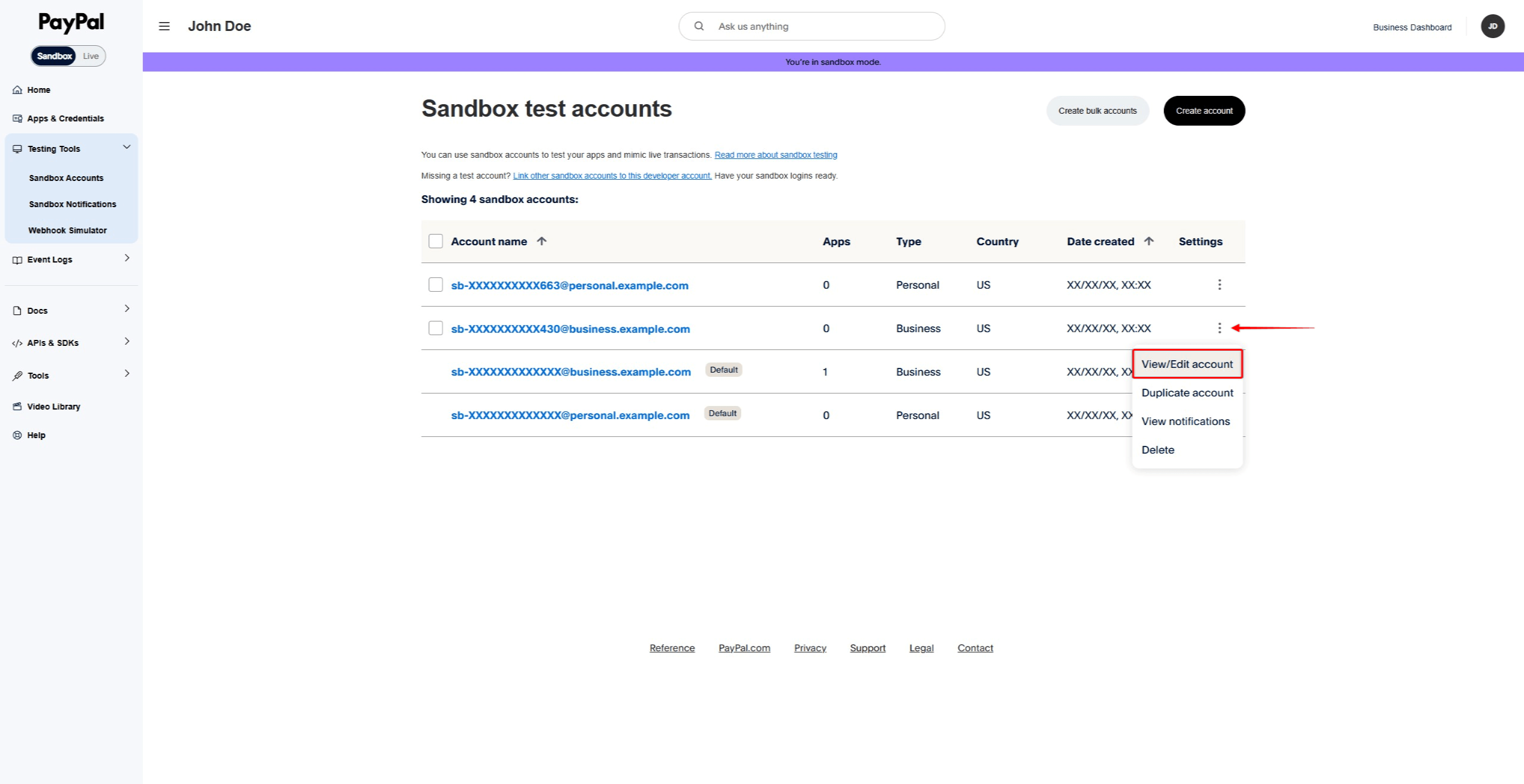
- Clique em Exibir/Editar conta.
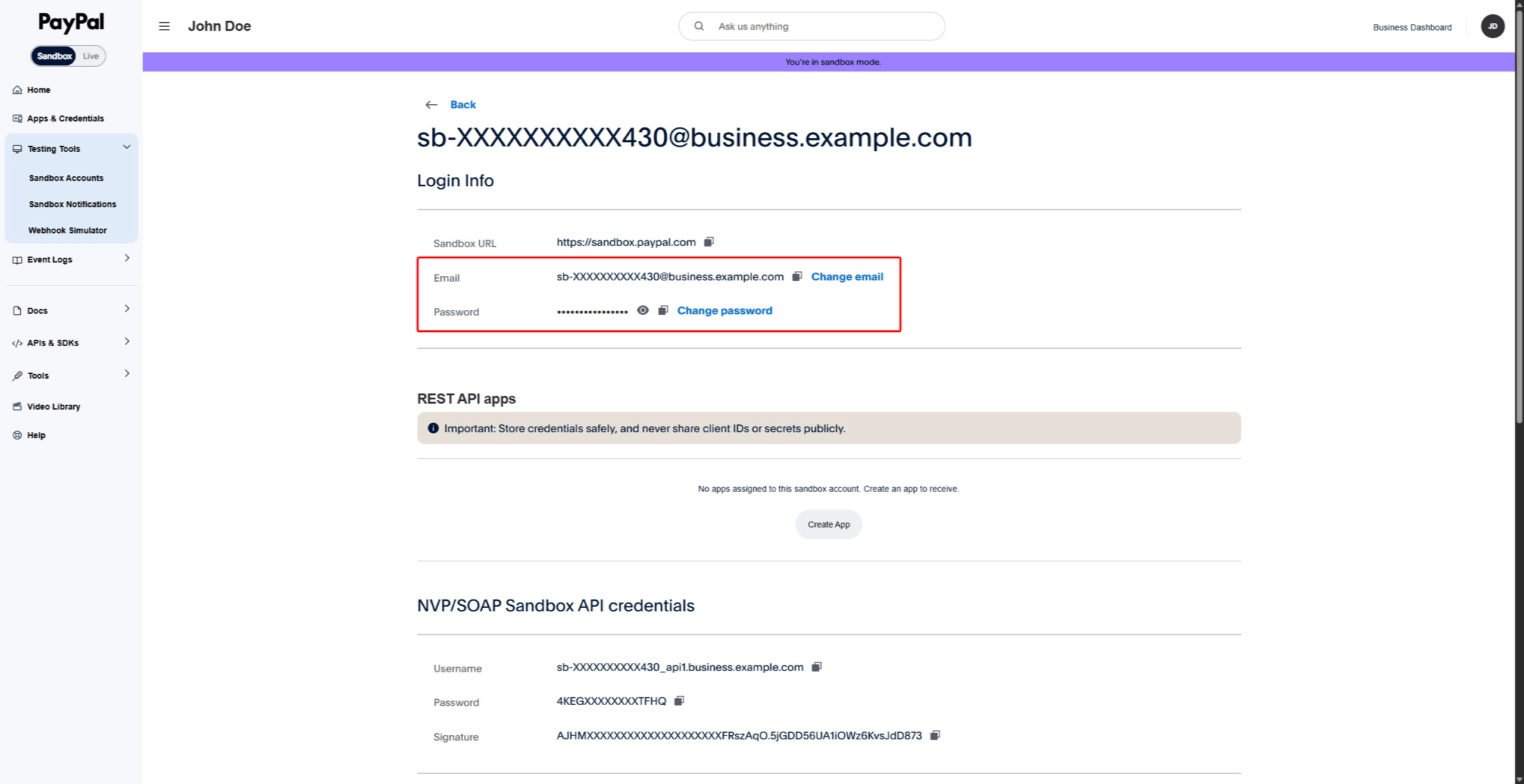
- Anote o endereço de e-mail e a senha criada pelo sistema.
Conexão da caixa de areia MemberPress a PayPal
Com as contas de sandbox criadas, agora você pode conectar o MemberPress à área de sandbox do PayPal. Durante o processo de conexão, você precisará fazer login com sua conta comercial de sandbox. Use o e-mail e a senha encontrados na seção “Viewing Sandbox Account Details” acima.
Você pode fazer login na sua conta sandbox Business antes de iniciar a conexão. Como alternativa, o PayPal solicitará que você faça login durante o processo de conexão.
Conectando a conta do Sandbox
- Abra outra guia do navegador e faça login no site do WordPress.
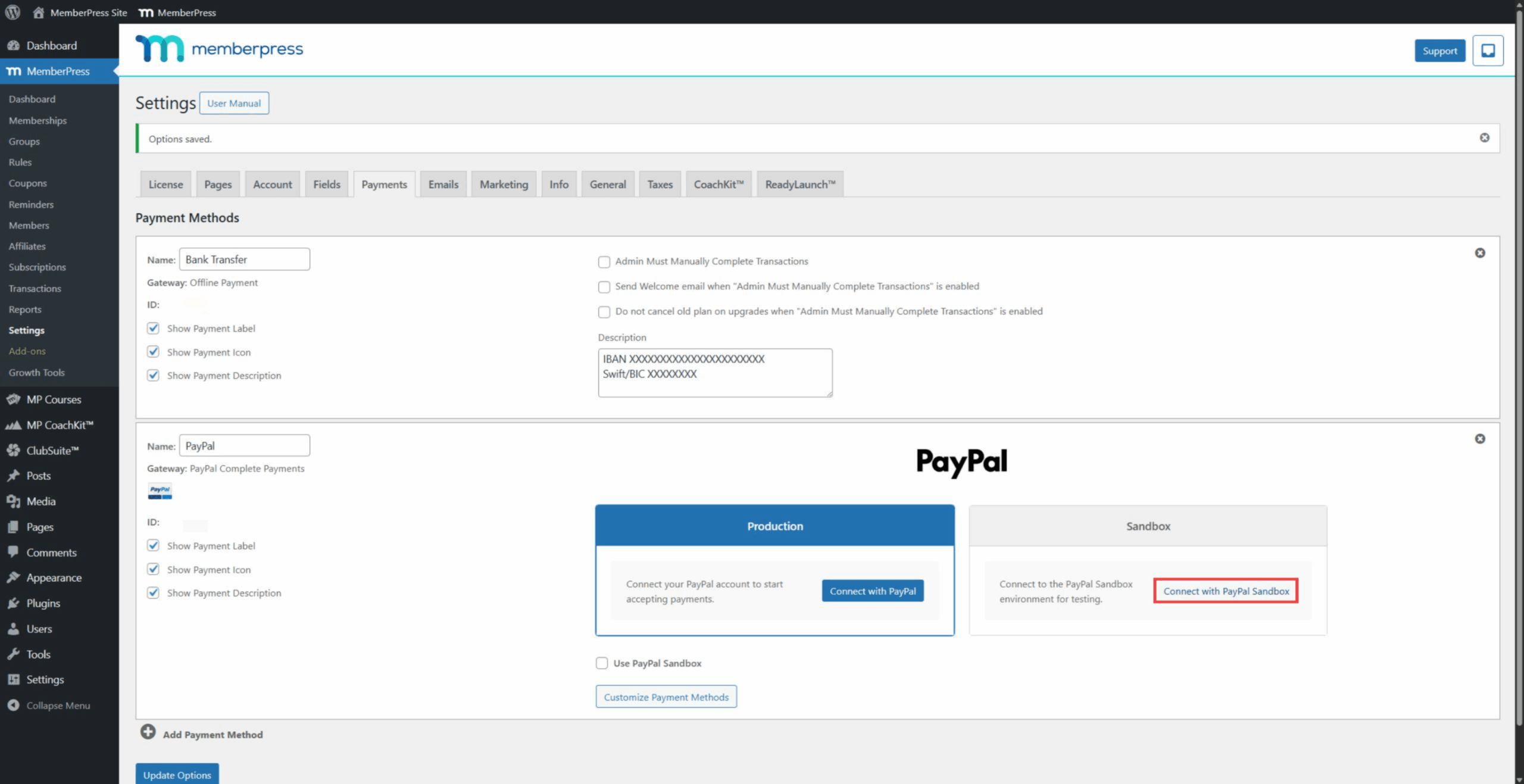
- Ir para Painel de controle > MemberPress > Configurações > Pagamentos guia.
- Clique no gateway PayPal Complete Payments para expandir suas configurações.
- Sob o Caixa de areia clique na seção Conectar com PayPal botão.
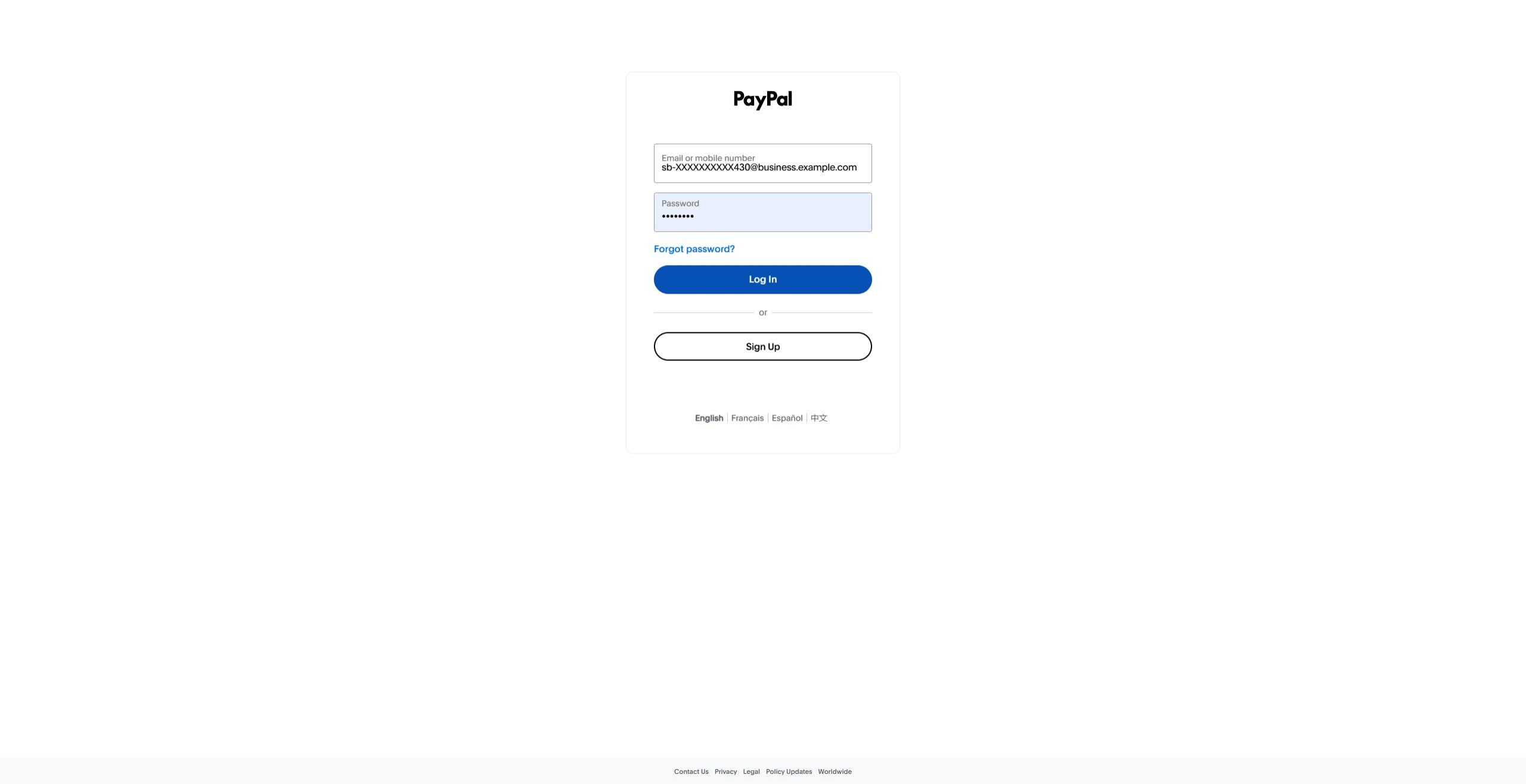
- Se ainda não estiver conectado, faça login com os detalhes da sua conta do Sandbox Business. Use o e-mail e a senha das informações da conta.
- Conceda as permissões e conclua a conexão.
- Depois disso, o PayPal redireciona para a página de configurações do MemberPress.
- Verifique o Usar o PayPal Sandbox para ativar os pagamentos de teste.
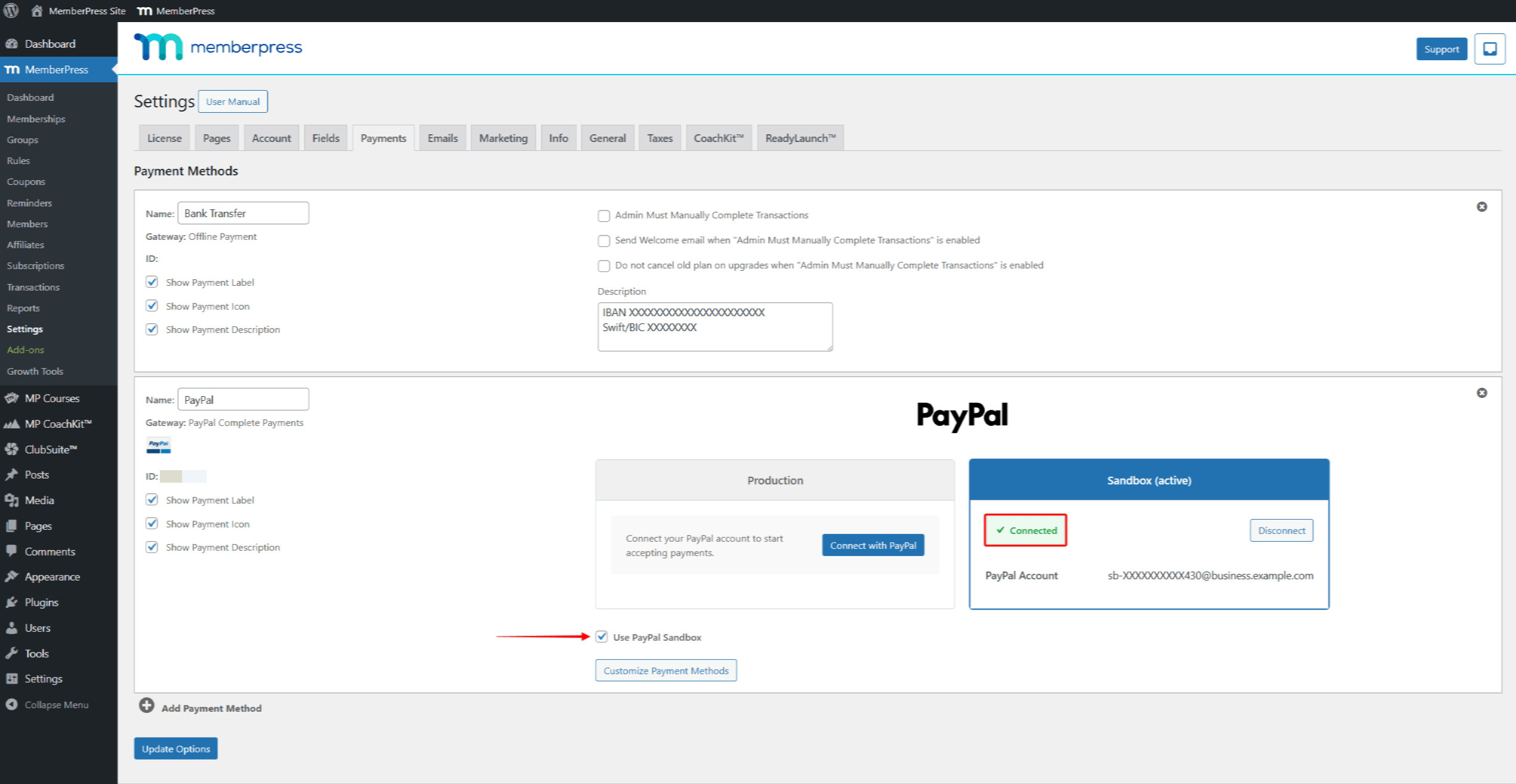
- Clique em Opções de atualização para salvar.
Teste de pagamentos PayPal
Com o Sandbox conectado e ativado, agora você pode testar o fluxo de pagamento. Você usará a conta do Personal Sandbox que criou anteriormente para o teste. Durante o checkout, você pode pagar usando um cartão de crédito de teste, uma conta bancária ou o saldo do PayPal.
Gerenciamento de métodos de pagamento de testes
Para gerenciar métodos de pagamento de teste para sua conta do Personal Sandbox:
- Ir para PayPal Developer Dashboard > Testing Tools > Sandbox Accounts.
- Localize sua conta do Personal Sandbox na lista.
- Clique no menu de três pontos (…) ao lado da conta.
- Clique em Exibir/Editar conta.
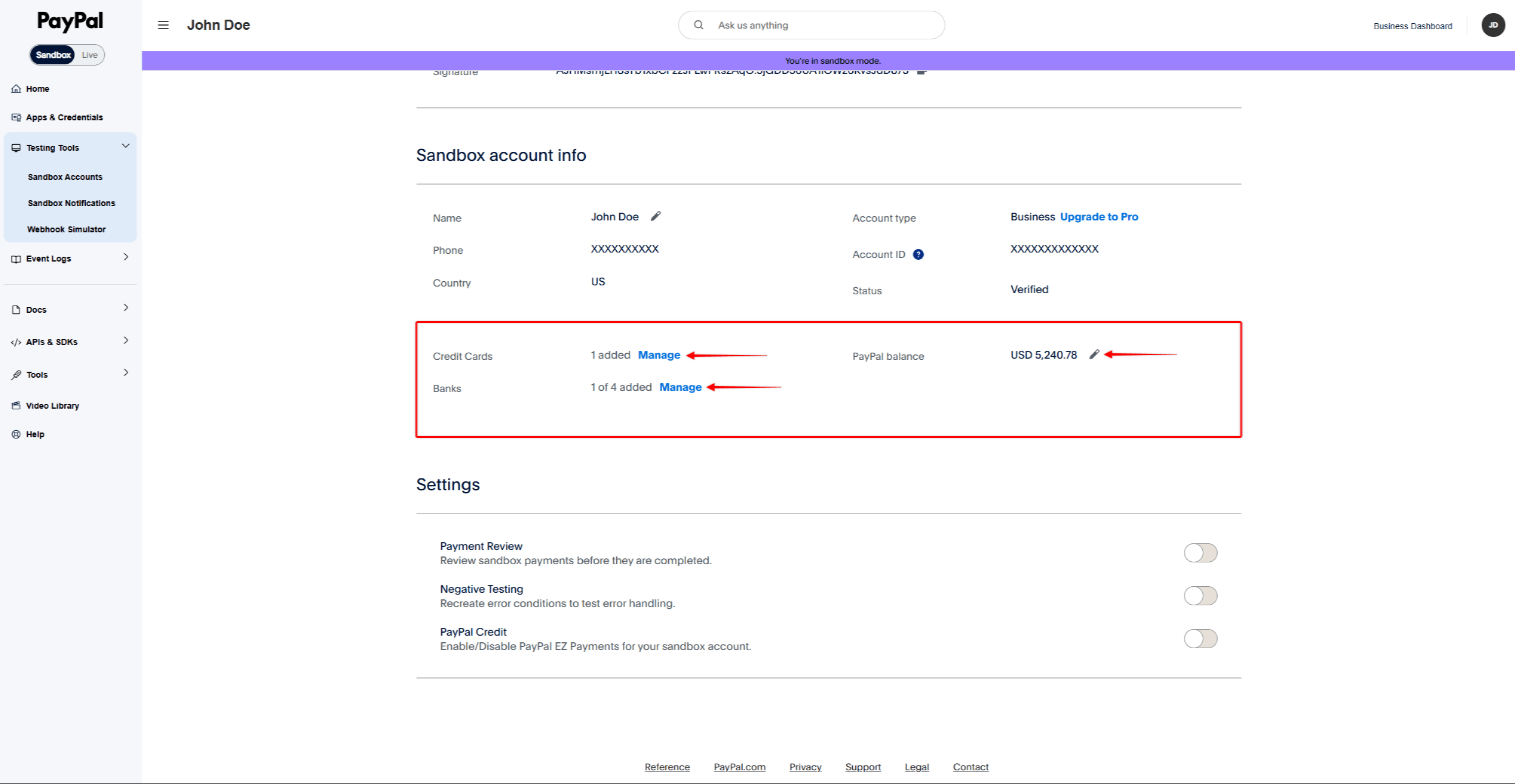
- Role para baixo até a seção “Informações da conta de sandbox” seção.
- Gerencie seus métodos de pagamento de teste:
- Cartões de crédito - Clique em Gerenciar para adicionar ou editar cartões de crédito de teste;
- Bancos - Clique em Gerenciar para adicionar ou editar contas bancárias de teste;
- Balança PayPal - Clique no ícone de lápis para editar o saldo do teste.
Processamento de um pagamento de teste
- Primeiro, abra uma nova janela privada ou anônima em seu navegador.
- Vá para a página de registro de qualquer associação existente ou de uma associação de teste.
- Preencha o formulário de registro com os detalhes do usuário de teste.
- Clique no botão PayPal para abrir a janela pop-up de pagamento.
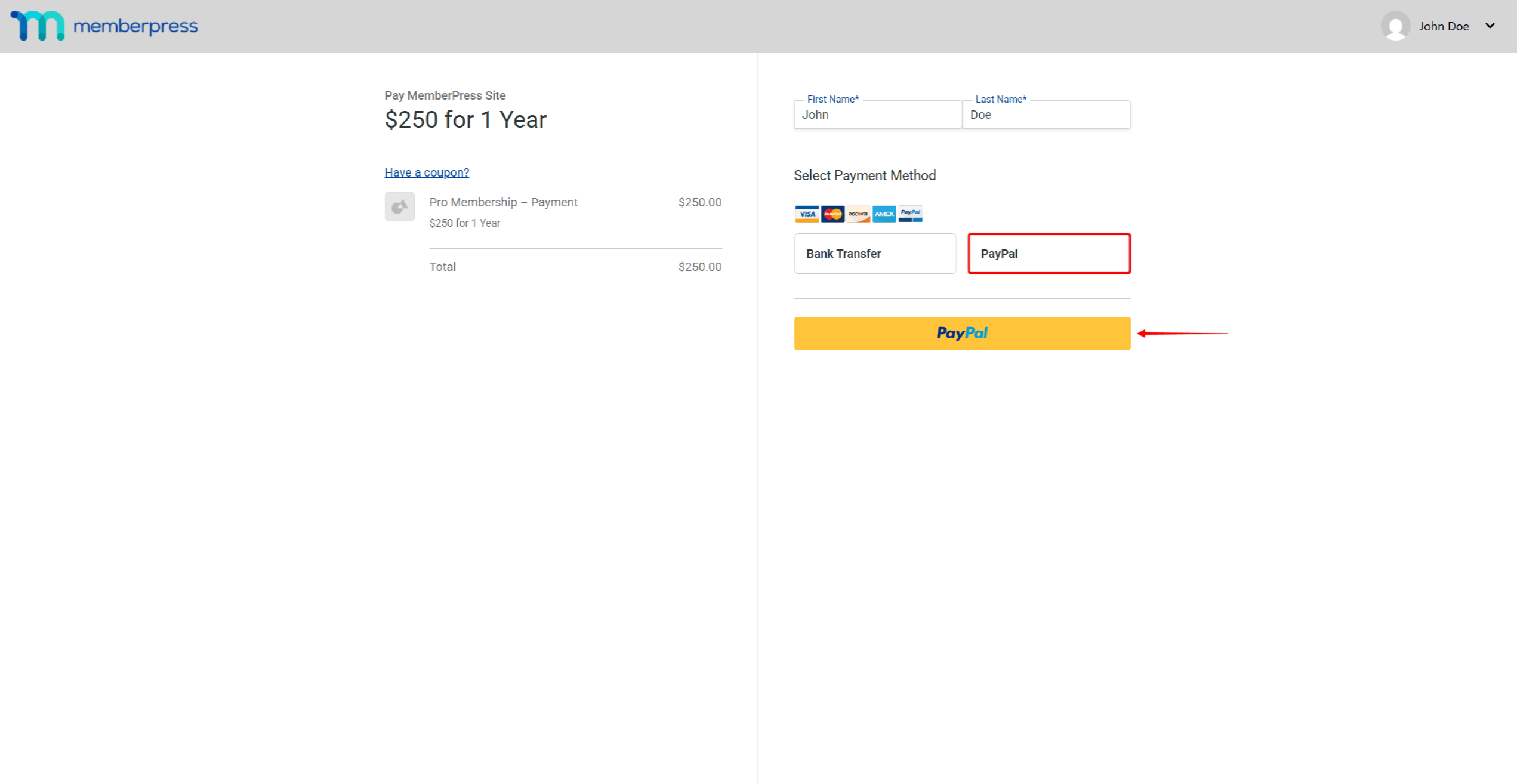
- Faça login com os detalhes da conta pessoal do sandbox.
- Conclua o pagamento na janela pop-up.
Verificação de transações de teste
Depois de concluir o pagamento de teste, verifique a transação no MemberPress e no PayPal.
Em MemberPress:
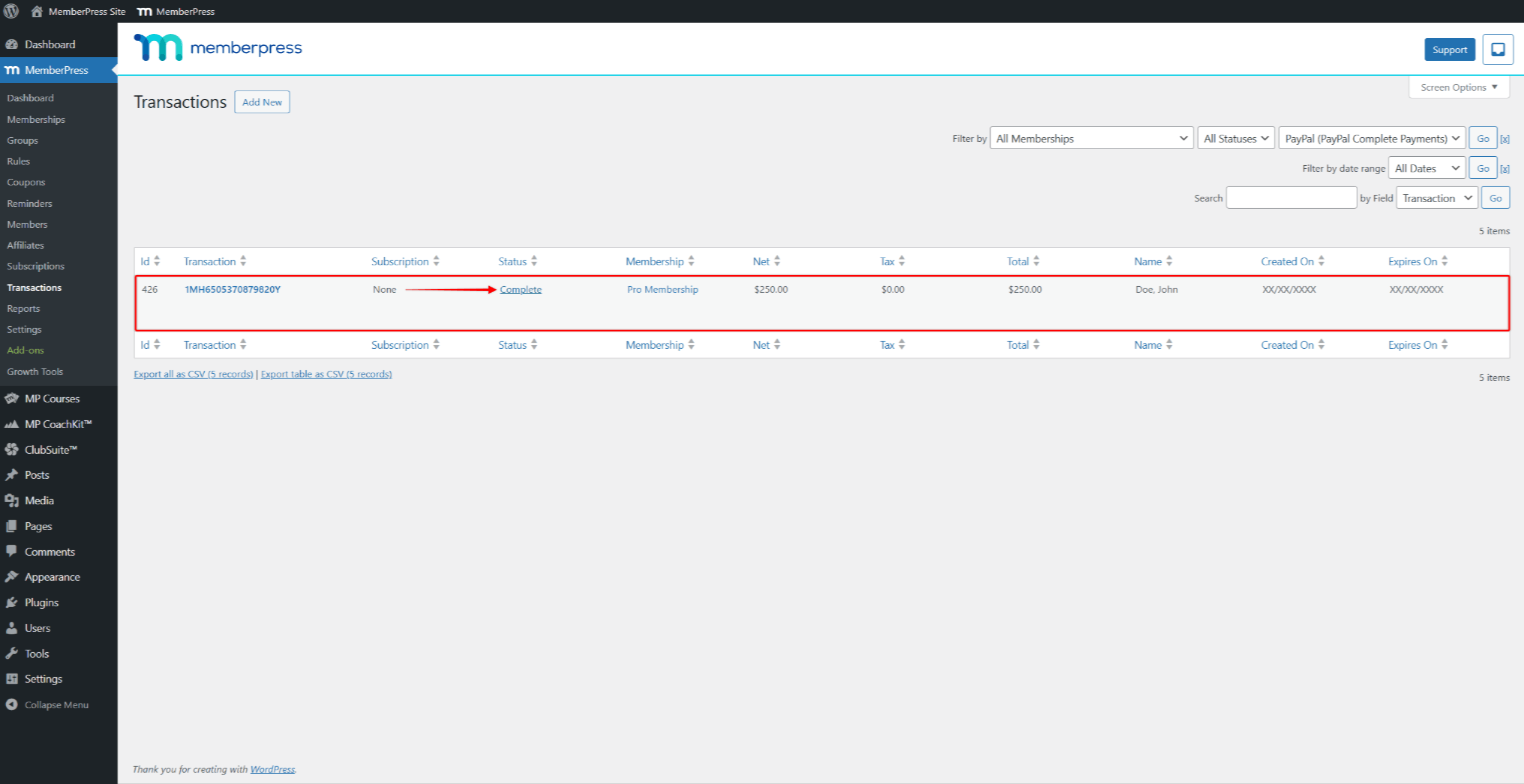
- Ir para Painel de controle > MemberPress > Transações.
- Localize a transação de teste na lista.
- Verifique se o status da transação mostra Completo.
Para assinaturas recorrentes, verifique também a assinatura em Painel de controle > MemberPress > Assinaturas.
No PayPal Sandbox Dashboard:
- Ir para https://sandbox.paypal.com/.
- Faça login usando as credenciais de sua conta do Business Sandbox (e-mail e senha).
- Navegue até Atividade > Todas as transações.
- Localize a transação de teste na lista e verifique se os detalhes correspondem.
A conexão está funcionando corretamente se as transações aparecerem tanto no Sandbox MemberPress quanto no PayPal.
Teste de outros métodos de pagamento
Por padrão, o botão PayPal está ativado. Você pode ativar opções de pagamento adicionais para testá-las no modo Sandbox.
Ativação de opções de pagamento
- Ir para Painel de controle > MemberPress > Configurações > Pagamentos guia.
- Clique no gateway PayPal Complete Payments para expandir suas configurações.
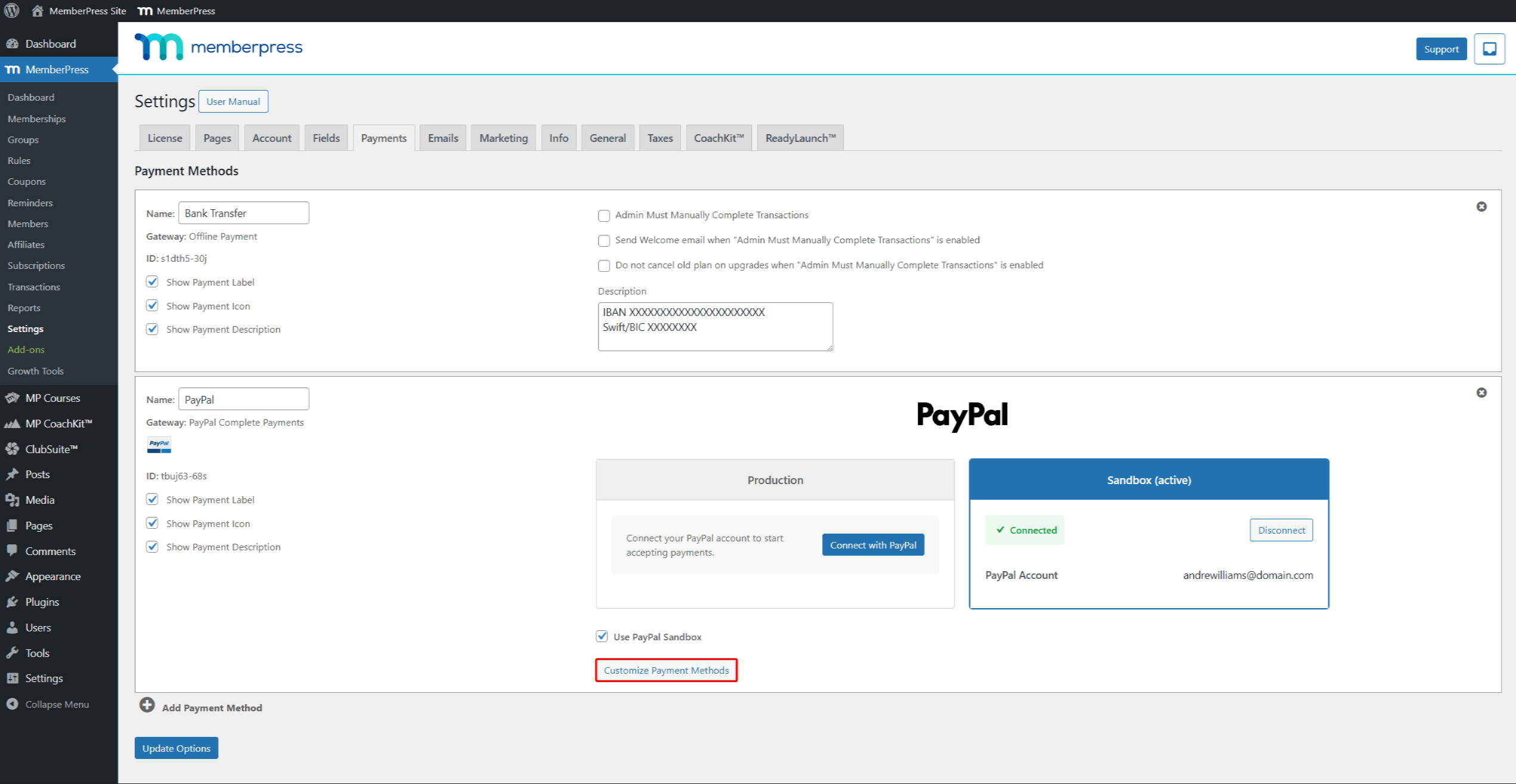
- Clique no botão Personalizar métodos de pagamento abaixo das seções Production e Sandbox.
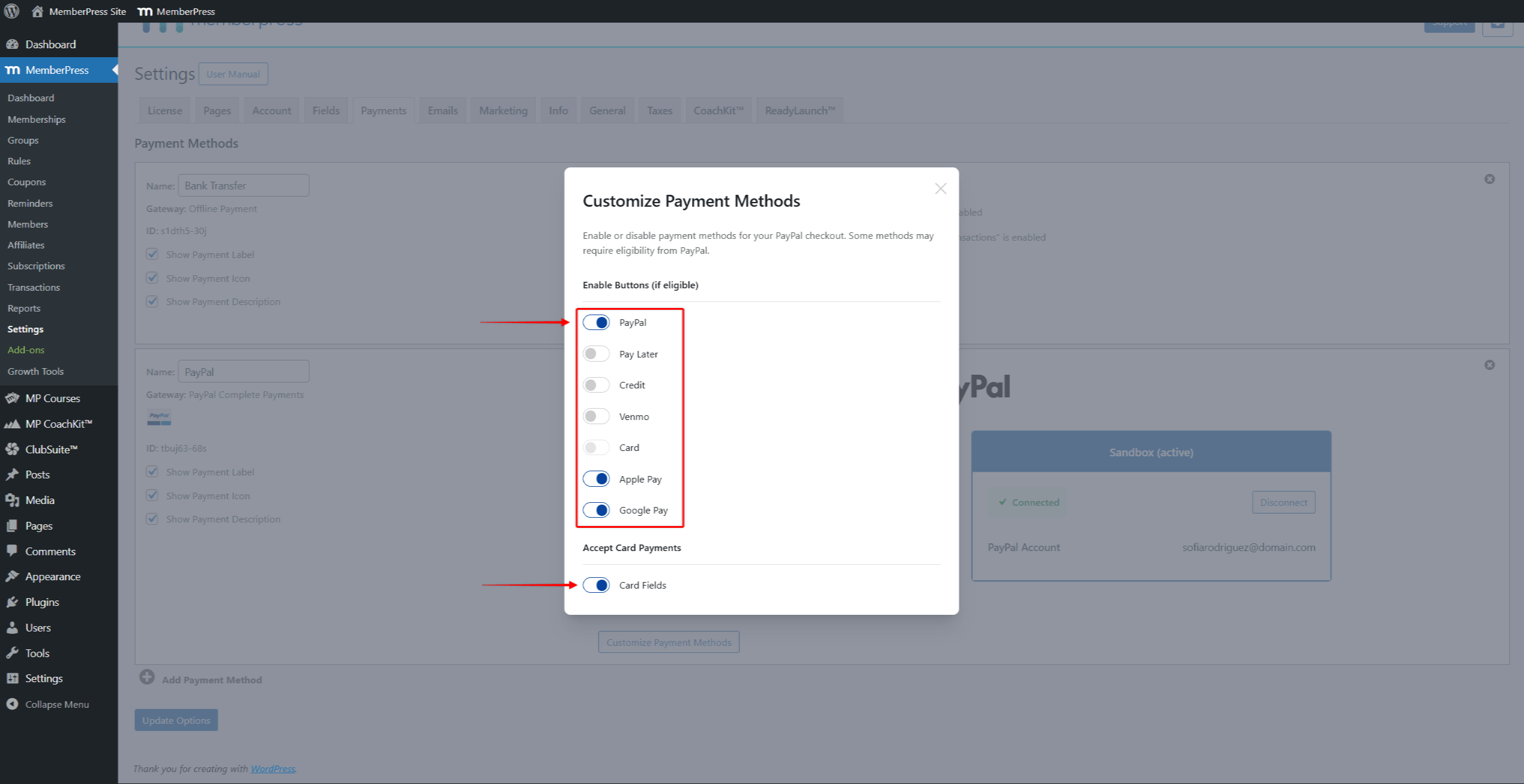
- Na janela pop-up, alterne os métodos de pagamento que você deseja testar.
- Clique fora da janela pop-up para fechá-la.
- Clique em Opções de atualização para salvar suas alterações.
Teste de pagamentos com cartão
Para testar os pagamentos com cartão, ative a opção Cartão ou Campos do cartão em “Accept Card Payments” (Aceitar pagamentos com cartão) na janela pop-up Customize Payment Methods (Personalizar métodos de pagamento).
O PayPal fornece números de cartões de teste para testes de Sandbox. Para obter uma lista completa dos cartões de teste, visite o site Documentação de teste do cartão PayPal.
Teste de outras opções de checkout
O PayPal oferece suporte a opções adicionais de checkout, como Venmo, Pay Later, Apple Pay e Google Pay. Cada opção tem requisitos específicos:
- Venmo - Crie uma conta pessoal sandbox nos EUA e use a moeda USD. O Venmo oculta para outras regiões;
- Pagar depois - Requer uma moeda compatível (USD, GBP, EUR, AUD) e um valor mínimo de compra;
- Apple Pay - Requer configuração na conta PayPal do comerciante;
- Google Pay - Funciona apenas com pagamentos únicos. PayPal oculta o Google Pay para associações recorrentes.
Para obter instruções de teste detalhadas, visite o site Documentação de checkout do PayPal.
Mudança para produção
Após o teste bem-sucedido, você pode ativar os pagamentos em tempo real:
- Navegue até Painel de controle > MemberPress > Configurações > Pagamentos guia.
- Sob o Produção do seu gateway PayPal Complete Payments, Conecte sua conta PayPal Business ativa (não a conta do Sandbox Business).
- Desmarque a opção Usar o PayPal Sandbox caixa de seleção.
- Clique em Opções de atualização para salvar suas alterações.
Agora, os usuários podem se registrar em suas associações e pagar por meio do PayPal.
Solução de problemas de sandbox
Tela em branco ao conectar - Primeiro, abra o Sandbox Dashboard em outra guia. Em seguida, clique em Connect in MemberPress.
Não é possível fazer login na área restrita - Use os detalhes da conta sandbox do Painel do desenvolvedor. Não use os detalhes de login normais do PayPal.
Os botões de pagamento não estão sendo exibidos - Verifique se Usar o PayPal Sandbox está marcada. Além disso, verifique se o Sandbox mostra o status Conectado.
Cartão de teste recusado - Verifique se você está usando números de cartão de teste válidos do Documentação de teste do cartão PayPal. Além disso, use uma data de validade futura.
O Venmo não está aparecendo - Crie uma conta pessoal de sandbox nos EUA e use a moeda USD.
Transação não registrada - Verifique se há transações pendentes. Além disso, verifique se nenhum firewall bloqueia o PayPal. Analise o registro de depuração do WordPress em busca de erros.










 PT
PT  EN
EN  ES
ES  FR
FR  DE
DE 