

O bloco do AppKit Blog Posts exibe o conteúdo selecionado do blog do WordPress em um carrossel nas páginas personalizadas do aplicativo. Esse bloco promove artigos e fornece acesso direto ao blog no aplicativo móvel MemberPress.
Este documento explica como adicionar o bloco Blog Posts, personalizar seu design, filtrar o conteúdo e visualizar o layout.
Entendendo o bloco de publicações do blog
O bloco Publicações do blog cria carrosséis roláveis com conteúdo do blog nas páginas do aplicativo. O bloco permite filtrar por categorias, tags, autores ou datas. Publicações específicas podem ser selecionadas manualmente para exibição. O formato do carrossel incentiva a descoberta de conteúdo por meio do deslize horizontal.
Adicionando o bloco de publicações do blog
Você pode editar as páginas do aplicativo usando o editor baseado em blocos (Gutenberg). Editor de páginas de aplicativos:
- Navegue até Painel de controle > MP AppKit > Páginas de aplicativos.
- Localize a página do aplicativo onde você deseja adicionar o bloco Postagens do blog.
- Passe o cursor sobre o nome da página do aplicativo para exibir opções adicionais e clique em Editar.
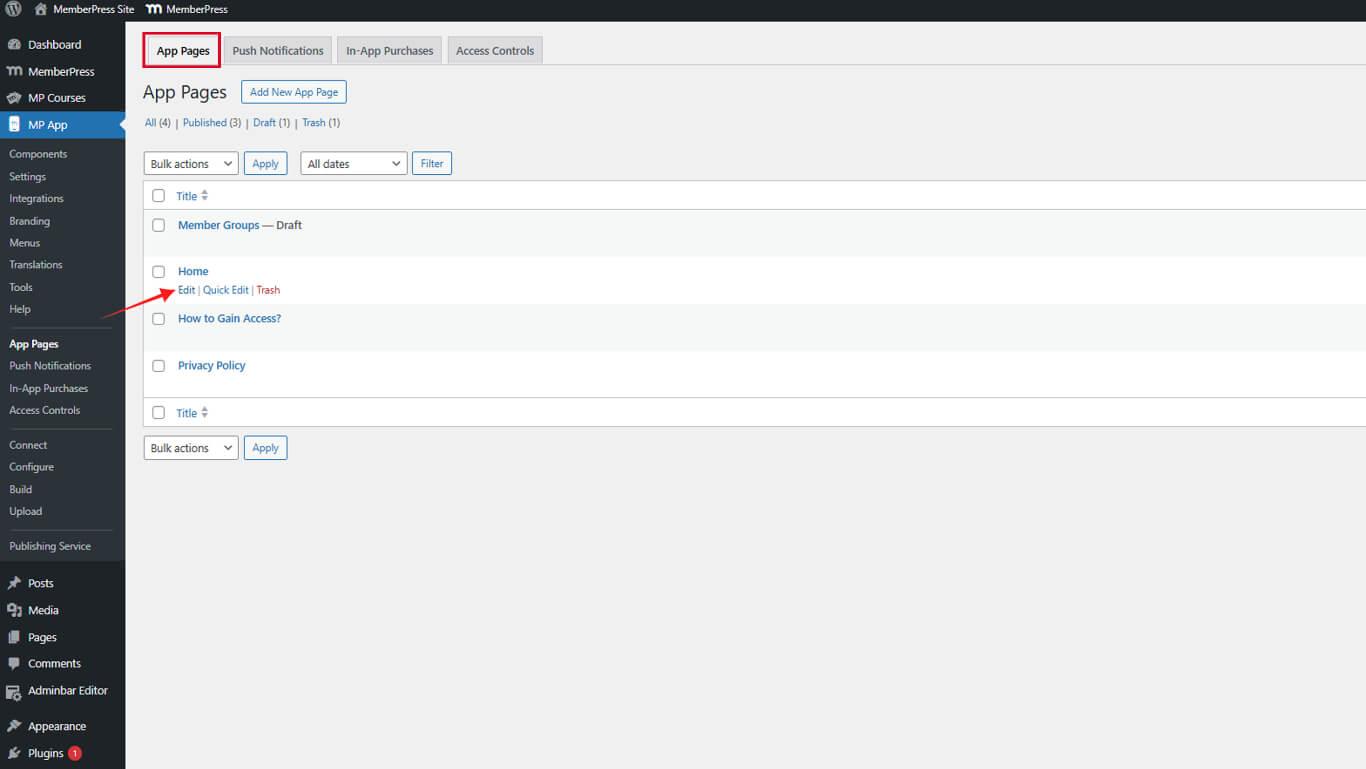
No Editor de Páginas do Aplicativo, o Bloco de publicações do blog é adicionado através do inseridor de blocos:
- Clique no botão + ícone no editor da página do aplicativo para inserir um novo bloco.
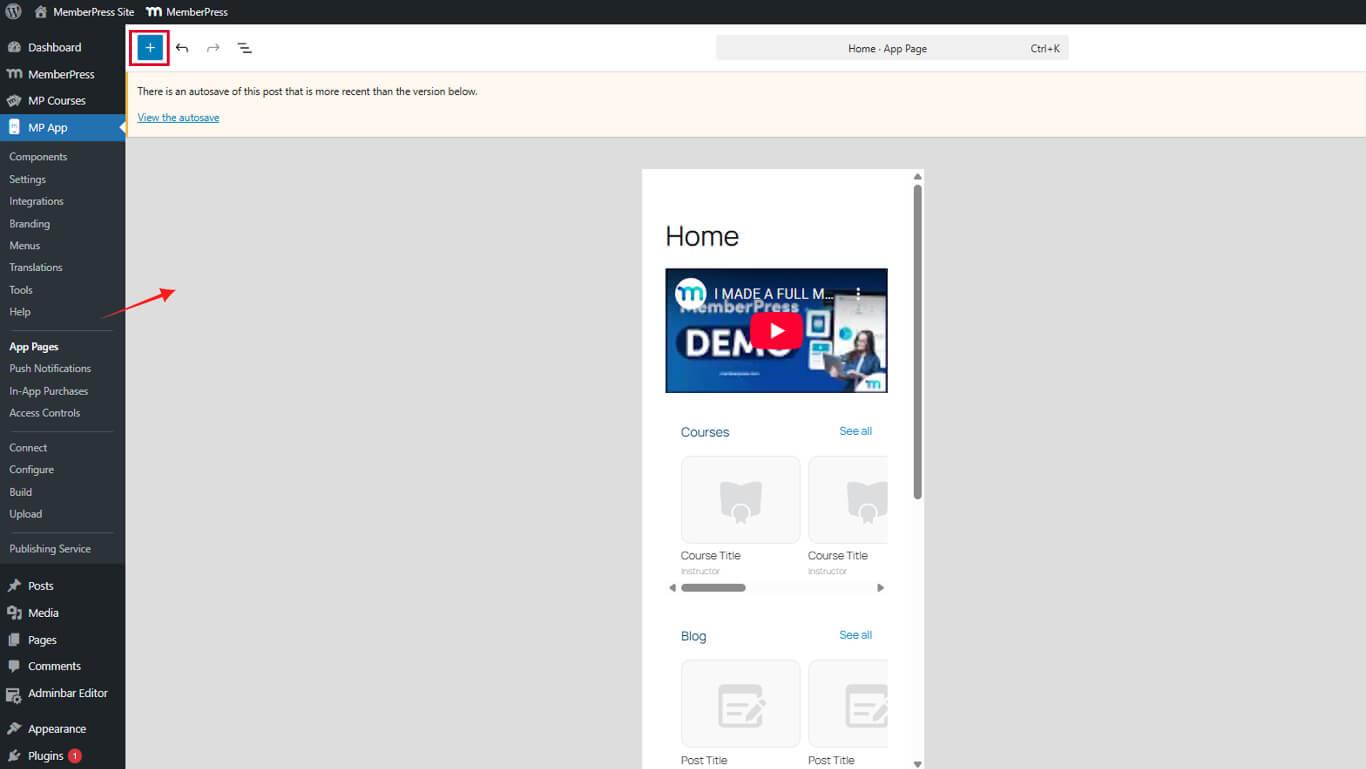
- Role até o MemberPress AppKit Blocos seção.
- Selecione o Publicações do blog bloco dos blocos disponíveis.
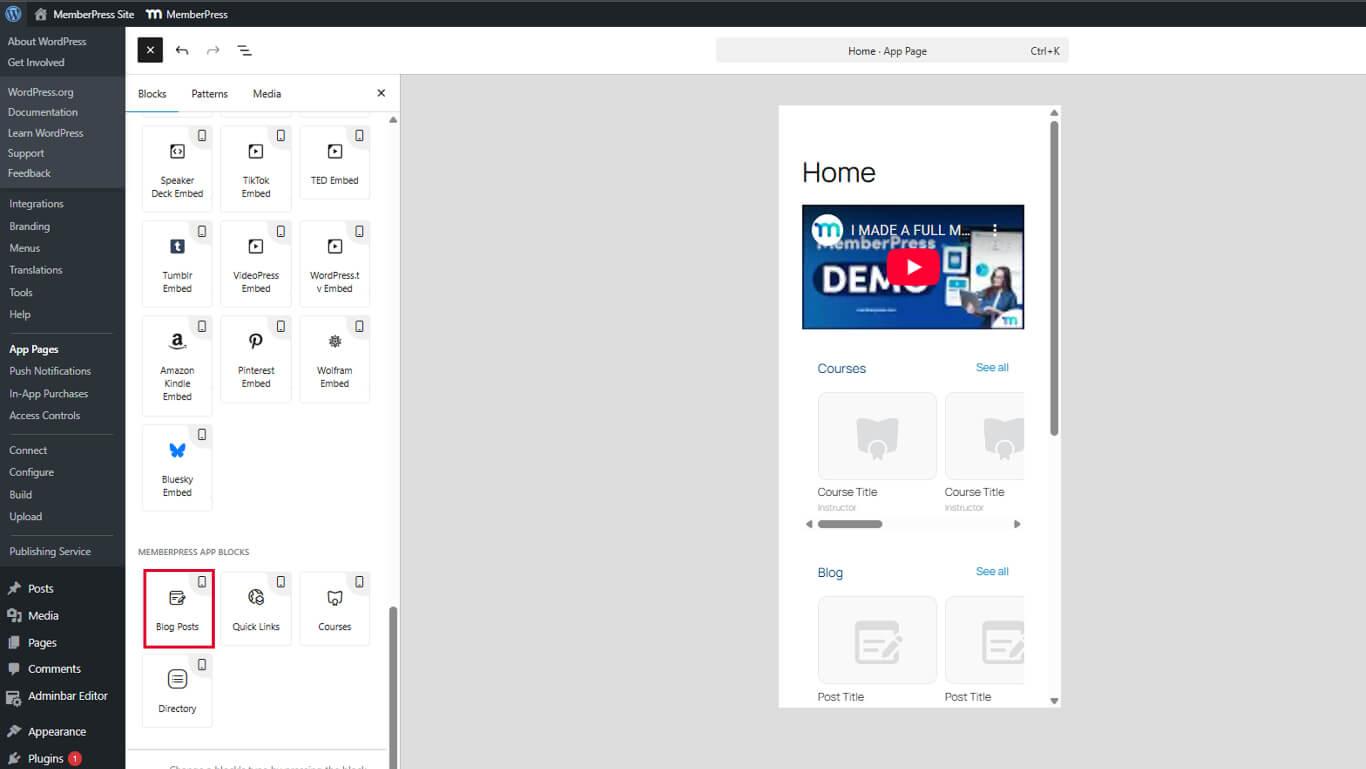
- Arraste o bloco para a posição desejada na página.
Personalizando publicações no blog
Depois de adicionadas, você deve personalizar as publicações do blog. Você pode ajustar as cores e definir quais publicações serão exibidas e em que ordem. Você pode configurar o bloco usando as configurações na barra lateral direita:
- Enquanto estiver no editor da página do aplicativo, selecione o bloco Publicações do blog que você deseja configurar.
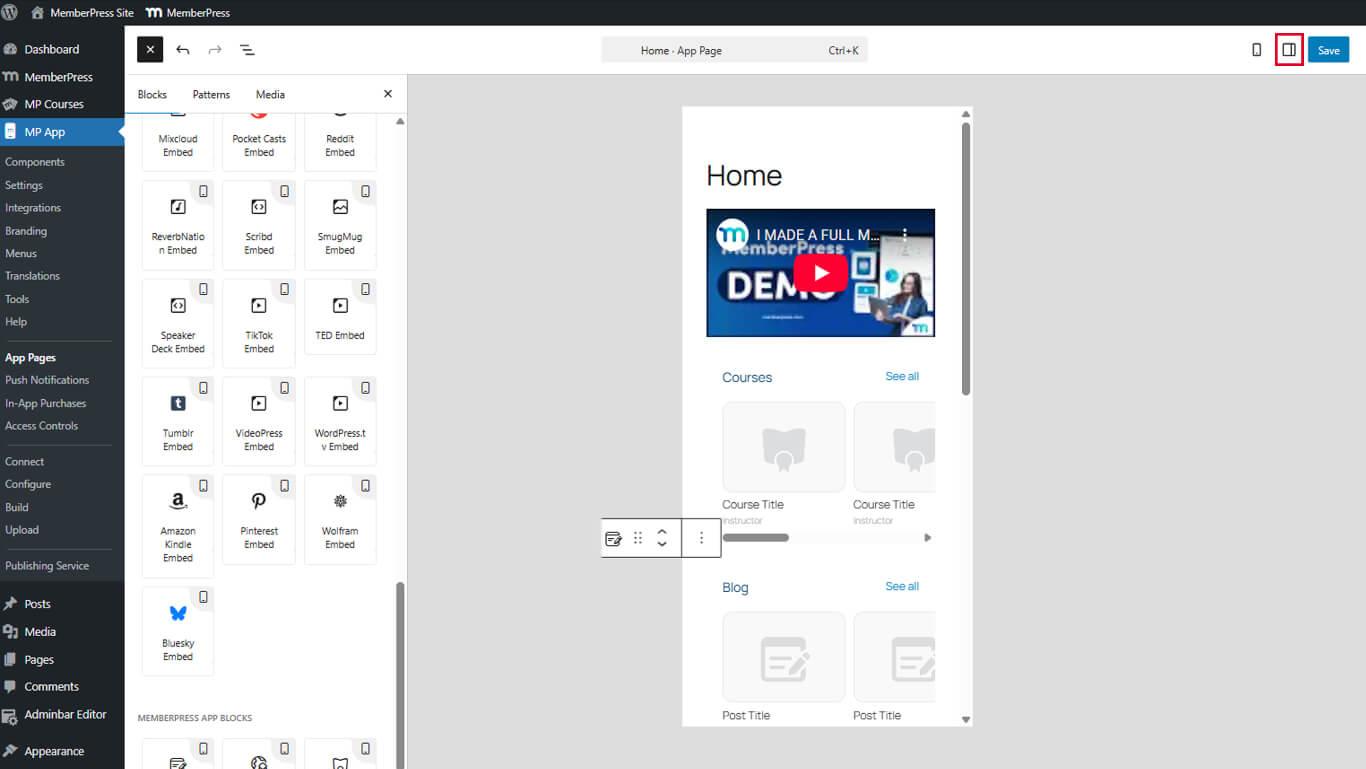
- Localize o Configurações painel na barra lateral direita.
Título e cores do bloco
Comece personalizando o título e as cores do bloco:
- Encontre o Título campo e o texto que deseja exibir no topo desta publicação.g.
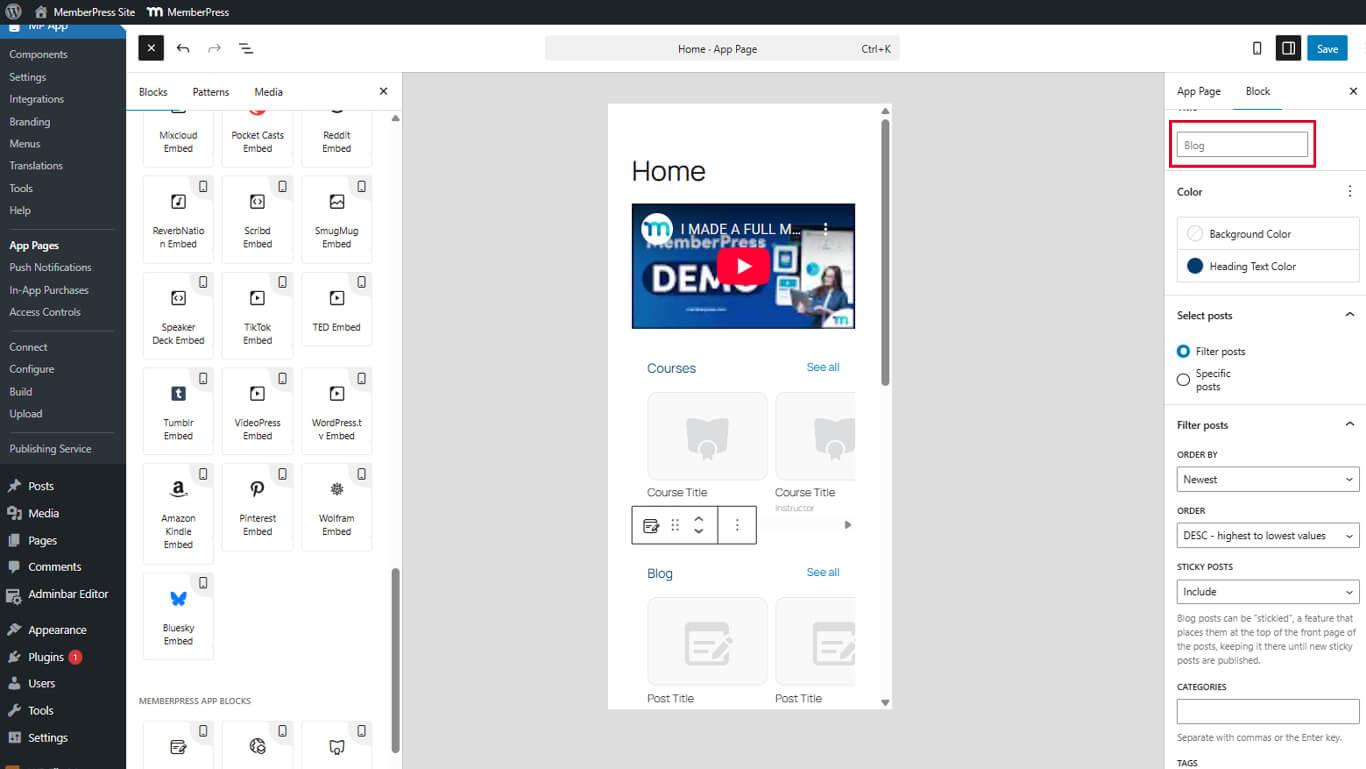
- Em seguida, na seção Cor painel, você pode definir o Cor do texto do título e Cor de fundo opções.
- Selecione uma cor usando o seletor de cores ou escolha transparente.
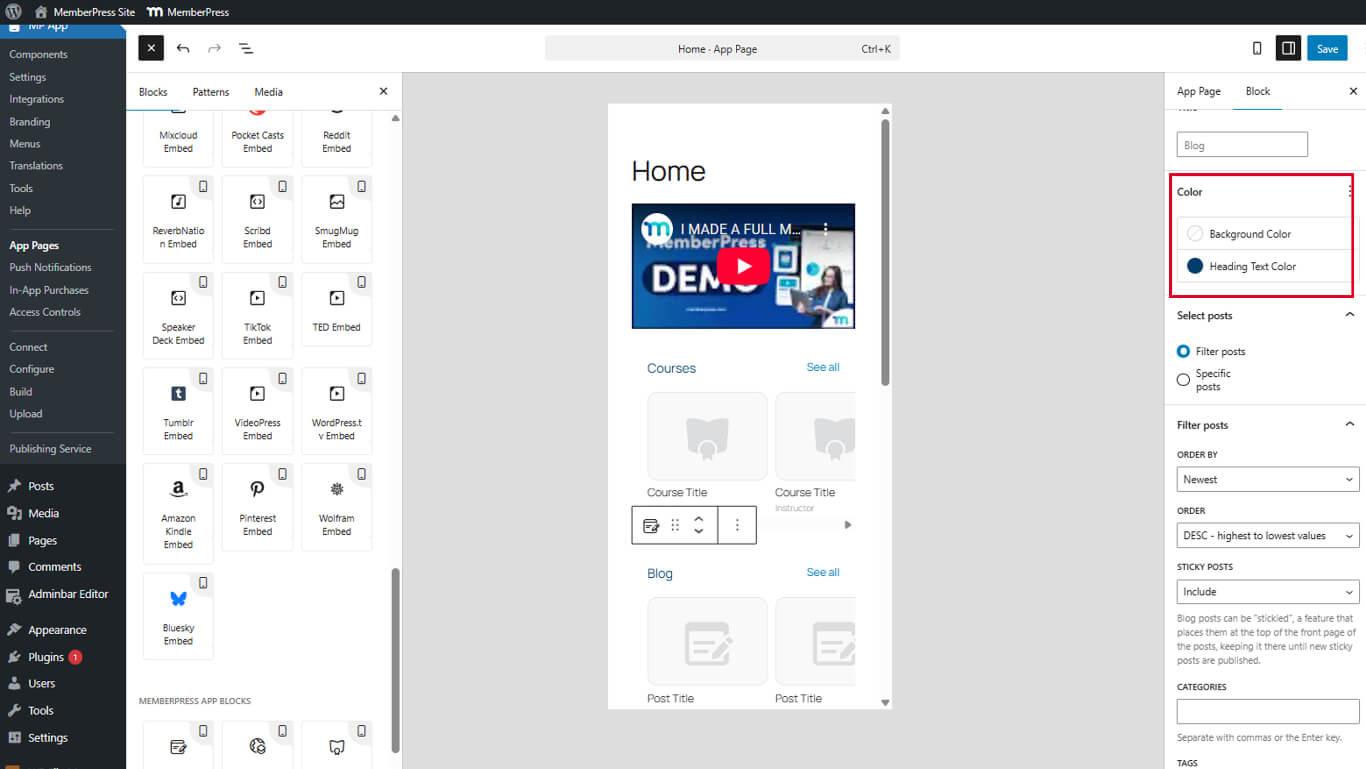
- Clique em Atualização para salvar as alterações.
Selecione publicações usando o filtro de publicações
Sob o Selecionar publicações painel, você pode optar por usar o Filtrar publicações opção. A filtragem posterior exibe o conteúdo com base em condições específicas.
A opção Filtrar publicações oferece várias opções de personalização:
- Selecione o bloco Publicações do blog no editor.
- Localize o bloco Configurações painel.
- Selecione Filtrar publicações para configurar as opções de filtragem.
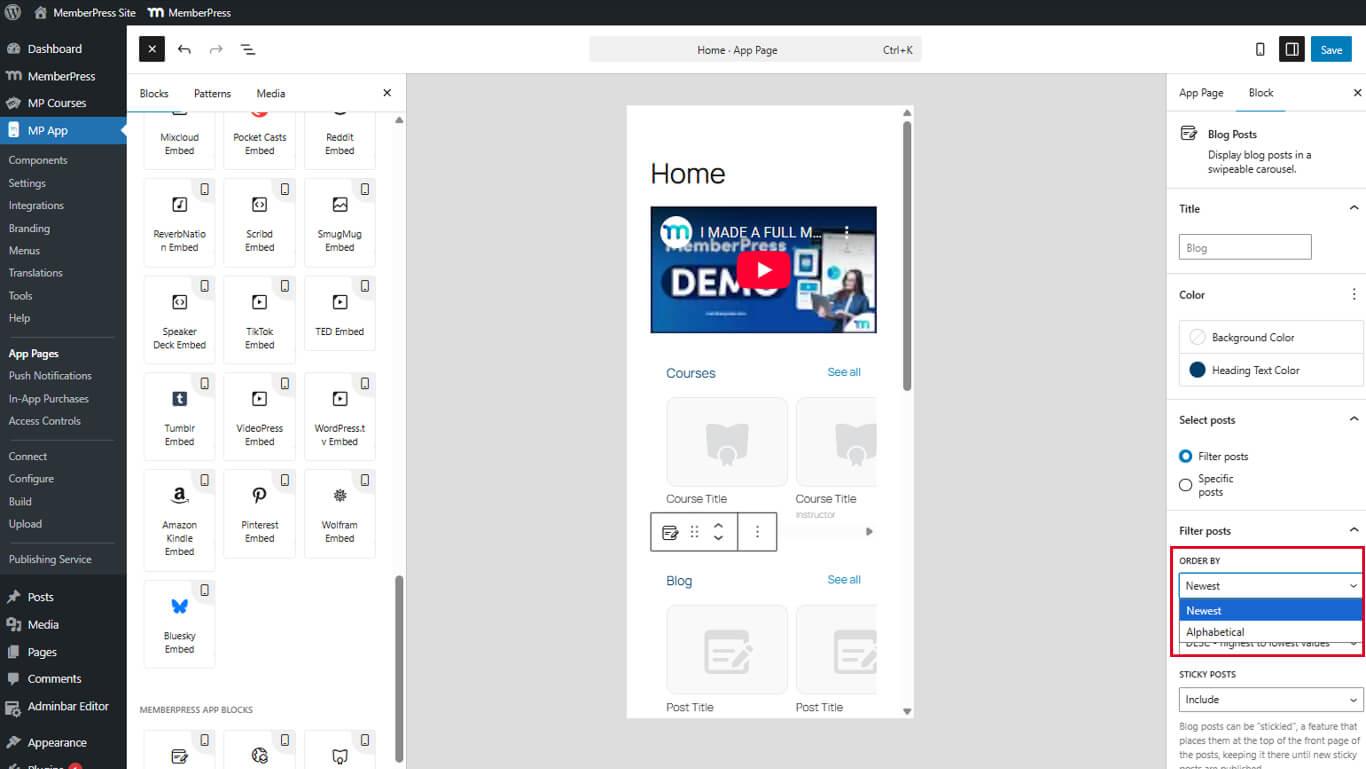
- Pedido por para ordenar por Mais recentes ou Alfabeticamente.
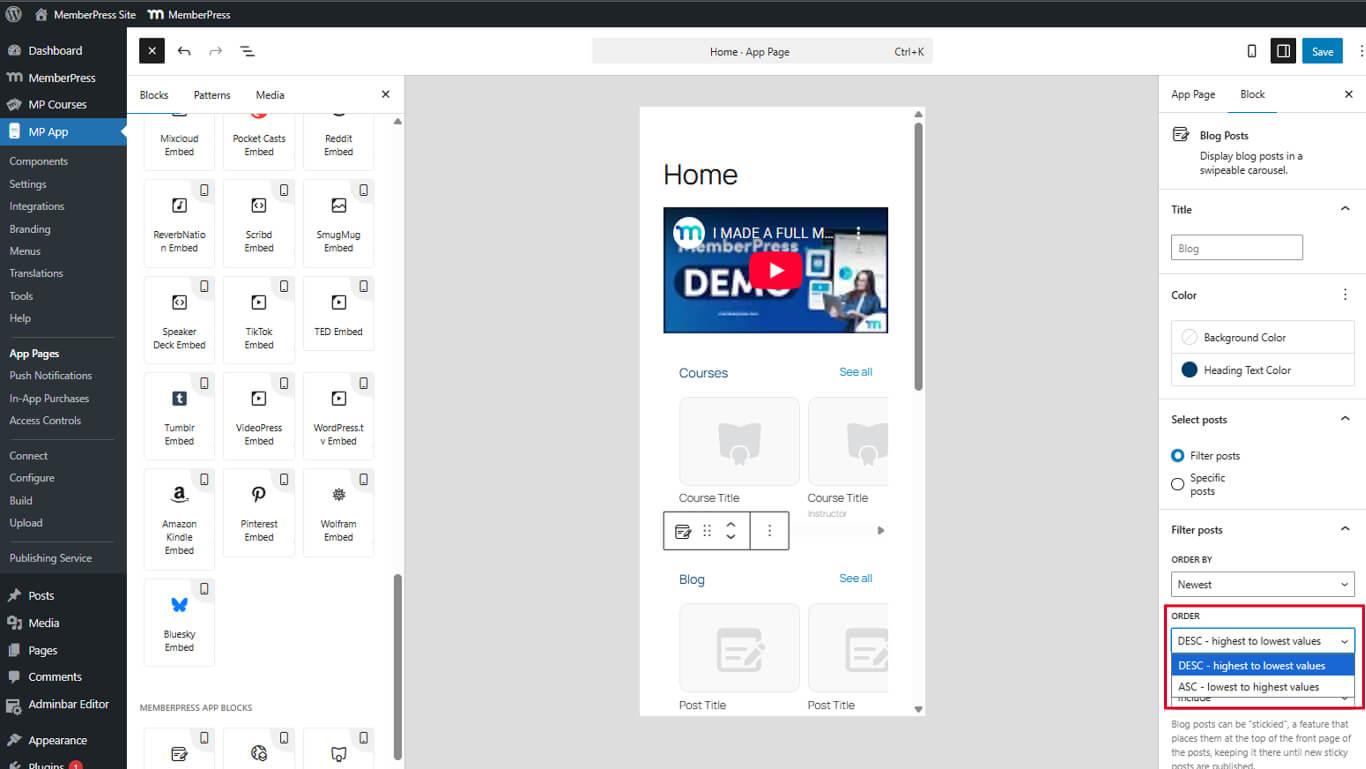
- Pedido para organizar em ordem crescente ou decrescente.
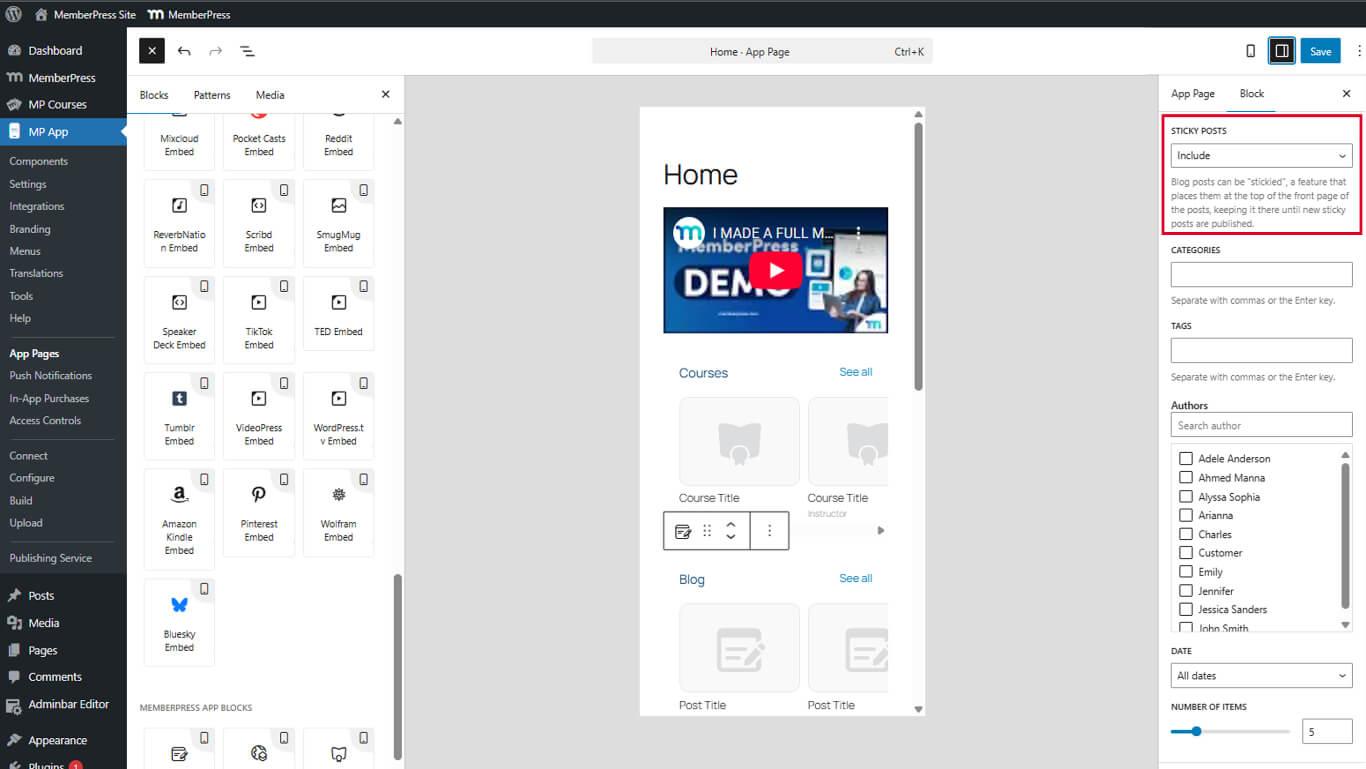
- Postagens fixas Incluir, excluir ou mostrar apenas publicações fixas.
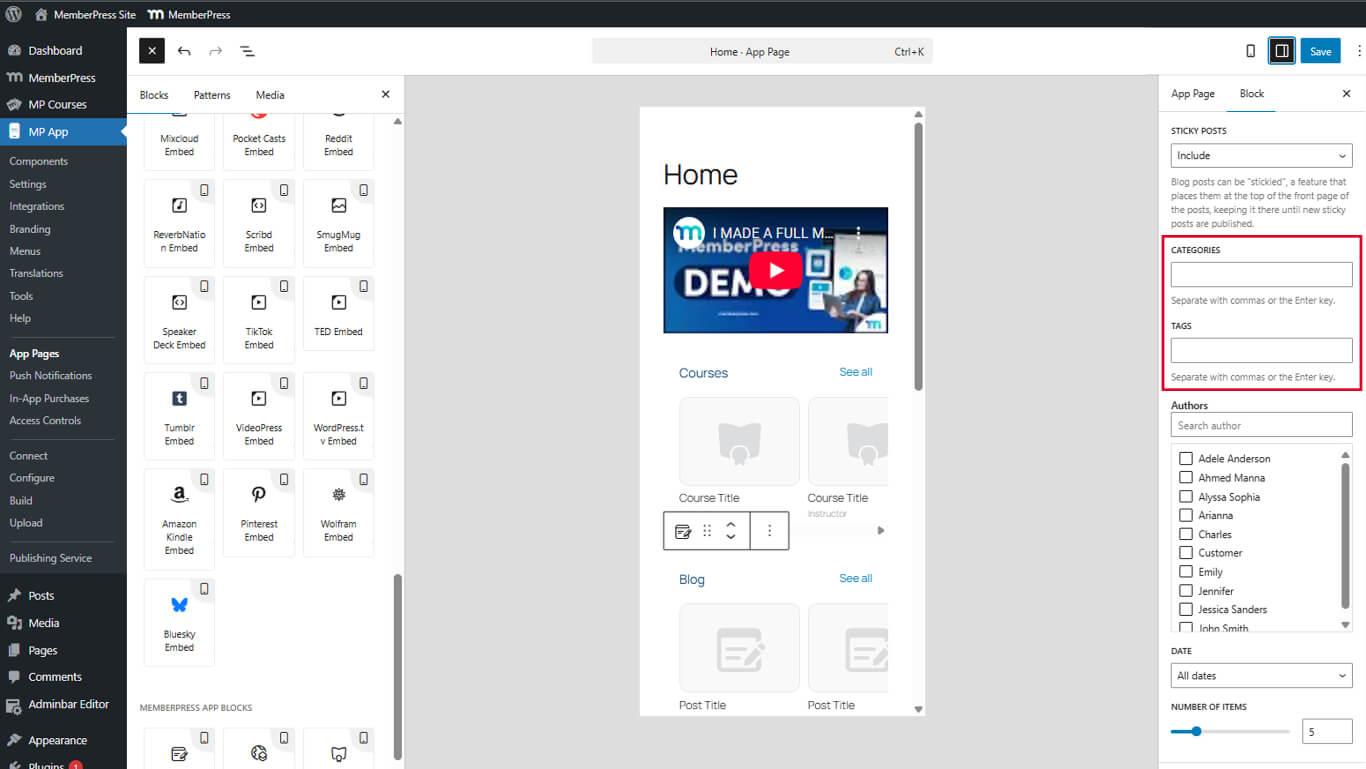
- Categorias/Tags para filtrar por categorias ou tags separadas por vírgulas.
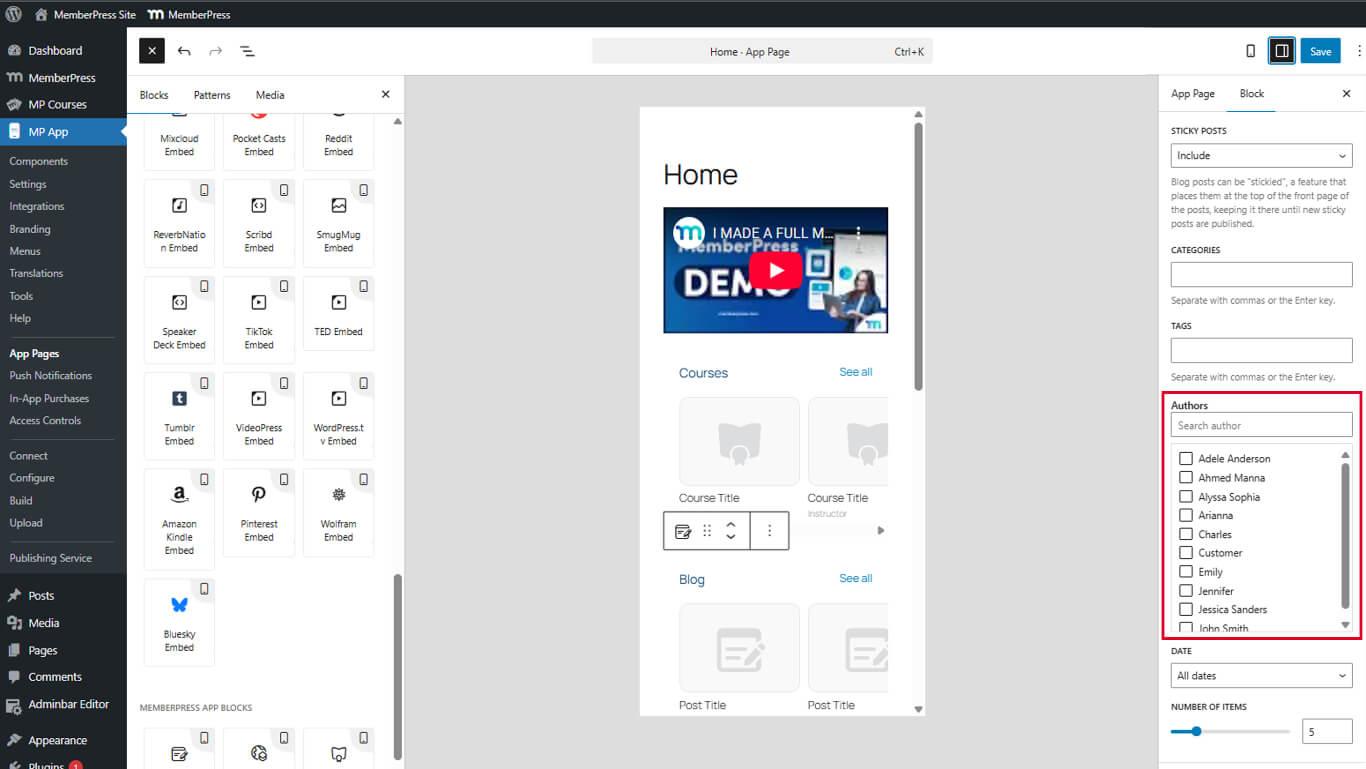
- Autores para filtrar por nomes de usuário de autores separados por vírgulas.
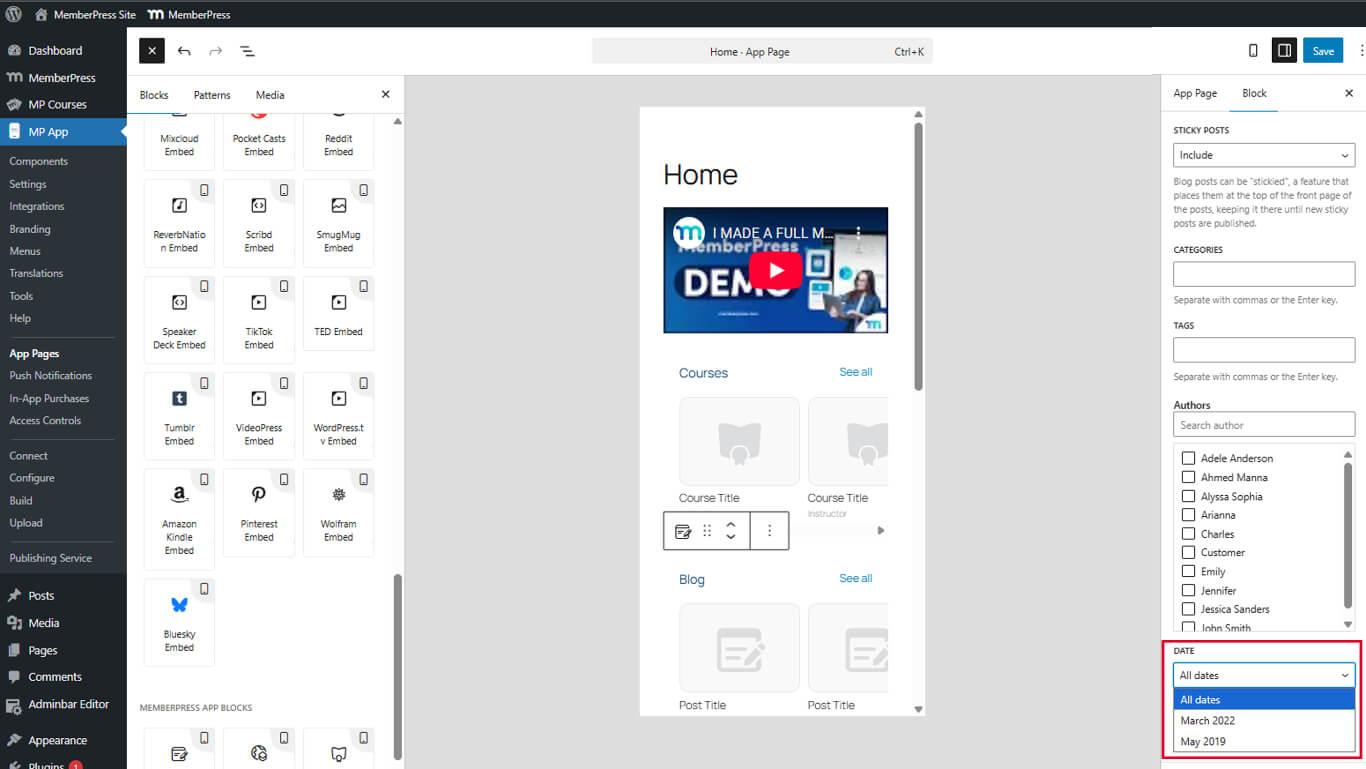
- Data para filtrar as publicações por intervalo de datas.
- Itens a exibir para definir o número de itens visíveis no carrossel.
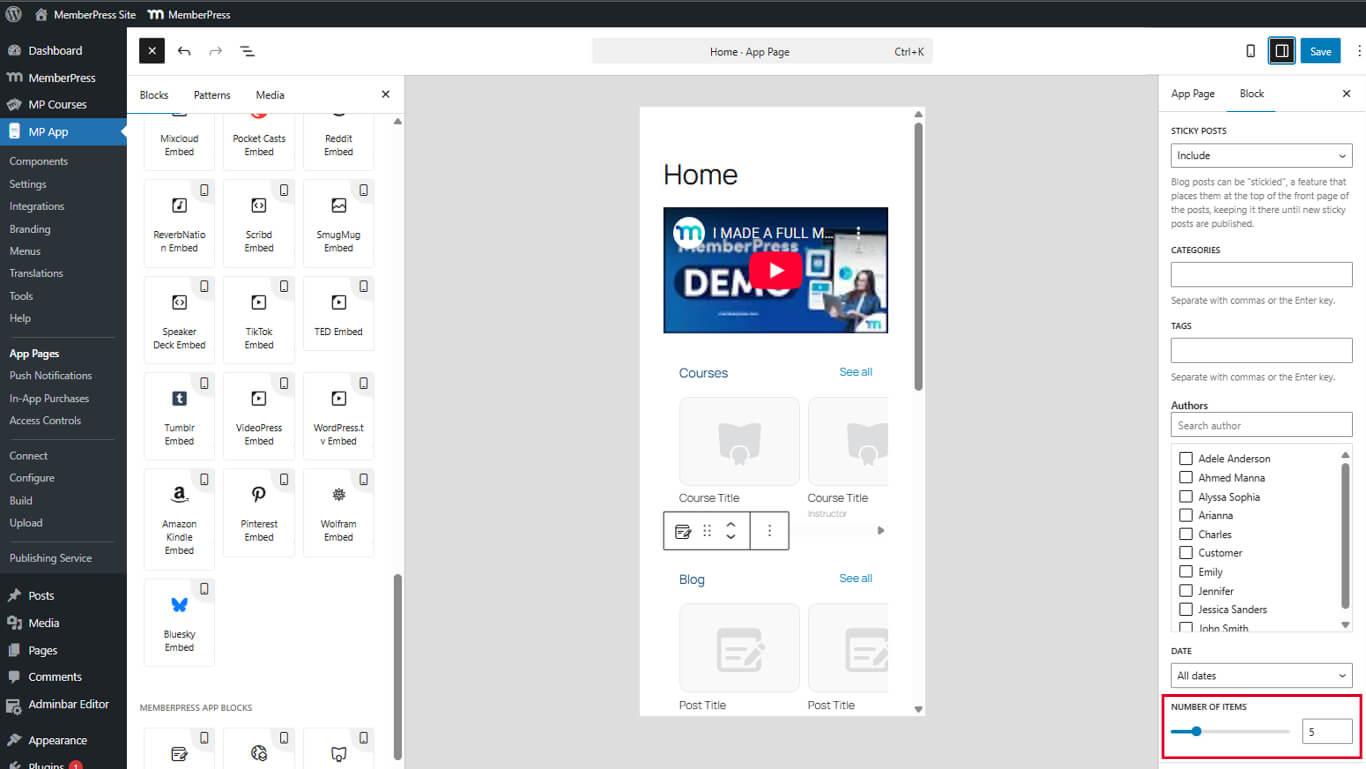
- Clique em Atualização para salvar a página.
Selecione publicações exibindo publicações específicas
A seleção específica de postagens exibe entradas de blog selecionadas manualmente.
- Selecione o bloco Publicações do blog no editor.
- Localize o Selecionar publicações opção no painel Configurações.
- Selecione Postagens específicas.
- Clique no botão Postagens específicas painel para abrir o seletor de postagem.
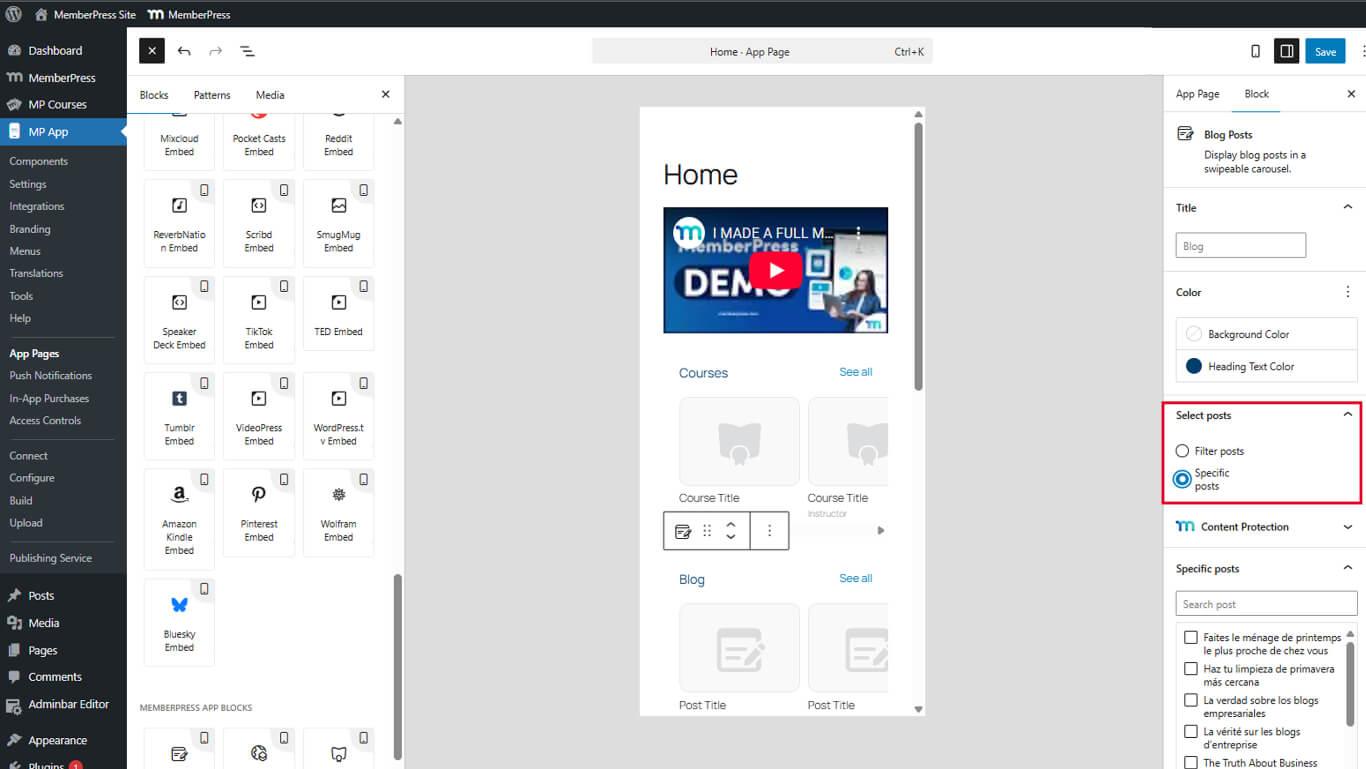
- A partir da lista disponível, escolha as publicações do blog que você deseja exibir.
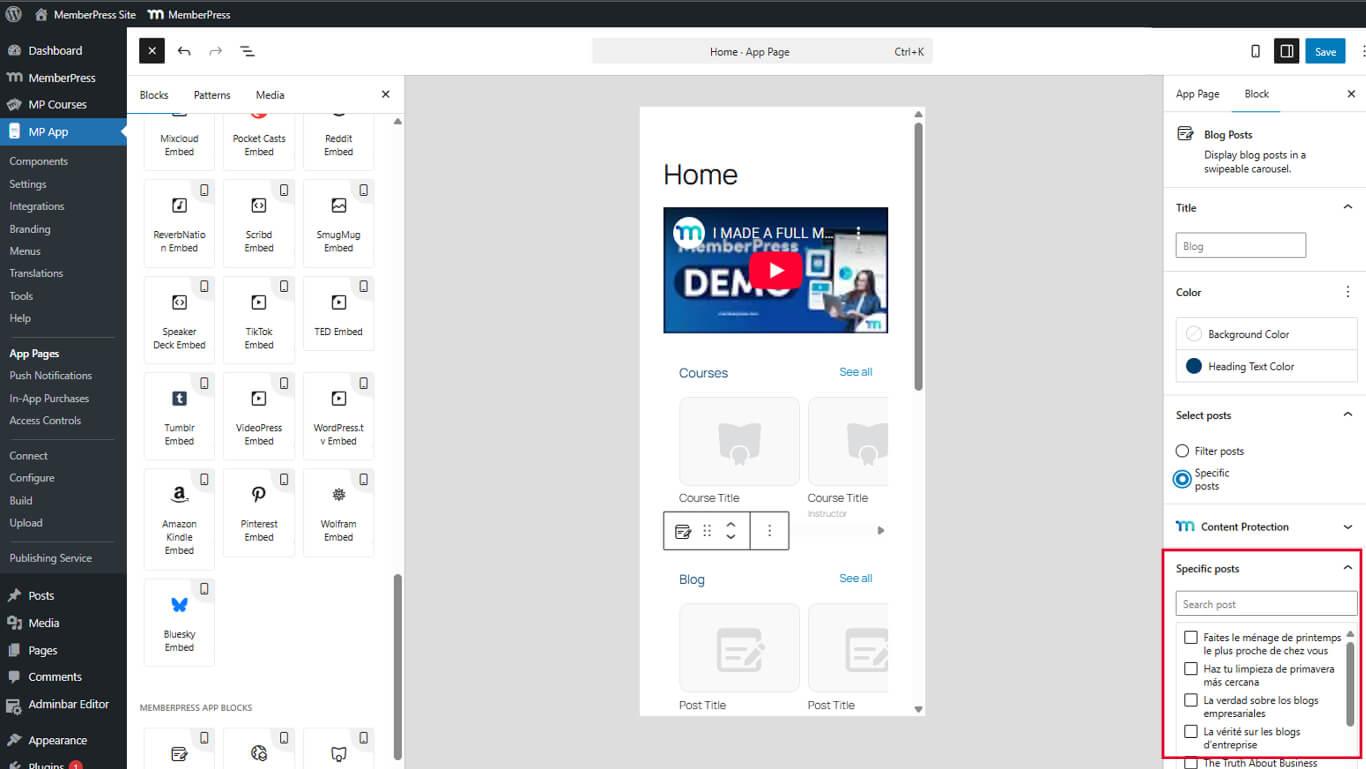
- Clique em Confirmar ou Aplicar para finalizar a seleção.
- Salve as alterações clicando no botão Atualização botão.
A seleção específica de publicações substitui quaisquer critérios de filtro quando ativada.
Salvar e visualizar
A configuração do bloco deve ser salva e o aplicativo deve ser reiniciado para visualizar as alterações.
- Clique em Atualização no editor da página do aplicativo para salvar as alterações.
- Forçar o fechamento do aplicativo MemberPress para iOS/Android totalmente no dispositivo móvel.
- Reabra o aplicativo para recarregar a configuração da página.
- Navegue até a página contendo o bloco Publicações do blog.
- Revisão a exibição do carrossel e a disposição das publicações.
- Deslize horizontalmente para navegar pelos itens do carrossel.
- Toque Ver tudo para abrir o arquivo completo do blog, se disponível.
O carrossel é atualizado automaticamente quando novas publicações são publicadas no blog, caso a filtragem esteja configurada.










 PT
PT  EN
EN  ES
ES  FR
FR  DE
DE 