

This document is for sites that installed MemberPress before the cart release. Updating the plugin changes one thing in the admin menu: Mitgliedschaften wird Produkte. The cart itself stays off, and your products keep selling as before.
This document explains what happens when you enable the cart on an existing site. It focuses on how your current products behave and the decisions you need to make for each of them.
The cart is currently a beta feature, labeled “Beta” in the settings. If you are new to the cart, read the MemberPress – Übersicht über den Wagen first. It explains what the cart adds and how to enable and disable it. If you have not yet decided on the change, check whether you should switch to the MemberPress cart.
What Changes When You Enable the Cart
Enabling the cart adds new store surfaces to your site. MemberPress activates a shop page, a cart page, and a cart checkout page.
Your existing products are not moved into the cart. Each product keeps its standalone registration page and its current URL. Existing member links, subscriptions, and payments continue to work.
Completing the Setup on an Existing Site
Enable the cart as described in the MemberPress – Übersicht über den Wagen. MemberPress creates the reserved Wagen, Shopund Kasse pages automatically when you enable the cart.
One check remains on an existing site:
- Öffnen Sie die ReadyLaunch™. tab. Confirm the templates are enabled for the Shop Page, Cart Pageund Cart Checkout Page. On sites using the ReadyLaunch™ FSE templates, klicken Vorlage anwenden for the Shop, Wagenund Cart Checkout rows individually.
After these steps, the shop, cart, and checkout pages are live. The MemberPress ReadyLaunch™ templates control how these pages look.
Existing Products After Enabling the Cart
Enabling the cart does not change how existing products sell. Each existing product keeps its Standalone registration page option checked.
Existing products also appear on the new shop page by default. However, their View Details buttons link to their registration pages, not to the cart.
Two options in each product’s Cart & Shop section control this behavior:
| Standalone registration page | Shop Page Visibility | Ergebnis |
|---|---|---|
| Unchecked | Visible | The product sells through the cart. |
| Checked | Versteckt | The product keeps its registration page and stays off the shop page. |
| Checked | Visible | The product appears on the shop page but links to its registration page. |
Moving an Existing Product Into the Cart
Follow these steps for each product you want to sell through the cart:
- Navigieren Sie zu Dashboard > MemberPress > Products, and open the product for editing.
- Blättern Sie zum Cart & Shop Abschnitt.
- Deaktivieren Sie das Kontrollkästchen Standalone registration page Option.
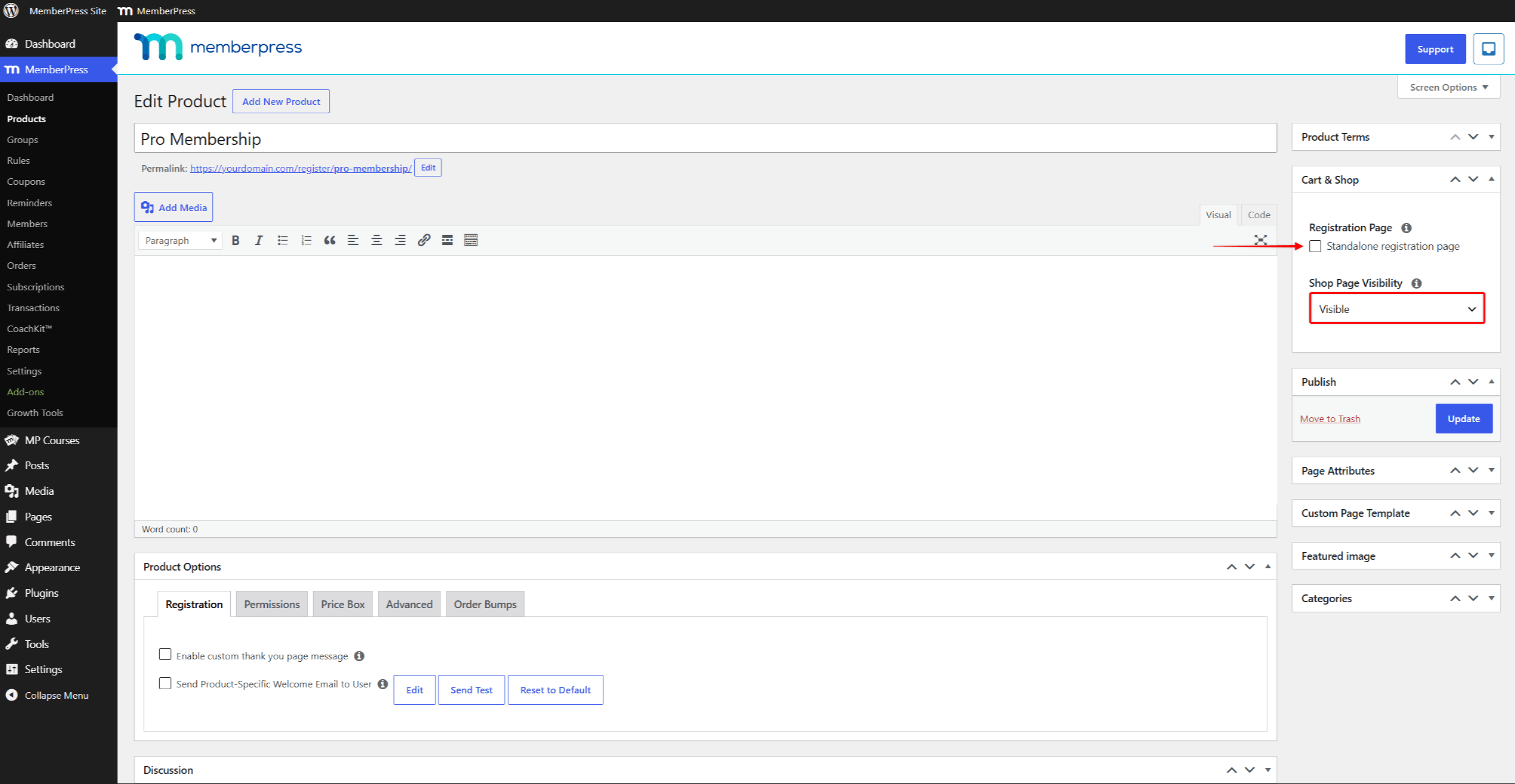
- Bestätigen Sie Shop Page Visibility wird eingestellt auf “Visible”.
- Klicken Sie auf Update um das Produkt zu speichern.
The product now sells through the cart. Its shop page card shows an Add To Cart button instead of View Details. Customers add it from the shop page and pay through the cart checkout.
Keeping a Product on Its Registration Page
Standalone registration pages are a permanent MemberPress feature, supported with the cart on or off. Keep the option checked for products that should sell through their own registration URL.
Set Shop Page Visibility zu “Hidden” if the product should not appear on the shop page. Products sold this way support PayPal, Authorize.net, and Square, alongside Stripe and Offline Payment. Gateways are managed in the MemberPress payment settings.











 DE
DE  EN
EN  ES
ES  FR
FR  PT
PT 