

Ce document s'adresse aux sites ayant installé MemberPress avant la sortie du panier. La mise à jour du plugin entraîne une modification dans le menu d'administration : Adhésions devient Produits. Le panier reste désactivé, et vos produits continuent de se vendre comme avant.
Ce document explique ce qui se passe lorsque vous activez le panier sur un site existant. Il met l'accent sur le comportement de vos produits actuels et sur les choix que vous devez faire pour chacun d'entre eux.
Le panier est actuellement une fonctionnalité en version bêta, intitulée “ Bêta ” dans les paramètres. Si vous découvrez ce panier, consultez le Présentation du chariot MemberPress Tout d'abord, ce document explique les fonctionnalités apportées par le panier et comment l'activer ou le désactiver. Si vous n'avez pas encore pris de décision concernant ce changement, vérifiez si tu devrais passer à la cartouche MemberPress.
Quels sont les changements lorsque vous activez le panier ?
L'activation du panier ajoute de nouvelles fonctionnalités de boutique à votre site. MemberPress active une page de boutique, une page de panier et une page de paiement.
Vos produits existants ne sont pas transférés dans le panier. Chaque produit conserve sa propre page d'inscription et son URL actuelle. Les liens, abonnements et paiements des membres existants continuent de fonctionner.
Finalisation de la configuration sur un site existant
Activez le panier comme indiqué dans le Présentation du chariot MemberPress. MemberPress crée la zone réservée Chariot, Boutiqueet Sortie de caisse pages automatiquement lorsque vous activez le panier.
Il reste une vérification à effectuer sur un site existant :
- Ouvrir le ReadyLaunch™ onglet. Vérifiez que les modèles sont activés pour le Page de la boutique, Page du panieret Page de paiement du panier. Sur les sites utilisant le Modèles ReadyLaunch™ FSE, cliquez Appliquer le modèle pour le Boutique, Chariotet Passer à la caisse ligne par ligne.
Une fois ces étapes franchies, les pages de la boutique, du panier et de paiement sont en ligne. Le Modèles ReadyLaunch™ MemberPress contrôler l'apparence de ces pages.
Produits existants après l'activation du panier
L'activation du panier ne modifie en rien la manière dont les produits existants sont vendus. Chaque produit existant conserve son Page d'inscription autonome option cochée.
Les produits existants apparaissent également par défaut sur la nouvelle page de la boutique. Cependant, leur Voir les détails Ces boutons renvoient vers leurs pages d'inscription, et non vers le panier.
Deux options pour chaque produit Panier et boutique La section permet de contrôler ce comportement :
| Page d'inscription autonome | Visibilité de la page de la boutique | Résultat |
|---|---|---|
| Non coché | Visible | Le produit est vendu via le panier. |
| Coché | Caché | Le produit conserve sa page d'inscription et n'apparaît pas sur la page de la boutique. |
| Coché | Visible | Le produit apparaît sur la page de la boutique, mais renvoie vers sa page d'inscription. |
Ajouter un produit existant au panier
Suivez ces étapes pour chaque produit que vous souhaitez vendre via le panier :
- Naviguez jusqu'à Tableau de bord > MemberPress > Produits, puis ouvrez le produit pour le modifier.
- Faites défiler jusqu'à la Panier et boutique section.
- Décochez la case Page d'inscription autonome option.
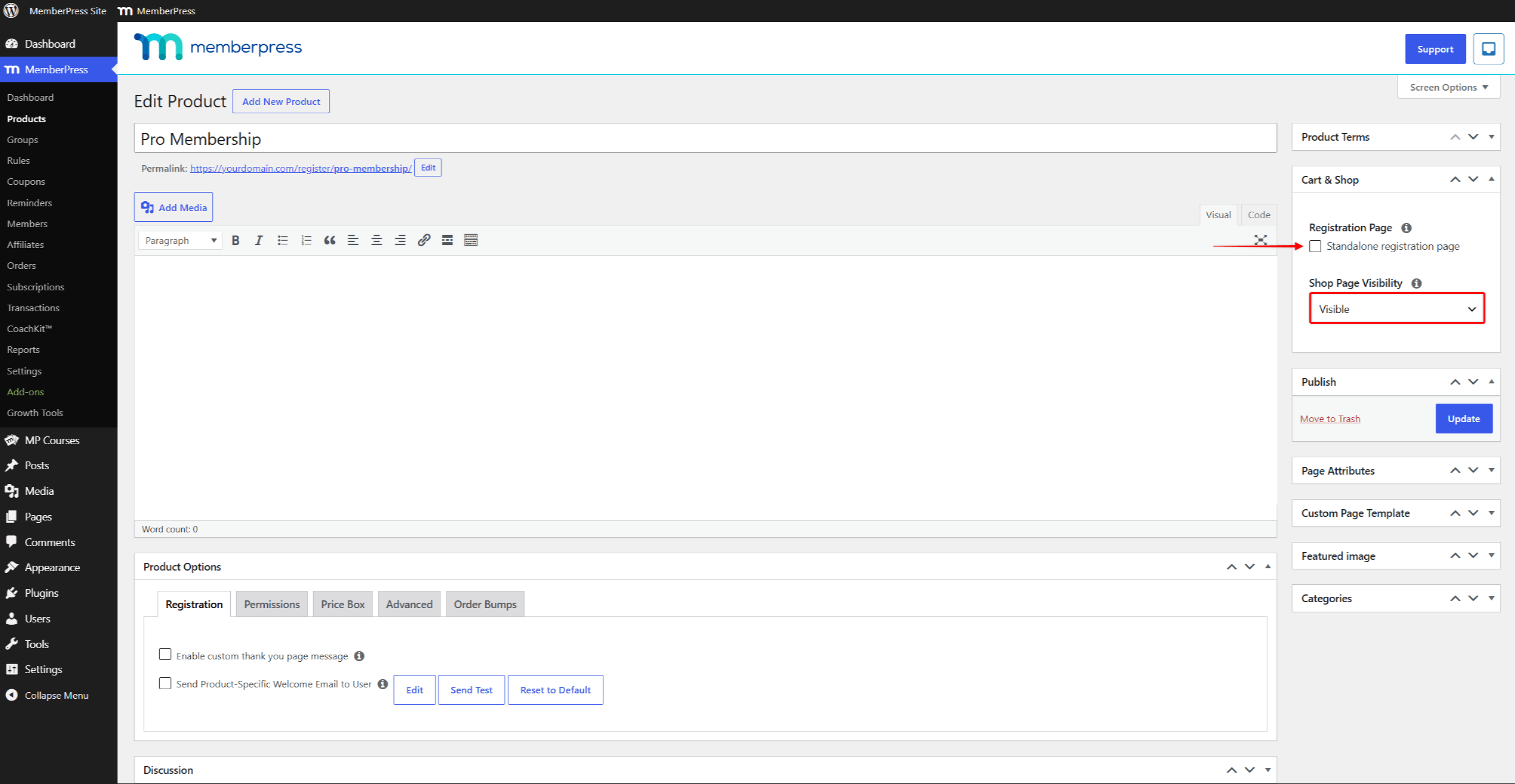
- Confirmer Visibilité de la page de la boutique est fixé à “ Visible ”.
- Cliquez sur Mise à jour pour sauvegarder le produit.
Le produit est désormais disponible à la vente via le panier. La fiche produit affiche un Ajouter au panier bouton au lieu de Voir les détails. Les clients l'ajoutent depuis la page de la boutique et effectuent le paiement lors du passage en caisse.
Conserver un produit sur sa page d'enregistrement
Les pages d'inscription autonomes constituent une fonctionnalité permanente de MemberPress, disponible que le panier soit activé ou désactivé. Laissez cette option cochée pour les produits qui doivent être vendus via leur propre URL d'inscription.
Définir Visibilité de la page de la boutique à “ Caché ” si le produit ne doit pas apparaître sur la page de la boutique. Les produits vendus de cette manière prennent en charge les passerelles de paiement PayPal, Authorize.net et Square, ainsi que Stripe et le paiement hors ligne. Les passerelles de paiement sont gérées dans le Paramètres de paiement MemberPress.











 FR
FR  EN
EN  ES
ES  DE
DE  PT
PT 