

Mit MemberPress können Sie Steuern mit TaxJar oder durch Hochladen von benutzerdefinierten Steuersätzen berechnen. Die Website Dokumentation Steuern deckt beide Methoden ab. Das Add-on Quaderno bietet eine weitere Option, indem es die Steuerberechnung automatisiert. Es verbindet Quaderno, ein Werkzeug zur Steuerautomatisierung, an MemberPress.
Diese Anleitung zeigt Ihnen, wie Sie das Quaderno Add-on installieren und seine wichtigsten Einstellungen konfigurieren.
Installieren Sie das Quaderno Add-on
- Navigieren Sie zu Dashboard > MemberPress > Add-ons.
- Suchen Sie das Add-on Quaderno in der Liste.
- Klicken Sie auf die Add-on installieren um es zu installieren und zu aktivieren.
Quaderno-Einstellungen konfigurieren
Nach der Installation aktivieren Sie das Add-on in den MemberPress-Steuereinstellungen.
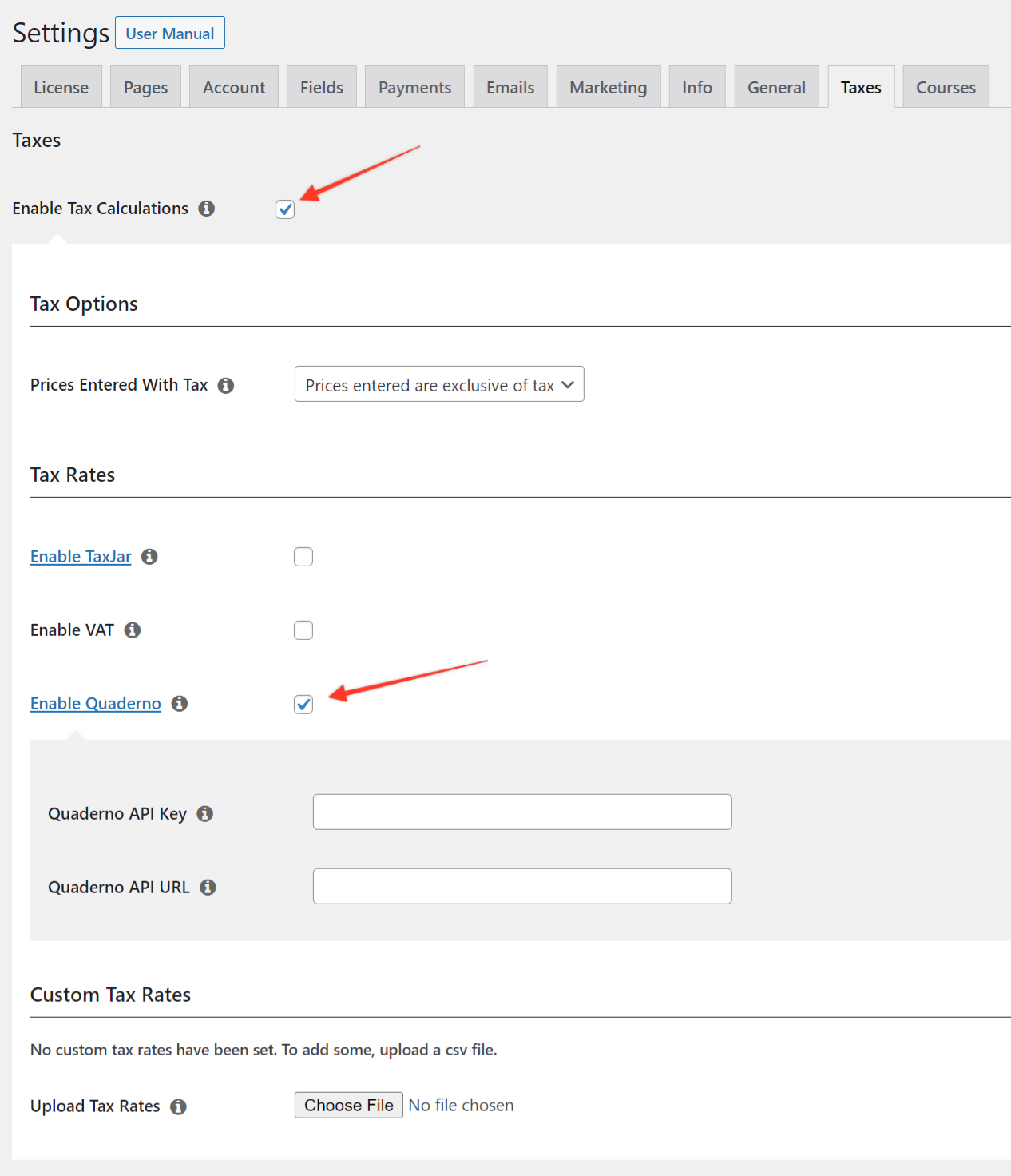
- Navigieren Sie zu Dashboard > MemberPress > Einstellungen > Steuern tab.
- Prüfen Sie die Steuerberechnungen einschalten wenn es nicht bereits aktiviert ist.
- Markieren Sie das Kästchen neben dem Quaderno freischalten Option.
- Suchen Sie die beiden neuen Felder: Quaderno API-Schlüssel und Quaderno API URL.
- Melden Sie sich bei der Quaderno-Konto und öffnen Sie die API-Schlüssel Seite.
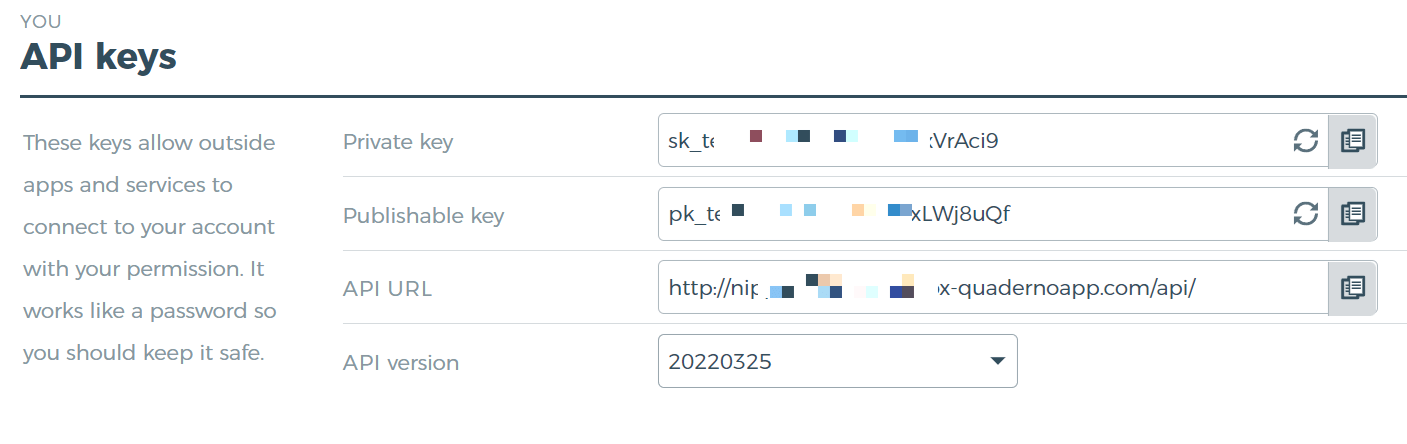
- Kopieren Sie die Privater Schlüssel und der Wert aus der API-URL Feld.
- Zurück zu Dashboard > MemberPress > Einstellungen > Steuern tab.
- Einfügen der Privater Schlüssel in die Quaderno API-Schlüssel Feld.
- Fügen Sie die URL in das Feld Quaderno API URL Feld.
- Klicken Sie auf Speichern Sie um die Änderungen zu speichern.
MemberPress stellt nun automatisch eine Verbindung zur Quaderno-API her. Es berechnet die Steuersätze anhand der Adresse des Kunden und Ihrer Quaderno-Einstellungen.
Quaderno-Gerichtsbarkeiten einrichten
Die Steuergesetzgebung spielt in Quaderno eine wichtige Rolle. Die Quaderno tax setup guide erklärt sie im Detail.
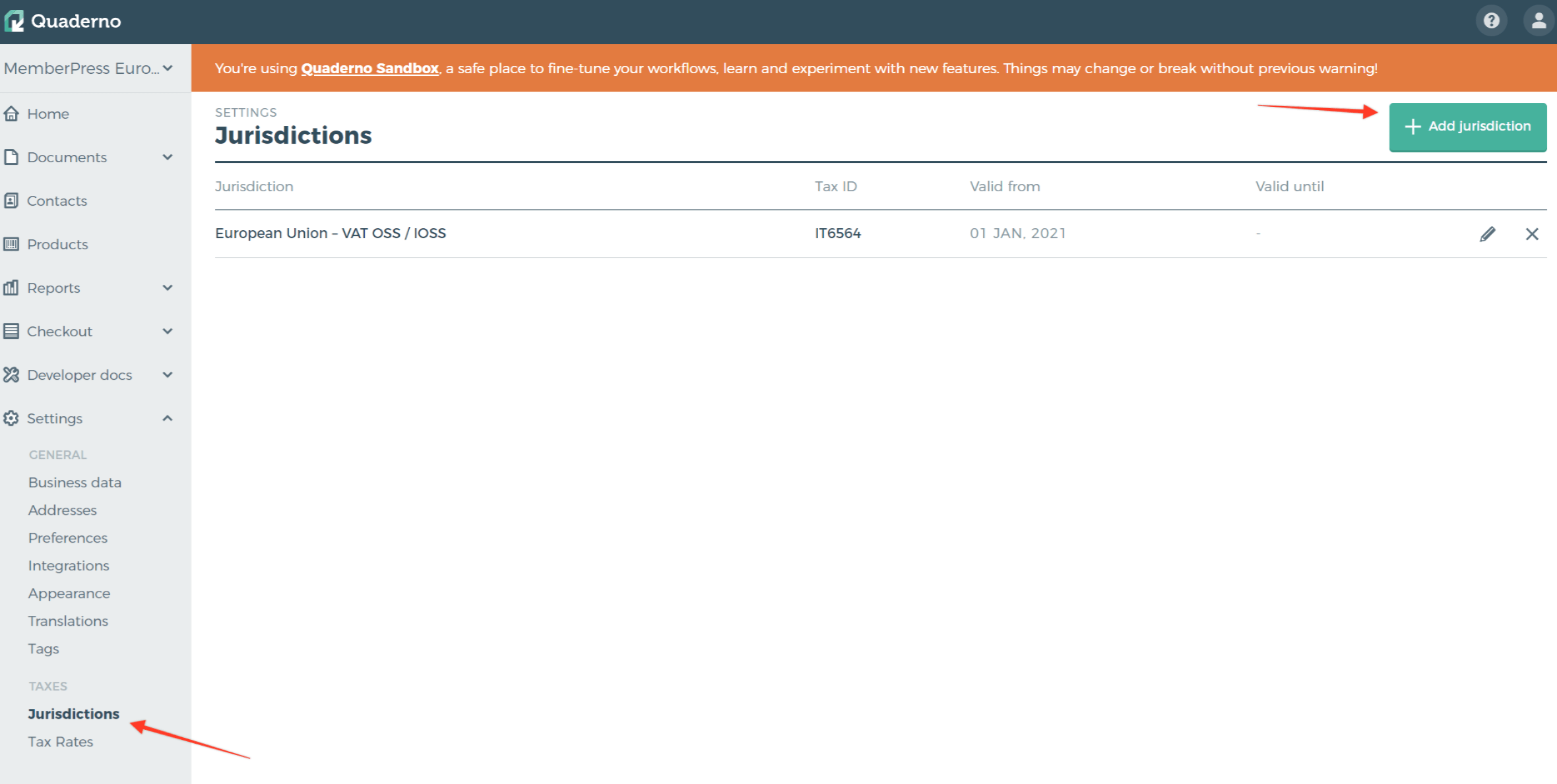
- Öffnen Sie Quaderno Dashboard > Einstellungen > Steuern > Gerichtsbarkeiten.
- Klicken Sie auf die Zuständigkeitsbereich hinzufügen Taste.
- Füllen Sie die erforderlichen Felder für die Gerichtsbarkeit aus.
Das folgende Beispiel zeigt eine Gerichtsbarkeit der Europäischen Union.
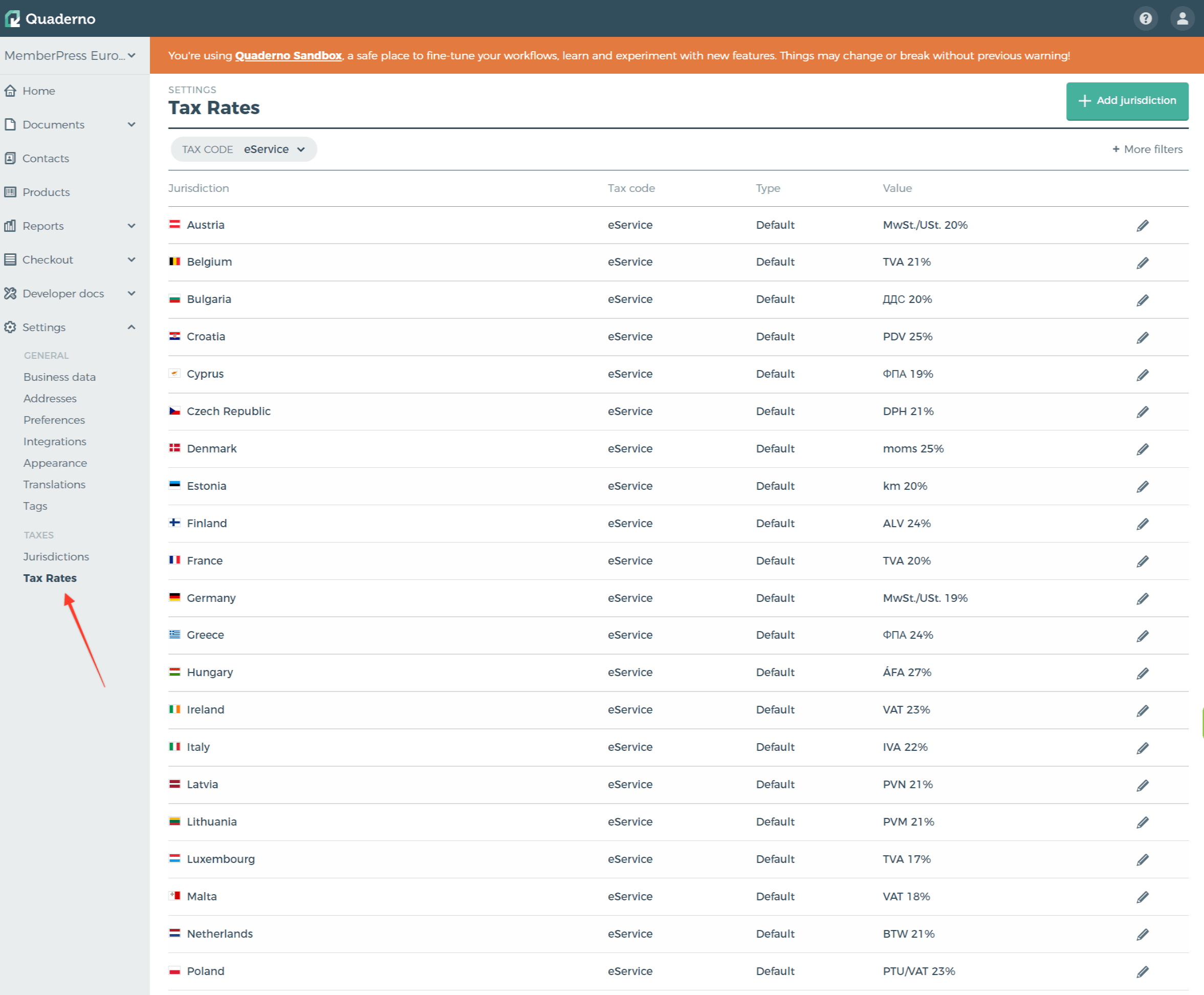
Quaderno fügt automatisch alle Steuern für dieses Land hinzu. Diese Steuern gelten für jede zukünftige Zahlung auf Ihrer Website. Um sie anzuzeigen, öffnen Sie Quaderno Dashboard > Einstellungen > Steuern > Steuersätze.
Einrichten des Steuerverhaltens in den MemberPress-Einstellungen
Zurück zu Dashboard > MemberPress > Einstellungen > Steuern tab.
Wählen Sie dann, ob die mit Steuer eingegebenen Preise exklusiv oder inklusive. Die Eingetragene Preise mit Steuer Abschnitt der Dokumentation Steuern erklärt beide Optionen.
Mitgliedschaftsspezifische Optionen
Standardmäßig verwendet Quaderno die Steuernummer und den Produkttyp aus Quaderno Dashboard > Einstellungen > Präferenzen.
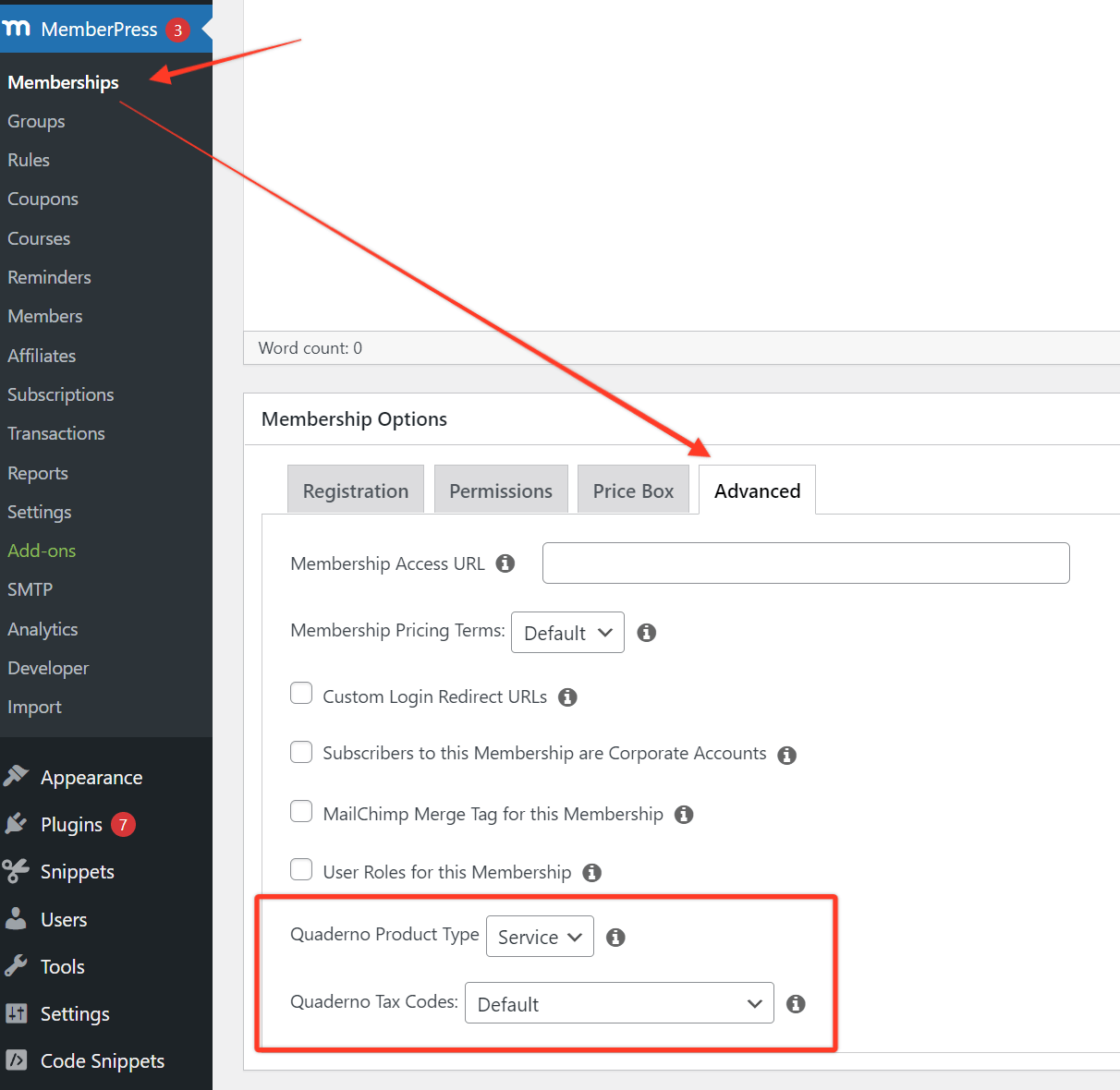
Sie können diese Werte für jede Mitgliedschaft außer Kraft setzen. Öffnen Sie die Fortgeschrittene in den Mitgliedschaftsoptionen, dann setzen Sie die Produkttyp und Abgabenordnung Felder.
Produkttyp bietet zwei Optionen: Dienst (der Standard) und Gut. Abgabenordnung bietet mehrere Optionen:
- Standard: das Steuerkennzeichen aus den Einstellungen von Quaderno;
- Beratung: Beratung und professionelle Dienstleistungen wie Rechtsanwälte, Designer, Ingenieure und Steuerberater;
- eBook: ein elektronisches Buch, das mit unbegrenzter Nutzung verkauft wird;
- Elektronisch erbrachte Dienstleistungen: automatisierte Dienste, die über das Internet mit minimalem menschlichem Einsatz erbracht werden;
- Nicht steuerpflichtig: Waren oder Dienstleistungen, die in Ländern, die eine Steuer erheben, nicht besteuert werden;
- Ermäßigte Steuersätze: bestimmte Waren und Dienstleistungen, auf die ein ermäßigter Satz angewandt werden kann;
- Software-as-a-Service (SaaS): Cloud-Software, die über das Internet bereitgestellt wird, nicht angepasst oder herunterladbar ist;
- Im Allgemeinen steuerpflichtig: Waren oder Dienstleistungen, die in den Ländern, die eine Steuer erheben, mit dem Normalsatz besteuert werden.
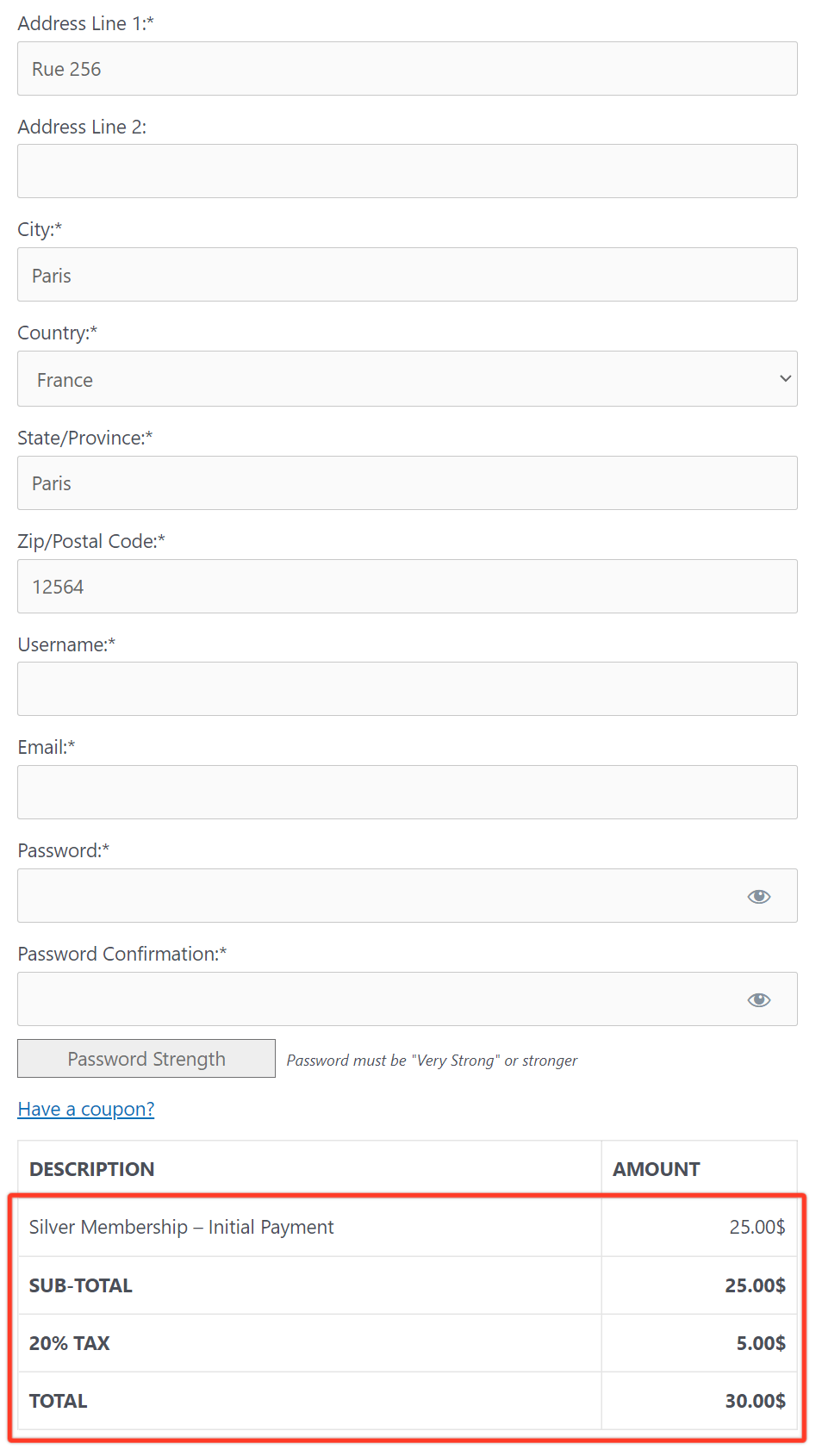
Nach der Einrichtung gibt ein Kunde seine Adresse auf der Registrierungsseite ein. MemberPress stellt dann eine Verbindung zu Quaderno her. Das System berechnet die Steuer anhand der Adresse des Kunden und Ihres Steuergebiets.
Nach erfolgreicher Registrierung sendet MemberPress die Daten an Quaderno. Anzeigen von Steuer- und Kundenberichten unter Quaderno Dashboard > Dokumente > Verkäufe > Rechnungen und in der Kontakte Abschnitt.
Die Einrichtung ist abgeschlossen. Wenn Kunden über MemberPress einkaufen, sammelt das Add-on die Steuern und erfasst sie in Ihrem Quaderno-Konto. Sie können alle Steuerdaten über das Quaderno-Dashboard verwalten.










 DE
DE  EN
EN  ES
ES  FR
FR  PT
PT 