

MemberPress lets you calculate taxes with TaxJar or by uploading custom tax rates. The Taxes documentation covers both methods. The Quaderno add-on adds another option by automating tax calculation. It connects Quaderno, a tax automation tool, to MemberPress.
This guide shows how to install the Quaderno add-on and configure its main settings.
Install the Quaderno Add-on
- Navigate to Dashboard > MemberPress > Add-ons.
- Find the Quaderno add-on in the list.
- Click the Install Add-on button to install and activate it.
Configure Quaderno Settings
After installation, enable the add-on in the MemberPress tax settings.
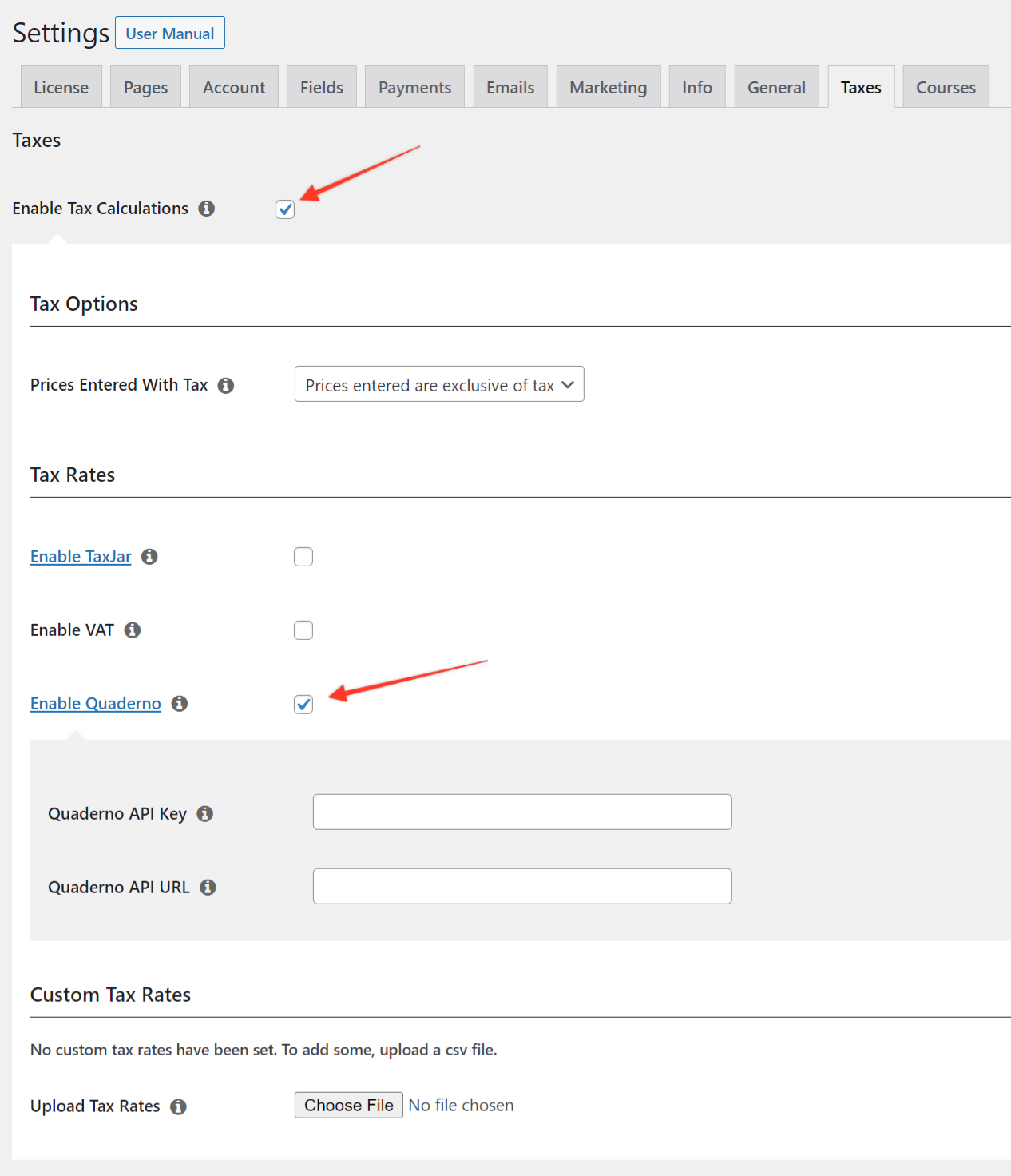
- Navigate to Dashboard > MemberPress > Settings > Taxes tab.
- Check the Enable Tax Calculations box if it is not already enabled.
- Check the box next to the Enable Quaderno option.
- Find the two new fields: Quaderno API Key and Quaderno API URL.
- Log in to the Quaderno account and open the API Keys page.
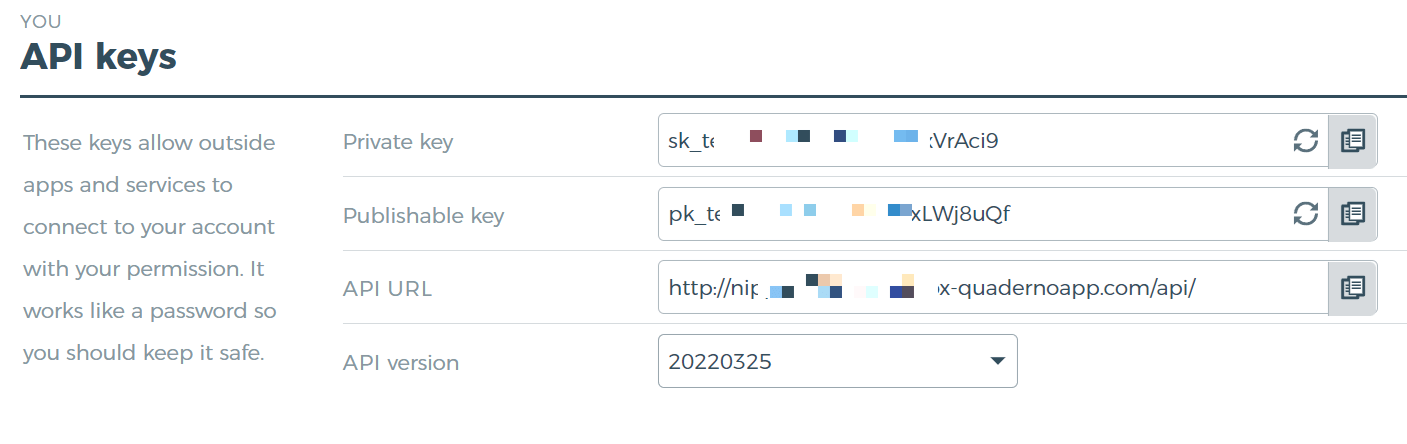
- Copy the Private key and the value from the API URL field.
- Return to Dashboard > MemberPress > Settings > Taxes tab.
- Paste the Private key into the Quaderno API Key field.
- Paste the URL into the Quaderno API URL field.
- Click Save to store the changes.
MemberPress now connects to the Quaderno API automatically. It calculates tax rates from the customer’s address and your Quaderno settings.
Set Up Quaderno Jurisdictions
Tax jurisdictions play a key role in Quaderno. The Quaderno tax setup guide explains them in detail.
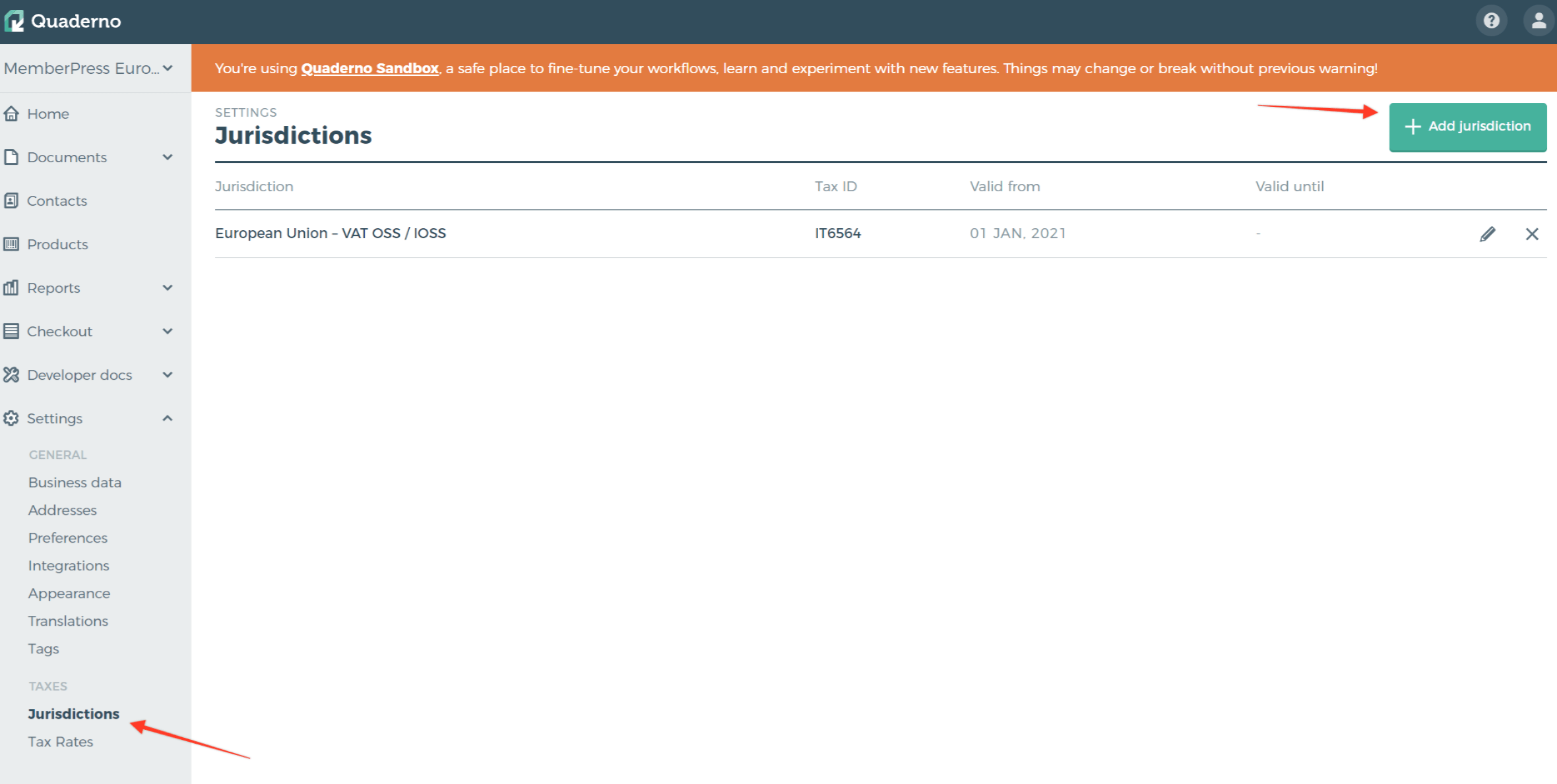
- Open Quaderno Dashboard > Settings > Taxes > Jurisdictions.
- Click the Add Jurisdiction button.
- Complete the required fields for the jurisdiction.
The example below shows a European Union jurisdiction.
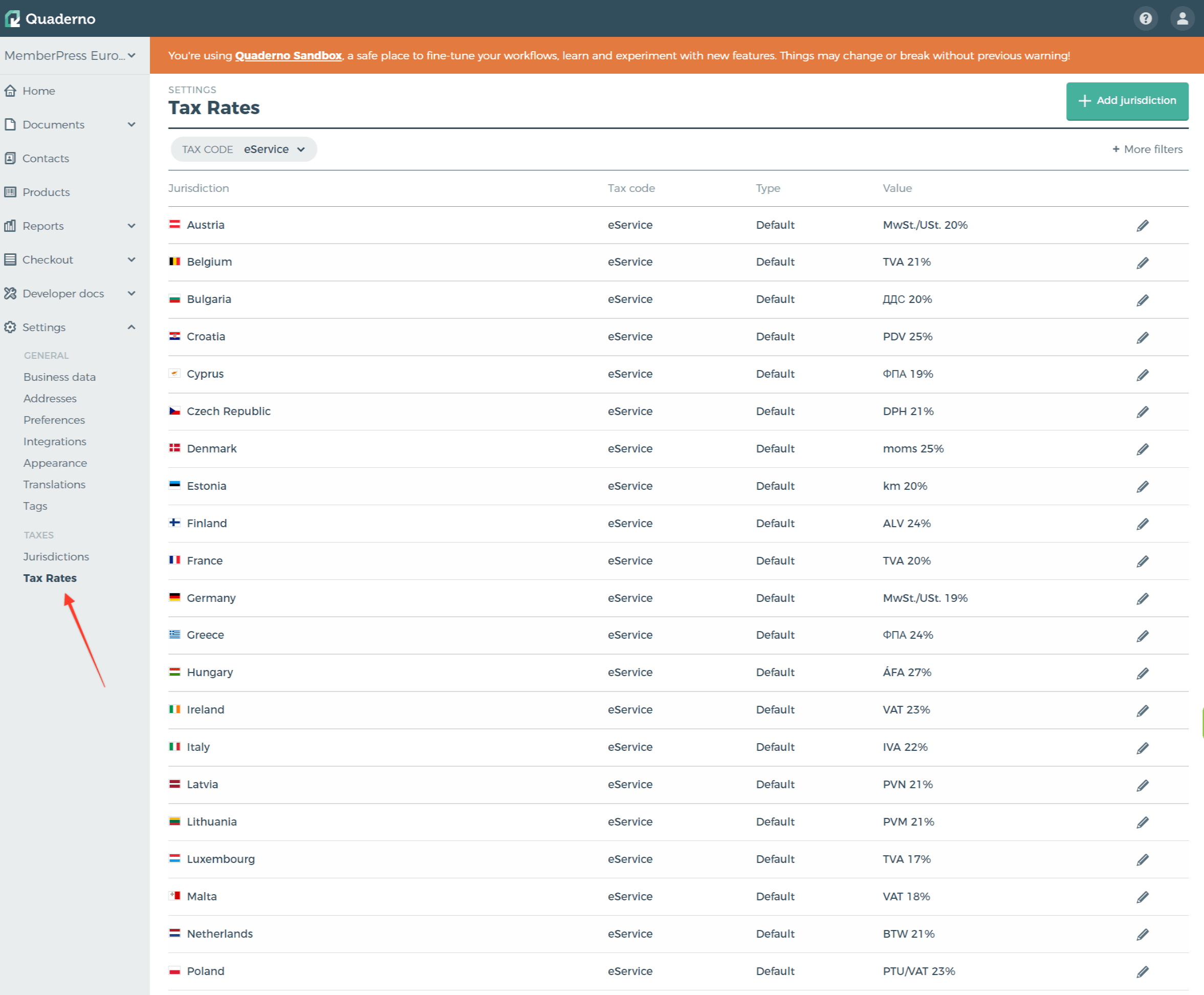
Quaderno adds all taxes for that jurisdiction automatically. These taxes apply to every future payment on your site. To view them, open Quaderno Dashboard > Settings > Taxes > Tax Rates.
Set Up Tax Behavior in MemberPress Settings
Return to Dashboard > MemberPress > Settings > Taxes tab.
Then choose whether prices entered with tax are exclusive or inclusive. The Prices Entered With Tax section of the Taxes documentation explains both options.
Membership-Specific Options
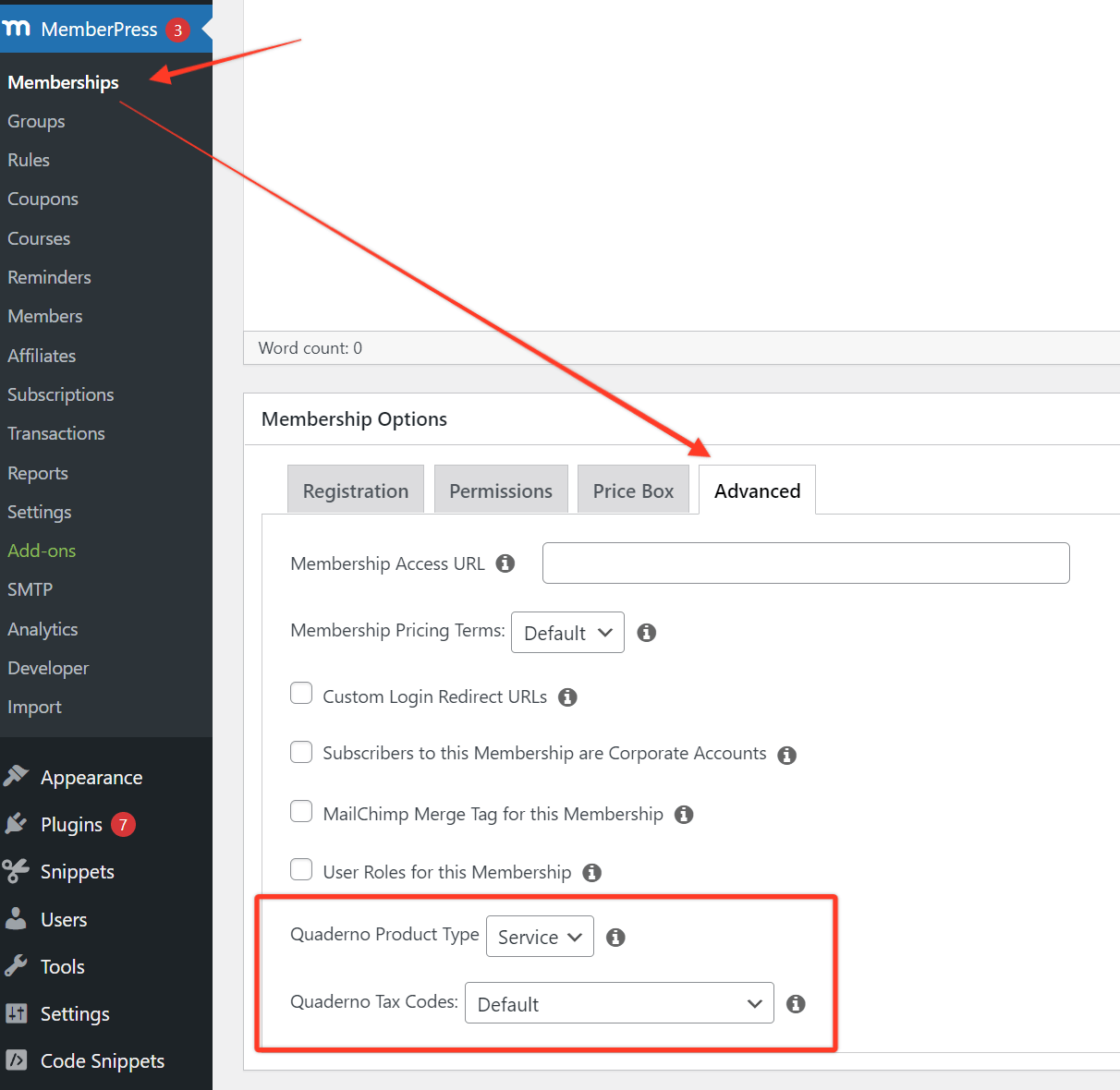
By default, Quaderno uses the tax code and product type from Quaderno Dashboard > Settings > Preferences.
You can override these values for each membership. Open the Advanced tab in the membership options, then set the Product Type and Tax Code fields.
Product Type offers two options: Service (the default) and Good. Tax Code offers several options:
- Default: the tax code from the Quaderno settings;
- Consulting: consulting and professional services such as lawyers, designers, engineers, and tax advisors;
- eBook: an electronic book sold with unlimited use;
- Electronically supplied services: automated services delivered over the internet with minimal human input;
- Non-taxable: goods or services that carry no tax in jurisdictions that impose one;
- Reduced tax rates: specific goods and services that qualify for a reduced rate;
- Software as a service (SaaS): cloud software delivered over the internet, not customized or downloadable;
- Generally taxable: goods or services taxed at the standard rate in jurisdictions that impose tax.
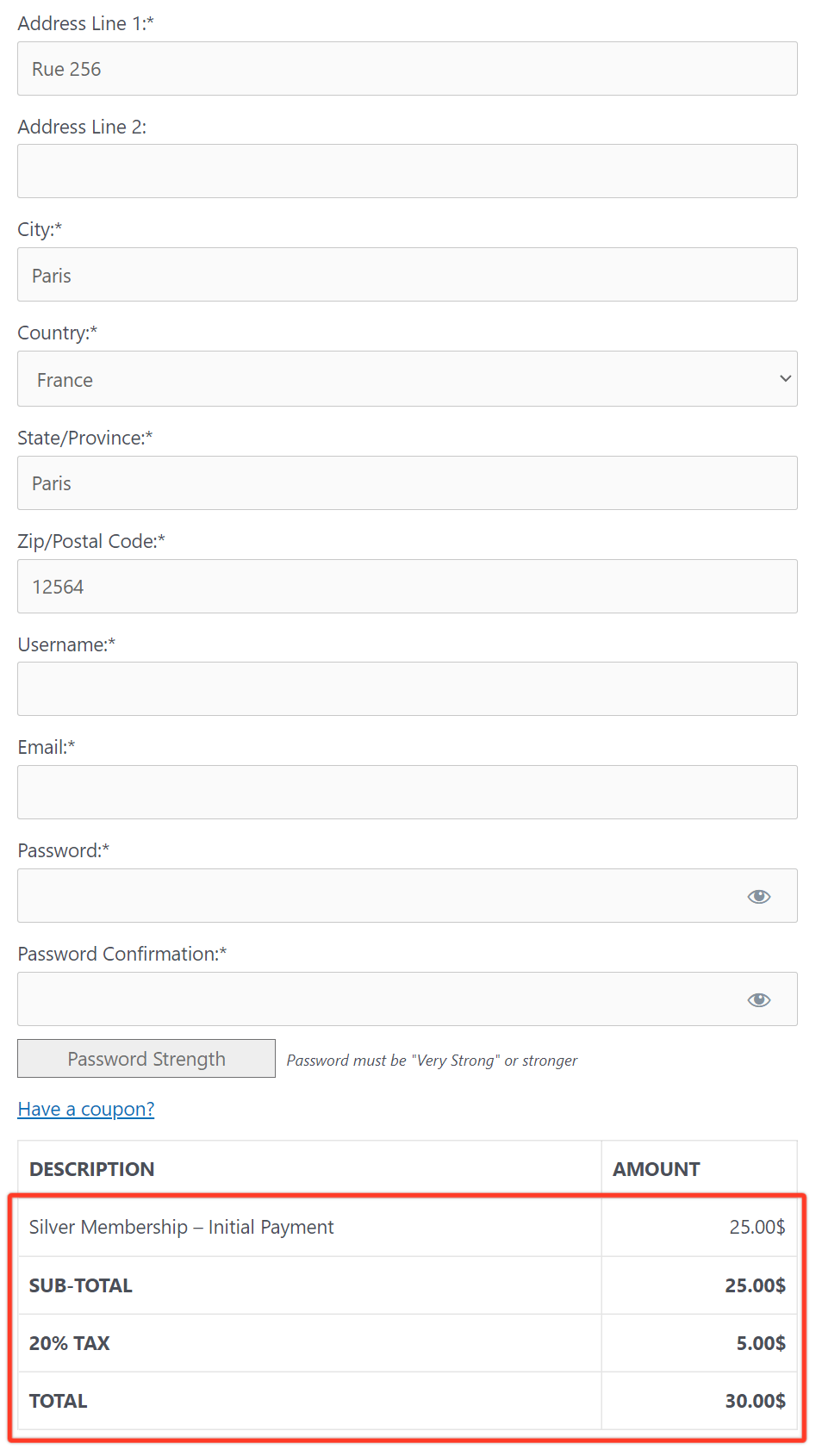
After setup, a customer enters their address on the registration page. MemberPress then connects to Quaderno. It calculates the tax from the customer’s address and your jurisdiction.
After successful registration, MemberPress sends the data to Quaderno. View tax and customer reports under Quaderno Dashboard > Documents > Sales > Invoices and in the Contacts section.
The setup is complete. When customers purchase through MemberPress, the add-on collects taxes and records them in your Quaderno account. You can manage all tax data from the Quaderno dashboard.










