

Este documento explica cómo configurar y probar el modo Sandbox de PayPal Complete Payments con MemberPress. Probar en modo sandbox le permite comprobar la configuración antes de aceptar pagos reales.
PayPal Sandbox Visión general
La conexión de PayPal Complete Payments a MemberPress le permite aceptar pagos de afiliados de todo el mundo. La configuración admite pagos únicos y periódicos para diferentes modelos de afiliación.
PayPal Sandbox es una zona de pruebas que copia el sistema de pago real. Sin embargo, no procesa cargos reales. Como resultado, puede probar los flujos de pago y la configuración utilizando números de tarjeta de prueba en lugar de datos de pago reales.
Probar con PayPal Sandbox antes de aceptar pagos en vivo es una buena idea. Sin embargo, las pruebas en el entorno de pruebas son opcionales. Para omitir las pruebas y conectarse directamente a Producción, consulte Cómo conectar PayPal Pagos Completos a MemberPress.
Requisitos previos
Antes de realizar pruebas con PayPal Sandbox, asegúrese de que dispone de:
- MemberPress Plan de crecimiento o de escala activado en el sitio;
- A PayPal Cuenta de desarrollador (de libre creación);
- Una pasarela de Pagos Completos PayPal creada en la configuración MemberPress;
- Al menos una afiliación creado para las pruebas.
Creación de cuentas Sandbox
PayPal Sandbox necesita cuentas de prueba separadas para el comerciante (Business) y el comprador (Personal). Estas cuentas sandbox sólo existen en la zona de pruebas.
Creación de una cuenta Sandbox Business
- En primer lugar, inicie sesión en PayPal Panel de control para desarrolladores.
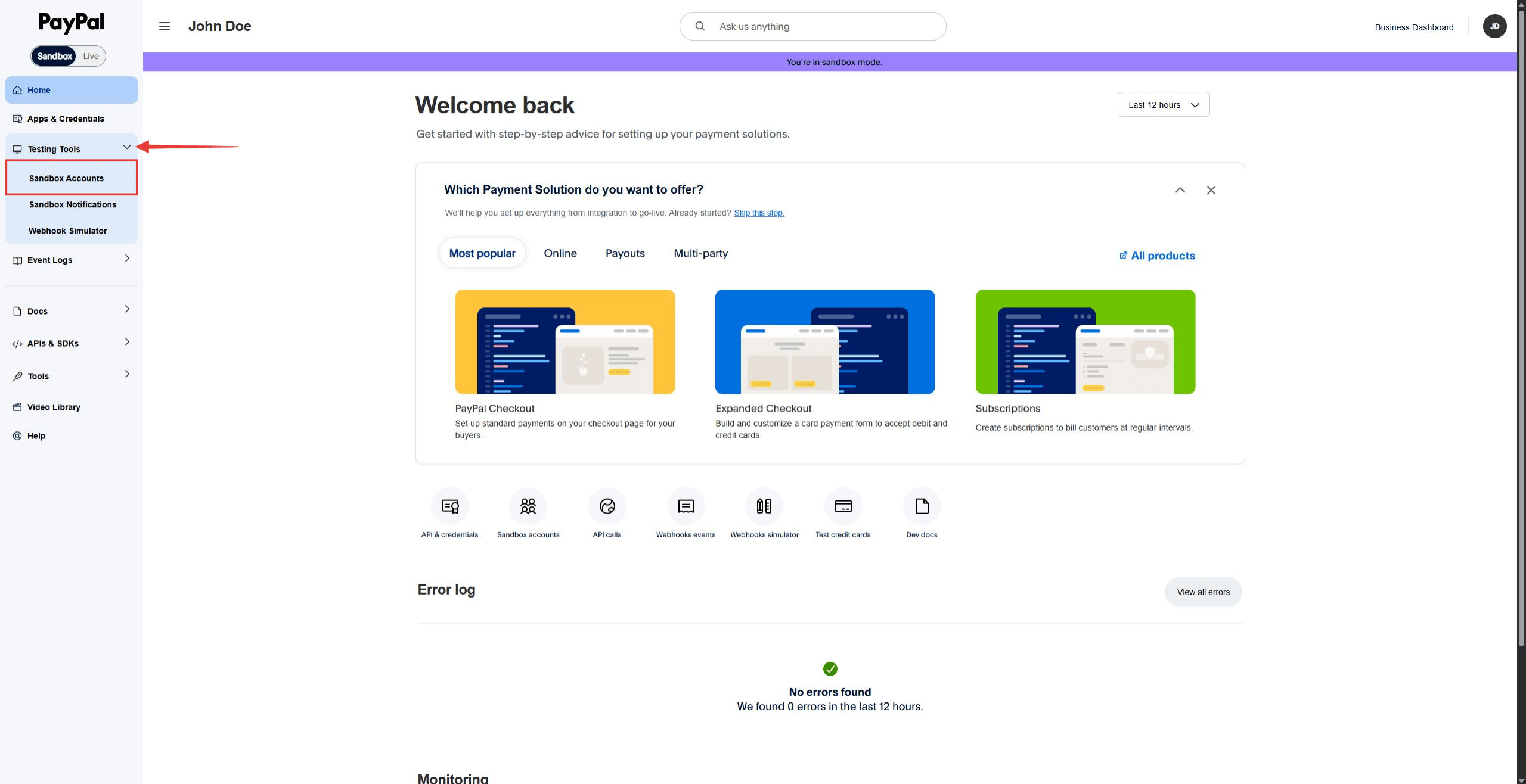
- A continuación, haga clic en Herramientas de prueba en el menú de la izquierda. A continuación, haga clic en Cuentas aisladas.
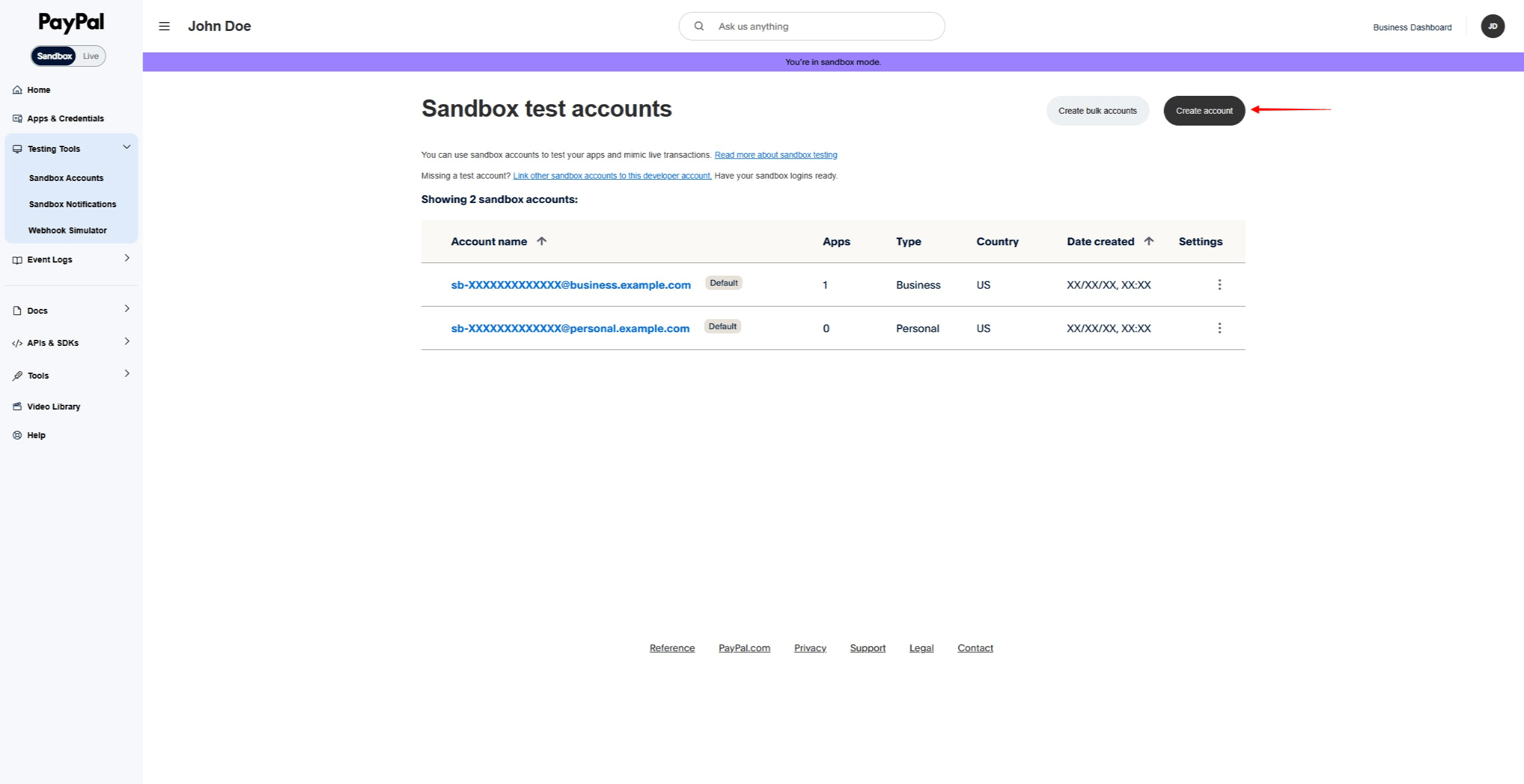
- Haga clic en el botón Crear una cuenta botón.
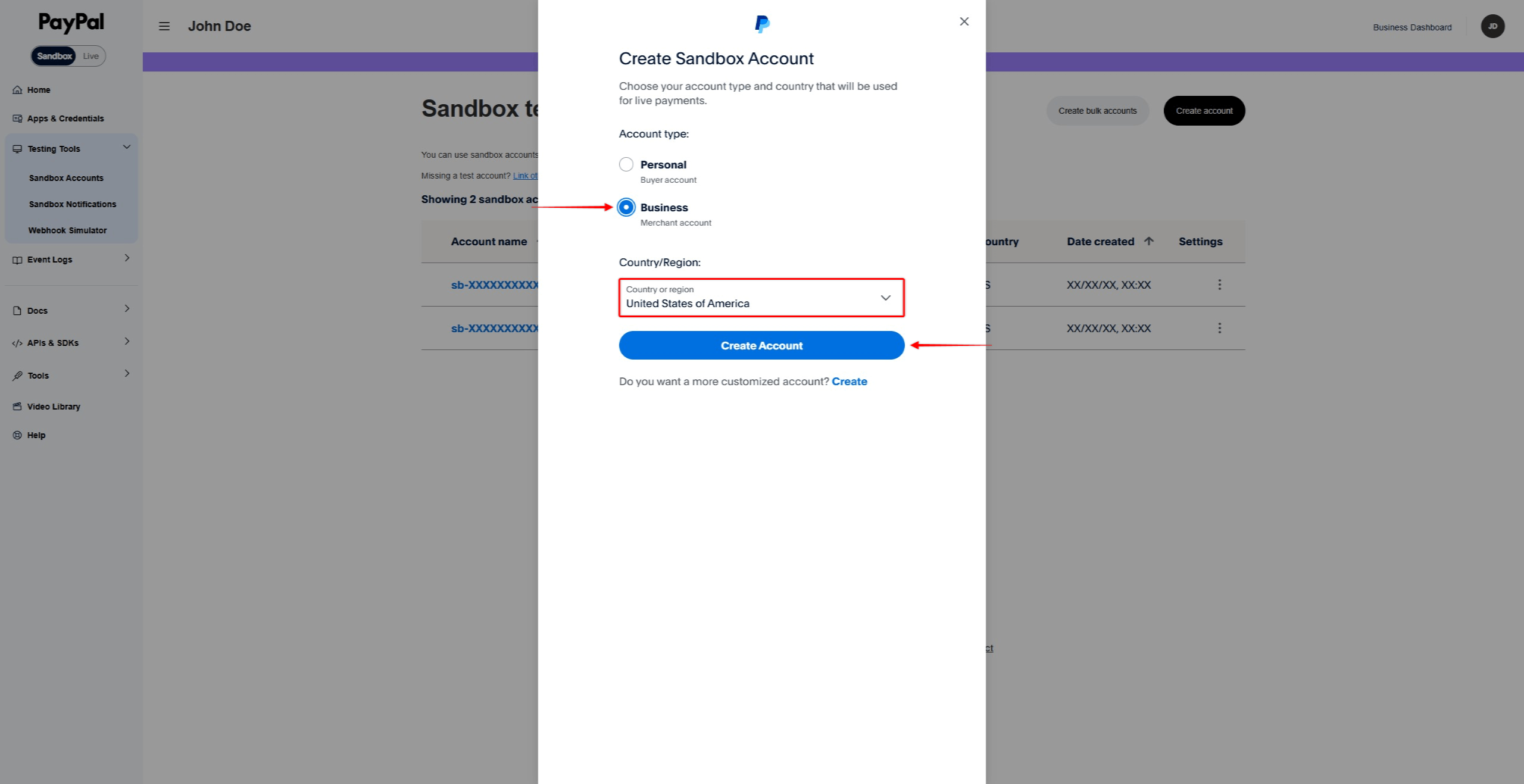
- Seleccione Empresas como tipo de cuenta.
- Seleccione una País/Región para el comerciante de prueba.
- Por último, haga clic en Cree para crear la cuenta Business del sandbox.
Creación de una cuenta personal Sandbox
- En el Cuentas aisladas haga clic en Crear una cuenta.
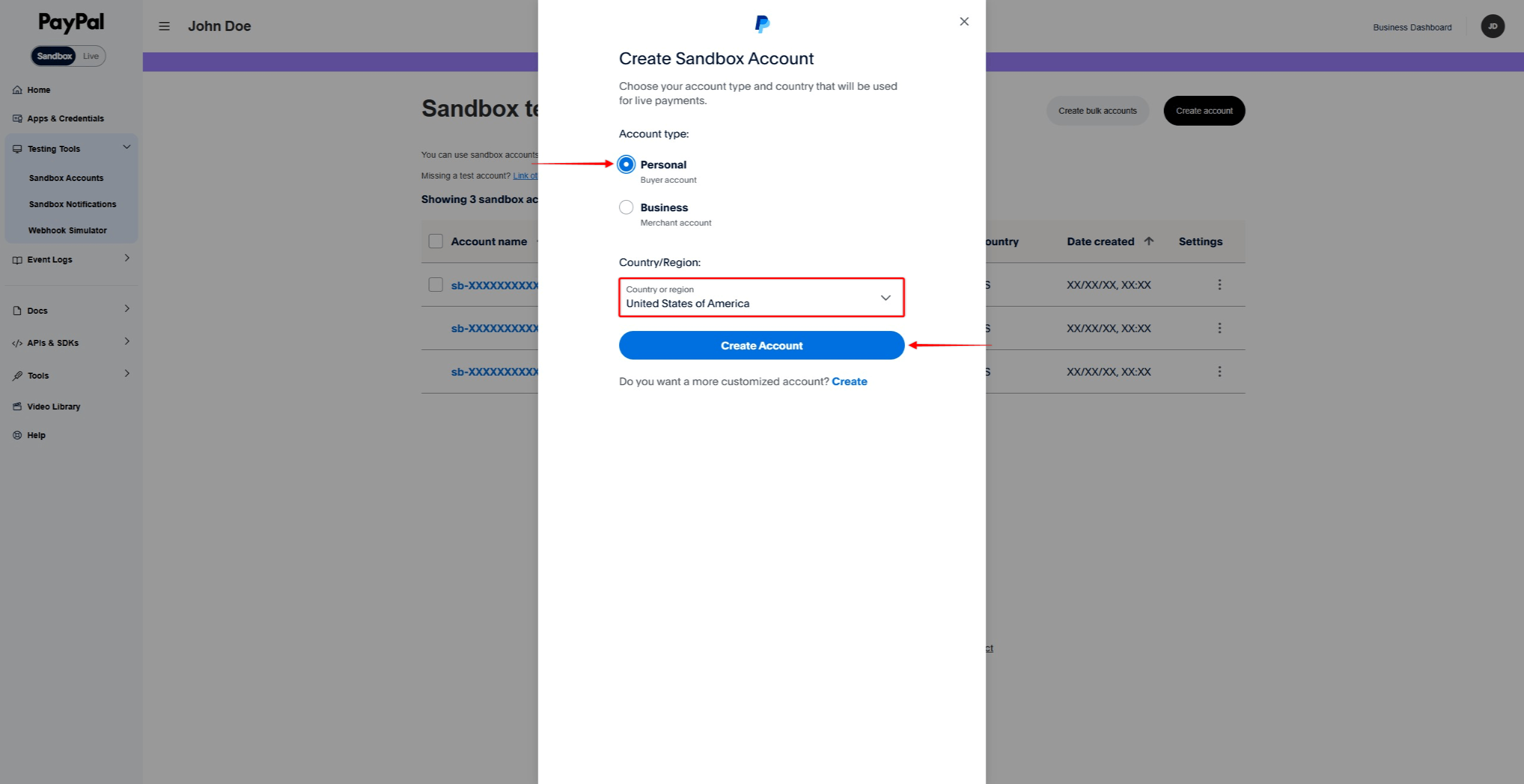
- Seleccione Personal como tipo de cuenta.
- Seleccione una País/Región para el comprador de la prueba.
- Haga clic en Cree para crear la cuenta personal del sandbox.
Ver los detalles de la cuenta Sandbox
- En el Cuentas aisladas busque la cuenta que desea consultar.
- Pulse el menú de tres puntos (…) junto a la cuenta.
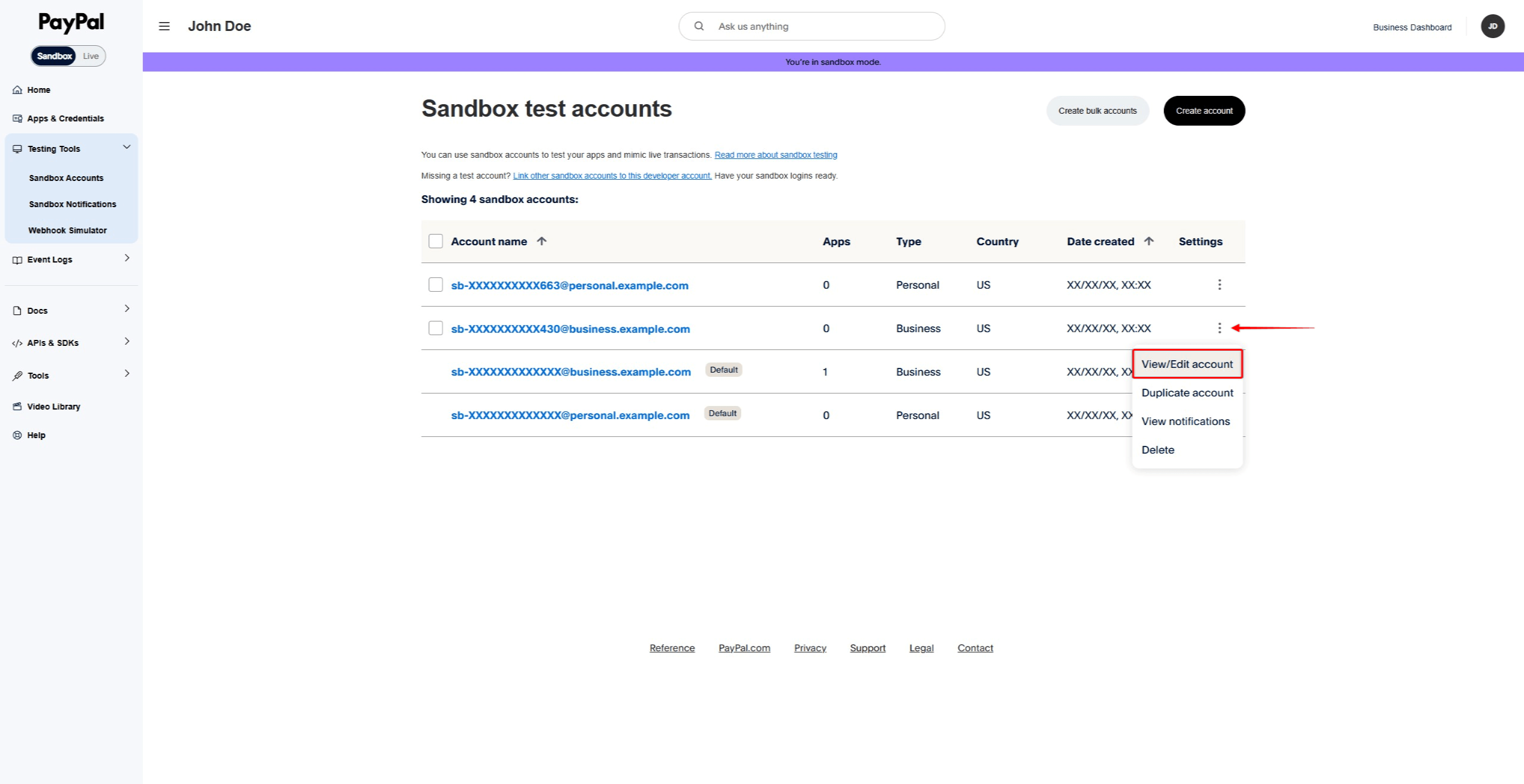
- Haga clic en Ver/editar cuenta.
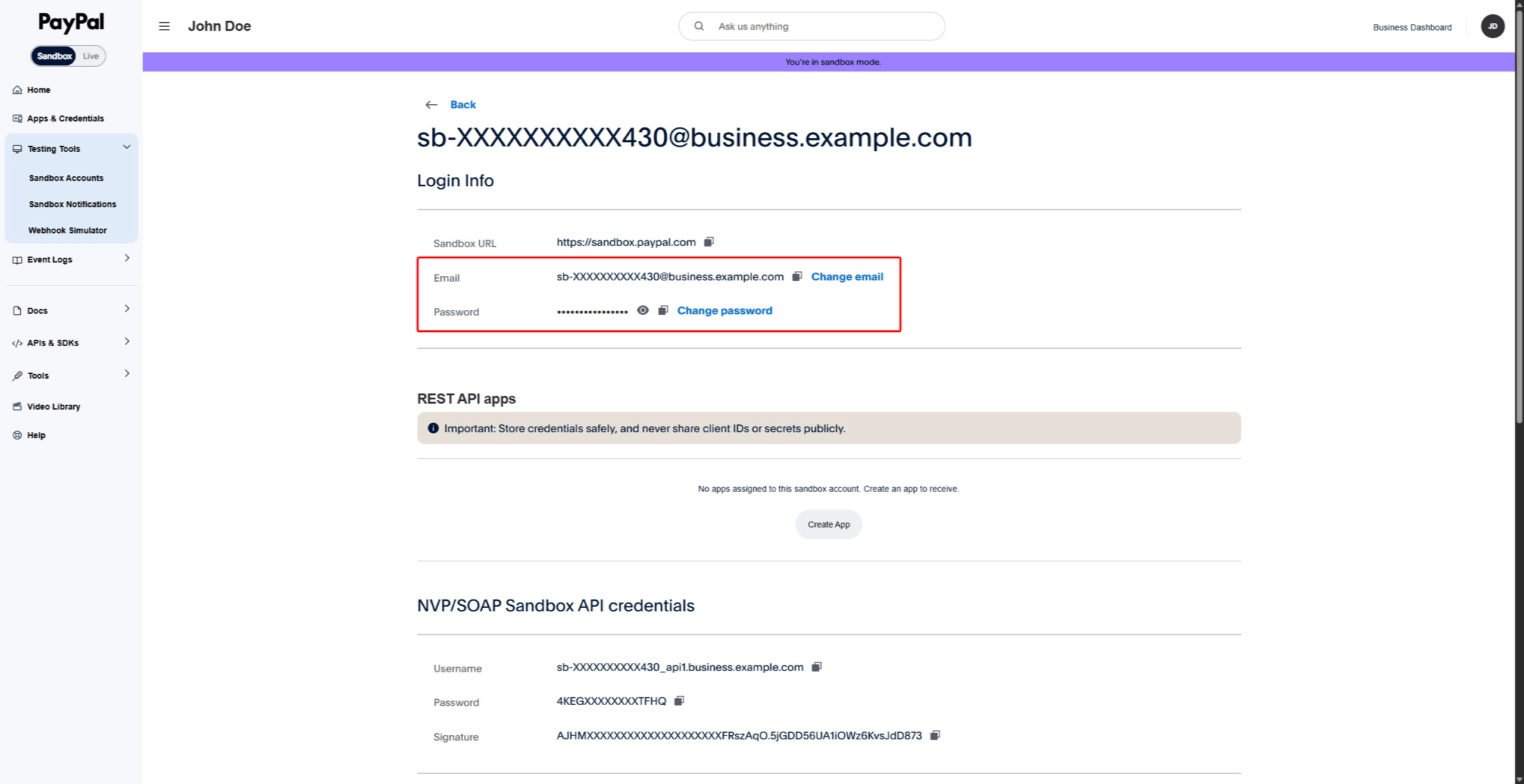
- Anote la dirección de correo electrónico y la contraseña creada por el sistema.
Conexión de MemberPress a PayPal Sandbox
Una vez creadas las cuentas sandbox, ya puedes conectar MemberPress a la zona sandbox de PayPal. Durante el proceso de conexión, tendrá que iniciar sesión con su cuenta de Sandbox Business. Utilice el correo electrónico y la contraseña que encontró en la sección “Ver detalles de la cuenta Sandbox” más arriba.
Puede iniciar sesión en su cuenta Business antes de iniciar la conexión. Como alternativa, PayPal le pedirá que inicie sesión durante el proceso de conexión.
Conectar la cuenta Sandbox
- Abra otra pestaña del navegador e inicie sesión en su sitio web de WordPress.
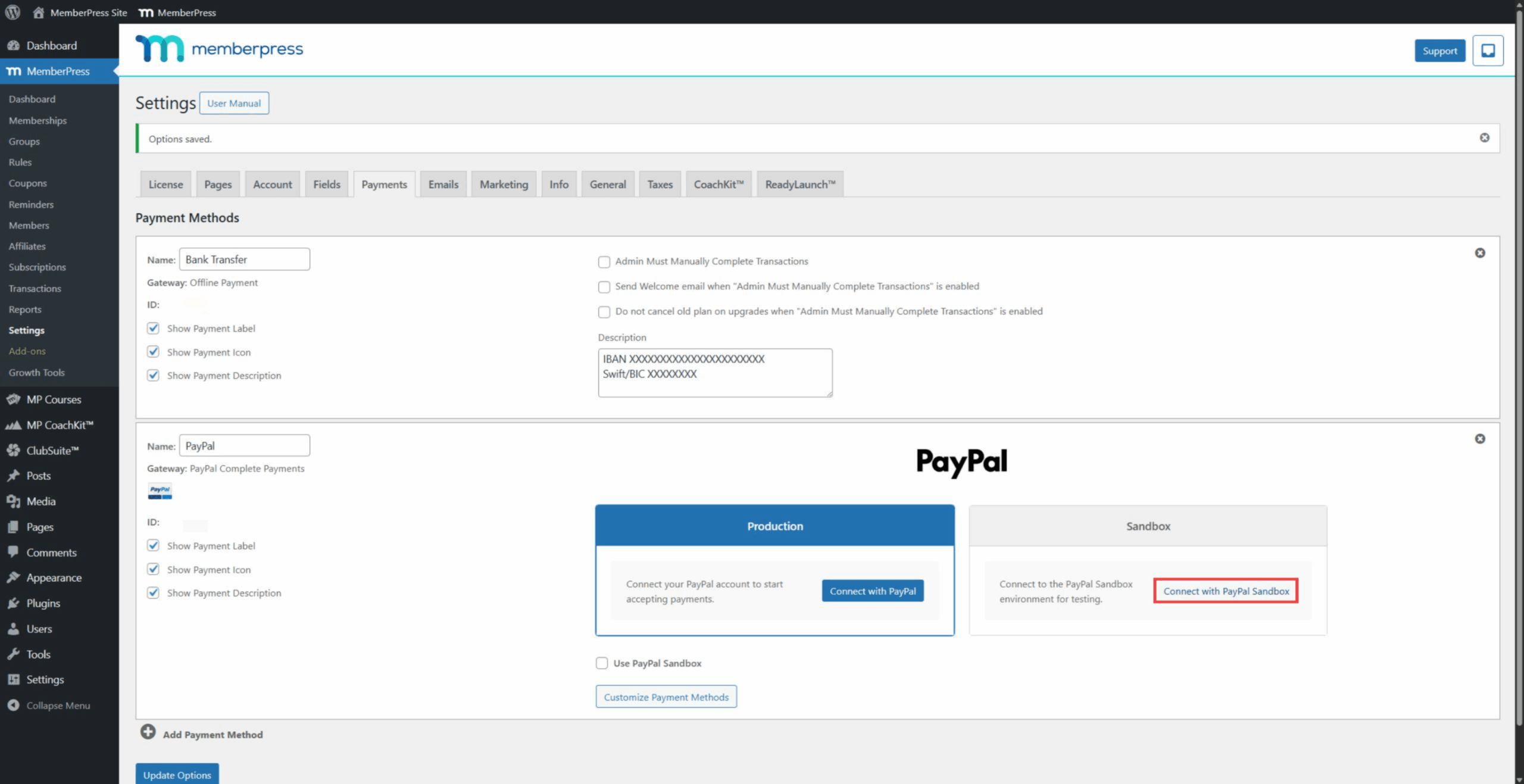
- Ir a Panel de control > MemberPress > Configuración > Pagos ficha.
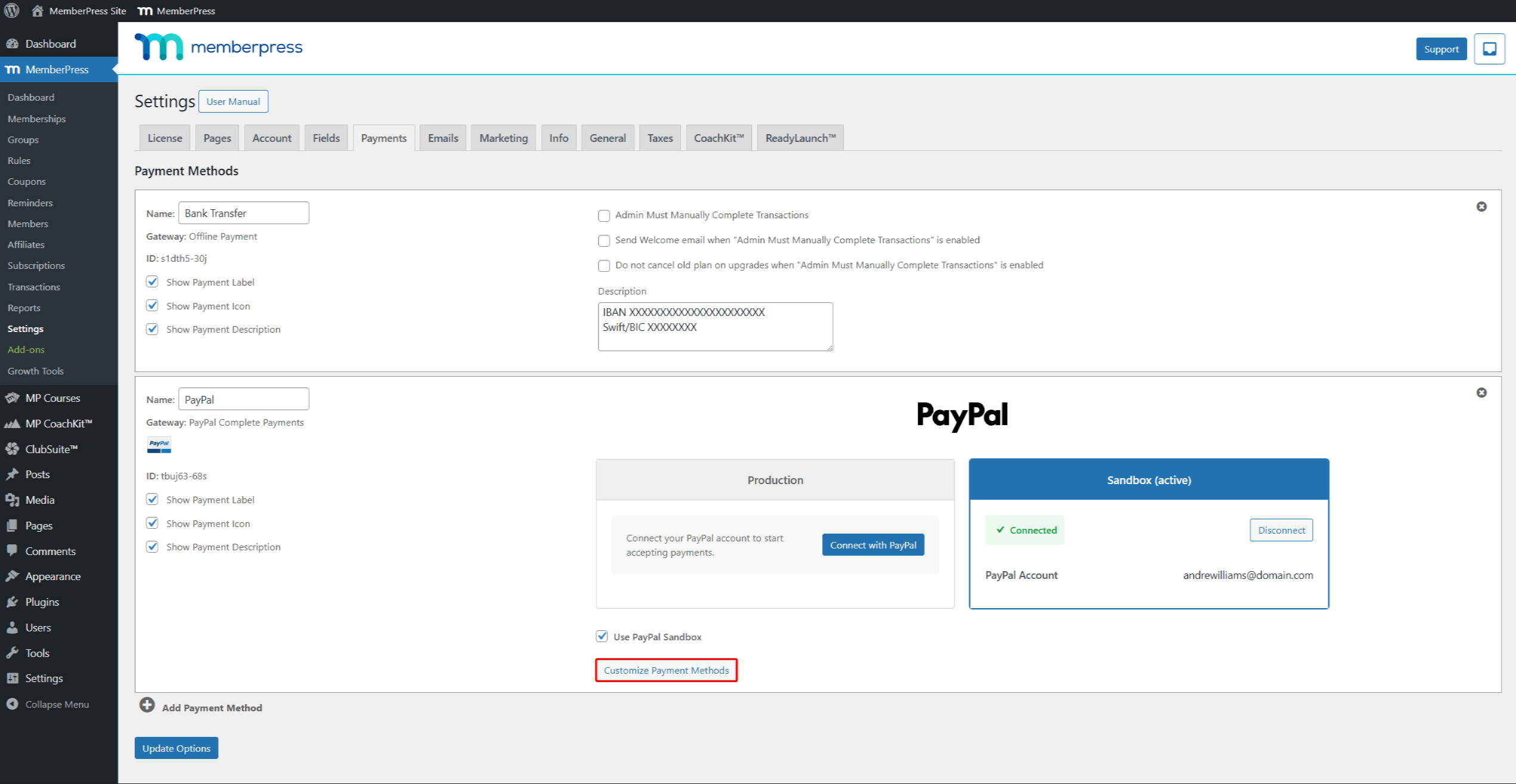
- Haga clic en la pasarela PayPal Complete Payments para ampliar su configuración.
- En virtud de la Cajón de arena haga clic en el botón Conectar con PayPal botón.
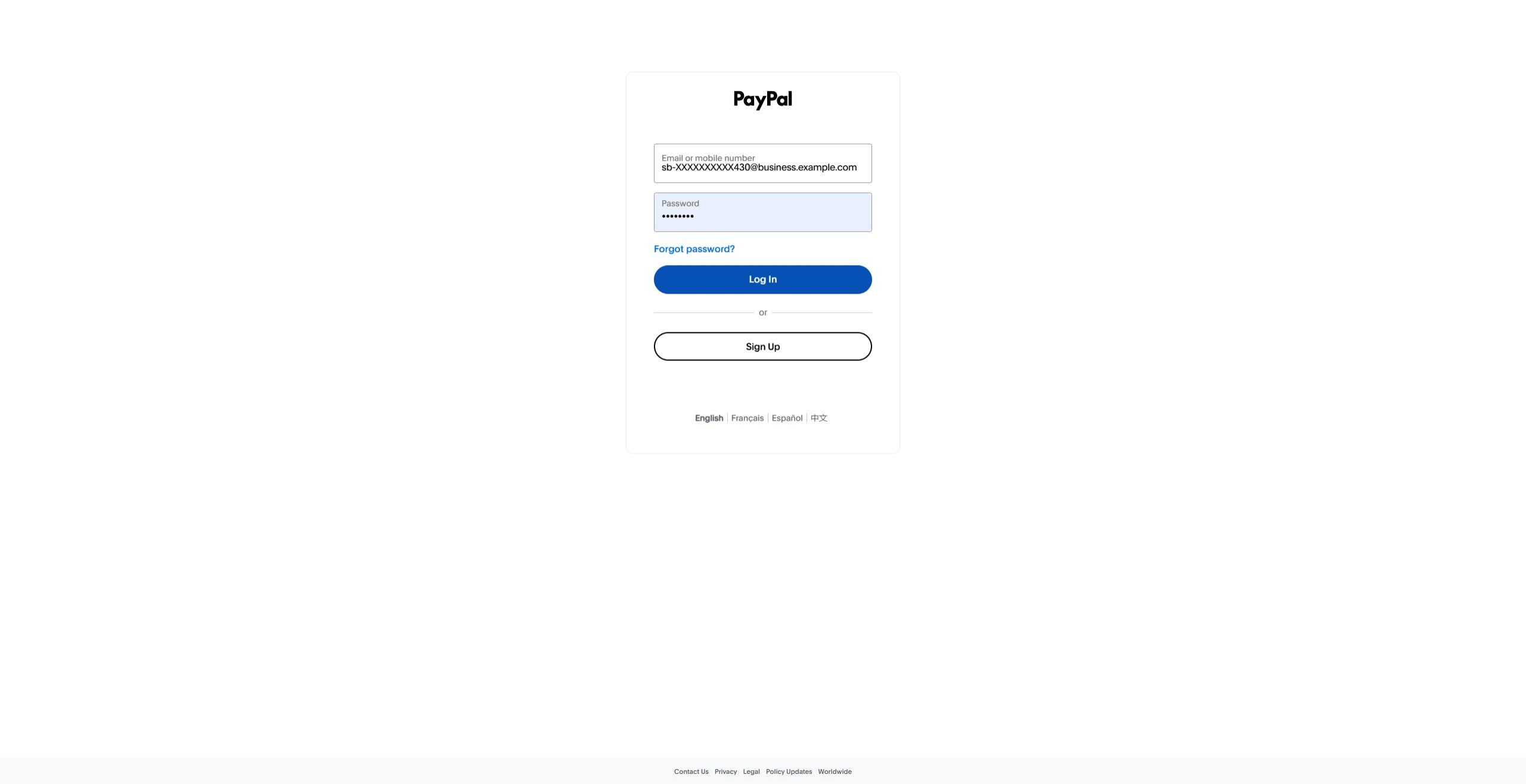
- Si aún no ha iniciado sesión, hágalo con los datos de su cuenta Sandbox Business. Utilice el correo electrónico y la contraseña de la información de la cuenta.
- Concede los permisos y completa la conexión.
- Después de eso, PayPal redirige de nuevo a la página de configuración de MemberPress.
- Compruebe el Utilizar PayPal Sandbox para activar los pagos de prueba.
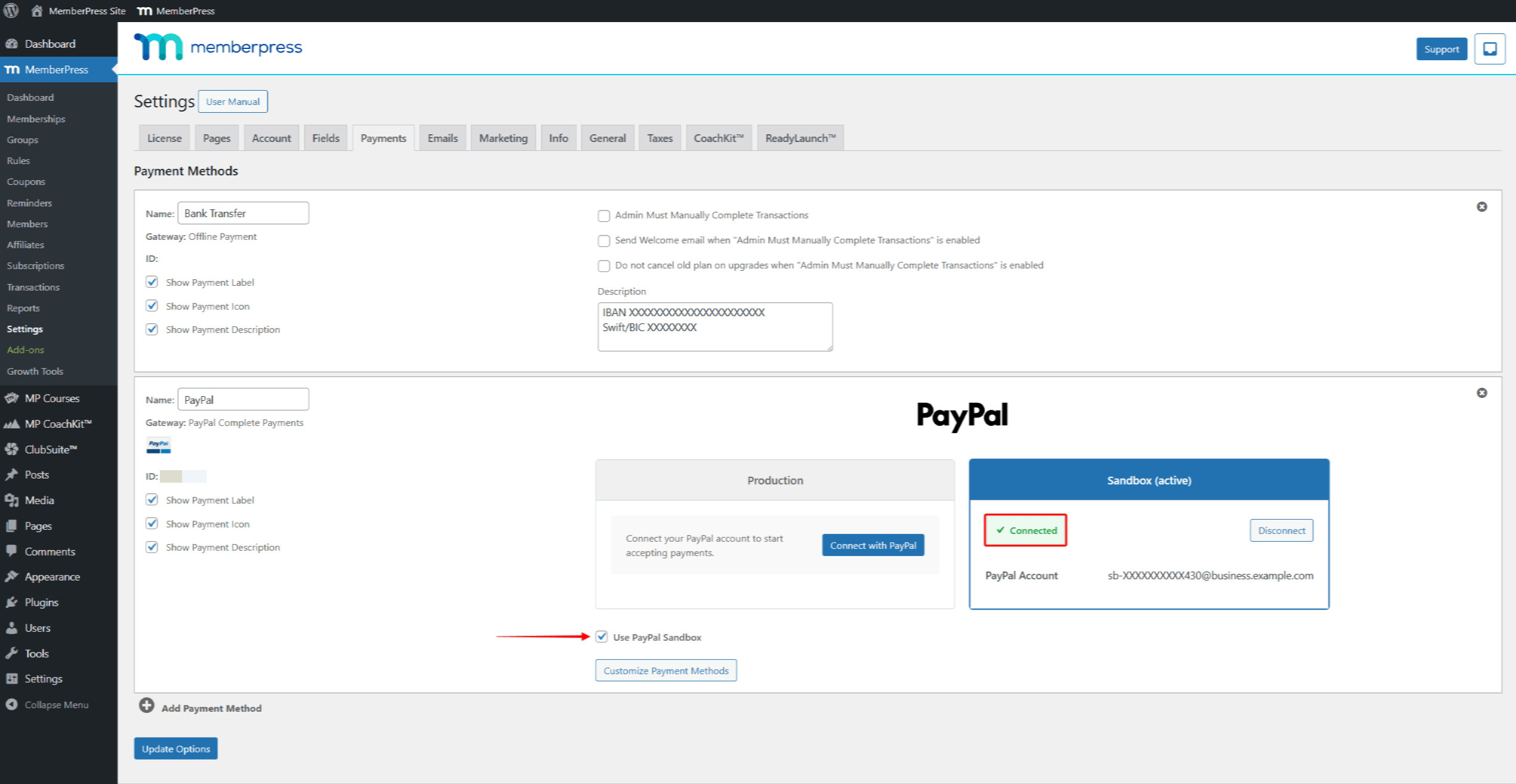
- Haga clic en Opciones de actualización para ahorrar.
Pruebas PayPal Pagos
Con el entorno de pruebas conectado y activado, ya puede probar el flujo de pagos. Utilizará la cuenta personal del Sandbox que creó anteriormente para las pruebas. Durante el proceso de pago, puede pagar utilizando una tarjeta de crédito de prueba, una cuenta bancaria o el saldo de PayPal.
Gestión de los métodos de pago de las pruebas
Para gestionar los métodos de pago de prueba de su cuenta del Personal Sandbox:
- Ir a PayPal Developer Dashboard > Testing Tools > Cuentas Sandbox.
- Busque su cuenta Personal Sandbox en la lista.
- Pulse el menú de tres puntos (…) junto a la cuenta.
- Haga clic en Ver/editar cuenta.
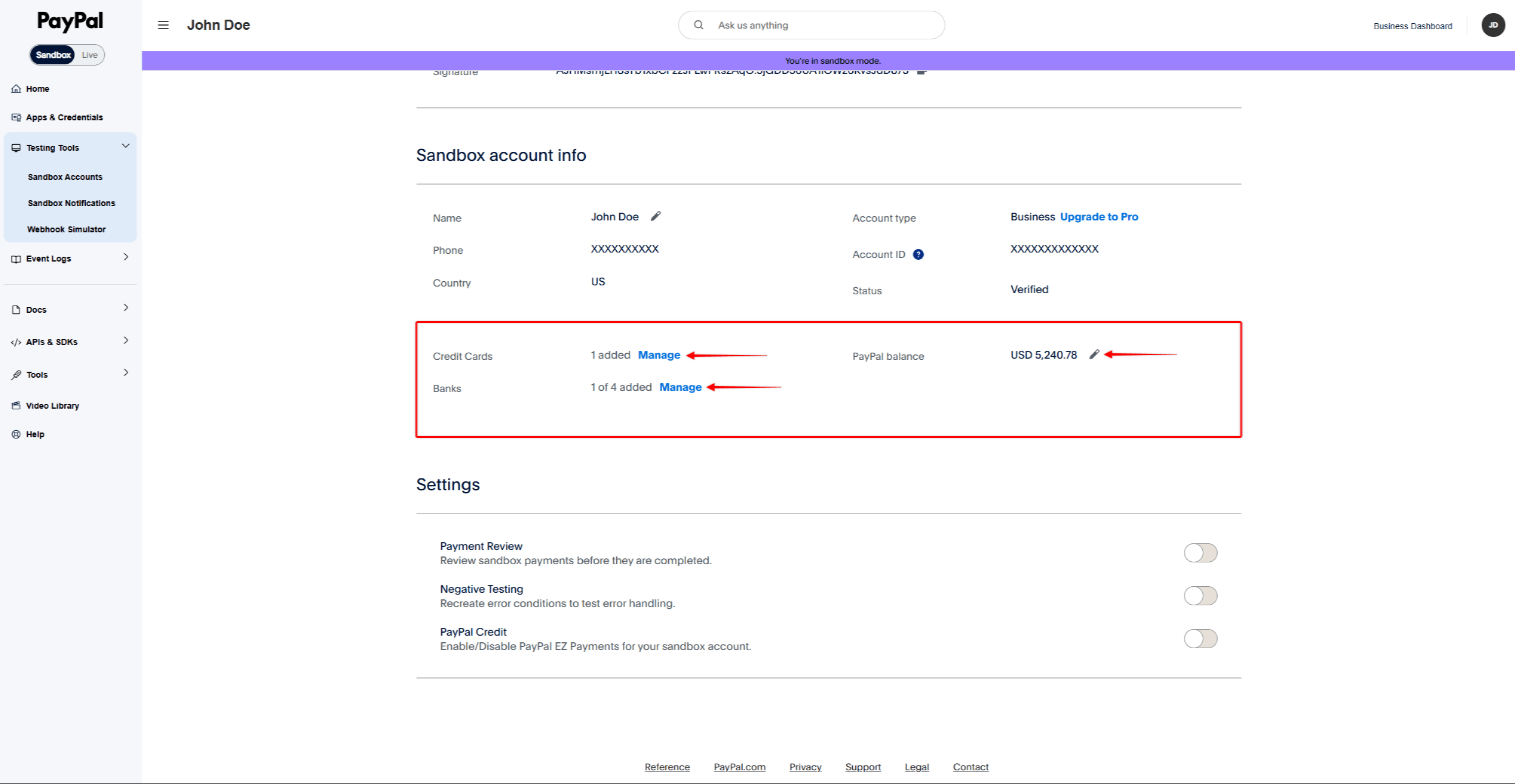
- Desplácese hasta el “Información de la cuenta Sandbox” sección.
- Gestione los métodos de pago de sus pruebas:
- Tarjetas de crédito - Pulse Gestione para añadir o editar tarjetas de crédito de prueba;
- Bancos - Pulse Gestione para añadir o editar cuentas bancarias de prueba;
- Balanza PayPal - Haga clic en el icono del lápiz para editar la balanza de comprobación.
Tramitar un pago de prueba
- En primer lugar, abre una nueva ventana privada o de incógnito en tu navegador.
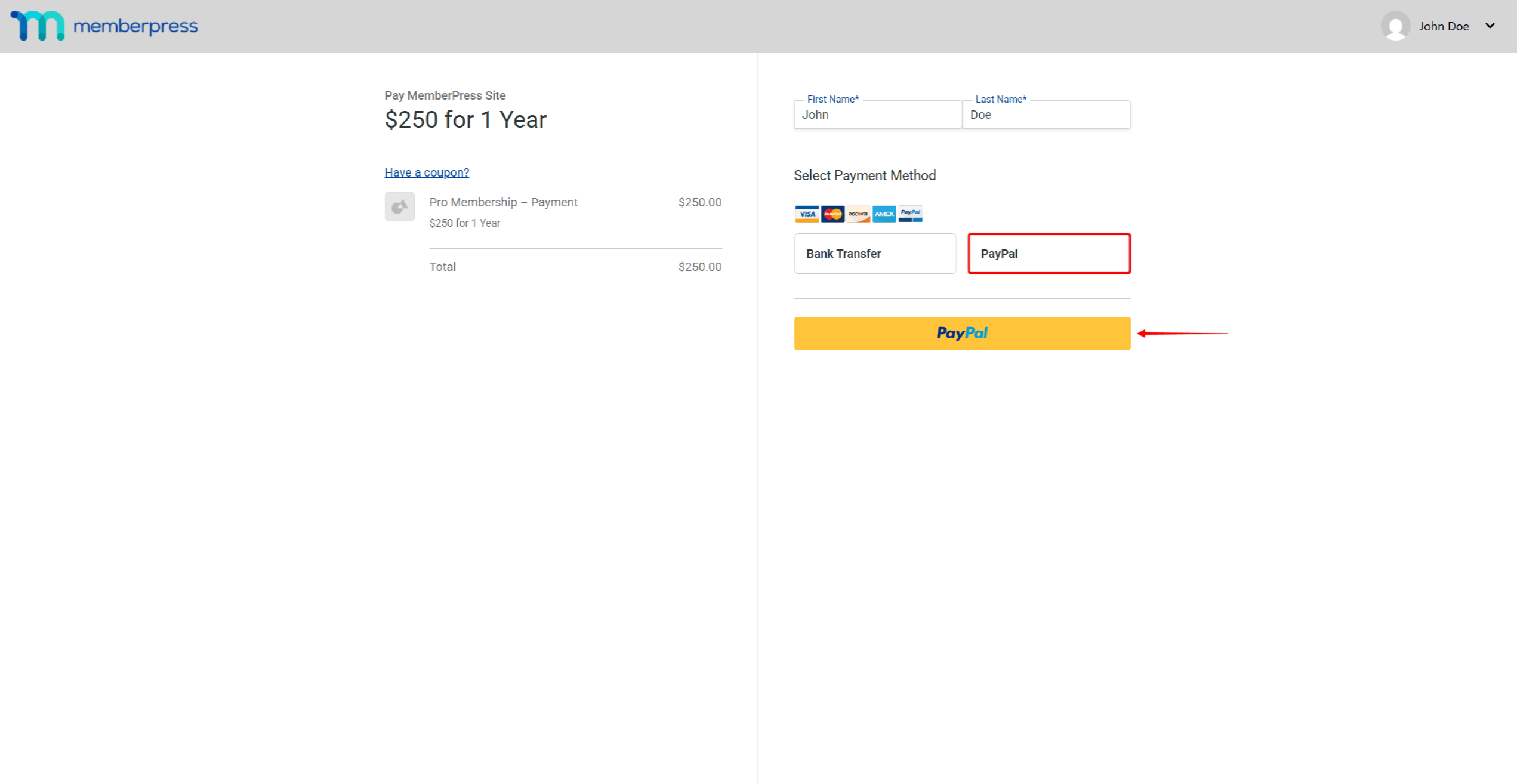
- Vaya a la página de registro de cualquier afiliación existente o de una afiliación de prueba.
- Rellene el formulario de registro con los datos del usuario de prueba.
- Haga clic en el botón PayPal para abrir la ventana emergente de pago.
- Inicie sesión con los datos de la cuenta personal del sandbox.
- Complete el pago en la ventana emergente.
Comprobación de transacciones de prueba
Tras completar el pago de prueba, verifique la transacción tanto en MemberPress como en PayPal.
En MemberPress:
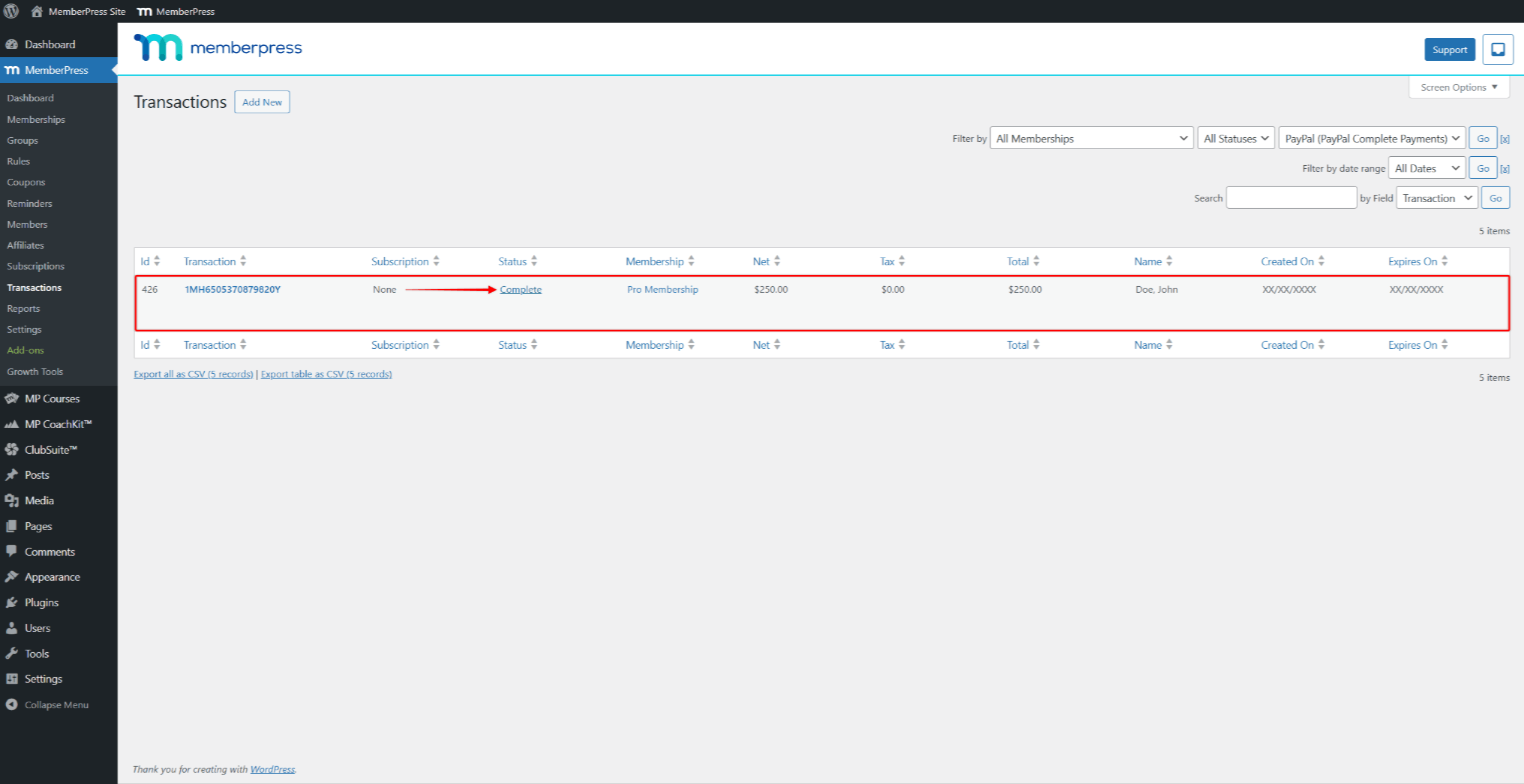
- Ir a Cuadro de mandos > MemberPress > Transacciones.
- Busque la transacción de prueba en la lista.
- Compruebe que el estado de la transacción muestra Complete.
Para las suscripciones periódicas, compruebe también la suscripción en Panel de control > MemberPress > Suscripciones.
En PayPal Sandbox Dashboard:
- Ir a https://sandbox.paypal.com/.
- Inicie sesión con las credenciales de su cuenta del Business Sandbox (correo electrónico y contraseña).
- Vaya a Actividad > Todas las transacciones.
- Busque la transacción de prueba en la lista y verifique que los detalles coincidan.
La conexión funciona correctamente si las transacciones aparecen tanto en MemberPress como en PayPal Sandbox.
Probar otros métodos de pago
Por defecto, el botón PayPal está activado. Puede activar opciones de pago adicionales para probarlas en el modo Sandbox.
Activar opciones de pago
- Ir a Panel de control > MemberPress > Configuración > Pagos ficha.
- Haga clic en la pasarela PayPal Complete Payments para ampliar su configuración.
- Haga clic en el botón Personalizar los métodos de pago debajo de las secciones Producción y Sandbox.
- En la ventana emergente, active los métodos de pago que desea probar.
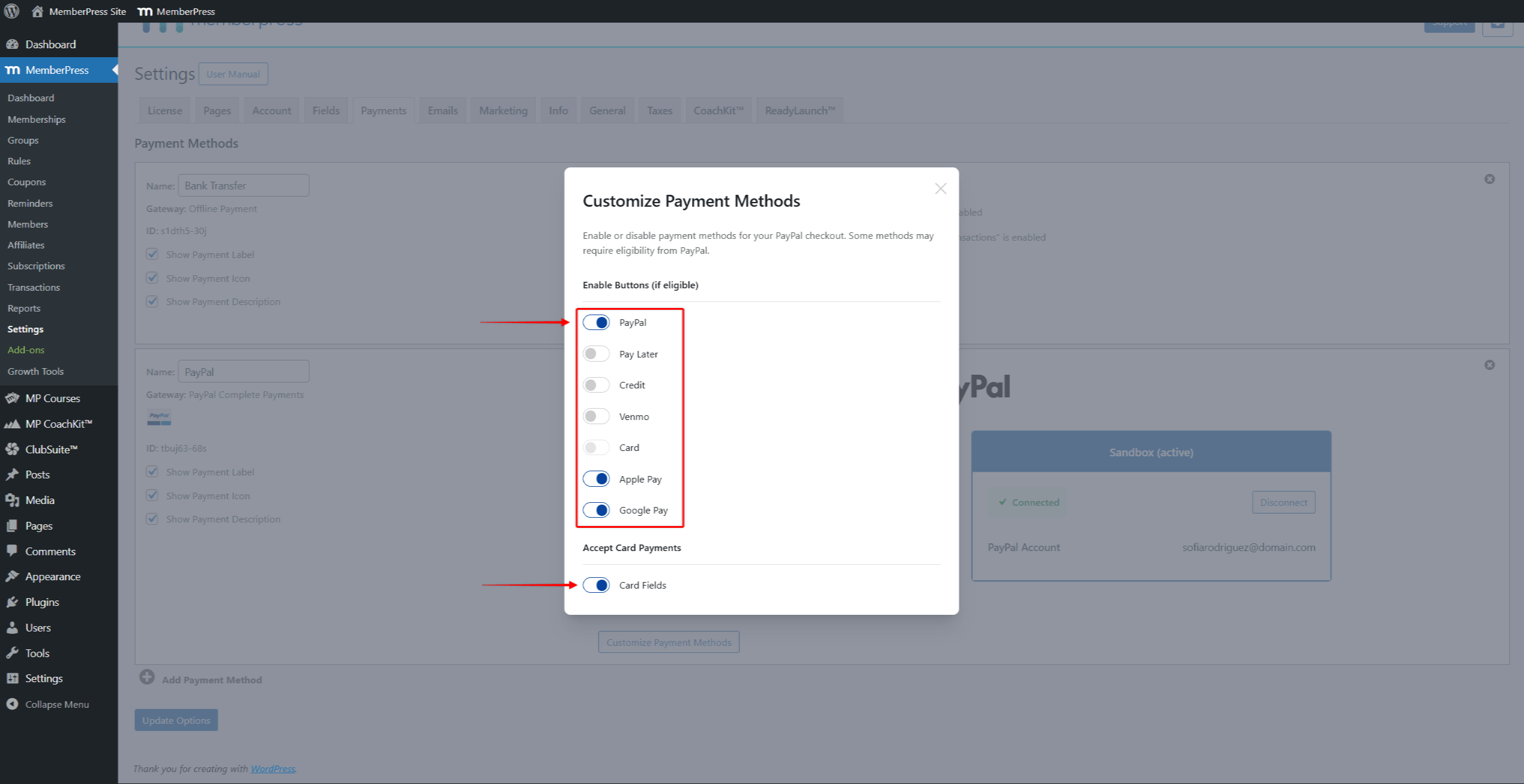
- Haga clic fuera de la ventana emergente para cerrarla.
- Haga clic en Opciones de actualización para guardar los cambios.
Pruebas de pago con tarjeta
Para probar los pagos con tarjeta, active la opción Tarjeta o Campos de tarjeta en “Aceptar pagos con tarjeta” en la ventana emergente Personalizar métodos de pago.
PayPal proporciona números de tarjetas de prueba para las pruebas Sandbox. Para consultar la lista completa de tarjetas de prueba, visite la página Documentación de pruebas de la tarjeta PayPal.
Probar otras opciones de pago
PayPal admite opciones de pago adicionales como Venmo, Pay Later, Apple Pay y Google Pay. Cada opción tiene requisitos específicos:
- Venmo - Crea una cuenta personal en EE.UU. y utiliza la divisa USD. Venmo se oculta para otras regiones;
- Pague más tarde - Requiere una moneda admitida (USD, GBP, EUR, AUD) y un importe mínimo de compra;
- Apple Pay - Requiere configuración en la cuenta PayPal del comerciante;
- Google Pay - Sólo funciona con pagos únicos. PayPal oculta Google Pay para las afiliaciones periódicas.
Para obtener instrucciones detalladas, visite la página PayPal Documentación de pago.
Pasar a la producción
Una vez realizadas las pruebas, puede activar los pagos en directo:
- Vaya a Panel de control > MemberPress > Configuración > Pagos ficha.
- En virtud de la Producción de su pasarela de pagos PayPal Complete Payments, conecte su cuenta PayPal Business (no la cuenta Sandbox Business).
- Desmarque la casilla Utilizar PayPal Sandbox casilla de verificación.
- Haga clic en Opciones de actualización para guardar los cambios.
Ahora, los usuarios pueden inscribirse en sus afiliaciones y pagar a través de PayPal.
Resolución de problemas del Sandbox
Pantalla en blanco al conectar - En primer lugar, abre el Panel de control del Sandbox en otra pestaña. A continuación, haz clic en Conectar en MemberPress.
No se puede iniciar sesión en el sandbox - Utilice los datos de la cuenta de la caja de pruebas del panel de control del desarrollador. No utilice los datos de acceso normales de PayPal.
No aparecen los botones de pago - Compruebe que Utilizar PayPal Sandbox está marcada. Compruebe también que el Sandbox muestra el estado Conectado.
Tarjeta de prueba rechazada - Asegúrese de que está utilizando números de tarjeta de prueba válidos del Documentación de pruebas de la tarjeta PayPal. Además, utilice una fecha de caducidad futura.
Venmo no aparece - Cree una cuenta personal US sandbox y utilice la divisa USD.
Transacción no registrada - Compruebe si hay transacciones pendientes. Compruebe también que ningún cortafuegos bloquea PayPal. Revise el registro de depuración de WordPress en busca de errores.










 ES
ES  EN
EN  FR
FR  DE
DE  PT
PT 