

MemberPress fournit un bloc Gutenberg et des shortcodes pour afficher des cercles sur n'importe quelle page ou article. Le bloc Cercle et les shortcodes permettent de contrôler entièrement la façon dont les cercles apparaissent sur le site web.
Ce document explique comment utiliser le shortcode d'archive Circle, le bloc Circle unique et le shortcode Circle unique. Ces options permettent d'intégrer des cercles n'importe où, avec des paramètres d'affichage personnalisables.
Shortcode Circle Archive
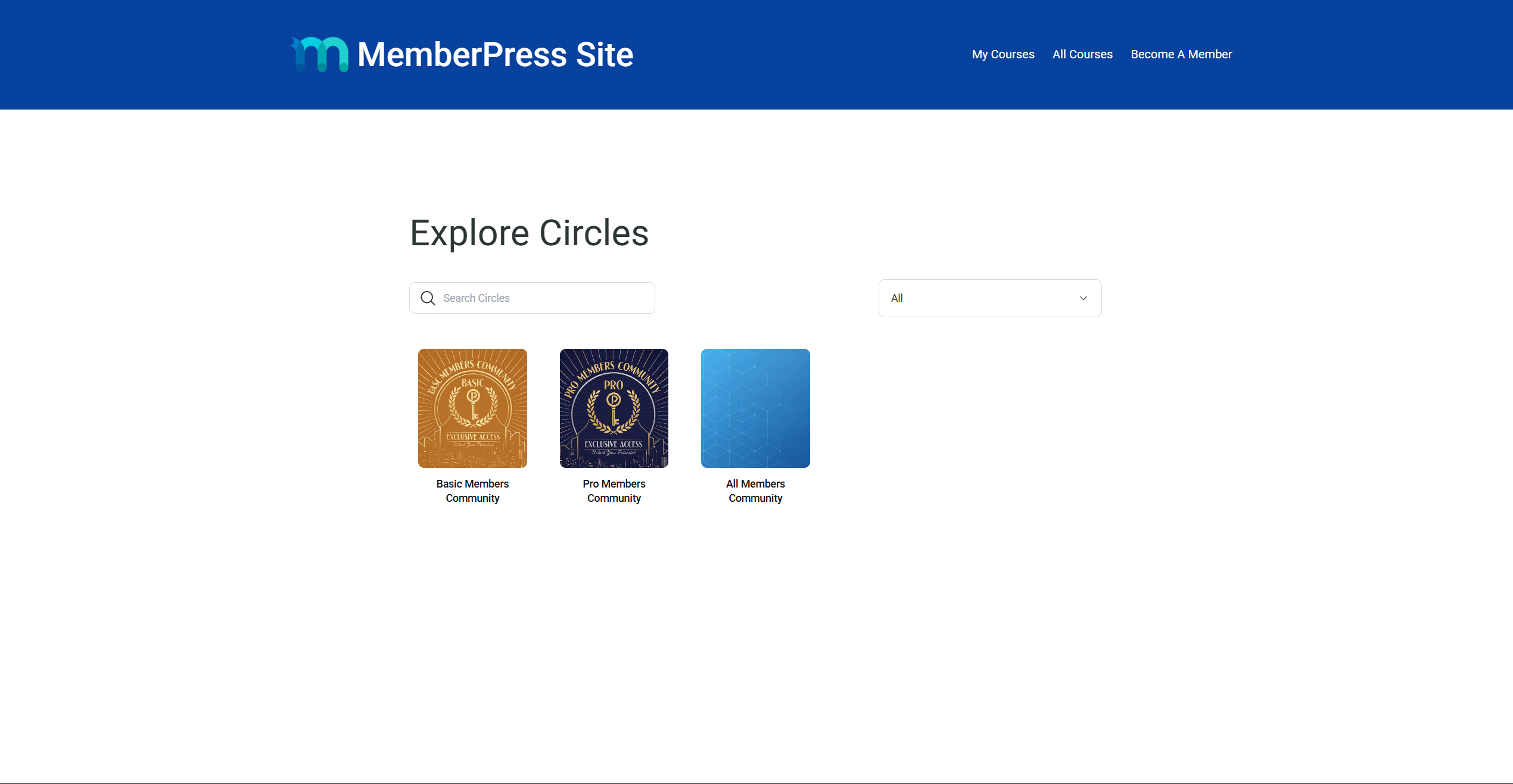
Le shortcode Circle archive permet d'afficher l'intégralité des archives Circles sur n'importe quelle page. Il s'agit de la même liste que celle disponible dans le code par défaut /mp-circle sur le site web. Les membres peuvent parcourir, rechercher et rejoindre des cercles directement à partir de cette page.
Le shortcode fonctionne avec le Éditeur de blocs Gutenberg et des créateurs de pages populaires comme Elementor et Divi.
Ajouter le shortcode Archive avec Gutenberg
Suivez ces étapes pour ajouter l'archive Circles à n'importe quelle page ou message :
- Naviguez jusqu'à Tableau de bord > Pages > Ajouter une nouvelle page.
- Ajoutez un titre à la page.
- Ajouter un Code court dans la zone de contenu de la page.
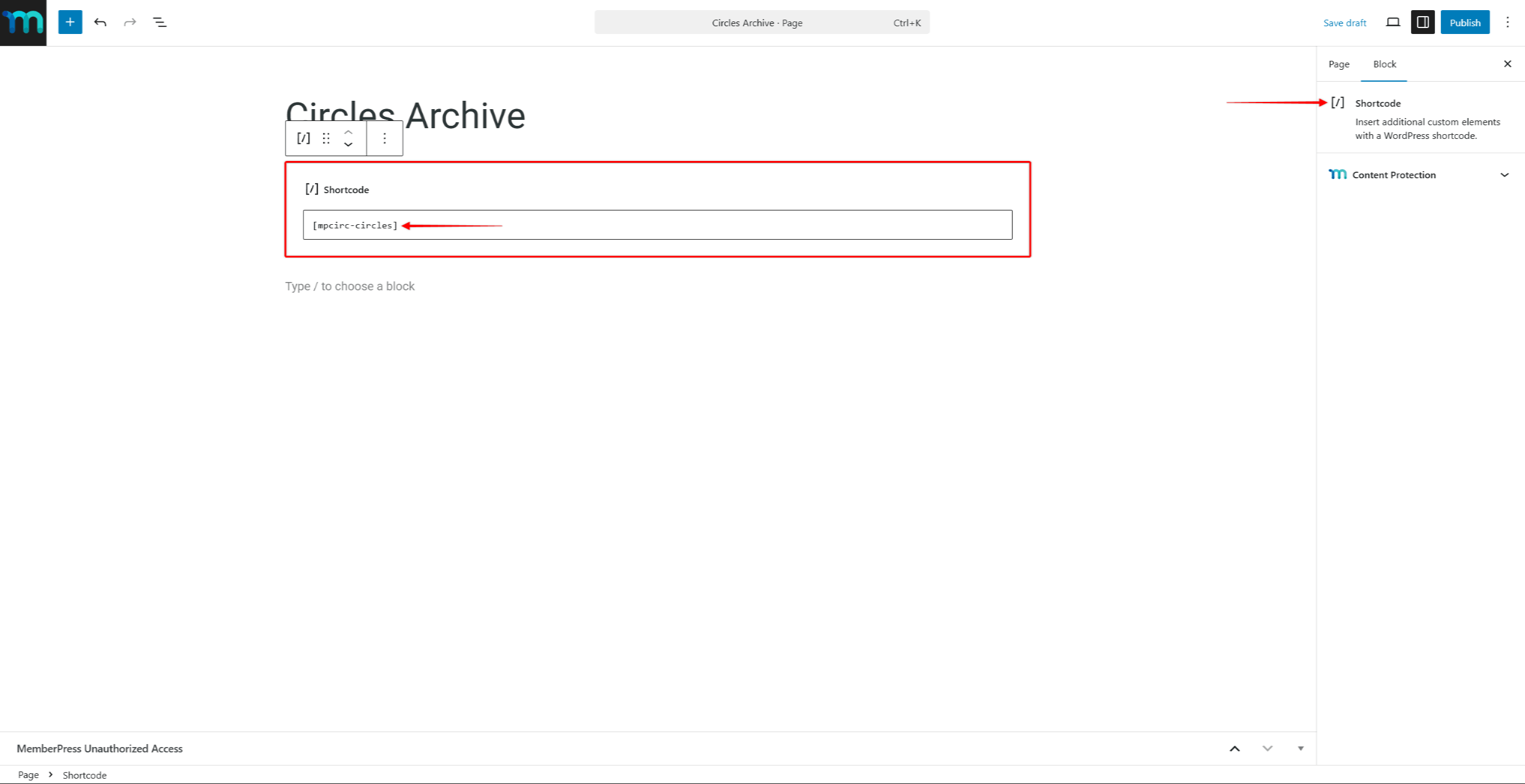
- Saisissez le shortcode suivant :
[mpcircles]- Cliquez sur Publier pour enregistrer la page.
La page affiche désormais l'archive des cercles avec tous les cercles visibles.
Ajouter le shortcode Archive avec Page Builders
Le shortcode d'archive « Circle » peut être ajouté à des pages créées avec pratiquement n'importe quel constructeur de pages. Pour ce faire, utilisez le module « shortcode » du constructeur de pages afin d'ajouter le shortcode d'archive « Circle » à une page.
Par exemple, ajoutez le Widget Shortcode dans Elementor ou le Module de code dans Divi. Ensuite, collez-y le shortcode d'archive Circle suivant :
[mpcircles]Bloc à cercle unique
MemberPress inclut un bloc Gutenberg dédié pour afficher un seul cercle sur n'importe quelle page ou article. Le Bloc de cercle fournit un moyen visuel d'intégrer un cercle spécifique sans écrire de shortcode.
Le bloc utilise le même système de rendu que les pages du cercle. Il respecte tous les contrôle d'accès et paramètres de visibilité configuré pour chaque cercle.
Ajout du bloc Cercle
Suivez les étapes suivantes pour ajouter le bloc Cercle à une page ou à un message :
- Naviguez jusqu'à Tableau de bord > Pages et ouvrir une page existante, ou cliquer sur Ajouter une nouvelle page.
- Cliquez sur le bouton Inséreur de blocs (+) pour ajouter un nouveau bloc.
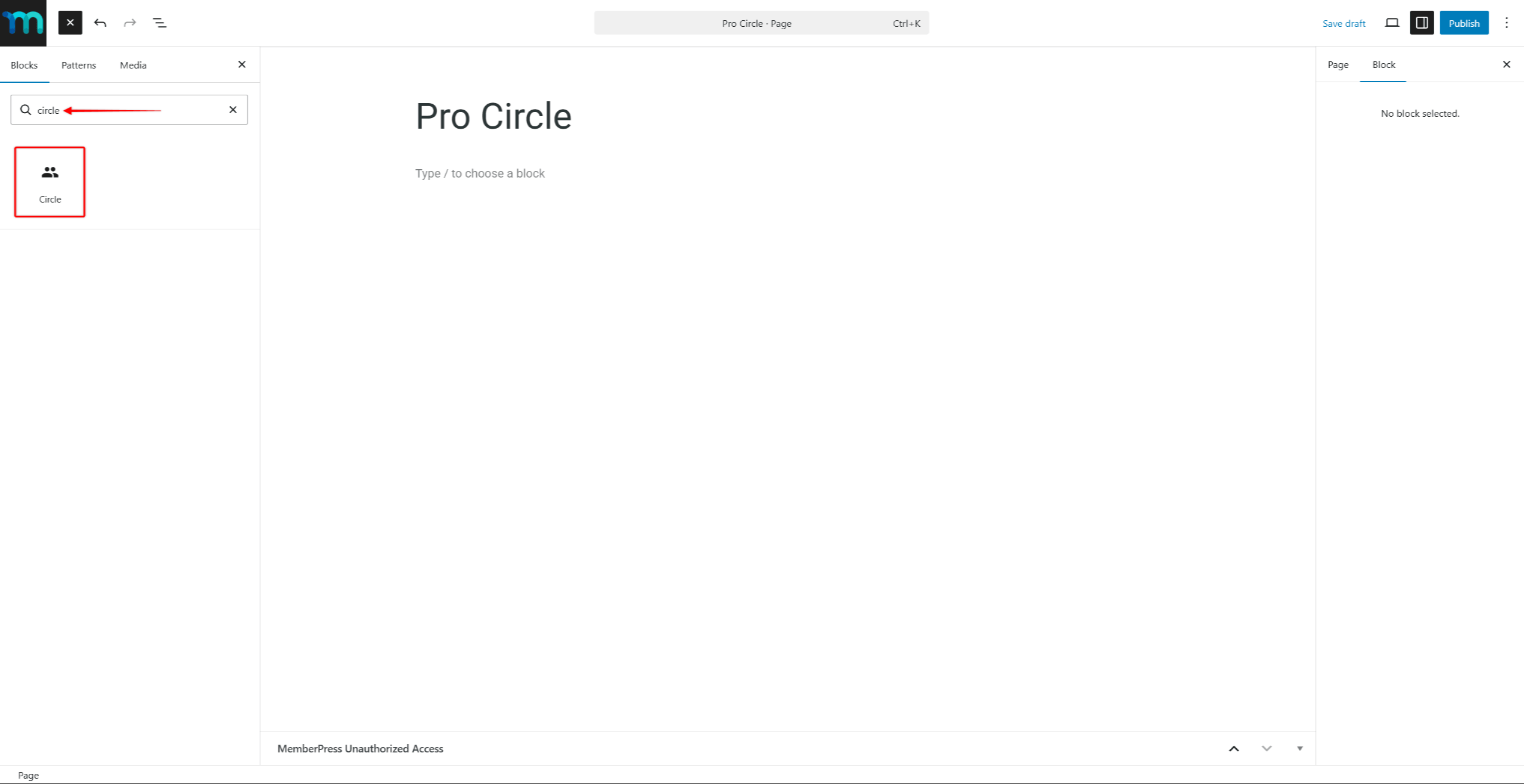
- Rechercher “Cercle” dans le champ de recherche du bloc.
- Sélectionnez l'option Cercle des résultats.
- Dans le cadre de la Réglages des blocs sur le côté droit, utilisez le bouton Sélectionner le cercle pour choisir le cercle à afficher.
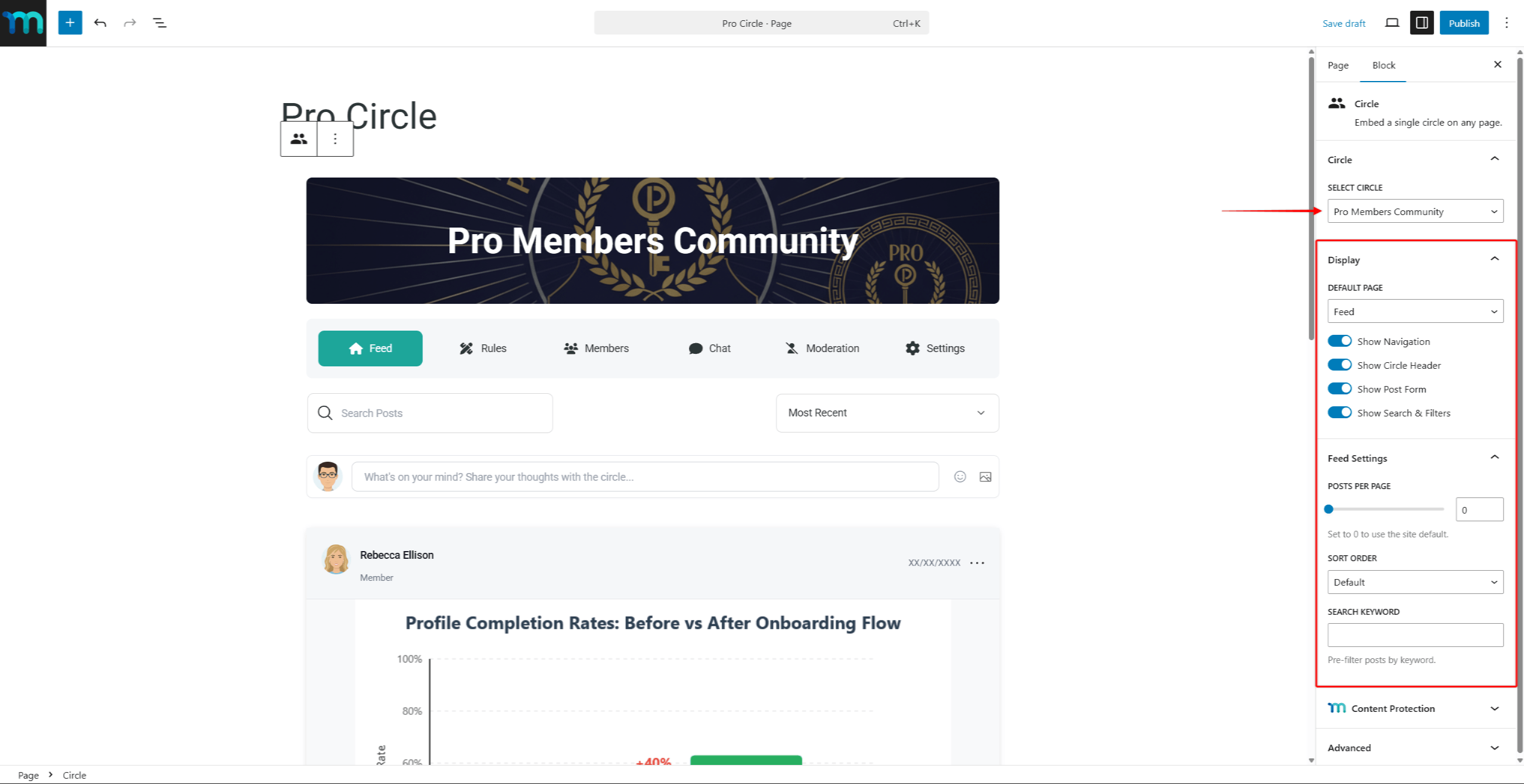
- Si vous le souhaitez, vous pouvez ajuster le Affichage et Réglages de l'alimentation dans le panneau des blocs pour personnaliser l'apparence du cercle.
- Cliquez sur Publier ou Mise à jour pour enregistrer la page.
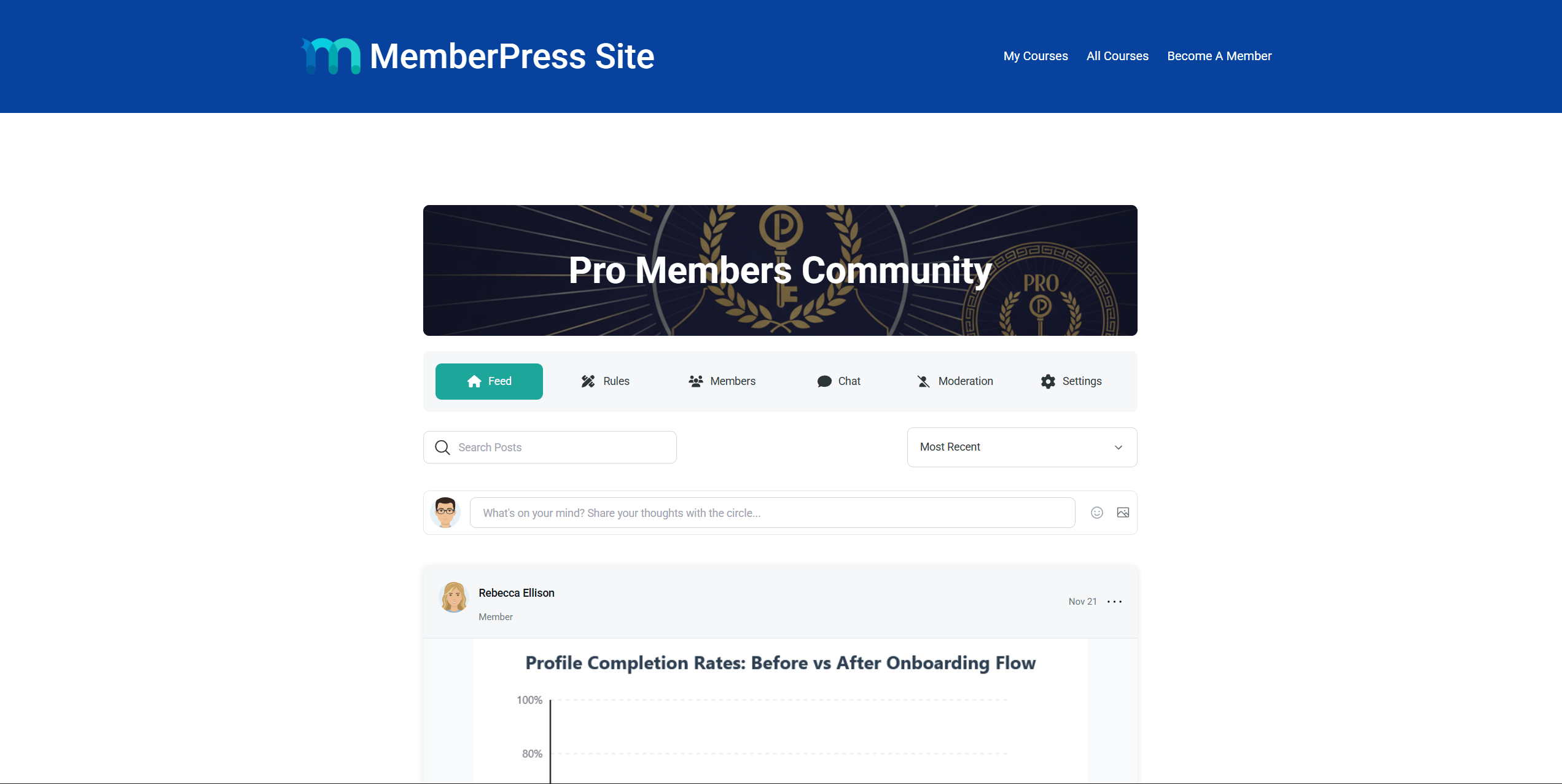
L'éditeur affichera un aperçu en direct du cercle, y compris l'image du héros, les onglets de navigation, le flux et les articles.
Paramètres d'affichage du bloc de cercle
Le bloc Cercle offre les mêmes options d'affichage que le bloc Attributs du shortcode du cercle unique. Ces paramètres sont disponibles dans la rubrique Réglages des blocs lorsque le bloc Cercle est sélectionné :
- Page par défaut - définit la page affichée au chargement du bloc (Flux, Membres, Règles, Paramètres ou Modération) ;
- Afficher la navigation - permet d'activer le menu de navigation de la page (Flux, Règles, Membres, Chat, Modération, Paramètres) ;
- Afficher l'en-tête du cercle - permet d'alterner l'image et le titre du héros du cercle ;
- Afficher le formulaire d'affichage - active le formulaire de création d'articles sur la page du flux ;
- Afficher la recherche et les filtres - permet d'activer les commandes de recherche et de tri sur la page du flux ;
- Messages par page - définit le nombre d'articles affichés par page (mettre à 0 pour utiliser la valeur par défaut du site) ;
- Ordre de tri - définit l'ordre de tri par défaut des messages (par défaut, récent, populaire ou discuté) ;
- Recherche par mot-clé - pré-remplit la recherche pour n'afficher que les articles correspondants.
Shortcode pour un cercle unique
Le shortcode Cercle unique permet d'afficher un cercle spécifique sur une page ou un article. Contrairement au shortcode shortcode d'archivage qui affiche tous les cercles, ce shortcode ne rend que le cercle correspondant à l'identifiant fourni.
Ce shortcode nécessite l'ID du cercle. Par exemple, pour afficher le cercle dont l'ID est 123, il faut utiliser le shortcode suivant :
[mpcirc-circle id="123"]Le code court du cercle unique respecte tous les codes courts existants contrôle d'accès et paramètres de visibilité configuré pour le cercle.
Recherche de l'ID du cercle
Pour trouver l'ID d'un cercle, procédez comme suit :
- Naviguez jusqu'à Tableau de bord > ClubSuite™ > Cercles.
- Survolez le nom du cercle. L'identifiant du cercle apparaîtra dans l'URL affichée dans la barre d'état du navigateur. L'identifiant est le numéro qui suit
post=dans l'URL.
Vous pouvez également cliquer sur Editer sur le cercle. L'ID du cercle sera visible dans la barre d'adresse URL du navigateur.
Attributs du code court
Le shortcode Circle prend en charge plusieurs attributs qui contrôlent l'affichage du cercle. Le tableau ci-dessous répertorie tous les attributs disponibles :
| Attribut | Défaut | Valeurs acceptées | Description |
|---|---|---|---|
id | - (obligatoire) | ID du cercle | L'ID du cercle à afficher. |
page | alimentation | flux, membres, règles, paramètres, modération | La page par défaut affichée lors du chargement du shortcode. Les visiteurs peuvent toujours naviguer vers d'autres pages. |
show_navigation | oui | oui, non | Afficher ou masquer le menu de navigation de la page (Flux, Membres, Règles, etc.). |
show_hero | oui | oui, non | Afficher ou masquer l'en-tête du cercle (image du héros et titre). |
show_post_form | oui | oui, non | Afficher ou masquer le formulaire de création d'articles sur la page du flux. |
show_search | oui | oui, non | Afficher ou masquer les commandes de recherche et de tri sur la page du flux. |
posts_per_page | Défaut du site | Tout nombre positif | Nombre d'articles à afficher par page sur le flux. |
ordre_des_postes | récente | récent, populaire, discuté | Ordre de tri par défaut des articles sur la page du flux. |
posts_search | — | Tout texte | Pré-remplir la recherche avec un mot-clé pour n'afficher que les articles correspondants. |
Comportement d'annulation
Lorsqu'un visiteur utilise les contrôles de recherche ou de tri sur la page, les paramètres URL remplacent les valeurs par défaut du shortcode. Par exemple, le fait de définir posts_order="popular" dans le shortcode affiche les articles classés par ordre de popularité. Cependant, si un visiteur sélectionne “Les plus récents” Lorsque le menu déroulant est utilisé, le choix du visiteur prévaut.
Exemples de codes courts
Vous trouverez ci-dessous des exemples illustrant différentes combinaisons d'attributs pour le shortcode Circle simple. Dans tous les exemples, l'ID de cercle fictif 123 est utilisé. Remplacez cet identifiant par l'identifiant réel du cercle.
Utilisation de base - afficher un flux Circle :
[mpcirc-circle id="123"]Commencer par la page des membres sans bannière de héros :
[mpcirc-circle id="123" page="members" show_hero="no"]Flux en lecture seule - masquer le formulaire d'affichage et les contrôles de recherche :
[mpcirc-circle id="123" show_post_form="no" show_search="no"]Alimentation compacte - afficher 5 messages par page, classés par ordre de popularité :
[mpcirc-circle id="123" posts_per_page="5" posts_order="popular"]Encastrement minimal - flux uniquement, pas de navigation ni de héros :
[mpcirc-circle id="123" show_navigation="no" show_hero="no"]Aliments pré-filtrés - afficher uniquement les articles correspondant à un mot-clé :
[mpcirc-circle id="123" posts_search="annonce"]Personnalisation complète - tous les attributs confondus :
[mpcirc-circle id="123" page="feed" show_navigation="yes" show_hero="no" show_post_form="no" show_search="yes" posts_per_page="3" posts_order="discussed"]Ajouter le shortcode Single Circle avec Gutenberg
Suivez ces étapes pour ajouter un shortcode Circle unique à l'aide de l'éditeur Gutenberg :
- Naviguez jusqu'à Tableau de bord > Pages et ouvrir une page existante, ou cliquer sur Ajouter une nouvelle page.
- Ajouter un Code court dans la zone de contenu de la page.
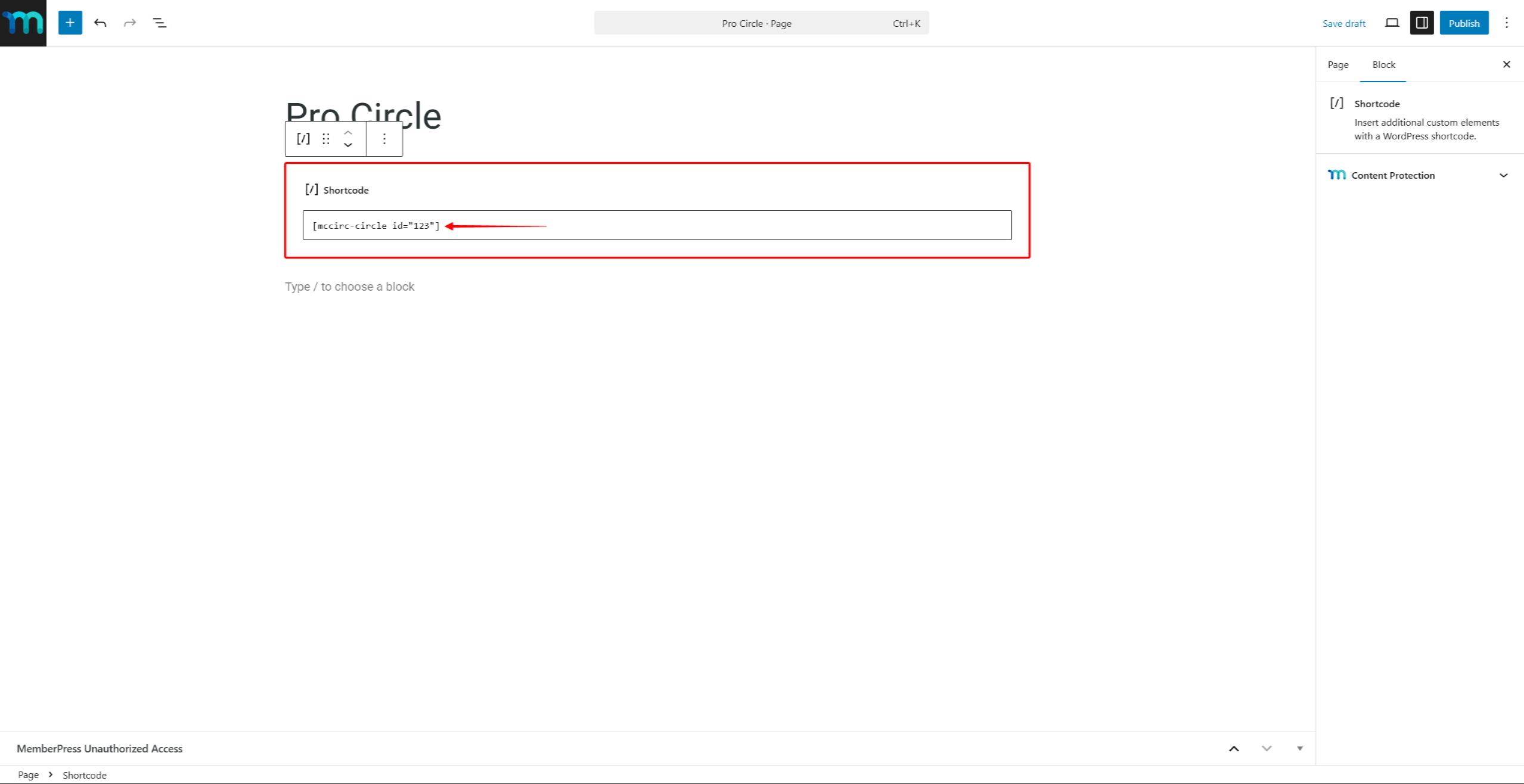
- Saisissez le code court avec l'ID du cercle et toute autre information souhaitée. attributs. Par exemple :
[mpcirc-circle id="123"]- Cliquez sur Publier ou Mise à jour pour enregistrer la page.
Ajouter le shortcode Single Circle avec Page Builders
Le shortcode « Circle » peut être ajouté aux pages créées à l'aide d'un constructeur de pages. Utilisez le module « shortcode » du constructeur de pages pour y coller le shortcode.
Par exemple, ajoutez le Widget Shortcode dans Elementor ou le Module de code dans Divi. Ensuite, collez-y le shortcode Single Circle avec ses attributs.
Bonnes pratiques pour l'affichage des cercles
Lorsque vous intégrez des cercles dans des pages personnalisées, tenez compte des recommandations suivantes :
- Utiliser le shortcode ou bloc de cercle unique de présenter des cercles spécifiques sur des pages d'atterrissage ou des zones d'adhésion ;
- Utiliser le shortcode d'archivage pour fournir un répertoire complet des cercles que les membres peuvent consulter ;
- Appliquer le
show_navigation="no"etshow_hero="no"lors de l'intégration d'un cercle dans une barre latérale ou une présentation compacte ; - Utiliser le
posts_searchpour créer des vues pré-filtrées qui mettent en évidence des sujets spécifiques au sein d'un cercle.
Pour plus de détails sur la création et la configuration des cercles, reportez-vous à la rubrique créer et gérer des cercles la documentation.










 FR
FR  EN
EN  ES
ES  DE
DE  PT
PT 