

There may be a time when you want to manually change the membership a member is currently on. This would occur in a case when you perhaps wanted to give them a free upgrade or if you are changing your membership structure and they need to be on a different plan. Below is a description of how you can manually change a customer’s current membership under two scenarios – keeping the price the same and lowering the price (Stripe only).
Manter o mesmo preço (ou associações não recorrentes)
Essa é a solução mais fácil e funciona com qualquer gateway de pagamento. Todas as alterações feitas durante o processo afetarão apenas as informações do MemberPress em seu site. Ele não atualizará nada no processador de pagamento (por exemplo, Stripe ou PayPal). Os pagamentos ainda serão coletados e registrados, mas no processador de pagamentos, o cliente permanecerá no plano antigo.
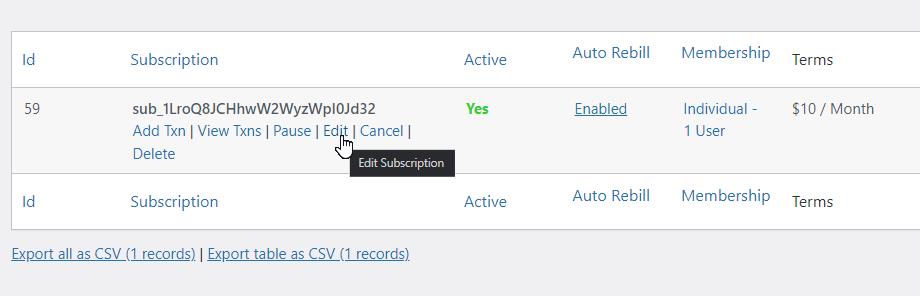
- Find the customer’s current membership record in MemberPress->Subscriptions
- Hover over the subscription number and click the ‘Edit’ link

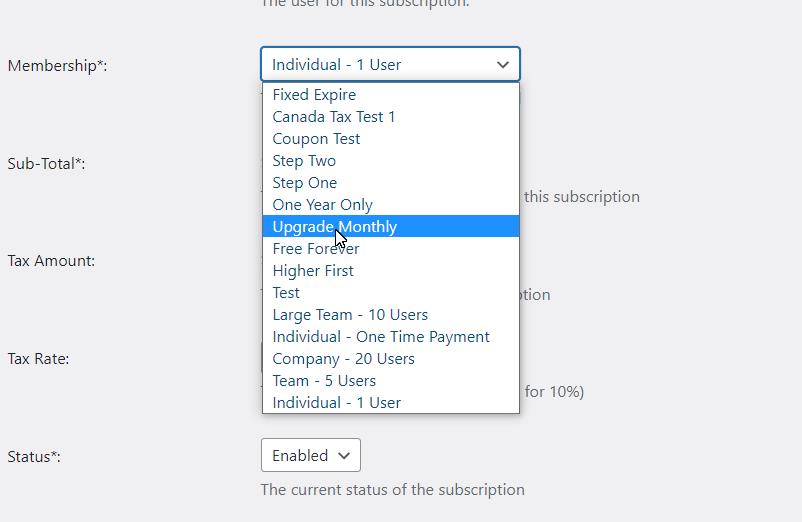
- Na página Edit Subscription (Editar assinatura), altere a caixa suspensa de associação para a nova associação

- Click the ‘Update’ button to save the changes
- Volte para MemberPress->Subscriptons e localize a assinatura do usuário novamente
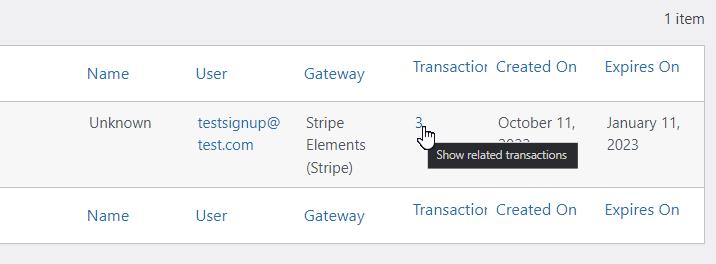
- Clique no número na coluna "Transactions" (Transações)

-
Hover over the transaction number of the latest transaction and click the ‘Edit’ link
-
Na tela de edição da transação, altere também a associação para a nova
-
Click ‘Update’ to save the changes
O cliente agora terá acesso ao conteúdo com base na nova associação, mas o preço e os pagamentos recorrentes (se aplicável) permanecerão os mesmos.
Diminuir o preço (somente Stripe)
If you are using Stripe as your payment processor and you also want to change the user’s price, you will first need to follow the steps above for “Keep the Price the Same” and then do the following:
- Create a coupon in Stripe that will discount the user’s subscription to the new amount
- Find the customer’s subscription in Stripe (the easiest way to do this is to copy the subscription number from MemberPress->Subscriptions and paste it in the search bar in Stripe).
- Click the ‘Action’ button and then choose ‘Update Subscription’
- IMPORTANT: Disable ‘Prorate Changes’ to avoid any issues
- Click the ‘Add Coupon’ link
- Selecione o cupom que você criou
- Salvar as alterações
The customer’s subscription will now follow the new payment amounts based on the settings you made for the coupon. But the information in MemberPress will still show the original price + the new membership you set. Optionally, you can go to MemberPress on your site and update the price of the subscription record if you would like. If you do not the customer will still see the old price on their Account page.
Aumentar o preço
Due to limitations imposed by payment processors (for legal purposes), there is no easy way to manually increase the price of a membership. For this reason, if you need to increase the price of a member’s subscription – you will need to cancel their current membership and have them sign up again under the higher plan.










 PT
PT  EN
EN  ES
ES  FR
FR  DE
DE 