

Após uma atualização do MemberPress, um site pode travar com um erro fatal de PHP se o servidor OPcache exibe arquivos desatualizados. O erro indica que uma característica ou classe dentro do MemberPress\Nível do solo O namespace não foi encontrado.
O erro se origina do cache do servidor, e não do próprio MemberPress. Isso não significa que haja dados perdidos ou corrompidos. Todas as assinaturas, membros e configurações permanecem a salvo no banco de dados.
Este documento explica o que causa o erro e como corrigi-lo. As soluções vão desde recarregar a página até enviar uma breve solicitação ao provedor de hospedagem.
Entendendo o erro
Após uma atualização MemberPress, o site pode exibir o “Ocorreu um erro grave neste site.” mensagem. O erro fatal relacionado aparece no Registro de depuração do WordPress:
Erro fatal do PHP: Trait "MemberPress\GroundLevel\Container\Concerns\InjectsDependencies" não encontrado em /home/username/public_html/wp-content/plugins/memberpress/app/lib/MeprAddonUpdates.php na linha 19O WordPress também envia um e-mail sobre o erro crítico para o endereço de e-mail do administrador do site. Nesse e-mail, o mesmo erro aparece assim:
Ocorreu um erro do tipo E_ERROR na linha 15 do arquivo /home/username/public_html/wp-content/plugins/memberpress/app/controllers/MeprFeatureAddonCtrl.php. Mensagem de erro: Trait "MemberPress\GroundLevel\Container\Concerns\InjectsDependencies" não encontradoO nome exato do arquivo, o número da linha e o nome da característica ou da classe podem variar de um site para outro. Todas as variantes do erro têm a mesma causa e a mesma solução.
O que causa o erro
A maioria dos servidores utiliza o OPcache, um recurso do PHP que mantém cópias do código do site na memória. Isso ajuda as páginas a carregar mais rapidamente, pois o servidor não precisa ler cada arquivo novamente a cada visita.
Durante uma atualização, o MemberPress substitui seus arquivos no servidor. Em seguida, o WordPress solicita ao servidor que atualize as cópias armazenadas. No entanto, algumas configurações de servidor bloqueiam ou ignoram essa atualização.
Quando isso acontece, o servidor continua usando uma lista desatualizada dos arquivos do plugin. Os novos arquivos da atualização não constam nessa lista. Consequentemente, o PHP não consegue localizá-los, e o erro fatal é exibido.
Esse mesmo comportamento do servidor pode afetar qualquer atualização de plugin ou tema do WordPress. A solução é fazer com que o servidor carregue os novos arquivos.
Solução 1: Atualizar a página
Em muitos casos, o erro é temporário. O servidor atualiza seu cache automaticamente alguns minutos após a atualização.
Aguarde alguns minutos e, em seguida, atualize a página. Se o erro persistir, passe para a próxima solução.
Solução 2: Reinstalar a atualização MemberPress
A reinstalação do plug-in grava novamente todos os arquivos do MemberPress no servidor. Na maioria dos casos, isso faz com que o servidor descarte as cópias desatualizadas. Use a mesma edição e versão do MemberPress para substituir a atual. Siga estas etapas:
- Baixe o arquivo .zip mais recente do MemberPress do Downloads aba do seu Conta MemberPress.
- Faça login em seu site e navegue até Painel > Plug-ins > Adicionar novo plug-in.
- Clique no botão Plug-in de upload botão, clique Selecionar arquivo, e selecione o arquivo .zip baixado.
- Clique em Instalar agora.
- Na próxima página, clique no botão Substituir atual por carregado botão.
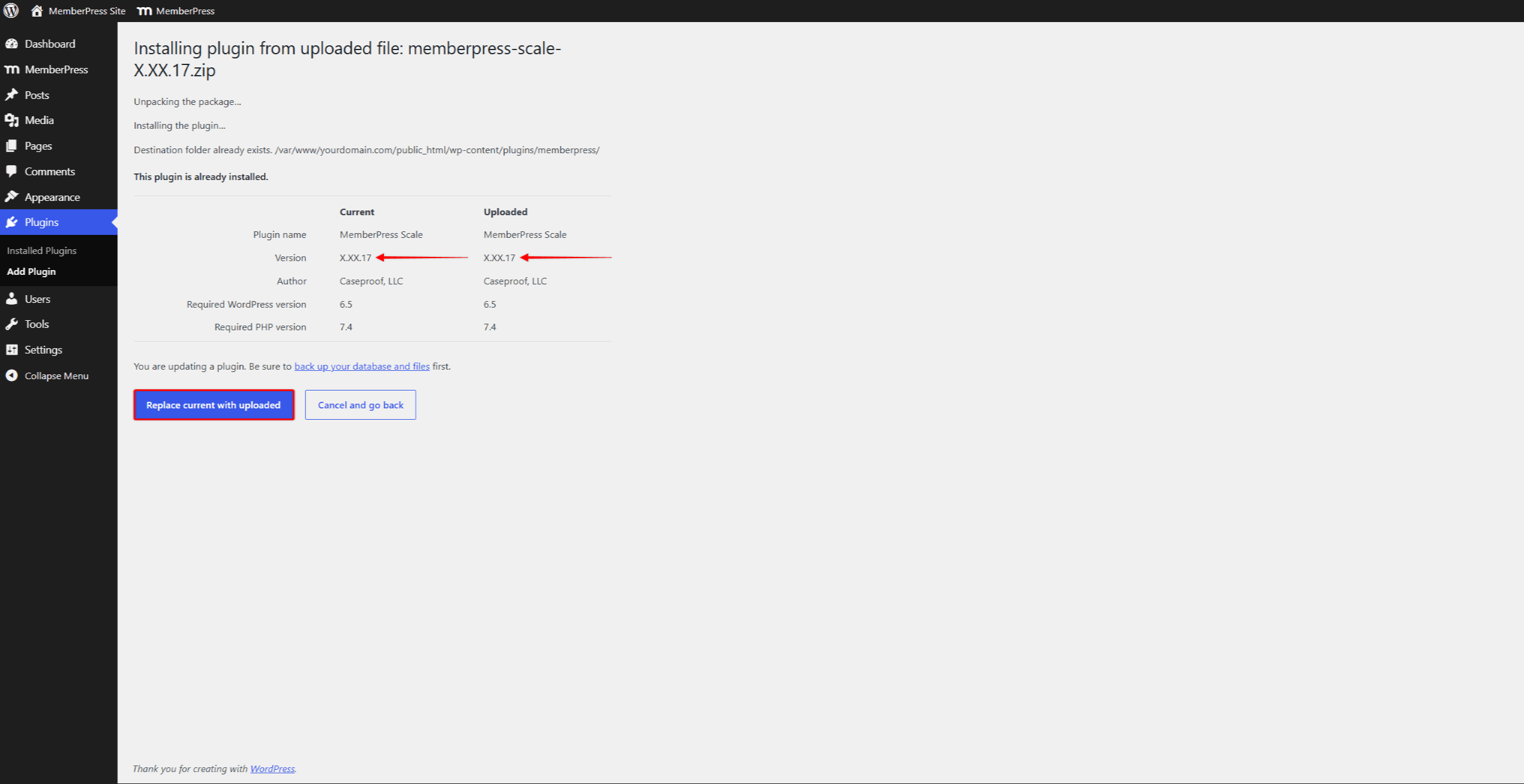
Esse processo reinstala o plug-in sem afetar nenhum dado do MemberPress. O Atualização do MemberPress O documento descreve o processo de atualização manual com mais detalhes.
Verifique o site após a reinstalação. Se o erro persistir, passe para a próxima solução.
Solução 3: Limpar o OPcache do servidor
Em alguns servidores, a reinstalação dos arquivos não atualiza o cache. Nesse caso, é necessário reiniciar o cache manualmente.
Muitos painéis de controle de hospedagem incluem uma opção para limpar o cache do PHP ou reiniciar o PHP. O nome e a localização da opção dependem do provedor de hospedagem. Procure por opções com o nome “Limpar o OPcache do PHP”, “Limpar o cache do PHP”ou “Reiniciar o PHP”. Reiniciar o PHP também limpa todo o cache.
Limpe o cache e, em seguida, atualize a página. Se o erro persistir ou se essa opção não estiver disponível, entre em contato com o provedor de hospedagem.
Solução 4: Entre em contato com o provedor de hospedagem
O provedor de hospedagem pode reinicializar o cache diretamente no servidor. Essa solução não requer nenhum procedimento técnico. Ela também funciona quando o erro fatal bloqueia o painel do WordPress.
O modelo de mensagem a seguir descreve o problema para a equipe de suporte da hospedagem:
Olá,

Após uma atualização de um plugin, meu site exibe um erro fatal do PHP informando que uma
traço ou classe não foi encontrada. Os arquivos atualizados do plugin estão presentes no
disco. No entanto, o OPcache está servindo cópias em cache desatualizadas de alguns arquivos.

Vocês poderiam, por favor, limpar o OPcache do PHP da minha conta ou reiniciar o PHP
(PHP-FPM)?

Por favor, verifique também se opcache.restrict_api ou
opcache.validate_timestamps=0 está configurado no meu servidor. Essas configurações impedem
que o WordPress atualize os arquivos em cache automaticamente durante as atualizações
de plugins. Ajustá-las evitaria esse problema em atualizações futuras.

Obrigado.
Depois que o provedor de hospedagem reiniciar o cache, o site carregará os novos arquivos do plugin e o erro desaparecerá. Se o erro persistir após a reinicialização do cache, entre em contato com o Equipe de suporte da MemberPress para obter mais ajuda.
O que normalmente não resolve esse erro
O erro é causado pelo cache PHP do servidor. Portanto, as etapas comuns de solução de problemas a seguir geralmente não resolvem o problema:
- limpar o cache do navegador, já que o navegador não armazena o erro;
- limpar os plugins de cache de páginas (por exemplo, WP Rocket, W3 Total Cache), já que esses plugins armazenam páginas, e não arquivos PHP;
- limpar o cache do CDN (por exemplo, o Cloudflare), pelo mesmo motivo;
- desativar e reativar o MemberPress, já que isso não grava os arquivos do plug-in novamente;
- reparar ou restaurar o banco de dados, já que o banco de dados não é a causa do erro.
Ignorar essas etapas economiza tempo e evita alterações desnecessárias no site.










 PT
PT  EN
EN  ES
ES  FR
FR  DE
DE 