After a MemberPress update, a website can crash with a fatal PHP error if the server’s OPcache serves outdated files. The error states that a trait or class within the MemberPress\GroundLevel namespace was not found.
The error comes from the server’s cache, not from MemberPress itself. It does not indicate lost or damaged data. All memberships, members, and settings remain safe in the database.
This document explains what causes the error and how to fix it. The solutions range from a page reload to a short request to the hosting provider.
Understanding the Error
After a MemberPress update, the website can show the “There has been a critical error on this website.” message. The related fatal error appears in the WordPress debug log:
PHP Fatal error: Trait "MemberPress\GroundLevel\Container\Concerns\InjectsDependencies" not found in /home/username/public_html/wp-content/plugins/memberpress/app/lib/MeprAddonUpdates.php on line 19WordPress also sends an email about the critical error to the website’s admin email address. There, the same error looks like this:
An error of type E_ERROR was caused in line 15 of the file /home/username/public_html/wp-content/plugins/memberpress/app/controllers/MeprFeatureAddonCtrl.php. Error message: Trait "MemberPress\GroundLevel\Container\Concerns\InjectsDependencies" not foundThe exact file name, line number, and trait or class name can differ between websites. All variants of the error have the same cause and the same solution.
What Causes the Error
Most servers use OPcache, a PHP feature that keeps copies of the website’s code in memory. This helps pages load faster because the server does not need to read each file again on every visit.
During an update, MemberPress replaces its files on the server. WordPress then asks the server to refresh the stored copies. However, some server setups block or skip this refresh.
When that happens, the server keeps using an outdated list of the plugin’s files. The new files from the update are missing from this list. As a result, PHP cannot find them, and the fatal error appears.
The same server behavior can affect any WordPress plugin or theme update. The solution is to make the server load the new files.
Solution 1: Reload the Website
In many cases, the error is temporary. The server refreshes its cache on its own within a few minutes after the update.
Wait a few minutes, then reload the website. If the error is still there, continue to the next solution.
Solution 2: Reinstall the MemberPress Update
Reinstalling the plugin writes all MemberPress files to the server again. In most cases, this makes the server drop the outdated copies. Use the same MemberPress edition and version to replace the current one. Follow these steps:
- Download the latest MemberPress .zip file from the Downloads tab of your MemberPress account.
- Log in to your website and navigate to Dashboard > Plugins > Add New Plugin.
- Click the Upload Plugin button, click Choose File, and select the downloaded .zip file.
- Click Install Now.
- On the next page, click the Replace current with uploaded button.
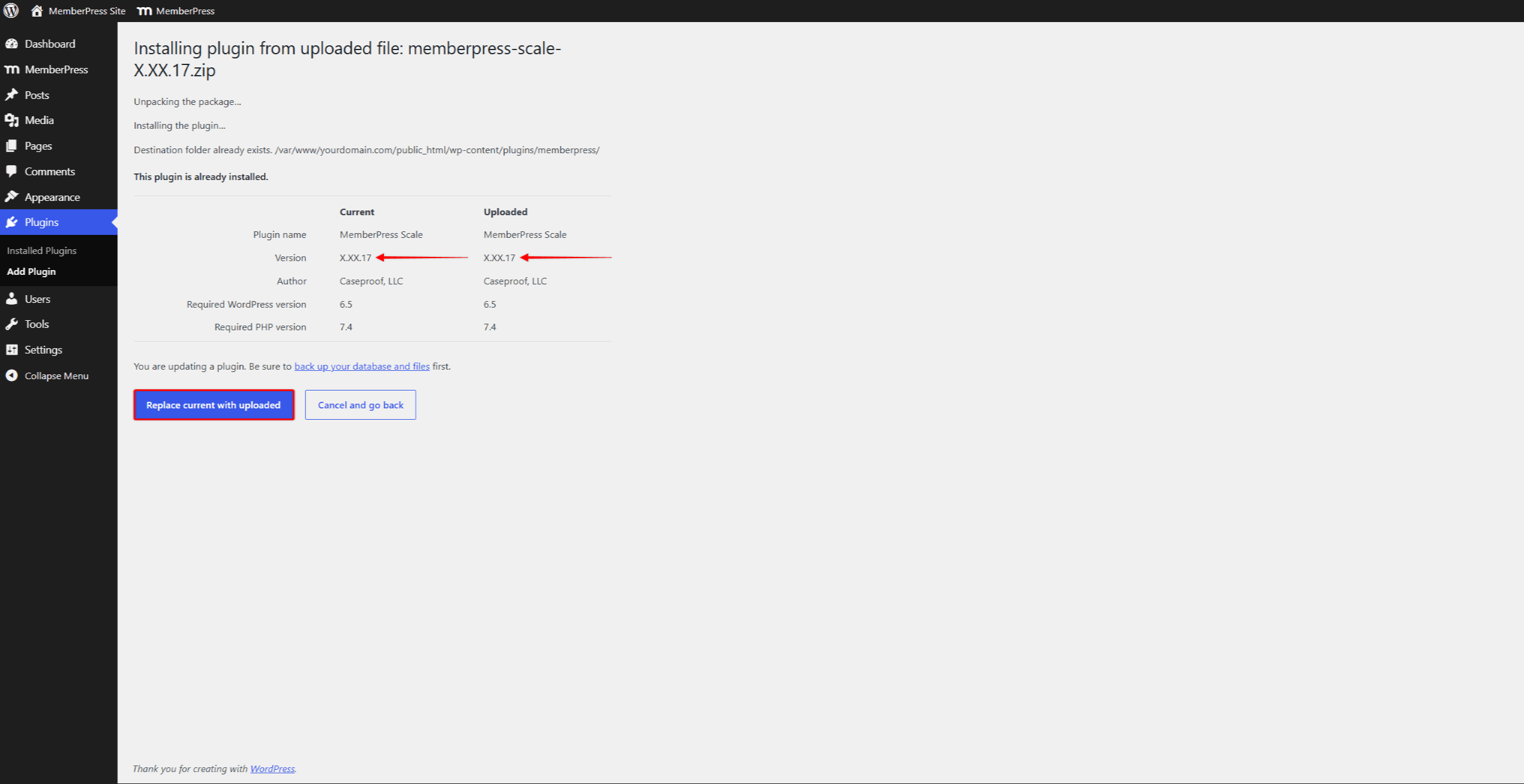
This process reinstalls the plugin without affecting any MemberPress data. The Updating MemberPress document describes the manual update process in more detail.
Check the website after the reinstallation. If the error is still there, continue to the next solution.
Solution 3: Clear the Server OPcache
On some servers, reinstalling the files does not refresh the cache. In that case, the cache needs a manual reset.
Many hosting control panels include an option to clear the PHP cache or restart PHP. The option’s name and location depend on the hosting provider. Look for options labeled “Flush PHP OPcache”, “Clear PHP Cache”, or “Restart PHP”. Restarting PHP also clears the whole cache.
Clear the cache, then reload the website. If the error remains, or no such option exists, contact the hosting provider.
Solution 4: Contact the Hosting Provider
The hosting provider can reset the cache directly on the server. This solution needs no technical steps. It also works when the fatal error blocks the WordPress dashboard.
The following message template describes the issue to the hosting support team:
Hello,

After a plugin update, my website shows a PHP fatal error stating that a
trait or class was not found. The updated plugin files are present on the
disk. However, OPcache is serving stale cached copies of some files.

Could you please flush the PHP OPcache for my account, or restart PHP
(PHP-FPM)?

Please also check whether opcache.restrict_api or
opcache.validate_timestamps=0 is set on my server. These settings prevent
WordPress from refreshing cached files automatically during plugin
updates. Adjusting them would prevent this issue after future updates.

Thank you.
After the host resets the cache, the website loads the new plugin files, and the error disappears. If the error remains after the cache reset, contact the MemberPress support team for further assistance.
What Will Not Usually Fix This Error
The error comes from the server’s PHP cache. Therefore, the following common troubleshooting steps will not usually fix it:
- clearing the browser cache, since the browser does not store the error;
- clearing page caching plugins (e.g. WP Rocket, W3 Total Cache), since these plugins store pages, not PHP files;
- clearing the CDN cache (e.g. Cloudflare), for the same reason;
- deactivating and reactivating MemberPress, since this does not write the plugin files again;
- repairing or restoring the database, since the database does not cause the error.
Skipping these steps saves time and prevents unneeded changes to the website.