When you install the MemberPress plugin on your website, it must be activated within the 21-day grace period. You need to have a valid MemberPress license to activate the plugin. If you miss activating the license within the grace period, the MemberPress Backend will be deactivated.
This also applies if you cancel your subscription and the subscription ends. MemberPress will display a notification informing you that your MemberPress backend is deactivated.
This document will show you how to fix this and get your MemberPress Backend active again.

Missing Valid License
As mentioned, the MemberPress backend will become deactivated if a valid license key has not been added to the plugin. This can happen if you change your MemberPress plan or re-purchase a license without changing the key in your plugin. A purchase or plan change on MemberPress.com doesn’t update the key on your site by itself.
In this case, you only need to add a valid license key from your MemberPress account.
- Go to your MemberPress.com Account Page, and find your MemberPress license key.
- Next, in your website backend, navigate to Dashboard > MemberPress > Members. Here, you will see the “MemberPress Backend is Deactivated” pop-up.
- Paste your key in the provided “License Key” field.
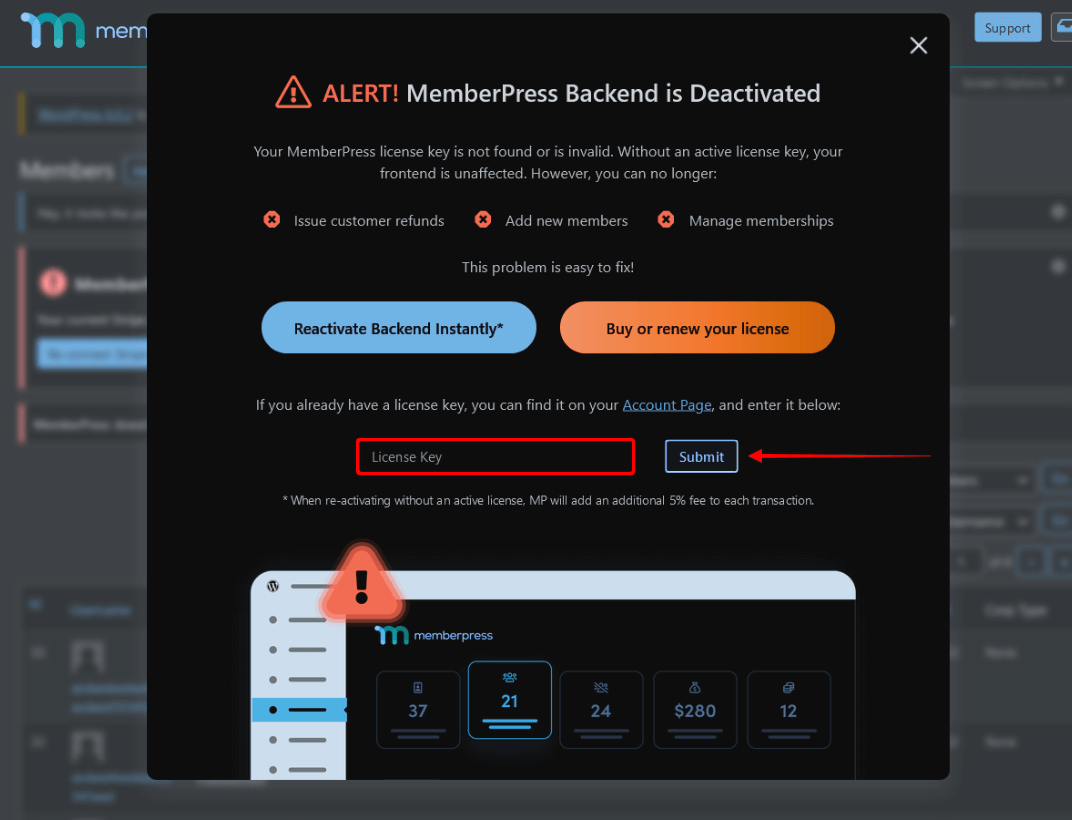
- Click the Submit button.
Adding a valid license key will activate your MemberPress plugin. The backend will be unlocked, and all options will be available again.
No Licenses Found
If your subscription has expired, the license key you used with it will be removed. Thus, you will see the “No licenses found.” message under the Downloads tab on your MemberPress.com Account Page.
In this case, you need to resubscribe or purchase a new license. Alternatively, you can continue using MemberPress without a license, paying the Expired License Transaction Fee:
- Navigate to Dashboard > MemberPress > Members.
- If you want to buy a new MemberPress license, click the Buy or renew your license button. Otherwise, you can click the Reactivate Backend Instantly button to switch to using MemberPress without the license.
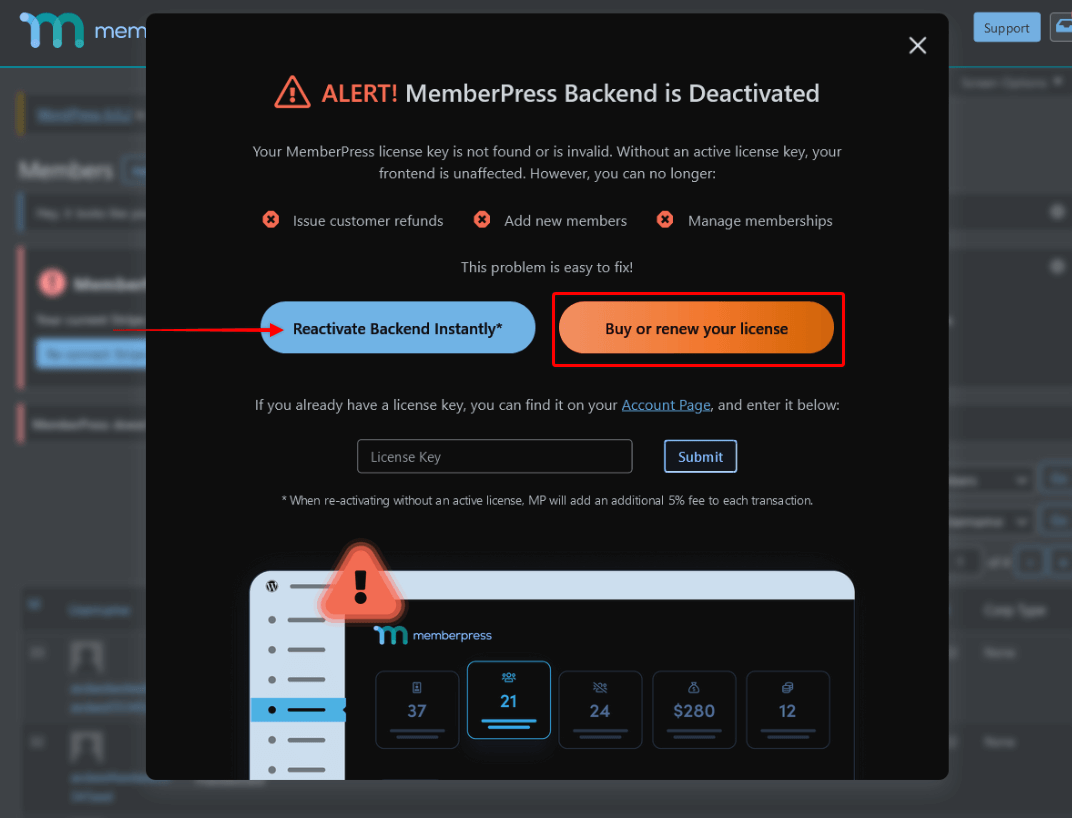
After the switch, MemberPress applies the Expired License Transaction Fee to all future transactions on your website.
Since only administrators can confirm using MemberPress without a license, these fees are non-refundable.
Understanding MemberPress Transaction Fees
MemberPress charges two separate types of transaction fees on payments processed through the plugin:
- Plan-Based Transaction Fee. This fee applies to certain MemberPress plans, such as the Launch plan. It applies whether your license is active or expired. Upgrading to a higher-tier plan eliminates or reduces this fee;
- Expired License Transaction Fee. This fee applies when your license is expired or inactive and you continue processing payments with MemberPress. Renewing your license eliminates this fee.
The MemberPress Terms and Conditions describe both fees in full. The MemberPress pricing page lists the fee for each plan.