

A quiz time limit sets how long students have to complete a quiz. When the time runs out, MemberPress submits the quiz automatically.
This document explains how a quiz time limit works and how to set one up. It also describes what students see during a timed quiz.
Requisitos previos
Quiz time limits require the Complemento MemberPress Courses y el Complemento Pruebas del curso. They are available in Course Quizzes version 1.4.0 and later.
How a Quiz Time Limit Works
The time limit applies to each quiz attempt. The clock starts when the student starts the quiz. At that moment, MemberPress sets a fixed deadline for the attempt.
Because the deadline is fixed, the clock keeps running when the student leaves the quiz page. After a page reload, the timer shows the correct remaining time.
Quiz time limits are off by default. A time limit of 0 minutes and 0 seconds means the quiz has no limit.
A quiz time limit works differently from a minimum time on a lesson. A lesson timer pauses when the student leaves the lesson. A quiz timer never pauses.
Setting a Quiz Time Limit
To set a time limit for a quiz:
- Open the quiz editor through the course curriculum. You can also navigate to Panel > MP Cursos > Cuestionarios and click the quiz title.
- In the right sidebar, expand the Ajustes panel.
- En Time Limit, enter the minutes in the MINUTES field and the seconds in the SECONDS campo.
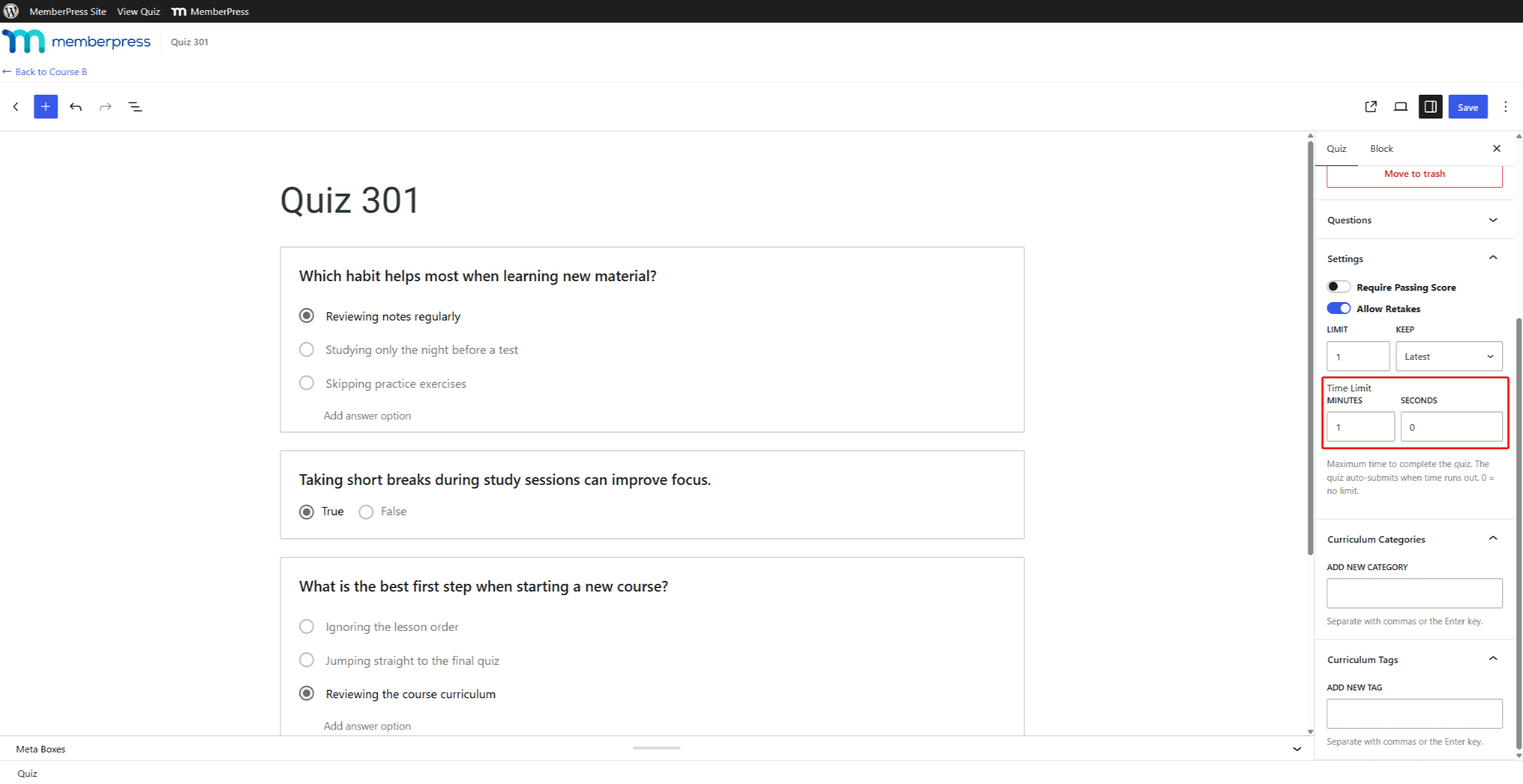
- Haga clic en Guardar. If the quiz is still a draft, click Publique o Guardar borrador en su lugar.
To remove the time limit, set both fields to 0.
Lo que ven los alumnos
During a timed quiz, a bar at the top of the page shows the remaining time. The browser tab title also shows it.
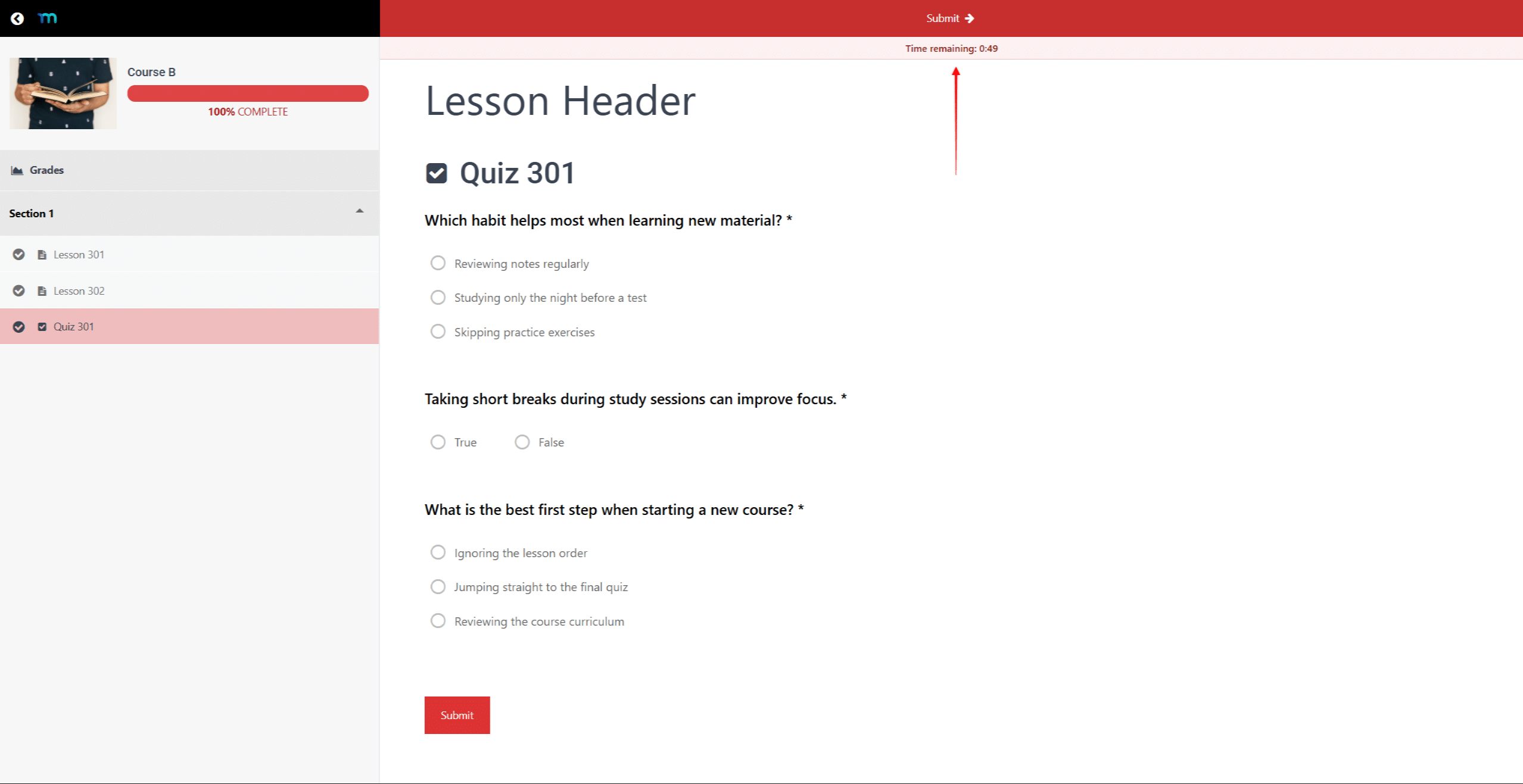
Students can submit the quiz at any time before the time runs out.
When the Time Runs Out
MemberPress saves answers automatically while the student works on the quiz. It saves an answer when the student selects an option or types into a field.
When the timer reaches zero, MemberPress submits the quiz and grades the saved answers. This also happens when some required questions have no answers. The student then sees the quiz results. Changes made after the time runs out do not count.
A student may leave the quiz and return after the deadline. In that case, MemberPress submits the attempt with the answers saved so far.
Time Limits and Retakes
If the quiz allows retakes, each retake starts with the full time limit. Learn more about Repeticiones de pruebas y historial de intentos.
En Show Lesson Countdown Timer course setting hides only lesson countdowns. It does not hide the quiz timer.










 ES
ES  EN
EN  FR
FR  DE
DE  PT
PT 