

Pago por transferencia bancaria es un método de pago en tiempo real basado en el Reino Unido banca abierta. Permite a los clientes del Reino Unido pagar directamente desde sus cuentas bancarias. Los clientes confirman los pagos en su aplicación bancaria, sin necesidad de utilizar una tarjeta.
La integración de MemberPress con Stripe te permite recibir pagos a través de «Pay by Bank». En este documento se explica cómo activar «Pay by Bank» en tu sitio de membresía. Además, se describen los requisitos y las limitaciones de este método de pago.
Recibir pagos con «Pagar por transferencia bancaria»
MemberPress solo admite el pago mediante transferencia bancaria a través de la integración integrada de Stripe. Por lo tanto, antes de activar el pago mediante transferencia bancaria, conecte Stripe a MemberPress en su sitio web. También, probar la conexión para comprobar que funciona correctamente.
Una vez configurada tu conexión con Stripe, sigue estos pasos para activar la opción «Pago por transferencia bancaria» en Stripe:
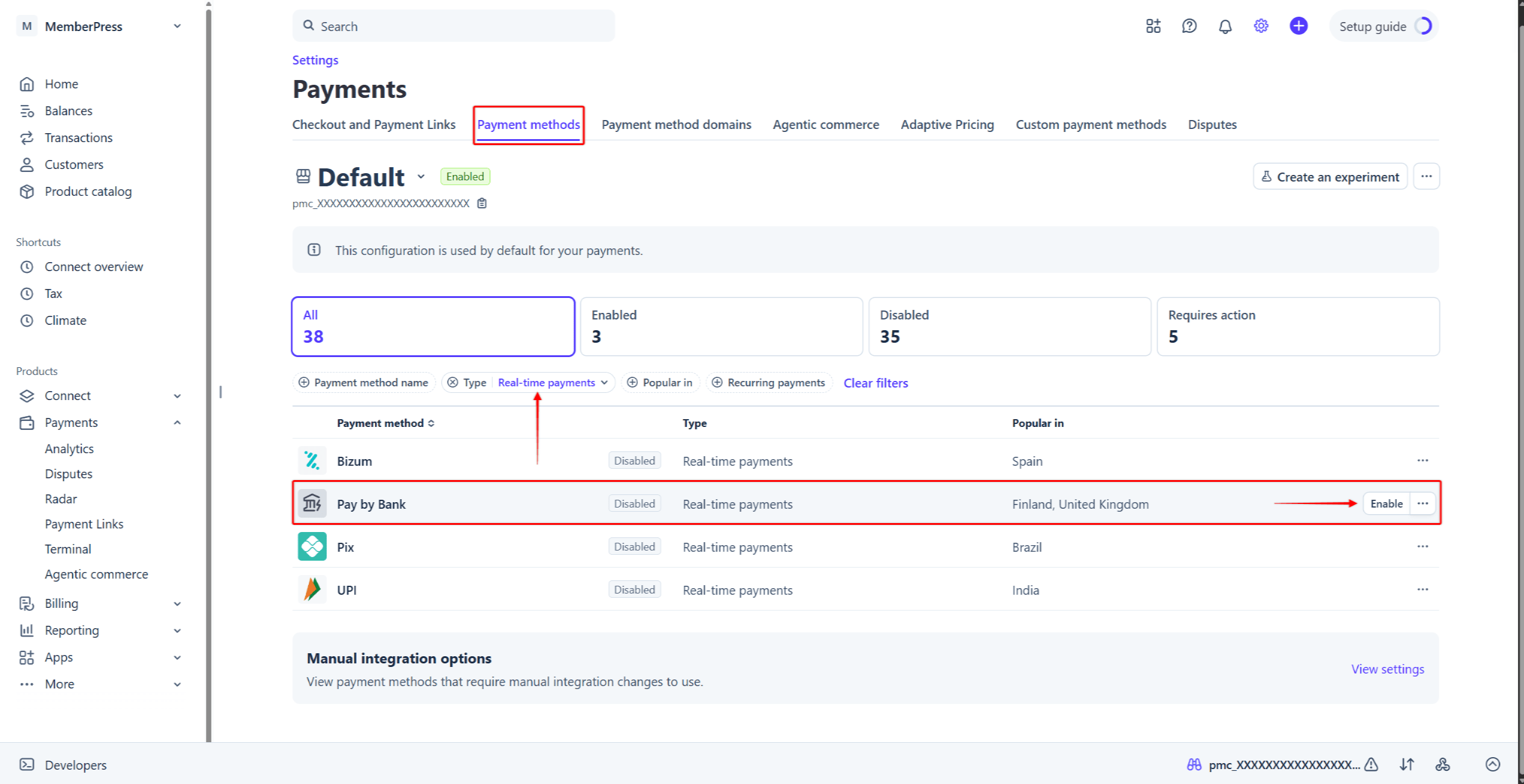
- Inicia sesión en tu cuenta de Stripe y ve a Panel de control de Stripe > Configuración > Pagos > pestaña «Formas de pago».
- Encuentre Pago por transferencia bancaria en la lista de formas de pago. Para encontrarlo más rápido, haz clic en el Tipo filtro, marca la casilla “Pagos en tiempo real”, y haz clic en Solicitar.
- Pasa el cursor por encima de Pago por transferencia bancariay haga clic en el botón Activar botón. También puedes hacer clic en el icono de tres puntos junto a la forma de pago, y selecciona la Activar opción.
A continuación, active Pago por transferencia bancaria activar o desactivar en la configuración de MemberPress. Puedes consultar los pasos detallados en activar los métodos de pago con Stripe y MemberPress en el documento correspondiente.
Pago mediante transferencia bancaria al finalizar la compra
Una vez activada la opción «Pago por transferencia bancaria», los formularios de inscripción de tus suscripciones de una sola vez mostrarán esta opción de pago. La opción «Pago por transferencia bancaria» funciona tanto con Stripe Elementos y Pago con Stripe formularios. En el formulario de pago, la opción se denomina “Aplicación «Pay By Bank»“.
Cuando los usuarios seleccionan la opción “Aplicación «Pay By Bank»”Al seleccionar la opción «», el formulario muestra una lista de bancos del Reino Unido. Los usuarios deben seleccionar su banco y enviar el formulario de registro.
A continuación, los usuarios verán el “Realizar el pago” con instrucciones de pago y un código QR. Los usuarios pueden escanear el código QR con la cámara de su móvil y confirmar el pago en su aplicación bancaria. También pueden hacer clic en el botón “Continuar en la web”Pulse el botón «» para completar el pago en el navegador.
El banco confirma los pagos mediante «Pay by Bank» de forma asíncrona. Por lo tanto, la confirmación del pago puede tardar hasta 60 segundos. Una vez que el banco confirma el pago, MemberPress redirige a los usuarios a la página de agradecimiento.
¿Qué es importante saber sobre el uso de «Pagar por transferencia bancaria»?
La opción «Pago por transferencia bancaria» aparecerá en la página de pago únicamente cuando se cumplan todas las condiciones. La integración presenta varias limitaciones impuestas por Stripe.
La opción «Pago por transferencia bancaria» solo admite pagos puntuales. Por lo tanto, este método de pago no aparecerá en las páginas de registro de tus suscripciones periódicas. Además, la opción «Pago bancario» no admite pagos aplazados. Por consiguiente, esta opción de pago no estará disponible para afiliaciones con pruebas gratuitas o de pago.
Además, para utilizar la opción «Pago por transferencia bancaria» con MemberPress, configura la moneda en la configuración de MemberPress a GBP. Stripe admite pagos mediante «Pay by Bank» en euros. Sin embargo, la integración de MemberPress solo admite libras esterlinas por el momento.
Además, la opción «Pago por transferencia bancaria» solo está disponible para los pagos entre 0,50 y 10 000 libras esterlinas. Esta opción de pago no aparecerá para las suscripciones cuyo precio se sitúe fuera de este rango.
Encontrará más información sobre Pago mediante transferencia bancaria en la documentación de Stripe.










 ES
ES  EN
EN  FR
FR  DE
DE  PT
PT 