

Pagamento por transferência bancária é um método de pagamento em tempo real baseado no Reino Unido banca aberta. Isso permite que os clientes no Reino Unido paguem diretamente de suas contas bancárias. Os clientes confirmam os pagamentos pelo aplicativo do banco, sem usar cartão.
A integração do MemberPress com o Stripe permite que você receba pagamentos por meio do Pay by Bank. Este documento explica como ativar o Pay by Bank no seu site de assinaturas. Ele também aborda os requisitos e as limitações desse método de pagamento.
Recebimento de pagamentos com o Pay by Bank
O MemberPress oferece suporte ao “Pagamento por transferência bancária” apenas por meio da integração integrada com o Stripe. Portanto, antes de ativar o “Pagamento por transferência bancária”, Conecte o Stripe ao MemberPress em seu site. Também, testar a conexão para confirmar se está funcionando corretamente.
Depois de configurar sua conexão com o Stripe, siga estas etapas para ativar o “Pagamento por Banco” no Stripe:
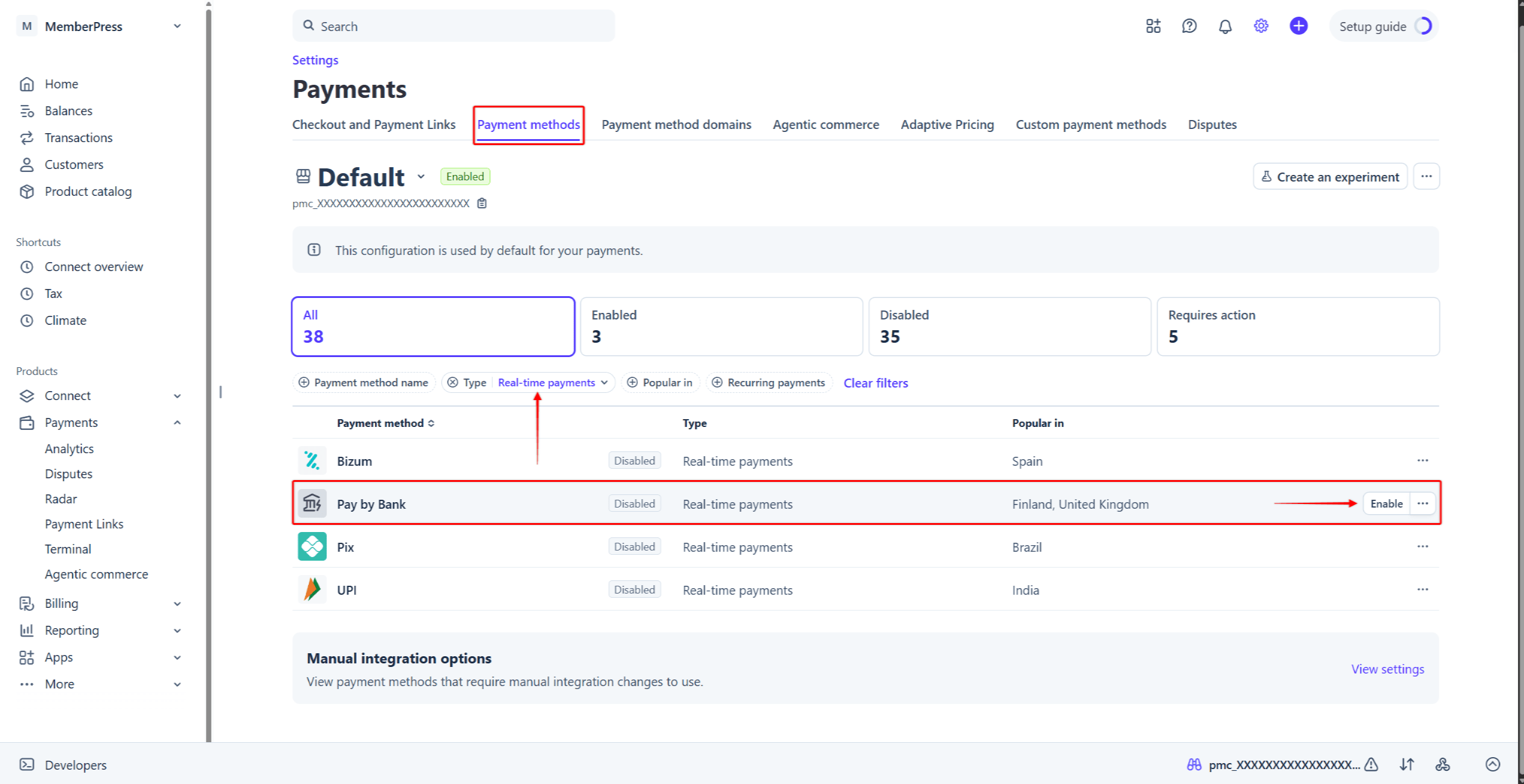
- Faça login na sua conta do Stripe e acesse Painel do Stripe > Configurações > Pagamentos > guia “Formas de pagamento”.
- Localizar Pagamento por transferência bancária na lista de formas de pagamento. Para encontrá-la mais rapidamente, clique no Tipo filtro, marque a opção “Pagamentos em tempo real” e clique em Aplicar.
- Passe o mouse sobre Pagamento por transferência bancáriae clique no botão Ativar botão. Como alternativa, clique no ícone de três pontos ao lado da forma de pagamento e selecione a Ativar opção.
Em seguida, ative o Pagamento por transferência bancária ativar ou desativar nas configurações do MemberPress. Você pode encontrar as etapas detalhadas em ativar formas de pagamento com Stripe e MemberPress no documento relacionado.
Pagar por transferência bancária na finalização da compra
Assim que a opção “Pagamento por transferência bancária” for ativada, os formulários de inscrição das suas assinaturas únicas exibirão essa opção de pagamento. O “Pagamento por transferência bancária” funciona tanto com Elementos de listras e Checkout Stripe formulários. No formulário de pagamento, a opção é intitulada “Aplicativo “Pagar pelo Banco”“.
Quando os usuários selecionam o “Aplicativo “Pagar pelo Banco””Ao selecionar a opção “”, o formulário exibe uma lista de bancos do Reino Unido. Os usuários devem selecionar seu banco e enviar o formulário de cadastro.
Em seguida, os usuários verão o “Concluir o pagamento” janela pop-up com instruções de pagamento e um código QR. Os usuários podem escanear o código QR com a câmera do celular e confirmar o pagamento no aplicativo do banco. Como alternativa, podem clicar no “Continuar na Web”Botão “” para concluir o pagamento no navegador.
O banco confirma os pagamentos via “Pay by Bank” de forma assíncrona. Por isso, a confirmação do pagamento pode levar até 60 segundos. Assim que o banco confirma o pagamento, o MemberPress redireciona os usuários para a página de agradecimento.
O que é importante saber sobre o uso do “Pagamento por transferência bancária”?
A opção “Pagamento por transferência bancária” aparecerá na finalização da compra somente quando todas as condições forem atendidas. A integração apresenta várias limitações impostas pela Stripe.
O “Pagar por transferência bancária” suporta apenas pagamentos não recorrentes. Portanto, essa forma de pagamento não aparecerá nas páginas de cadastro das suas assinaturas recorrentes. Além disso, a opção “Pagar por transferência bancária” não permite pagamentos diferidos. Assim, essa opção de pagamento não estará disponível para associações com avaliações gratuitas ou pagas.
Além disso, para usar o “Pagamento por transferência bancária” com o MemberPress, configure a moeda nas configurações do MemberPress para GBP. O Stripe aceita pagamentos via Pay by Bank em euros. No entanto, a integração do MemberPress, no momento, aceita apenas libras esterlinas.
Além disso, a opção “Pagamento por transferência bancária” está disponível apenas para pagamentos entre £0,50 e £10.000. Essa opção de pagamento não estará disponível para assinaturas cujos preços estejam fora dessa faixa.
Você pode encontrar mais informações sobre Pagamentos via transferência bancária na documentação do Stripe.










 PT
PT  EN
EN  ES
ES  FR
FR  DE
DE 