

Enlace Es una función de Stripe que permite a los clientes guardar de forma segura su información de pago. En los sitios web compatibles con Link, los clientes pueden volver a utilizar los datos guardados en lugar de tener que introducirlos de nuevo. Esto agiliza el proceso de pago y puede mejorar tu tasa de conversión.
La integración de MemberPress con Stripe es compatible con Stripe Link. En este documento se explica cómo activar Stripe Link en tu sitio de membresía. Además, se describen los requisitos y las limitaciones de esta función.
Activación del enlace Stripe
MemberPress solo admite Stripe Link a través de la integración Stripe incorporada. Por lo tanto, antes de activar Stripe Link, conecte Stripe a MemberPress en su sitio web. Stripe Link funciona tanto con Elementos de Stripe y proceso de pago de Stripe formas de pago.
Una vez configurada la conexión Stripe, sigue estos pasos para activar Stripe Link:
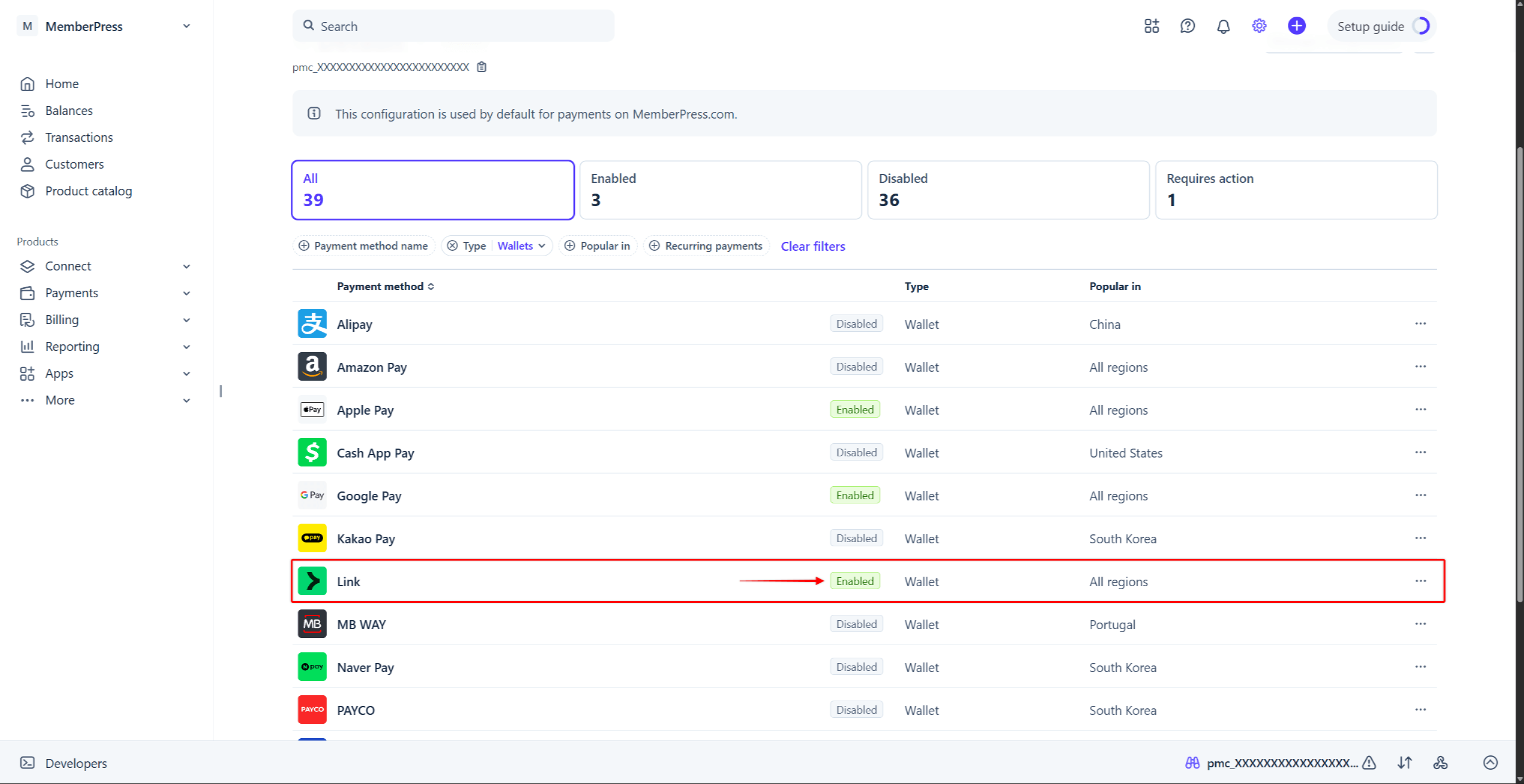
- Inicia sesión en tu cuenta de Stripe y ve a Panel de control de Stripe > Configuración > Pagos > pestaña «Formas de pago».
- Encuentre Enlace en la lista de formas de pago. Para encontrarlo más rápido, haz clic en el Tipo filtro, marca la casilla “Billeteras”, y haz clic en Solicitar.
- Pasa el cursor por encima de Enlacey haga clic en el botón Activar botón. También puedes hacer clic en el icono de tres puntos junto a la forma de pago, y selecciona la Activar opción.
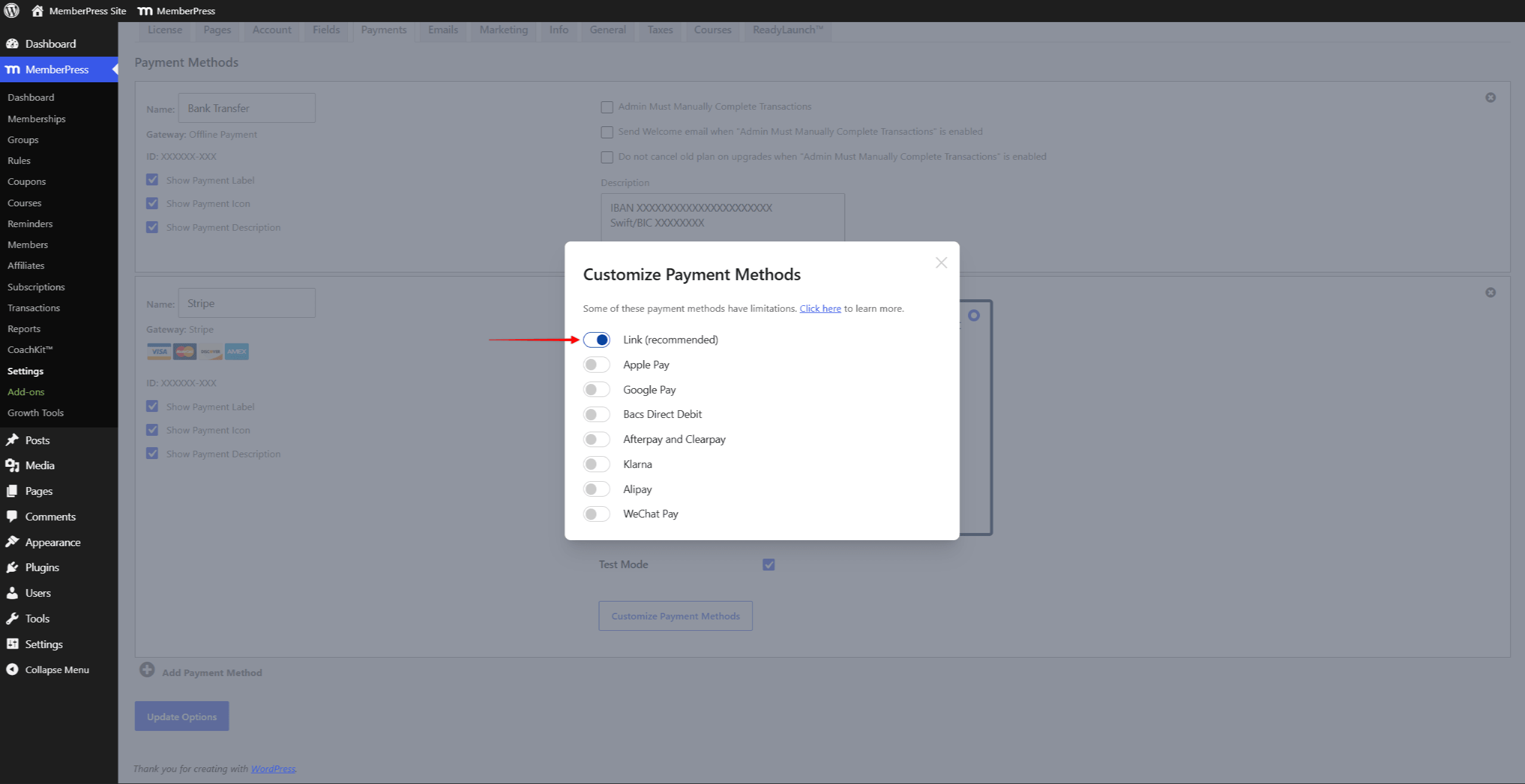
- En tu página web, ve a Panel de control > MemberPress > Configuración > Pestaña Pagos, y desplázate hasta la configuración de tu pasarela Stripe.
- Haga clic en el botón Personalizar los métodos de pago para abrir una ventana emergente.
- Activa la opción “Enlace (recomendado)”», y haz clic en el Actualización botón.
Puedes encontrar más detalles en activar los métodos de pago con Stripe y MemberPress en el documento correspondiente.
Enlace Stripe al finalizar la compra
Una vez activado el enlace Stripe, tus formularios de registro mostrarán el campo adicional “Banco” junto a “Tarjeta“. Esta opción permite a los clientes pagar directamente desde sus cuentas bancarias de EE. UU. a través de Link. Los clientes deben seleccionar su banco y confirmar el pago.
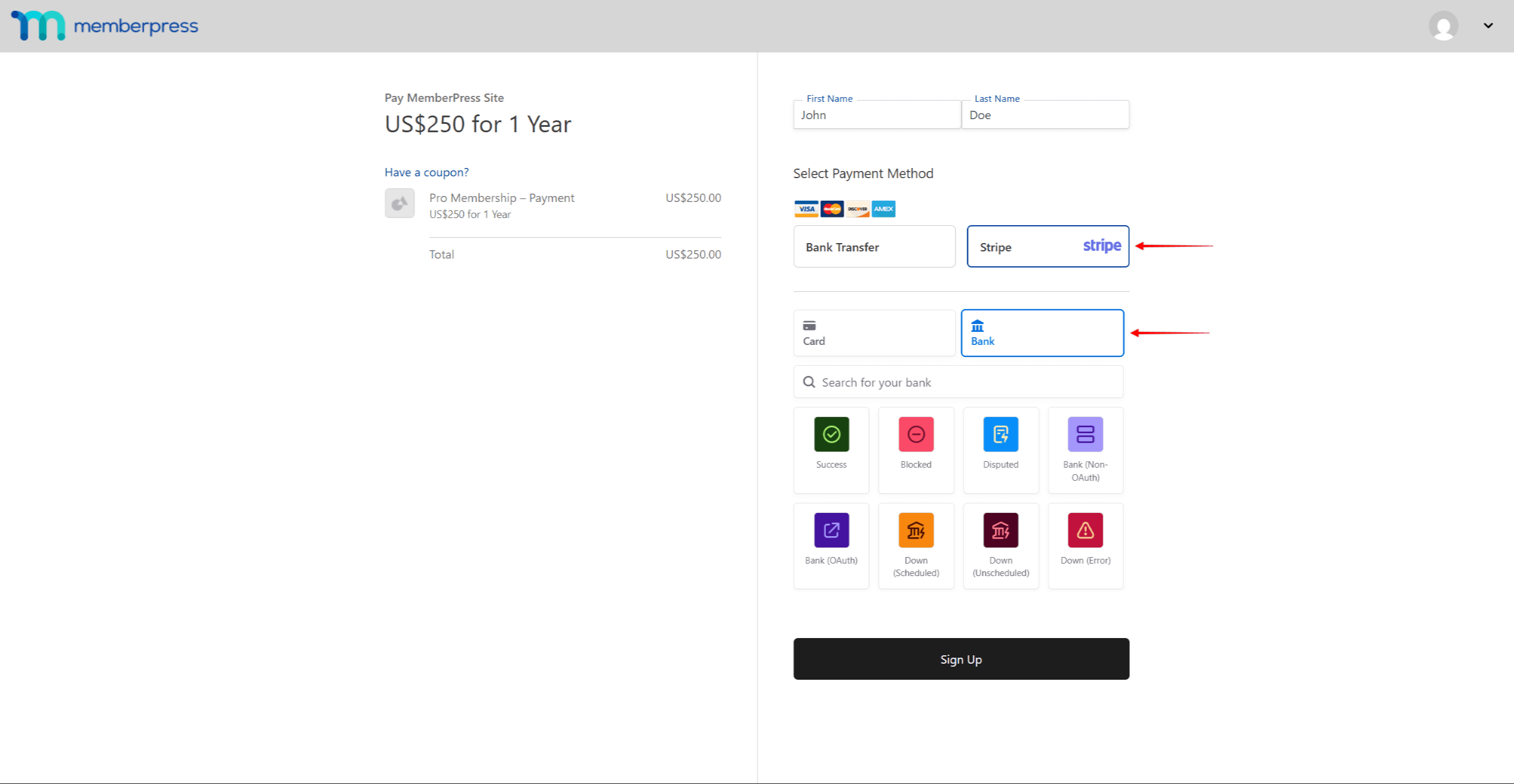
Además, los clientes pueden guardar sus datos de pago con Link al finalizar la compra. Es Stripe quien almacena esta información, no MemberPress. Los usuarios habituales de Link pueden completar sus pagos utilizando los datos guardados. Esto hace que sus pagos futuros sean más rápidos y seguros.
¿Qué es importante saber sobre el uso de Stripe Link?
Stripe Link requiere la versión 1.9.41 o posterior de MemberPress.
Stripe Link está disponible en la mayoría de los países en los que opera Stripe. Sin embargo, Link no está disponible en la India. Además, los formularios de pago de Stripe Elements no admiten Link en Brasil ni en Tailandia. Link admite todas las divisas que Stripe admite para los pagos con tarjeta. Puedes encontrar más detalles sobre Disponibilidad del enlace Stripe en la documentación de Stripe.
Tras activar Stripe Link, es posible que observes que faltan algunos datos de los clientes en Stripe. Esto es así por diseño. Stripe Link cifra y oculta gran parte de la información identificativa de los clientes para protegerlos.
Tus clientes pueden gestionar su cuenta de Link o darse de baja en cualquier momento en la Link.com página web. Para consultar las preguntas más frecuentes, visita la Preguntas frecuentes sobre Stripe Link.










 ES
ES  EN
EN  FR
FR  DE
DE  PT
PT 