

Stripe Link is a Stripe feature that lets customers securely save their payment information. On Link-enabled sites, customers can reuse the saved details instead of typing them again. This speeds up the checkout process and can improve your conversion rate.
The MemberPress integration with Stripe supports Stripe Link. This document explains how to enable Stripe Link on your membership site. It also covers the requirements and limitations of this feature.
Enabling Stripe Link
MemberPress supports Stripe Link only through the built-in Stripe integration. Thus, before enabling Stripe Link, connect Stripe to MemberPress on your site. Stripe Link works with both Stripe Elements and Stripe Checkout payment forms.
Once your Stripe connection is set, follow these steps to enable Stripe Link:
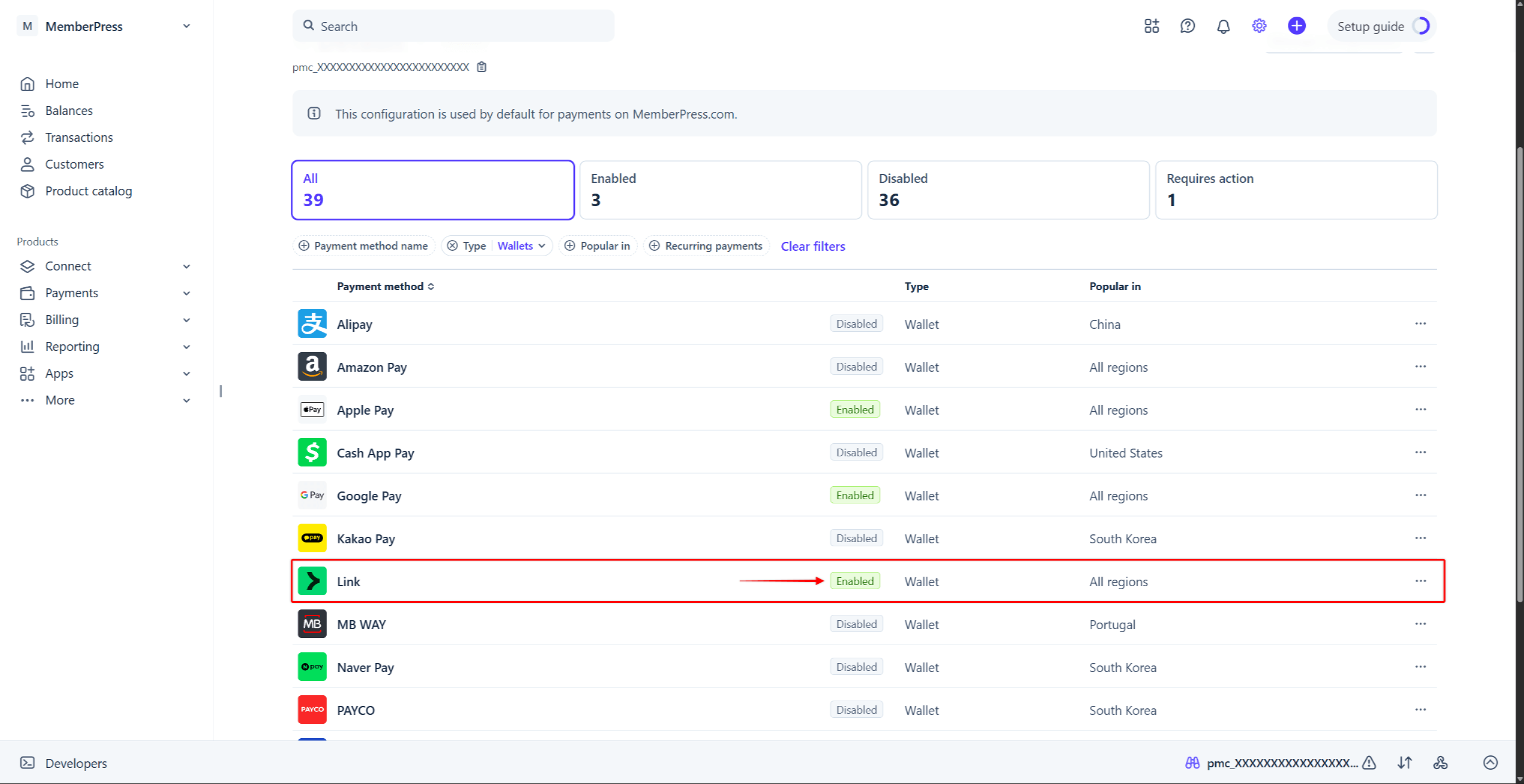
- Log in to your Stripe account, and navigate to Stripe Dashboard > Settings > Payments > Payment methods tab.
- Find Link on the list of payment methods. To find it faster, click the Type filter, check the “Wallets” option, and click Apply.
- Hover over Link, and click the Enable button. Alternatively, click the three-dot icon next to the payment method, and select the Enable option.
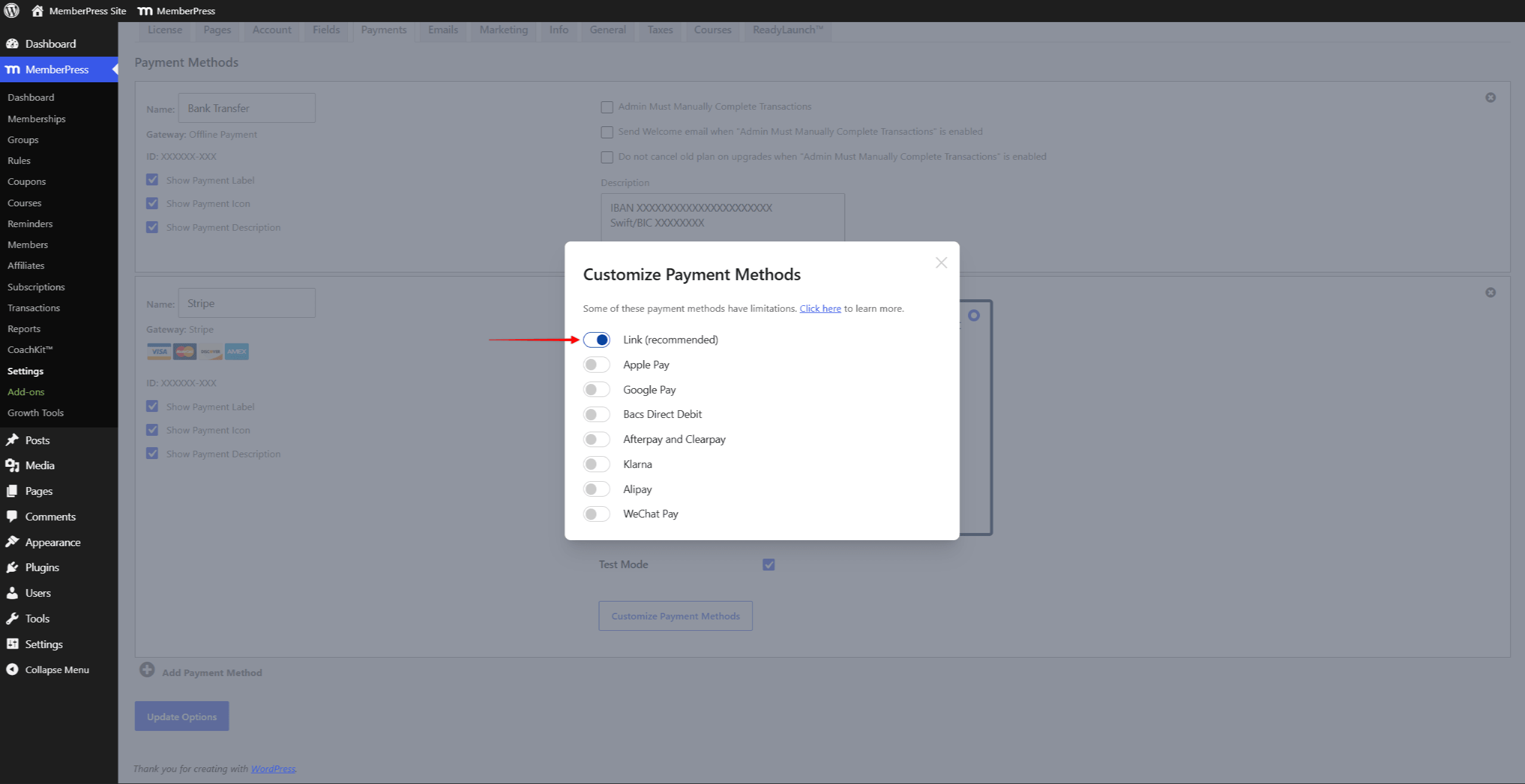
- On your website, navigate to Dashboard > MemberPress > Settings > Payments tab, and scroll to your Stripe gateway settings.
- Click the Customize Payment Methods button to open a pop-up.
- Enable the “Link (recommended)” toggle, and click the Update button.
You can find more details on enabling payment methods with Stripe and MemberPress in the related document.
Stripe Link at Checkout
Once Stripe Link is enabled, your registration forms will show the additional “Bank” option next to “Card“. This option lets customers pay directly from their US bank accounts through Link. Customers need to select their bank and confirm the payment.
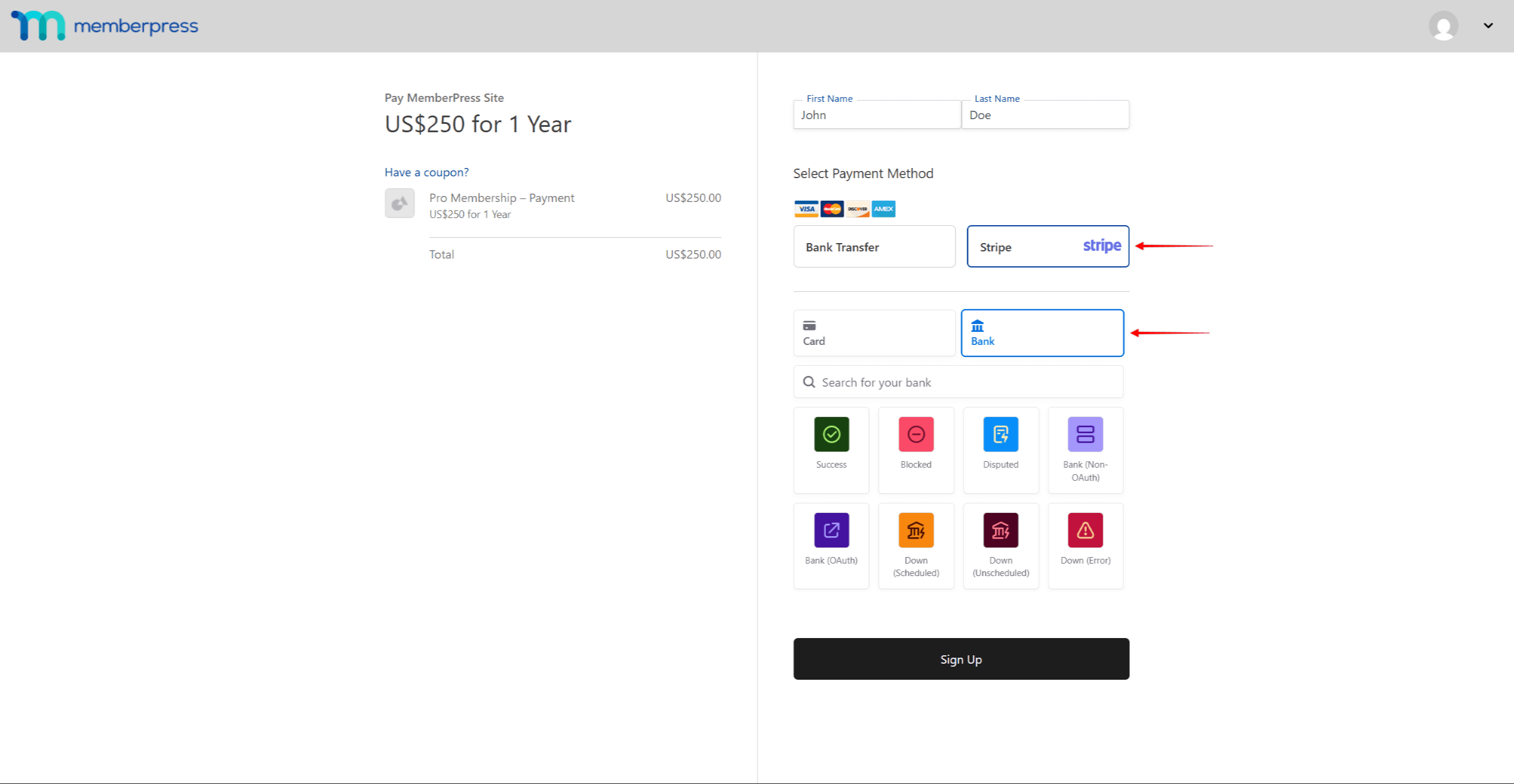
Also, customers can save their payment information with Link during checkout. Stripe stores this information, not MemberPress. Returning Link users can complete their payments using the saved details. This makes their future payments faster and more secure.
What’s Important to Know About Using Stripe Link?
Stripe Link requires MemberPress version 1.9.41 or later.
Stripe Link is available in most countries where Stripe operates. However, Link isn’t available in India. Also, Stripe Elements payment forms don’t support Link in Brazil and Thailand. Link supports all currencies that Stripe supports for card payments. You can find more details about Stripe Link availability in Stripe documentation.
After enabling Stripe Link, you may notice that some customer data is missing from Stripe. This is by design. Stripe Link encrypts and hides much of the customer’s identifying information for their protection.
Your customers can manage their Link account or unenroll anytime on the Link.com website. For common questions, check the Stripe Link FAQ.










