

O PayPal Complete Payments é um gateway de pagamento que aceita pagamentos de associação em todo o mundo. Com esse gateway, você pode conectar o PayPal ao MemberPress e processar pagamentos diretamente em seu site.
Este documento explica como conectar o PayPal Complete Payments ao MemberPress. Ele também aborda como configurar métodos de pagamento e gerenciar transações.
Visão geral dos pagamentos completos do PayPal
O gateway PayPal Complete Payments mostra todas as opções de pagamento na página de registro. Como resultado, os membros podem concluir os pagamentos em uma janela pop-up sem sair do seu site.
O gateway oferece suporte a vários métodos de pagamento para atender às diferentes necessidades do comprador. Por exemplo, os membros podem pagar usando PayPal, Pay Later, Venmo (somente nos EUA), Apple Pay e Google Pay. Além disso, pagamentos com cartão com 3D Secure também são aceitos.
Os principais recursos incluem:
- Processamento de assinaturas únicas e recorrentes;
- Suporte para Pedidos de bônus com associações recorrentes;
- Sincronização automática de reembolsos entre o PayPal e o MemberPress;
- Troca de aplicativo móvel para usuários do aplicativo PayPal.
PayPal Pagamentos completos vs. PayPal Padrão
O PayPal Complete Payments funciona separadamente do PayPal Gateway padrão. Ambos os gateways são totalmente compatíveis. Portanto, você pode executá-los ao mesmo tempo no mesmo site.
No entanto, o PayPal Complete Payments não substitui as assinaturas existentes do PayPal Standard. Não há como mover assinaturas entre os dois gateways. Em vez disso, as assinaturas existentes continuarão no PayPal Standard.
Pré-requisitos
Antes de conectar o PayPal Complete Payments ao MemberPress, certifique-se de que você tenha:
- MemberPress Plano de crescimento ou escala ativado no local;
- Uma conta empresarial PayPal (contas pessoais não funcionam);
- Um certificado SSL instalado no site (HTTPS necessário);
- Pelo menos um filiação criado.
Conexão de pagamentos completos do PayPal ao MemberPress
Para conectar o PayPal Complete Payments ao MemberPress, primeiro crie o gateway no MemberPress. Em seguida, conecte-se ao PayPal Sandbox para testes ou conecte-se diretamente ao Production para pagamentos em tempo real.
Criação de um gateway de pagamento completo PayPal
- Primeiro, faça login em seu site e vá para Painel de controle > MemberPress > Configurações.
- Em seguida, clique no botão Pagamentos guia.
- Em seguida, clique em + Adicionar método de pagamento para adicionar um novo gateway de pagamento.
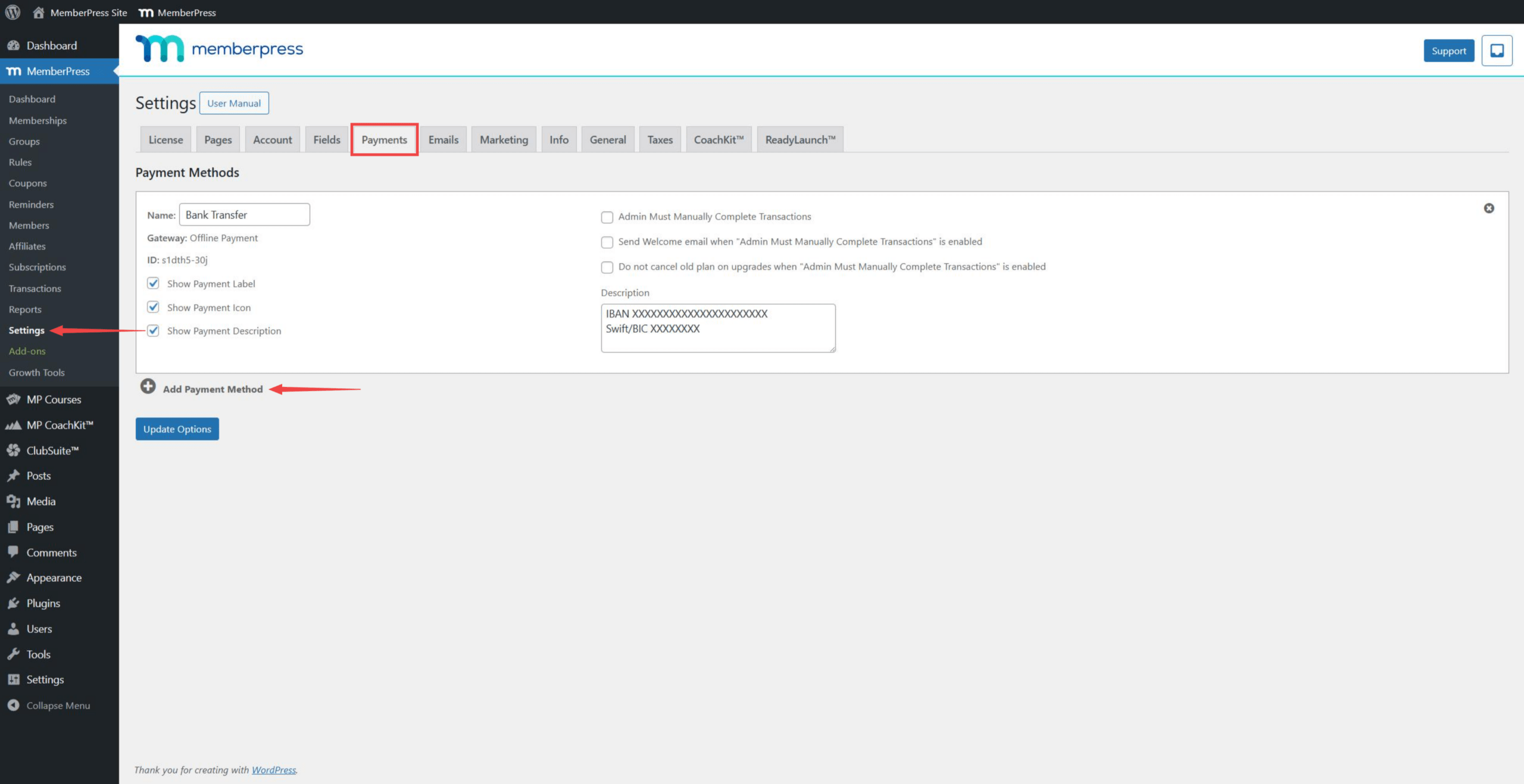
- No Gateway selecione PayPal Pagamentos completos.
- No Nome adicione um rótulo para o gateway. Os membros verão esse rótulo nos formulários de registro. Por exemplo, você pode nomeá-lo “PayPal”.
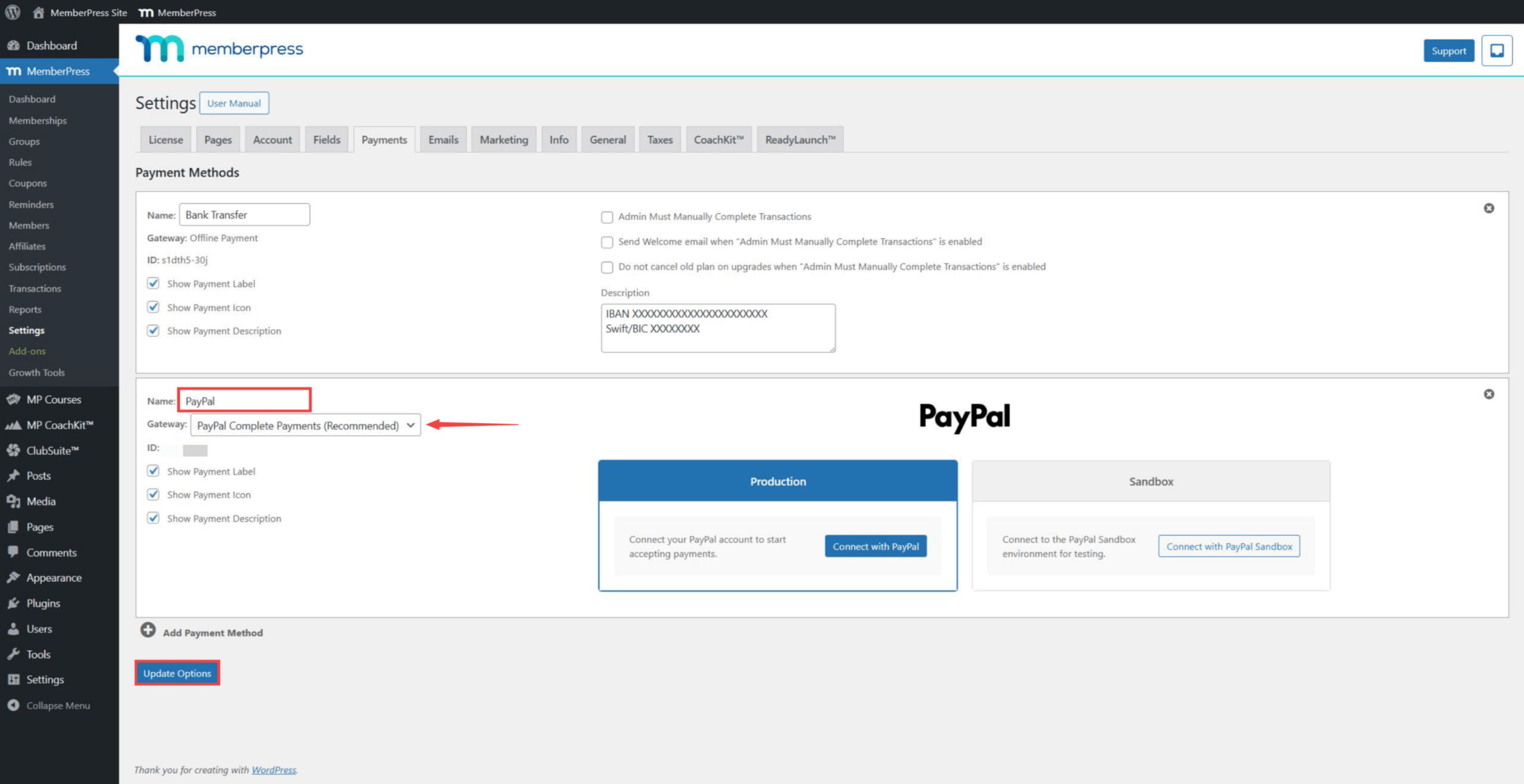
- Por fim, clique no botão Opções de atualização para salvar suas configurações.
Conexão da produção PayPal
Para conectar sua conta de comerciante do PayPal e começar a receber pagamentos em tempo real:
- Ir para Painel de controle > MemberPress > Configurações > Pagamentos guia.
- Clique no gateway PayPal Complete Payments para expandir suas configurações.
- Sob o Produção clique na seção Conectar com PayPal botão.
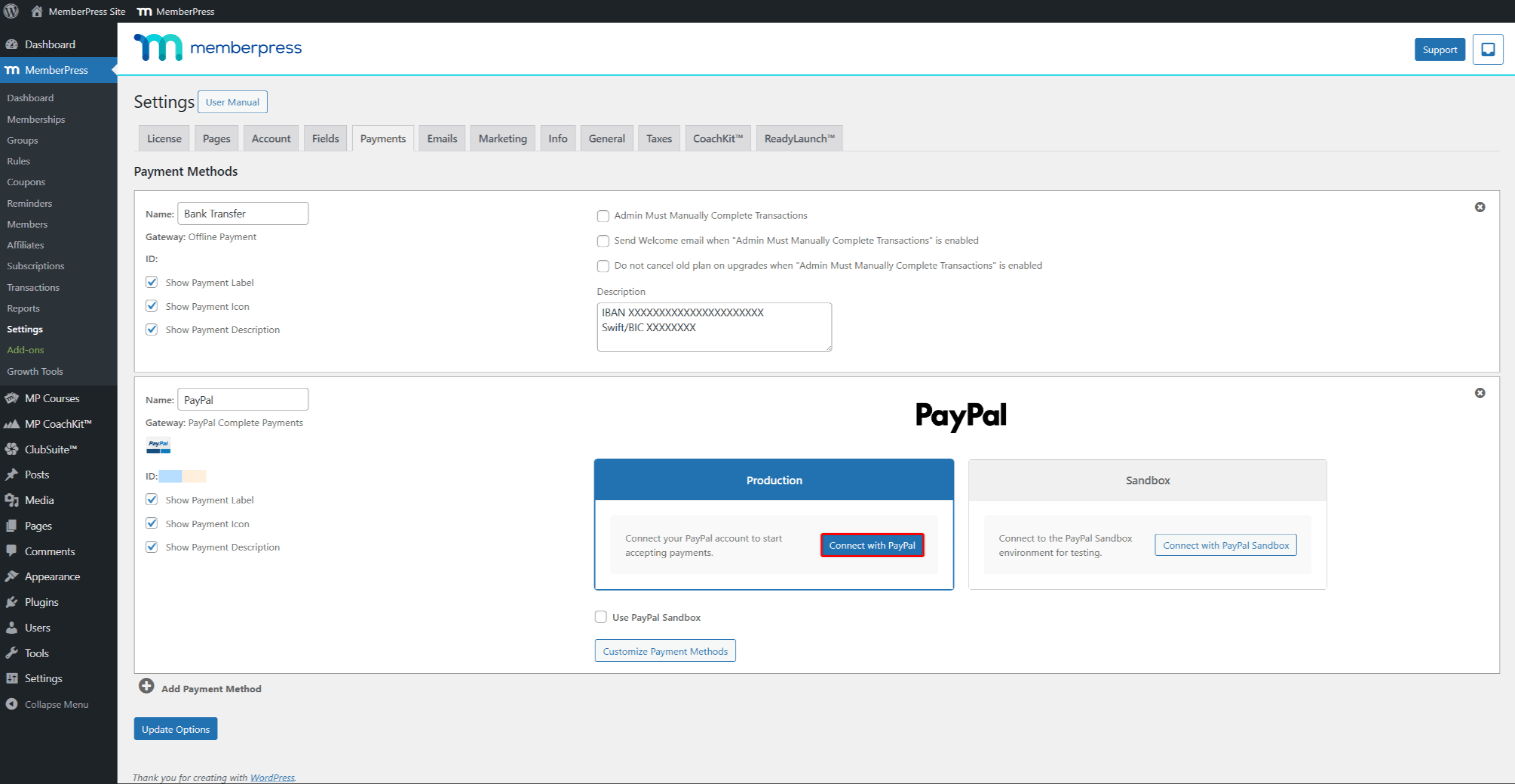
- Uma janela do PayPal será aberta. Faça login com os detalhes de sua conta do PayPal Business.
- Siga as etapas na tela para conceder permissões ao MemberPress.
- Clique no botão de confirmação final no PayPal para concluir a conexão.
- Depois disso, o PayPal será redirecionado para a página de configurações do MemberPress. A conexão é salva por si só.
- Clique no botão Opções de atualização para salvar suas configurações.
Uma conexão bem-sucedida mostra Conectado e o status do PayPal ID do comerciante. Você também verá um Desconectar se você precisar remover a conexão posteriormente.
Se a conexão falhar, verifique se a conta PayPal é uma conta Business. Além disso, verifique se o e-mail está confirmado e se o recebimento de pagamentos está ativado.
Configuração de métodos de pagamento
O gateway PayPal Complete Payments permite que você controle quais métodos de pagamento aparecem nas páginas de registro. Para acessar essas configurações:
- Ir para Painel de controle > MemberPress > Configurações > Pagamentos guia.
- Clique no gateway PayPal Complete Payments para expandir suas configurações.
- Clique no botão Personalizar métodos de pagamento abaixo das seções Production e Sandbox.
Será aberta uma janela pop-up na qual você poderá ativar ou desativar diferentes opções de pagamento.
Botões de pagamento
Você pode ativar ou desativar os botões de pagamento na seção Botões seção:
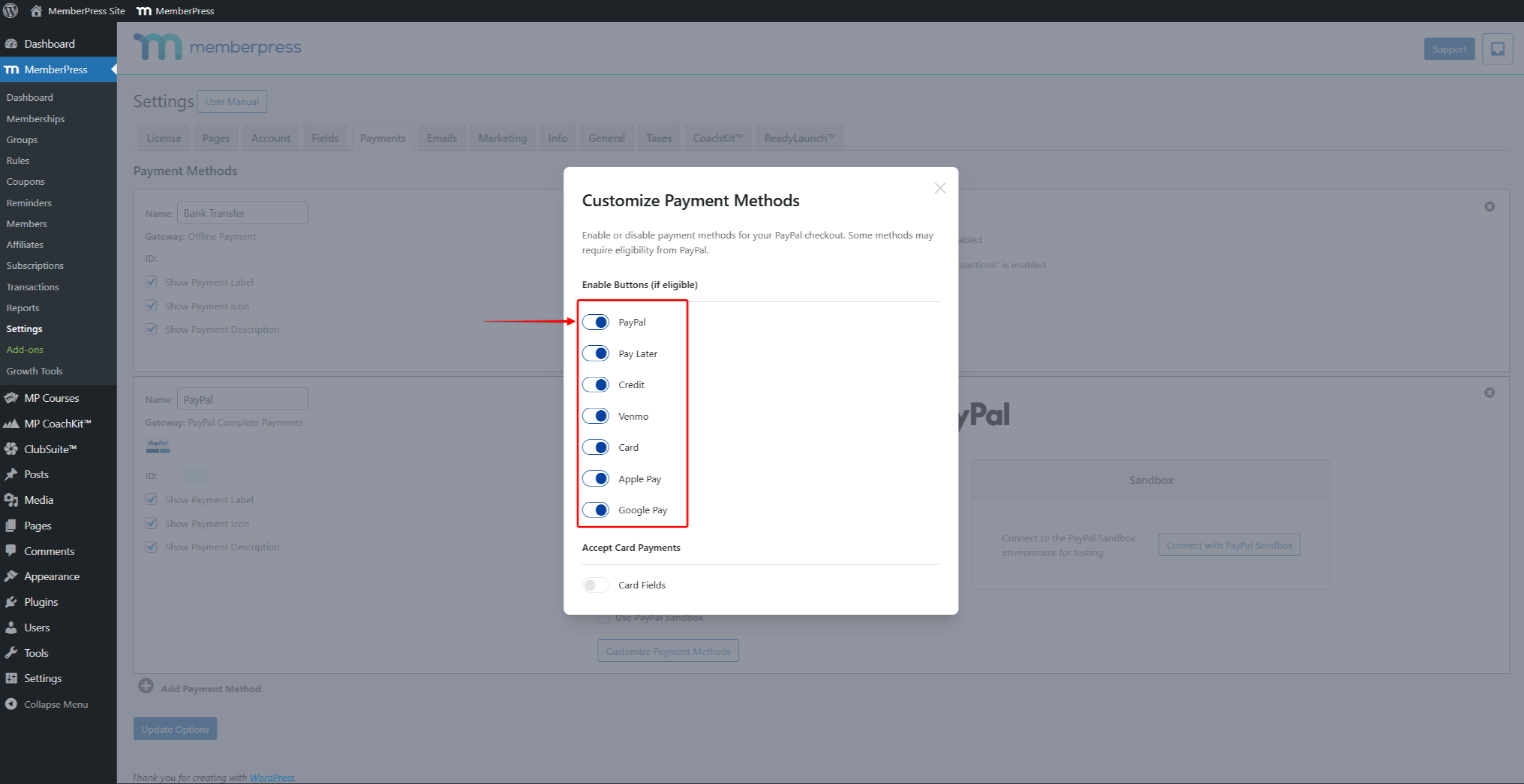
- PayPal - Checkout padrão PayPal;
- Pagar depois - Permite que os compradores distribuam os pagamentos ao longo do tempo;
- Crédito - PayPal Opção de financiamento de crédito;
- Venmo - Método de pagamento somente nos EUA por meio do aplicativo Venmo;
- Cartão - Mostra um botão “Cartão de débito ou crédito” que se expande para os campos do cartão;
- Apple Pay - Requer configuração na conta PayPal do comerciante;
- Google Pay - Somente pagamentos únicos (não é compatível com pagamentos recorrentes).
Opções de cartão
O gateway oferece duas opções para aceitar pagamentos com cartão:
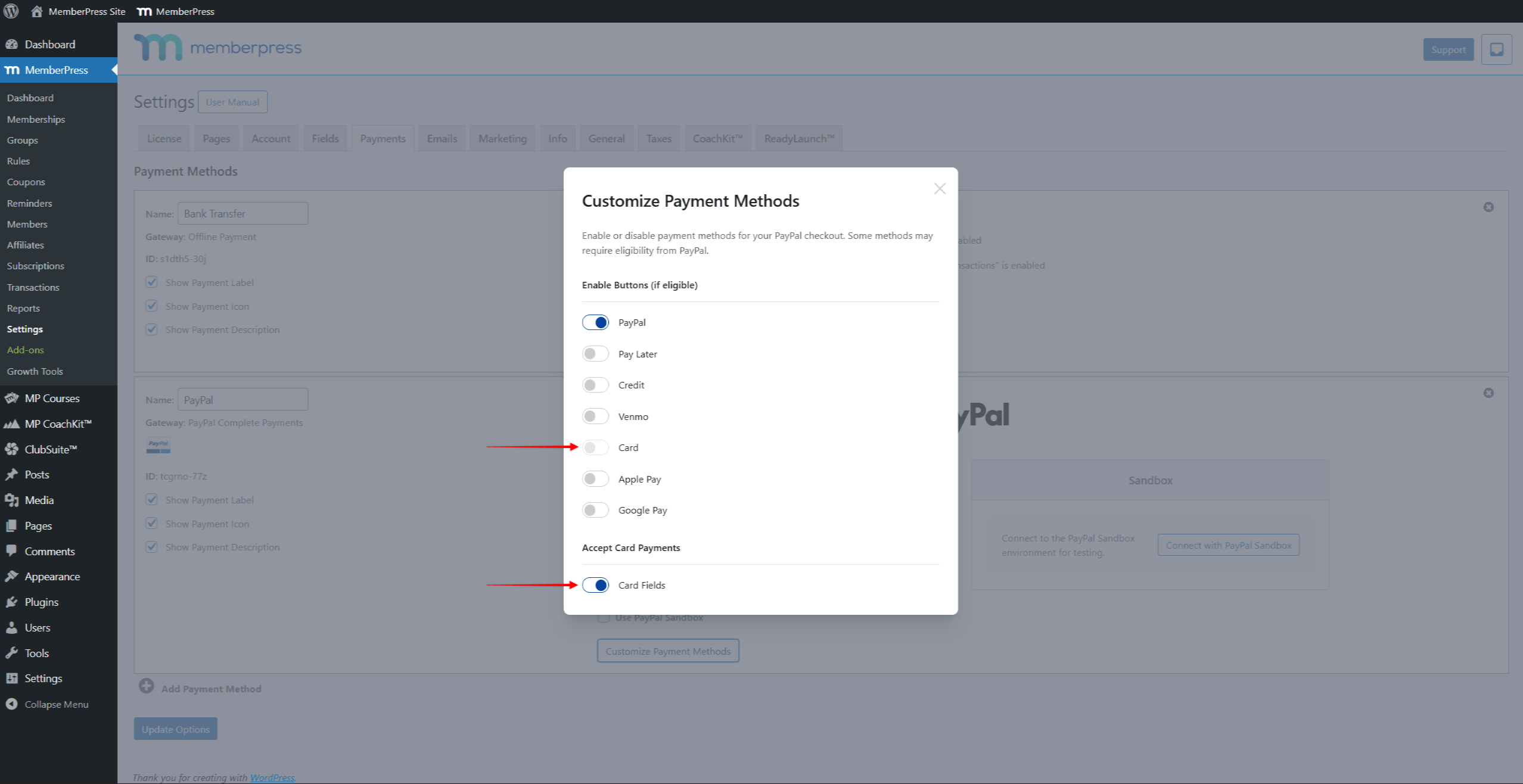
Cartão mostra um botão chamado “Debit or Credit Card” (Cartão de débito ou crédito). Quando clicado, ele se expande para mostrar os campos de entrada do cartão. Essa opção dá uma aparência mais limpa no início.
Campos do cartão mostra os campos de entrada do cartão diretamente na página de registro. Os membros veem o número do cartão, a data de validade e os campos CVV imediatamente.
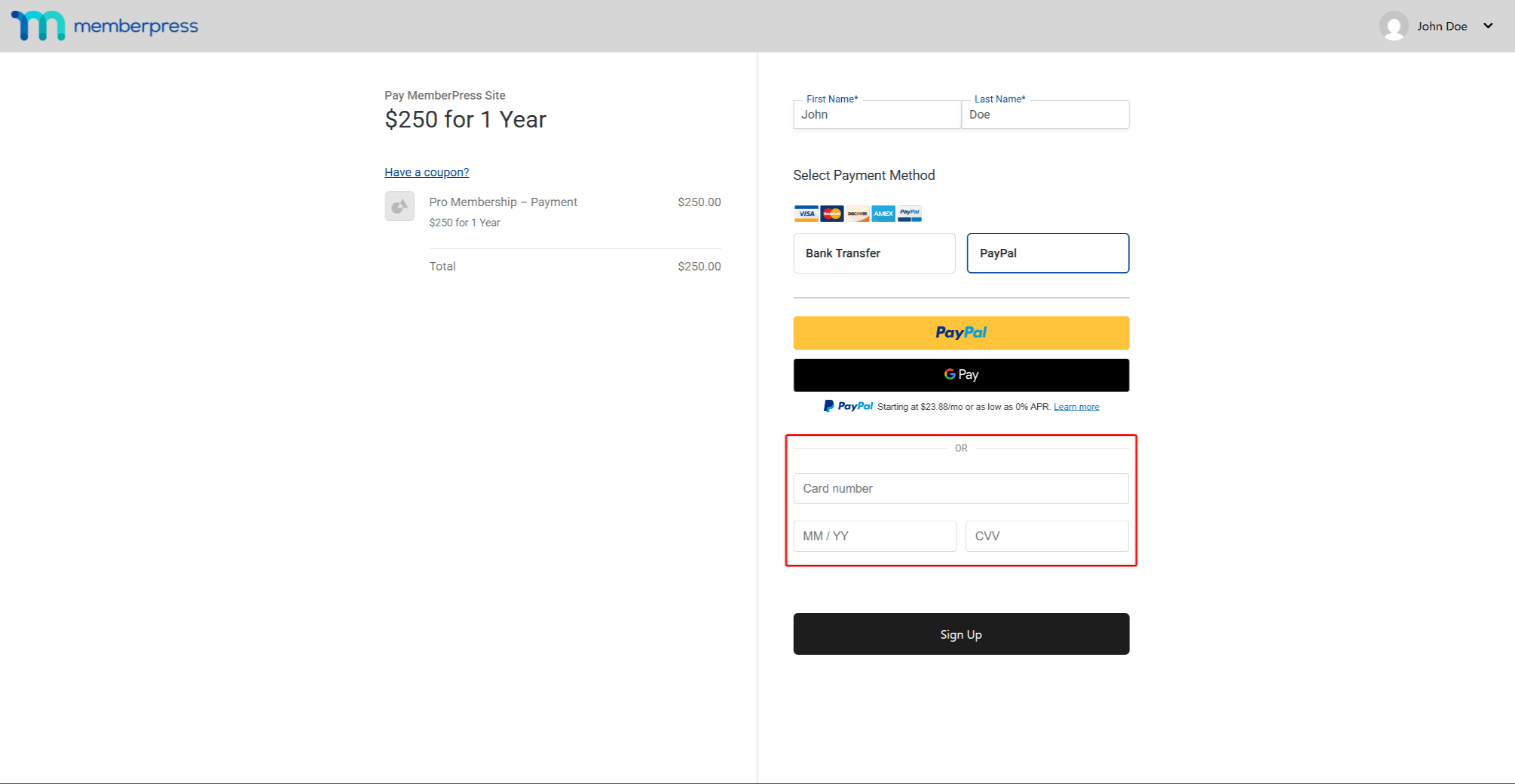
Comportamento do botão Enviar
Quando os campos de cartão estão desativados, o botão padrão de envio MemberPress fica oculto. Nesse caso, os membros devem clicar em um dos botões PayPal para concluir o registro.
Quando os campos de cartão estão ativados, o botão de envio permanece visível. Os membros podem então usar um botão PayPal ou inserir os detalhes do cartão e clicar em enviar.
Disponibilidade do método de pagamento
O PayPal decide quais métodos de pagamento serão exibidos com base no país do comprador, na moeda e no tipo de compra.
| Método de pagamento | Limites |
|---|---|
| PayPal | A maioria das moedas é compatível |
| Venmo | Somente compradores dos EUA e do dólar americano |
| Pagar depois | Somente USD, GBP, EUR, AUD |
| Google Pay | Apenas pagamentos únicos |
| Apple Pay | Requer configuração do comerciante |
Além disso, o PayPal oculta os métodos que não funcionam quando as associações recorrentes incluem aumentos de pedidos.
Uso do PayPal Complete Payments nas páginas de registro
Uma vez conectado, a opção PayPal Complete Payments aparece nas páginas de registro de associação.
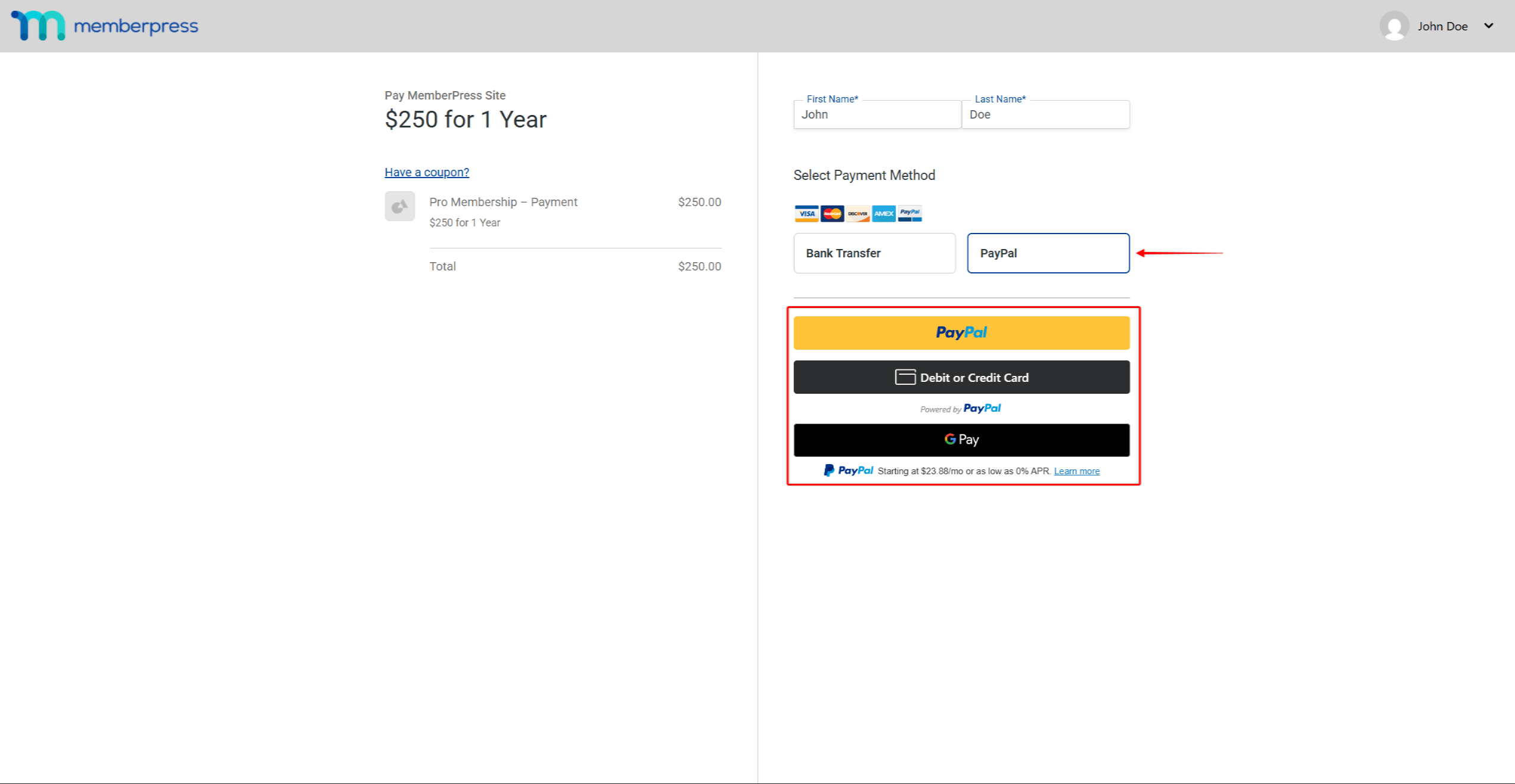
Quando os associados pagam usando o PayPal Complete Payments, todas as transações são sincronizadas entre o PayPal e o MemberPress. Você pode visualizar as transações em Painel de controle > MemberPress > Transações. Da mesma forma, você pode gerenciar as assinaturas em Painel de controle > MemberPress > Assinaturas.
Gerenciamento de assinaturas
As assinaturas criadas por meio do PayPal Complete Payments funcionam de forma diferente de outros gateways de pagamento.
Exibição de assinatura no PayPal
Os pagamentos aparecem como cobranças únicas no painel do PayPal. Isso acontece porque o MemberPress gerencia o cronograma de cobrança por conta própria. O sistema armazena os métodos de pagamento de forma segura e cobra dos membros nas datas de renovação.
Renovações automáticas
O serviço MemberPress inicia todos os pagamentos de renovação automaticamente. Essas renovações são executadas de acordo com o cronograma definido quando o membro fez a assinatura pela primeira vez. Os termos da assinatura não podem ser modificados após a compra inicial.
Para alterar os termos da assinatura (preço, ciclo de faturamento, etc.), a assinatura existente deve ser cancelada. Em seguida, o membro precisa se registrar novamente sob as novas condições.
Para cancelar as assinaturas do PayPal Complete Payments, siga as etapas na seção documentação de cancelamento de assinaturas. Sempre cancele pelo MemberPress, não pelo PayPal.
Reembolsos
O PayPal Complete Payments suporta a sincronização de reembolsos entre o PayPal e o MemberPress.
Para processar reembolsos, siga as etapas na seção reembolso de uma documentação de transação. O MemberPress envia a solicitação de reembolso para o PayPal, e ambos os sistemas são atualizados automaticamente. Os reembolsos feitos diretamente no PayPal também são sincronizados com o MemberPress.
Reembolsos parciais
O PayPal aceita reembolsos parciais. No entanto, o MemberPress marca a transação como totalmente reembolsada, independentemente do valor. Para lidar com isso, processe primeiro o reembolso parcial no PayPal. Em seguida, ajuste manualmente o status da transação no MemberPress em Painel de controle > MemberPress > Transações.
Pedidos de colisões
O gateway suporta Pedidos de bônus para associações recorrentes. Quando um membro adiciona um aumento de pedido, todas as cobranças são combinadas em uma única transação. O pop-up PayPal mostra um detalhamento de todas as cobranças.
Os métodos de pagamento que não são compatíveis com economia (como o Google Pay) ficam ocultos quando há saltos de pedidos. O MemberPress programa renovações separadas para cada assinatura com base em seus termos de cobrança.
Para reembolsar os aumentos de pedidos, você precisa processar o reembolso no PayPal. Em seguida, ajuste manualmente as transações do MemberPress.
Solução de problemas
Não é possível conectar a conta PayPal - Verifique se a conta é uma conta comercial com um e-mail verificado. Além disso, verifique se o recebimento de pagamentos está ativado. Tente limpar o cache do navegador e tente novamente.
Os botões de pagamento não estão sendo exibidos - Primeiro, verifique se os métodos de pagamento estão ativados nas configurações do gateway. Em seguida, verifique se a moeda funciona com os métodos habilitados. Além disso, teste em um navegador diferente e verifique se há erros de JavaScript.
Falta de um botão específico (por exemplo, Venmo) – Verifique se a localização do comprador é compatível com esse método de pagamento. Além disso, verifique se o recurso está habilitado na conta PayPal do comerciante.
Transação não criada após o pagamento - Verifique se há transações pendentes em Painel de controle > MemberPress > Transações. Além disso, verifique se nenhum firewall ou plug-in de segurança bloqueia o PayPal. Verifique se há erros no registro de depuração do WordPress.
Perguntas frequentes
As assinaturas existentes do PayPal Standard podem ser transferidas para o PayPal Complete Payments?
Não, não há como mover assinaturas entre gateways. Em vez disso, mantenha o PayPal Standard ativo (oculto para novas inscrições) para as assinaturas existentes.
Esse gateway oferece suporte a avaliações gratuitas?
Sim, isso acontece. Nenhuma transação aparece no PayPal durante o período de teste. O faturamento começa quando o período de teste termina.
Por que as assinaturas aparecem como pagamentos únicos no PayPal?
O MemberPress gerencia o faturamento separadamente do sistema de assinaturas do PayPal. Consequentemente, os pagamentos aparecem como cobranças únicas a cada renovação.
Os membros podem atualizar seu método de pagamento?
Sim, eles podem. Os membros podem atualizar seu método de pagamento por meio da seção Página da conta no MemberPress.
O que acontece se um pagamento de renovação falhar?
O MemberPress tenta novamente os pagamentos com falha com base no cronograma definido. Os membros recebem um aviso sobre as falhas. Após várias falhas, a assinatura expira.










 PT
PT  EN
EN  ES
ES  FR
FR  DE
DE 