

Quiz retakes let students submit a MemberPress Courses quiz more than once. MemberPress saves every attempt and counts one of them toward the student’s grade.
This document explains how quiz retakes and attempt history work. It covers the retake settings, what students see, and how to review or delete attempts.
Requisitos
Quiz retakes and attempt history use the following add-ons:
- MemberPress Courses, activated and set up;
- MemberPress Course Quizzes, to create quizzes for your courses;
- MemberPress Course Gradebook, to grade attempts and review attempt history in the course gradebook.
Attempt history requires MemberPress Courses 1.6.0, MemberPress Course Quizzes 1.3.0, and MemberPress Course Gradebook 1.3.0 or later.
How Quiz Retakes and Attempt History Work
A quiz attempt is one submission of a quiz. By default, each student can submit a quiz only once.
With retakes enabled, the student can submit the quiz again, up to the retake limit. MemberPress saves each attempt as a separate record with its own answers and score.
Before attempt history, MemberPress Courses stored a single attempt per student and quiz. Each retake replaced the previous result.
O KEEP setting decides which attempt counts toward the grade. MemberPress applies this setting each time it shows the grade. Thus, all attempts stay available, whichever option you choose.
Setting Up Quiz Retakes
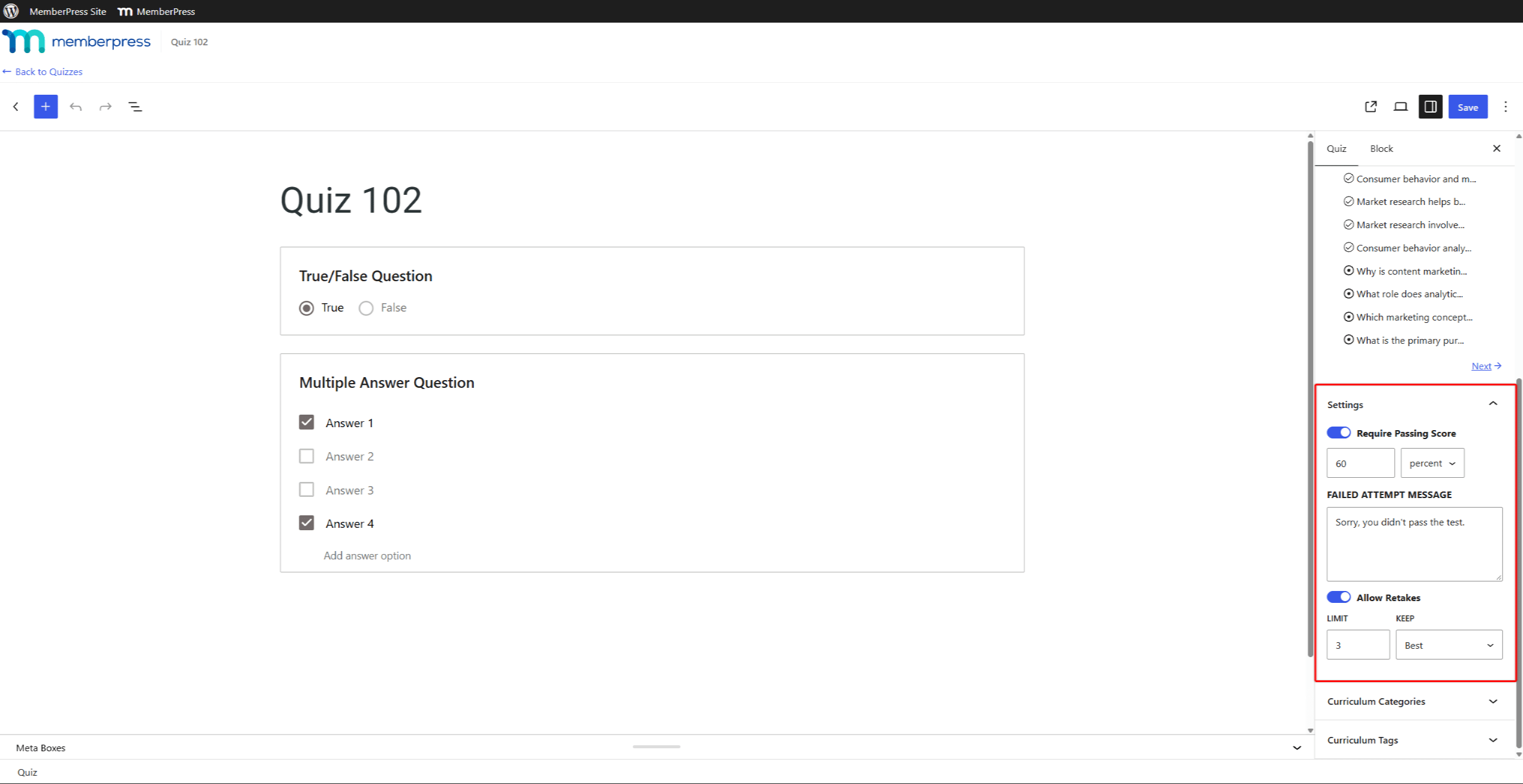
Each quiz has its own retake settings in the Configurações panel of the quiz editor sidebar. To enable them, follow the steps for allowing quiz retakes.
The retake settings include:
- Permitir repetições: enables retakes for the quiz. This option is off by default;
- LIMIT: sets how many retakes a student can take after the first attempt. The default is 1;
- KEEP: selects the attempt that counts toward the grade. Choose Mais recentes (the default) or Melhor.
For example, a limit of 3 gives each student four attempts in total. These are the first attempt and three retakes.
What Students See
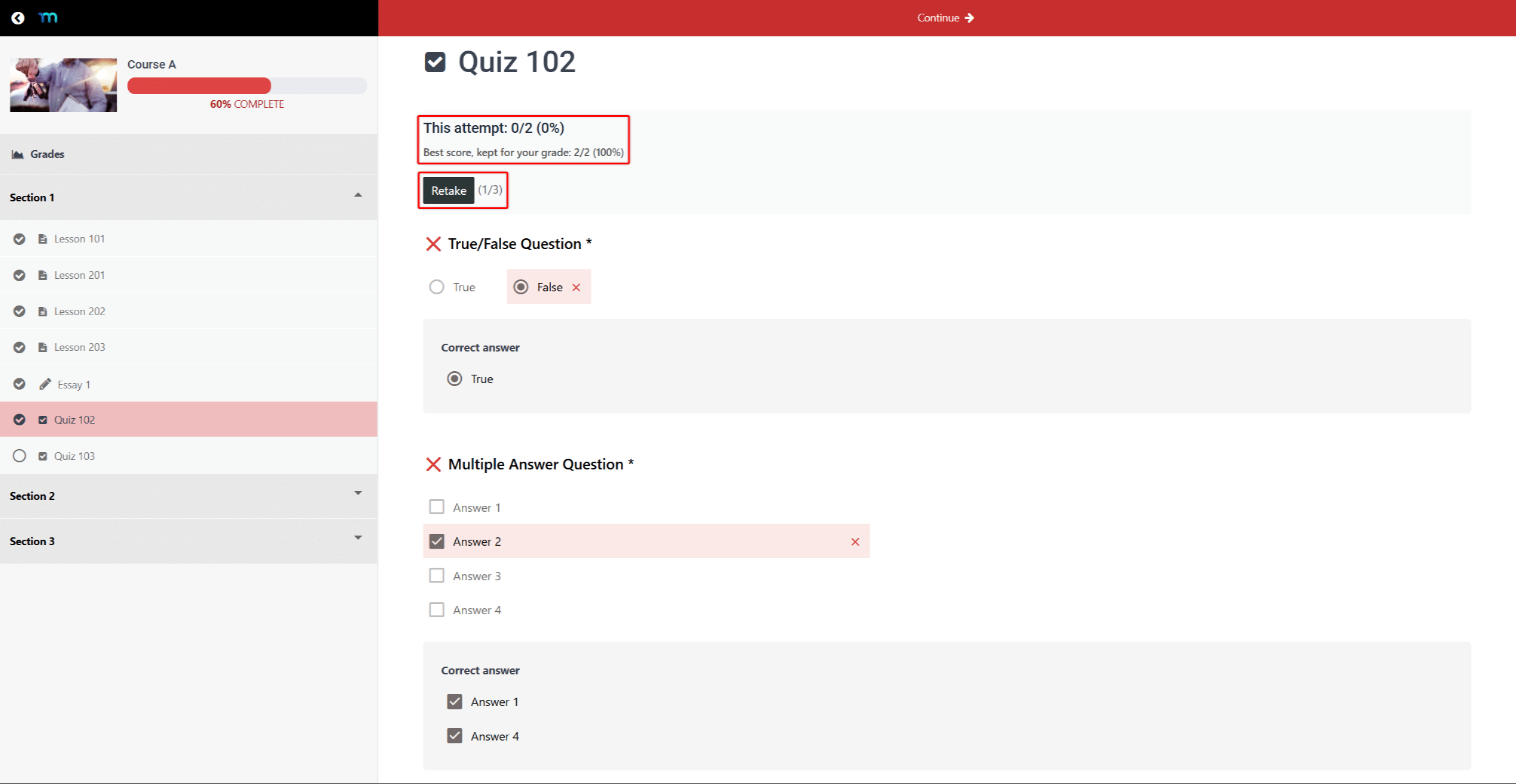
After submitting a quiz, the student sees the result, the Retake button, and a retake counter. The counter shows used retakes out of the limit. For example, “(1/3)” means the student used one of three retakes.
Clicando em Retake opens a new, blank attempt. The result page always shows the most recent attempt.
On quizzes with KEEP set to Melhor, a lower retake doesn’t replace the best score. In this case, the result shows two scores:
- “This attempt:”: the score of the most recent attempt;
- “Best score, kept for your grade:”: the score that counts toward the grade.
When the latest attempt is also the best one, the result shows a single “Score:” linha.
If the quiz requires a passing score, a failed retake doesn’t show the failed attempt message while the best score still passes.
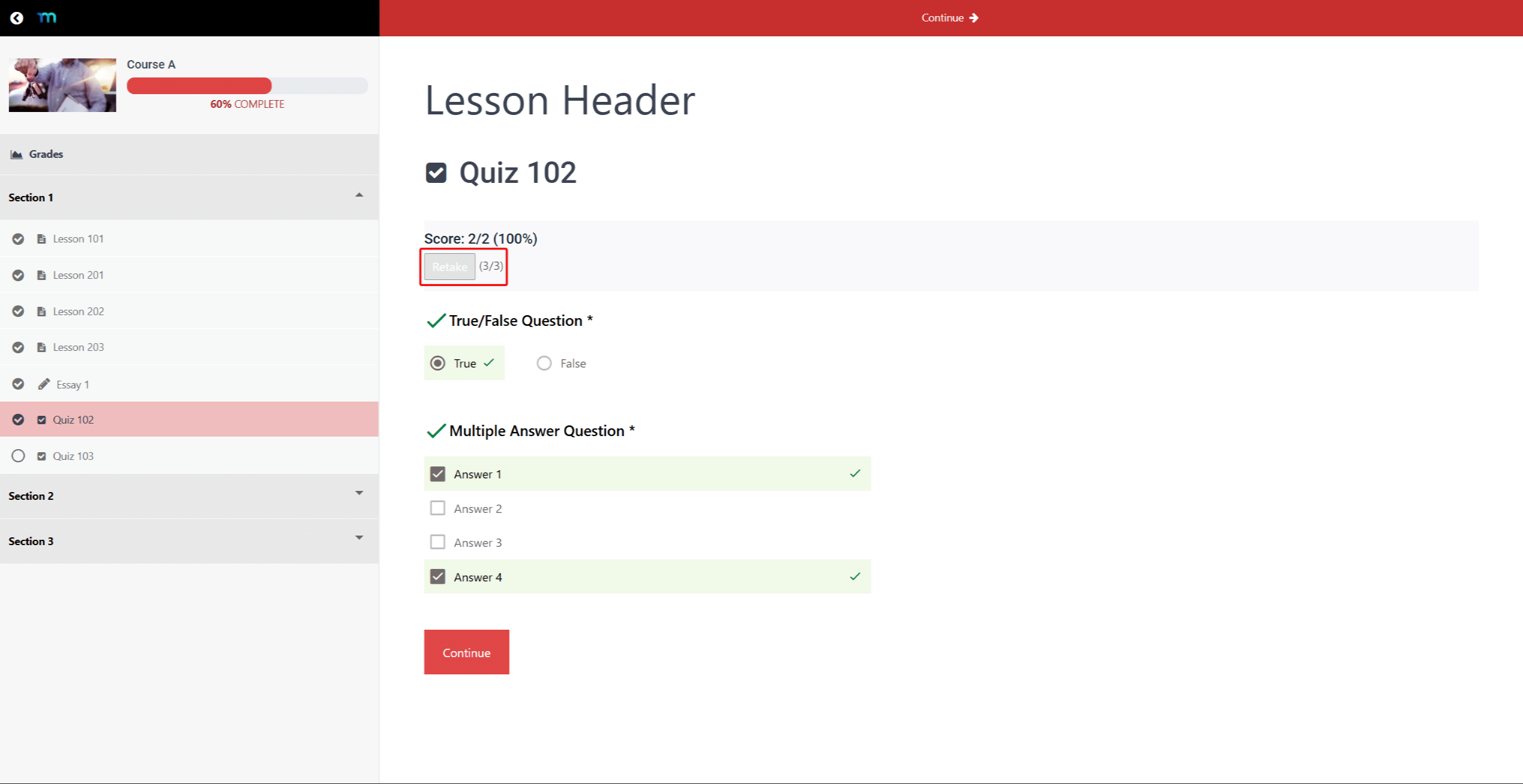
Once the student uses all retakes, MemberPress disables the Retake button. The counter shows the full limit, such as “(3/3)”.
O deleting attempts section explains how to give the student another retake.
How MemberPress Chooses the Attempt That Counts
O KEEP setting decides which attempt counts toward the grade:
- Mais recentes: the most recent submitted attempt counts, even if its score is lower;
- Melhor: the attempt with the highest percentage score counts. If two attempts share the highest score, the more recent one counts.
Reviewing Student Attempts
MemberPress offers two places to review attempts. Without the Course Gradebook add-on, you use the Quiz Attempts page. With the Gradebook add-on active, you review and grade attempts in the Gradebook.
Quiz Attempts Page
The Quiz Attempts page lists every submitted attempt for one quiz. It is also part of tracking student progress in MemberPress Courses. If the Gradebook add-on is active, the steps below open the Gradebook instead, filtered to the quiz.
To open the Quiz Attempts page, follow these steps:
- Navegue até Painel de controle > Cursos MP > Cursos, and open the course for editing.
- Clique no botão Currículo guia.
- Hover over the quiz, and click Exibir tentativas.
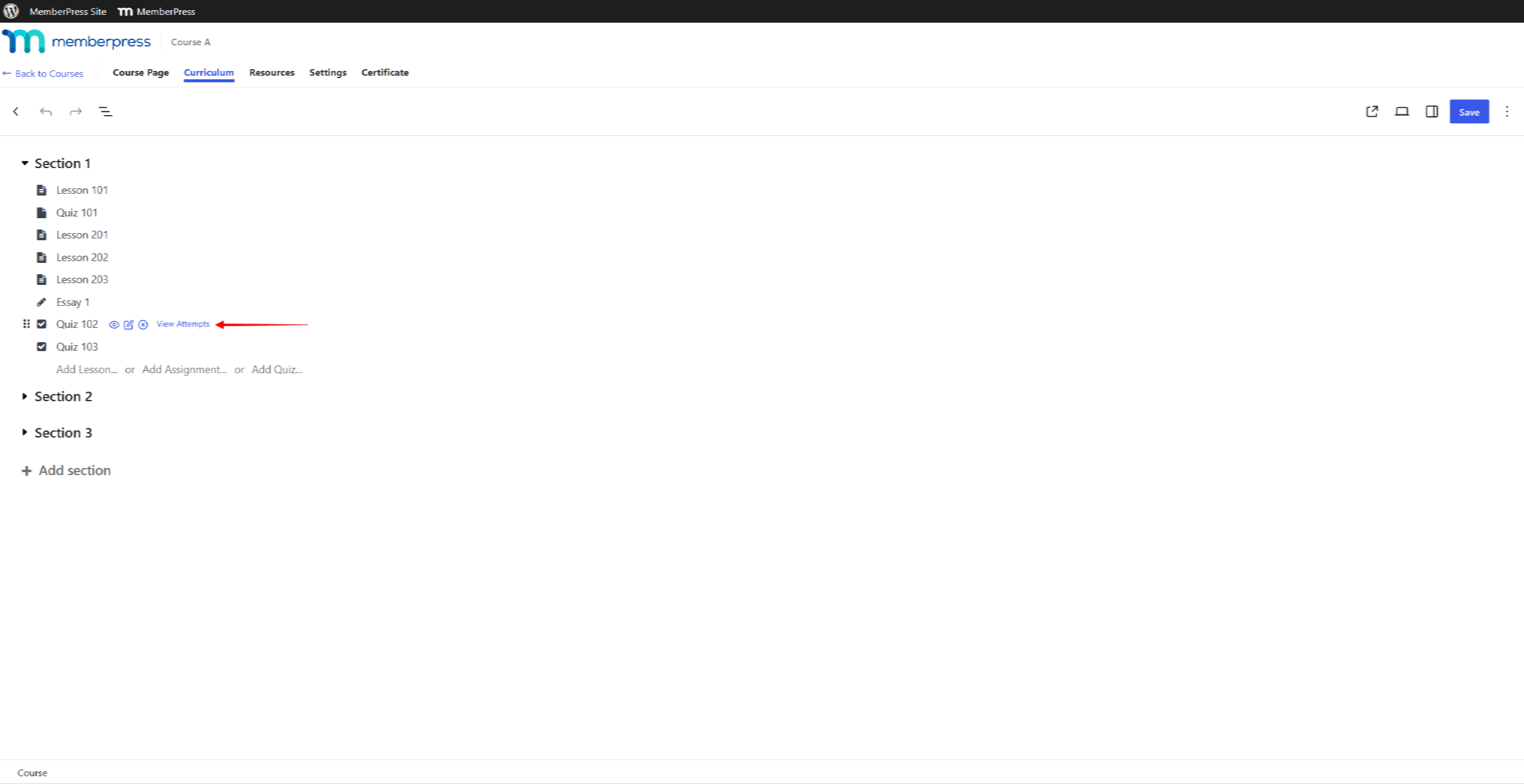
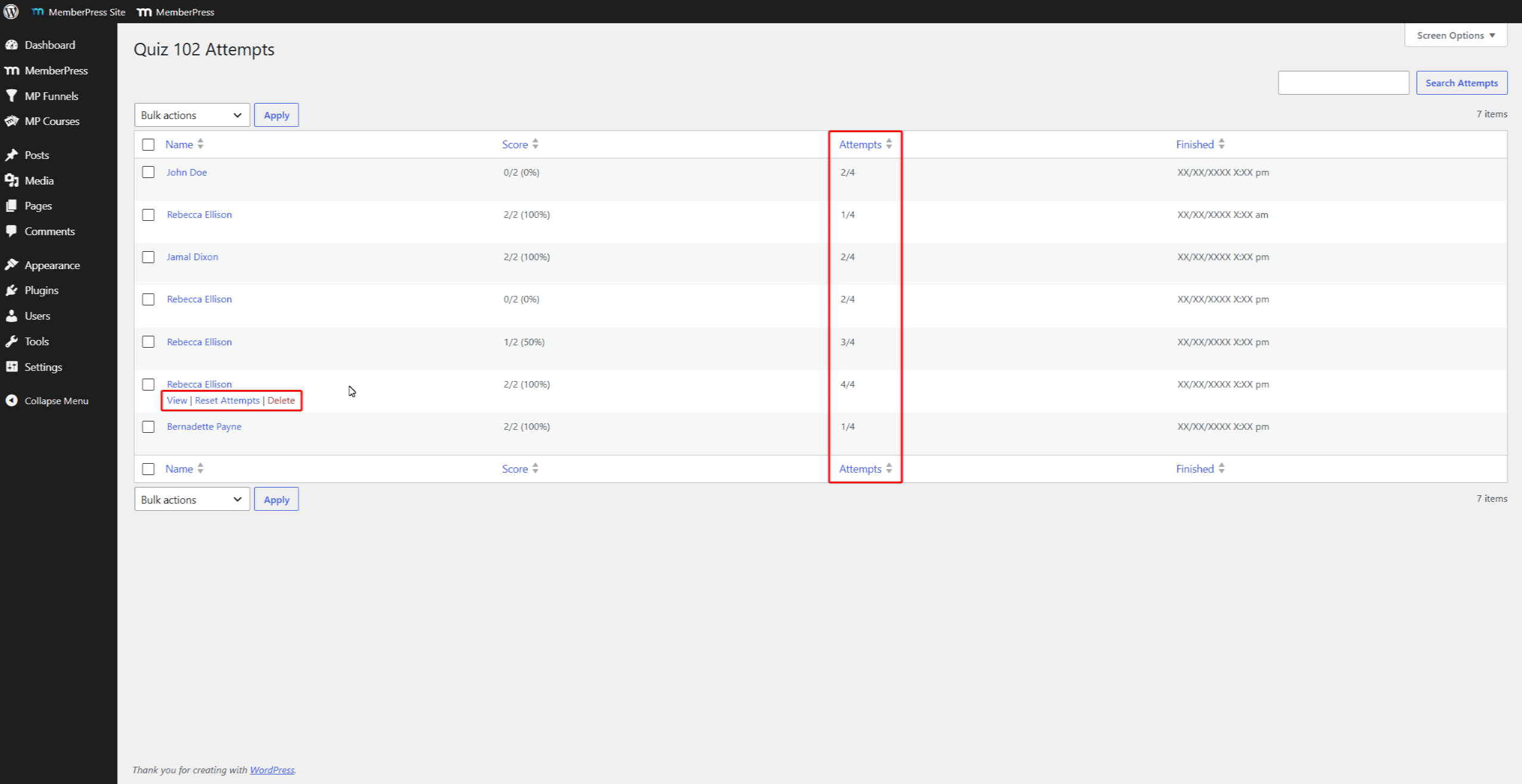
The page shows one row per attempt, with the Nome, Score, Tentativase Finished columns. The Tentativas column shows the attempt number out of the total allowed attempts. For example, “2/4” marks the second of four possible attempts.
Hover over a row to show the Ver, Tentativas de reinicializaçãoe Excluir actions. Ver opens the student’s answers for that attempt. The Quiz Attempts page doesn’t include grading fields.
Attempt History in the Gradebook
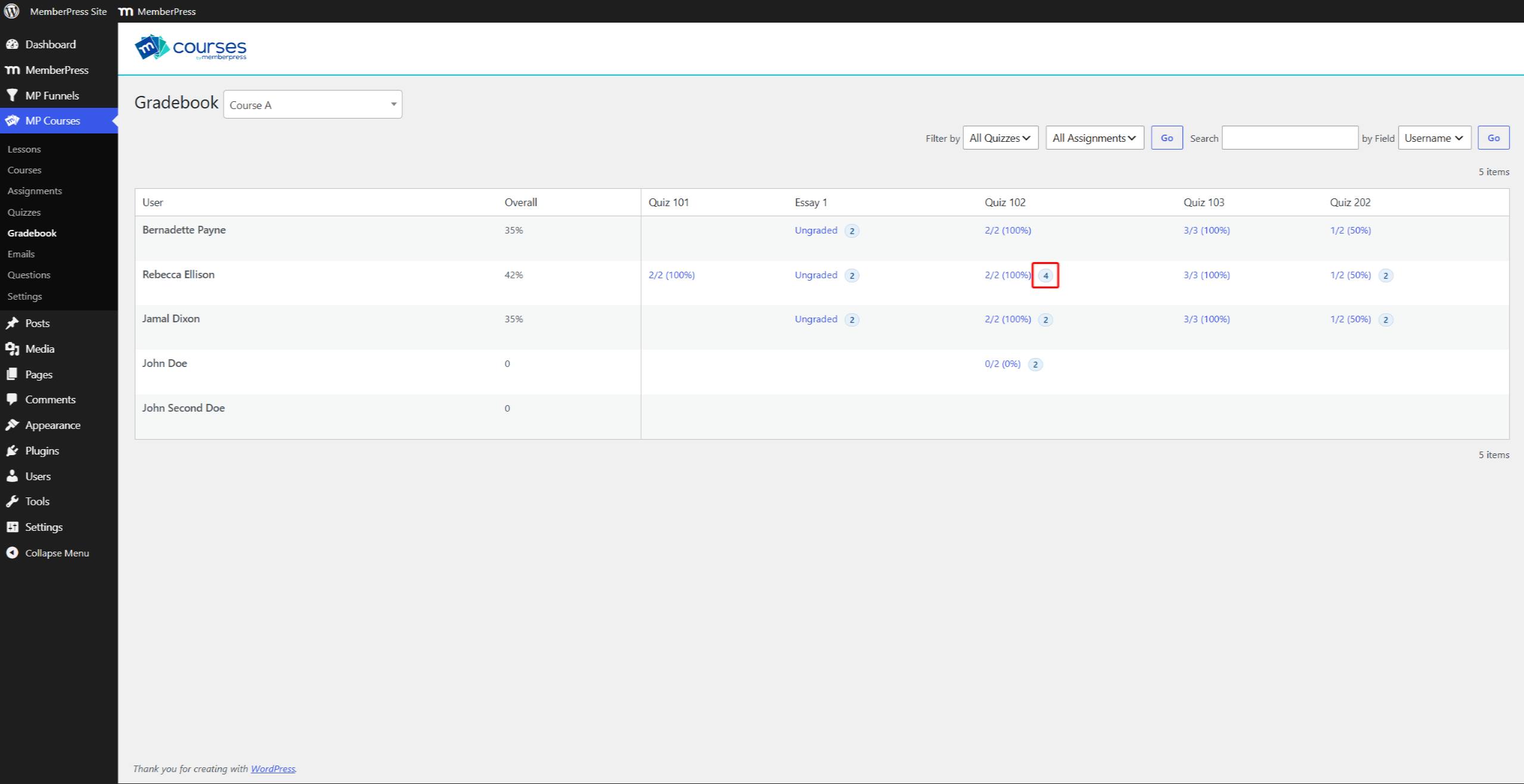
In the Gradebook, each quiz cell shows the grade of the attempt that counts. When a student has more than one attempt, a number badge appears next to the grade. The badge shows how many attempts the student made.
To review a student’s attempt history, follow these steps:
- Navegue até Painel de controle > Cursos MP > Boletim de notas, and select the course.
- Click the number badge next to the student’s quiz grade.
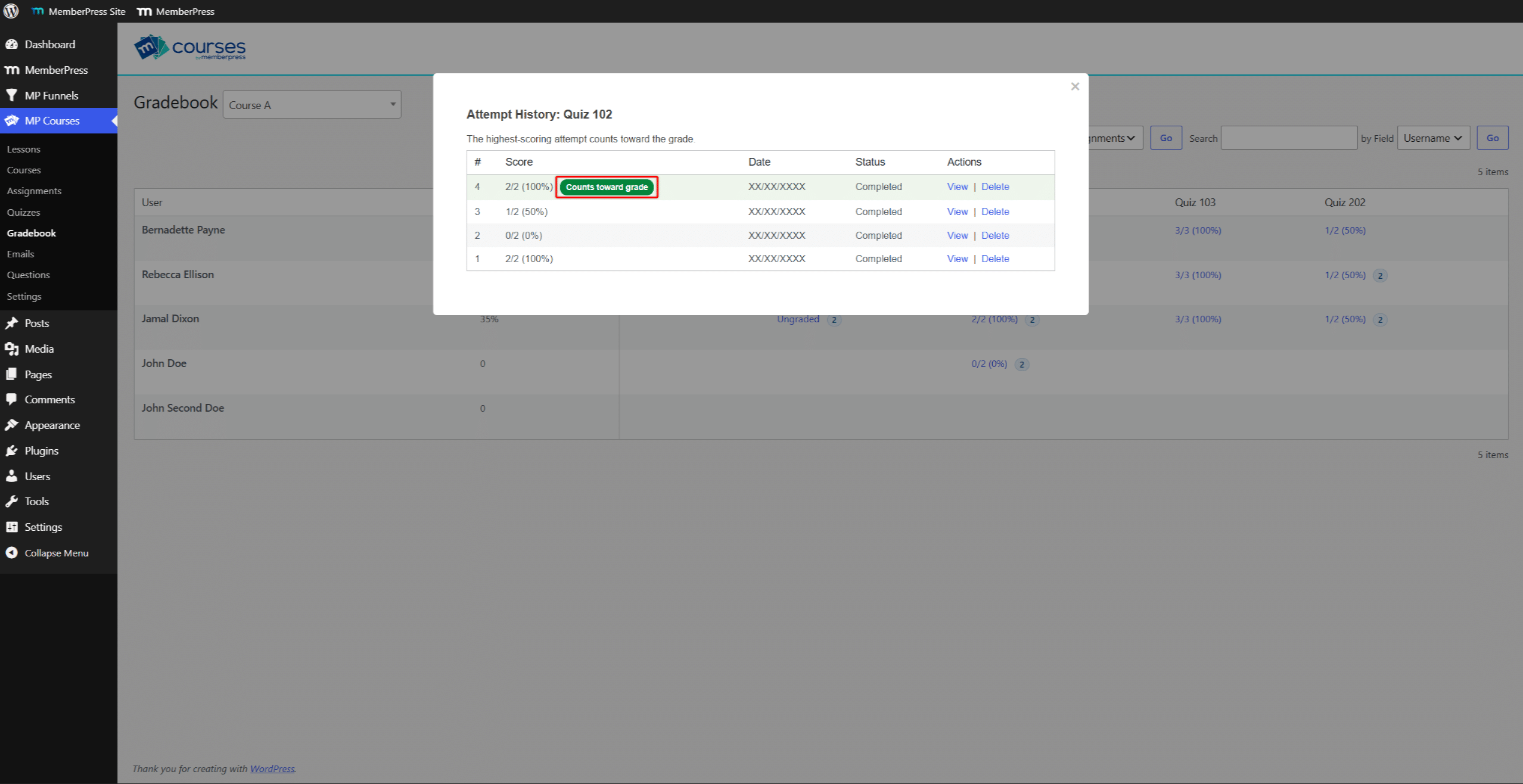
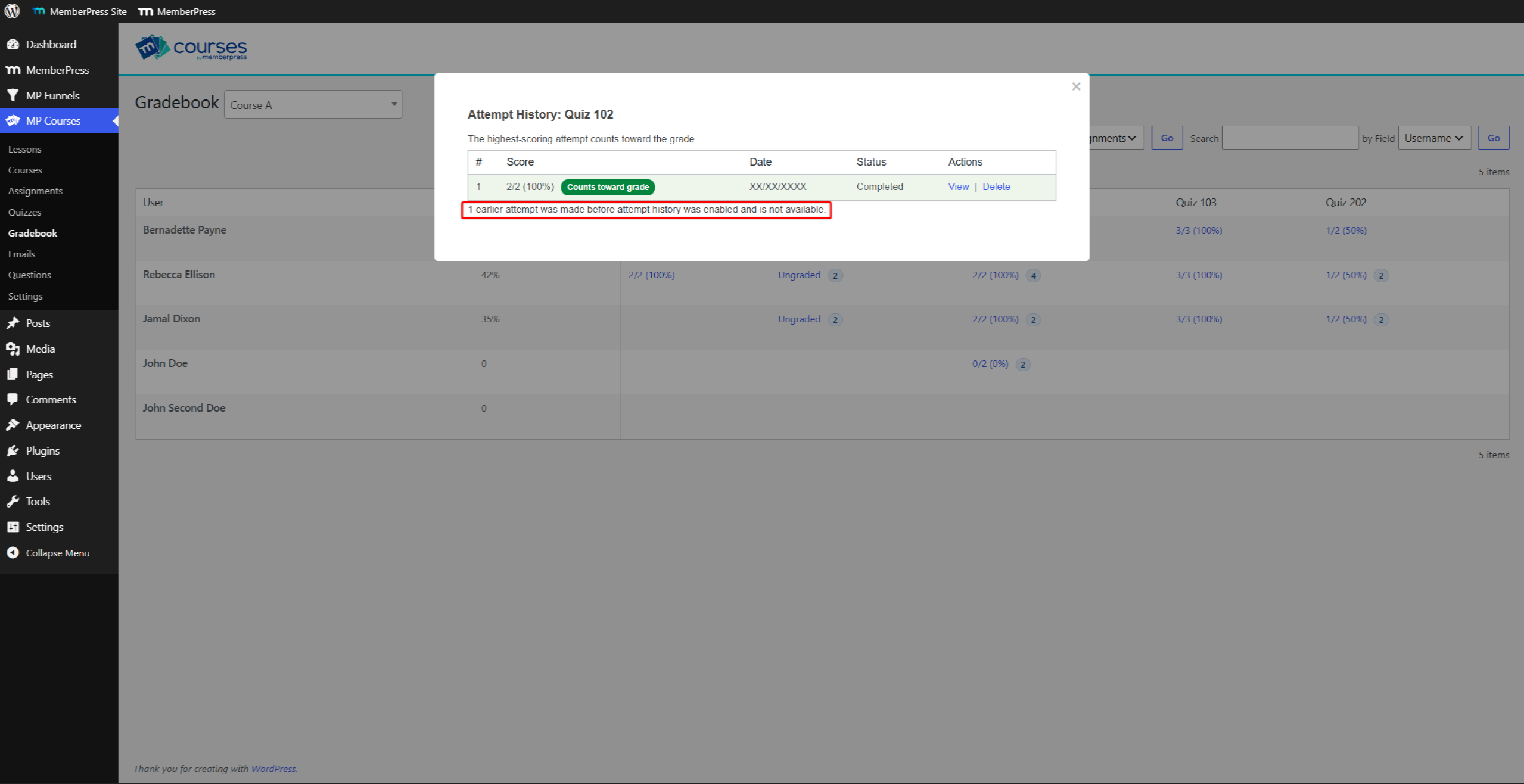
O “Attempt History” window lists all attempts, newest first. It shows the #, Score, Data, Statuse Ações columns. A green “Counts toward grade” label marks the attempt that counts.
Above the table, a line states the rule for the quiz. It reads “The most recent attempt counts toward the grade.” ou “The highest-scoring attempt counts toward the grade.”
- Clique em Ver next to an attempt to open its answers.
- Clique em Previous ou Próximo to move between the student’s attempts.
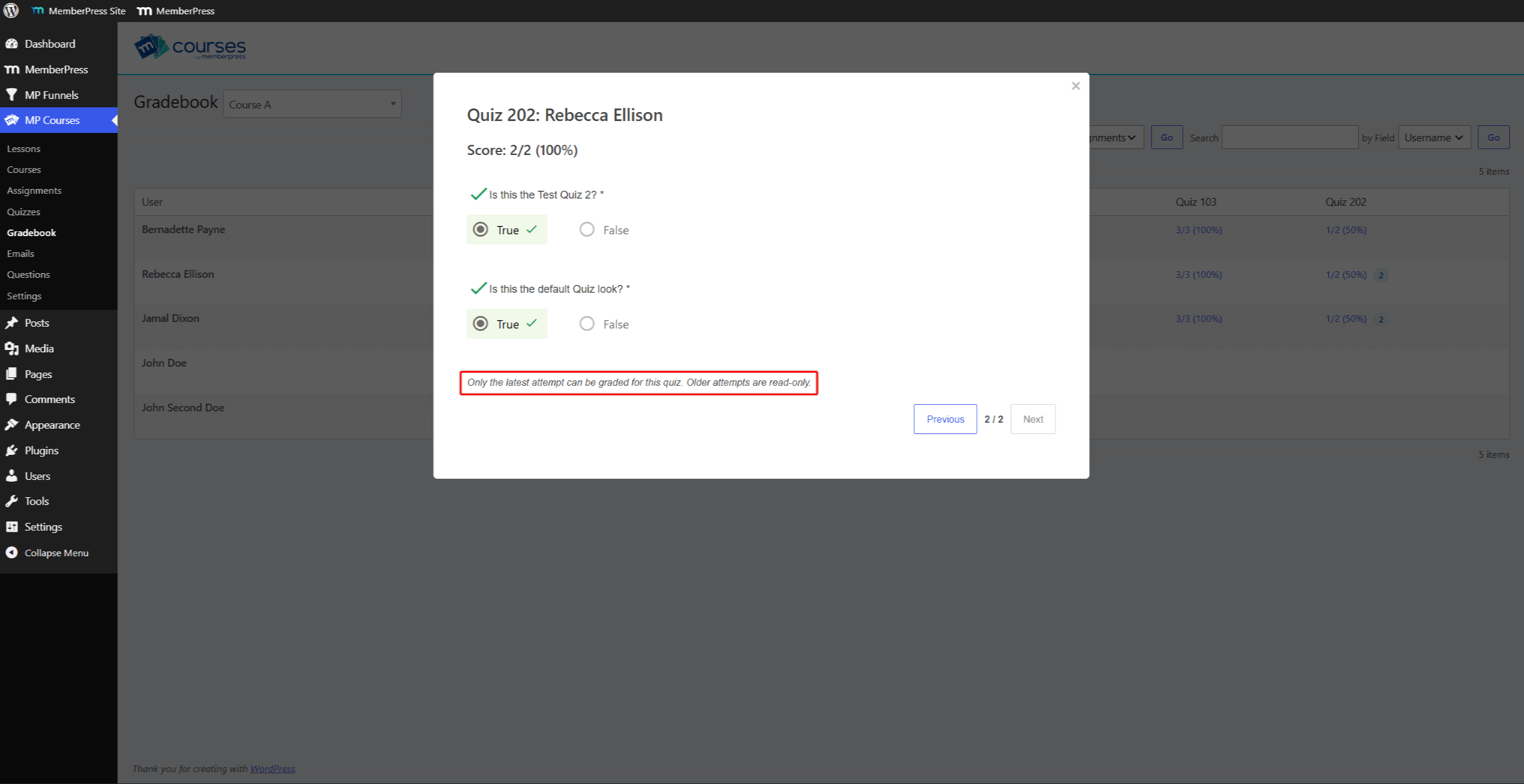
Grading options depend on the KEEP setting:
- Mais recentes: you can grade only the most recent attempt. Older attempts show the “Only the latest attempt can be graded for this quiz. Older attempts are read-only.” message;
- Melhor: you can grade any attempt.
The grading window works as described in grading quizzes in the Gradebook.
Deleting Attempts
You can delete a single attempt or all of a student’s attempts for a quiz. MemberPress can’t restore deleted attempts.
Deleting a Single Attempt
Deleting one attempt removes its answers and score. The student gets one retake back. If the student has another completed attempt, the quiz stays complete.
To delete a single attempt, follow these steps:
- Open the student’s “Attempt History” window in the Gradebook.
- Clique em Excluir next to the attempt.
- Clique em OK in the confirmation window.
O Excluir action on the Quiz Attempts page removes a single attempt in the same way.
Deleting All Attempts
Deleting all attempts lets the student start the quiz over. MemberPress also removes the quiz completion, so the student’s course progress decreases.
To delete all of a student’s attempts for a quiz, follow these steps:
- Navegue até Painel de controle > Cursos MP > Boletim de notas, and select the course.
- Hover over the student’s quiz grade, and click Delete all.
- Clique em OK in the confirmation window.
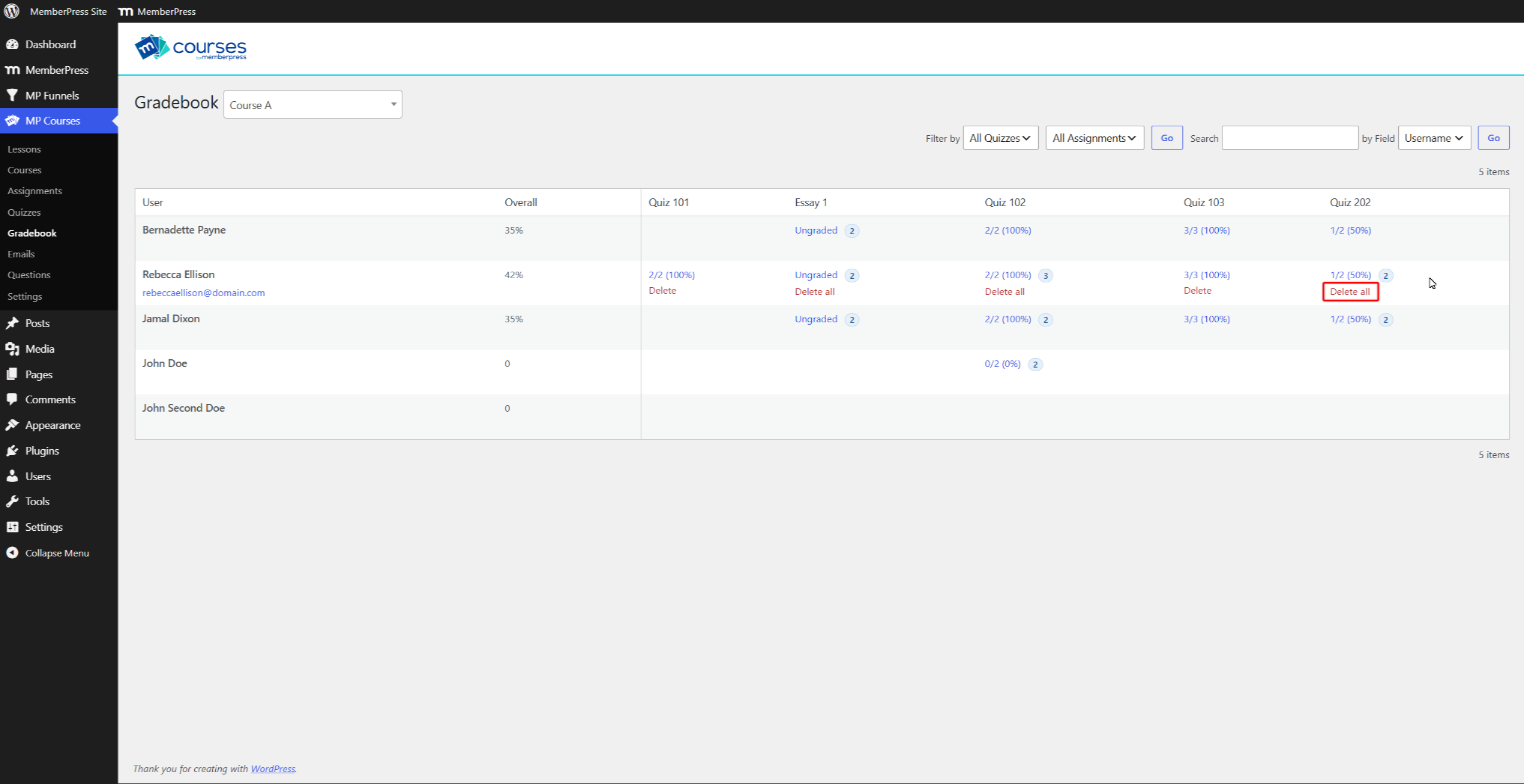
O Tentativas de reinicialização action on the Quiz Attempts page also deletes all of the student’s attempts for that quiz.
Attempts Made Before Attempt History
Before attempt history, MemberPress stored one attempt per student and quiz. After the update, that stored attempt appears as the only row in the history.
MemberPress still counts the earlier retakes toward the limit. A line under the history table reports the missing attempts. For example: “1 earlier attempt was made before attempt history was enabled and is not available.”










 PT
PT  EN
EN  ES
ES  FR
FR  DE
DE 