

Ihr Mitgliedschaften, Schutz der Inhalteund Zahlungsverfahren sind jetzt eingerichtet. Wenn Sie auf Ihrer Website Communities aufbauen möchten, können Sie mit den MemberPress ClubSuite™ Add-Ons Ihre Mitglieder miteinander verbinden.
MemberPress ClubSuite™ Add-ons erweitern Ihre Website um Netzwerk- und Kommunikationsfunktionen. Mit ihnen können Sie Mitgliederverzeichnisse, Gemeinschaftsbereiche und Echtzeit-Nachrichten erstellen.
Dieses Dokument führt Sie durch die Erstellung von Verzeichnissen und Gemeinschaften. Es deckt den Prozess von der Installation bis zum Start ab und enthält Links zu detaillierten Dokumentationen für jeden Schritt.
Planung Ihrer Verzeichnisse und Gemeinschaften
Planen Sie, wie sich Verzeichnisse und Gemeinschaften in Ihre bestehende Mitgliederstruktur einfügen sollen. Die Entscheidungen, die Sie treffen, werden Ihre Einrichtung bestimmen.
Zu berücksichtigende Fragen
- Welche Mitgliedsstufen sollten in Verzeichnissen erscheinen?
- Sollten alle Mitglieder ein gemeinsames Verzeichnis nutzen, oder brauchen die verschiedenen Ebenen ihr eigenes?
- Werden die Mitglieder ihre eigenen Gemeinschaftsräume (Circles) schaffen oder nur bestehenden beitreten?
- Benötigen die Mitglieder Echtzeitnachrichten oder Chaträume?
- Welche Informationen sollten Mitglieder in ihren Profilen anzeigen?
Die von Ihnen bereits angelegten Mitgliedschaften dienen als Grundlage für den Zugang zum Verzeichnis und zur Gemeinschaft.
Voraussetzungen
Stellen Sie sicher, dass Ihre Website diese Anforderungen erfüllt, bevor Sie beginnen:
- eine aktive MemberPress-Einbau mit einer gültige Lizenz;
- a MemberPress Wachstums- oder Skalenplan Abonnement (Staffelplan für ClubConnect™);
- WordPress Version 5.0 oder höher mit aktiviertem Gutenberg-Editor;
- mindestens eine aktive Mitgliedschaft in MemberPress.
Installation Bestellung
Installieren Sie die ClubSuite™-Zusatzmodule in dieser Reihenfolge:
- ClubDirectory™. zuerst, da Profile und Verzeichnisse die Grundlage bilden;
- ClubCircles™. als nächstes, da Circles von Mitgliederprofilen aus ClubDirectory™ abhängen;
- ClubConnect™. zuletzt, da es Nachrichten zusätzlich zu den Verzeichnissen oder Circles hinzufügt.
Jedes Add-on kann installiert werden von Dashboard > MemberPress > Add-ons. ClubSuite™ Add-ons können auch sein während des MemberPress-Onboarding-Assistenten aktiviert.
Einrichten von ClubDirectory™
Die ClubDirectory™ Zusatzmodul bietet Mitgliederprofile und Verzeichnisse. Installieren Sie dieses Add-on zuerst, da die Gemeinschaftsfunktionen von den Mitgliederprofilen abhängen.
Nach der Installation wird die ClubSuite™. erscheint in Ihrem WordPress-Dashboard ein Menü mit Optionen zur Verwaltung von Profilen und Verzeichnissen.
Einrichten von ClubCircles™
Wenn Ihre Website Community-Diskussionsbereiche benötigt, installieren Sie die ClubCircles™-Zusatzmodul. Kreise sind Bereiche, in denen Mitglieder Beiträge teilen, Medien hochladen und an Diskussionen teilnehmen.
Für ClubCircles™ muss zuerst ClubDirectory™ installiert werden.
Hinzufügen von Nachrichten mit ClubConnect™
Die ClubConnect™-Zusatzmodul fügt Ihrer Website Echtzeit-Nachrichten hinzu. Es arbeitet mit ClubCircles™ und ClubDirectory™ zusammen, um zwei Messaging-Optionen zu ermöglichen. Mitglieder können in Circle-Räumen chatten oder private Nachrichten von Verzeichnisprofilen aus senden.
ClubConnect™ erfordert mindestens eines dieser Add-ons, um aktiv zu sein: CoachKit™., ClubCircles™, oder ClubDirectory™.
Aktivieren von ReadyLaunch™-Vorlagen
ReadyLaunch™-Vorlagen Profile, Verzeichnisse und Circles einheitlich zu gestalten. Aktivieren Sie die Vorlagen für die von Ihnen installierten Funktionen:
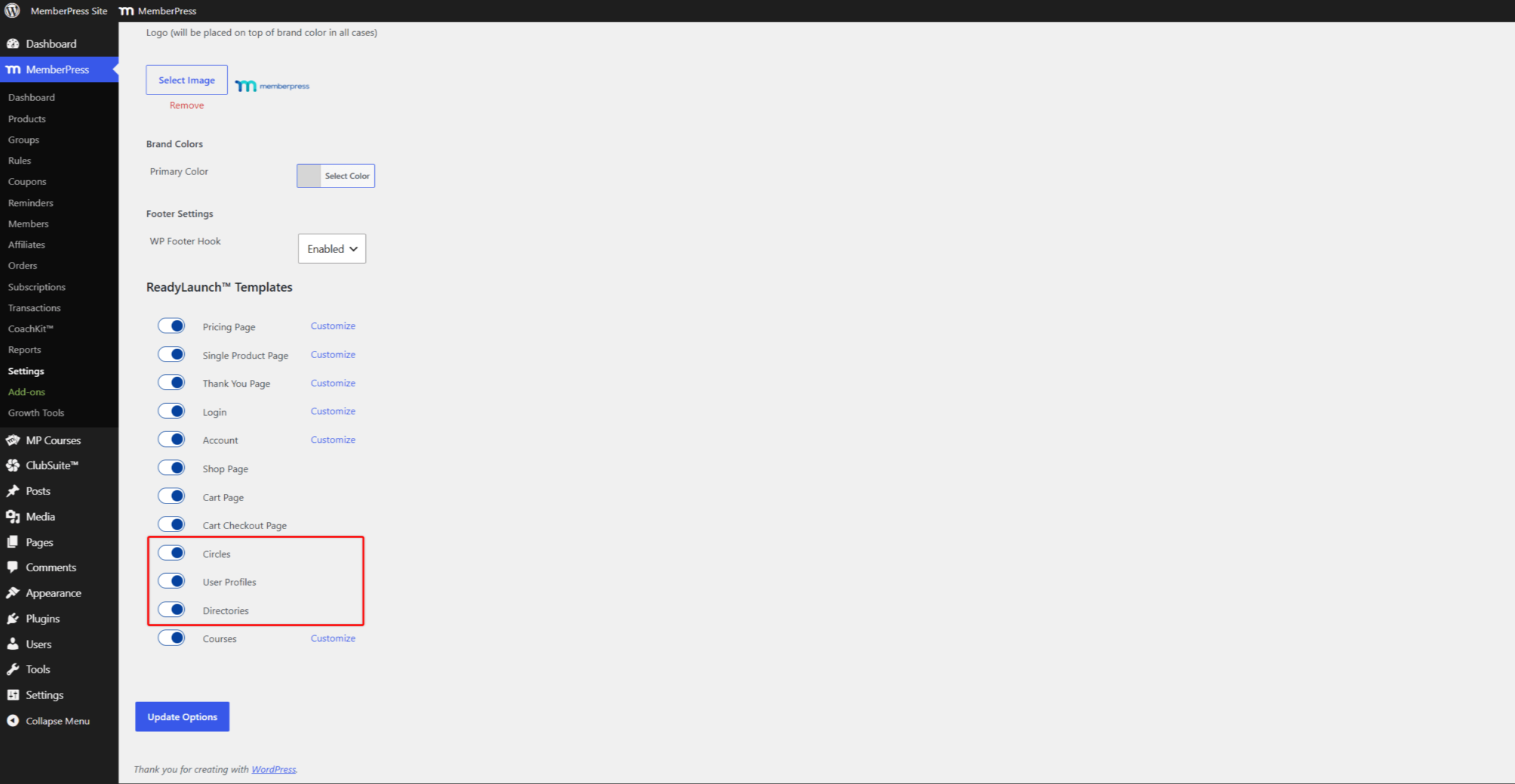
- Navigieren Sie zu Dashboard > MemberPress > Einstellungen > ReadyLaunch™ tab.
- Blättern Sie zum ReadyLaunch™-Vorlagen Abschnitt.
- Aktivieren Sie Benutzerprofile und Verzeichnisse für ClubDirectory™.
- Aktivieren Sie Kreise für ClubCircles™.
- Klicken Sie auf Optionen aktualisieren um die Änderungen zu speichern.
Konfigurieren von Profil- und Verzeichniseinstellungen
Nachdem Sie Vorlagen aktiviert haben, richten Sie Ihre Optionen unter Dashboard > ClubSuite™ > Einstellungen.
Konfigurieren der Profileinstellungen
Navigieren Sie zu Dashboard > ClubSuite™ > Einstellungen > Profil zum Einrichten:
- Format des angezeigten Benutzernamens;
- Optionen für die Sichtbarkeit von Profilen für Mitglieder;
- Anforderungen an die Bildmoderation;
- profilbezogene E-Mail-Benachrichtigungen.
Die Installation und Einrichtung von ClubDirectory™ Die Dokumentation behandelt alle Profiloptionen.
Konfigurieren der Verzeichniseinstellungen
Navigieren Sie zu Dashboard > ClubSuite™ > Einstellungen > Verzeichnisse zu konfigurieren:
- Verzeichnis-URL-Struktur;
- Optionen zum Schutz der Privatsphäre der Benutzer;
- Einstellungen der Kartenansicht.
Einrichten der Verbindungsseite
Wenn Sie ClubConnect™ installiert haben, richten Sie als Nächstes die Nachrichtenseite und die Chaträume ein:
- Navigieren Sie zu Dashboard > ClubSuite™ > Einstellungen > Verbinden tab.
- Unter Seite verbindenauswählen “Neue Seite automatisch erstellen” aus der Dropdown-Liste.
- Aktivieren Sie “Räume für Verzeichnisse automatisch erstellen” um Gruppenchats zu Verzeichnissen hinzuzufügen.
- Aktivieren Sie “Räume für Kreise automatisch erstellen” um eine Chat-Registerkarte zu jedem Kreis hinzuzufügen.
- Klicken Sie auf Optionen aktualisieren um die Änderungen zu speichern und die Seite Verbinden zu erstellen.
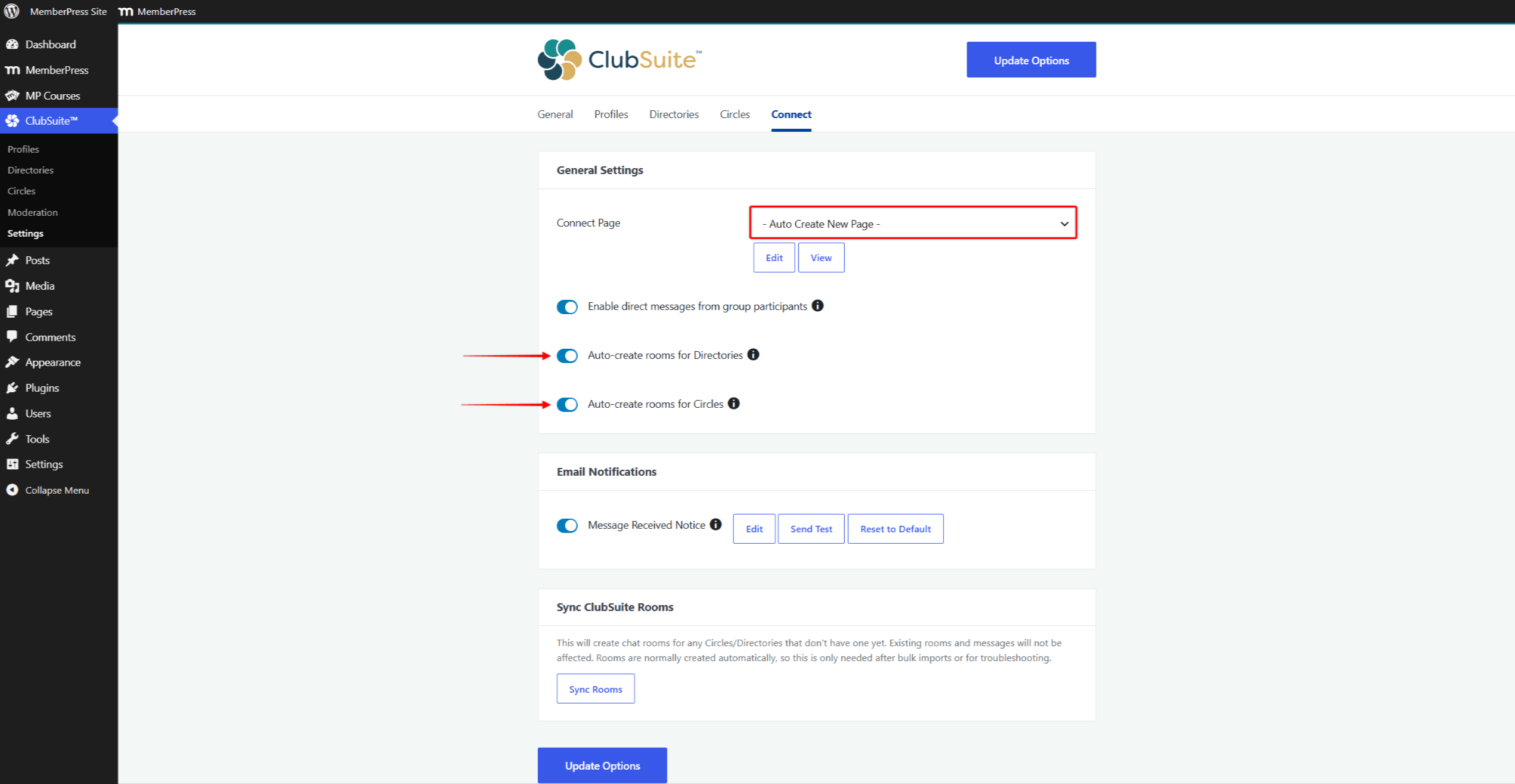
Das System erstellt eine Seite mit dem Titel “Verbinden” unter /Verbinden/. Diese Seite dient als einheitliche Nachrichtenschnittstelle für alle Mitglieder.
Wenn die Optionen zur automatischen Erstellung aktiviert sind, richtet ClubConnect™ selbstständig Räume ein. Mitglieder können außerdem über die Profile der anderen Mitglieder private Chats starten.
Die Installation und Einrichtung von ClubConnect™ Die Dokumentation deckt alle Optionen ab.
Erstellen von Mitgliederprofilen
Mitgliederprofile bestimmen, wie Ihre Mitglieder in Verzeichnissen und Gemeinschaften erscheinen.
- Navigieren Sie zu Dashboard > ClubSuite™ > Profile.
- Klicken Sie auf Neu hinzufügen um einen Profiltyp zu erstellen.
- Legen Sie das Profillayout, die Felder und die Anzeigeoptionen fest.
- Weisen Sie das Profil bestimmten Mitgliedschaften zu.
Die Erstellen von Mitgliederprofilen Dokumentation wird dieser Vorgang im Detail erläutert. Die Optionen für das Erscheinungsbild finden Sie in der Gestaltung von Mitgliederprofilen Leitfaden.
Sie können verschiedene Profiltypen für verschiedene Mitgliedsstufen erstellen. Premium-Mitglieder können zum Beispiel Profile mit zusätzlichen Feldern und Funktionen erhalten.
Mitgliederverzeichnisse erstellen
Verzeichnisse dienen als durchsuchbare Kataloge, in denen sich Ihre Mitglieder gegenseitig finden.
- Navigieren Sie zu Dashboard > ClubSuite™ > Verzeichnisse.
- Klicken Sie auf Neu hinzufügen um ein Verzeichnis zu erstellen.
- Legen Sie die Anzeigeoptionen, Suchwerkzeuge und Zugriffsregeln fest.
- Wählen Sie aus, welche Mitglieder im Verzeichnis erscheinen, je nach Mitgliedschaft, Rolle oder benutzerdefinierten Feldern.
Die Verzeichnisse aktualisieren sich selbständig, wenn Mitglieder hinzukommen oder ausscheiden. Die Erstellung von Mitgliederverzeichnissen Die Dokumentation behandelt alle Einrichtungsoptionen.
Verlinkung von Verzeichnissen mit Ihrer Website
Nachdem Sie Verzeichnisse erstellt haben, fügen Sie diese zu Ihrer Site-Navigation hinzu. Jedes Verzeichnis hat seine eigene URL, die Sie von Menüs, Seiten oder anderen Inhalten aus verlinken können.
Sie können auch Verzeichnisse auf benutzerdefinierten Seiten mit dem Verzeichnis-Shortcode einbetten:
[mepr-directory id=XX]Ersetzen Sie XX mit der Verzeichnis-ID. Fügen Sie Verzeichnis-Links zur Seite des Mitgliederkontos oder einem speziellen Community-Bereich hinzu.
Kreise schaffen
Kreise sind Gemeinschaftsräume, die um Themen oder Mitgliedergruppen herum aufgebaut sind.
- Navigieren Sie zu Dashboard > ClubSuite™ > Kreise.
- Klicken Sie auf Neu hinzufügen um einen Kreis zu erstellen.
- Legen Sie die Circle-Optionen fest, einschließlich der Mitgliedschaftsregeln und der Regeln für die Veröffentlichung.
- Wählen Sie aus, welche Mitgliedsstufen auf Circles zugreifen oder Circles erstellen können.
Die Kreise schaffen Die Dokumentation erläutert die Einrichtung des Kreises im Detail.
Festlegung von Moderationsrichtlinien
Legen Sie Ihre Moderationsregeln fest, bevor Sie Circles starten. Die Moderation von MemberPress-Zirkeln Der Leitfaden enthält Tools zur Verwaltung von Inhalten und Mitgliederverhalten.
Anzeige von Kreisen auf benutzerdefinierten Seiten
Standardmäßig werden alle veröffentlichten Circles auf der Circle-Archivseite angezeigt. Sie können Circles auch überall auf Ihrer Website mit einem Gutenberg-Block oder Shortcodes anzeigen.
Zu den verfügbaren Optionen gehören:
- die einzelner Kreisblock zum Hinzufügen eines bestimmten Kreises über den Blockeditor;
- die
[mpcirc-circles]Shortcode um das gesamte Circle-Archiv auf einer beliebigen Seite anzuzeigen; - die
[mpcirc-circle id="123"]Shortcode um einen bestimmten Kreis mit benutzerdefinierten Attributen anzuzeigen.
Diese Optionen funktionieren mit dem Gutenberg-Editor und Seitenerstellungsprogrammen wie Elementor und Divi. Die Anzeige von Circles mit Block und Shortcodes Die Dokumentation umfasst alle Optionen und Attribute.
Testen der Mitgliedererfahrung
Testen Sie die Erfahrung der Mitglieder, bevor Sie Verzeichnisse und Gemeinschaften für alle Mitglieder freigeben.
- Erstellen Sie Testbenutzerkonten mit verschiedenen Mitgliedschaftsstufen.
- Vervollständigen Sie die Profileinrichtung als Mitglied.
- Testen Sie die Funktionen Verzeichnissuche und Kartenansicht.
- Treten Sie Circles bei und testen Sie das Posten, Kommentieren und Hochladen von Medien.
- Testen Sie Chaträume und private Nachrichten, wenn ClubConnect™ installiert ist.
- Prüfen Sie, ob die Zugangsregeln für die verschiedenen Mitgliedschaftsstufen funktionieren.
Die Erfahrungen der Mitglieder mit Profilen und Verzeichnissen Die Dokumentation beschreibt, was die Mitglieder sehen und tun können. Die Erfahrungen der Mitglieder mit Circles Leitfaden deckt die Wechselwirkungen zwischen Kreisen ab.
Integration mit Ihrer Mitgliedschaftsseite
Fügen Sie nach dem Testen Verzeichnisse und Communities zu Ihrer gesamten Website hinzu.
Navigation aktualisieren
Fügen Sie Links zu Verzeichnissen, Circles und Messaging in Ihr Website-Menü ein. Erstellen Sie eine “Gemeinschaft” oder “Mitglieder” Abschnitt, in dem diese Merkmale zusammengefasst sind.
Neue Mitglieder willkommen heißen
Aktualisieren Sie Ihre Begrüßungs-E-Mails oder Einführungsinhalte. Informieren Sie neue Mitglieder über das Verzeichnis, die Community und die Messaging-Funktionen. Laden Sie sie ein, ihre Profile auszufüllen und Circles beizutreten.
Förderung des Engagements
Heben Sie aktive Circles und vorgestellte Mitgliederprofile auf Ihrer Website hervor. Regelmäßige Werbung hält Gemeinschaften aktiv und bringt mehr Mitglieder.
Wie geht es weiter?
Ihre Mitgliederseite bietet jetzt Networking-Tools, die Ihre Mitglieder miteinander verbinden. Beginnen Sie mit einer einfachen Einrichtung mit einem Profiltyp und einem Verzeichnis. Erweitern Sie, wenn Ihre Gemeinschaft wächst.
Überprüfen Sie das Verzeichnis und die Aktivitäten im Kreis häufig. Passen Sie die Einstellungen und Moderationsregeln nach Bedarf an, damit Ihre Community aktiv bleibt.
Für weitere fortgeschrittene Funktionen, siehe die vollständige ClubSuite™-Dokumentation.











 DE
DE  EN
EN  ES
ES  FR
FR  PT
PT 