

Su afiliaciones, protección de contenidosy formas de pago ya están configurados. Si quieres crear comunidades en tu sitio web, los complementos de MemberPress ClubSuite™ te permiten conectar a tus miembros entre sí.
Los complementos MemberPress ClubSuite™ añaden funciones de red y comunicación a su sitio web. Puedes utilizarlos para crear directorios de miembros, espacios comunitarios y mensajería en tiempo real.
Este documento te guía a través de la creación de directorios y comunidades. Abarca el proceso desde la instalación hasta la puesta en marcha y enlaza con documentación detallada para cada paso.
Planificación de directorios y comunidades
Planifique cómo encajarán los directorios y las comunidades en su estructura de afiliación actual. Las decisiones que tomes guiarán tu configuración.
Cuestiones a tener en cuenta
- ¿Qué niveles de afiliación deben aparecer en los directorios?
- ¿Deben compartir todos los miembros un directorio, o necesitan los distintos niveles uno propio?
- ¿Crearán los miembros sus propios espacios comunitarios (Círculos), o sólo se unirán a los ya existentes?
- ¿Necesitan los afiliados mensajería en tiempo real o salas de chat?
- ¿Qué información deben mostrar los afiliados en sus perfiles?
Las afiliaciones que ya ha creado servirán de base para el acceso al directorio y a la comunidad.
Requisitos previos
Asegúrese de que su sitio web cumple estos requisitos antes de empezar:
- un activo Instalación MemberPress con un licencia válida;
- a MemberPress Plan de crecimiento o de escala suscripción (plan Escala para ClubConnect™);
- WordPress versión 5.0 o superior con el editor Gutenberg activado;
- al menos un activo afiliación en MemberPress.
Orden de instalación
Instala los complementos de ClubSuite™ en este orden:
- ClubDirectory™ (Directorio de clubes) primero, ya que los perfiles y directorios son la base;
- ClubCircles™ a continuación, ya que los Círculos dependen de los perfiles de los miembros de ClubDirectory™;
- ClubConnect por último, ya que añade mensajería sobre directorios o Círculos.
Cada complemento puede instalarse desde Panel de control > MemberPress > Complementos. Los complementos de ClubSuite™ también se pueden activado durante el asistente de incorporación MemberPress.
Configuración de ClubDirectory™.
En Complemento ClubDirectory proporciona perfiles de miembros y directorios. Instale primero este complemento, ya que las funciones de la comunidad dependen de los perfiles de los miembros.
Una vez instalado, el ClubSuite aparece en el panel de control de WordPress con opciones para gestionar perfiles y directorios.
Configuración de ClubCircles™
Si su sitio necesita espacios de debate comunitarios, instale el módulo Complemento ClubCircles. Los círculos son espacios donde los miembros comparten publicaciones, suben archivos multimedia y participan en debates.
ClubCircles™ requiere la instalación previa de ClubDirectory™.
Añadir mensajería con ClubConnect™.
En Complemento ClubConnect añade mensajería en tiempo real a tu sitio. Funciona con ClubCircles™ y ClubDirectory™ para habilitar dos opciones de mensajería. Los miembros pueden chatear en salas Circle o enviar mensajes privados desde los perfiles del directorio.
ClubConnect™ requiere que al menos uno de estos complementos esté activo: CoachKit™, ClubCircles™ o ClubDirectory™.
Activación de las plantillas ReadyLaunch™.
Plantillas ReadyLaunch añadir un estilo coherente a los perfiles, directorios y Círculos. Habilita las plantillas para las funciones que hayas instalado:
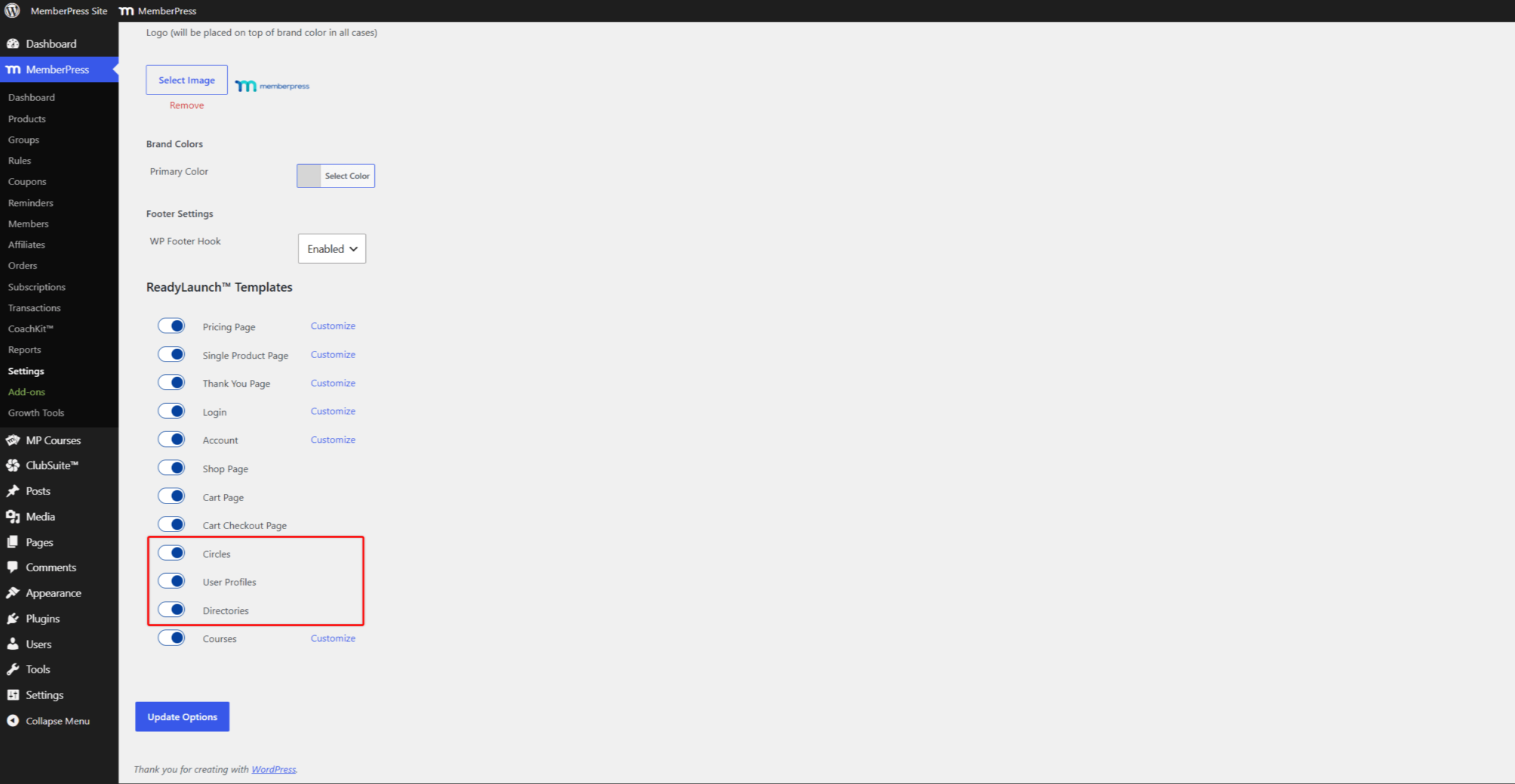
- Vaya a Panel de control > MemberPress > Configuración > ReadyLaunch™. ficha.
- Desplácese hasta el Plantillas ReadyLaunch sección.
- Activar Perfiles de usuario y Directorios para ClubDirectory™.
- Activar Círculos para ClubCircles™.
- Haga clic en Opciones de actualización para guardar los cambios.
Configuración de perfiles y directorios
Tras activar las plantillas, configure sus opciones en Panel de control > ClubSuite™ > Ajustes.
Configuración de los ajustes del perfil
Vaya a Panel de control > ClubSuite™ > Configuración > Perfil para configurarlo:
- formato del nombre de usuario;
- opciones de visibilidad del perfil de los afiliados;
- requisitos de moderación de imágenes;
- notificaciones por correo electrónico relacionadas con el perfil.
En Instalación y configuración de ClubDirectory cubre todas las opciones de perfil.
Configuración de los parámetros del directorio
Vaya a Panel de control > ClubSuite™ > Configuración > Directorios para configurar:
- estructura URL del directorio;
- opciones de privacidad del usuario;
- Ajustes de la vista del mapa.
Configuración de la página de conexión
Si has instalado ClubConnect™, configura a continuación la página de mensajería y las salas de chat:
- Vaya a Panel de control > ClubSuite™ > Configuración > Conectar ficha.
- En Conectar Páginaseleccione “Crear nueva página automáticamente” del menú desplegable.
- Activar “Creación automática de salas para directorios” para añadir el chat de grupo a los directorios.
- Activar “Creación automática de salas para los Círculos” para añadir una pestaña de chat a cada Círculo.
- Haga clic en Opciones de actualización para guardar los cambios y crear la página Conectar.
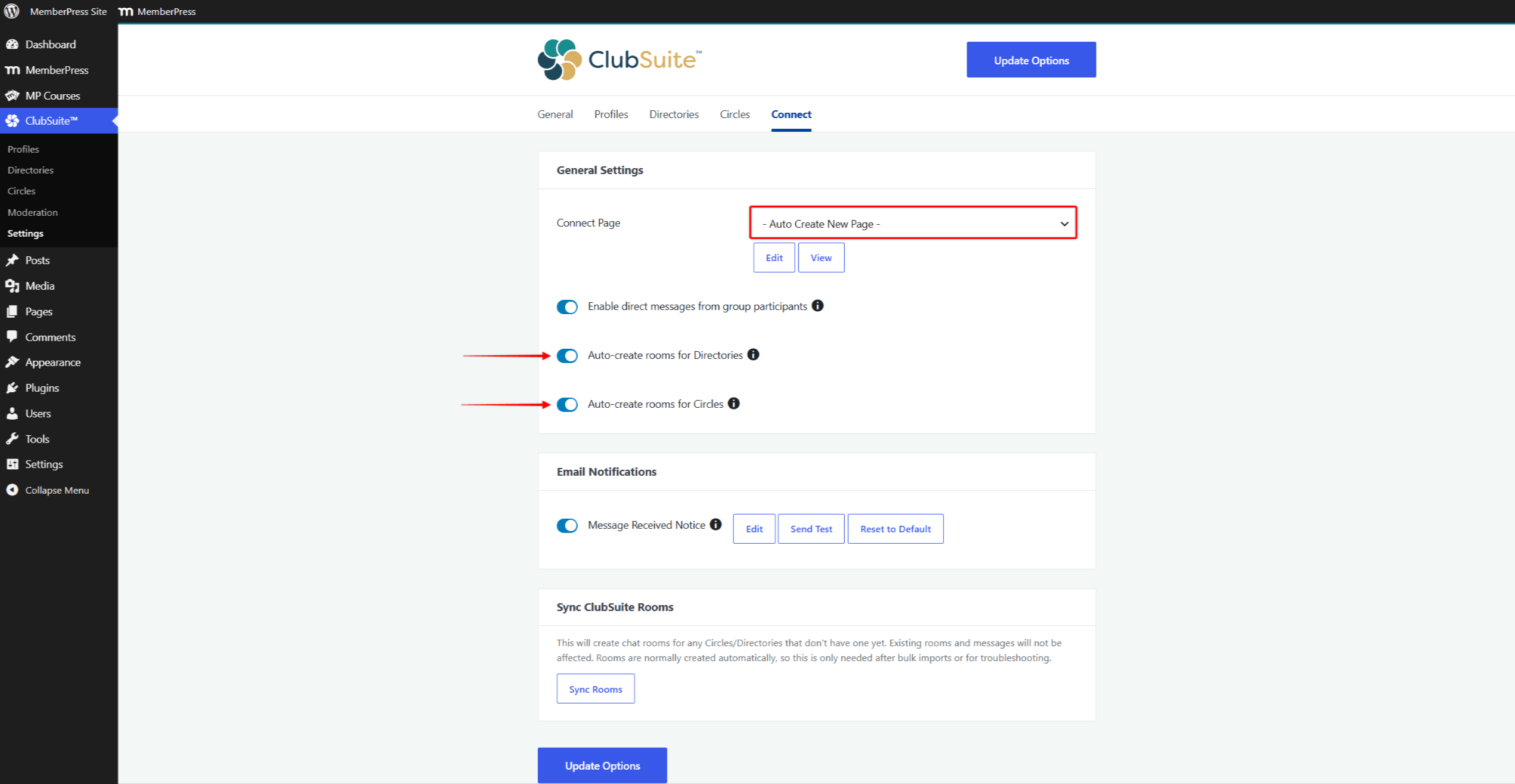
El sistema crea una página titulada “Conectar” en /conectar/. Esta página sirve de interfaz de mensajería unificada para todos los miembros.
Cuando las opciones de creación automática están activadas, ClubConnect™ crea salas de forma automática. Los socios también pueden iniciar chats privados desde los perfiles de los demás.
En Instalación y configuración de ClubConnect cubre todas las opciones.
Creación de perfiles de los miembros
Los perfiles de los miembros definen cómo aparecen sus miembros en los directorios y comunidades.
- Vaya a Panel de control > ClubSuite™ > Perfiles.
- Haga clic en Añadir nuevo para crear un tipo de perfil.
- Configure el diseño del perfil, los campos y las opciones de visualización.
- Asignar el perfil a afiliaciones específicas.
En creación de perfiles de afiliado explica este proceso en detalle. Para las opciones de apariencia, consulte la sección diseño de los perfiles de los afiliados guía.
Puede crear diferentes tipos de perfil para diferentes niveles de afiliación. Por ejemplo, los miembros premium pueden tener perfiles con campos y funciones adicionales.
Creación de directorios de miembros
Los directorios sirven como catálogos en los que sus miembros se encuentran.
- Vaya a Panel de control > ClubSuite™ > Directorios.
- Haga clic en Añadir nuevo para crear un directorio.
- Configure las opciones de visualización, las herramientas de búsqueda y las normas de acceso.
- Elija qué miembros aparecen en el directorio en función de su afiliación, función o campos personalizados.
Los directorios se actualizan por sí solos a medida que los miembros se afilian o se dan de baja. El sitio creación de directorios de miembros cubre todas las opciones de configuración.
Enlazar directorios a su sitio web
Una vez creados los directorios, añádalos a la navegación de su sitio. Cada directorio tiene su propia URL que puede enlazar desde menús, páginas u otros contenidos.
También puede incrustar directorios en páginas personalizadas con el shortcode de directorio:
[mepr-directory id=XX]Sustituir XX con el ID del directorio. Añada enlaces al directorio en la página Cuenta de miembro o en una sección específica de la comunidad.
Crear círculos
Los círculos son espacios comunitarios creados en torno a temas o grupos de miembros.
- Vaya a Panel de control > ClubSuite™ > Círculos.
- Haga clic en Añadir nuevo para crear un Círculo.
- Establezca las opciones del Círculo, incluidas las normas de afiliación y las normas de publicación.
- Elija qué niveles de afiliación pueden acceder a los Círculos o crearlos.
En Crear círculos se explica en detalle la configuración de Circle.
Establecimiento de políticas de moderación
Establezca sus normas de moderación antes de poner en marcha los Círculos. En moderar los Círculos MemberPress incluye herramientas para gestionar los contenidos y el comportamiento de los afiliados.
Mostrar círculos en páginas personalizadas
Por defecto, todos los Círculos publicados aparecen en la página de archivo de Círculos. También puedes mostrar Círculos en cualquier parte de tu sitio con un bloque de Gutenberg o shortcodes.
Las opciones disponibles incluyen:
- el bloque circular único para añadir un Círculo específico a través del editor de bloques;
- el
[mpcirc-circles]código corto para mostrar el archivo completo de Circle en cualquier página; - el
[mpcirc-circle id="123"]código corto para mostrar un Círculo específico con atributos personalizados.
Estas opciones funcionan con el editor Gutenberg y constructores de páginas como Elementor y Divi. La página Mostrar círculos con bloques y shortcodes cubre todas las opciones y atributos.
Probar la experiencia de los afiliados
Pruebe la experiencia de los miembros antes de lanzar directorios y comunidades para todos los miembros.
- Cree cuentas de usuario de prueba con distintos niveles de afiliación.
- Completa la configuración del perfil como miembro.
- Pruebe las funciones de búsqueda en directorios y visualización de mapas.
- Únete a los círculos y prueba a publicar, comentar y subir archivos multimedia.
- Prueba las salas de chat y los mensajes privados si ClubConnect™ está instalado.
- Compruebe que las normas de acceso funcionan para los distintos niveles de afiliación.
En experiencia de los afiliados con perfiles y directorios La documentación describe lo que los miembros ven y pueden hacer. El sitio experiencia de los miembros con Circles cubre las interacciones del Círculo.
Integración con su sitio web de afiliación
Después de probarlos, añada directorios y comunidades a la experiencia general de su sitio.
Actualizar la navegación
Añade enlaces a directorios, Círculos y mensajería en el menú de tu sitio. Cree un “Comunidad” o “Miembros” que agrupa estas características.
Bienvenida a los nuevos miembros
Actualice sus correos electrónicos de bienvenida o el contenido de incorporación. Informe a los nuevos miembros sobre las funciones de directorio, comunidad y mensajería. Invítelos a completar sus perfiles y a unirse a los Círculos.
Promover el compromiso
Destaca los Círculos activos y los perfiles de miembros destacados en tu sitio. La promoción periódica mantiene activas las comunidades y atrae a más miembros.
¿Y ahora qué?
Su sitio de afiliación ofrece ahora herramientas de red que conectan a sus miembros. Empiece con una configuración sencilla utilizando un tipo de perfil y un directorio. Amplíe a medida que crezca su comunidad.
Compruebe a menudo la actividad del directorio y del Círculo. Ajusta la configuración y las normas de moderación según sea necesario para mantener la participación de tu comunidad.
Para funciones más avanzadas, consulte el Documentación de ClubSuite.











 ES
ES  EN
EN  FR
FR  DE
DE  PT
PT 