

MemberPress AppKit permite sitio web para miembros para crear aplicaciones móviles nativas para iOS y Android. Estas aplicaciones muestran contenidos de afiliación y permiten a los afiliados ver elementos protegidos desde sus teléfonos y tabletas.
Este documento ofrece una visión general del proceso completo de configuración de MemberPress AppKit. Describe cada fase y explica los requisitos. Los usuarios aprenderán los pasos necesarios para publicar aplicaciones móviles funcionales para ambas plataformas.
Qué hace MemberPress AppKit
MemberPress AppKit convierte un sitio web impulsado por MemberPress en una aplicación móvil. La aplicación enlaza con el sitio web existente y muestra el contenido a los miembros en función de su afiliación. Muestra publicaciones protegidas, páginas cursos utilizando los Normas de acceso MemberPress.
La aplicación extrae contenidos directamente del sitio web. Cualquier actualización de contenido en el sitio web se muestra en la aplicación de inmediato.
Elegir una vía de registro
MemberPress AppKit admite dos enfoques para el registro de miembros. Esta decisión debe tomarse antes de iniciar el proceso de configuración.
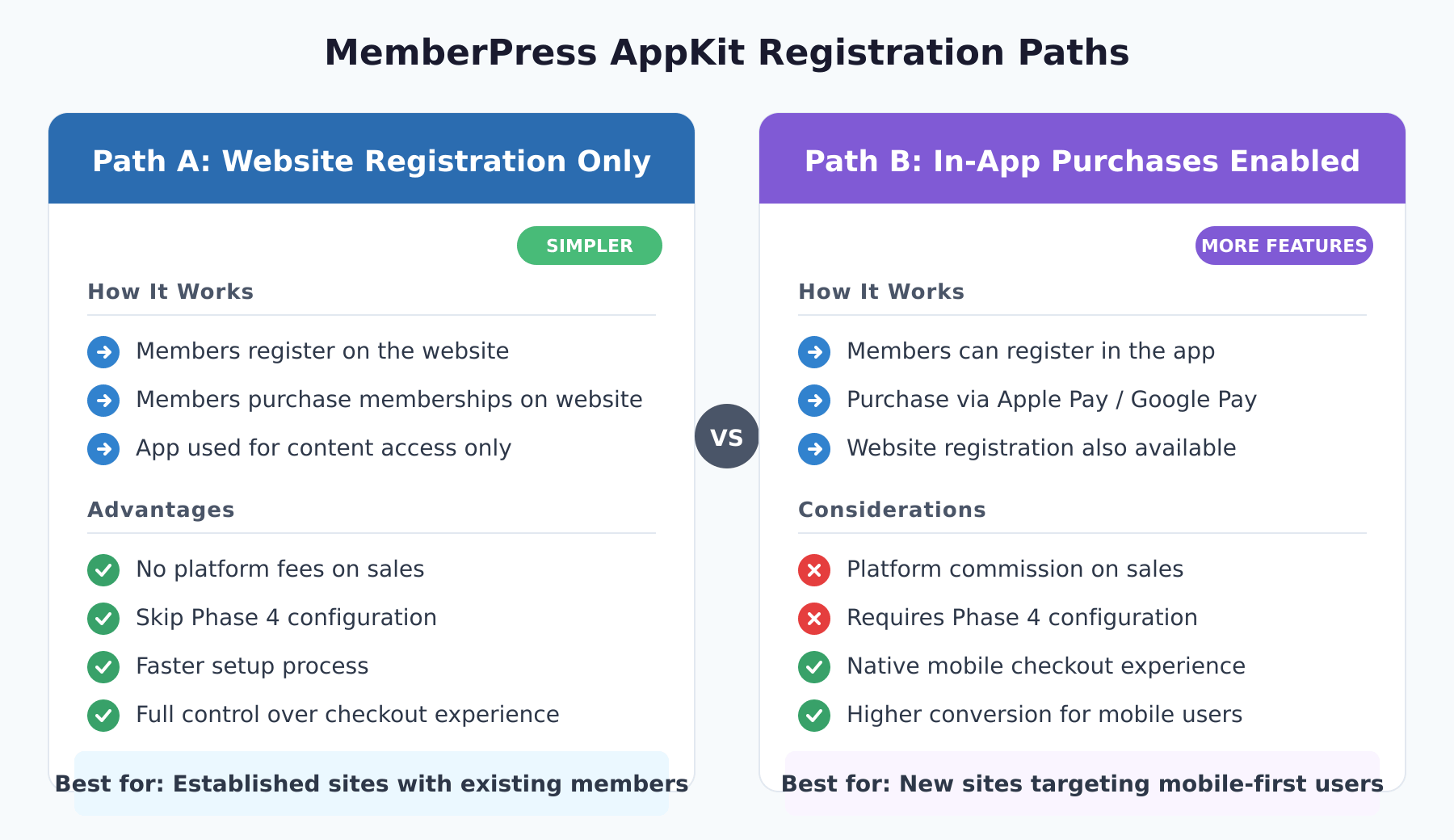
Ruta A: Sólo registro en el sitio web
Los miembros se registran y comprar afiliaciones únicamente a través del sitio web. La aplicación funciona como una herramienta de acceso a contenidos para los miembros existentes. Esta vía ofrece una configuración más sencilla sin comisiones de plataforma sobre las ventas de socios. La fase 4 (compras dentro de la aplicación) puede omitirse por completo.
Ruta B: Compras dentro de la aplicación activadas
Los miembros pueden registrarse y comprar membresías directamente en la aplicación mediante Apple Pay o Google Pay. Esta vía necesita más configuración en ambas tiendas de aplicaciones. Apple y Google cobran una comisión por las compras dentro de la aplicación. Exigir compras dentro de la aplicación durante el registro se asegura de que los nuevos afiliados elijan un plan de afiliación.
Resumen del proceso
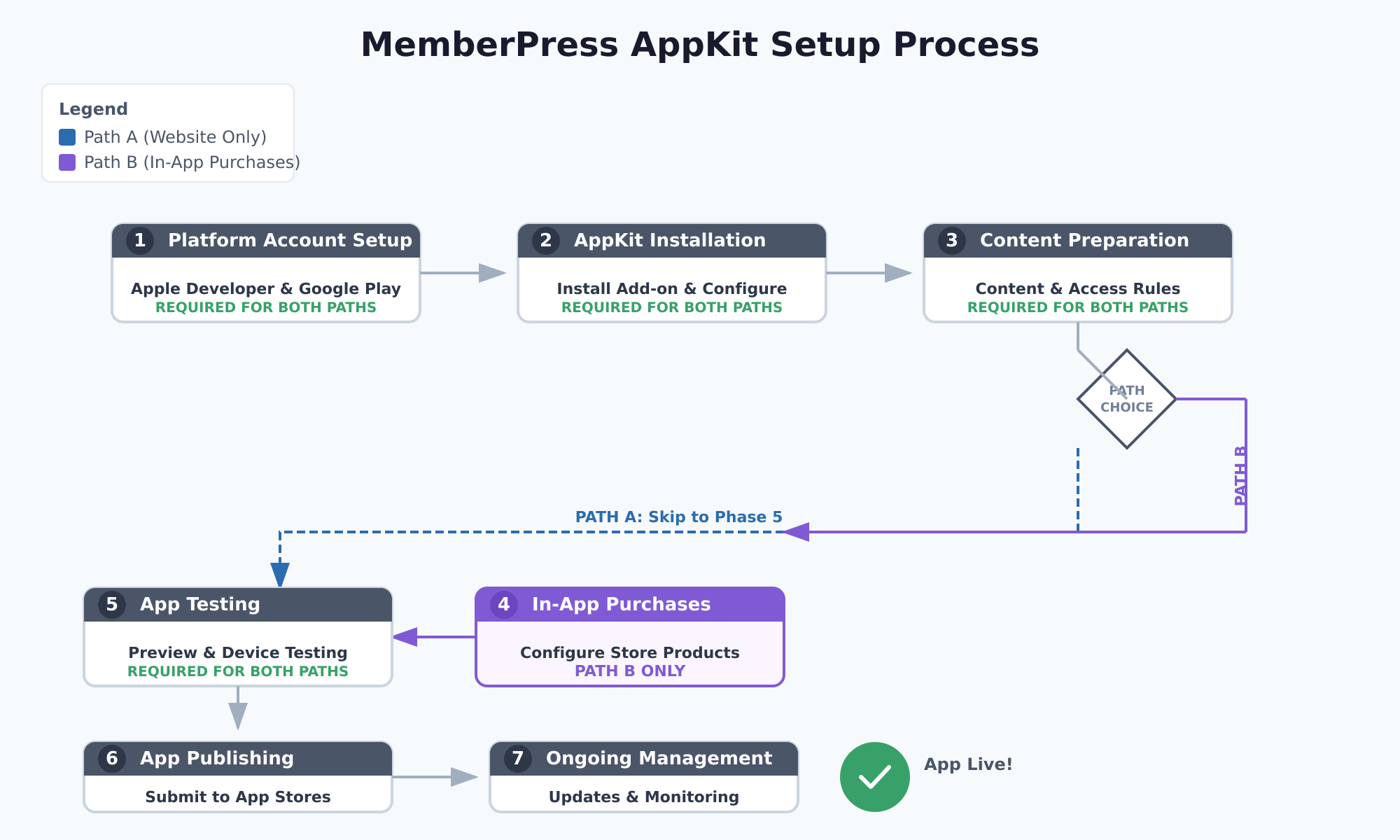
La configuración completa del AppKit MemberPress consta de siete fases. Cada fase debe realizarse para evitar problemas y errores de configuración.
| Fase | Descripción | Ruta A | Ruta B |
|---|---|---|---|
| Fase 1 | Configuración de la cuenta de la plataforma | Requerido | Requerido |
| Fase 2 | Instalación y configuración de AppKit | Requerido | Requerido |
| Fase 3 | Preparación de contenidos y normas de acceso | Requerido | Requerido |
| Fase 4 | Configuración de las compras dentro de la aplicación | Saltar | Requerido |
| Fase 5 | Pruebas de aplicaciones | Requerido | Requerido |
| Fase 6 | Creación y publicación de aplicaciones | Requerido | Requerido |
| Fase 7 | Gestión continua de aplicaciones | Requerido | Requerido |
Fase 1: Configuración de la cuenta de la plataforma
En esta fase se configuran las cuentas de desarrollador necesarias para publicar aplicaciones. Ambas plataformas necesitan cuentas de desarrollador de pago con verificación de identidad.
Configuración de la cuenta de desarrollador de Apple
Para publicar una aplicación iOS es necesario unirse al Programa para desarrolladores de Apple ($99/año). Esto da acceso a App Store Connect para subir aplicaciones. El sitio Configuración de la cuenta de desarrollador de Apple cubre los pasos en detalle.
Para unirse al Programa de Desarrolladores de Apple:
- Navegue hasta el Programa para desarrolladores de Apple página de inscripción.
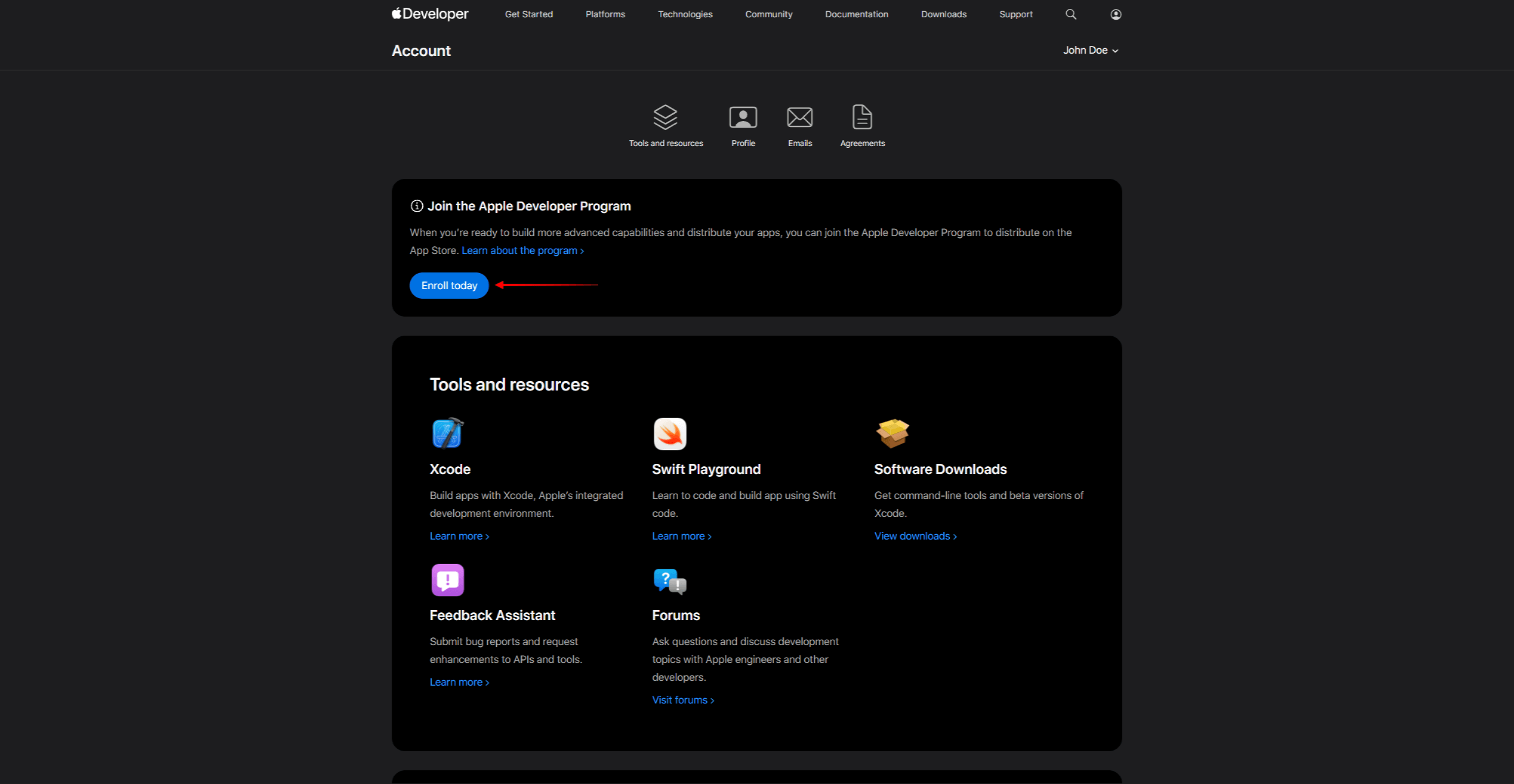
- Haga clic en Inscríbase en e inicia sesión con un ID de Apple.
- Seleccione el tipo de cuenta (Particular u Organización).
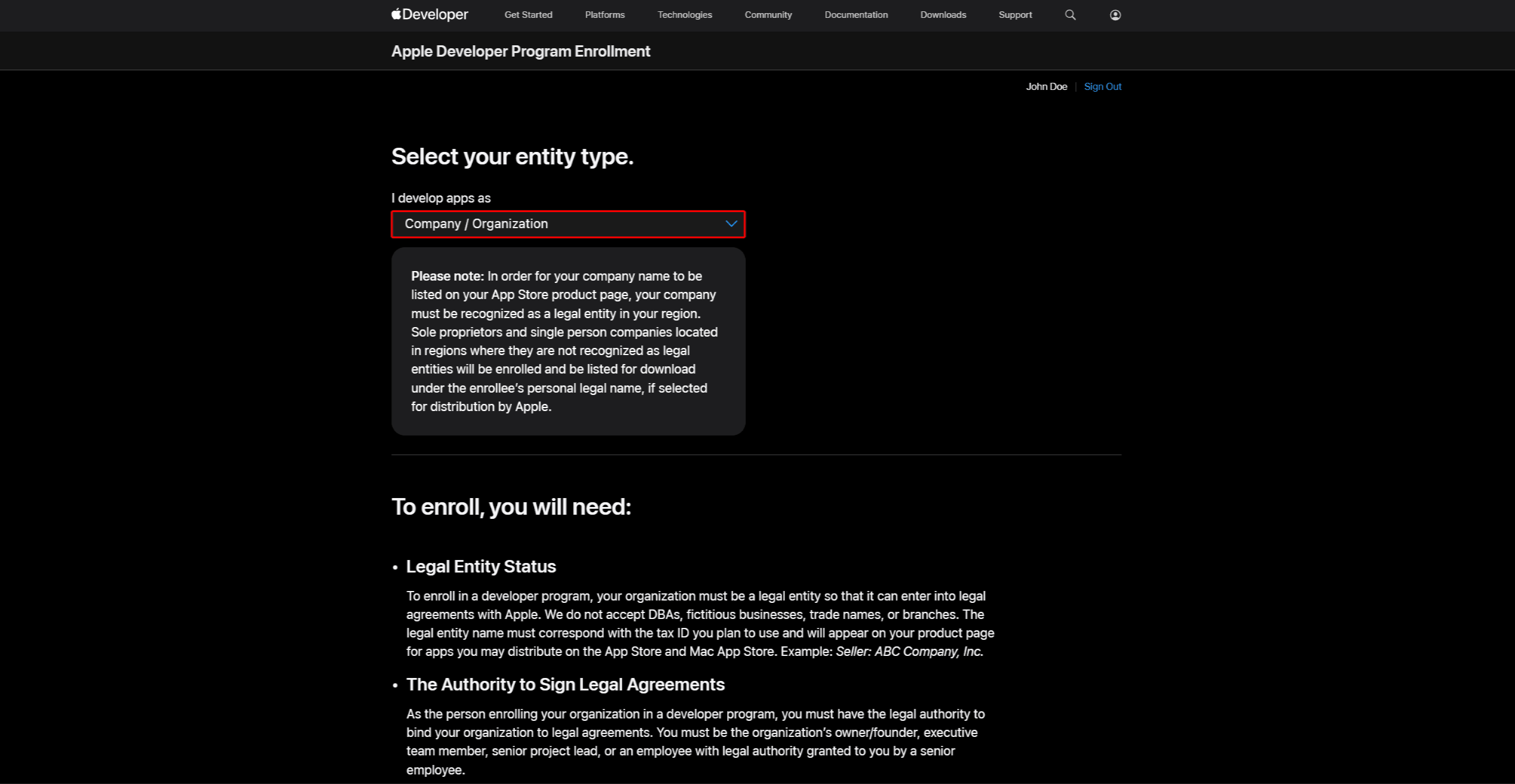
- Completar el control de identidad y pagar la tasa anual $99.
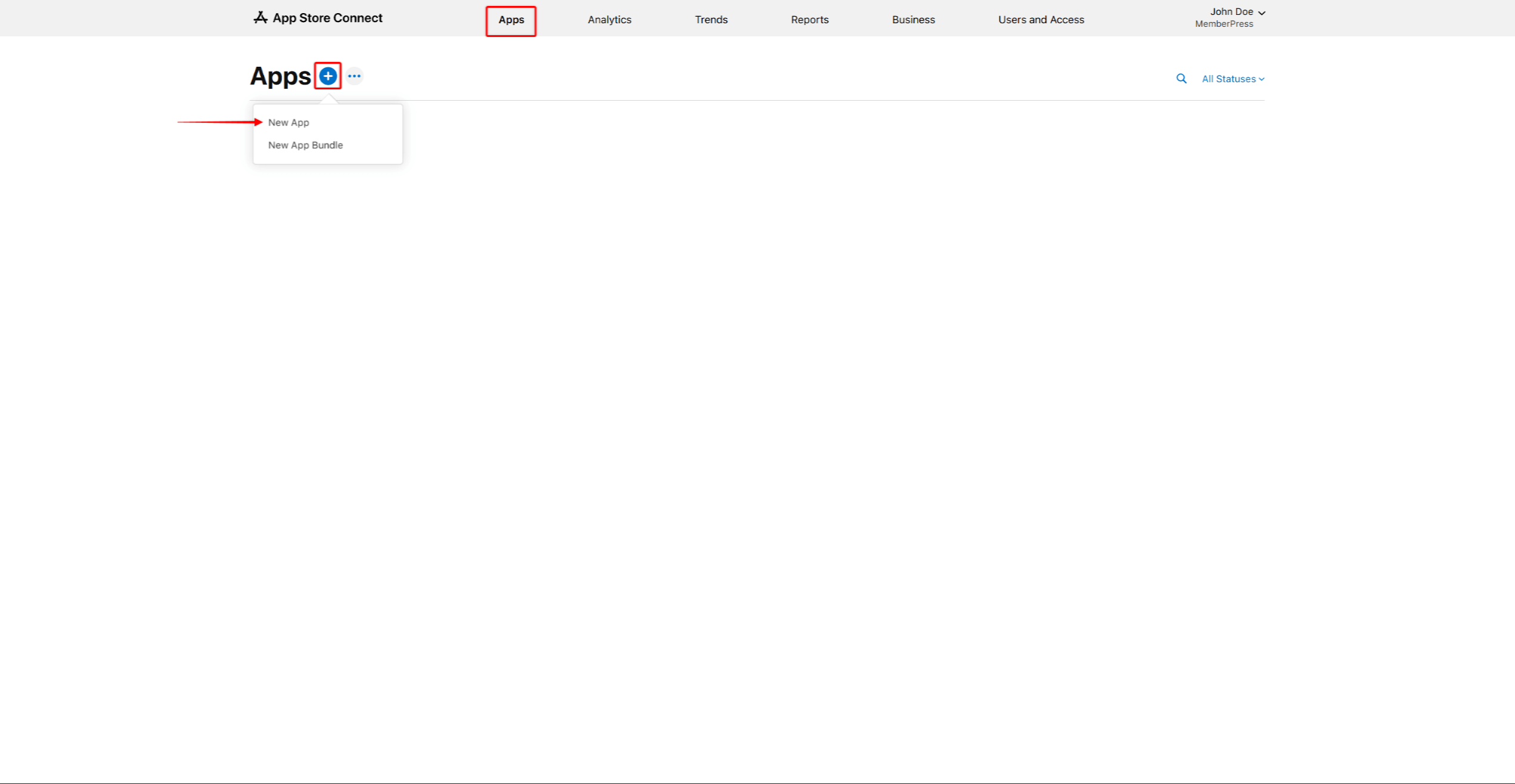
- Una vez aprobado, el acceso App Store Connect.
- Registre un ID de paquete en la cuenta de desarrollador de Apple (formato: notación de dominio inversa, por ejemplo,
com.nombreempresa.nombreaplicacion). - Cree un listado de aplicaciones en App Store Connect, seleccionando el ID del paquete y añadiendo un SKU para el seguimiento interno.
- Crea los certificados y perfiles necesarios.
- Conectar la cuenta de desarrollador de Apple a AppKit.
Configuración de la cuenta de desarrollador de Google Play
Para publicar una aplicación Android se necesita un Cuenta de desarrollador de Google Play ($25 pago único). Esto da acceso a Google Play Console para subir aplicaciones. En Configuración de la cuenta de desarrollador de Google Play cubre los pasos en detalle.
Para crear una cuenta de desarrollador de Google Play:
- Navegue hasta el Consola de Google Play página de inscripción.
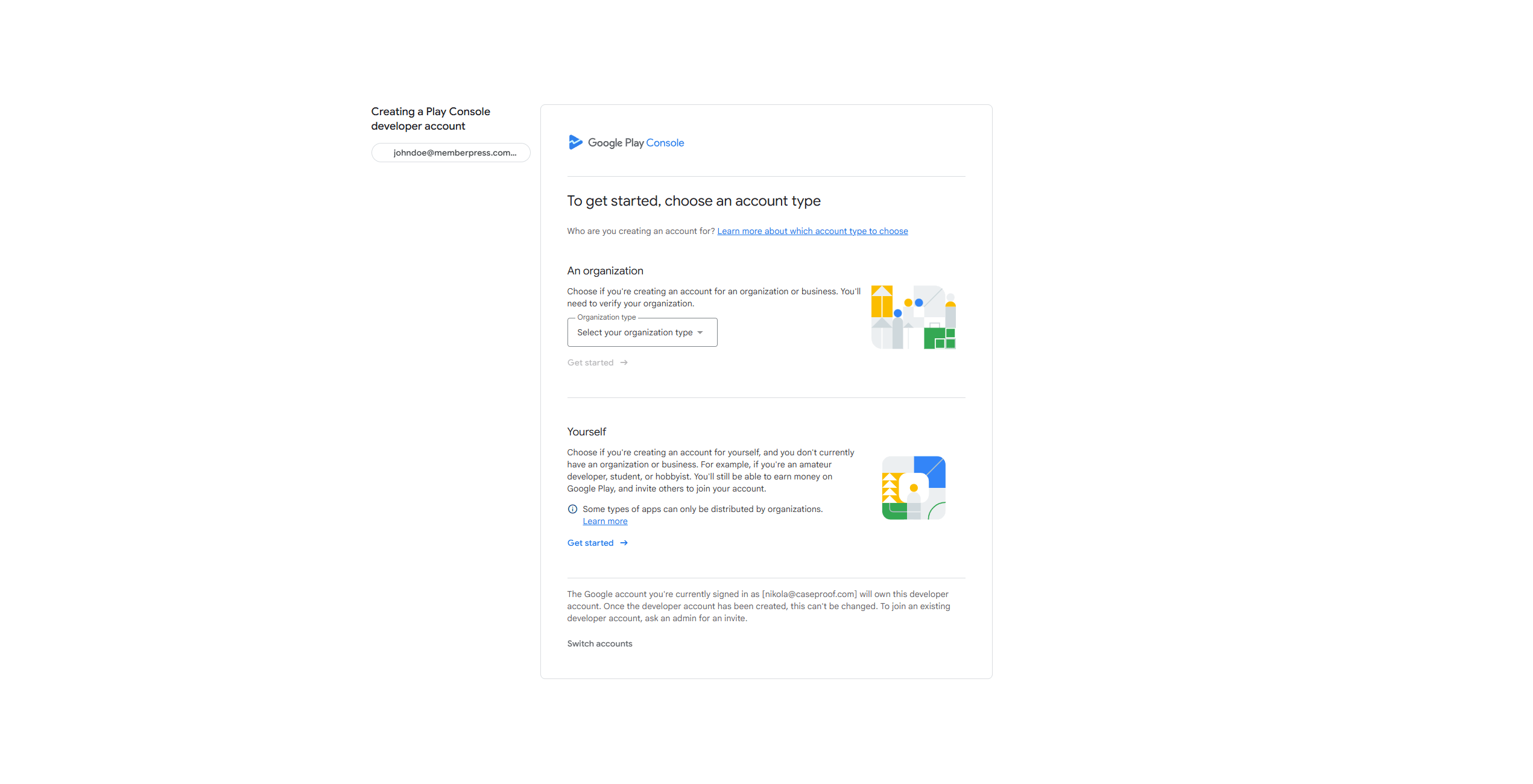
- Accede con una cuenta de Google y acepta las condiciones.
- Pague la tasa de inscripción $25 y complete la comprobación de identidad.
- Una vez realizada la comprobación, cree un marcador de posición de la lista de aplicaciones.
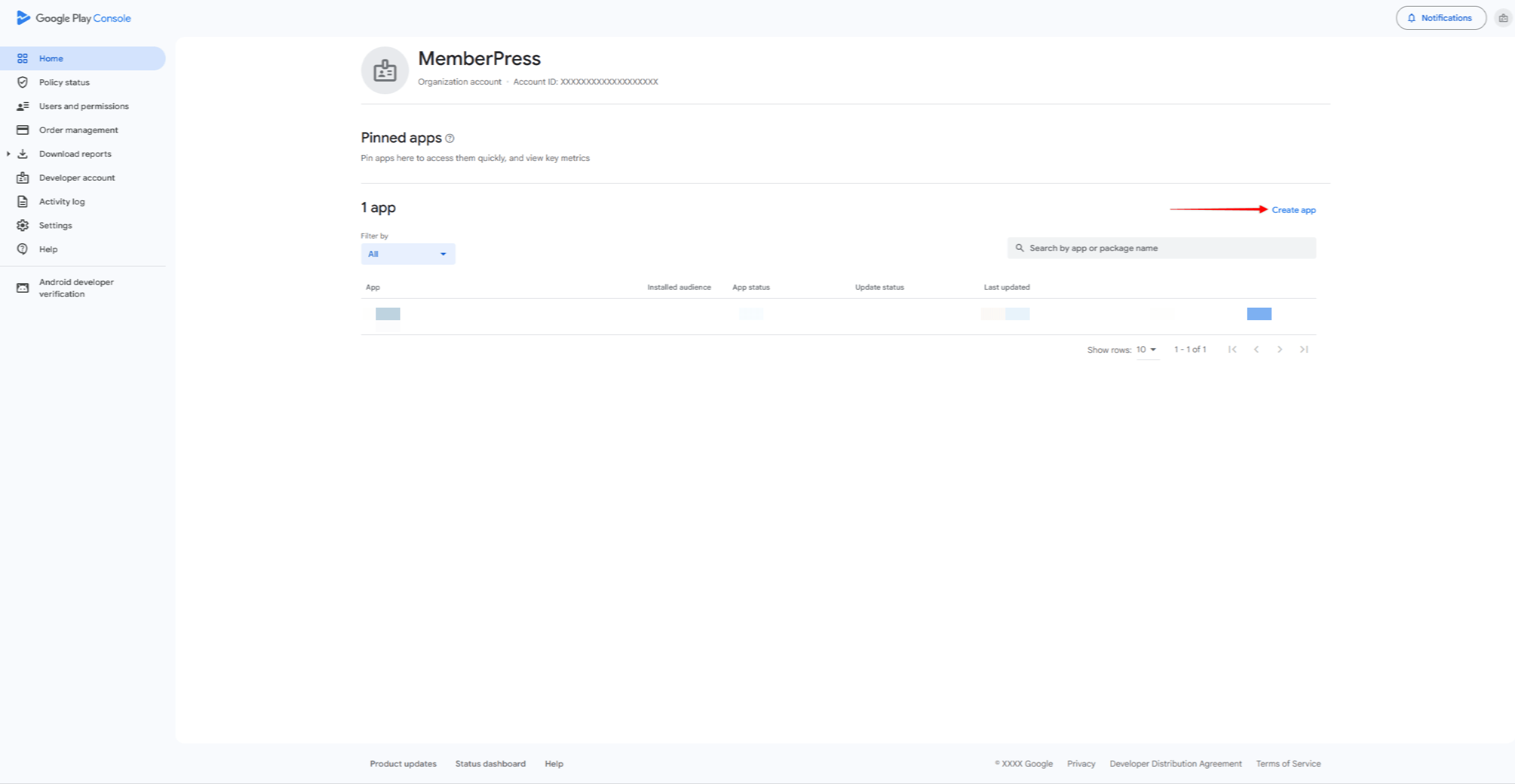
- Crear una clave de carga para la firma de aplicaciones.
- Conectar la cuenta de desarrollador de Google a AppKit.
Fase 2: Instalación y configuración de AppKit
En esta fase se instala el complemento MemberPress AppKit y se configuran los ajustes básicos de la aplicación. Esto incluye marca, colores, tipografía, y opciones de inicio de sesión.
Antes de empezar, asegúrese de que Licencia MemberPress (Plan de lanzamiento, de crecimiento o a escala). En clave de licencia debe activarse. Un Certificado SSL la API REST debe estar activada y alojamiento compatible es necesario.
Instalación de AppKit
MemberPress AppKit es un complemento independiente que requiere su propia suscripción anual. El sitio Guía de conexión de AppKit muestra cómo instalarlo y activarlo.
- Navegue hasta el MemberPress AppKit y adquiera la suscripción a AppKit.
- Descargue el plugin AppKit desde Cuenta > Descargas en el sitio web de MemberPress.
- Instalar el plugin vía Panel de control > Plugins > Añadir nuevo plugin > Cargar plugin.
- Obtenga la clave de licencia de AppKit en Cuenta > Descargas en el sitio web de MemberPress.
- Vaya a Panel de control > MP AppKit > Conectar e introduzca la clave de licencia.
- Compruebe que el verde “Activo” para confirmar que el enlace funciona.
Configuración de la aplicación
En Ajustes tiene nueve subopciones para configurar el comportamiento de la aplicación.
- Vaya a Panel de control > MP AppKit > Configuración.
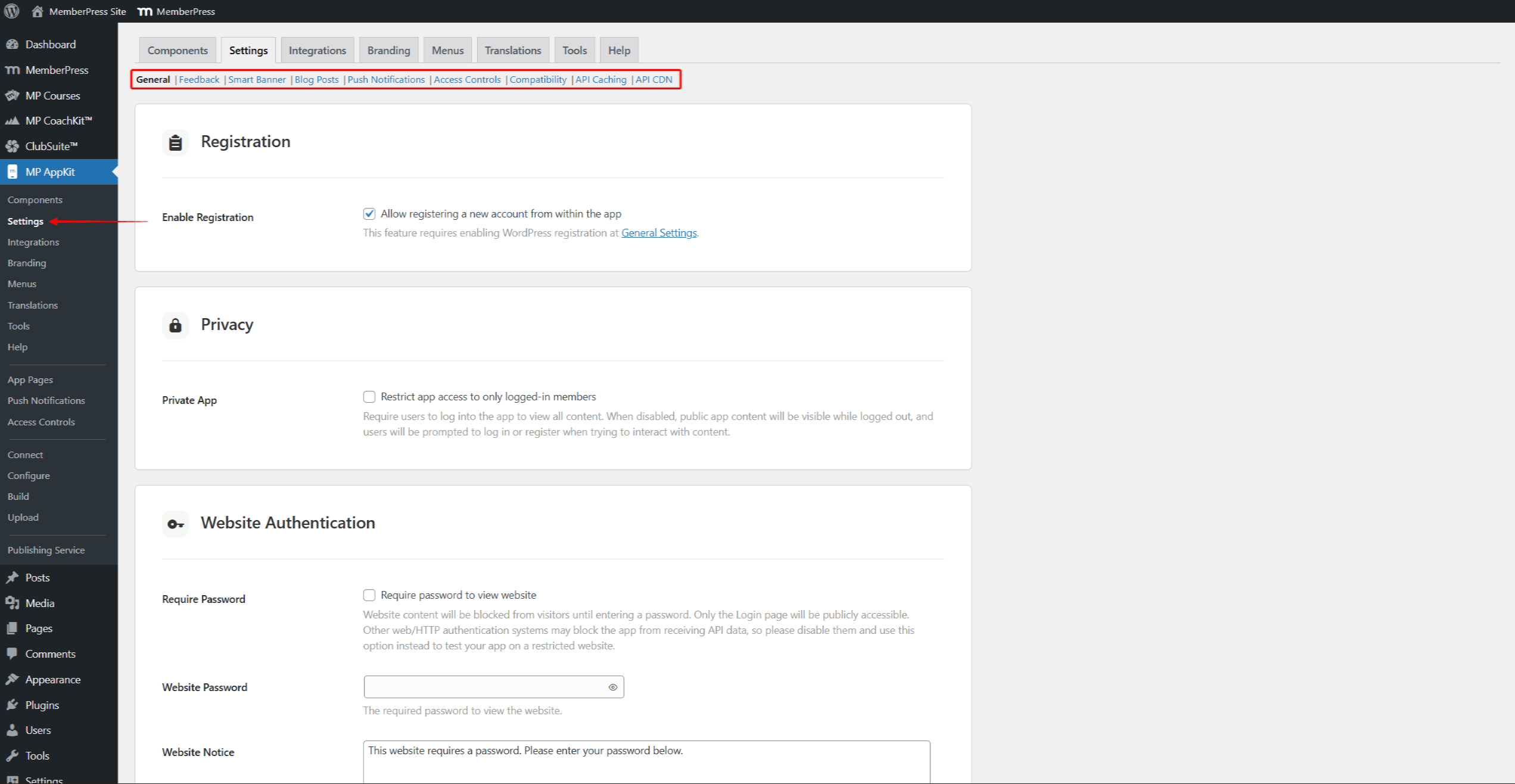
- Configura las opciones que necesites:
- General - registro, privacidad e inicio de sesión;
- Comentarios - comentarios de los usuarios y valoración de las aplicaciones;
- Banner inteligente - banner en el sitio web para promocionar la aplicación;
- Entradas de blog - marcar, compartir y publicaciones relacionadas;
- Notificaciones push - tipos de notificación y automatización;
- Controles de acceso - mensajería de contenido restringido;
- Compatibilidad - gestión de enlaces externos;
- Almacenamiento en caché de API - aumento de la velocidad;
- API CDN - red de distribución de contenidos.
- Haga clic en Guardar cambios después de configurar cada opción.
Componentes de AppKit
MemberPress AppKit tiene varias partes que pueden activarse o desactivarse en función de tus necesidades. El Páginas de aplicaciones es obligatorio y no se puede desactivar.
- Vaya a Panel > MP AppKit > Componentes.
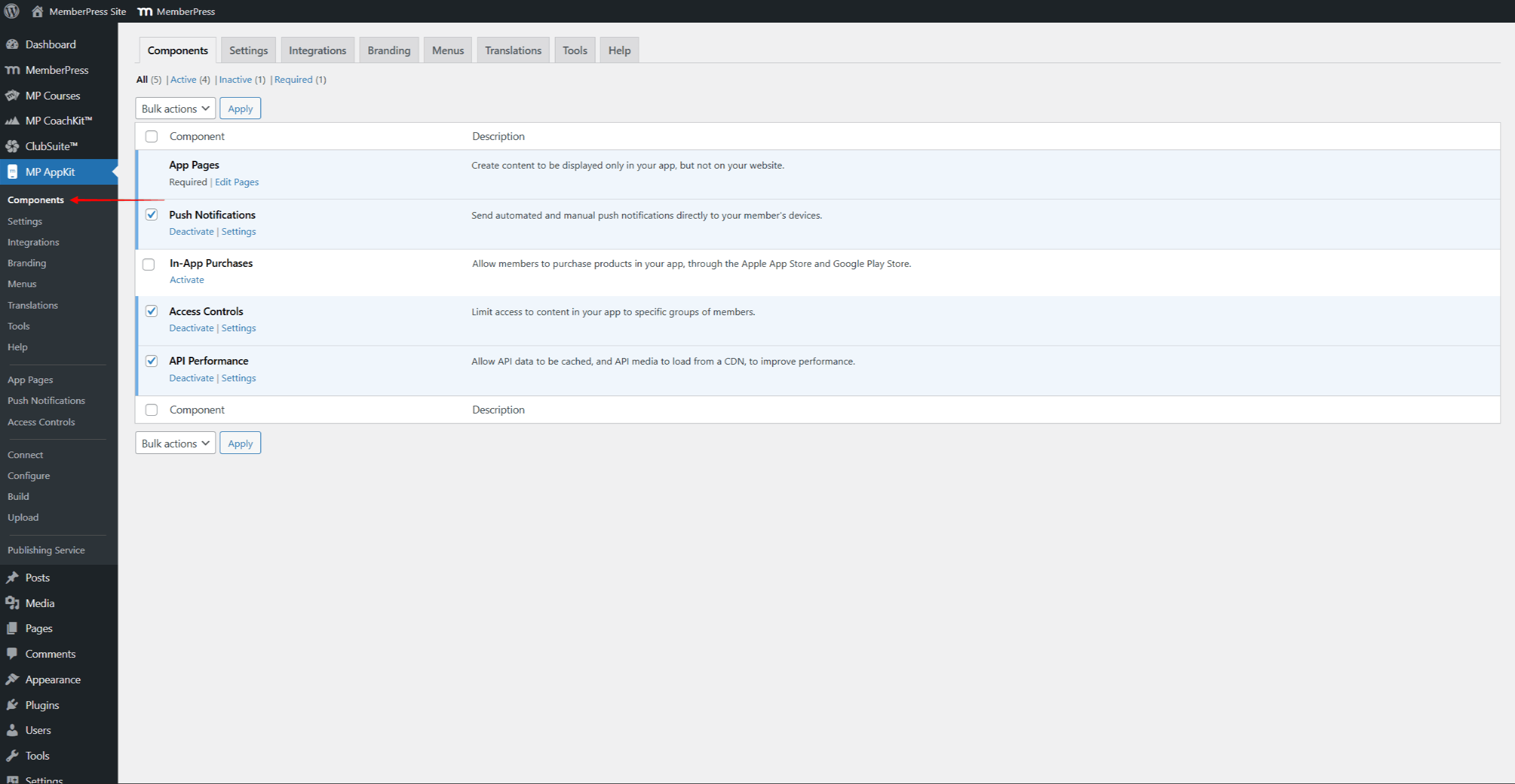
- Revise los componentes disponibles:
- Notificaciones push - te permite enviar mensajes push a los usuarios de la aplicación;
- Compras dentro de la aplicación - permite a los usuarios comprar afiliaciones en la aplicación;
- Controles de acceso - controla quién puede ver los contenidos en función de la afiliación;
- Rendimiento de la API - activa el almacenamiento en caché para una carga más rápida.
- Todos los componentes están activados por defecto excepto Compras dentro de la aplicación.
- Active o desactive los componentes según sea necesario y haga clic en Guardar cambios.
Conexión de plataformas
Los ajustes de conexión de la plataforma vinculan AppKit a los listados de las tiendas de aplicaciones. Cada plataforma requiere identificadores y certificados específicos para crear y publicar apps.
- Vaya a Panel de control > MP AppKit > Configurary haga clic en el botón Ajustes de iOS menú.
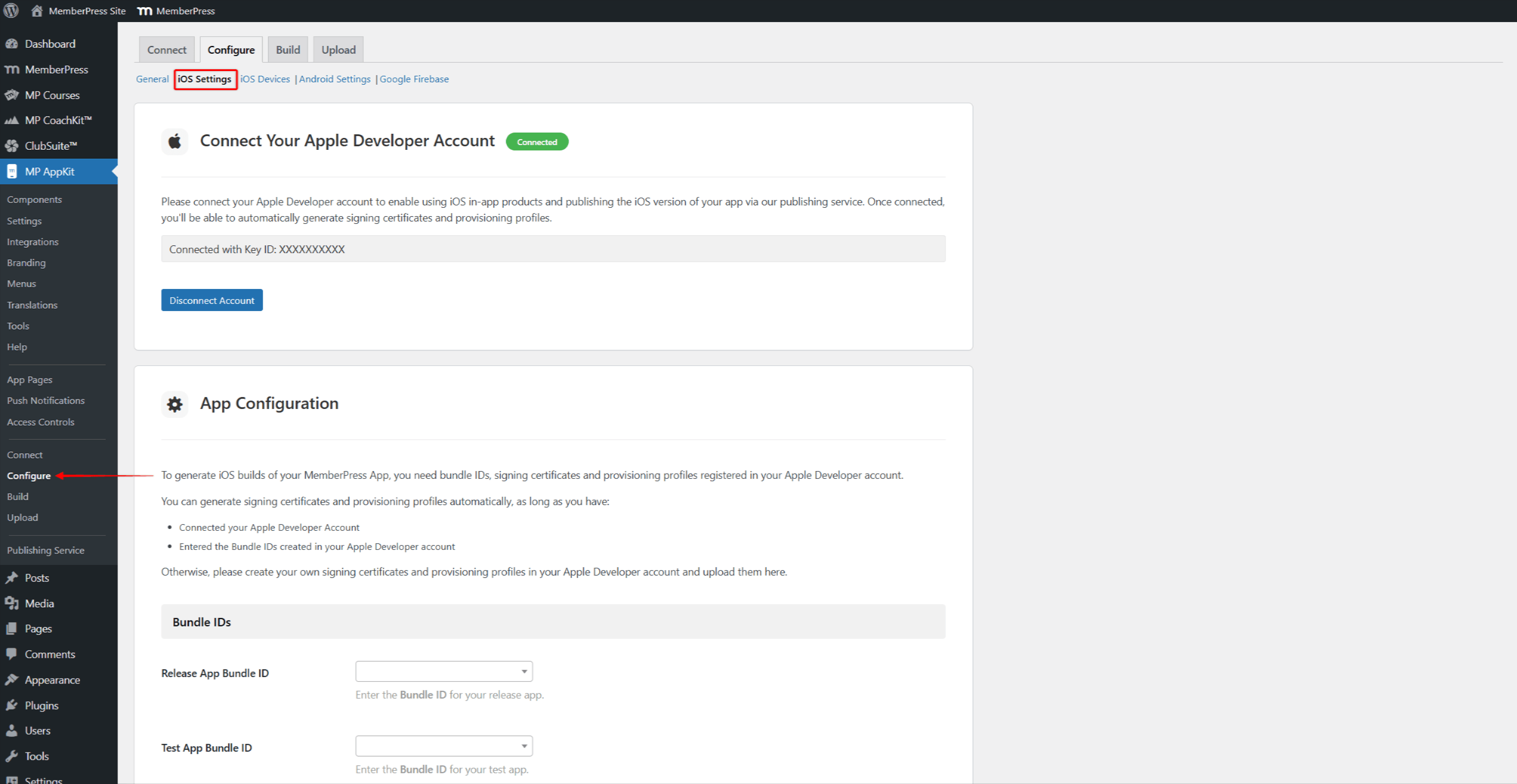
- Sigue el Guía de configuración de los Ajustes de iOS para configurar los ID de paquete, los certificados de firma, los perfiles de aprovisionamiento y la información de la aplicación.
- Activar Enlaces universales para enlaces profundos.
- Haga clic en Guardar cambios.
- A continuación, conecta la aplicación que has creado en tu Google Play Console. Haz clic en el botón Ajustes de Android menú.
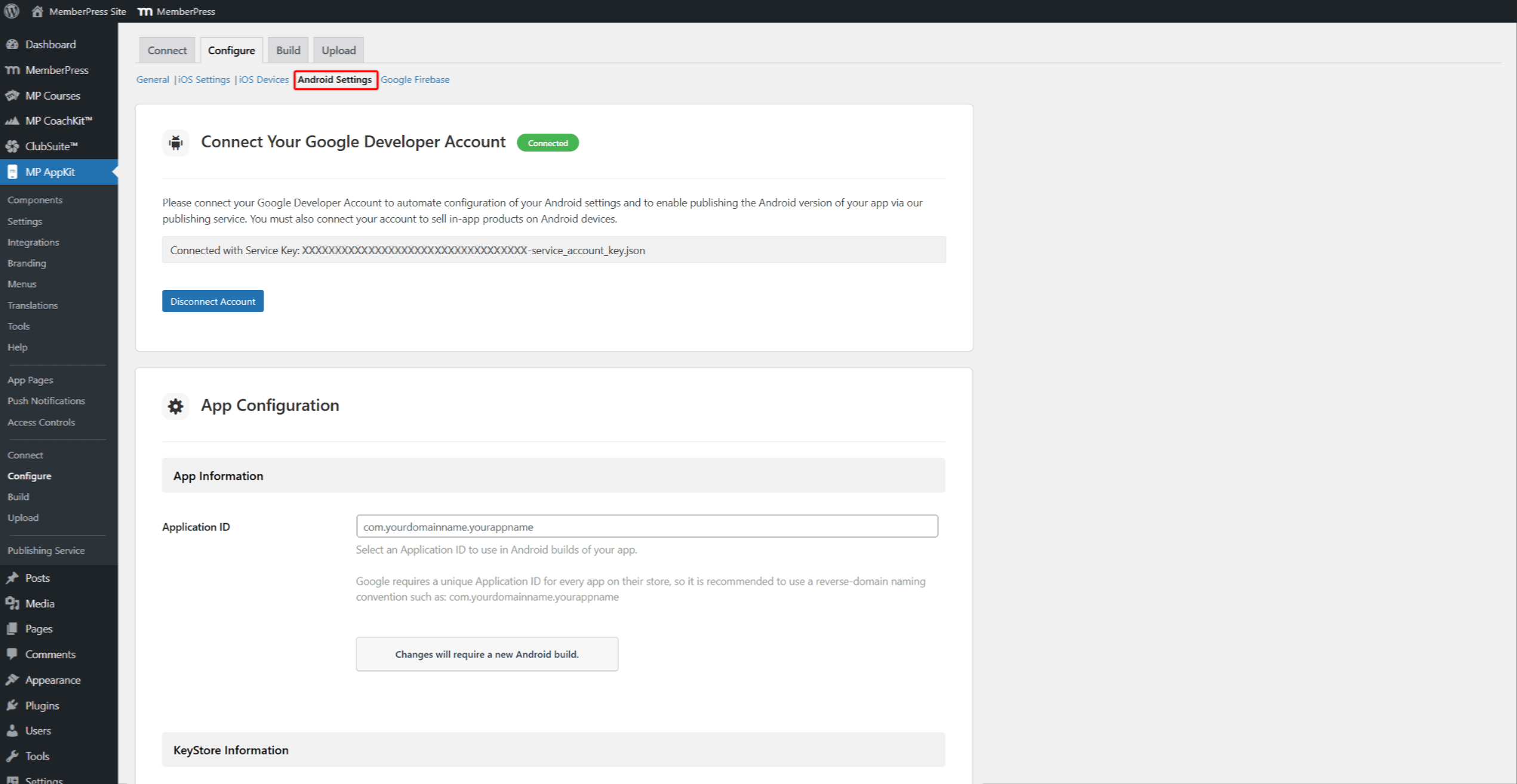
- Sigue el Guía de configuración de los Ajustes de Android para configurar el ID de aplicación y la información del almacén de claves.
- Activar Enlaces a aplicaciones Android para enlaces profundos.
- Haga clic en Guardar cambios.
- Haga clic en el botón Google Firebase y siga las instrucciones Guía de configuración de Google Firebase para activar las notificaciones push.
Fase 3: Configuración del contenido y la navegación
Esta fase configura el contenido de la aplicación y los menús de navegación. Las Entradas y los Cursos MemberPress se sincronizan desde el sitio web por sí solos. Las Páginas de la aplicación muestran contenido personalizado sólo en la aplicación. La página configuración de la página de inicio de la aplicación establece la primera pantalla que ven los usuarios. Traducción de textos te permiten traducir el texto de la aplicación a otros idiomas.
Antes de empezar, asegúrese de que al menos una afiliación existe y Normas MemberPress están configurados.
Páginas de aplicaciones
Las App Pages son pantallas personalizadas que sólo se muestran en la aplicación móvil. Estas páginas se construyen utilizando el Editor Gutenberg con un ancho adaptado a las pantallas de los móviles.
- Vaya a Panel de control > MP AppKit > Páginas de aplicaciones.
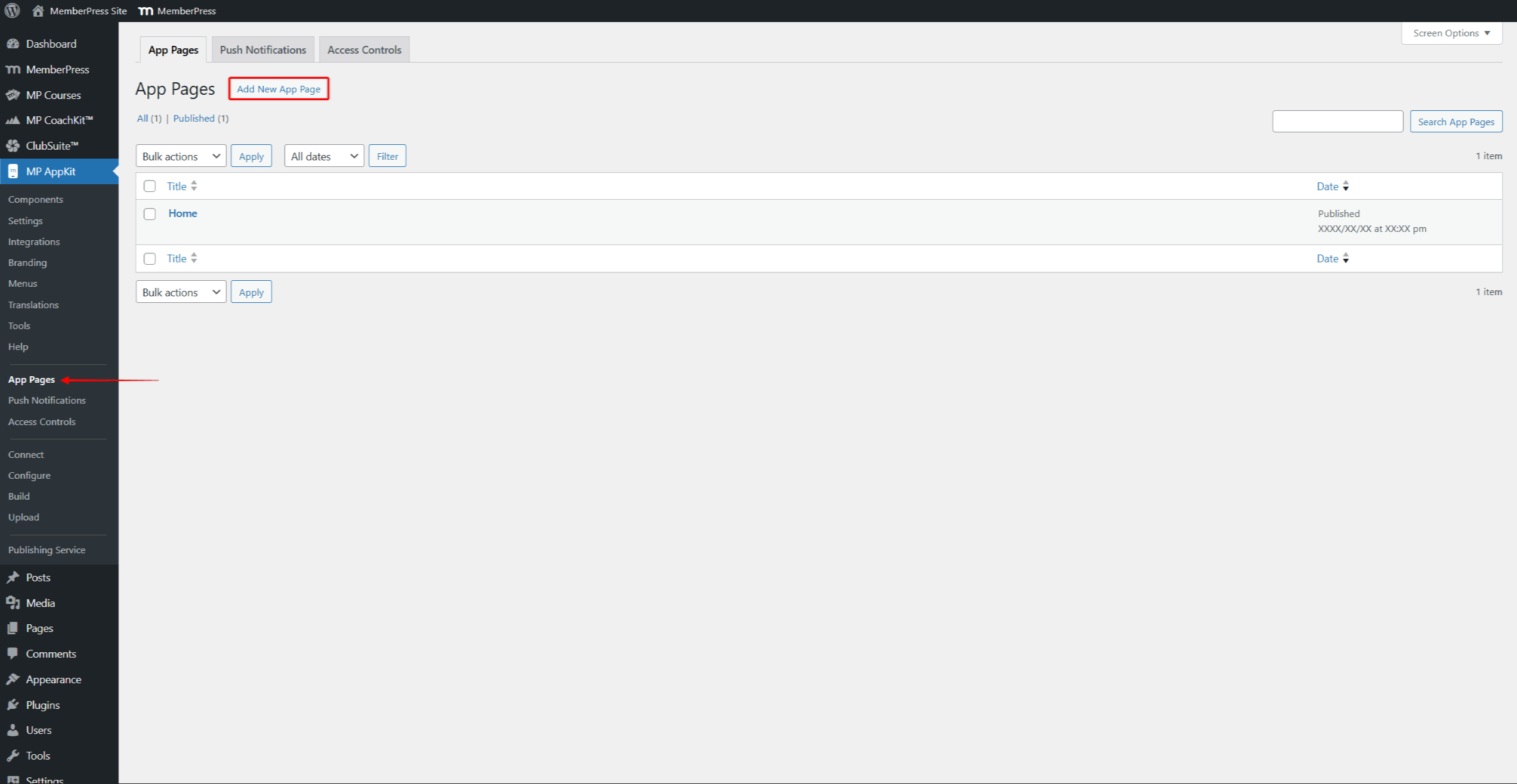
- Haga clic en Añadir nueva página de aplicación para crear una nueva página.
- Añadir contenido utilizando bloques de Gutenberg, incluyendo MemberPress Bloques AppKit y el Bloque de cursos.
- Haga clic en Publique para guardar la página.
Menú Configuración
La configuración de los menús controla la navegación por la aplicación. Hay tres áreas de menú disponibles: Barra de pestañas (navegación inferior), Barra de cabecera (navegación superior), y Menú Más (elementos adicionales). Iconos de menú personalizados y múltiples versiones de menú ofrecen más formas de configurar la navegación.
- Vaya a Panel de control > MP AppKit > Menús.
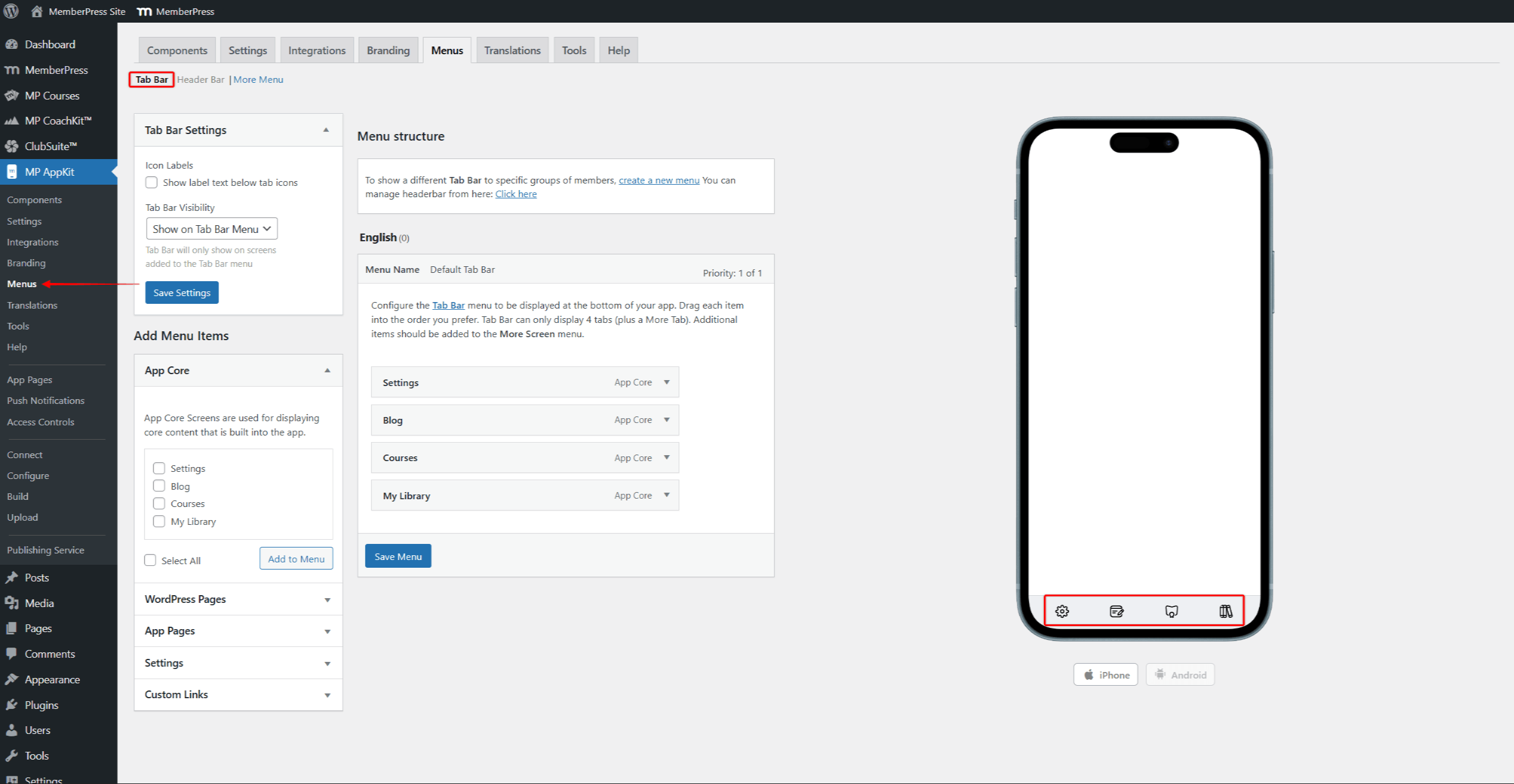
- Configure el Barra de pestañas con elementos de navegación principales (hasta 4 pestañas más Más).
- Configure el Barra de cabecera con botones de navegación superiores.
- Configure el Más menú con elementos de navegación adicionales.
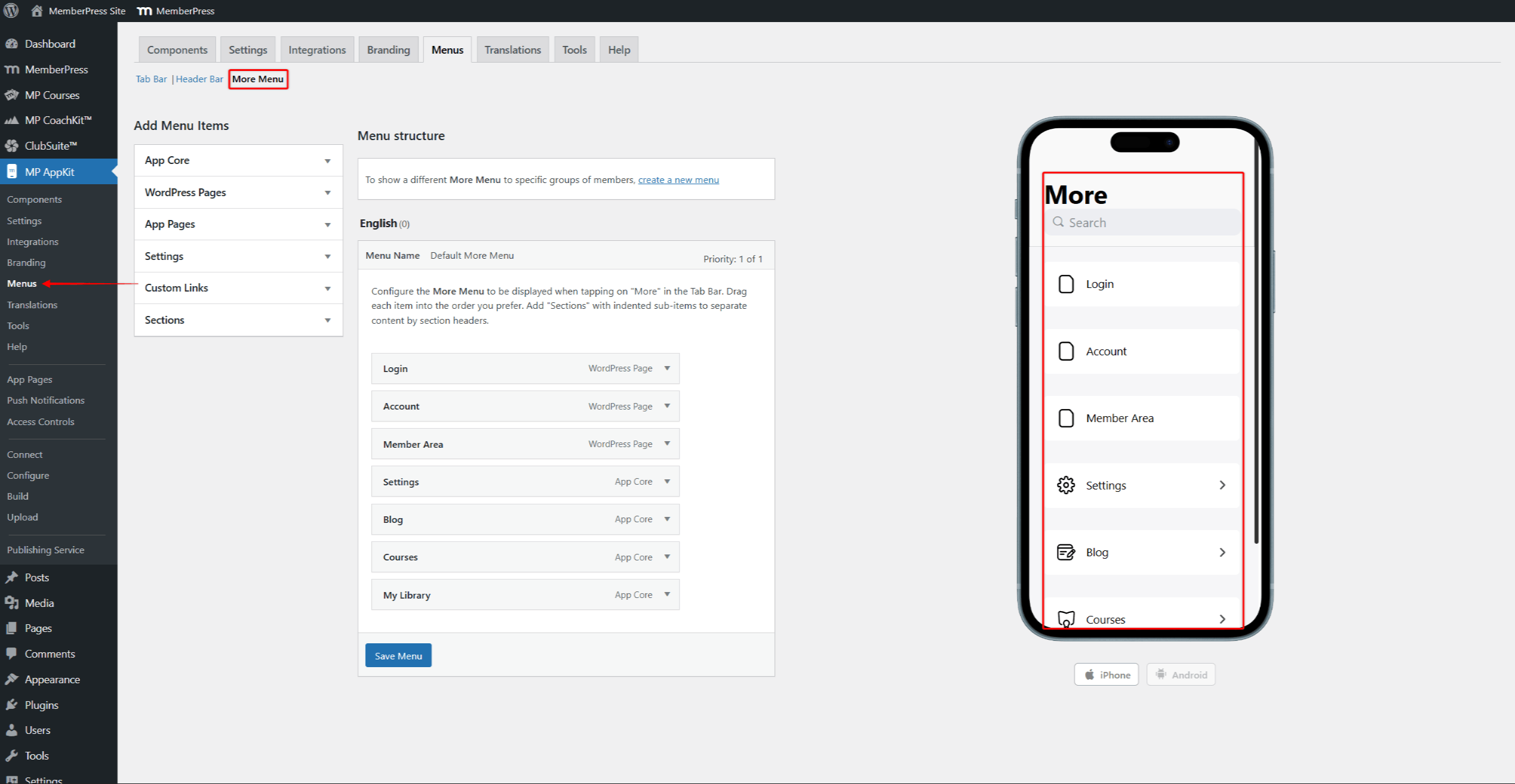
- Haga clic en Guardar menú después de configurar cada menú.
Controles de acceso
La aplicación utiliza las reglas de acceso de MemberPress. El sitio Página de controles de acceso permite añadir reglas para contenidos específicos. Grupos de acceso ayudan a organizar el acceso a los contenidos por nivel de afiliación. En mensaje restringido por defecto se muestra cuando los usuarios intentan ver contenidos protegidos.
- Vaya a Panel de control > MemberPress > Normas y revisar las normas existentes.
- Crear reglas adicionales si es necesario.
- Vaya a Panel de control > MP AppKit > Controles de acceso.
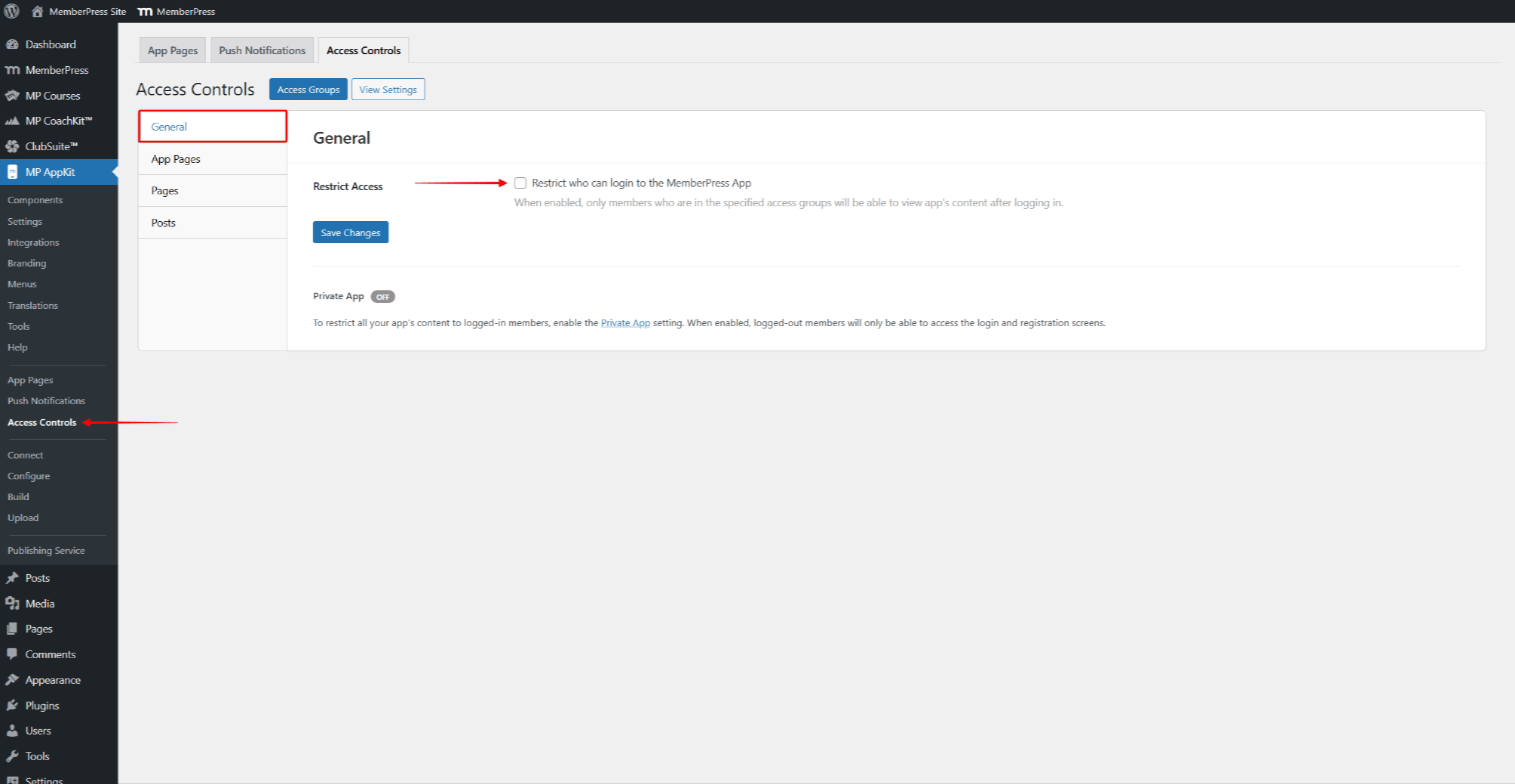
- En el General busque la pestaña Acceso restringido sección.
- Activar “Restringir quién puede iniciar sesión en la App MemberPress” para limitar el acceso a la aplicación a grupos de acceso específicos.
- Para que la aplicación sea totalmente privada, active la opción Configuración de la aplicación privada en Panel de control > MP AppKit > Configuración > General > Privacidad.
- Haga clic en el botón Páginas de aplicaciones, Páginaso Puestos para añadir reglas a contenidos específicos.
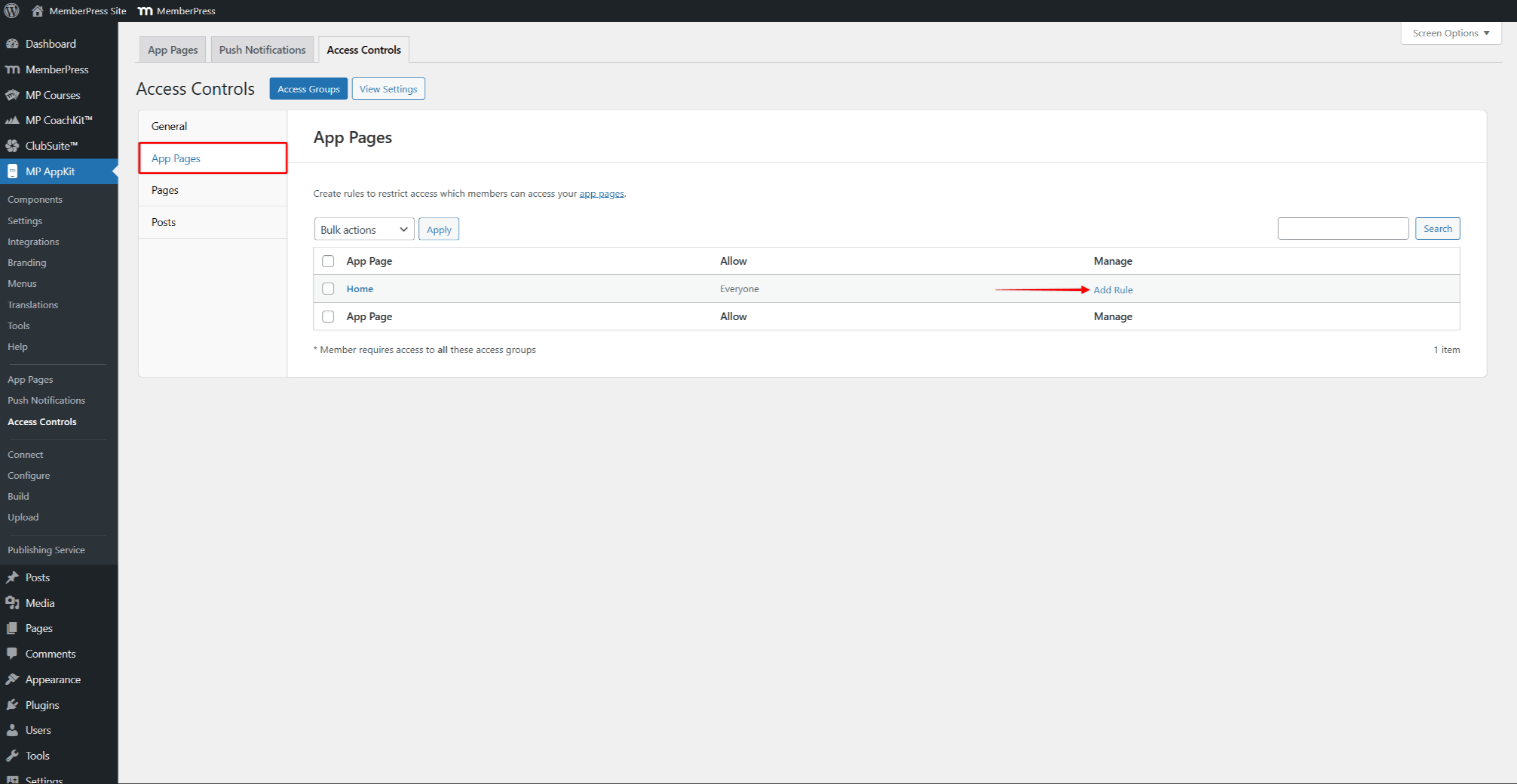
- En estas páginas, puede añadir reglas específicas para cada artículo. Haga clic en Añadir regla junto a cualquier elemento para restringir ese contenido a los miembros registrados o a grupos de acceso específicos.
- Haga clic en Guardar cambios.
Fase 4: Configuración de las compras dentro de la aplicación
Esta fase sólo es necesaria para los usuarios de la ruta B. Los usuarios de la Ruta A deben pasar a la Fase 5. El sitio Configuración de las compras dentro de la aplicación muestra todos los pasos de configuración.
Antes de iniciar esta fase, asegúrese de que Compras dentro de la aplicación está activado en Panel > MP AppKit > Componentes.
Ambas tiendas de aplicaciones requieren que se creen productos de compra dentro de la aplicación antes de que la aplicación pueda vender afiliaciones. Cada suscripción MemberPress necesita un producto correspondiente en ambas tiendas. Grupos de suscripción organizar los productos de afiliación relacionados para las opciones de actualización y reducción.
Configuración de productos de App Store
- En App Store Connect, seleccione la aplicación y haga clic en Suscripciones en la barra lateral.
- Cree productos que correspondan a cada afiliación. Seleccione Suscripción renovable automáticamente para afiliaciones periódicas. En Guía de productos in-app para iOS explica la configuración y los tipos de productos.
- En Consola de Google PlayNavegue hasta Monetizar con Play.
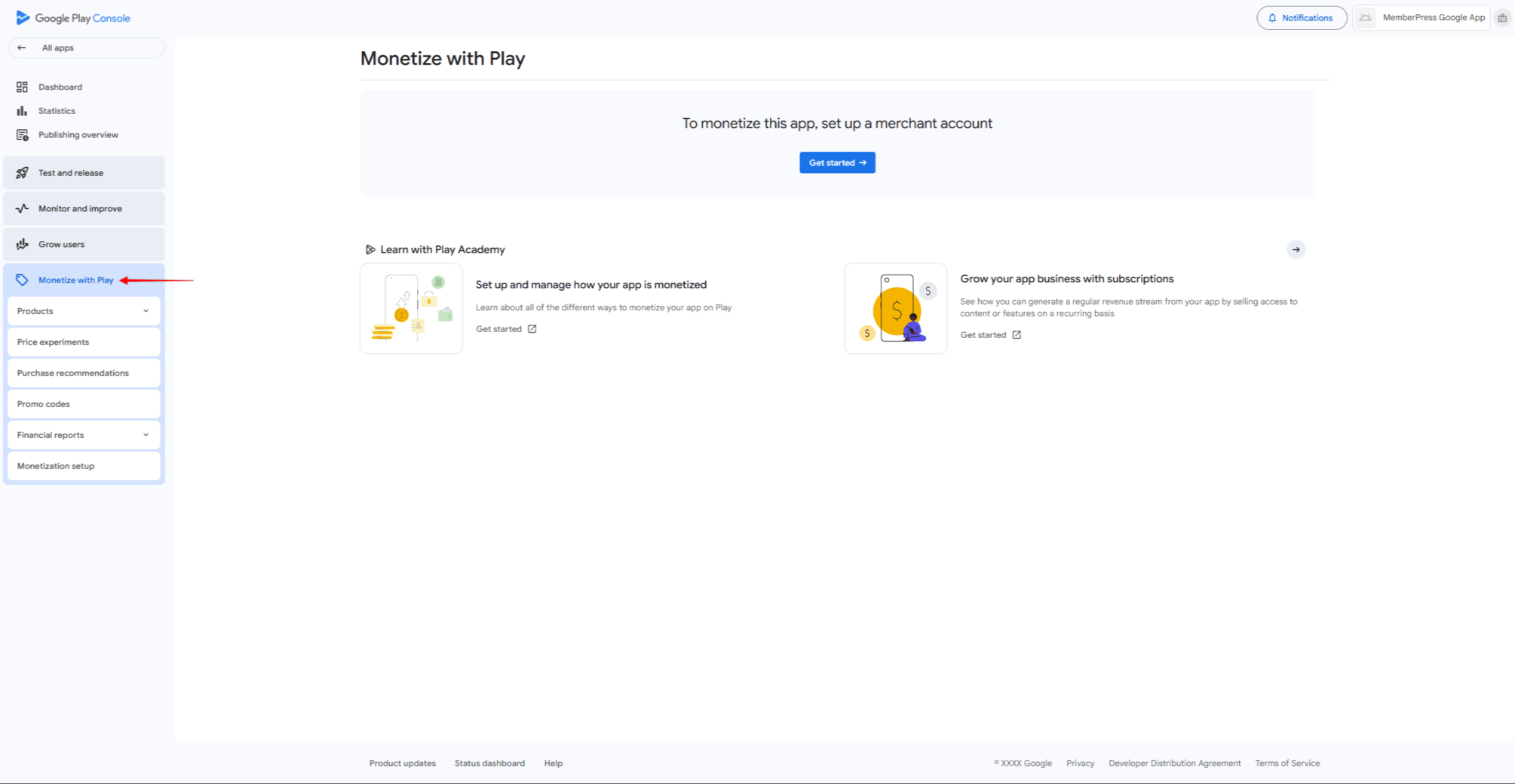
- Después de configurar la cuenta comercial, vaya a Monetizar > Productos > Suscripciones.
- Cree productos coincidentes utilizando los mismos ID de producto para facilitar el seguimiento. En Guía de compras dentro de la aplicación para Android muestra los pasos de configuración.
Productos de conexión a MemberPress
Después de crear productos en ambas tiendas de aplicaciones, vincúlalos a las membresías MemberPress:
- Vaya a Panel de control > MP AppKit > Compras dentro de la aplicación > Productos.
- Haga clic en Añadir nuevo para crear un producto.
- Introduzca un Nombre del producto, opcional Etiqueta, Descripcióny Beneficios.
- Consulte Mostrar en la pantalla de productos y seleccione Pagado como Tipo de producto.
- En Tienda iOScomprobar Activar y haga clic en Sincronizar con Apple para recuperar los productos disponibles.
- Selecciona el producto App Store Connect correspondiente de la lista.
- En Tienda Androidcomprobar Activar y haga clic en Sincronizar con Google para recuperar los productos disponibles.
- Selecciona de la lista el producto de Google Play que corresponda.
- En Tipo de integraciónseleccione Afiliación y elija el plan de afiliación que desea vincular.
- Haga clic en Publique para guardar el producto.
- Repítelo para cada afiliación que necesite acceso mediante compra desde la aplicación.
Fase 5: Prueba de la aplicación
En esta fase se comprueba cómo funciona la aplicación antes de enviarla. Tanto Apple como Google rechazan apps con errores evidentes o funciones rotas.
Pruebas de dispositivos
Las aplicaciones de prueba permiten probar la aplicación en dispositivos reales antes de enviarla. Prueba con muchas cuentas de usuario para comprobar que las reglas de acceso funcionan correctamente.
- Vaya a Panel de control > MP AppKit > Crear y haga clic en Solicitar construir.
- Seleccione la plataforma (iOS o Android), seleccione Aplicación de prueba como tipo de construcción.
- Una vez finalizada la compilación, aparecerá en la ventana Historia de la construcción lista.
Para las aplicaciones de prueba de iOS, primero registrar dispositivos de prueba en Panel de control > MP AppKit > Configurar > Dispositivos iOS. A continuación, haga clic en el botón Instalar en dispositivo iOS para instalar mediante código QR o descargar el archivo IPA. En Guía de pruebas de iOS muestra los pasos completos.
Para las aplicaciones de prueba de Android, haga clic en el botón Instalar en dispositivo Android para instalar mediante código QR o descargar el archivo APK. La página Guía de pruebas de Android muestra los pasos completos. Las aplicaciones de prueba de Android no necesitan registrar el dispositivo.
Los usuarios de la ruta B también deben probar las compras desde la aplicación utilizando cuentas sandbox de iOS y probadores de licencias de Android. Antes del envío a la App Store, seleccione una versión de revisión de iOS para el equipo de revisión de Apple.
Fase 6: Creación y publicación de aplicaciones
En esta fase se crean las versiones finales de las aplicaciones y se envían a las tiendas de aplicaciones. Ambas plataformas revisan las aplicaciones antes de su lanzamiento. La página guía de generación de aplicaciones cubre la creación de aplicaciones para ambas plataformas.
Prepare los activos del listado de la tienda de aplicaciones (capturas de pantalla, descripciones) y asegúrese de que la URL de la política de privacidad es accesible. En MemberPress Servicio de publicación de aplicaciones ofrece ayuda con el proceso de presentación.
Presentación de aplicaciones iOS
- Vaya a Panel de control > MP AppKit > Crear y haga clic en Solicitar construir.
- Seleccione iOS como plataforma, entonces Liberar aplicación como tipo de construcción. La dirección Generación de aplicaciones para iOS guía muestra los pasos.
- Una vez finalizada la compilación, haga clic en el botón Enviar para publicar de la tarjeta de construcción.
- Haga clic en Subir a App Store Connect para cargar directamente desde AppKit. La dirección Guía para subir compilaciones de iOS muestra los pasos.
- En App Store Connect, completo Información de la aplicación, cargue capturas de pantalla, seleccione la compilación y haga clic en Enviar para revisión. En Lista de comprobación para la publicación en el App Store enumera todos los artículos necesarios.
Presentación de aplicaciones Android
- Vaya a Panel de control > MP AppKit > Crear y haga clic en Solicitar construir.
- Seleccione Android como plataforma, entonces Liberar aplicación como tipo de construcción. La dirección Generación de aplicaciones para Android guía muestra los pasos.
- Una vez finalizada la compilación, haga clic en el botón Enviar para publicar de la tarjeta de construcción.
- Haga clic en Subir a Google Play Console para cargar directamente, o haga clic en Descargar archivo AAB para la carga manual.
- En Consola de Google PlayNavegue hasta Versión > Pruebas > Pruebas cerradas y cargue el archivo AAB. Para despliegues por etapas, utilice pruebas cerradas antes de la producción.
- Complete Listado de tiendas, subir capturas de pantalla, completar Clasificación del contenidoy haga clic en Inicio del despliegue. En Lista de comprobación para la publicación en Google Play enumera todos los artículos necesarios.
Fase 7: Gestión continua de la aplicación
Las aplicaciones publicadas necesitan un cuidado regular. Planifique actualizaciones para corregir errores y para que funcionen con nuevas versiones del sistema operativo. En Actualización de la aplicación iOS y Actualización de la aplicación Android muestran los pasos para las nuevas versiones. Modo de mantenimiento te permite limitar brevemente el acceso a las aplicaciones durante las grandes actualizaciones.
Consulta las reseñas de App Store y Google Play, y responde rápidamente a los comentarios de los usuarios. Rastrea los informes de fallos y observa Rendimiento de la API para que la aplicación funcione bien.
Resumen
MemberPress AppKit le permite crear aplicaciones móviles nativas para sitios de membresía a través de siete pasos en orden.
Antes de comenzar la Fase 1:
- Compruebe las necesidades del sitio web (HTTPS, PHP 7.4+, WordPress 5.8+).
- Asegúrese de que existe un plan MemberPress activo (plan de Lanzamiento, Crecimiento o Escala).
- Decida entre la Vía A (registro en el sitio web) o la Vía B (compras dentro de la aplicación).
- Reúna activos visuales (icono de la aplicación, pantalla de inicio, capturas de pantalla).
- Prepare la información de la tarjeta de crédito para las tasas de la cuenta del promotor.
Comienza la Fase 1 creando una cuenta de desarrollador de Apple y una cuenta de desarrollador de Google Play.










 ES
ES  EN
EN  FR
FR  DE
DE  PT
PT 