

El tema ReadyLaunch™ incluye plantillas predefinidas para páginas y entradas, así como componentes de plantilla. Estos elementos te ofrecen diseños reutilizables para tu sitio web. Además, el plugin MemberPress proporciona plantillas FSE para tus páginas de membresía.
Este documento explica los conceptos básicos sobre cómo utilizar las plantillas y los componentes de plantilla de ReadyLaunch™ para crear tu página web.
Plantillas ReadyLaunch
Las plantillas de ReadyLaunch™ son diseños predeterminados para entradas y páginas. Estos diseños adaptan el diseño de la página o la entrada al contenido, sin afectar a este ni añadirle nada.
Al aplicar una plantilla, el diseño de la página o la entrada cambia automáticamente. Plantillas que puedes aplicar a páginas y entradas:
- N.º de página Título: una maquetación de página sin el título de la página;
- Página con barra lateral: un diseño de página con una barra lateral;
- Página a ancho completo: un diseño que amplía el contenido hasta ocupar todo el ancho de la pantalla;
- Página flexible a ancho completo: un diseño a ancho completo con áreas de contenido flexibles;
- Página legal: un diseño adecuado para páginas de carácter jurídico, como una política de privacidad;
- Cuadro en blanco con encabezado y pie de página: un diseño minimalista con un área de contenido centrada;
- Puesto único: un diseño para entradas de blog individuales;
- Página individual con barra lateral: un diseño de entrada con una barra lateral.
El tema también aplica estilos a las plantillas que WordPress utiliza automáticamente según el tipo de contenido:
- Inicio del blog: muestra tus últimas publicaciones;
- Todos los archivos: muestra los archivos por categoría, etiqueta, autor y fecha;
- Resultados de la búsqueda: muestra los resultados cuando un visitante realiza una búsqueda en tu sitio web;
- Página: 404: se muestra cuando un visitante abre una página que no existe;
- Páginas: el diseño predeterminado para las páginas estáticas;
- Entradas individuales: el diseño predeterminado para las entradas individuales;
- Índice: el diseño por defecto cuando no se aplica ninguna plantilla específica.
Además de las plantillas a página completa y las partes de plantilla, ReadyLaunch™ incluye secciones de contenido reutilizables y prediseñadas. Estas secciones están formadas por bloques de Gutenberg (Plantillas de ReadyLaunch™).
Plantillas para la página de miembros de MemberPress
Las plantillas de FSE para tus páginas de membresía se incluyen con el complemento MemberPress, no con el tema. Cuando el complemento está activo, estas plantillas abarcan tus páginas de membresía más importantes:
- Cuenta;
- Inicio de sesión;
- Precios (grupos);
- Registro y pago (afiliaciones);
- Gracias.
El tema ReadyLaunch™ aplica automáticamente los estilos a estas plantillas. Estas adoptan los colores y la tipografía que hayas configurado para el tema.
Partes de la plantilla
Los componentes de plantilla son grupos reutilizables de bloques integrados en varias plantillas de ReadyLaunch™.
Puedes editar las plantillas una por una en el editor de WordPress. Sin embargo, las partes de plantilla funcionan de forma diferente, ya que todas las plantillas las comparten. Cuando editas una parte de plantilla, los cambios se aplican a todas las instancias de esa parte.
Puedes editar las partes de plantilla directamente o a través de cualquier plantilla que las contenga. Los cambios se aplican automáticamente a todas las plantillas que utilicen esa parte de plantilla concreta.
El tema ReadyLaunch™ contiene las siguientes partes de plantilla:
- Cabecera: el área de cabecera que se añade a todas las plantillas;
- Navegación de cabecera: el menú principal de la cabecera;
- Pie de página: el área de pie de página añadida a todas las plantillas;
- Barra lateral: el área de widgets que utilizan las plantillas de la barra lateral.
Gestión de las plantillas de ReadyLaunch™
Puedes gestionar las plantillas de ReadyLaunch™ a través de la página web de tu Editor del sitio web:
- Vaya a Panel > Apariencia > Editor para acceder al editor del sitio.
- A continuación, haga clic en el botón Plantillas opción del menú. Al seleccionarla, se abre la página «Plantillas».
- Haga clic en el botón ReadyLaunch™ opción del menú de la derecha para filtrar las plantillas de temas.
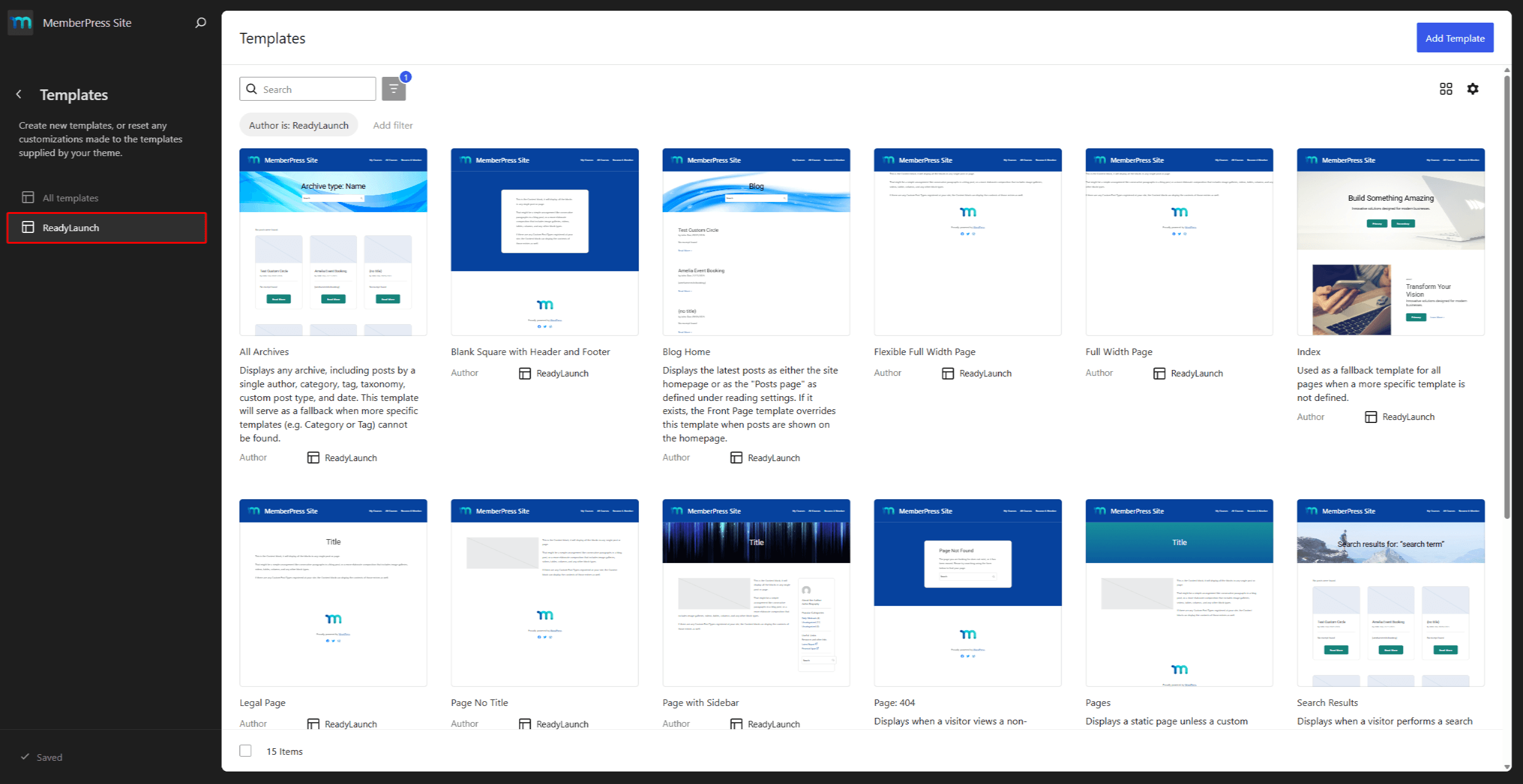
Aquí puedes explorar y buscar en la lista de todas las plantillas de ReadyLaunch™ disponibles. También puedes editarlas o Añade tus plantillas personalizadas.
Edición de plantillas
Las plantillas de ReadyLaunch™ están compuestas por bloques de Gutenberg. Puedes editar las plantillas mediante el editor de plantillas:
- Navegue hasta el Plantillas página dentro del Editor del sitio.
- Busca la plantilla que quieras editar y haz clic en ella para abrir el editor de plantillas. También puedes hacer clic en el Icono de 3 puntos en la plantilla y, a continuación, el Editar opción.
- Añade, reorganiza, modifica o elimina bloques como lo harías en cualquier otra página o entrada. También puedes ajustar la configuración de cualquier bloque de la plantilla.
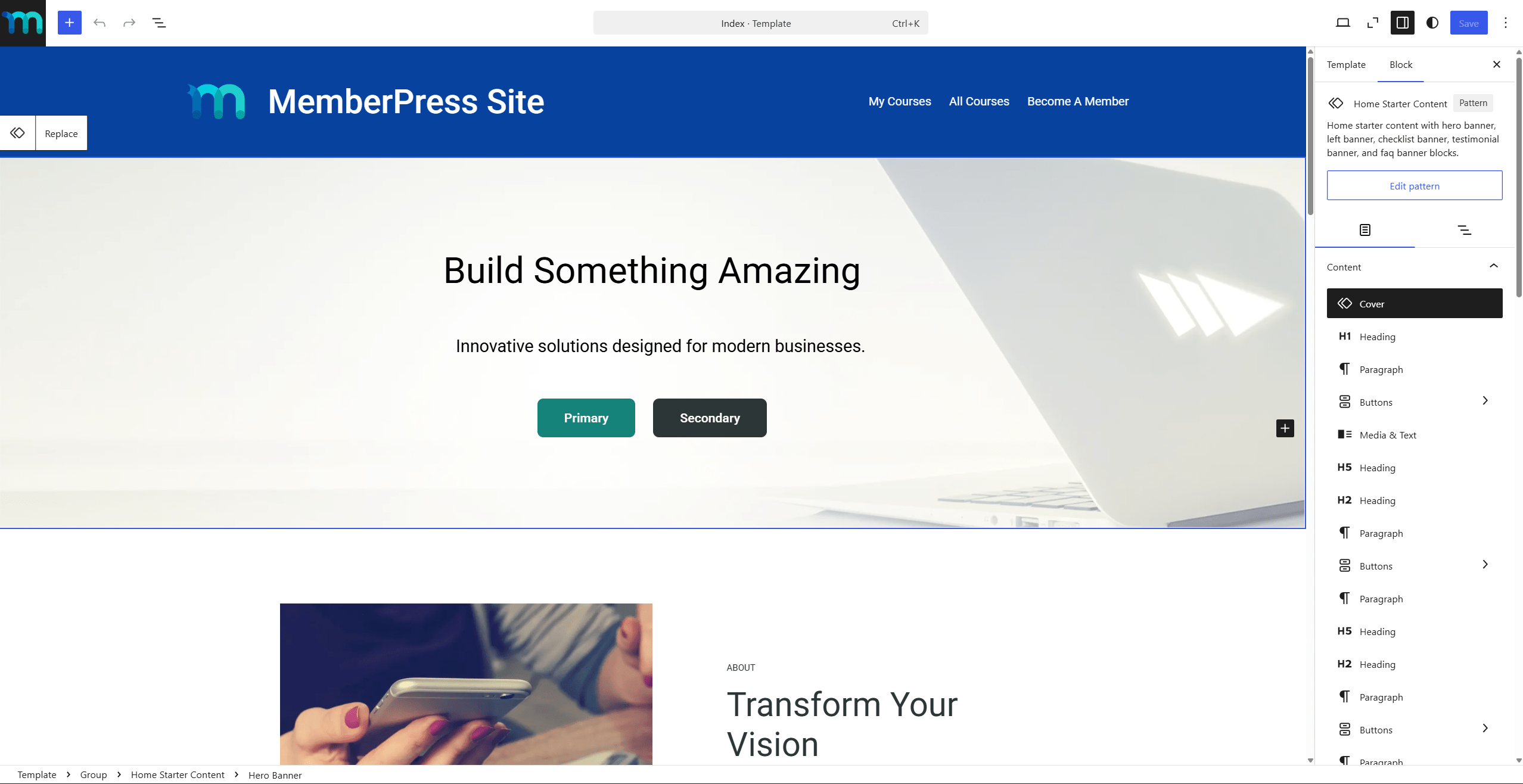
- Una vez que hayas aplicado todos los cambios, haz clic en Actualización para guardar los cambios.
Aplicar plantillas a entradas y páginas
Puedes elegir qué plantilla utilizar para cada página o entrada. Por ejemplo, sigue estos pasos para cambiar la plantilla que se utiliza en una página concreta:
- Empieza a editar la página con el editor predeterminado (Gutenberg).
- En el panel lateral, haz clic en el Página pestaña para abrir el panel de atributos de la página.
- Junto al Plantilla atributo, haz clic en el nombre de la plantilla que se está utilizando actualmente.
- En el menú, selecciona la opción Cambiar plantilla opción y selecciona la nueva plantilla.
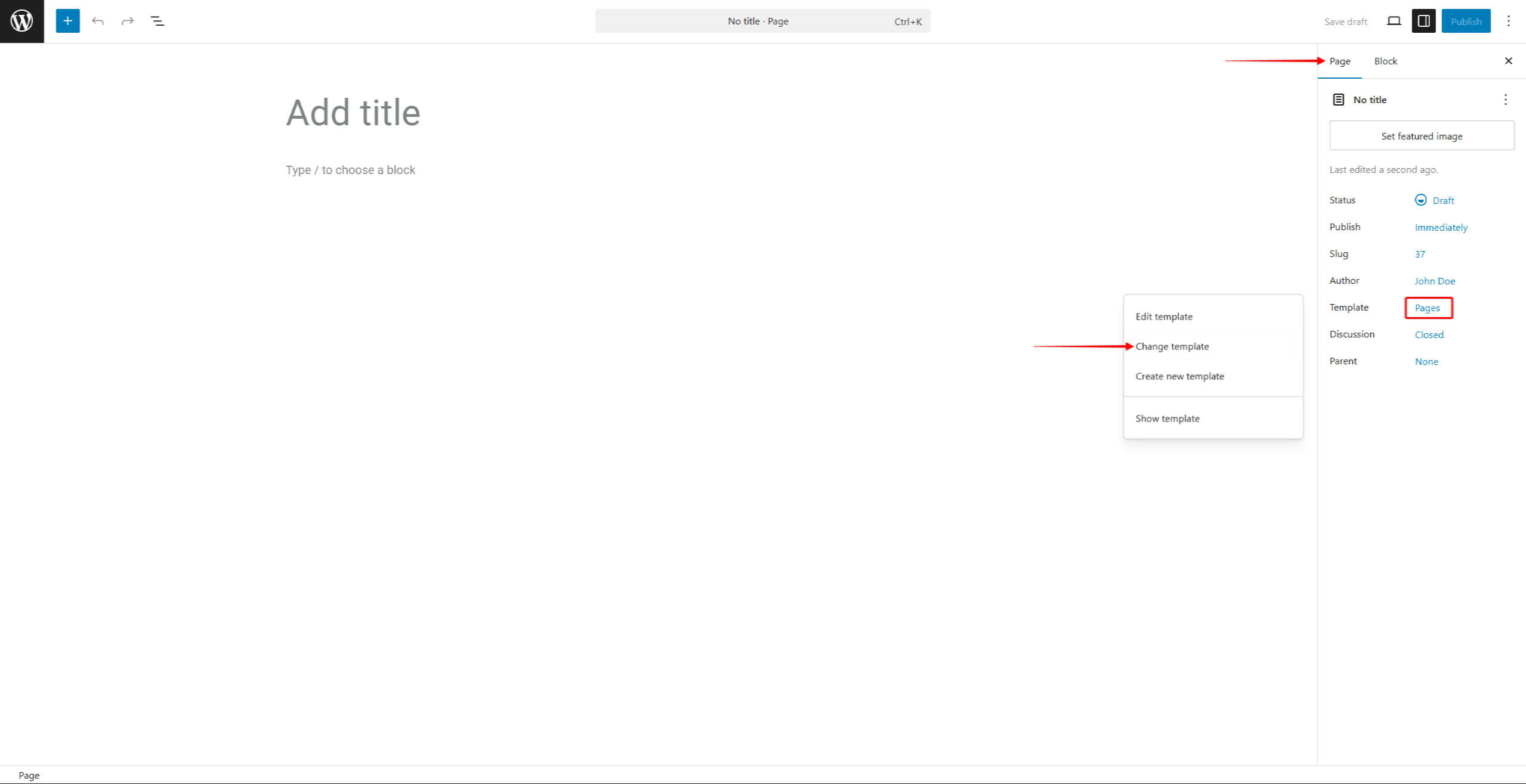
- Guarde los cambios haciendo clic en el botón Actualización (o Publique) botón.
Puedes actualizar cualquier página o entrada de forma similar.
Aplicación masiva a varias páginas o entradas
Además, puedes aplicar una plantilla a varias páginas o entradas. Por ejemplo, sigue estos pasos para aplicar una plantilla a varias páginas:
- Vaya a Panel > Páginas.
- Selecciona las páginas que deseas actualizar.
- En el Acciones masivas seleccione Editar y haga clic en el botón Solicitar botón.
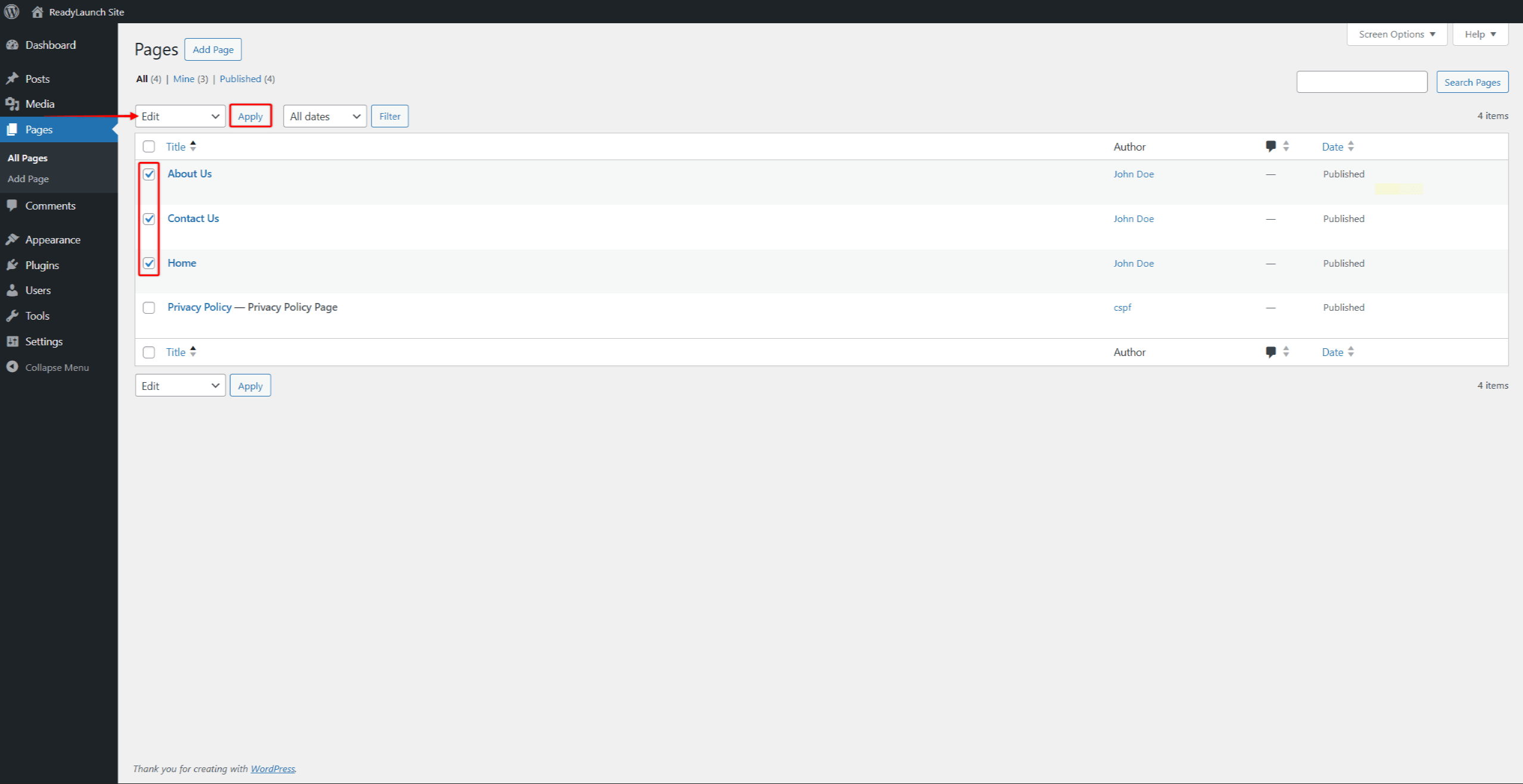
- En el panel «Edición rápida», en la sección Plantilla En el menú desplegable, selecciona la plantilla que quieras aplicar a estas páginas.
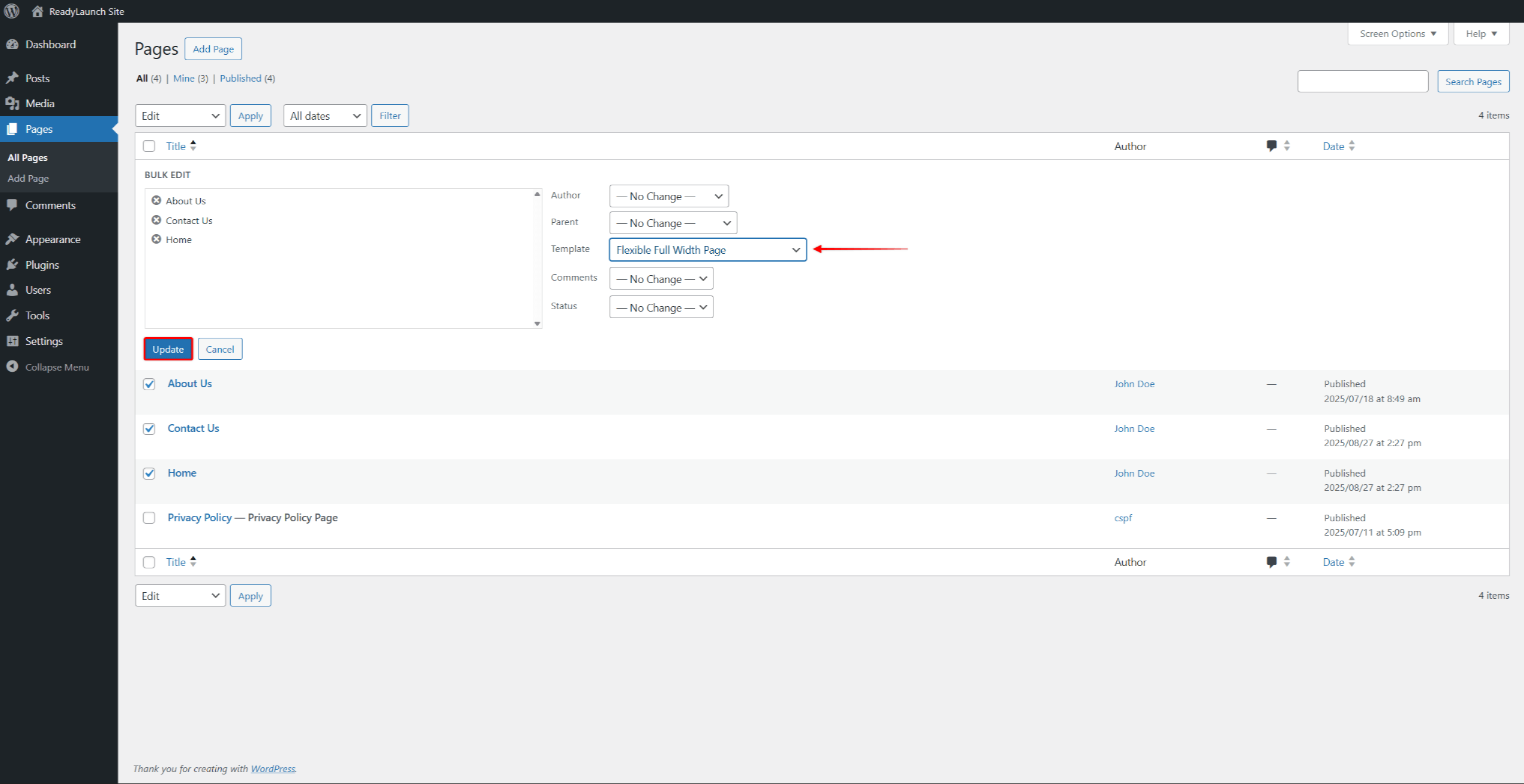
- Haga clic en el botón Actualización botón.
WordPress aplica la plantilla a todas las páginas que hayas seleccionado. El mismo proceso se aplica a las entradas.
Resumen
Las plantillas de ReadyLaunch™ controlan la maquetación y el diseño de tus páginas y entradas sin modificar tu contenido. Las partes de las plantillas, como el encabezado y el pie de página, aplican elementos comunes a todas las plantillas. El plugin MemberPress añade las plantillas FSE para tus páginas de membresía, con el estilo del tema.
Para seguir creando tu página web, consulta las opciones disponibles Bloques y patrones de ReadyLaunch™. Si te has saltado los conceptos básicos, empieza por el Configuración del tema ReadyLaunch™.










 ES
ES  EN
EN  FR
FR  DE
DE  PT
PT 