

O tema ReadyLaunch™ inclui modelos prontos para páginas e posts, além de componentes de modelo. Esses elementos oferecem layouts reutilizáveis para o seu site. Além disso, o plugin MemberPress oferece modelos FSE para suas páginas de assinatura.
Este documento aborda os conceitos básicos sobre como usar os modelos e os componentes de modelo do ReadyLaunch™ para criar seu site.
Modelos ReadyLaunch
Os modelos do ReadyLaunch™ são layouts pré-definidos para posts e páginas. Esses layouts definem o design da página ou do post em torno do seu conteúdo, sem afetá-lo nem adicionar nenhum conteúdo.
Ao aplicar um modelo, o layout da página ou da postagem muda automaticamente. Modelos que você pode aplicar a páginas e postagens:
- N.º da página Título: um layout de página sem o título da página;
- Página com barra lateral: um layout de página com uma área de barra lateral;
- Página em largura total: um layout que estende o conteúdo por toda a largura da tela;
- Página flexível em largura total: um layout de largura total com áreas de conteúdo flexíveis;
- Página Jurídica: um layout adequado para páginas jurídicas, como uma política de privacidade;
- Quadrado em branco com cabeçalho e rodapé: um layout minimalista com uma área de conteúdo centralizada;
- Postagem única: um layout para posts individuais do blog;
- Página simples com barra lateral: um layout de postagem com uma área de barra lateral.
O tema também define o estilo dos modelos que o WordPress aplica automaticamente de acordo com o tipo de conteúdo:
- Página inicial do blog: exibe suas últimas postagens;
- Todos os arquivos: exibe arquivos por categoria, tag, autor e data;
- Resultados da pesquisa: exibe os resultados quando um visitante faz uma busca no seu site;
- Página: 404: é exibido quando um visitante acessa uma página que não existe;
- Páginas: o layout padrão para páginas estáticas;
- Postagens individuais: o layout padrão para posts individuais;
- Índice: o layout padrão quando nenhum modelo específico se aplica.
Além de modelos de página inteira e partes de modelos, o ReadyLaunch™ inclui seções de conteúdo reutilizáveis e pré-projetadas. Essas seções consistem em blocos do Gutenberg (Modelos ReadyLaunch™).
Modelos de páginas de membros do MemberPress
Os modelos do FSE para suas páginas de assinatura vêm junto com o plug-in MemberPress, e não com o tema. Quando o plug-in está ativo, esses modelos abrangem suas principais páginas de assinatura:
- Conta;
- Login;
- Preços (grupos);
- Cadastro e finalização da compra (associações);
- Obrigado.
O tema ReadyLaunch™ aplica automaticamente os estilos a esses modelos. Eles adotam as cores e a tipografia que você definir para o tema.
Partes do modelo
As partes de modelo são grupos reutilizáveis de blocos integrados a vários modelos do ReadyLaunch™.
É possível editar os modelos individualmente no editor do WordPress. No entanto, as partes de modelo funcionam de maneira diferente, pois são compartilhadas por todos os modelos. Ao editar uma parte de modelo, as alterações se aplicam a todas as instâncias dessa parte.
Você pode editar partes de modelo diretamente ou por meio de qualquer modelo que as contenha. As alterações são refletidas automaticamente em todos os modelos que utilizam essa parte de modelo específica.
O tema ReadyLaunch™ contém as seguintes partes de modelo:
- Cabeçalho: a área de cabeçalho adicionada a todos os modelos;
- Navegação no cabeçalho: o menu principal no cabeçalho;
- Rodapé: a área de rodapé adicionada a todos os modelos;
- Barra lateral: a área de widgets utilizada pelos modelos da barra lateral.
Gerenciamento de modelos do ReadyLaunch™
Você pode gerenciar os modelos do ReadyLaunch™ por meio do seu site Editor do site:
- Navegue até Painel de controle > Aparência > Editor para acessar o Editor do Site.
- Em seguida, clique no botão Modelos opção do menu. Isso abre a página “Modelos”.
- Clique no botão ReadyLaunch™ opção no menu à direita para filtrar os modelos de tema.
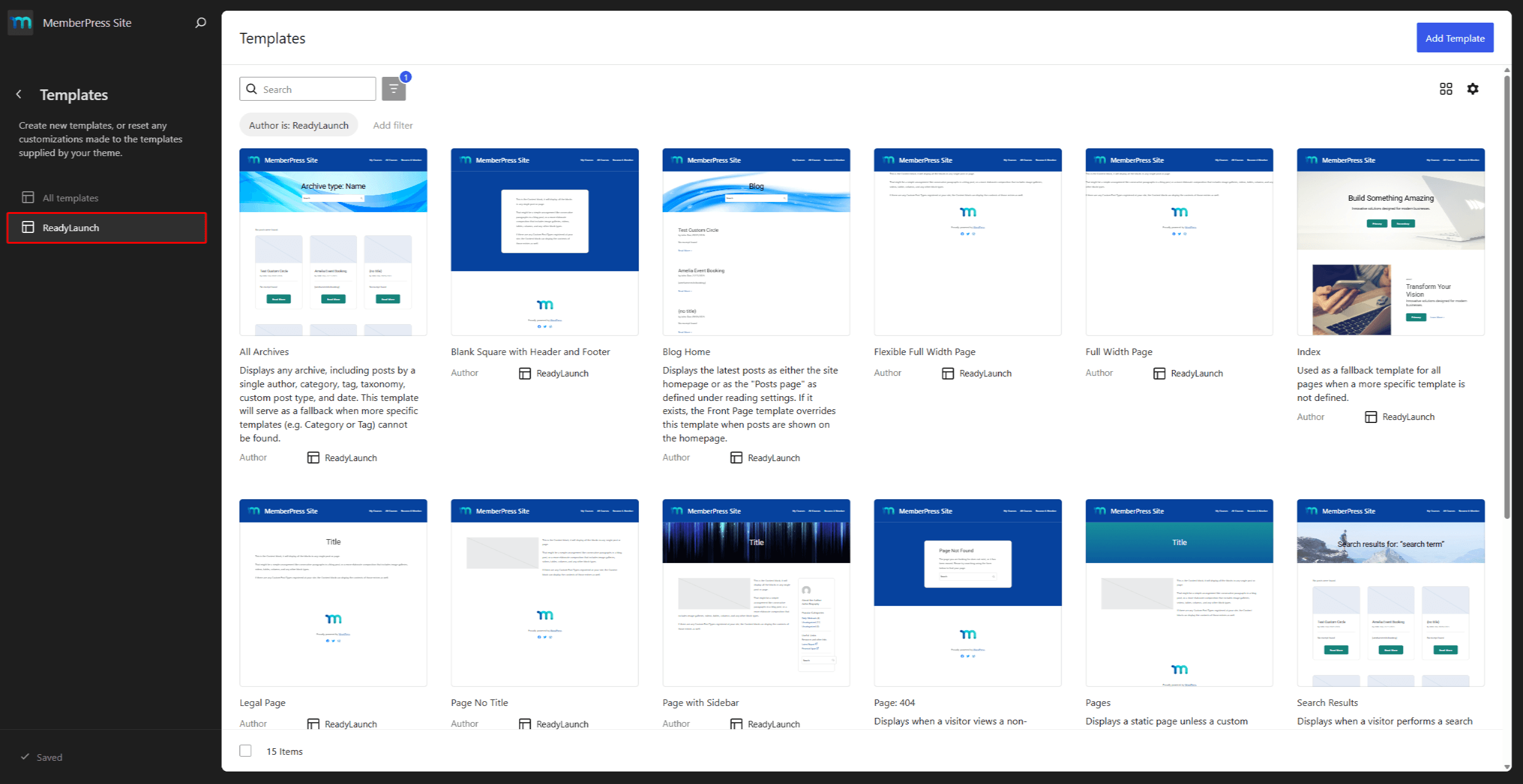
Aqui, você pode navegar e pesquisar a lista de todos os modelos do ReadyLaunch™ disponíveis. Você também pode editá-los ou adicione seus modelos personalizados.
Edição de modelos
Os modelos do ReadyLaunch™ são compostos por blocos do Gutenberg. Você pode editar os modelos usando o editor de modelos:
- Navegue até a seção Modelos página no Editor do site.
- Encontre o modelo que deseja editar e clique nele para abrir o editor de modelos. Como alternativa, clique no Ícone de 3 pontos no modelo e, em seguida, o Editar opção.
- Adicione, reorganize, modifique ou exclua blocos da mesma forma que faria em qualquer outra página ou postagem. Você também pode ajustar as configurações de qualquer bloco dentro do modelo.
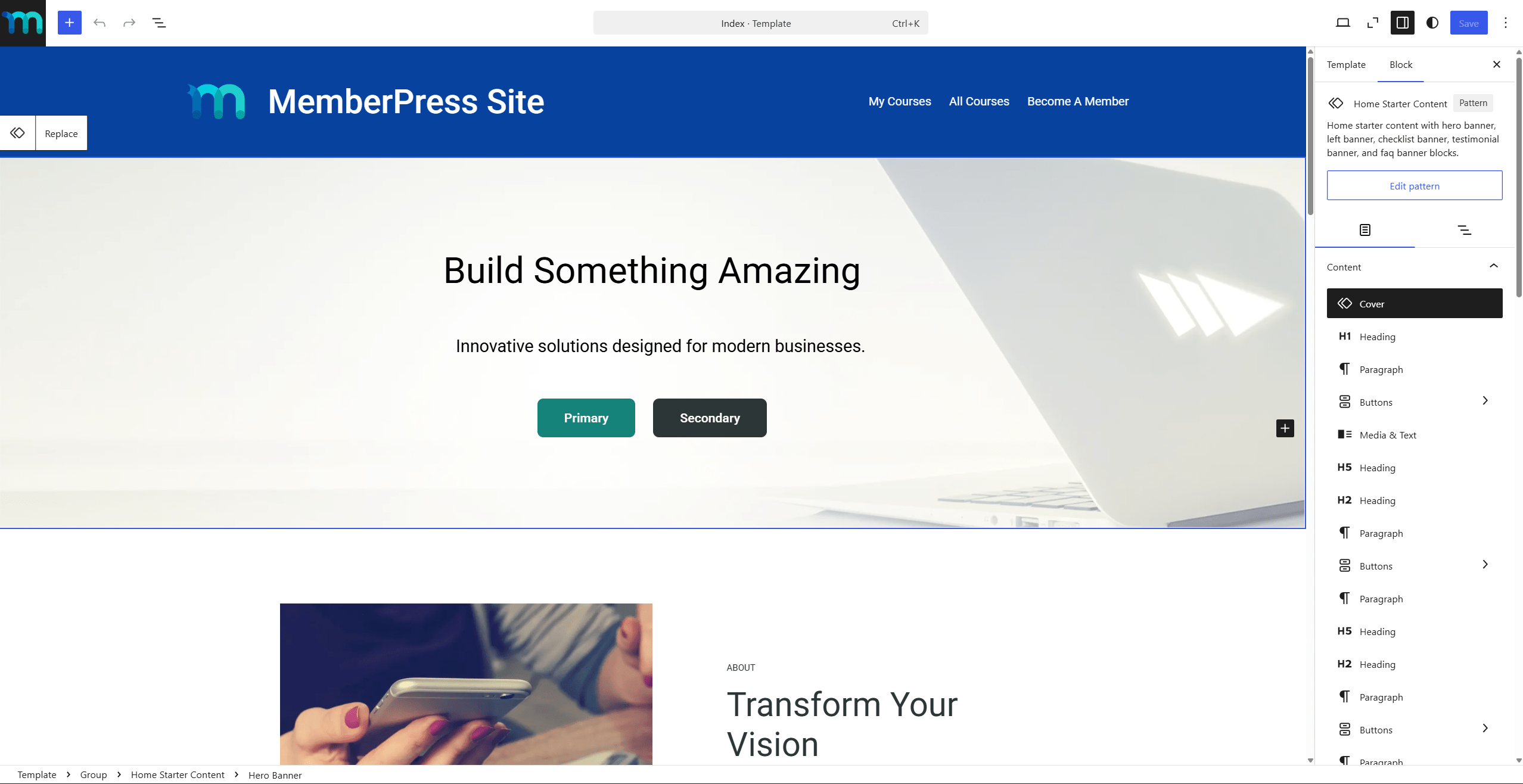
- Depois de aplicar todas as alterações, clique em Atualização para salvar as alterações.
Aplicando modelos a posts e páginas
Você pode escolher qual modelo usar para cada página ou postagem. Por exemplo, siga estas etapas para alterar o modelo usado em uma página específica:
- Comece a editar a página com o editor padrão (Gutenberg).
- No painel lateral, clique no Página tecla Tab para abrir o painel de atributos da página.
- Próximo ao Modelo atributo, clique no nome do modelo usado no momento.
- No menu, selecione o Alterar modelo opção e selecione o novo modelo.
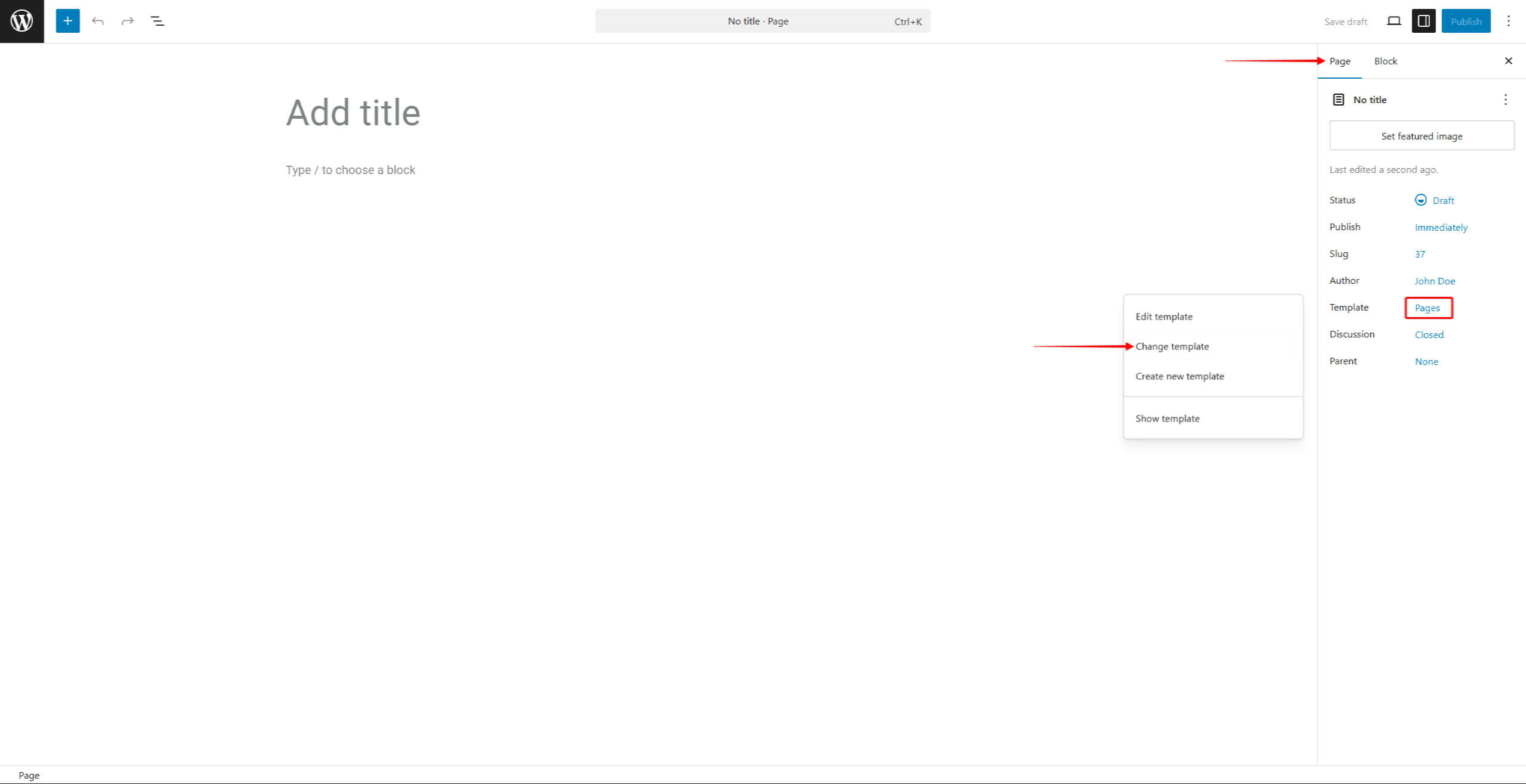
- Salve as alterações clicando no botão Atualização (ou Publicar) botão.
Você pode atualizar qualquer página ou postagem da mesma forma.
Aplicação em massa a várias páginas ou publicações
Além disso, você pode aplicar um modelo a várias páginas ou posts. Por exemplo, faça o seguinte para aplicar um modelo a várias páginas:
- Navegue até Painel de controle > Páginas.
- Selecione as páginas a serem atualizadas.
- No Ações em massa selecione Editar e clique no botão Aplicar botão.
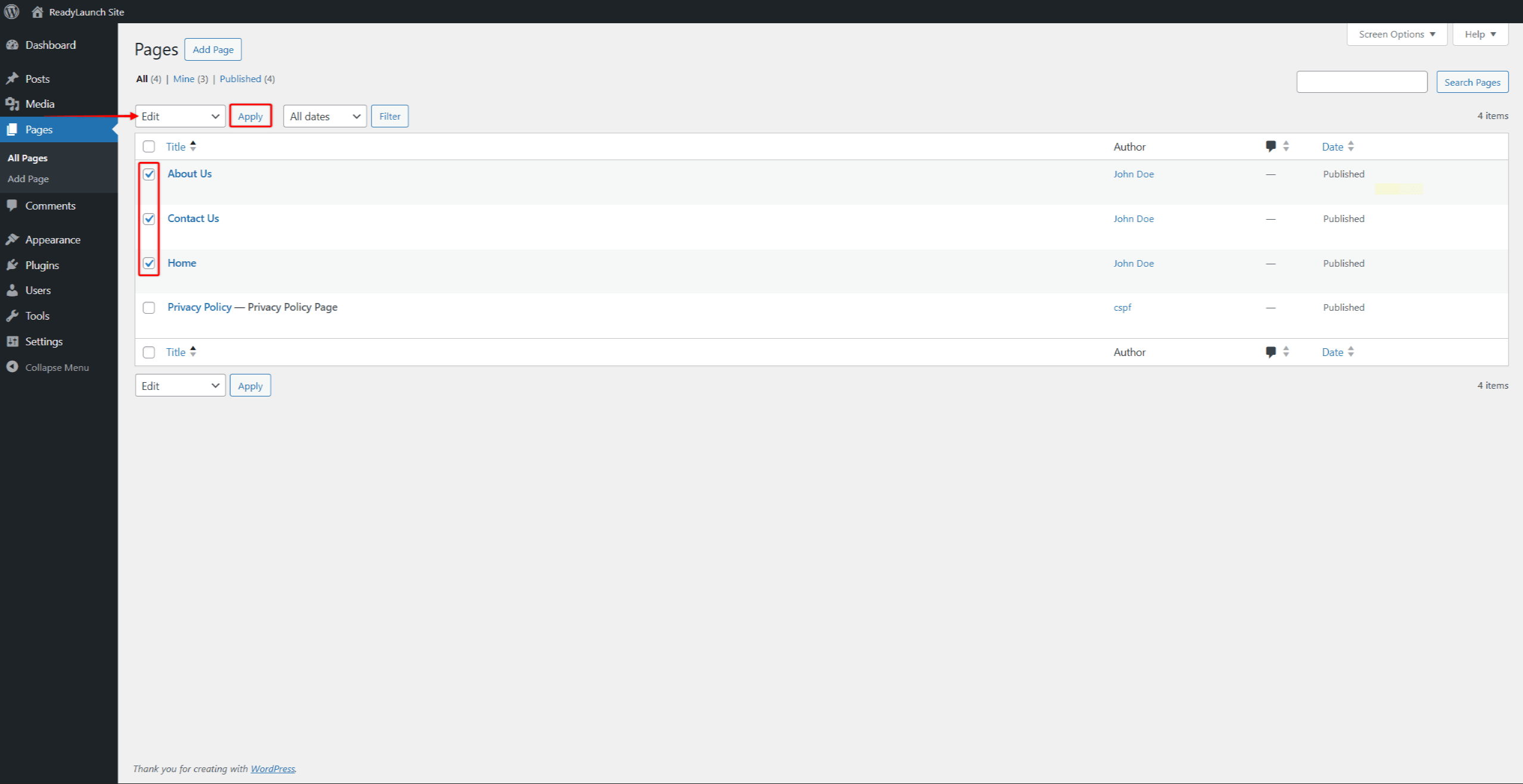
- No painel “Edição Rápida”, na seção Modelo No menu suspenso, escolha o modelo que deseja aplicar a essas páginas.
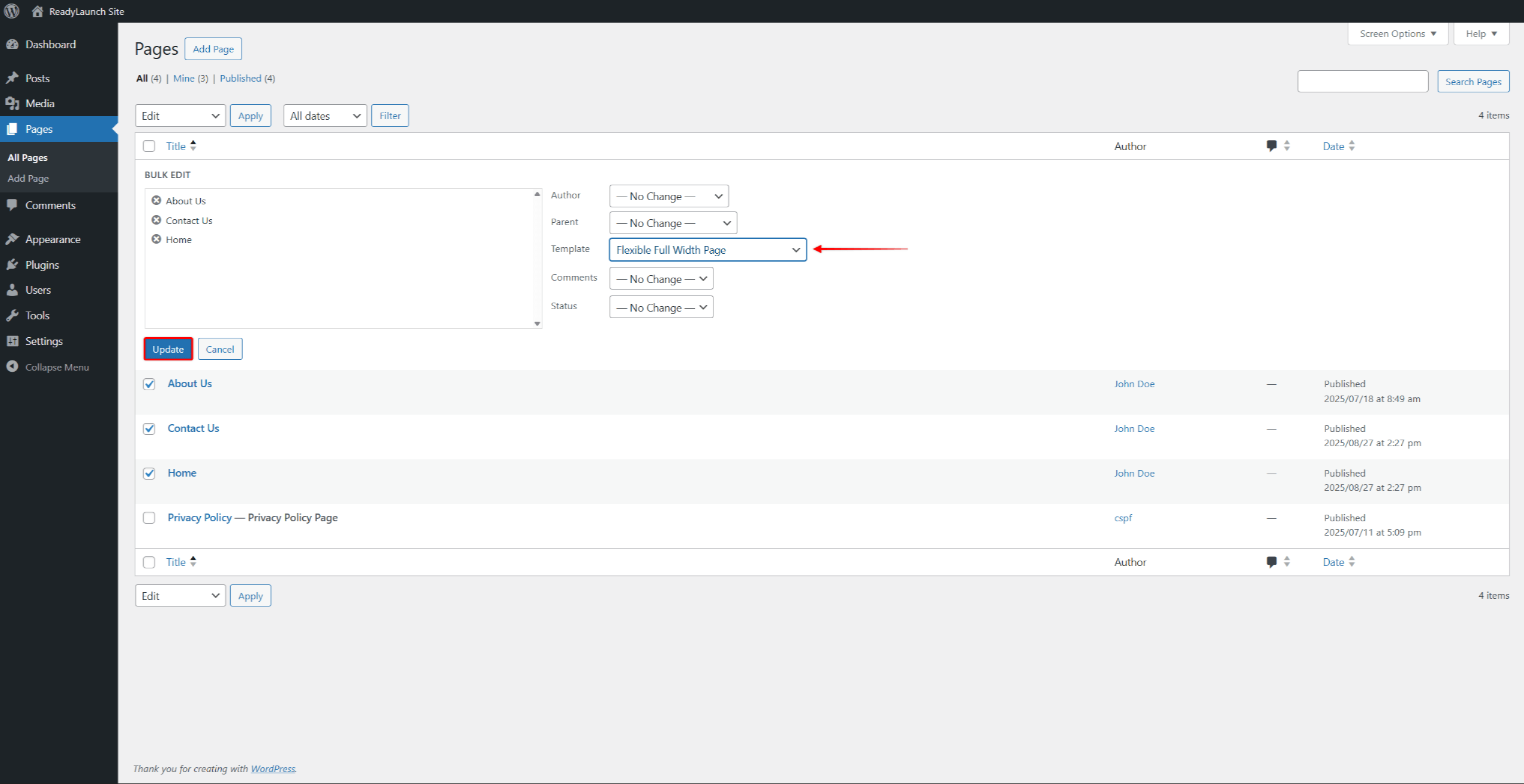
- Clique no botão Atualização botão.
O WordPress aplica o modelo a todas as páginas que você selecionou. O mesmo processo se aplica às postagens.
Resumo
Os modelos do ReadyLaunch™ controlam o layout e o design das suas páginas e publicações sem alterar o seu conteúdo. As partes dos modelos, como o cabeçalho e o rodapé, aplicam elementos compartilhados em todos os modelos. O plugin MemberPress adiciona os modelos FSE para suas páginas de assinatura, com o estilo definido pelo tema.
Para continuar criando seu site, confira as opções disponíveis Blocos e padrões ReadyLaunch™. Se você pulou os conceitos básicos, comece com o Configuração do tema ReadyLaunch™.










 PT
PT  EN
EN  ES
ES  FR
FR  DE
DE 