

O tema ReadyLaunch™ é um tema do WordPress incluído nos planos da MemberPress. Para começar a usar o tema no seu site, você precisa primeiro instalá-lo e ativá-lo.
Este guia explica como instalar o tema ReadyLaunch™ a partir da página de complementos do MemberPress. Ele também aborda o download a partir da sua conta do MemberPress, métodos alternativos de instalação e soluções básicas para problemas.
Antes de começar
É possível instalar vários temas do WordPress, mas apenas um tema pode estar ativo por vez. Por padrão, o WordPress ativa automaticamente um de seus temas padrão após a instalação.
Portanto, você deve instalar o tema ReadyLaunch™ e defini-lo como seu tema ativo.
O tema foi projetado para funcionar em conjunto com o plugin MemberPress. O plugin fornece os modelos e blocos do FSE para suas páginas de assinatura, e o tema aplica os estilos a eles automaticamente.
Antes de começar, certifique-se de ter:
- Uma assinatura ativa do MemberPress (plano Launch, Growth ou Scale);
- O Plugin MemberPress instalado com um licença ativada;
- WordPress 6.7 ou superior;
- Acesso à área de administração do WordPress (Painel) com as credenciais de usuário de administrador;
- Opcionalmente (apenas para os métodos alternativos): acesso ao seu Conta MemberPress e acesso via FTP.
Instalação a partir da página de complementos do MemberPress
O método de instalação recomendado é a instalação com um clique na página de complementos do MemberPress:
- Navegue até Painel de controle > MemberPress > Complementos.
- Encontre o Tema ReadyLaunch™ na lista.
- Clique no botão Instalar o complemento botão no cartão do tema ReadyLaunch™.
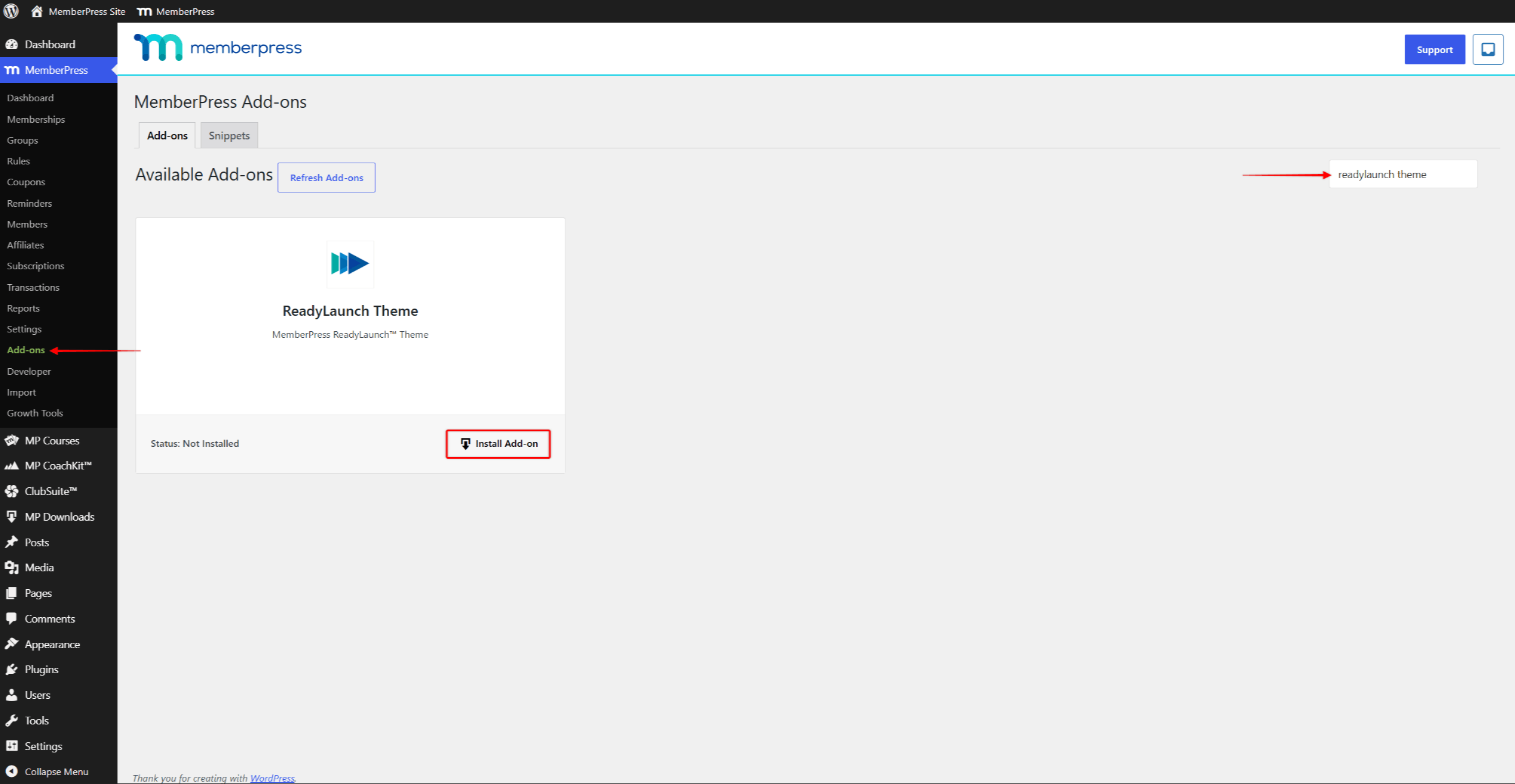
O MemberPress instala o tema automaticamente. Com esse método, você pode pular o download e o upload manuais e passar diretamente para a ativação.
Baixando o tema da sua conta MemberPress
Como alternativa, você pode baixar o tema como um arquivo ZIP da sua conta do MemberPress. Siga estas etapas para baixá-lo:
- Faça login em seu Conta MemberPress.
- Clique no botão Downloads guia.
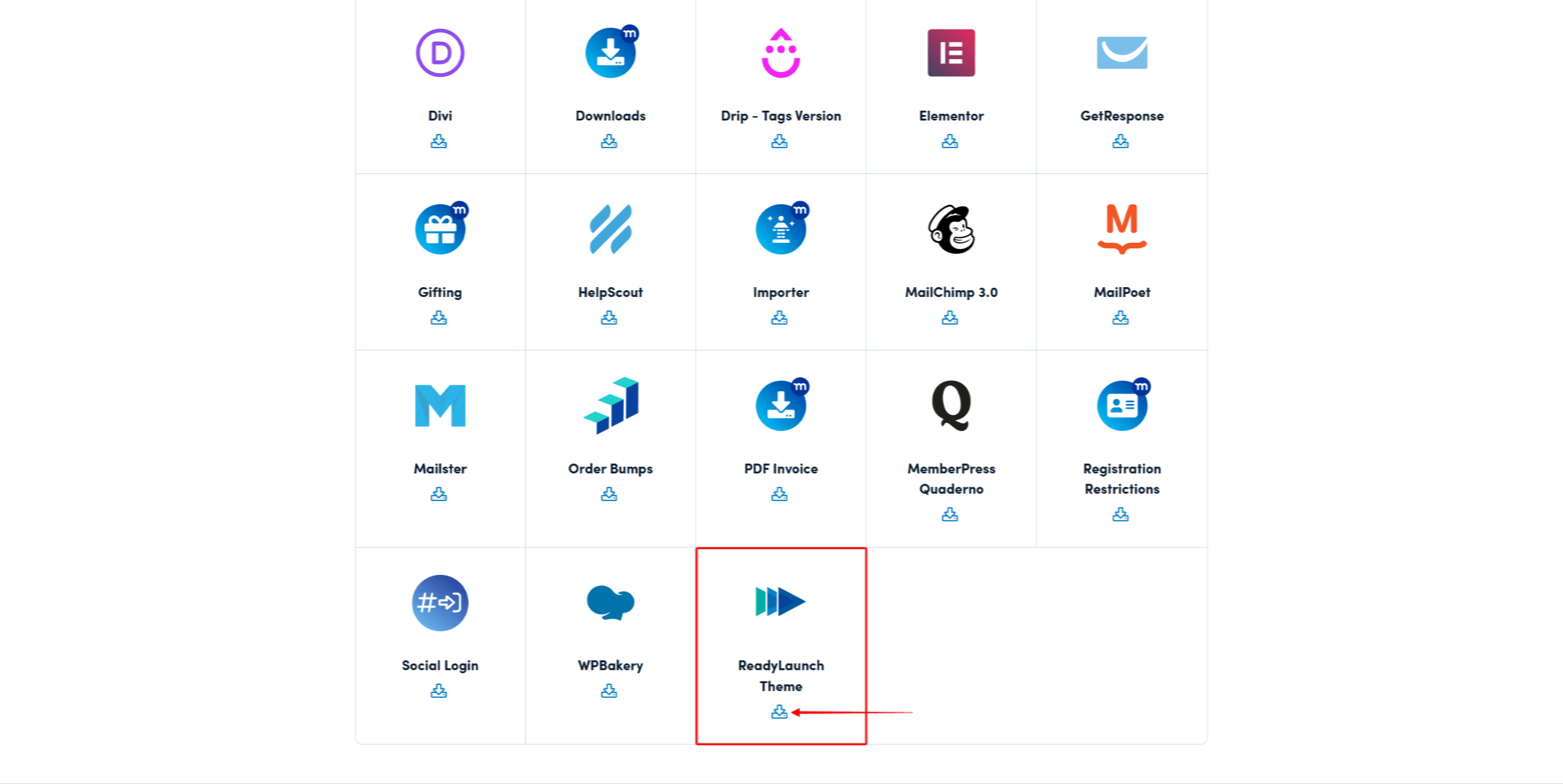
- Localizar Tema ReadyLaunch™ na lista de downloads.
- Clique no botão ícone de download ao lado dele. Isso faz o download do
readylaunch-X.X.X.ziparquivo no seu computador (o número da versão no nome do arquivo pode ser diferente).
Depois de baixar o arquivo ZIP, faça login no seu site. Siga estas etapas para fazer o upload e instalar o tema:
- Navegue até Painel > Aparência > Temas.
- Clique em Adicionar tema.
- Clique no botão Carregar tema botão.
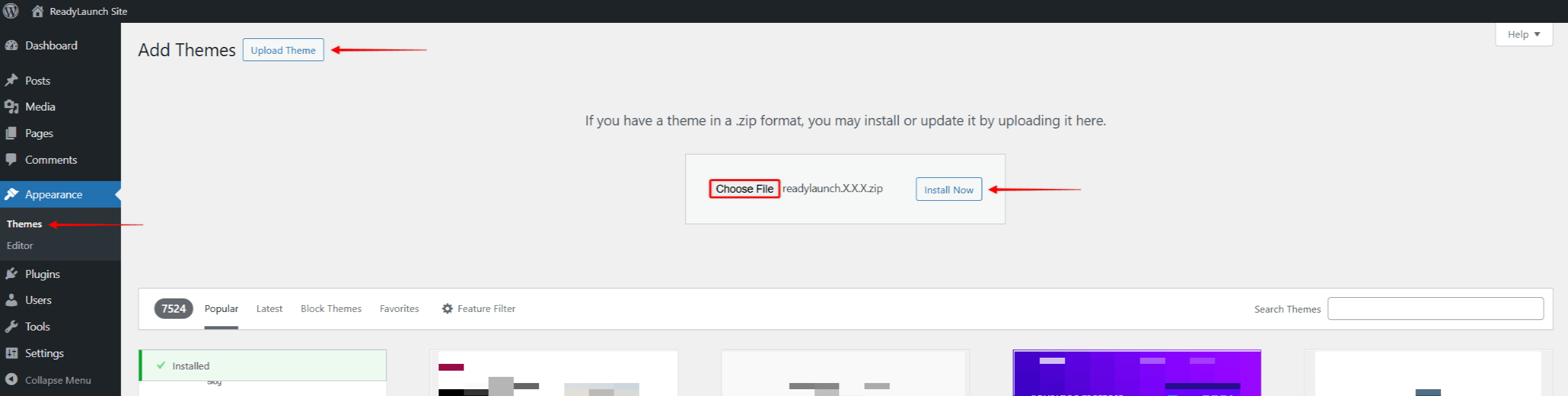
- Clique em Selecionar arquivo e selecione o
readylaunch-X.X.X.ziparquivo que você baixou anteriormente. - Clique em Instalar agora.
O instalador exibe o “O tema foi instalado com sucesso.” mensagem quando a instalação for concluída.
Método alternativo de instalação: upload via FTP
Em casos raros, o método de instalação por upload pode falhar. Na maioria das vezes, a causa está relacionada à configuração do seu site ou a limitações do servidor.
Embora seja recomendável identificar e corrigir o problema subjacente, fazer o upload do tema via FTP é uma possível solução alternativa:
- Extraia o
readylaunch-X.X.X.zipsalve o arquivo em um local no seu computador. - Conecte-se ao seu servidor por meio de um cliente FTP (por exemplo,. FileZilla). Se estiver disponível, você também pode usar o gerenciador de arquivos fornecido pelo seu serviço de hospedagem.
- Acesse a pasta de temas (geralmente
/wp-content/themes/). - Faça o upload do arquivo extraído
readylaunchpasta para a pasta de temas do seu site.
Se o upload foi bem-sucedido, o tema ReadyLaunch™ aparece em Painel > Aparência > Temas.
Ativando o ReadyLaunch™
Após a instalação, defina o ReadyLaunch™ como seu tema ativo:
- Navegue até Painel > Aparência > Temas.
- Localizar ReadyLaunch™ na sua lista de temas e clique nele.
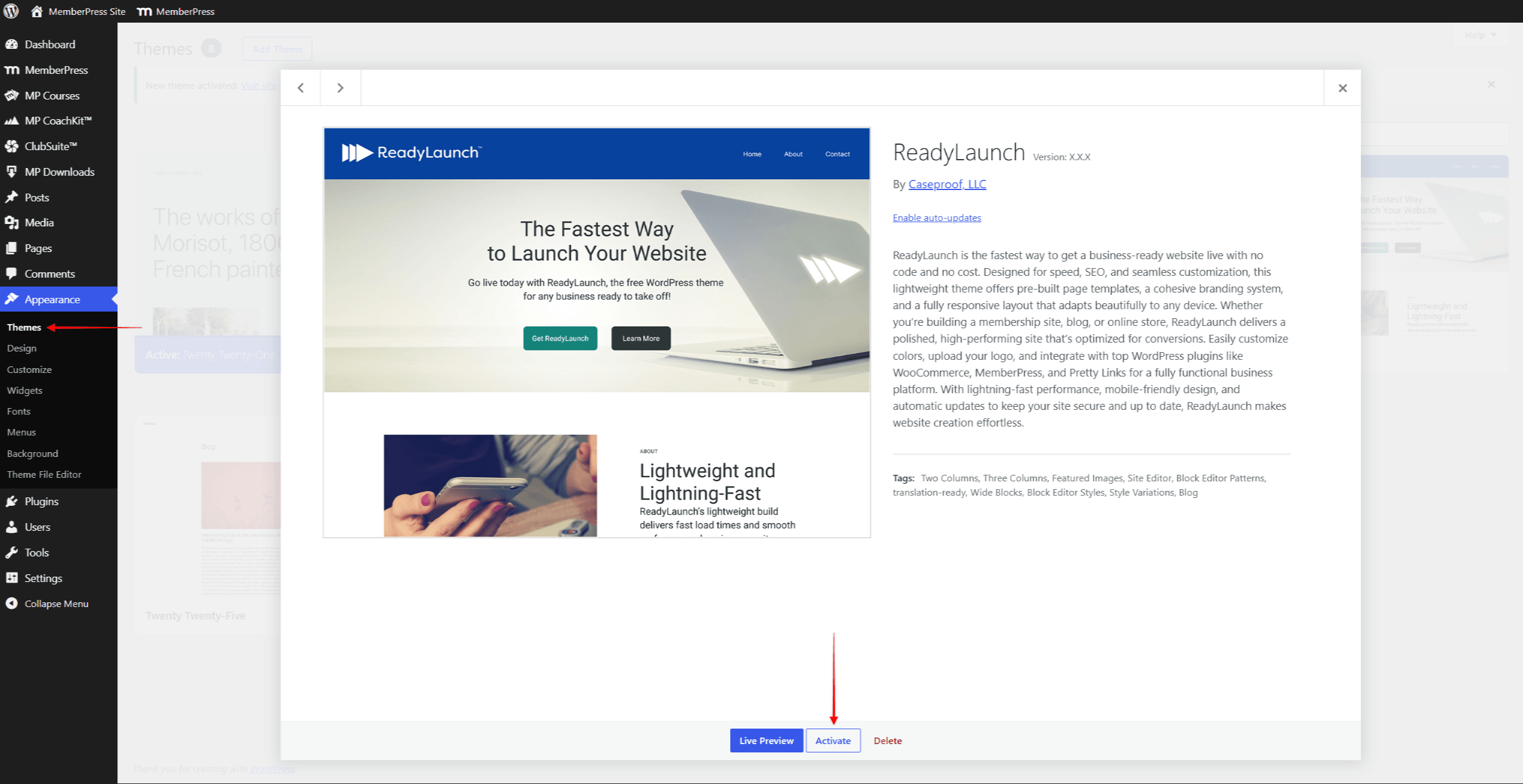
- Clique no botão Ativar botão no tema ReadyLaunch™.
- Aguarde a confirmação da ativação.
Problemas comuns de instalação
A seguir, você encontrará problemas comuns de instalação e possíveis soluções.
Tema indisponível na página de complementos
O tema ReadyLaunch™ pode não aparecer em Painel de controle > MemberPress > Complementos. Nesse caso, verifique o seguinte:
- Confirme sua A licença MemberPress está ativa no site.
- Confirme se sua assinatura está ativa em seu Conta MemberPress.
- Atualize o plug-in MemberPress para a versão mais recente.
Se o tema ainda não estiver disponível, faça o download na sua conta Downloads em vez disso, a guia.
Erro no envio
O “O arquivo enviado excede o limite de upload_max_filesize” A mensagem indica um limite de upload do servidor. Tente uma das seguintes soluções:
- Entre em contato com seu anfitrião para aumentar o limite.
- Aumentar o limite modificando o
upload_max_filesizeepost_max_sizediretrizes nophp.iniarquivo. Tente definir o limite para 128 MB ou 256 MB. Você também pode fazer isso por outros meios, como editar o.htaccessarquivo. - Utilize o método de instalação via FTP descrito acima.
- Instale o tema pelo painel de controle da sua hospedagem.
O tema não está sendo exibido
O tema ReadyLaunch™ pode não aparecer na lista de temas em Painel > Aparência > Temas. Nesse caso, tente seguir estas etapas:
- Atualize a página de temas.
- Verifique o
/wp-content/themes/diretório por meio de um cliente FTP ou de um plug-in de gerenciador de arquivos (por exemplo,. Gerenciador de arquivos). - Verifique se as permissões da pasta estão definidas como 755.
Próximas etapas
Com o tema instalado e ativado, continue configuração do ReadyLaunch™:
- Adicione sua identidade visual;
- Atualize o cabeçalho e o rodapé;
- Atualize seus estilos;
- Adicione seu conteúdo (posts e páginas).
O tema ReadyLaunch™ também vem com modelos pré-criados modelos para suas páginas, bem como blocos e padrões. Esses elementos pré-criados agilizam a construção do site.










 PT
PT  EN
EN  ES
ES  FR
FR  DE
DE 