

O tema ReadyLaunch™ inclui uma variação de blocos do Gutenberg, estilos de blocos e grupos de blocos pré-definidos (padrões). Esses elementos constituem os blocos de construção do seu site. Você pode importar os padrões pré-definidos do ReadyLaunch™ para qualquer página ou postagem.
Este documento explica os blocos e modelos disponíveis do ReadyLaunch™. Ele também aborda os conceitos básicos sobre como utilizá-los em seu conteúdo.
Blocos ReadyLaunch
O tema ReadyLaunch™ oferece o Bloco ReadyLaunch™ de duas colunas, uma variação do bloco “Colunas” padrão. O tema também adiciona estilos extras aos blocos padrão “Botão”, “Mídia e Texto” e “Título dos Comentários”.
Além disso, o plugin MemberPress oferece seus blocos de membros, como o Login, Conta, Registroe Tabela de preços blocos. O tema ReadyLaunch™ aplica estilos a esses blocos automaticamente. Eles adotam as cores e a tipografia que você definir para o tema. Um documento separado aborda o blocos Gutenberg MemberPress disponíveis.
Bloco ReadyLaunch™ de duas colunas
O bloco ReadyLaunch™ de duas colunas é uma variação do bloco “Colunas” padrão. Ele permite organizar o conteúdo em duas colunas e definir o estilo das colunas e de seu conteúdo. A estrutura de duas colunas é fixa, enquanto o conteúdo dentro de cada coluna permanece totalmente editável.
Depois de adicionar o bloco ao editor, personalize-o aplicando as configurações gerais do bloco e o estilo.
- Clique no botão ReadyLaunch™ Duas colunas bloco que você adicionou ao editor para abrir o painel do lado direito.
- Clique no botão Configurações aba para acessar as configurações do bloco.
- Stack no celular: essa opção empilha as duas colunas uma em cima da outra em dispositivos móveis. Ela está ativada por padrão.
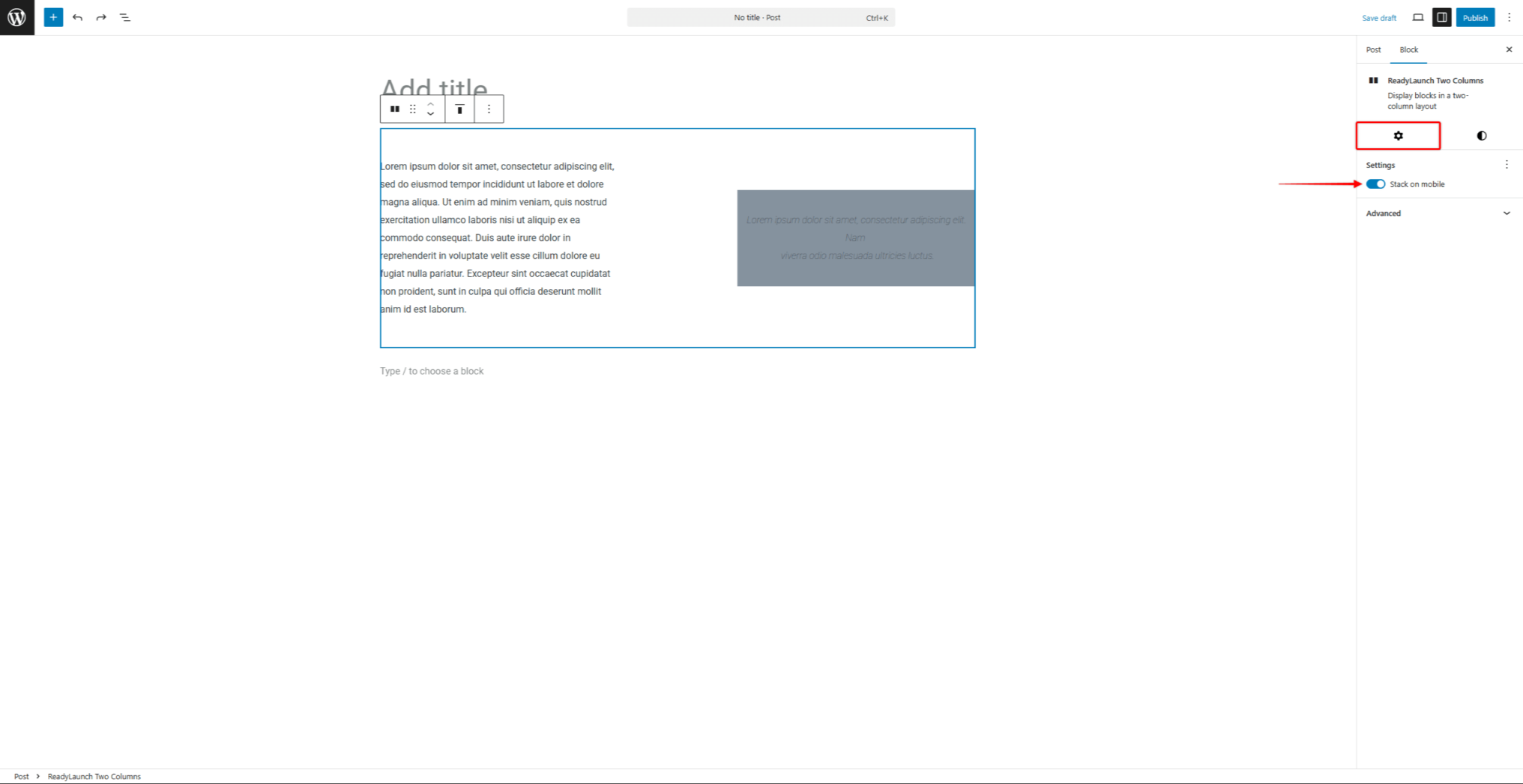
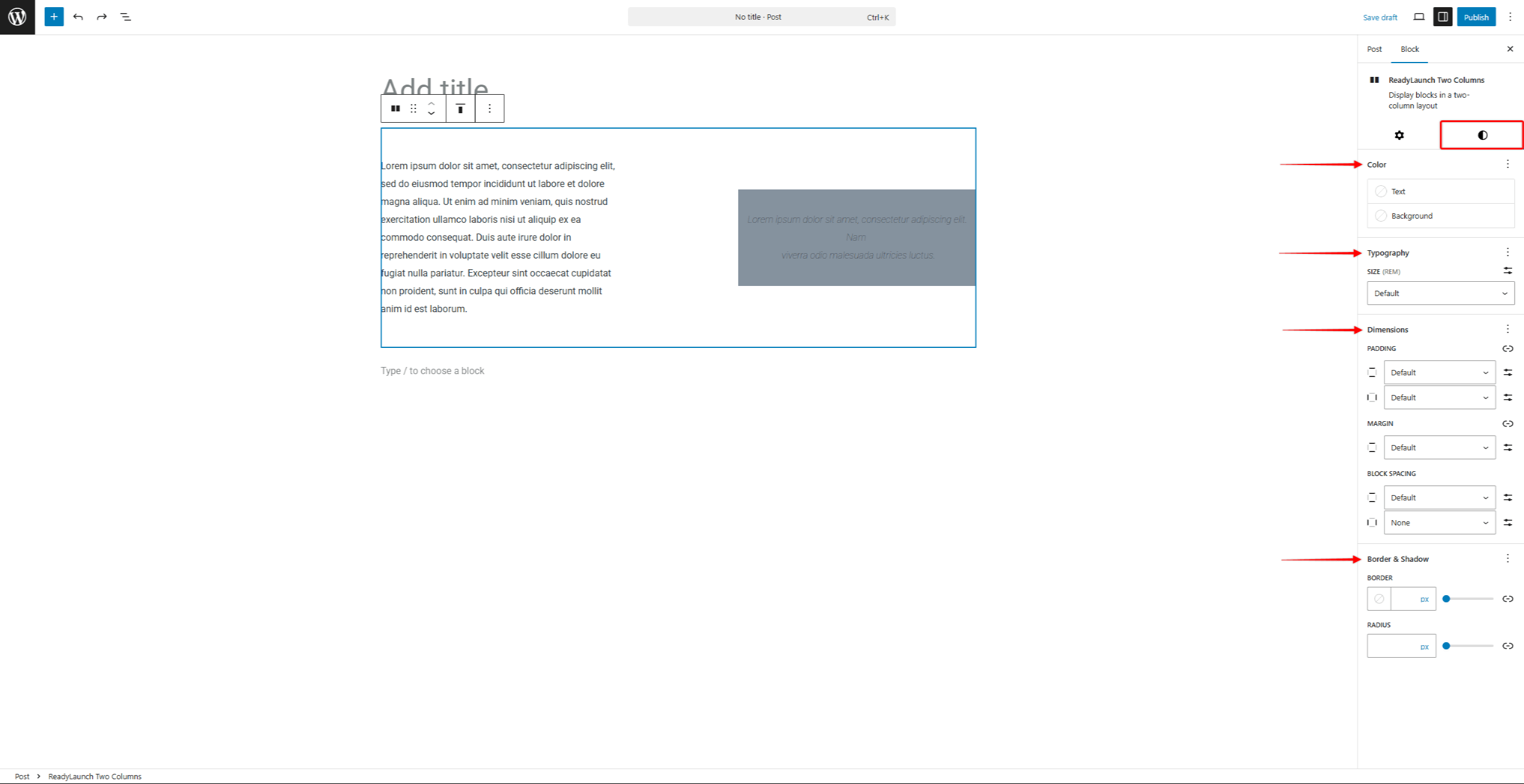
- Em seguida, clique no botão Estilos aba para modificar o estilo do bloco. Você pode definir o Cores, Tipografia, Dimensões, Fronteirae Sombras.
Padrões ReadyLaunch™
Você pode adicionar modelos do ReadyLaunch™ às suas postagens e páginas por meio do editor padrão (Gutenberg).
O tema inclui mais de 40 modelos, como banners de destaque, seções de chamada à ação, listas de recursos, depoimentos, perguntas frequentes e seções sobre os membros da equipe. Ele também inclui modelos de conteúdo inicial para páginas completas de página inicial, “Sobre”, “Contato”, “Recursos” e “Inscreva-se”.
Os padrões são grupos compostos por vários blocos. Depois de adicionar um padrão ao seu editor, você pode aplicar as seguintes personalizações:
- Modifique as configurações e o estilo do grupo (na maioria dos padrões, trata-se de blocos como “Grupo”, “Pilha” ou “Cobertura”);
- Modifique as configurações e o estilo de cada bloco dentro do modelo (por exemplo, parágrafo, título, imagem, botão);
- Exclua ou adicione blocos.
Além disso, você pode explorar todos os modelos pré-criados do ReadyLaunch™ no Editor do Site. Lá, você também pode fazer alterações e criar modelos personalizados.
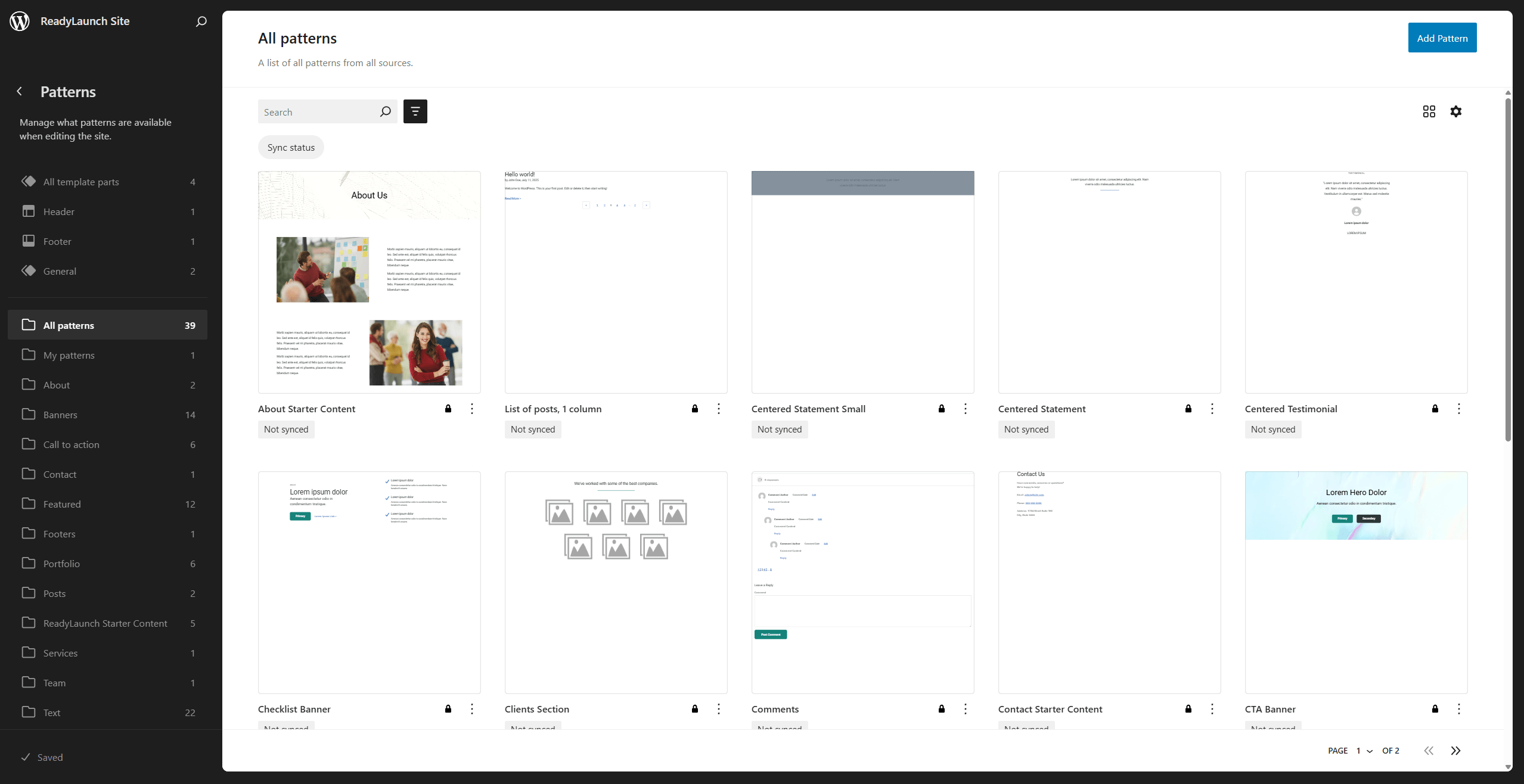
Criação de versões personalizadas dos modelos do ReadyLaunch™
Os modelos pré-criados do ReadyLaunch™ são modelos temáticos. As alterações feitas em um modelo inserido se aplicam apenas àquela página ou postagem. Para reutilizar um design modificado em todo o seu site, crie uma versão personalizada do modelo:
- Navegue até Painel de controle > Aparência > Editor para abrir o Editor do Site.
- No menu à esquerda, clique em Padrões opção.
- Navegue pela lista de padrões para encontrar o padrão que você deseja modificar.
- Clique no botão Ícone de 3 pontos, e depois o Duplicado opção para criar uma cópia do padrão padrão.
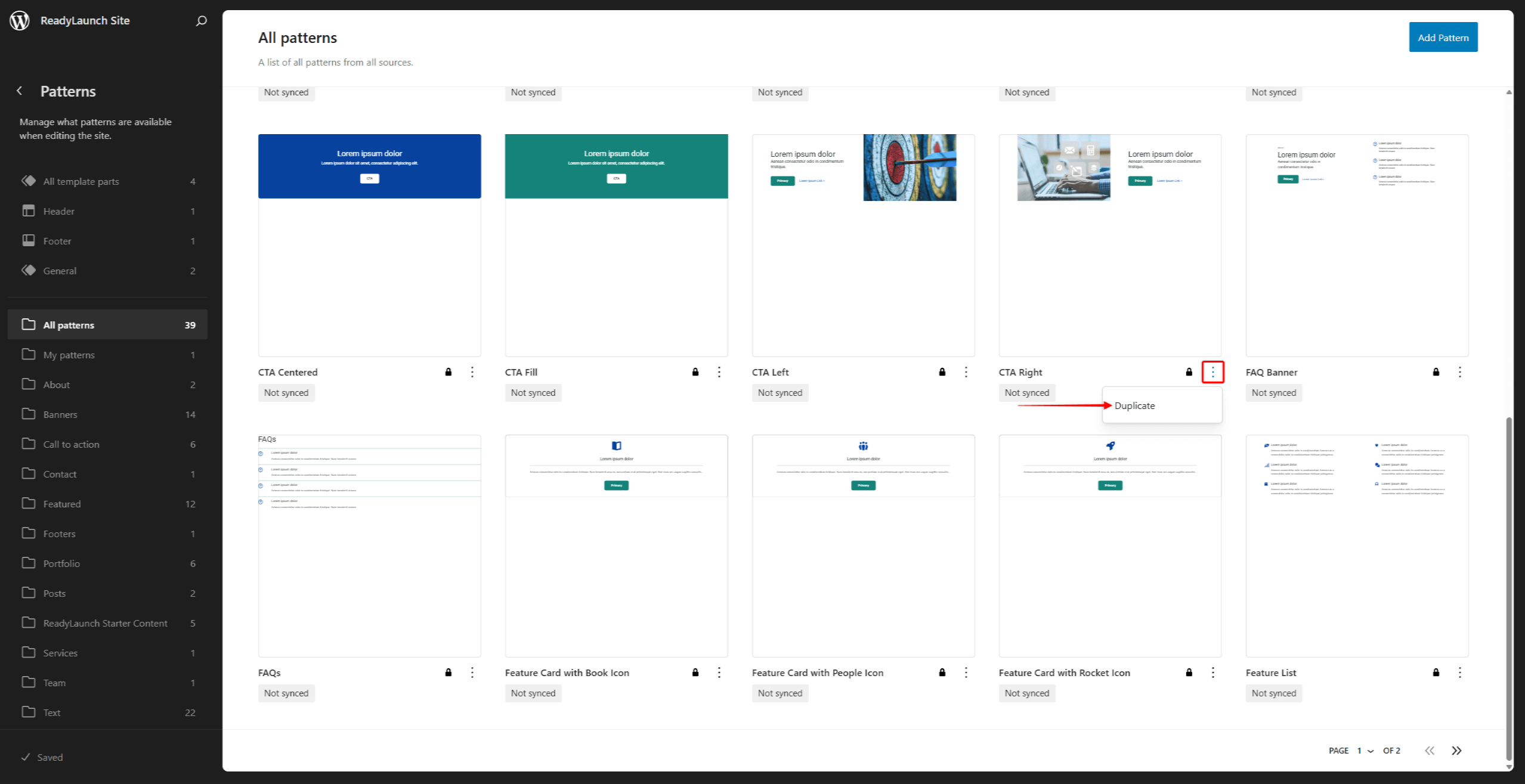
- Nome duplique o padrão e escolha o categorias de padrões para isso.
- Opcionalmente, habilite o Sincronizado opção para a duplicata.
- Clique no botão Duplicado botão.
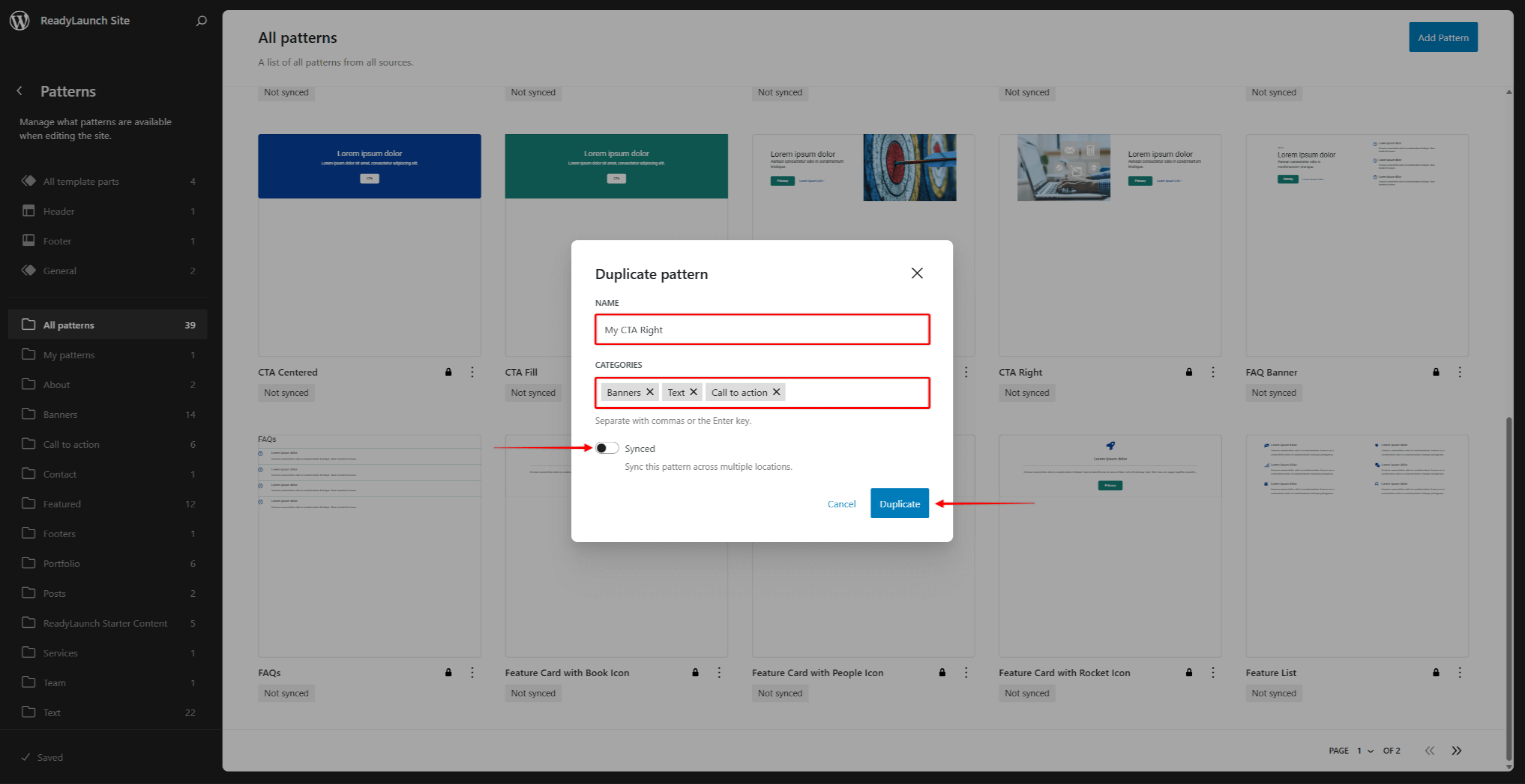
- Encontre o padrão que você duplicou navegando pela lista de padrões ou na seção Meus moldes menu. Clique no Ícone de 3 pontos nisso.
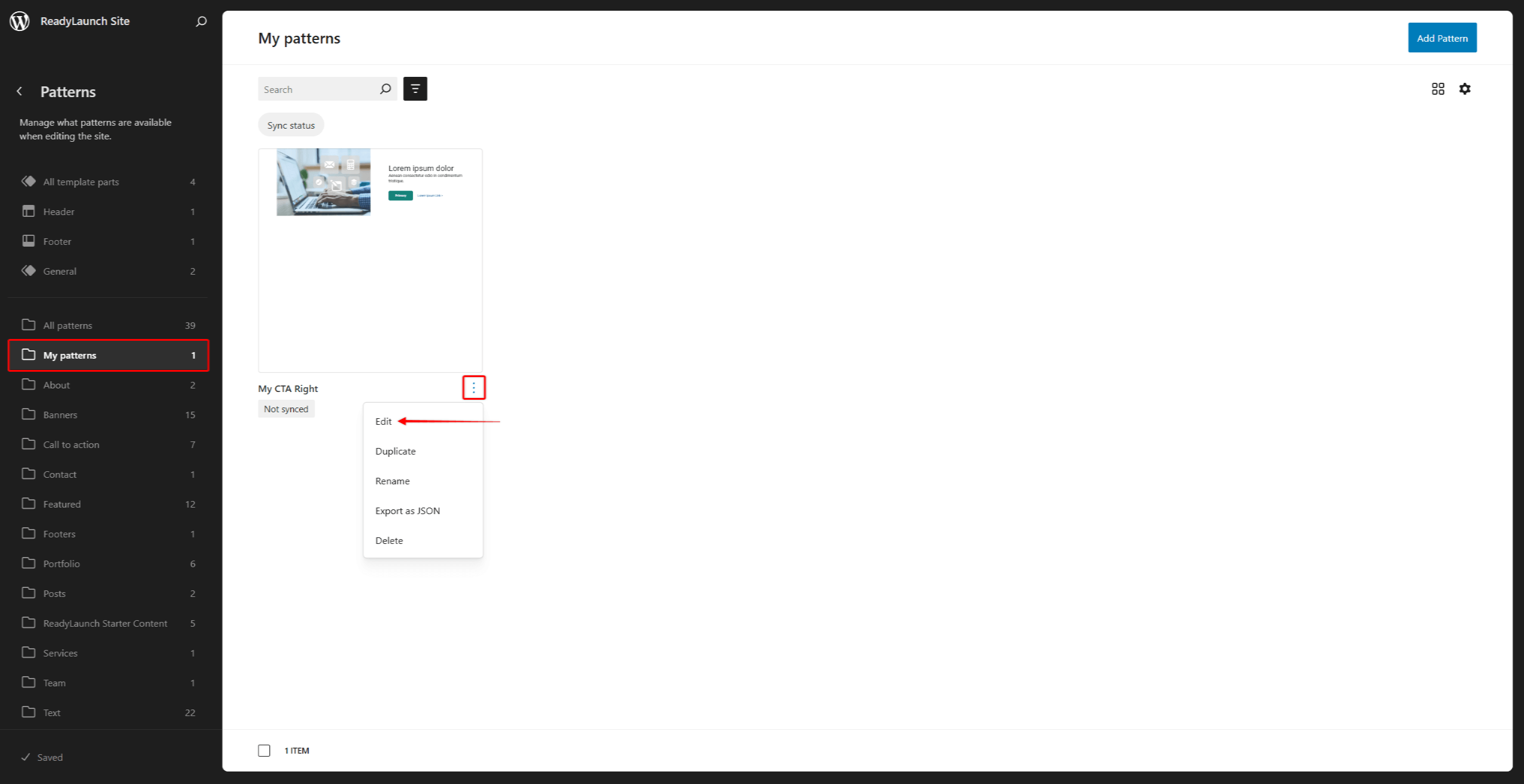
- Aqui, você encontra opções adicionais para gerenciar o padrão. Clique em Editar para acessar o editor de padrões.
- Aplique as alterações ao molde. Você pode modificar os blocos existentes, adicionar novos ou remover aqueles que não forem necessários.
- Depois de concluir as modificações, clique em Salvar.
Agora, você pode usar seu padrão personalizado da mesma forma que qualquer outro padrão.
Importação de blocos e padrões do ReadyLaunch™
Você pode inserir blocos e padrões usando o Inseridor de blocos no editor padrão (Gutenberg).
Primeiro, comece a editar a postagem ou a página. Em seguida, siga estas instruções para localizar e inserir os blocos ou modelos do ReadyLaunch™:
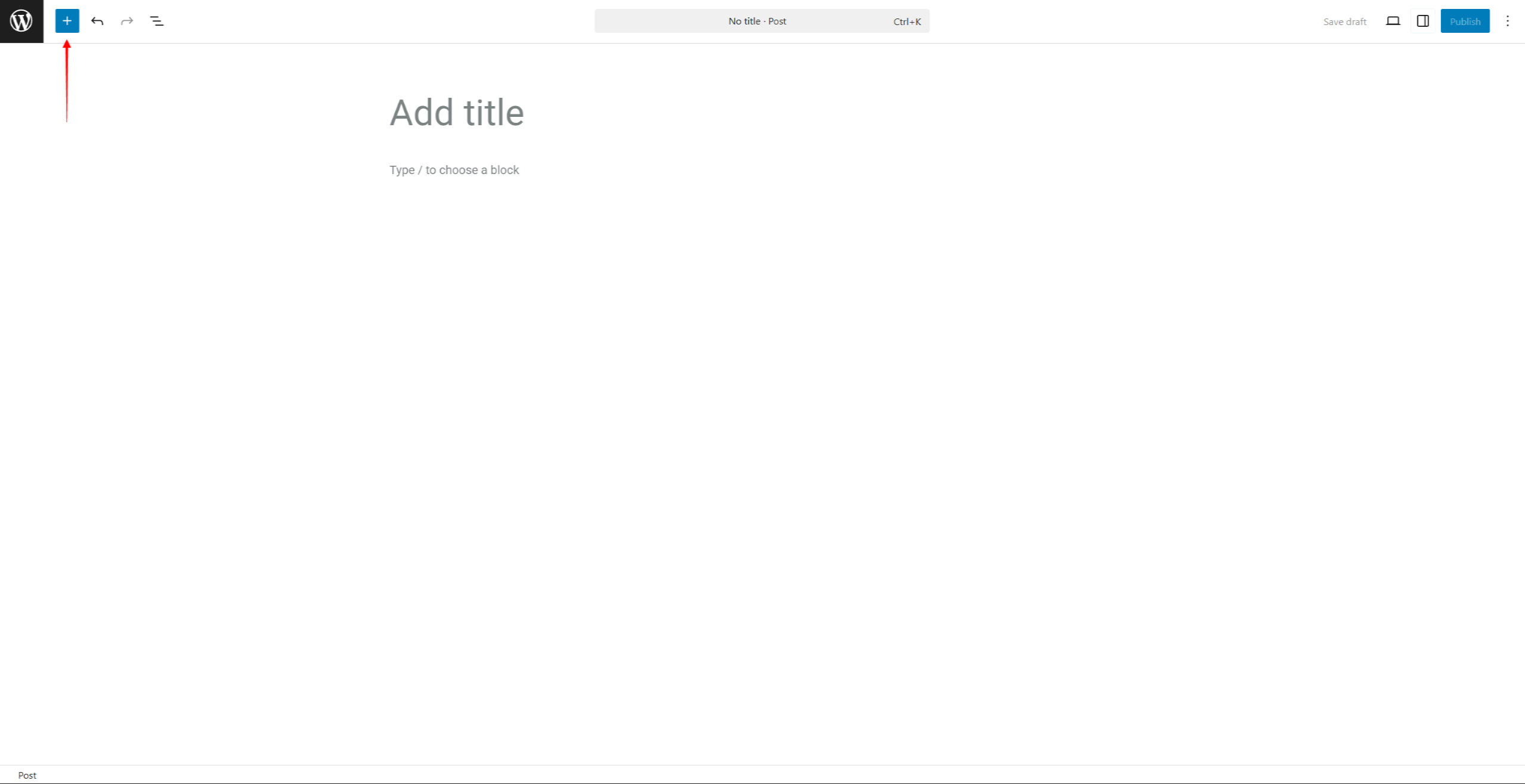
- Clique no botão + ícone para abrir o Inseridor de blocos.
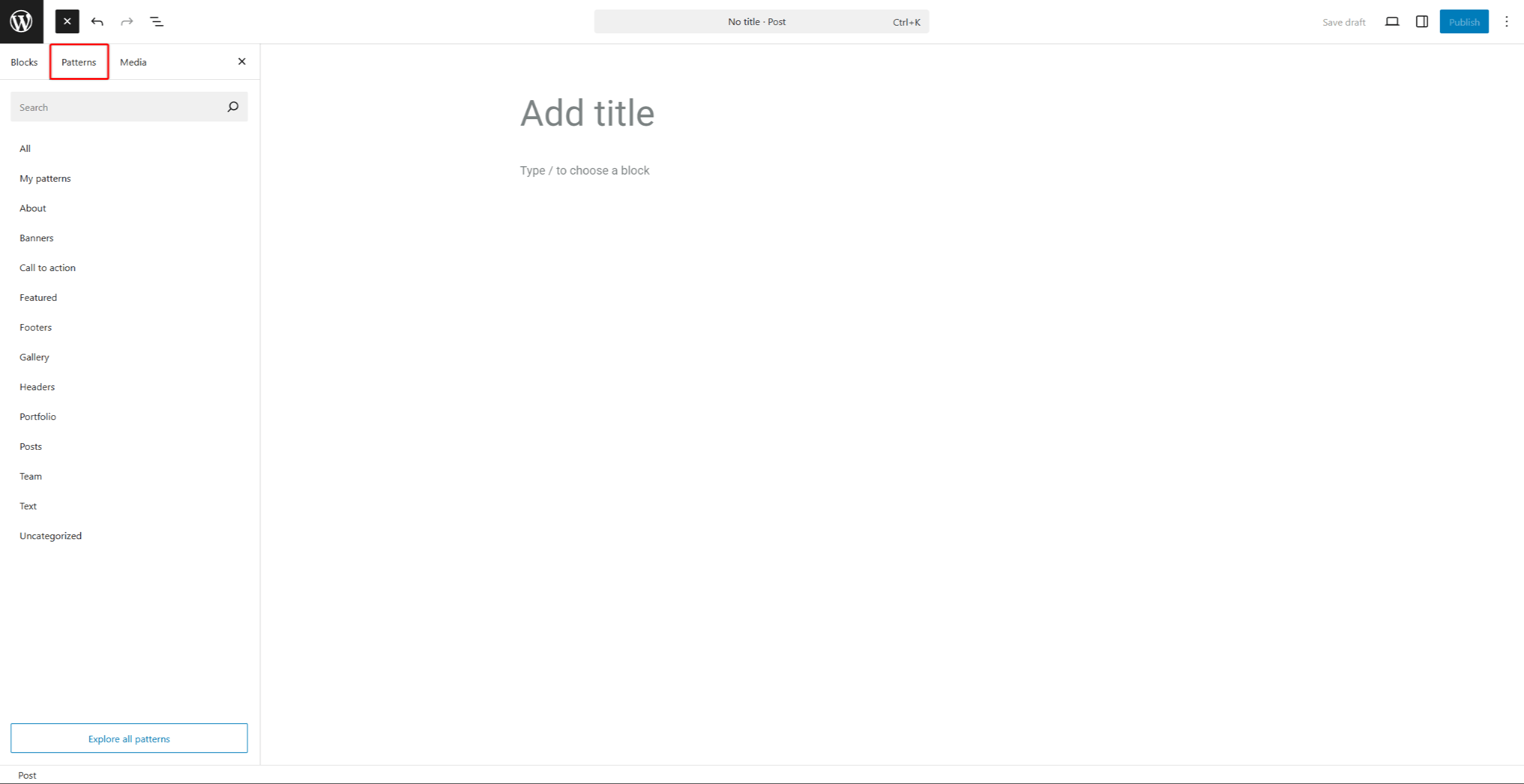
- Aqui, você pode consultar a lista de blocos na seção Blocos aba e os padrões na seção Padrões guia.
- Pesquisar o “readylaunch” termo no inseridor de blocos para filtrar os blocos e padrões relacionados ao tema.
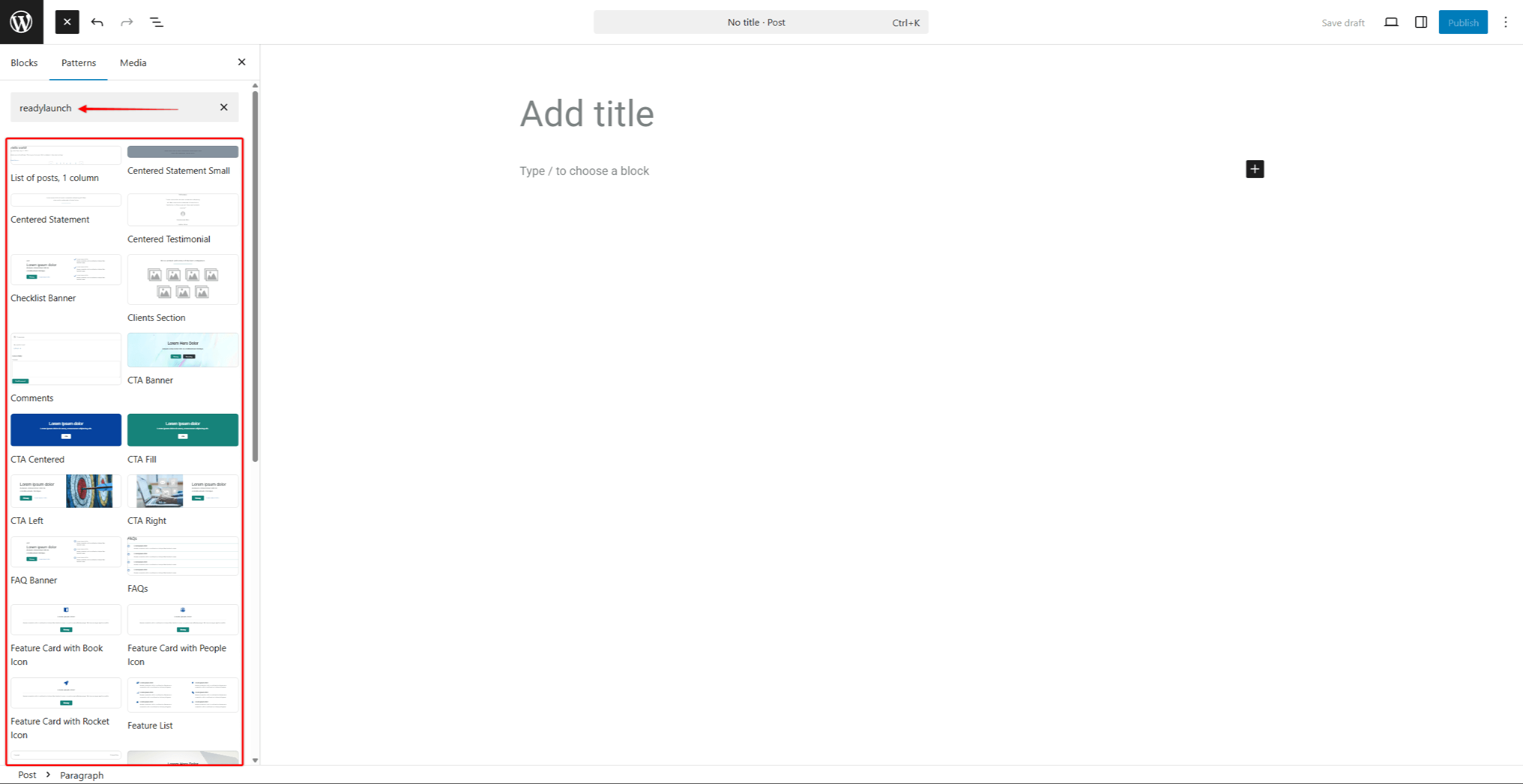
- Encontre o bloco ou o padrão que você precisa.
- Clique nele para adicioná-lo ao seu conteúdo. Agora, você pode modificar o conteúdo importado conforme necessário.
Personalização de modelos importados
Cada padrão é composto por vários blocos. Tanto os padrões quanto os blocos individuais dentro de cada padrão possuem suas próprias configurações, o que permite personalizações.
Essas configurações ficam disponíveis quando você insere o bloco ou o modelo em uma postagem ou página. Isso permite que você personalize esses elementos de acordo com suas necessidades:
- Clique no padrão ou em qualquer bloco individual dentro do padrão.
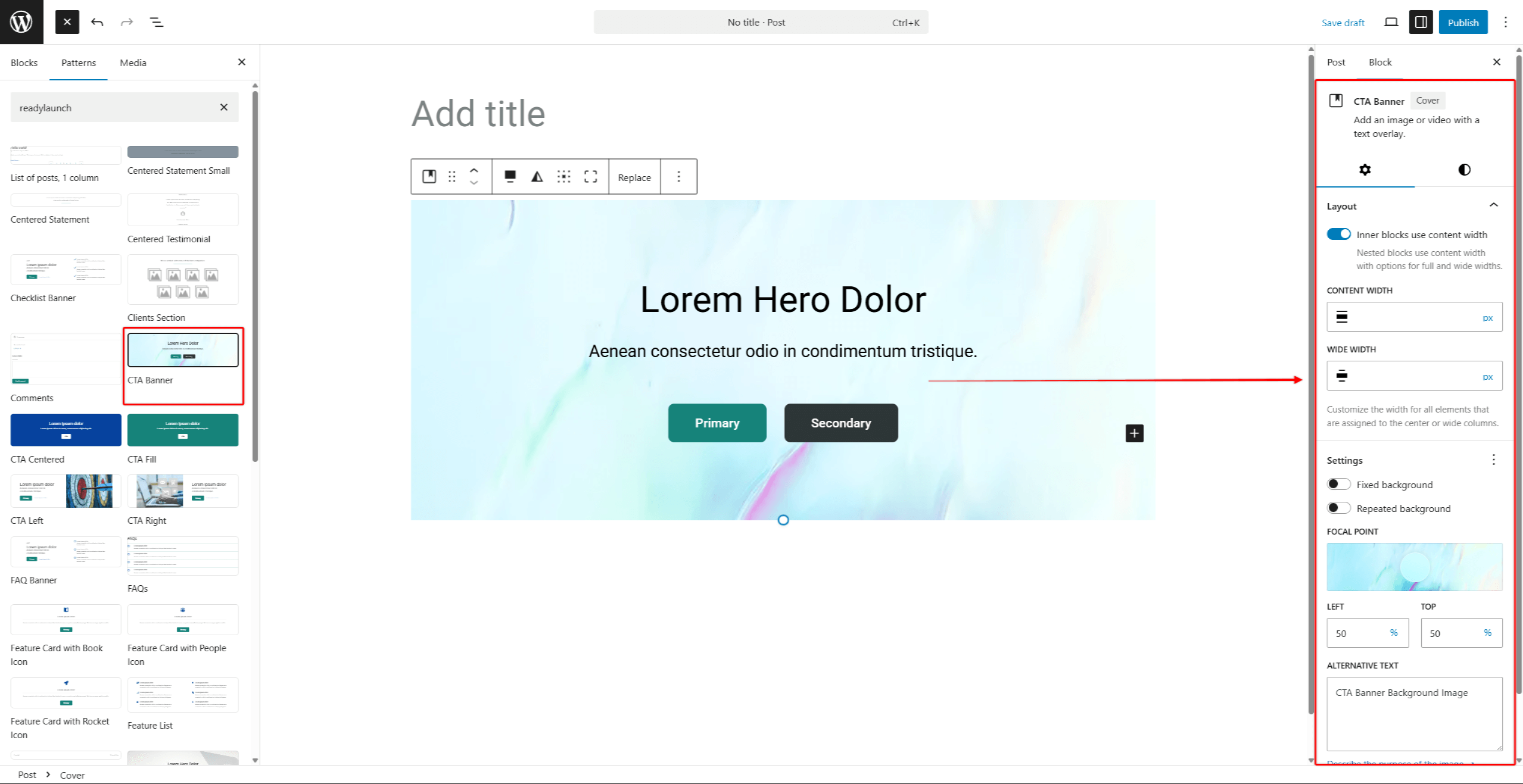
- No painel do lado direito, abaixo do Bloqueio Na guia, você pode ver as opções disponíveis para o bloco ou padrão selecionado.
- Modifique as configurações de cada bloco na seção Configurações guia.
- Em seguida, altere a aparência do bloco ou do padrão modificando as opções na seção Estilos guia.
- Clique em Salvar rascunho ou o Publicar/Atualizar para salvar as alterações.
Além disso, algumas configurações podem estar disponíveis, mas ocultas ao aplicar personalizações. Para torná-las visíveis, siga estas etapas:
- Comece a editar a página ou a postagem e localize o bloco que deseja personalizar.
- Clique nele para acessar o painel de configurações, localizado no lado direito do editor.
- Encontre a seção de configurações que você precisa. Clique no Ícone de 3 pontos para acessar a lista completa de opções dessa seção.
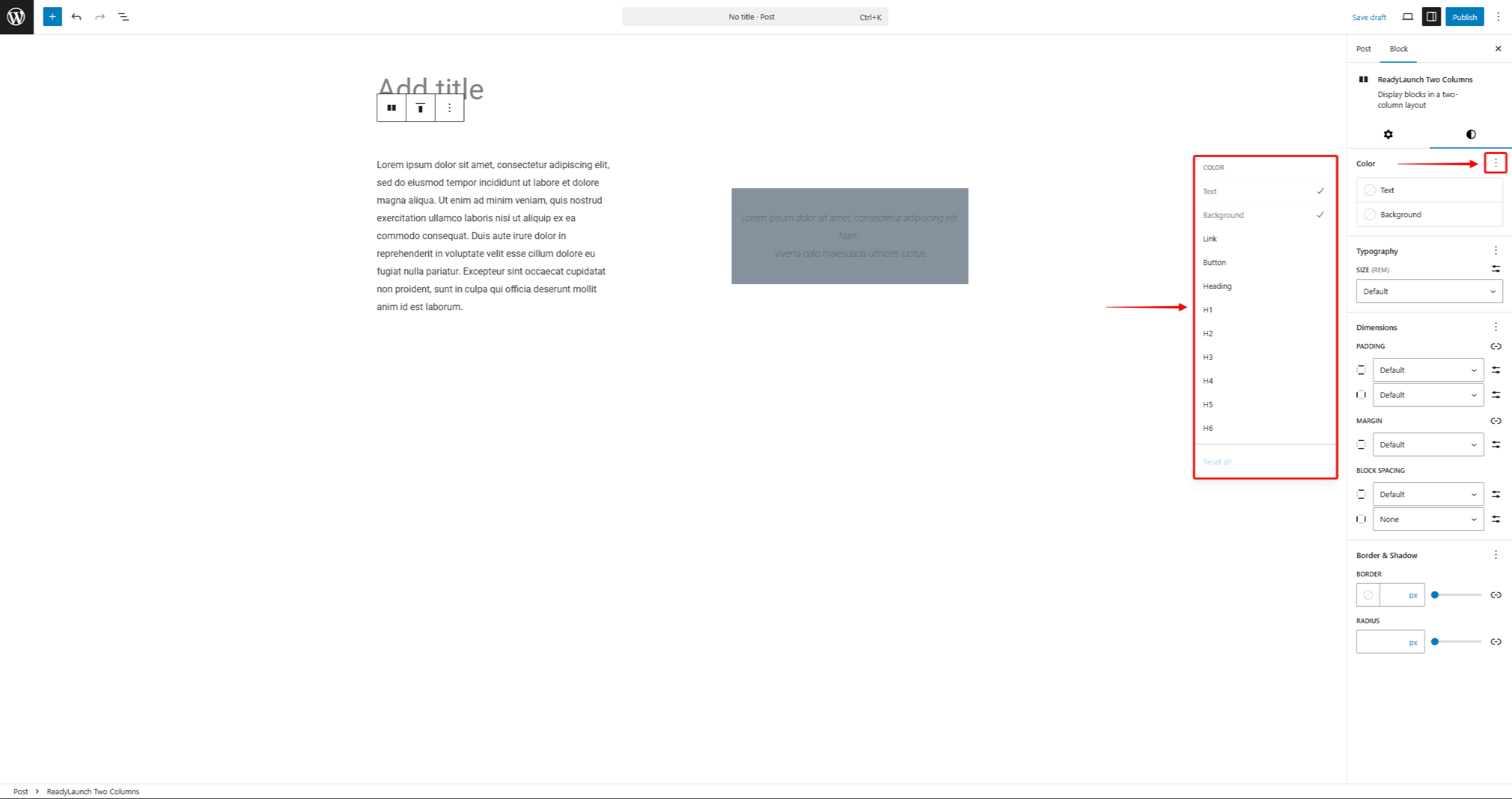
- Clique em todas as opções que deseja exibir no painel de configurações.
Resumo
Os blocos e modelos do ReadyLaunch™ agilizam a criação de páginas com designs pré-definidos e personalizáveis. Você pode duplicar e editar os modelos do tema como modelos personalizados. O plugin MemberPress adiciona os blocos de assinatura, cujo estilo é definido automaticamente pelo tema.
Para controlar layouts de página inteira, consulte o Modelos de tema do ReadyLaunch™. Para a configuração geral do tema, comece com o Noções básicas sobre o tema ReadyLaunch™.










 PT
PT  EN
EN  ES
ES  FR
FR  DE
DE 