No MemberPress, você pode estender manualmente o acesso de um usuário ao seu conteúdo protegido seguindo as orientações abaixo. Certifique-se de seguir as instruções de acordo com o tipo de assinatura, conforme descrito.
Extensão manual de assinaturas recorrentes automáticas
Ao prorrogar manualmente uma assinatura com recorrência automática, há duas maneiras de proceder. Uma delas é manter inalteradas as cobranças futuras do usuário (por exemplo, se você quiser conceder manualmente algum tipo de crédito ao usuário no meio do período de assinatura, etc.) e a outra é cancelar as cobranças futuras do usuário.
Mantendo a Billings intacta
Para manter as cobranças futuras do usuário inalteradas, você precisará primeiro suspender a assinatura do usuário, depois editar a transação mais recente dele e, por fim, retomar a assinatura do usuário.
Pausa
É necessário suspender o serviço porque, sem isso, o usuário continuará sendo cobrado, mesmo que você prorrogue o acesso dele ao editar a transação. Portanto, certifique-se de seguir essas etapas corretamente; caso contrário, o ciclo de cobrança do usuário continuará ininterruptamente.
- Navegue até a seção WordPress Painel de controle > MemberPress > Assinaturas página
- Sob o Recorrente pesquise a assinatura que deseja pausar usando a ferramenta Pesquisar ou navegando.
- Passe o mouse sobre a ID da assinatura (nos termos do Assinatura coluna) para ver as opções de gerenciamento de assinaturas. Clique no botão Pausa opção.
- Clique em OK na janela pop-up para confirmar a pausa.
Editar a transação mais recente
Ao editar a transação mais recente do usuário, você está prorrogando o acesso atual dele até a nova data de validade que você definir.
Para fazer isso, basta seguir estas etapas:
- Verifique se você ainda está na assinatura correta depois de pausá-la.
- Passe o mouse sobre o ID exclusivo da assinatura, na coluna ‘Assinatura’.
- Clique no link ‘Ver transações’.
- Passe o mouse sobre o ID exclusivo da transação mais recente (ou a transação mais recente) na coluna ‘Transação’.
- Clique no link ‘Editar’.
- Na página ‘Editar’, role a tela para baixo até encontrar a opção “Data de validade (UTC/GMT)” e, ali, defina a data de validade como qualquer data futura, de acordo com o período que você deseja conceder ao usuário (nenhuma alteração feita aqui iniciará qualquer cobrança). Para conceder acesso vitalício, basta excluir o que está lá (para que o campo fique em branco).
- Por fim, clique no botão ‘Atualizar’ para salvar suas alterações.
Retomada
Para que a assinatura do usuário continue sendo cobrada, você ou o próprio usuário precisará retomar a assinatura manualmente. Observe que, após a retomada correta da assinatura, pode levar até 24 horas para que a próxima cobrança seja totalmente processada. Se a retomada for feita após sua transação editada expirar, o usuário poderá perder o acesso até que sua próxima transação seja processada. Dessa forma, recomendamos que a retomada seja feita no mesmo dia em que a transação editada estiver definida para expirar.
Para reativar a assinatura de um usuário como administrador, siga estas etapas:
- Navegue até a página WordPress Dashboard > MemberPress > Subscriptions (Painel do WordPress > MemberPress > Assinaturas).
- Certifique-se de que está na aba ‘Recorrente’.
- Pesquise a Assinatura usando a ferramenta de pesquisa na página ou navegando.
- Passe o mouse sobre o ID exclusivo da assinatura, na coluna ‘Assinatura’.
- Verifique se você encontrou o correto Assinatura.
- Clique no link ‘Retomar’.
- Clique em ‘OK’ na janela pop-up após verificar se está retomando a assinatura correta.
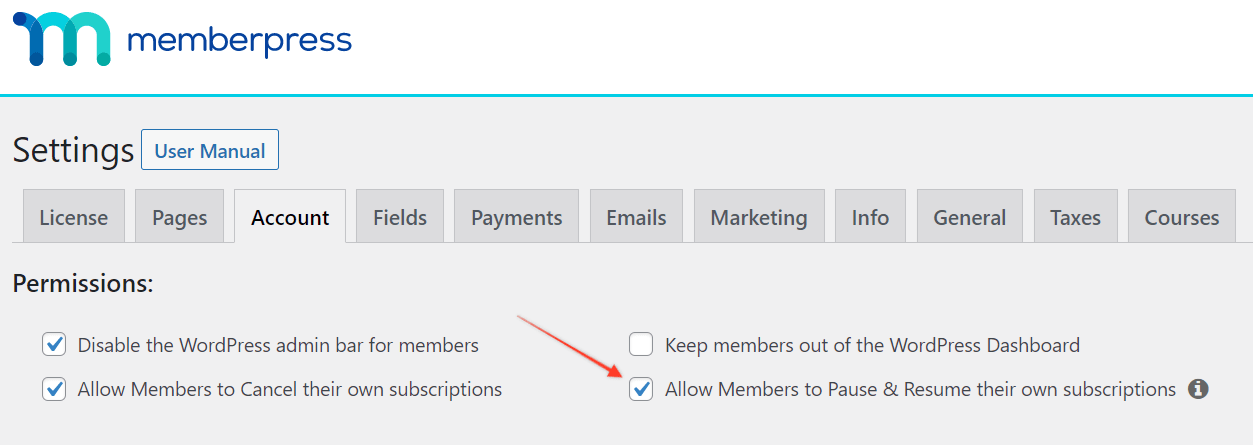
Para que o usuário retome sua própria assinatura, peça que ele siga estas etapas (Importante: Isso requer que você tenha ativado essa opção na seção MemberPress > Settings > Account > Permissions, como administrador):
- Acesse a página “Conta MemberPress” do seu site.
- Clique na guia Assinaturas ou na opção de link.
- À direita da assinatura que eles gostariam de retomar, clique no link de currículo.
Cancelamento de faturamentos futuros/o usuário está no último ciclo de faturamento
Se, por qualquer motivo, você desejar cancelar as cobranças futuras do usuário e conceder a ele acesso prolongado (por exemplo, se quiser conceder acesso vitalício), certifique-se de cancelar corretamente a assinatura do usuário. Se a assinatura do usuário já estiver no último ciclo de cobrança, não é necessário cancelá-la. Após cancelar a assinatura, você precisará editar a última transação do usuário para estender seu acesso.
Cancelamento
Para cancelar a assinatura do usuário, basta seguir estas etapas:
- Navegue até a página WordPress Dashboard > MemberPress > Subscriptions (Painel do WordPress > MemberPress > Assinaturas).
- Certifique-se de que está na aba ‘Recorrente’ (assinaturas não recorrentes não podem ser canceladas).
- Pesquise a Assinatura usando a ferramenta de pesquisa na página ou navegando.
- Passe o mouse sobre o ID exclusivo da assinatura, na coluna ‘Assinatura’.
- Verifique se você está cancelando o correto Assinatura (esse processo é irreversível).
- Clique no link ‘Cancelar’.
- Clique em ‘OK’ na janela pop-up após verificar se está cancelando a assinatura correta.
Editar a transação mais recente
Ao editar a transação mais recente do usuário, você está prorrogando o acesso atual dele até a nova data de validade definida por você. Para fazer isso, basta seguir estas etapas:
- Verifique se você ainda está no correto Assinatura depois que você a cancelou.
- Passe o mouse sobre o ID exclusivo da assinatura, na coluna ‘Assinatura’.
- Clique no link ‘Ver transações’.
- Passe o mouse sobre o ID exclusivo da transação mais recente (ou a transação mais recente) na coluna ‘Transação’.
- Clique no link ‘Editar’.
- Na página ‘Editar’, role a tela para baixo até encontrar a opção “Data de validade (UTC/GMT)” e, nesse campo, defina a data de validade como qualquer data futura, de acordo com o tempo que você deseja conceder ao usuário (nenhuma alteração feita aqui iniciará qualquer cobrança). Para conceder acesso vitalício, basta excluir o que está lá (para que o campo fique em branco).
- Por fim, clique no botão ‘Atualizar’ para salvar suas alterações.
Extensão manual de assinaturas não recorrentes
Como você não precisa se preocupar em afetar nenhum faturamento automático futuro, o processo de estender o acesso de uma assinatura do tipo não recorrente (pagamento único) é bastante simples.
- Navegue até a página WordPress Dashboard > MemberPress > Subscriptions (Painel do WordPress > MemberPress > Assinaturas).
- Certifique-se de que você está na aba ‘Não recorrente’.
- Pesquise a Assinatura usando a ferramenta de pesquisa na página ou navegando.
- Passe o mouse sobre o ID exclusivo da assinatura, na coluna ‘Assinatura’.
- Verifique se você encontrou o correto Assinatura.
- Clique no link ‘Ver transações’.
- Passe o mouse sobre o ID exclusivo da transação na coluna ‘Transação’.
- Clique no link ‘Editar’.
- Na página ‘Editar’, role a tela para baixo até encontrar a opção “Data de validade (UTC/GMT)” e, nesse campo, defina a data de validade como qualquer data futura, de acordo com o período de tempo que você deseja conceder ao usuário (nenhuma alteração feita aqui iniciará qualquer cobrança).
- Por fim, clique no botão ‘Atualizar’ para salvar essas alterações.
Verificação
Para verificar se você prorrogou corretamente o acesso à assinatura de um usuário, basta acessar o Painel do WordPress > MemberPress > Assinaturas > procurar a assinatura do usuário. Depois de encontrar a assinatura correta, certifique-se de que você veja o seguinte: um ‘Sim’ em verde na coluna ‘Ativo’, a data de validade atualizada e, se for uma assinatura recorrente, a indicação ‘Interrompida’ (para cancelada) ou ‘Pausada’ na coluna “Cobrança automática”, conforme mostrado aqui:











 PT
PT  EN
EN  ES
ES  FR
FR  DE
DE