

MemberPress Courses come with the ReadyLaunch™ Courses Template enabled by default. Also, the Courses add-on provides additional options for customizing the Courses Template.
This document shows you how to customize the ReadyLaunch™ Courses template and explains available options.
Template Customization
ReadyLaunch™ Courses Template is a full-screen template with its header, sidebar, footer, and styling.
The default customization options allow you to adjust the template to your needs and brand:
- Navigate to Dashboard > MemberPress > Settings > ReadyLaunch™ tab.
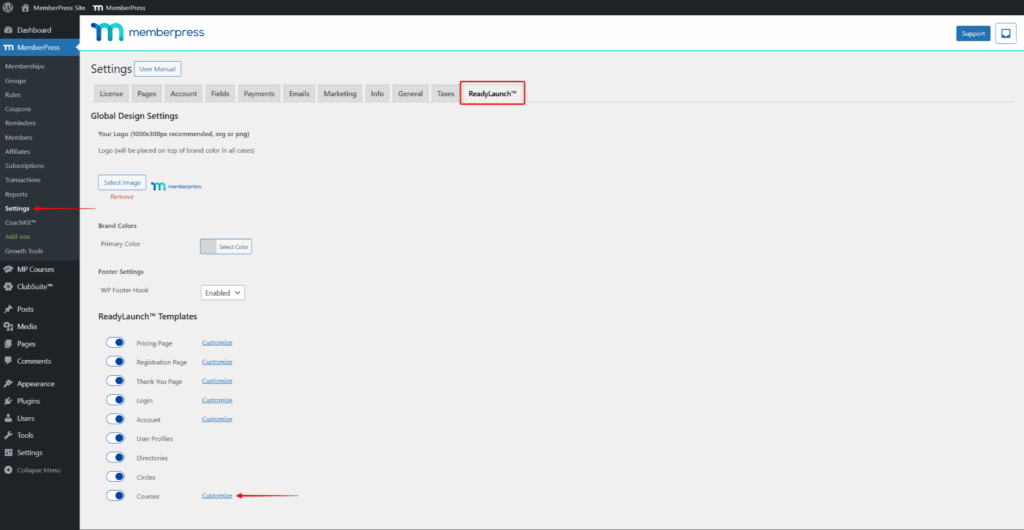
- Click the Customize link next to the Courses template name.
- Apply the changes you need, and click the Update button to save the changes.
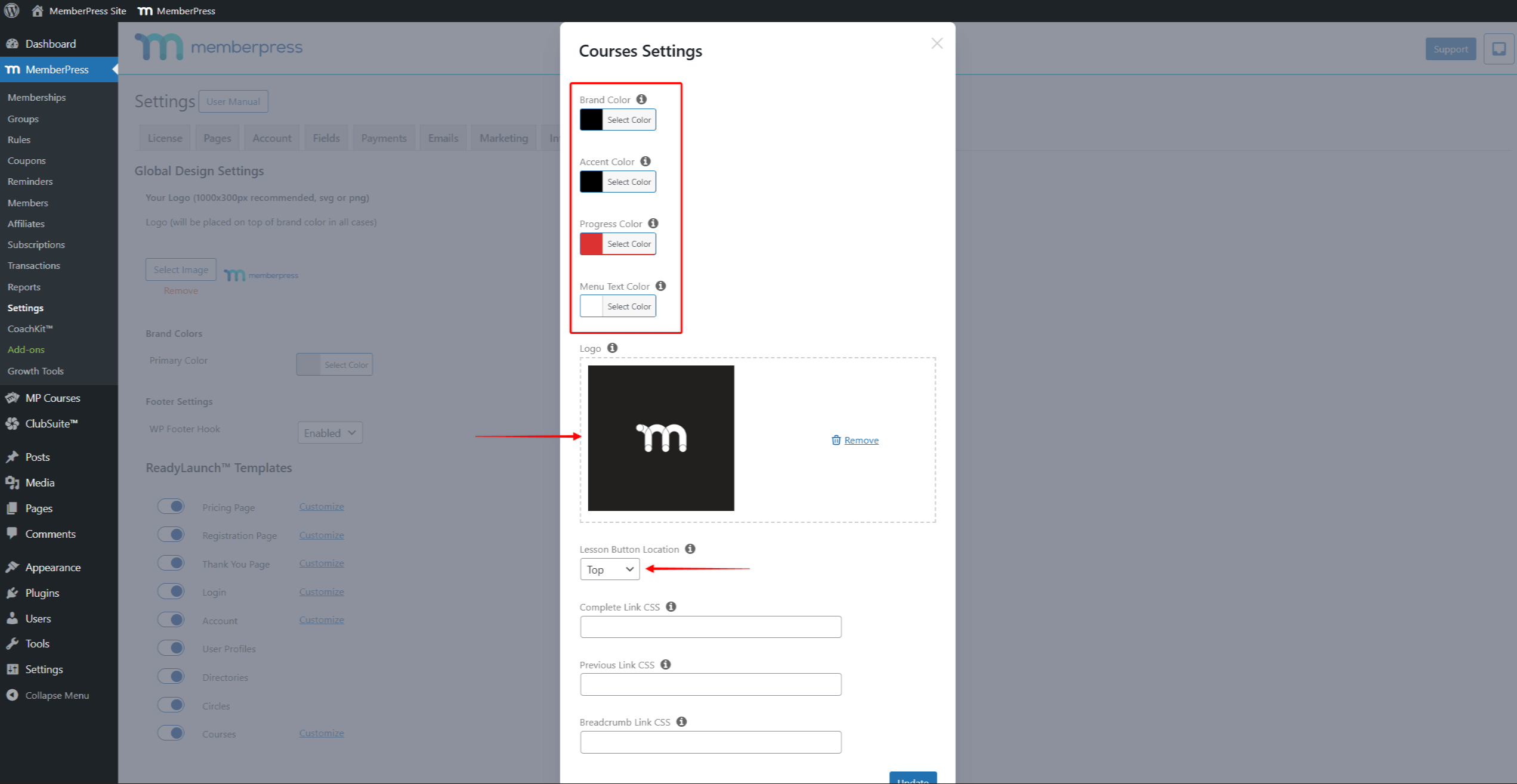
Courses Template Customization Options
The following options are available for the ReadyLaunch™ Courses Template customization:
- Brand Color – set the background color of your courses’ navigation bar;
- Accent Color – set the accent color;
- Progress Bar – set the color of the progress bar showing a percentage of the student’s course progress. Also, this color will be applied to your courses’ curriculum;
- Menu Text Color – set the color of the menu item labels within your course menu;
- Logo – add a custom logo to your courses’ header. The logo will be positioned on the upper left side of your courses. It is recommended to use a horizontally designed logo (wide instead of tall);
- Lesson Button Location – position the continue/back buttons on your lesson pages. You can set the position to Top, Bottom, or Both.
Advanced Styling Options
Further, you can additionally style certain template elements by adding custom CSS code to your website.
To simplify this, you can assign custom classes to specific elements of the ReadyLaunch™ Courses Template. You can add custom classes to the following elements:
- Complete Link CSS – assign custom CSS classes to the Complete Lesson/Section/Course links on your lesson pages;
- Previous Link CSS – assign custom CSS classes to the Previous Lesson/Section links on your lesson pages;
- Breadcrumb Link CSS – assign custom CSS classes to the breadcrumb links on your lesson pages.
Therefore, you can use custom classes to target these template elements and apply custom styling. You can add custom CSS to your custom classes through the theme Customizer (Dashboard > Appearance > Customize).
FSE Courses Template
The options above customize the default ReadyLaunch™ Courses template. In addition, MemberPress can register the Courses template as a Full Site Editing (FSE) block template.
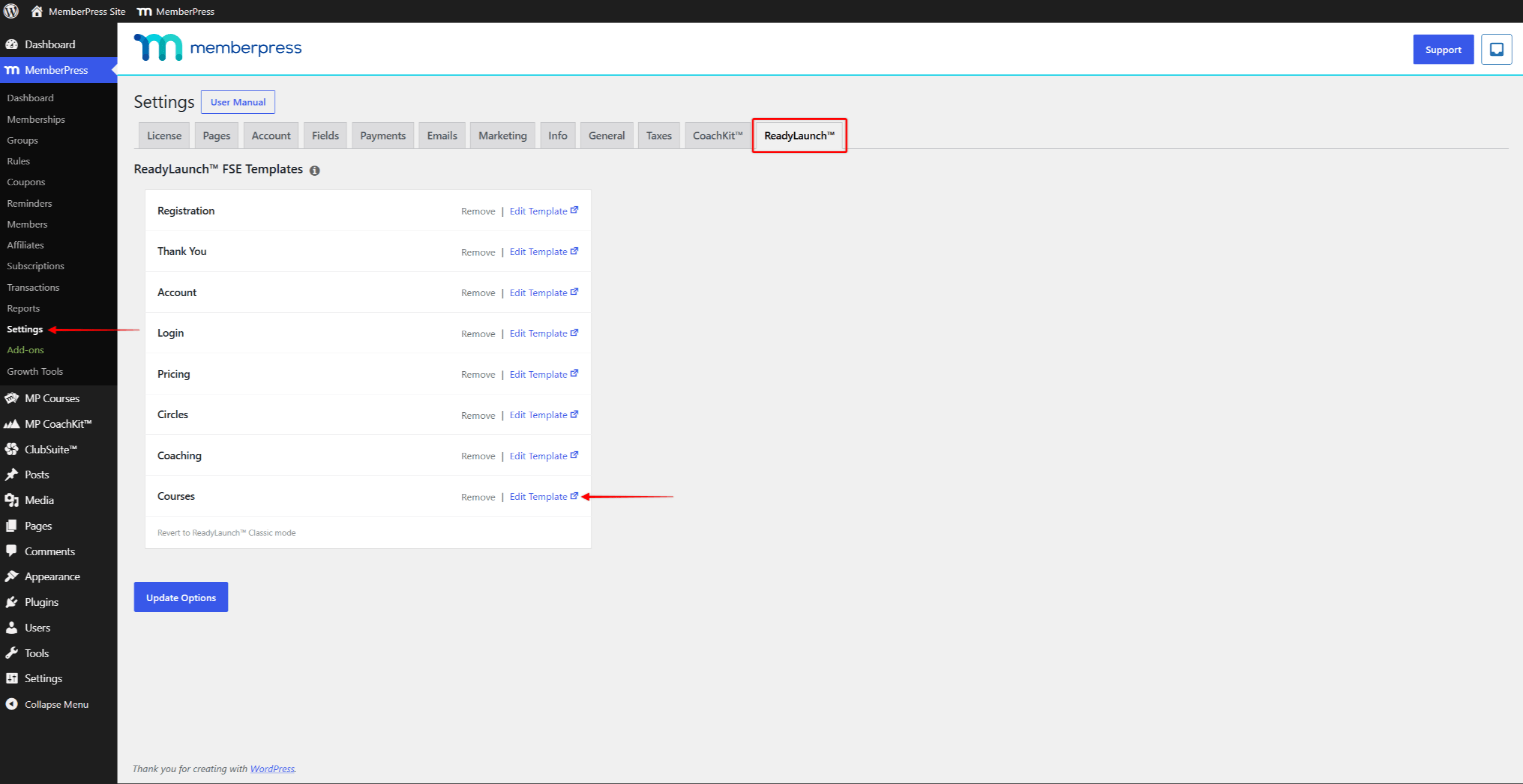
With the MemberPress FSE mode enabled, the Courses row appears in the “ReadyLaunch™ FSE Templates” table. You can find the table at Dashboard > MemberPress > Settings > ReadyLaunch™ tab. Here, you can apply the Courses template and edit it in the WordPress Site Editor.
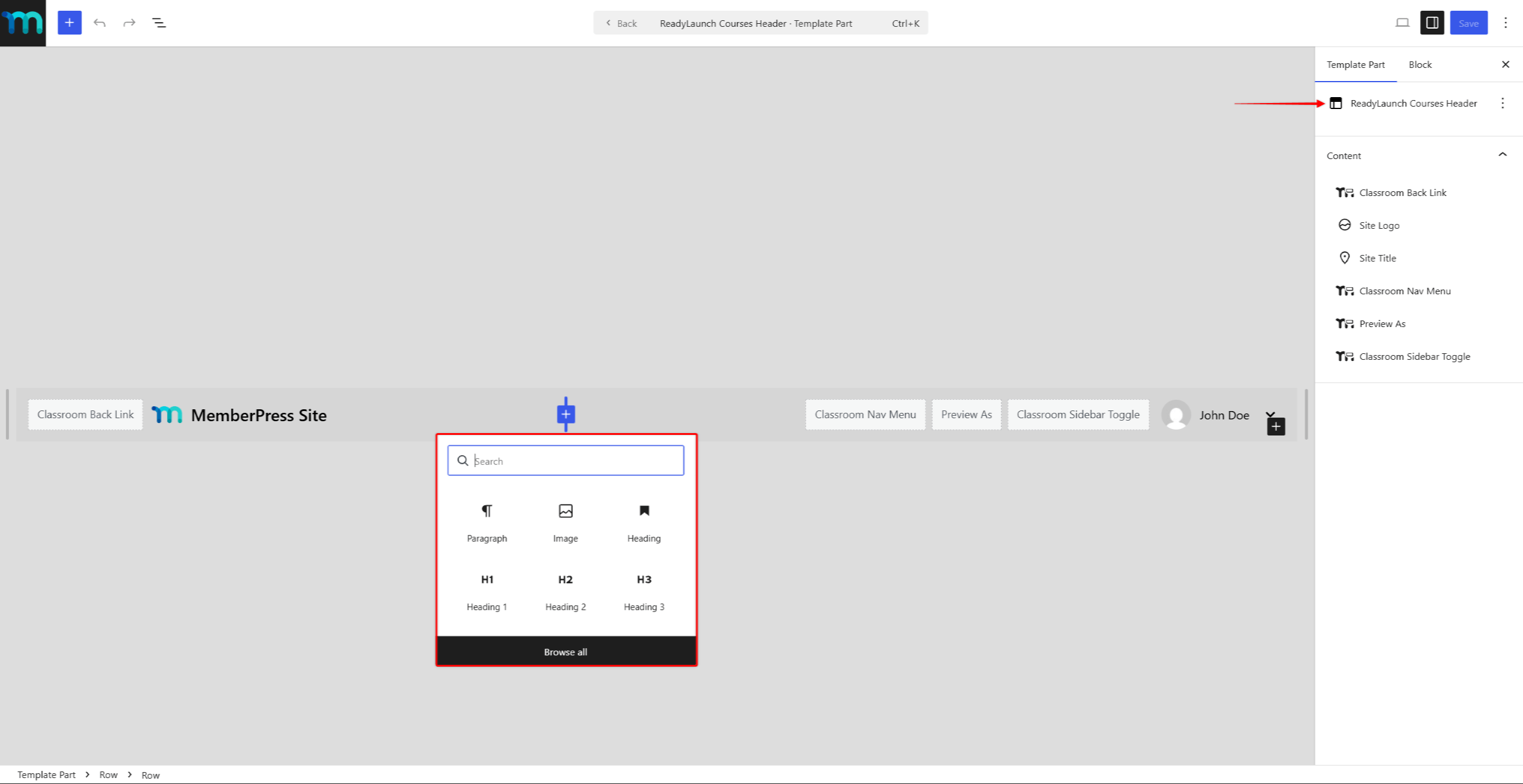
The Courses template uses its own header, the ReadyLaunch Courses Header template part. To edit it, click the header area within the template, and click Edit original.
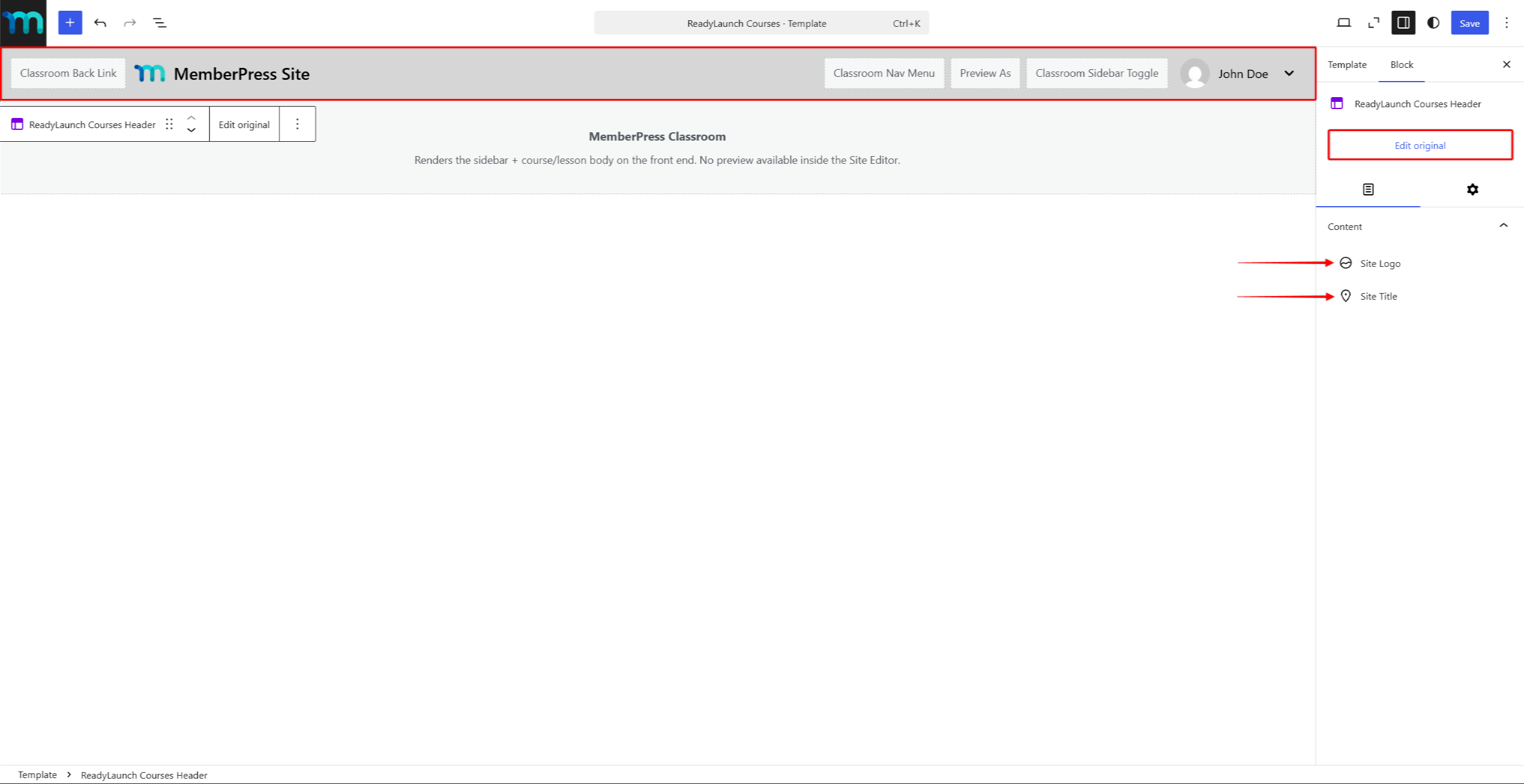
The header part opens for editing. It contains the following blocks by default:
- Classroom Back Link;
- Site Logo;
- Site Title;
- Classroom Nav Menu;
- Preview As;
- Classroom Sidebar Toggle.
You can modify these blocks, remove them, or add new ones.
Further, the Classroom Shell block controls the course content area. Click the block to set the Classroom Colors: the brand color, the accent color, the sidebar background, and the link color.
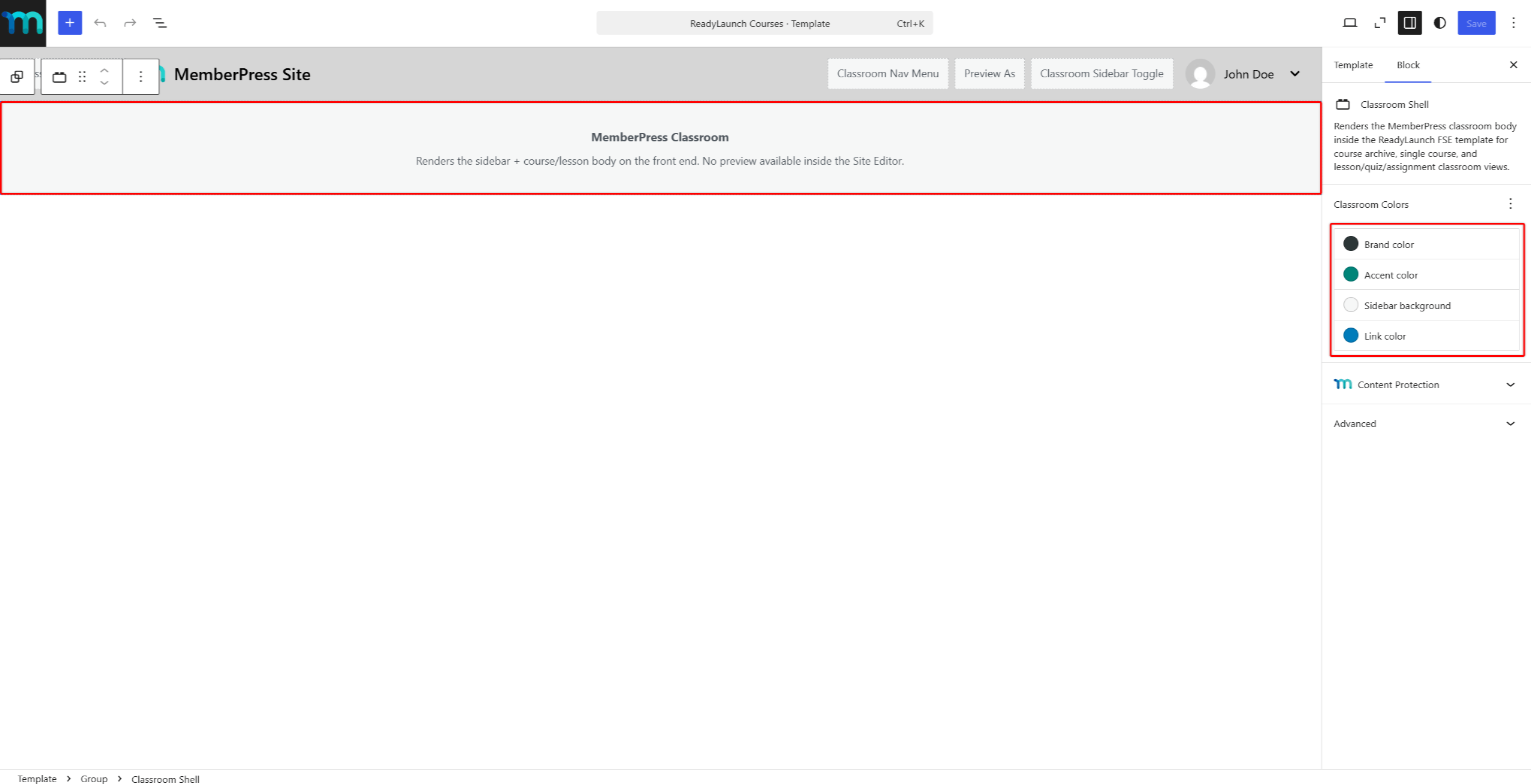
The course content area renders on the front end only. The Site Editor shows a placeholder for it.
The FSE mode requires WordPress 6.7 or higher and an active block theme.










