

Tab Bar and More Screen menus provide primary and secondary navigation within mobile applications. Menu customization creates branded navigation experiences aligned with organizational structure and member needs.
This document explains how to configure navigation items, organize menu sections, customize icons and colors, and preview navigation changes.
Understanding Tab Bar and More Screen Navigation
Tab Bar navigation displays at the bottom of mobile screens, providing quick access to primary app sections. Up to four items can occupy Tab Bar positions, with the fifth position reserved for the More Menu. More Screen navigation contains secondary items accessed through the More Menu icon. Menu organization and icon selection create cohesive navigation experiences supporting member engagement and content discovery.
Accessing Menu Settings
Menu configuration is done in the menu settings interface.
- Navigate to Dashboard > MP AppKit > Menus.
- Verify the Tab Bar Menu tab is active.
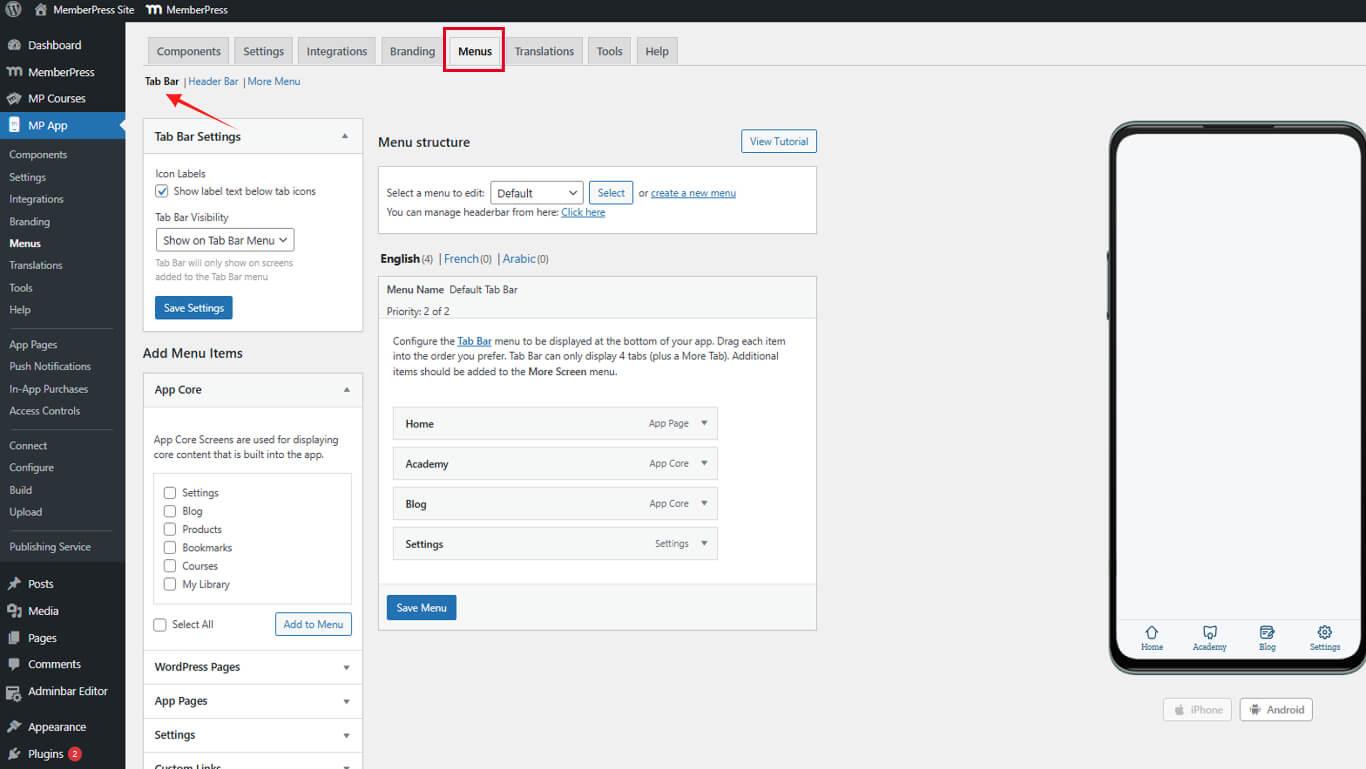
- Click the More Screen Menu tab to access secondary navigation.
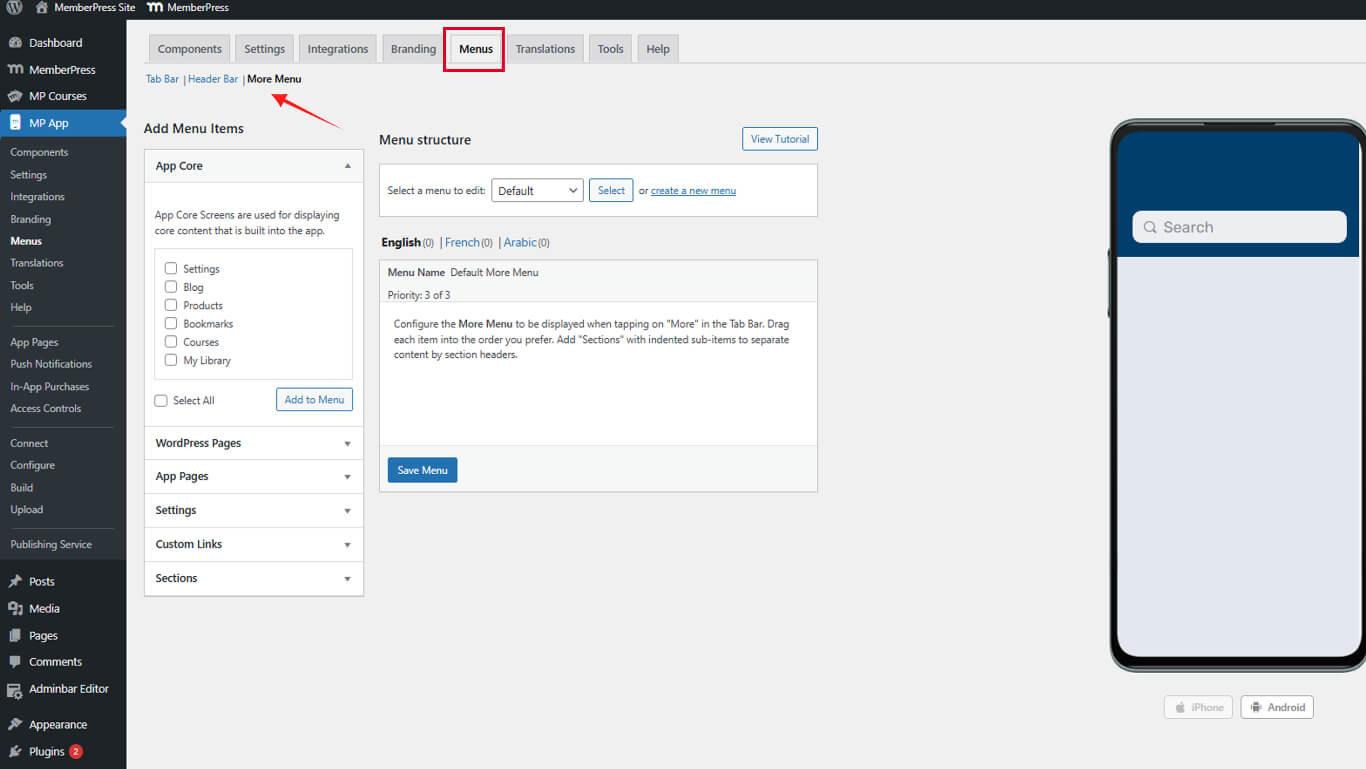
Tab Bar and More Screen menus are configured independently with different organizational structures.
Clearing Existing Navigation Items
Starting with empty menus simplifies navigation reconfiguration.
Clearing Tab Bar Menu
- Navigate to Dashboard > MP AppKit > Menus.
- Click the Menu Dropdown, then select Remove for every item.
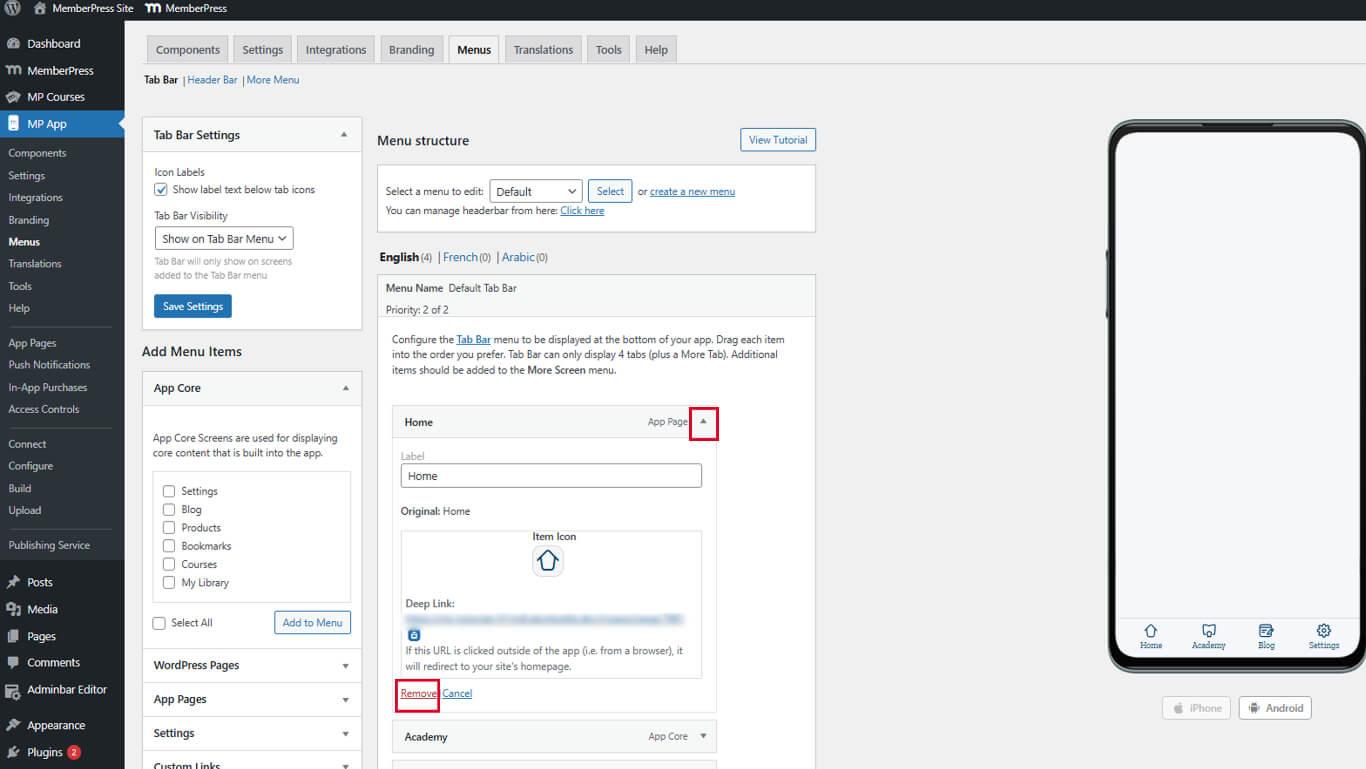
- Repeat until the Tab Bar Menu is empty.
Clearing existing items prevents conflicts during reconfiguration.
Clearing More Screen Menu
- Click the More Screen Menu tab.
- Locate each existing menu item.
- Click Remove next to each item.
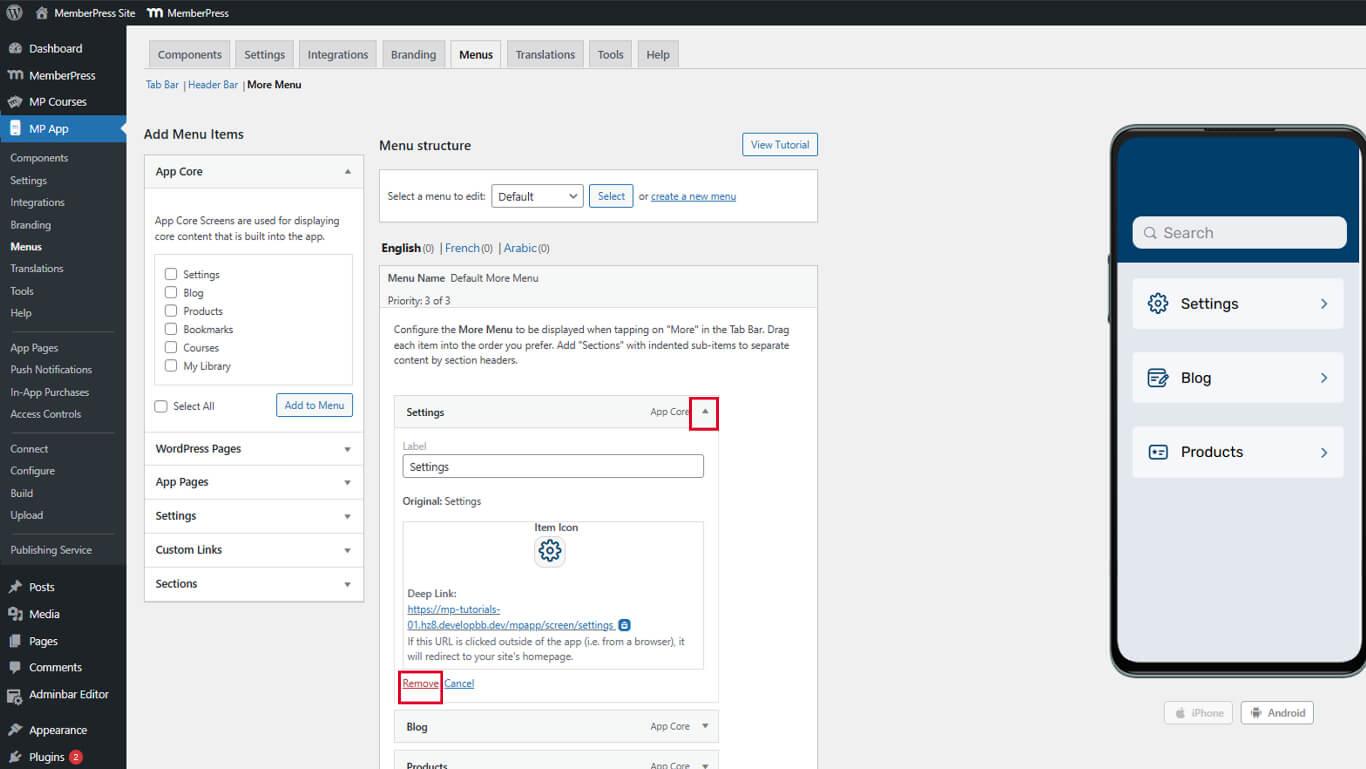
- Repeat until the More Screen Menu is empty.
Empty menus provide clean foundations for deliberate navigation structure.
Adding Items to Tab Bar Menu
Tab Bar items provide primary navigation to frequently accessed sections.
Adding Core App Screens
- Navigate to Dashboard > MP AppKit > Menus.
- Locate the App Core section in the available items.
- Find Settings and click Add to Menu.
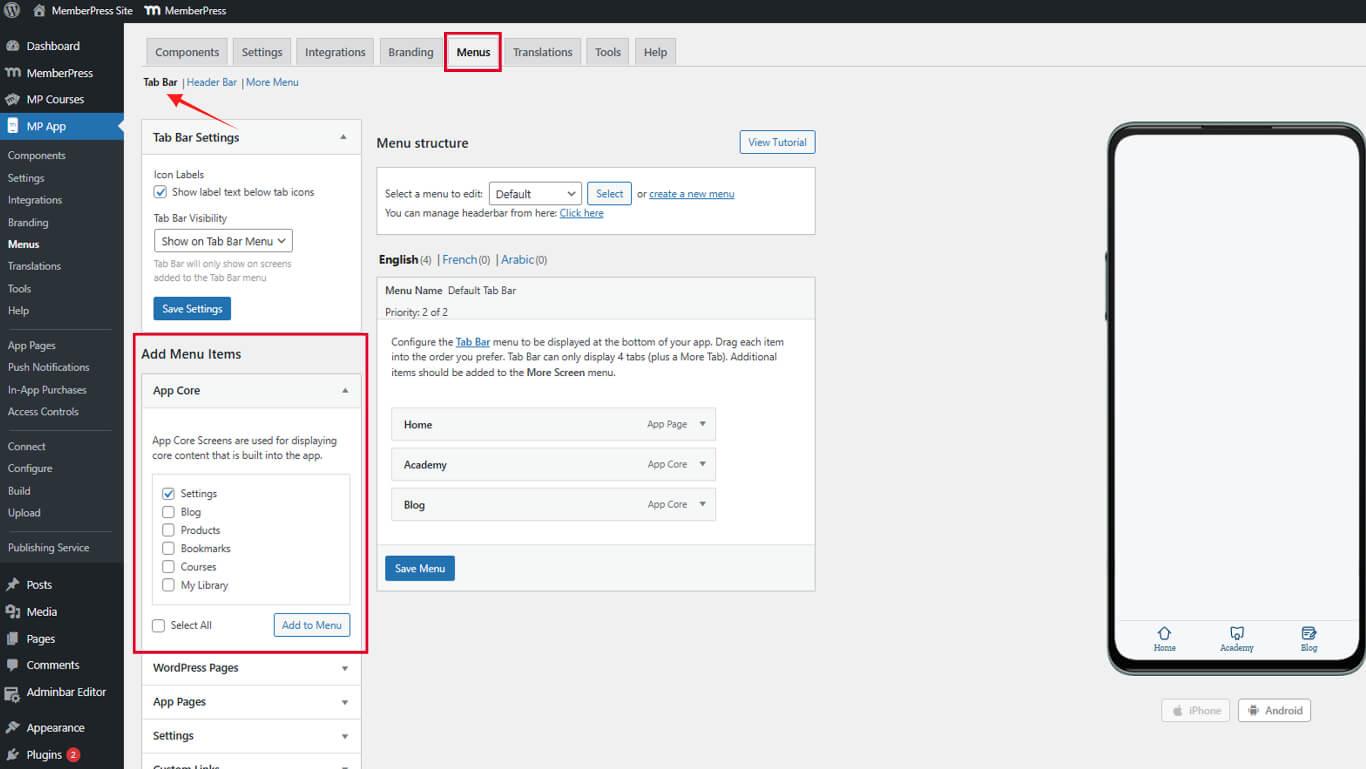
- Drag menu items to arrange display order.
- Click the Save Menu.
Settings should remain accessible for account management and app configuration.
Adding App Pages
- Locate the App Pages section in available items.
- Find the home or Members group App Page.
- Check the checkbox next to the page name.
- Click Add to Menu.
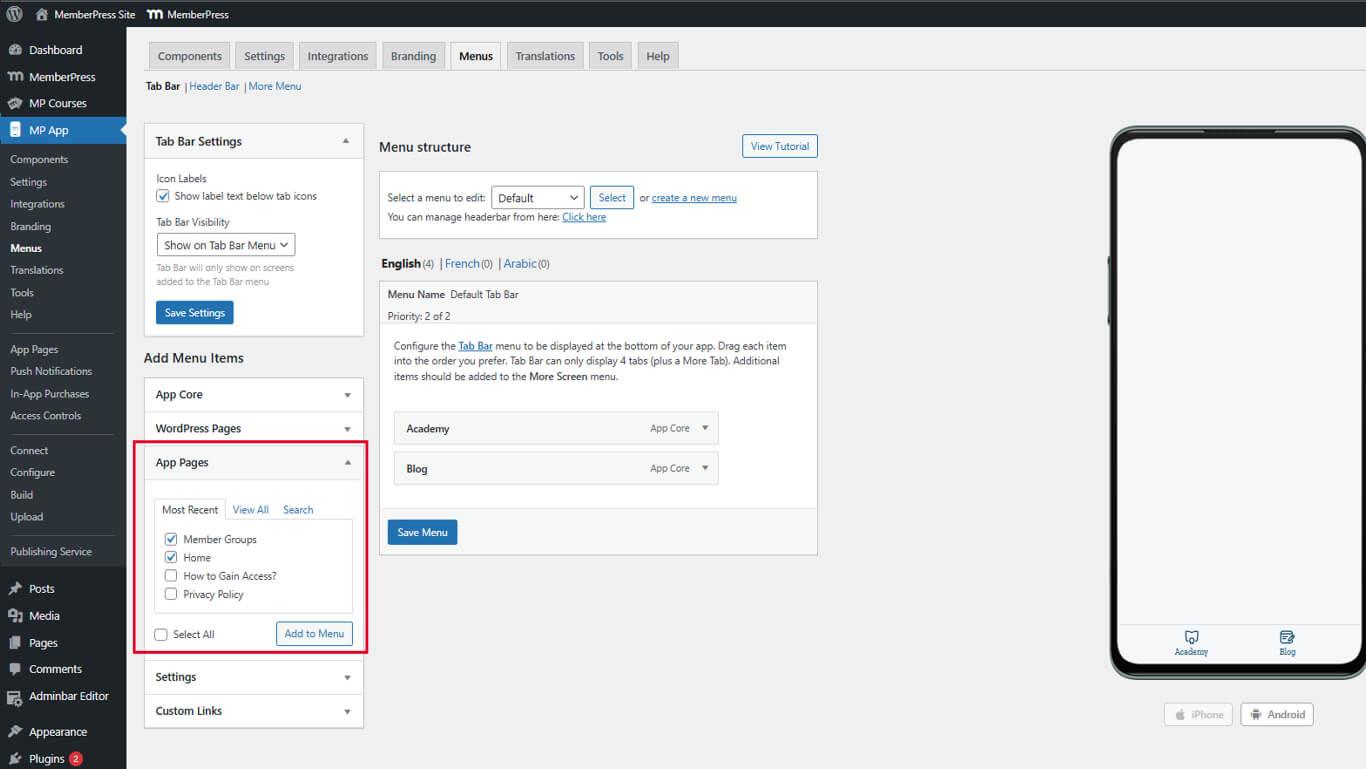
- Drag the item to the desired position in the menu order.
- Click the Save Menu.
App Pages provide custom content destinations for navigation items.
Adding Blog Access
- Navigate to Dashboard > MP AppKit > Menus and scroll to the App Core section.
- Find Blog in the available items list.
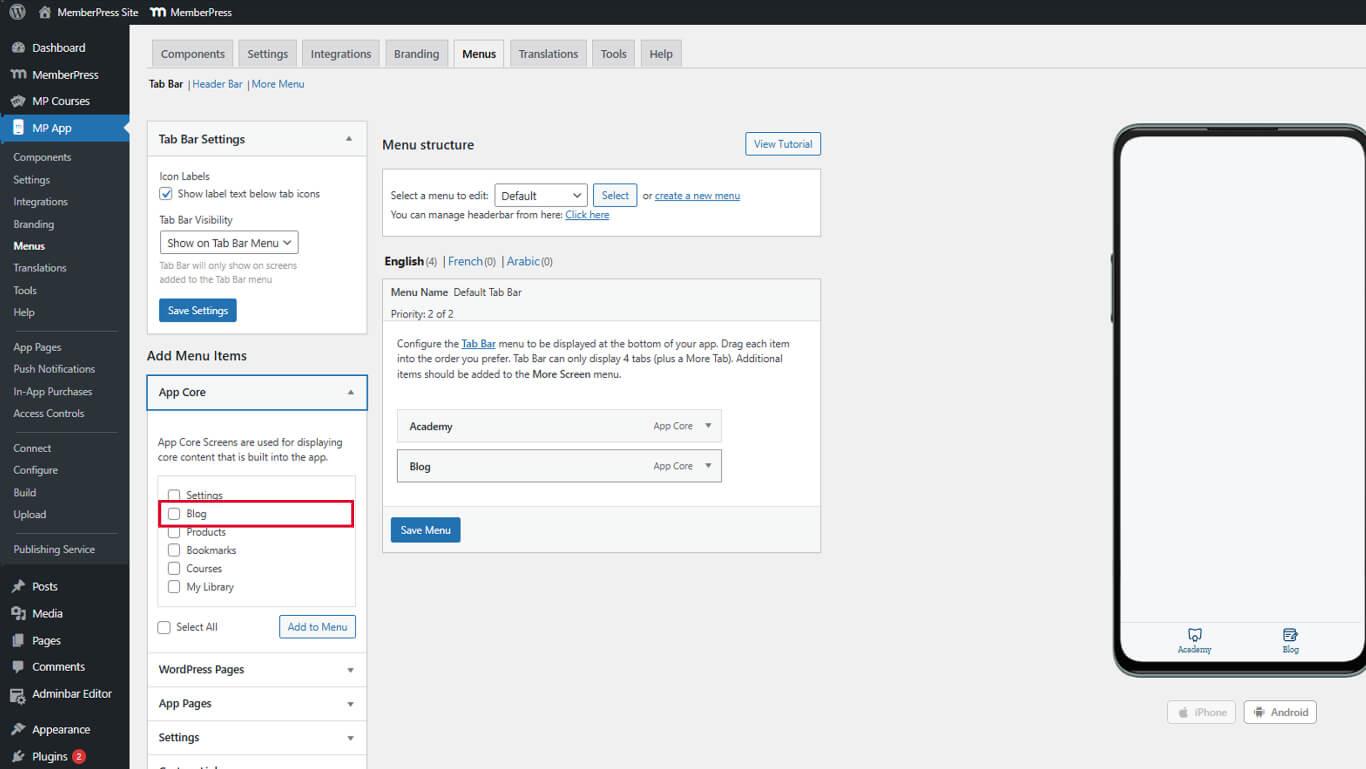
- Click Add to Menu.
- Drag the Blog to the desired Tab Bar position.
- Click the Save Menu.
Blog access supports content engagement and member retention.
Adding Items to the More Screen Menu
More Screen items provide secondary navigation to supplementary sections.
Adding Account Management Items
- Navigate to Dashboard > MP AppKit > Menus.
- Click the More Screen Menu tab.
- Locate the App Core section.
- Find Products or Bookmark in the available items.
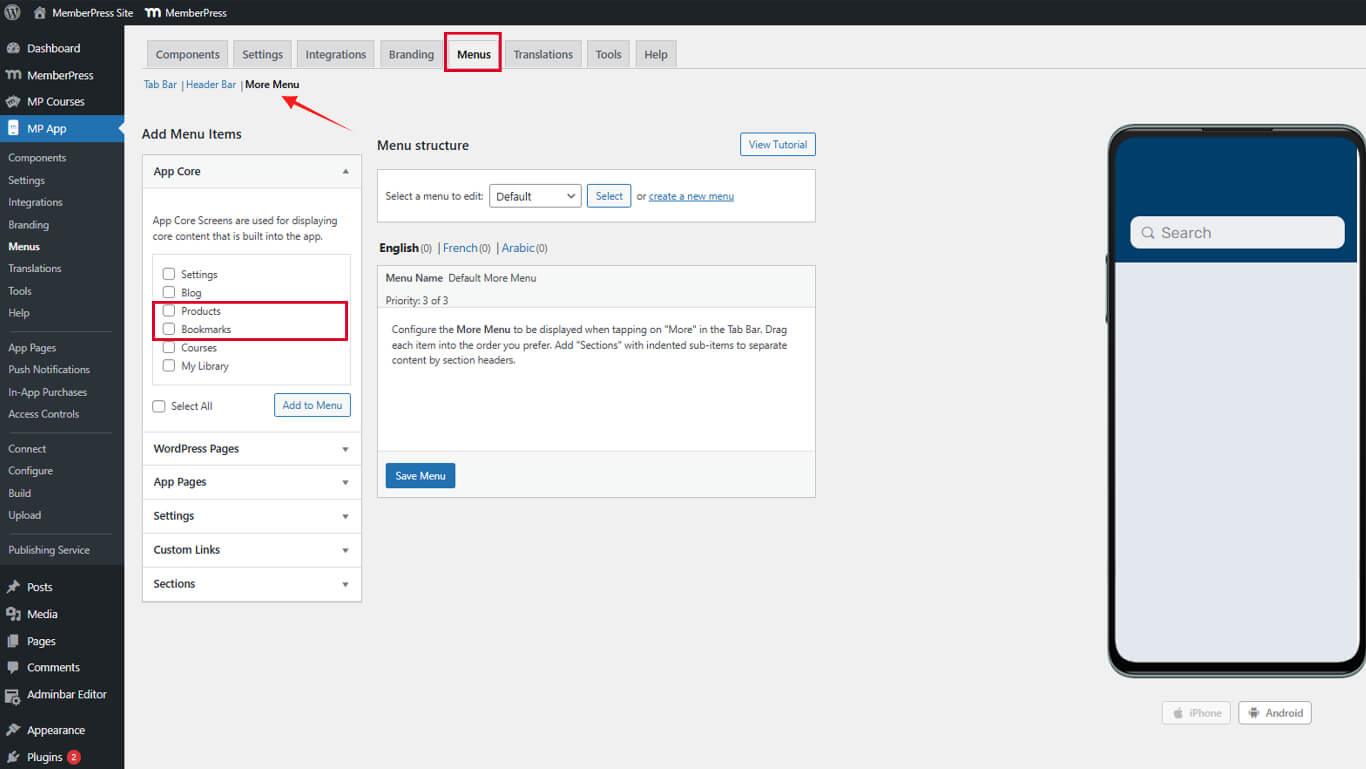
- Click Add to Menu.
- Click Add to Menu next to Settings.
- Click the Save Menu.
Account management items should remain easily accessible even in secondary navigation.
Creating Menu Sections
Sections organize More Screen items into logical groupings.
Adding Section Headers
- Navigate to Dashboard > MP AppKit > Menus.
- Click the More Menu tab.
- Locate Sections, and click Add Section above the menu items list.
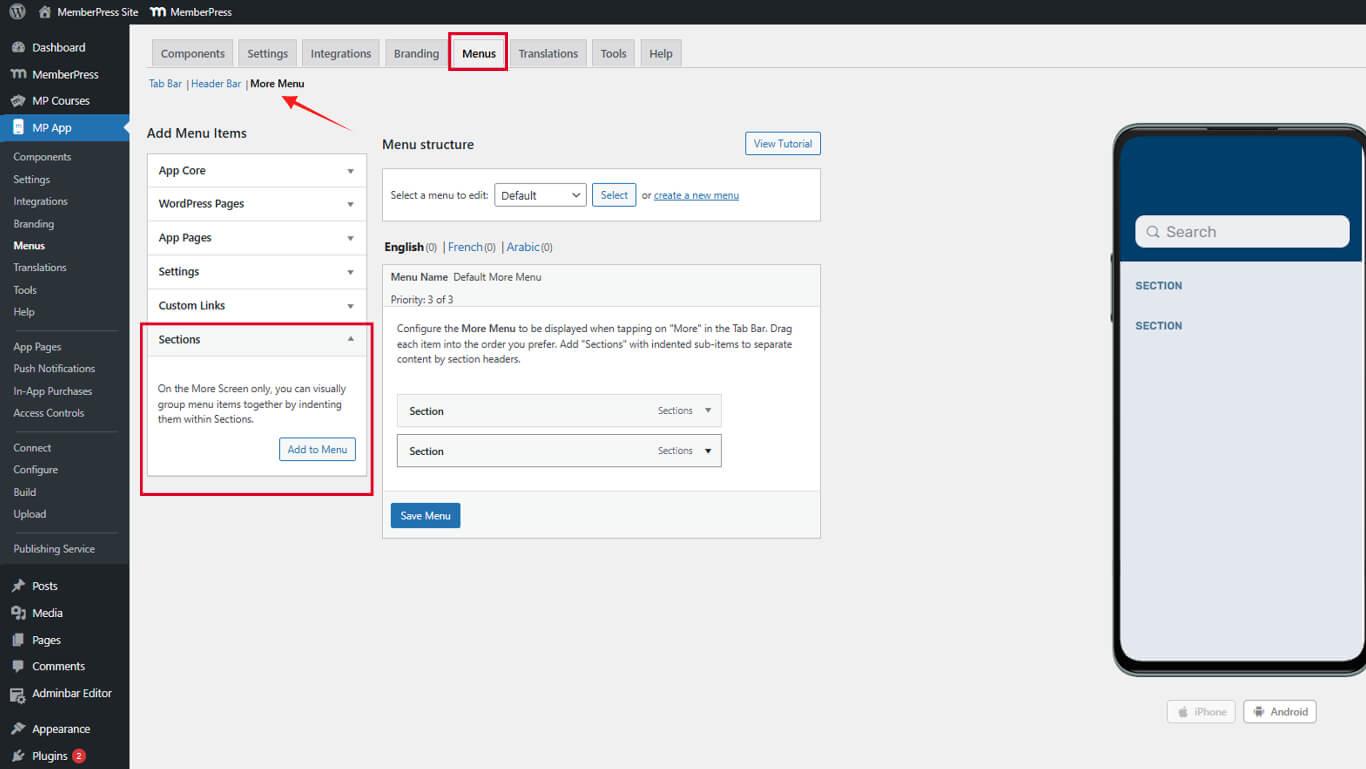
- Enter a section name in the Section Title field.
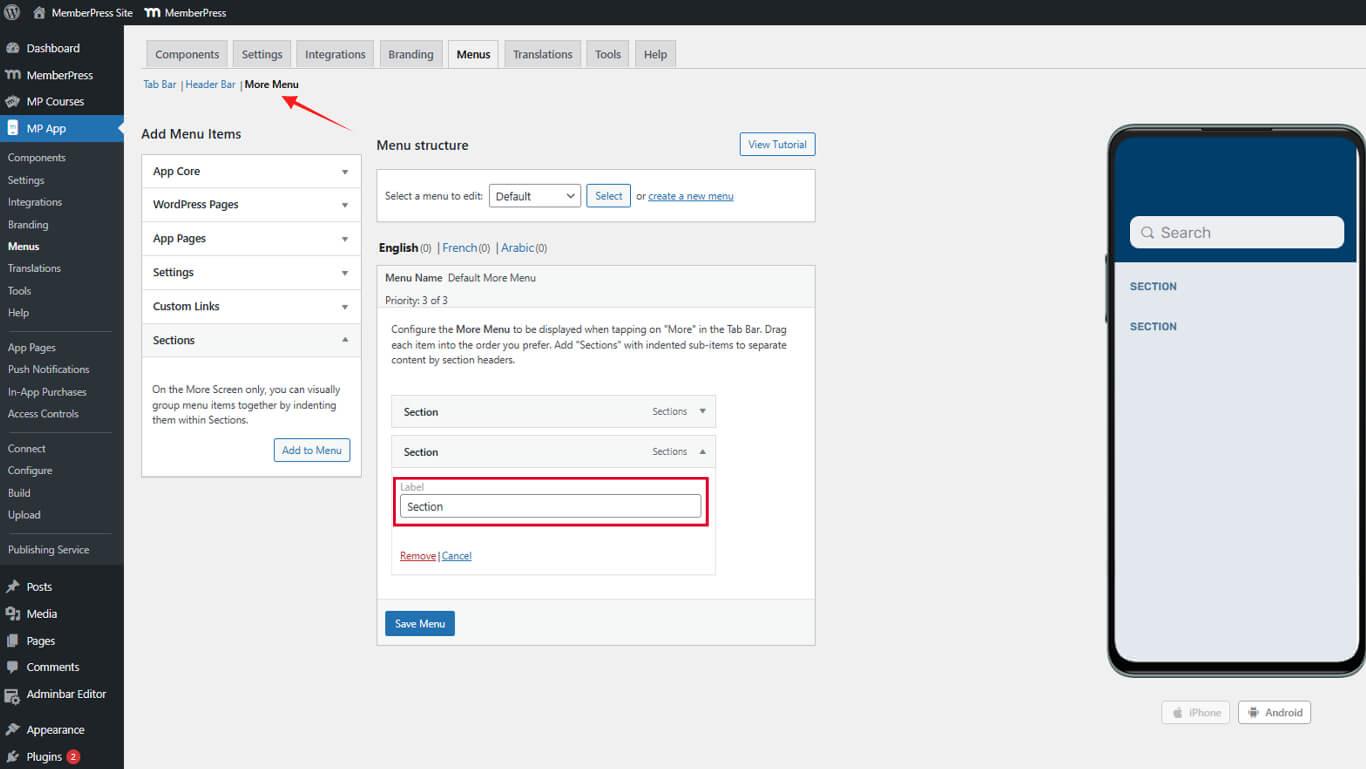
- Click Add Section to create the section.
Section headers appear as non-clickable labels in the More Menu.
Organizing Items Under Sections
- Locate menu items to group under a section.
- Drag items below the relevant section header.
- Repeat for all items requiring section organization.
- Click the Save Menu.
Visual indentation indicates hierarchical relationships between sections and items.
Customizing Menu Item Icons
Icons provide visual navigation cues and brand consistency.
Selecting Tab Bar Item Icons
- Navigate to Dashboard > MP AppKit > Menus.
- Locate a menu item requiring icon customization.
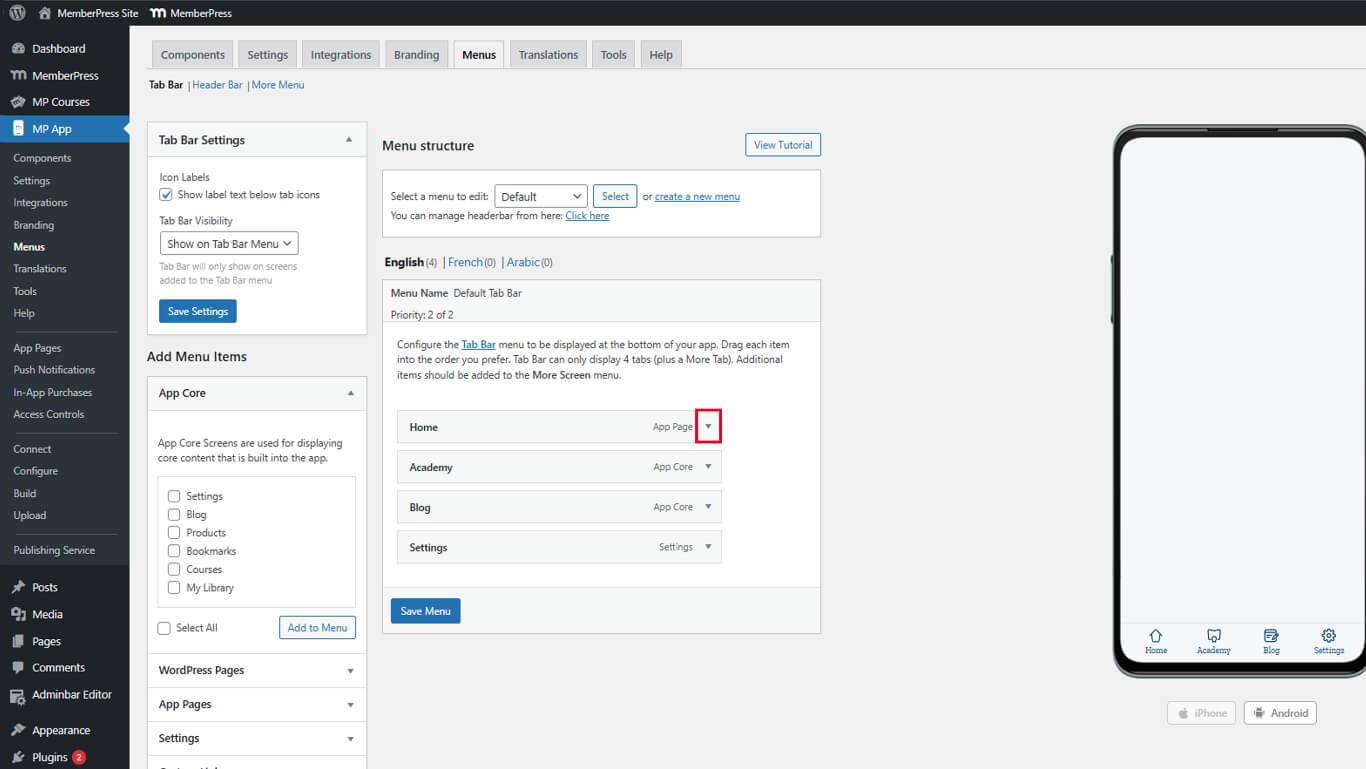
- Click the dropdown arrow next to the item name.
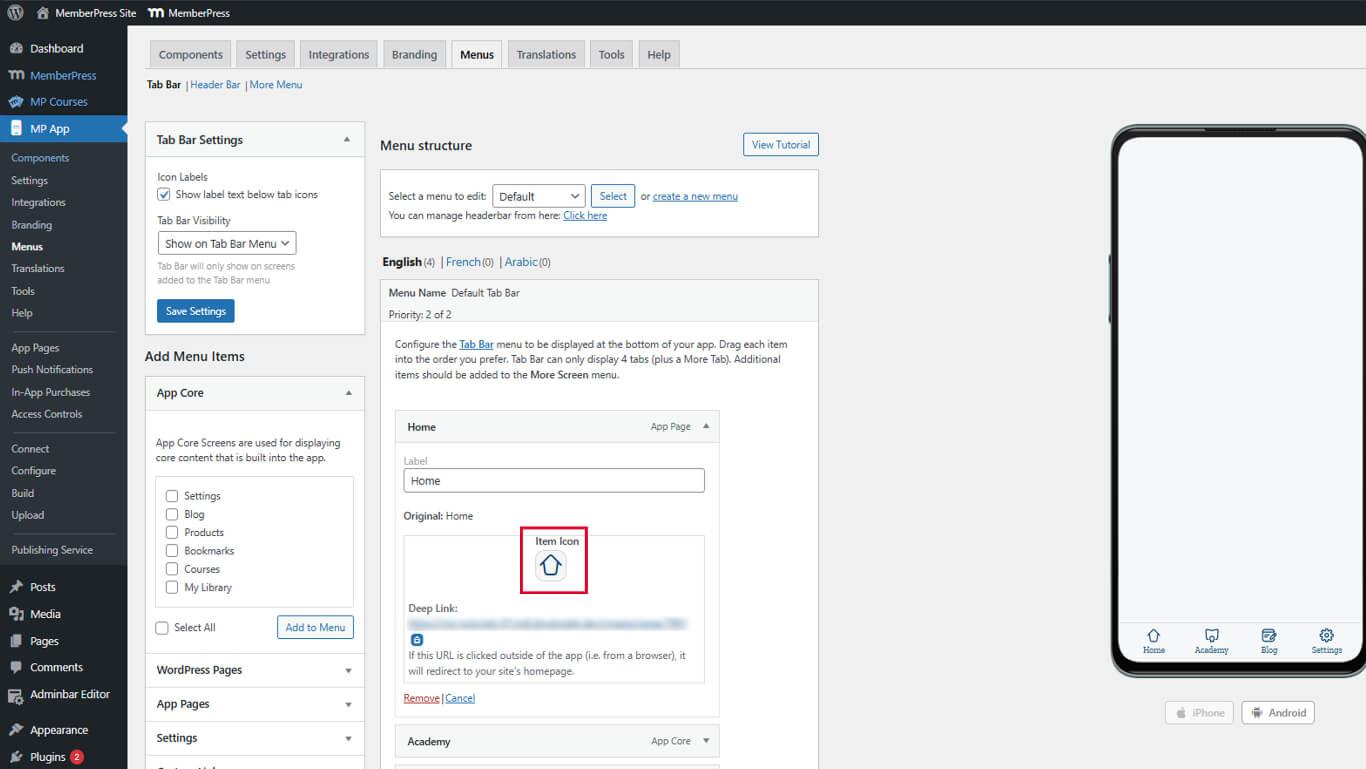
- Find the Item Icon section in the expanded settings.
- Click the icon box to open the Icon Selection Panel.
- Browse available icons in the icon pack.
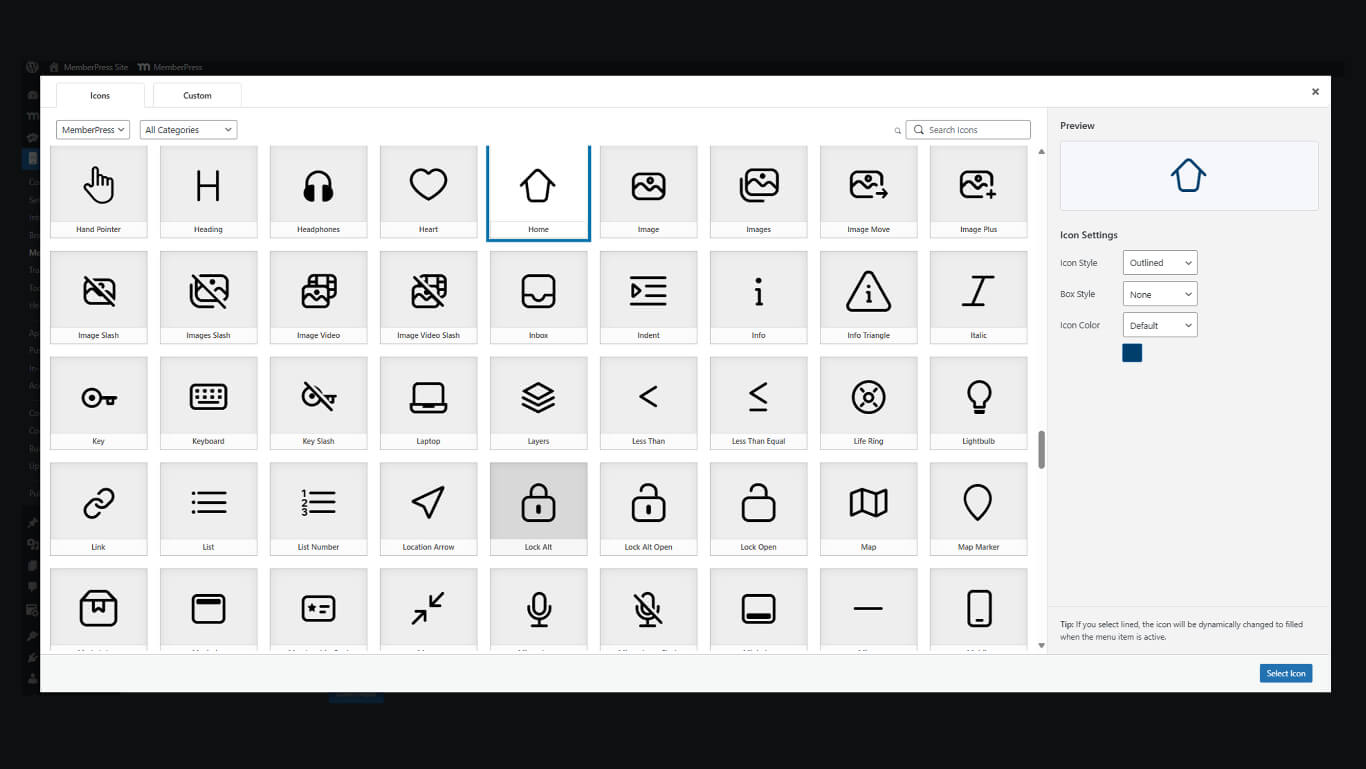
- Click an icon to select it.
- Click the Select Icon to apply the icon.
- Click the Save Menu.
Repeat this process for all Tab Bar items requiring custom icons.
Selecting More Screen Item Icons
- Click the More Screen Menu tab.
- Locate a menu item requiring icon customization.
- Click the dropdown arrow next to the item name.
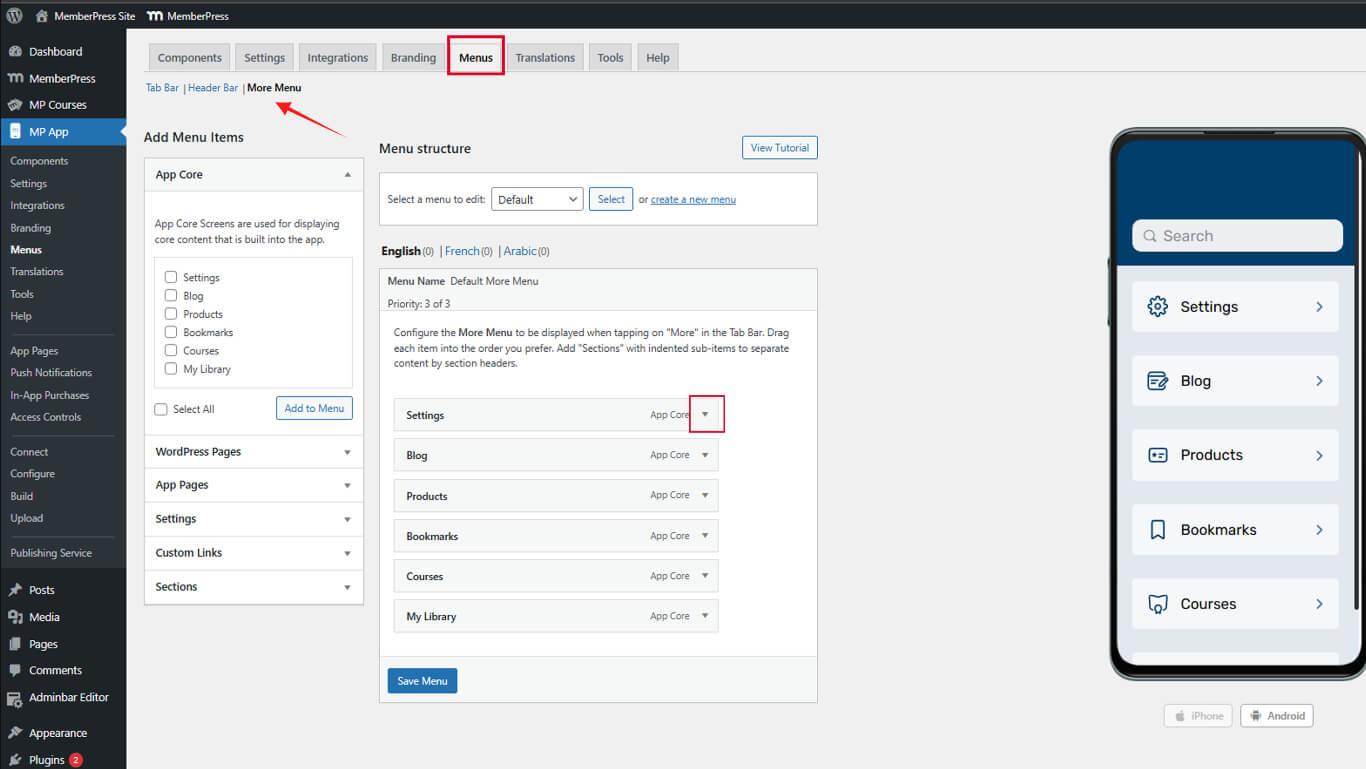
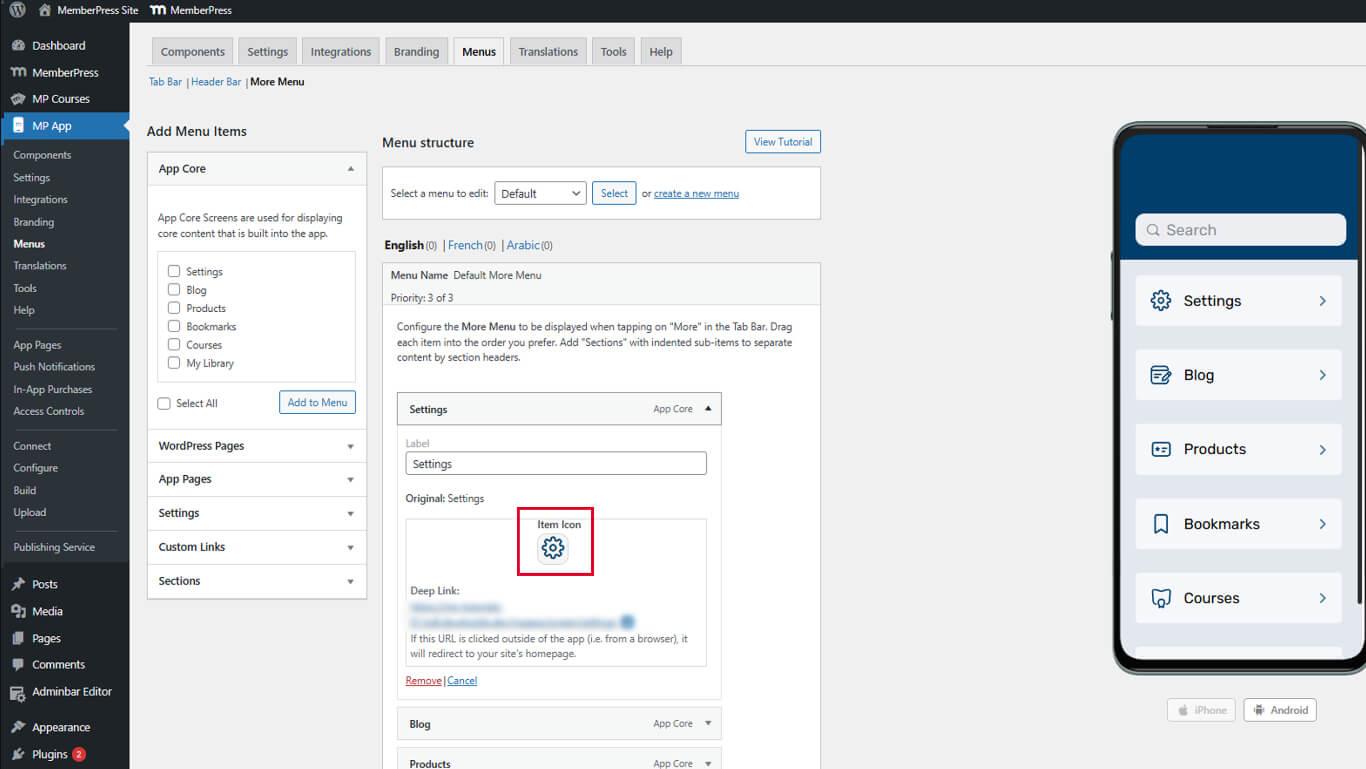
- Find the Item Icon section.
- Click the icon box to open the Icon Selection Panel.
- Select an appropriate icon.
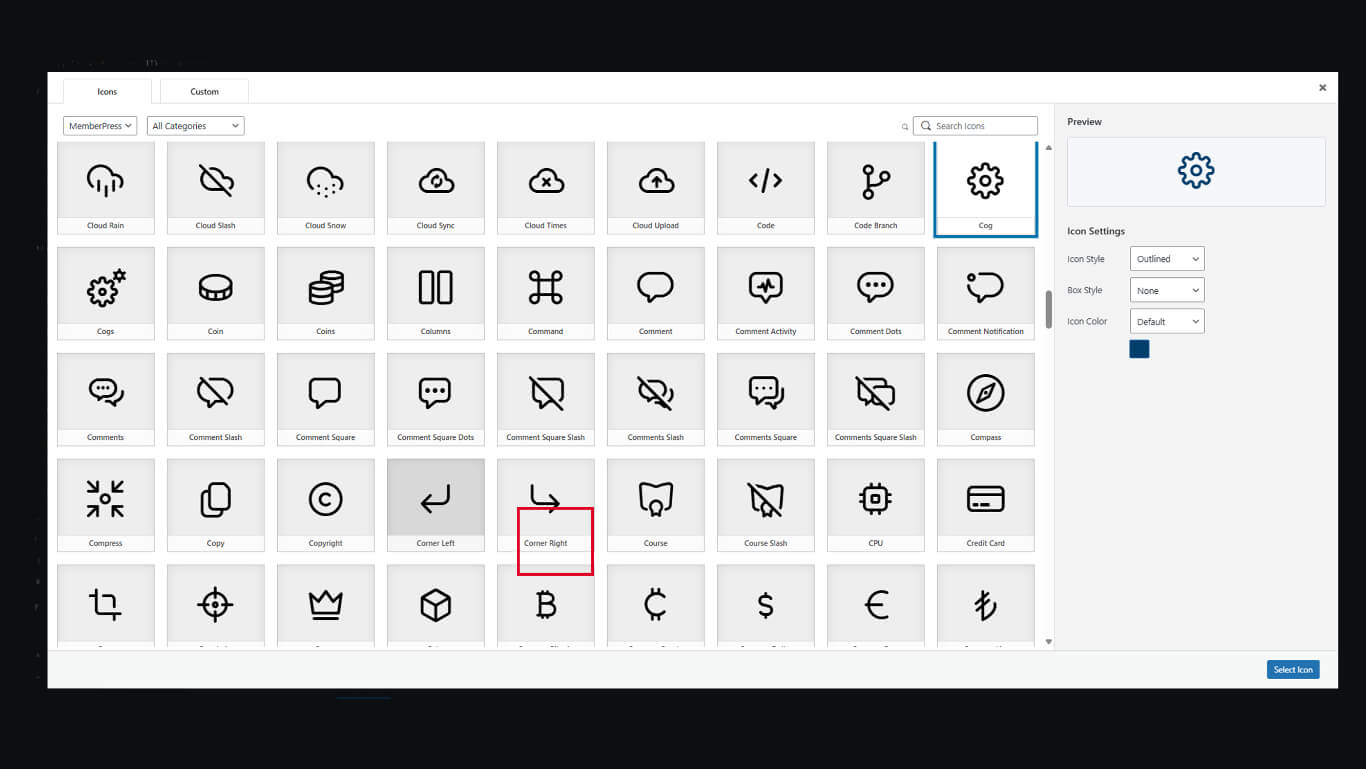
- Click the Select Icon.
- Repeat for additional items.
- Click the Save Menu.
More Screen icons are optional, but they improve visual navigation clarity.
Customizing Menu Item Text
Menu item text provides navigation labels and accessibility support.
Editing Item Labels
- Navigate to Dashboard > MP AppKit > Menus.
- Locate a menu item requiring label modification.
- Click the dropdown arrow next to the item name.
- Find the Label field.
- Enter custom label text replacing the default.
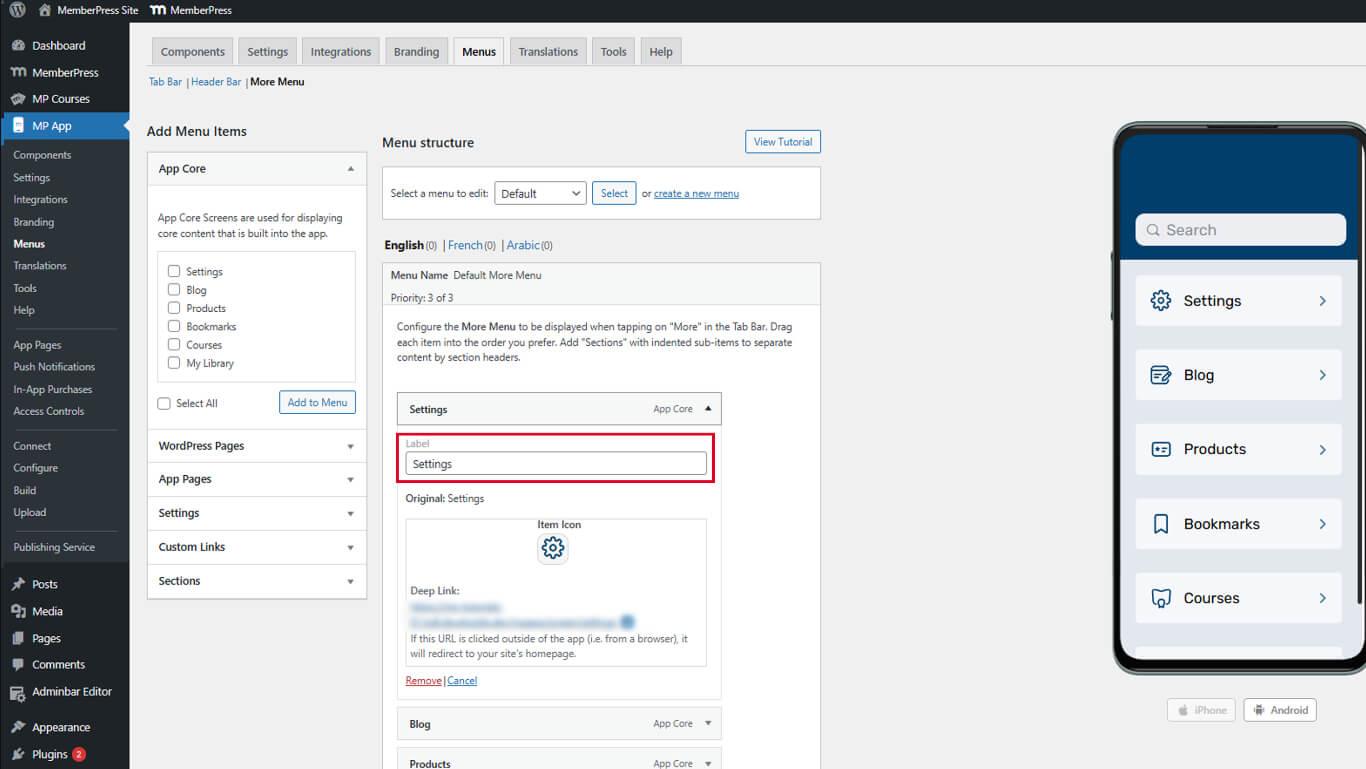
- Click the Save Menu.
Custom labels clarify navigation purposes when default names are ambiguous.
Organizing Menu Item Order
Item order affects navigation accessibility and member workflow.
Arranging Tab Bar Items
- Navigate to Dashboard > MP AppKit > Menus.
- Verify the Tab Bar Menu tab is active.
- Click and drag menu items to reorder positions.
- Place most frequently accessed items in leftmost positions.
- Click the Save Menu after arranging items.
Arranging More Screen Items
- Click the More Screen Menu tab.
- Click and drag items to reorder within sections.
- Drag sections to reorder section groupings.
- Arrange items in logical or frequency-based order.
- Click the Save Menu.
More Screen order should reflect logical relationships or usage frequency.










