

The MemberPress AppKit add-on extends MemberPress-powered websites to mobile devices, allowing members to access content through dedicated apps. MemberPress provides a Done-For-You (DFY) service where the MemberPress team takes care of building and setting up the mobile app.
To build and publish the Android app, the MemberPress team requires Admin access to the Google Play Console. This document provides step-by-step instructions for inviting MemberPress as an Admin user.
Understanding Team Access Requirements
Granting Admin access to the Google Play Console gives the MemberPress team the ability to:
- manage app settings,
- configure in-app purchases,
- handle other essential services for the Android app.
The MemberPress team requires specific Google Play Console permissions for comprehensive app support and management:
- Admin access level provides complete control over app configuration and settings. Admin permissions enable team members to manage all aspects of app setup and maintenance.
- In-app purchase management requires admin access for product configuration and synchronization. The team configures subscription tiers, pricing, and billing settings.
- App configuration control enables branding, metadata, and feature setup. Admin access allows comprehensive app customization and optimization.
- Subscription oversight provides management of recurring billing and member access. The team monitors subscription health and resolves billing issues.
- Continuous management maintains ongoing app operations and updates. Team access enables proactive support and configuration adjustments.
The invitation process involves adding the MemberPress team email (appsup@memberpress.com) as an Admin user through the Google Play Console.
Prerequisites
Before proceeding, the following requirements must be met:
- An active Google Play Developer account;
- Owner or Administrator access to the Google Play Console.
Inviting MemberPress With Admin Access
Admin access invitation grants the MemberPress App team the necessary permissions for app management and configuration.
- Navigate to the Google Play Console and log in with Owner or Administrator credentials.
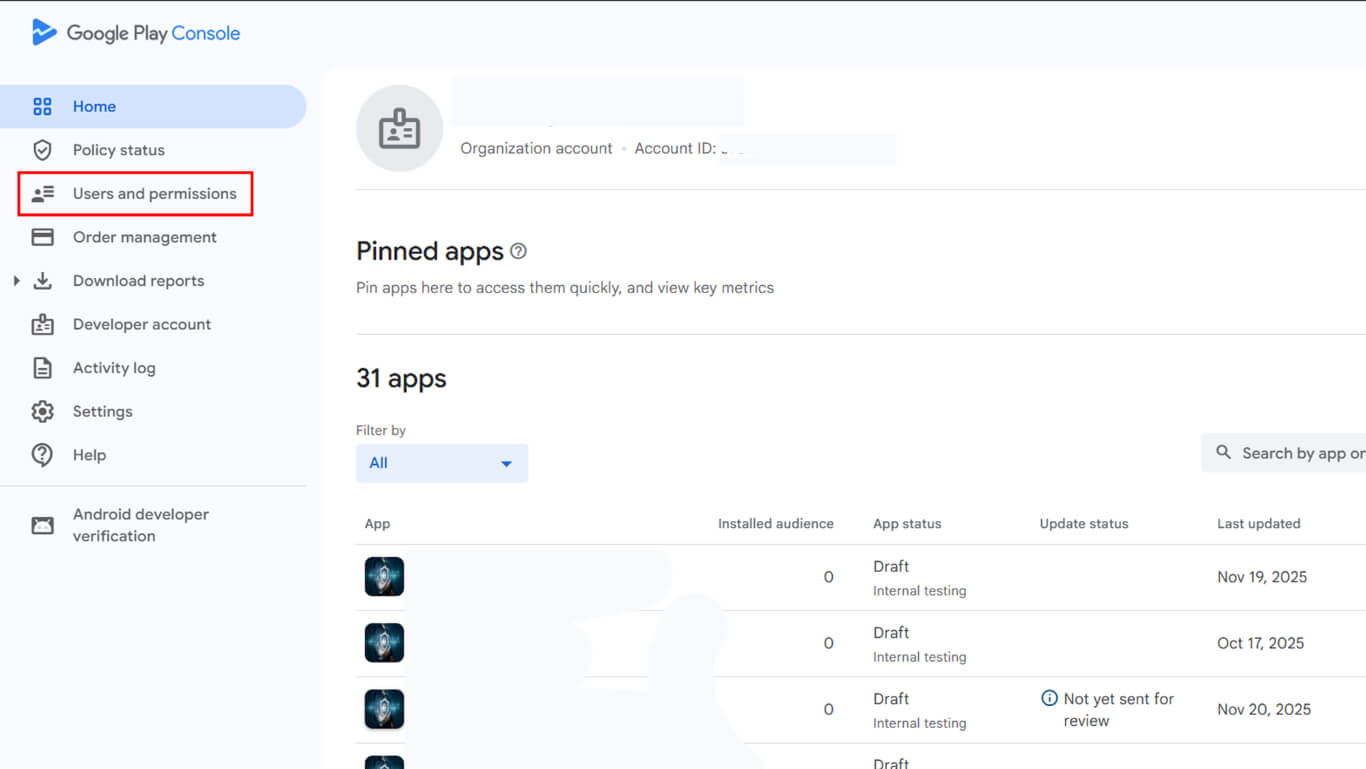
- In the left sidebar, click Users and permissions.
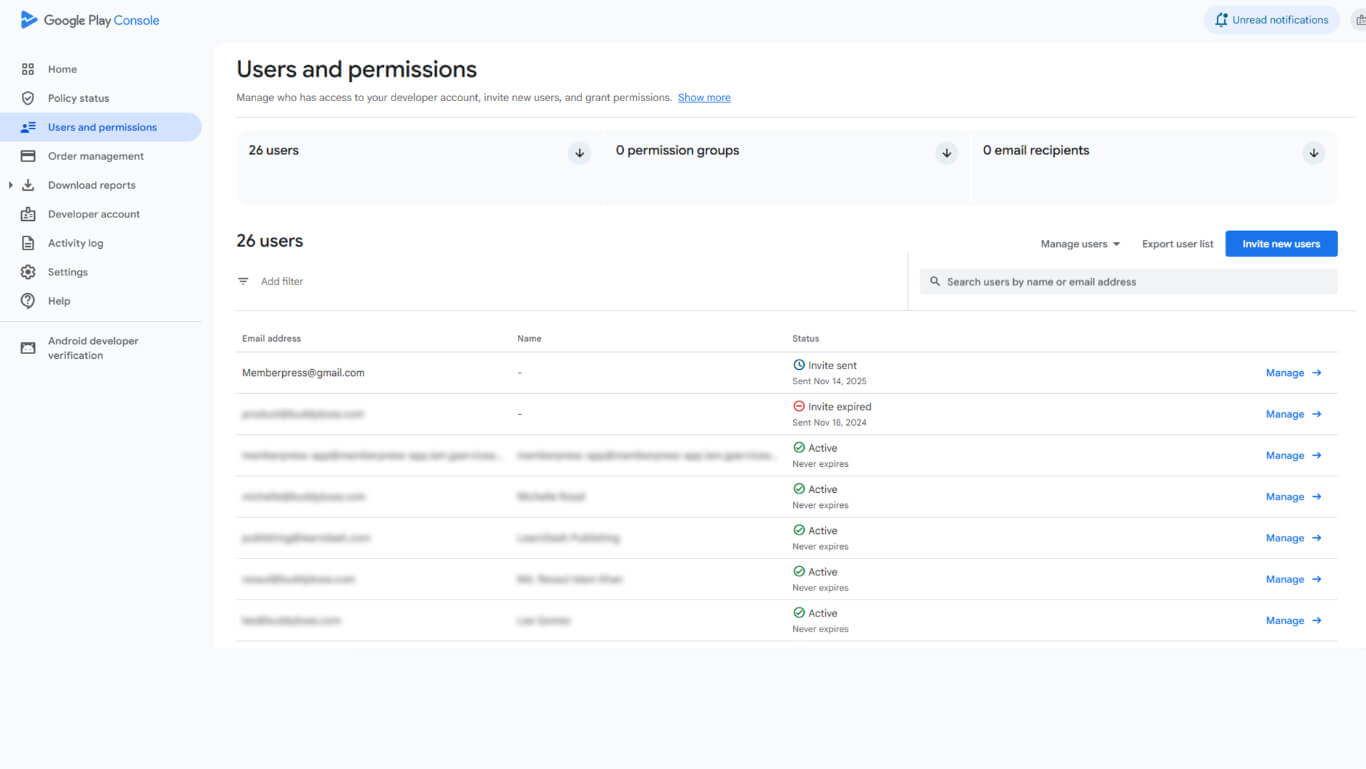
- Click the Invite new users button in the top-right corner.
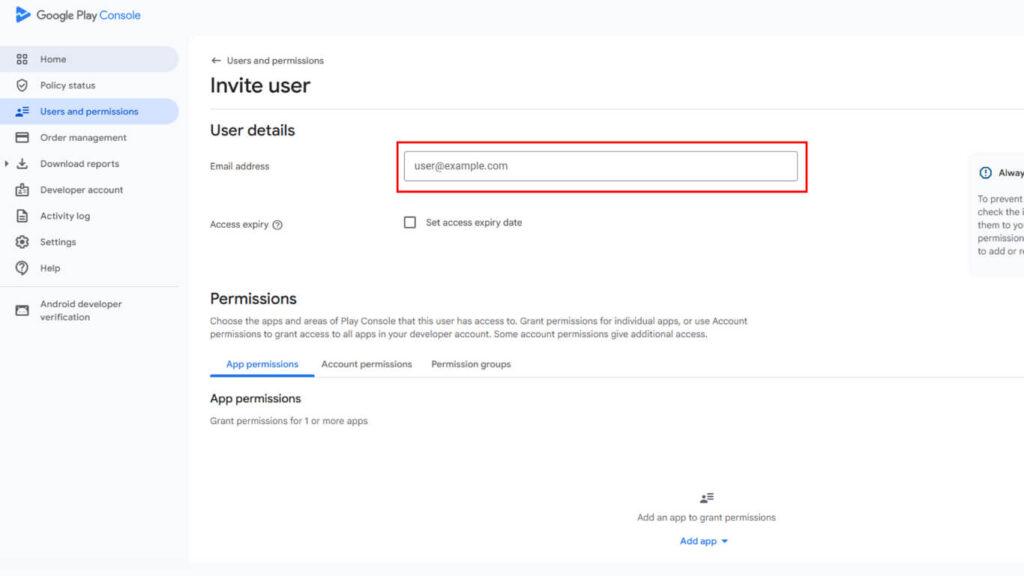
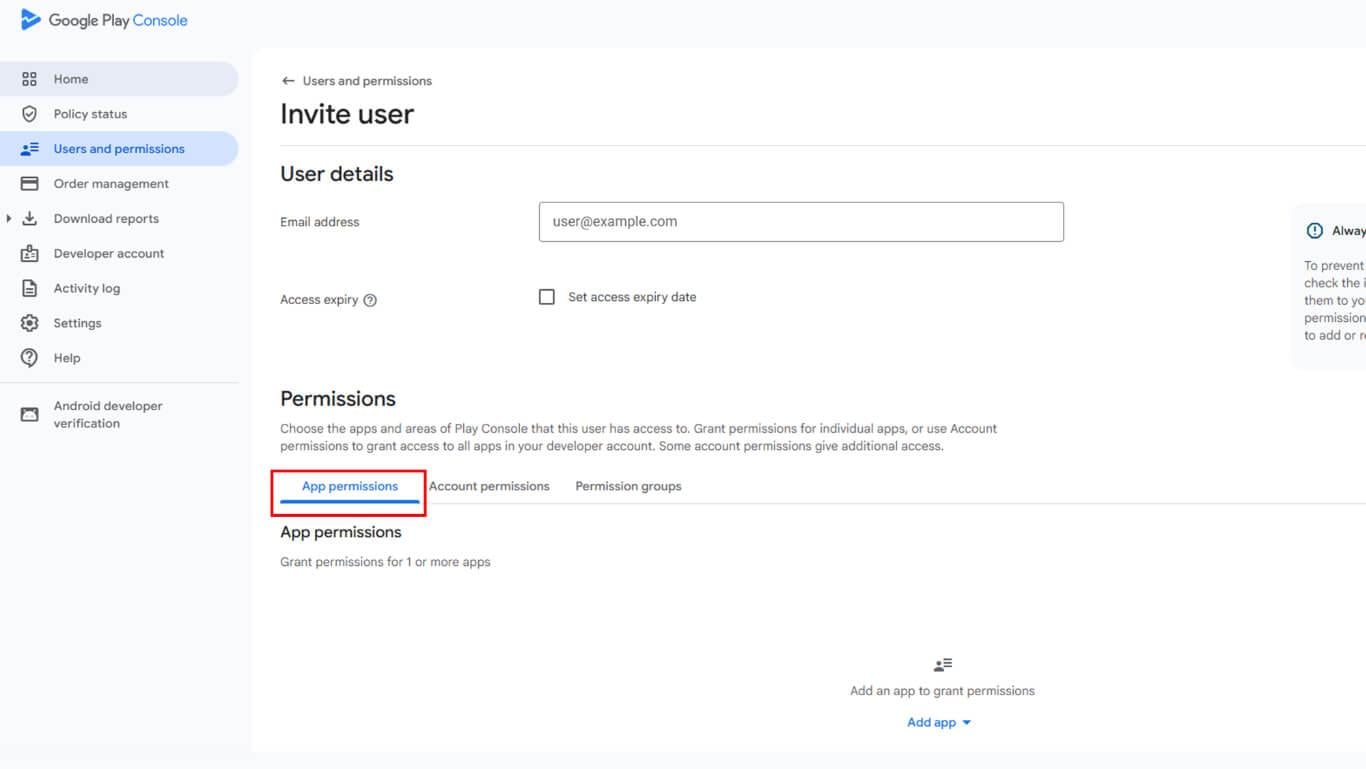
- In the Email address field, enter the
appsup@memberpress.comaddress.
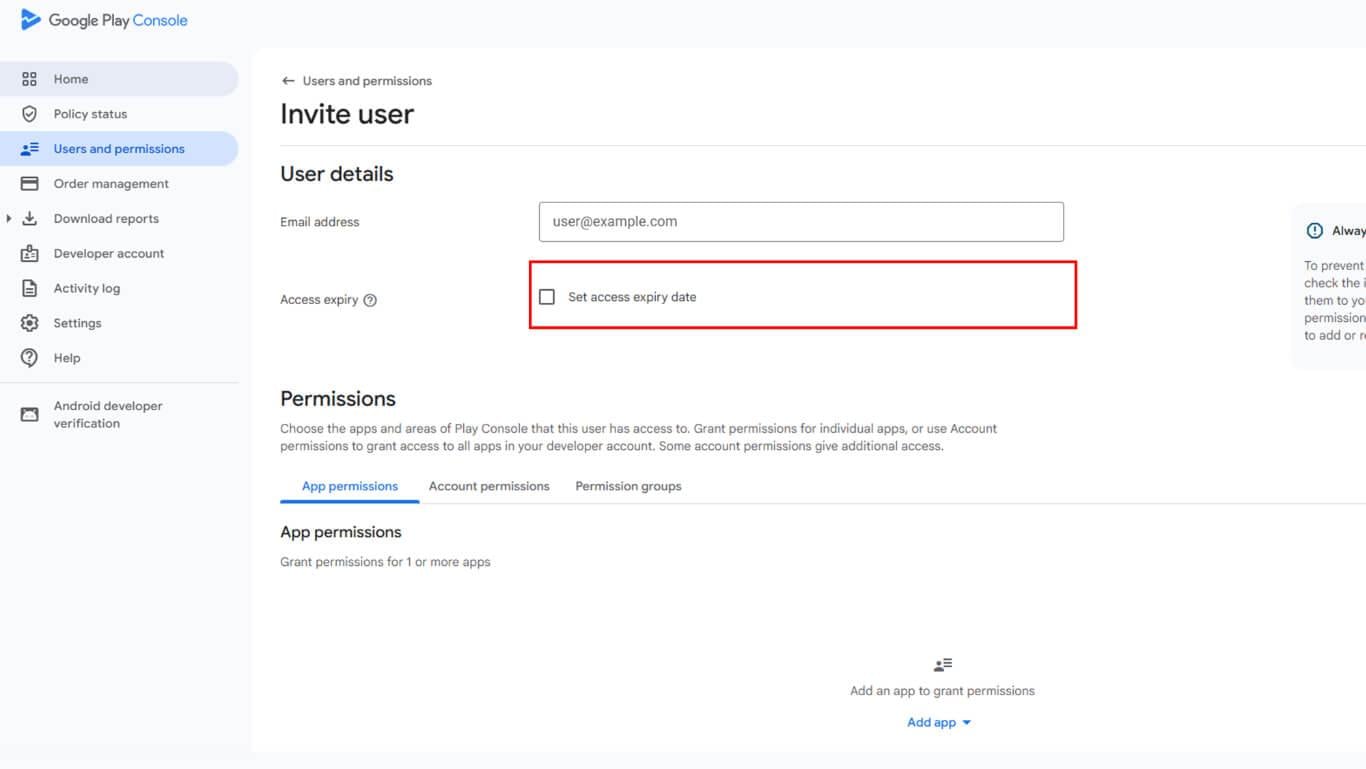
- Ensure the Set access expiry date option is unchecked to grant ongoing access.
- Click the App permissions tab. Next, click Add app to select the app(s) to be managed by MemberPress, and then Apply to confirm the app selection.
- In the permissions modal, select Admin (all permissions), and click Apply to confirm the permission selection.
- Click Invite user to send the invitation.
The MemberPress team will accept the invitation and gain access to the Google Play Console.
Important Notes
- The invitation must be accepted within 30 days. If the invitation expires, a new invitation must be sent.
- The invited user must sign in to the Google Play Console using the exact email address that received the invitation.
- Admin permissions allow the MemberPress team to manage app settings, in-app purchases, subscriptions, and other essential services.
Troubleshooting
The “Users and permissions” section is not visible in the console.
Confirm the account being used has Owner or Administrator access on the correct Google Play project.
The “Invite new users” button is disabled.
Check that the account has the Manage users permission under the user settings.
The email was entered, but no confirmation was received.
Verify the email address is entered exactly as provided. The MemberPress team should check their inbox, including the spam folder.
Permissions need to be changed after the invitation was sent.
In Users and permissions, click the three-dot menu next to the MemberPress entry to Edit permissions or Remove access.
Revoking Access
After the DFY service is complete, access can be revoked if desired.
- Navigate to the Google Play Console and sign in.
- In the left sidebar, click Users and permissions.
- Find the MemberPress user in the user list.
- Click the three-dot menu next to the user entry.
Select Remove access and confirm the removal.










