

MemberPress AI Foundation adds an AI integration layer to MemberPress sites. The plugin exposes MemberPress functionality through the Model Context Protocol (MCP). AI clients such as Claude Desktop and Cursor then manage memberships, members, transactions, and content through natural language.
This guide covers what AI Foundation provides, where it fits in the MemberPress AI Suite, the prerequisites, the installation steps, and a brief MCP Setup Wizard overview.
Terminology note: The plugin is “AI Foundation,” not “MCP.” MCP is one of four capabilities the plugin provides. Documentation refers to the plugin as “AI Foundation” and to the protocol as “MCP.” Future MemberPress AI Suite plugins will share AI Foundation infrastructure without necessarily exposing MCP themselves.
What AI Foundation Provides
AI Foundation ships four customer-visible capabilities plus a supporting infrastructure layer.
Components at a Glance
| Component | What it does | Endpoint or location |
|---|---|---|
| MCP server | Exposes the MCP tool catalog via JSON-RPC 2.0 — 41 core tools, more with add-ons | /wp-json/mp-mcp/v1/mcp |
| Public MCP endpoint | Exposes 4 read-only catalog tools without authentication | /wp-json/mp-mcp/v1/public-mcp |
| AI Credits system | Meters Mastermind-powered generation (not MCP) | WordPress admin bar + dashboard widget |
| Agent safety layer | Four measures that govern destructive operations | Built into the MCP server |
| Authentication system | OAuth 2.1 PKCE, Bearer tokens, Application Passwords | /wp-json/mp-mcp/v1/authorize + /token |
| Shared PHP service layer | Foundation services for plugin developers | mpai() global + MemberPressAI\Foundation facade |
| Abilities API integration | Tools also expose through the WordPress.org MCP Adapter | Registers on WordPress 6.9+ only |
| Admin UI | Setup, clients, settings, credits | MemberPress > AI Settings |
MCP Server
The MCP server exposes its tool catalog via JSON-RPC 2.0 at /wp-json/mp-mcp/v1/mcp:
- 41 core tools — members, memberships, subscriptions, transactions, rules, coupons, reports, content, webhooks, reminders, imports, system info, AI data analysis;
- 13 add-on conditional tools — register when the corresponding add-on is active: Courses (8), Corporate Accounts (3), Downloads (2);
- 4 public read-only tools — covered by the separate public endpoint below.
The authenticated catalog therefore varies by site: 41 tools on a core-only install, up to 54 with every supported add-on active. A lower count on a given site reflects its add-ons, not a broken installation.
Each tool declares a required scope and a required WordPress capability. The server checks both before dispatching. Write tools default to preview. Destructive writes require a confirmation token. See the MCP Tools Reference for the full inventory.
Public MCP Endpoint
The public endpoint at /wp-json/mp-mcp/v1/public-mcp exposes up to 4 read-only tools without authentication: memberpress_list_memberships and memberpress_get_membership on every install, plus memberpress_list_courses and memberpress_get_course while MemberPress Courses is active.
Key behavior:
- Disabled by default. Site administrators opt in through the AI Settings page;
- Returns
404when disabled. The/.well-known/mcp.jsondiscovery document also stays hidden; - Exposes only published memberships and courses the administrator opts in to. Never exposes member data;
- Per-product opt-out available on each membership and course edit screen.
Use case: prospective customers ask an AI client about available membership plans without credentials.
AI Credits System
AI Credits meter Mastermind-powered AI generation. Course Copilot consumes credits when generating course content.
MCP tool calls do not consume credits. Every tool on both MCP endpoints runs free regardless of credit balance.
The credits dashboard appears in two places:
- A balance indicator in the WordPress admin bar;
- A widget on the main WordPress dashboard.
Purchases use the same Stripe-powered checkout as Course Copilot.
Agent Safety Layer
Four measures prevent destructive operations from running unchecked.
| Measure | Name | What it does |
|---|---|---|
| A | Confirmation tokens | Destructive write tools require a two-call flow: first call returns a preview plus a single-use token; second call must include the token |
| B | Dry-run defaults | Write tools default to preview. The AI client opts in to execute via execute: true (non-destructive) or the confirmation token flow (destructive) |
| C | Granular scopes | Connection tokens carry specific scopes (read, write:members, write:billing, write:imports, write:webhooks, write:content, write:courses) rather than blanket access |
| D | Kill switch | Administrators pause every destructive write from the Connected Clients admin page. Paused destructive calls return WRITES_PAUSED |
Destructive tools requiring Measure A: delete_member, refund_transaction, delete_webhook, reset_course_progress, manage_sub_account, manage_subscription.
See the Agent Safety Measures Reference for full coverage of each measure.
Supporting Infrastructure
| Surface | Purpose |
|---|---|
| Authentication | OAuth 2.1 PKCE (S256) primary; Bearer tokens via wizard; Application Passwords fallback |
| Service layer | mpai() global and MemberPressAI\Foundation facade for plugin developers |
| Abilities API integration | Registers on WordPress 6.9+; tools also expose through the WordPress.org MCP Adapter |
| Admin UI | Four tabs at MemberPress > AI Settings: MCP Setup Wizard, MCP Connected Clients, MCP Settings, AI Credits |
MCP Settings
The MCP Settings tab holds the server’s configuration controls:
| Setting | Default | Purpose |
|---|---|---|
| Access ceiling | Read Only | Caps the scope any new connection can receive. Write scopes are only available when set to Full Access. The setup wizard hides write options while this is Read Only. See the Agent Safety Measures Reference |
| Token Expiration | Never | Lifetime of issued connection tokens. “Never” issues non-expiring tokens |
| Log Retention | 30 days | How long the MCP activity log retains entries |
| MCP Access Roles | Administrator | Which WordPress user roles may connect AI clients via MCP. Administrator is always enabled; other roles are opt-in. Per-user overrides are available with the Members plugin |
| Rate Limiting | Enabled, 120 requests per minute | Limits MCP requests per token per minute on the authenticated endpoint. The limit is configurable, and rate limiting can be disabled entirely |
| Enable public AI catalog endpoint | Off | Exposes the unauthenticated public catalog (see Public MCP Endpoint above) |
The access ceiling is the most consequential control: it is the gate that determines whether a connection can write at all. Changing it does not alter existing connections — a connection’s scope is fixed when it is created, so raising the ceiling and granting writes requires issuing a new connection.
The MemberPress AI Suite
AI Foundation is the first plugin in the MemberPress AI Suite — a planned family of AI-powered add-ons covering the full MemberPress content lifecycle.
| Plugin | Status |
|---|---|
| MemberPress AI Course Generator (Course Copilot) | Shipped Q1 2026 — consumes AI Foundation |
| MemberPress AI Foundation | Shipped July 2026 (this documentation) |
| Co-Pilot V2 | Scope defined, post-launch development |
| Content Intelligence | Pitch review |
| AI Mentor | Pitch review |
| Content Repurpose | Idea stage |
Future AI Suite products will use AI Foundation from day one. For site administrators, installing additional AI Suite plugins later requires:
- No duplicate connections;
- No duplicate credit purchases;
- No duplicate AI client configuration.
Prerequisites
| Requirement | Minimum | Notes |
|---|---|---|
| WordPress | 6.5 | Abilities API integration requires 6.9+. On older versions the MCP server still works fully, without ability registrations |
| PHP | 8.0 | Matches the MemberPress core PHP requirement |
| MemberPress core | Active install | AI Foundation depends on MemberPress for the data model |
| HTTPS | Required for production | OAuth 2.1 requires HTTPS. Local development can use HTTP for testing only |
| Permalinks | Post name or richer | The MCP endpoints use the WordPress REST API, which requires non-default permalinks |
Optional add-ons unlock additional tools when active:
| Add-on | Tools added |
|---|---|
| MemberPress Courses | 8 tools: get_course, list_courses, get_lesson, list_lessons, get_student_progress, list_course_students, complete_lesson, reset_course_progress |
| MemberPress Corporate Accounts | 3 tools: get_corporate_account, list_sub_accounts, manage_sub_account |
| MemberPress Downloads | 2 tools: list_downloads, get_download_stats |
The AI Foundation tool registry uses a class_exists() check for each add-on. When an add-on is inactive, the add-on’s tools do not appear in the tools/list response.
Installation
AI Foundation installs through the standard MemberPress add-ons workflow: open MemberPress > Add-ons, locate the AI Foundation card, and click Install Add-on. For a site that cannot reach the download servers, upload the plugin ZIP from the MemberPress account portal through Plugins > Add New > Upload Plugin.
The plugin slug is memberpress-ai-foundation. The main plugin file is memberpress-ai-foundation/memberpress-ai-foundation.php.
After activation, MemberPress > AI Settings appears in the admin sidebar with MCP Setup Wizard as its first tab. To confirm the endpoint is live, request the MCP server at https://[site-url]/wp-json/mp-mcp/v1/mcp without authentication; a live endpoint returns a 401 Unauthorized response. If activation fails, see MCP Errors and Troubleshooting for diagnosis steps.
For the full end-user walkthrough with screenshots — installation, access level, and connecting Claude Desktop — see Setting Up Claude Desktop With MemberPress.
MCP Setup Wizard (Brief Overview)
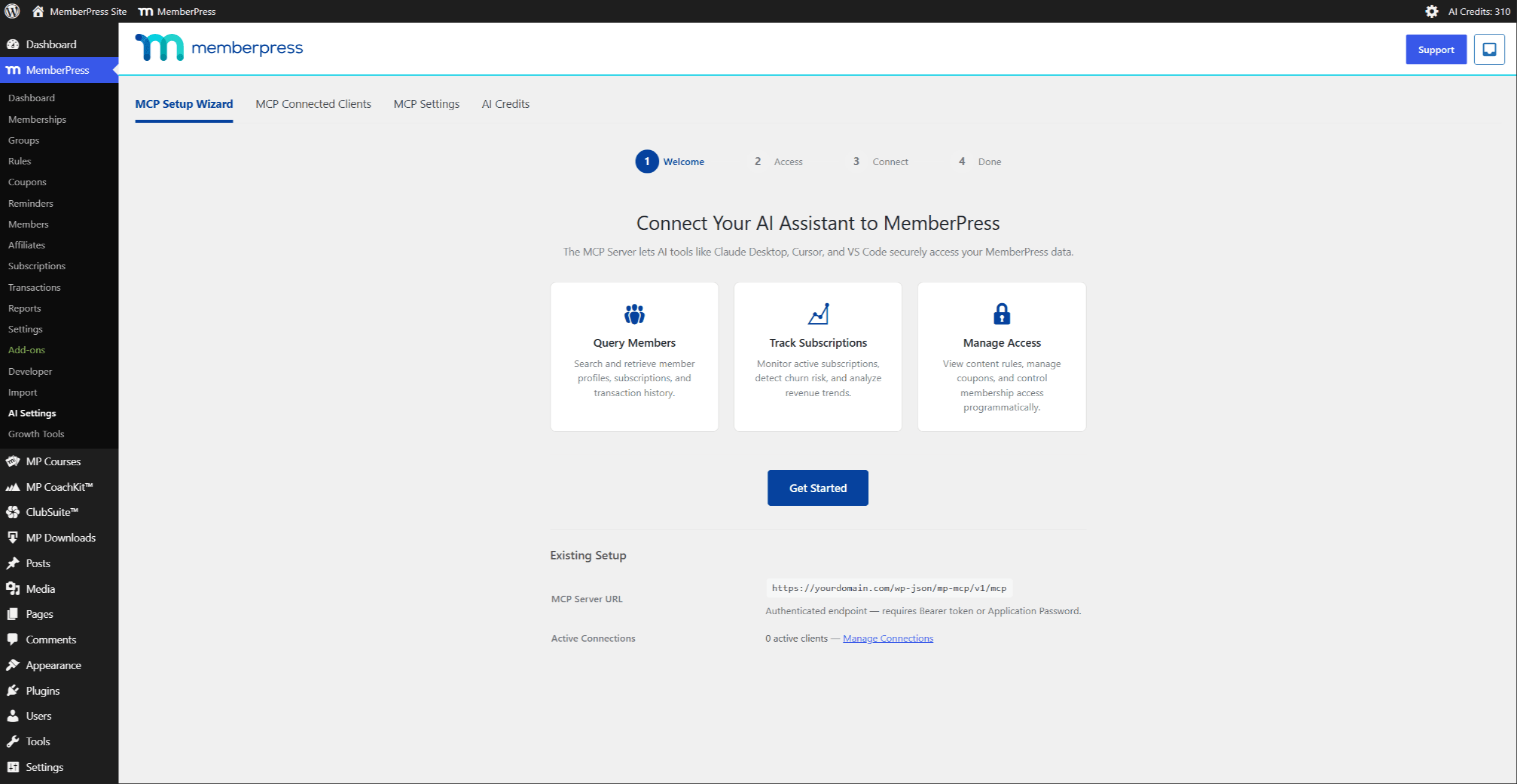
The MCP Setup Wizard at MemberPress > AI Settings > MCP Setup Wizard guides each connection through four steps. The access level is set separately in MCP Settings and governs which scopes the wizard offers.
| Step | Purpose | Key actions |
|---|---|---|
| 1. Welcome | Show existing setup details | Click Get Started |
| 2. Access | Reflect the access level set in MCP Settings | Read is always granted; write scopes appear only when the access level is Full Access; Click Continue |
| 3. Connect | Copy the server URL and connect the client | Copy the MCP server URL; complete the connection in the client (Claude Desktop uses its Connectors panel); approve the OAuth authorization |
| 4. Done | Confirm the connection | Review the connection summary; Click Done |
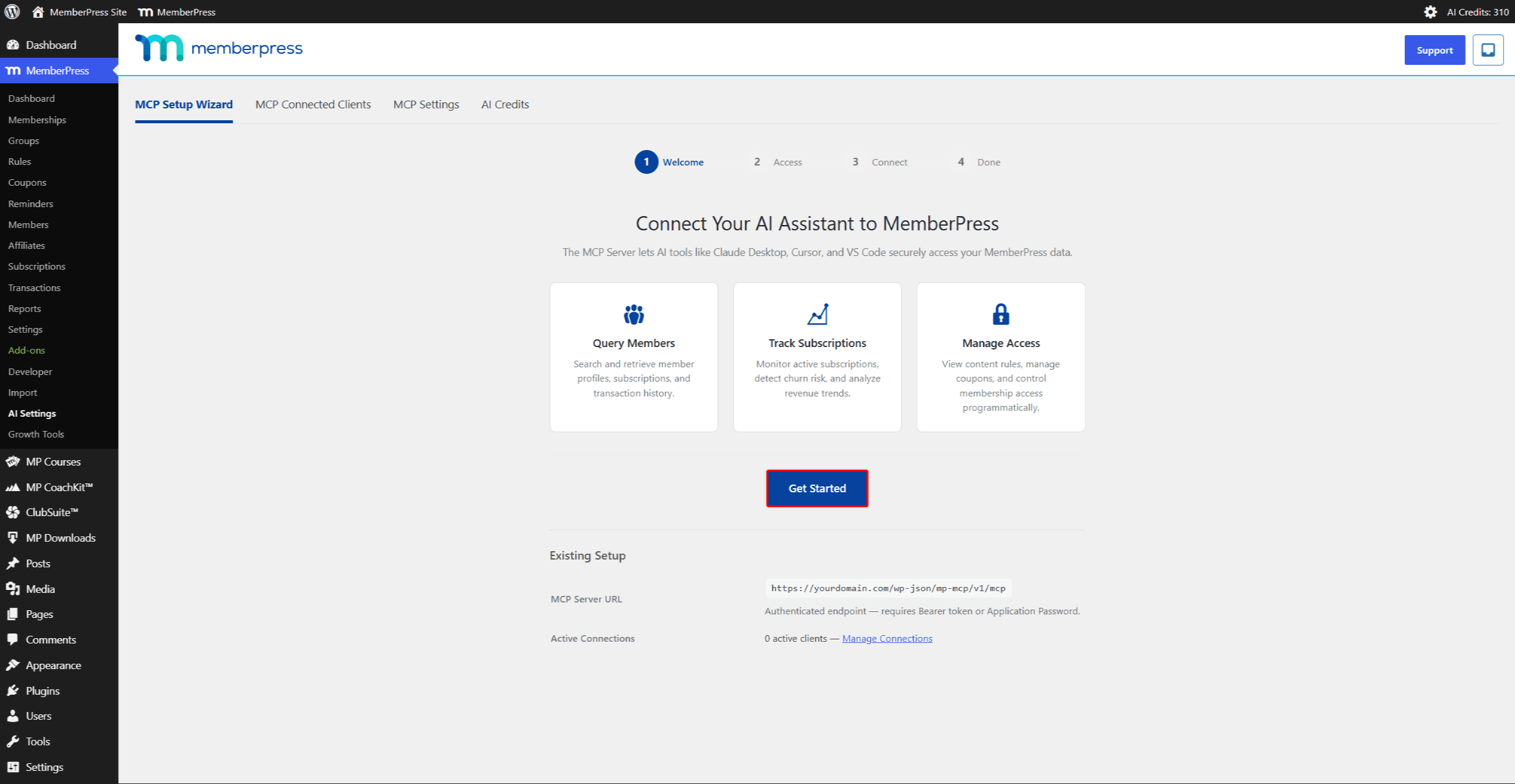
For step-by-step instructions with screenshots, see Setting Up Claude Desktop With MemberPress. Developers configuring Cursor, VS Code, Windsurf, or Claude Code follow the Connecting AI Clients to MemberPress developer reference instead.
Where to Go Next
Developer reference documents:
| Document | Coverage |
|---|---|
| Connecting AI Clients to MemberPress: Developer Reference | OAuth 2.1 PKCE flow, Bearer tokens, Application Password fallback, per-client configuration for each supported client |
| MCP Tools Reference | Complete tool inventory by Read/Write/Write-destructive type, scopes, capabilities, code examples |
| Agent Safety Measures Reference | In-depth coverage of the four safety measures, three-gate execution pipeline, Related Capabilities section |
| MCP Errors and Troubleshooting | Error code reference (WRITES_PAUSED, CAPABILITY_INSUFFICIENT, insufficient_credits, OAuth errors, rate limit errors), launch-week troubleshooting |
End-user setup guides:
| Document | Coverage |
|---|---|
| Setting Up Claude Desktop With MemberPress | Installing AI Foundation, setting the access level, and the full Connectors connection flow with screenshots |










