

MemberPress Quizzes just got an update that changes how you build quizzes! Questions now live in one shared bank. You write each one once, tag it, and reuse it in every quiz it belongs in.
You get a real overview of what you’ve asked, and quizzes behave like proper assessments. Instead of a patchwork of copied questions.
Building one good quiz is easy. Keeping a whole library of them consistent, and making sure they actually test what you think they’re testing, is harder.
MemberPress Quizzes’ new Question bank handles both.
- Write a question once,
- tag it,
- reuse it everywhere it belongs,
- and see your whole question library at a glance instead of guessing what you’ve already covered.
Quizzes built this way are more efficient and hold up better to scrutiny. They’re harder to guess and it’s easier to see exactly what you’ve asked and where the gaps still are.
It also means a question doesn’t have to stay where you first wrote it. Pull one back out for a later quiz as a quick refresher on something covered a few modules ago, and keep knowledge from fading.
In this walkthrough, we’ll cover why this matters for your courses, then get into exactly how it works:
- tagging,
- attaching,
- the new Question Bank block,
- randomization settings,
- and what happens when a student retakes a quiz.
Why Question Bank?
1. Randomize Away the Copy-Paste Answers
Fixed quizzes have a built-in vulnerability: the questions never change, and eventually your students can figure that out. Someone takes the quiz, writes down the answers, and passes them along.
With Question Bank, you tag a pool of questions and tell the quiz how many to pull at random.
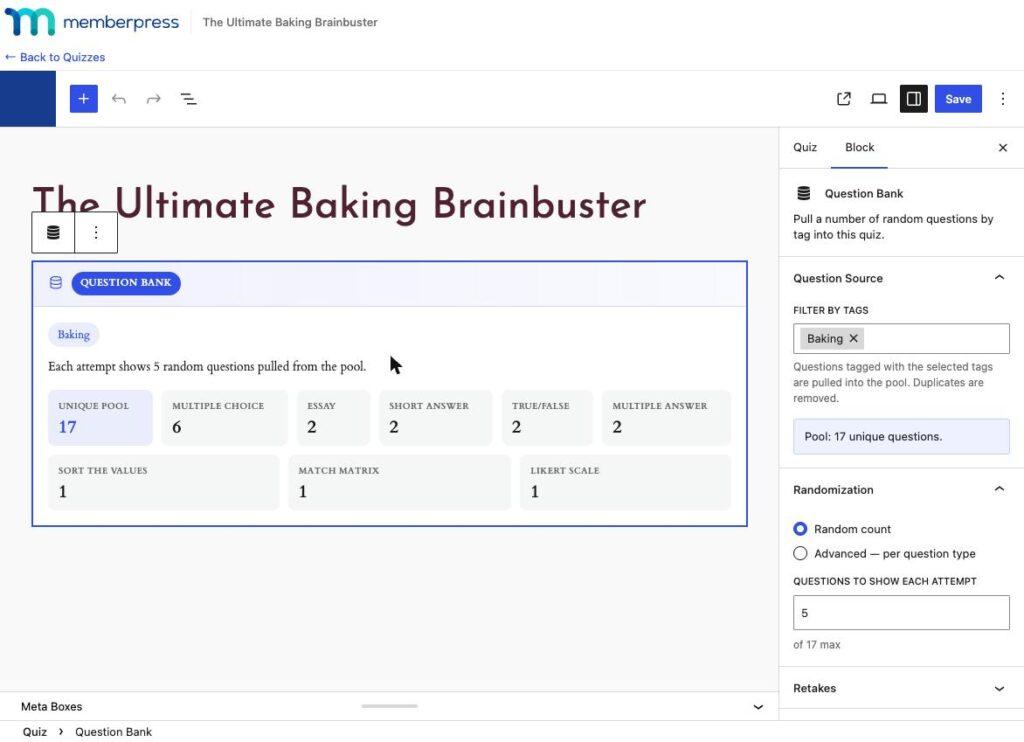
Each student gets their own random selection, in their own random order. The friend who took the quiz last week and the one taking it right now aren’t necessarily looking at the same questions, so trading answers stops being a shortcut.
2. Make Your Certifications Worth Paying For $$$
If you’re running certification, compliance, or licensing courses, the credibility of your exam is the whole product.
A quiz that’s easy to game undermines the certificate you’re charging for. A quiz that’s actually hard to cheat on is one you can stand behind, price accordingly, and point to when a customer asks why your certification is worth more than a free YouTube tutorial.
3. Edit It Once, Fix It Everywhere
If you’ve got a question that shows up in three different certification courses, you used to maintain three separate copies of it.
Now you attach the same question to all three quizzes. Notice a typo, or need to update an answer because the guidance changed? Fix it in one place, and it updates everywhere it’s attached.
Worth knowing: past attempts are protected. MemberPress takes a snapshot of a question the moment a student answers it.
If you later edit that question, students who already took the quiz still see what they answered at the time. You can clean up your questions without rewriting anyone’s history.
4. Less Admin, More Time to Teach
Creating duplicate questions across quizzes increases editing time. It also clutters the question list with nearly identical copies you must manage.
A single tagged question replaces many. This keeps your question library lean and easier to manage. It reduces database load because MemberPress stores fewer copies of the same question.
5. Keep Earlier Material From Fading
A question doesn’t have to live only in the quiz it was written for. Tag it, allowing it to appear in later quizzes as a refresher. This can bring back module one questions for the course-end exam.
Students hold onto material better when they get tested on it more than once, not just the week they learned it.
The Question Bank Tour
1. One Home for Every Question You’ve Written
Every quiz question you write now lives in the Question Bank, whether or not it’s currently attached to a quiz.
Tag it there, and it’s available to pull into any quiz, either by attaching it directly or by letting a Question Bank block draw it in at random.
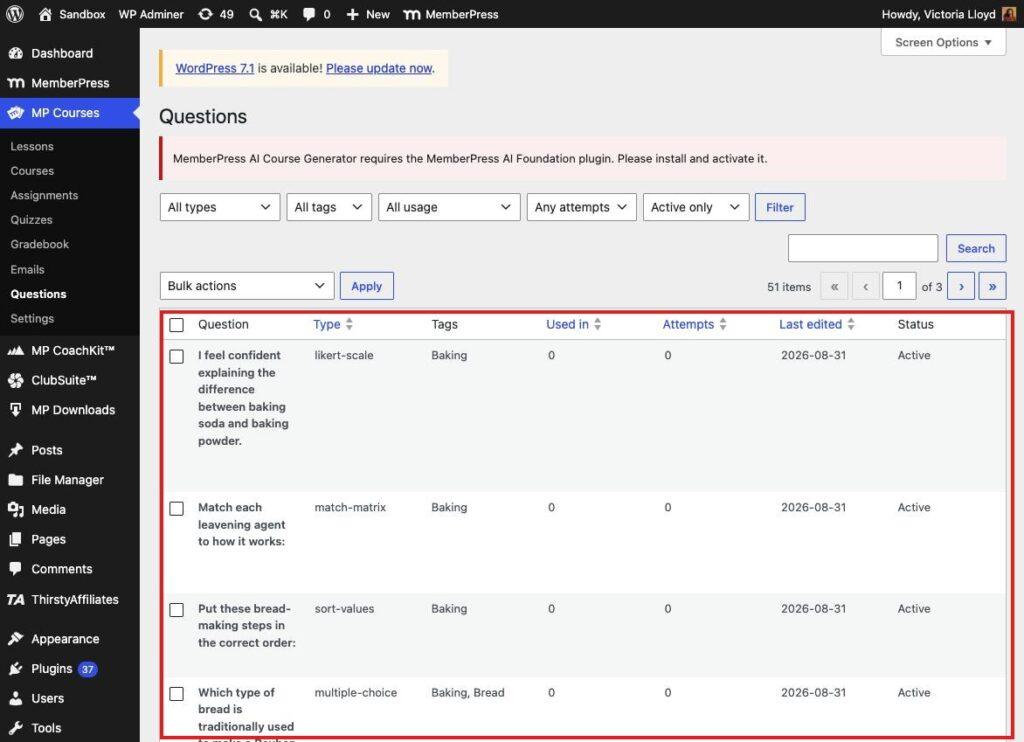
That’s the difference between a pile of near-identical quizzes and an actual library you can search, tag, and build from.
2. Attach vs. Duplicate: Know the Difference
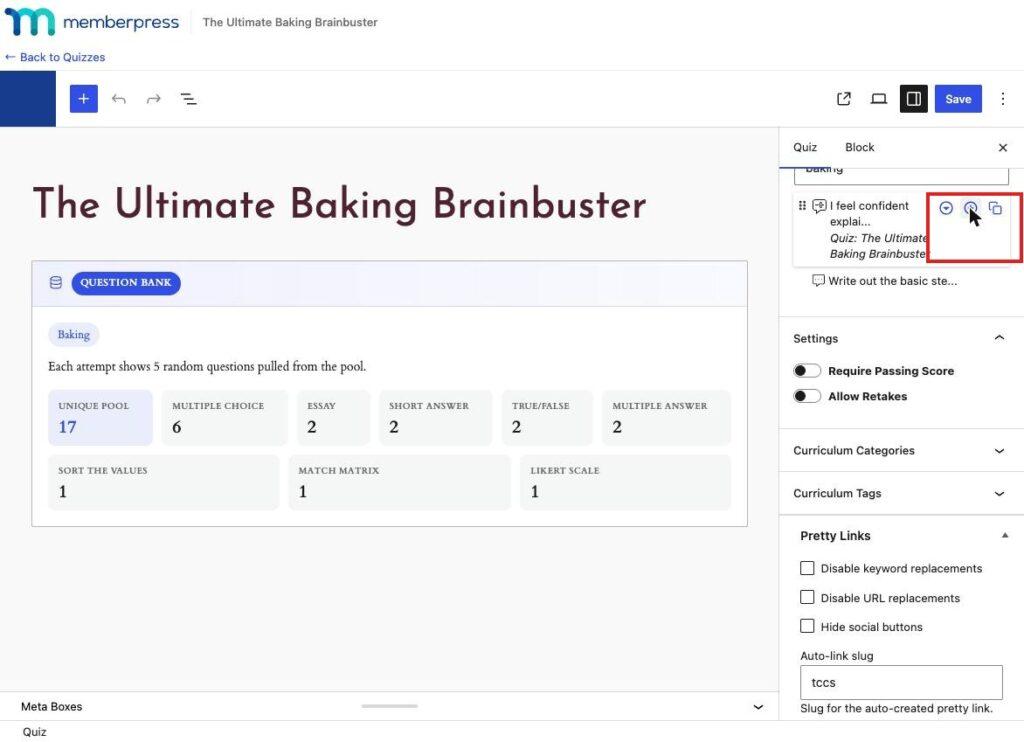
Inside a quiz, adding an existing question now gives you two distinct choices: Attach or Duplicate.
- Attach adds an existing question to your quiz. If that question is already used in another quiz, both quizzes are now pointing to the exact same question, not separate copies of it.
- Duplicate makes an independent copy that’s entirely yours to edit without touching the original anywhere else, so you can edit it as you wish without affecting the original. Just be aware you’ll also need to edit it separately in future too.
3. Add a Question Bank Block to Any Quiz
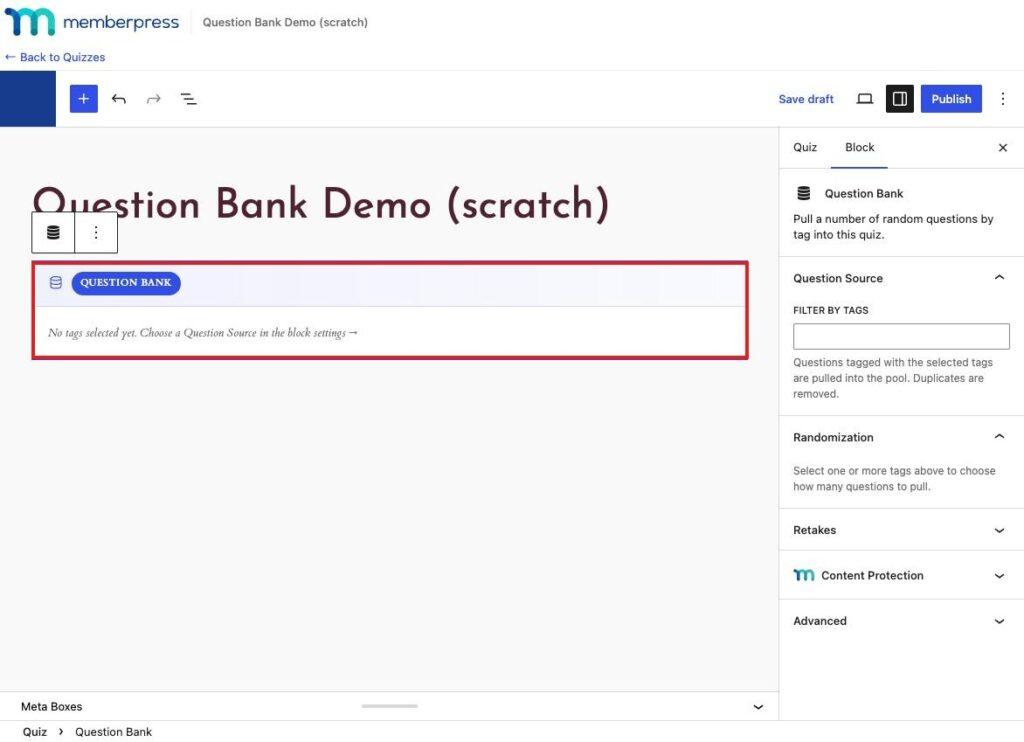
Alongside your regular fixed questions, you can now drop a Question Bank block into any quiz. On its own, with no tag selected, it doesn’t do anything, so it’s safe to add while you’re still deciding what should go in it.
Select a tag (or a few), and the block pulls from every question carrying that tag.
4. See Exactly How Many Questions You’ve Got to Work With
The moment you select a tag, the block tells you your unique pool: how many distinct questions have that tag. They’re broken down by type (true/false, multiple choice, etc) so you know what you’re working with.
So before you decide how many questions to pull per student, you know exactly what you’re pulling from.
5. Random Count or Get Specific with Advanced Mode
By default, you just pick a number, say, five, and the block draws five random questions from your tagged pool for each student, shown in a random order.
Simple, and enough for most quizzes.
If you want more control, switch to Advanced, and you can specify exactly how many of each question type to include: three true/false, two multiple choice, one multiple answer, two fill-in-the-blank, whatever mix you want.
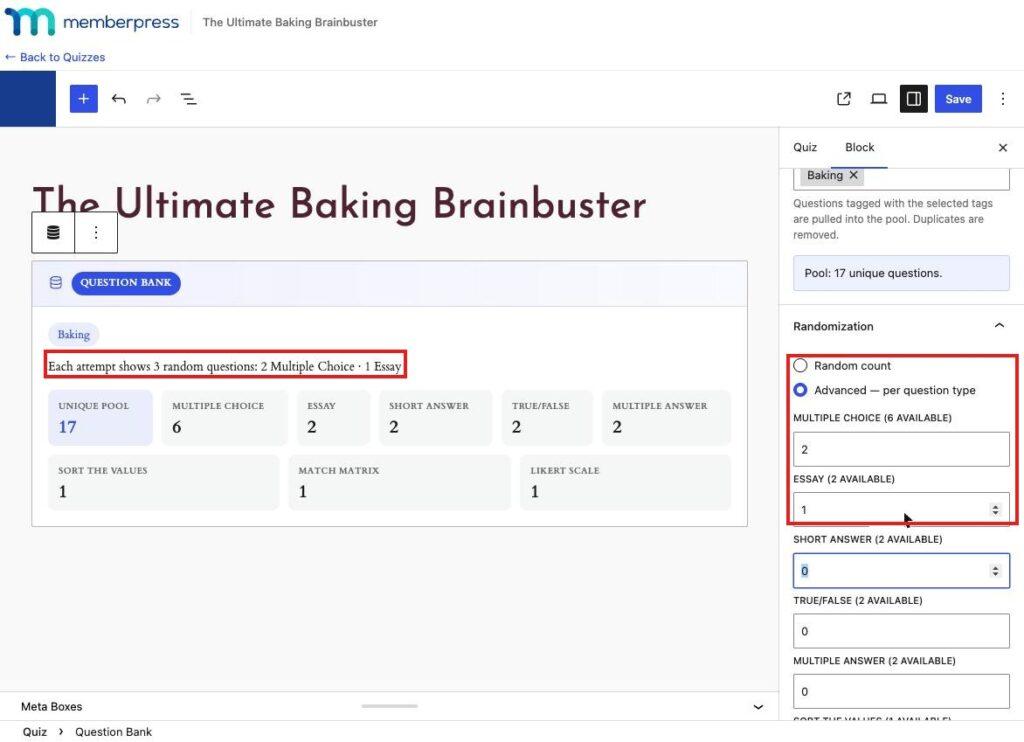
Every student gets that same composition, still shuffled into a random order.
6. Fixed Questions Never Repeat Themselves
Say you’ve manually attached a question to a quiz, and it happens to carry the same tag your Question Bank block is pulling from. MemberPress notices, and automatically excludes that question from the random draw, so it never shows up twice in the same quiz.
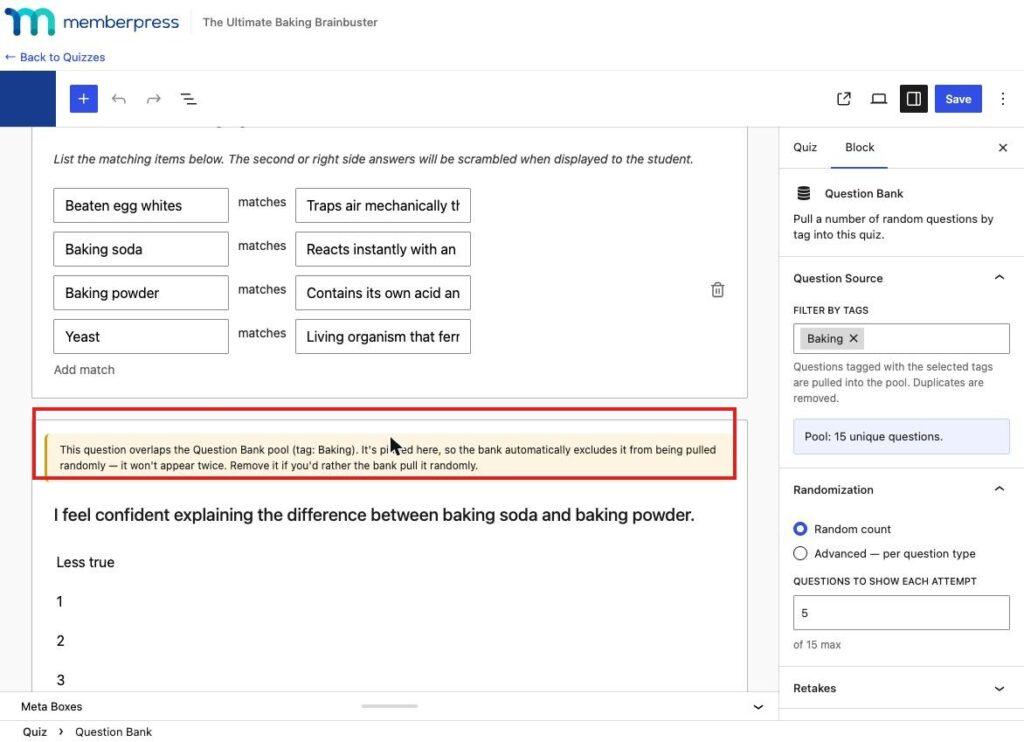
If you’d rather let the bank pick it randomly instead of keeping it fixed, just remove it from the fixed list. Only one Question Bank block is allowed per quiz, which keeps this logic simple and predictable.
7. Every Student Gets Their Own Set (and Keeps It)
The moment a student opens the quiz, their randomly drawn questions get picked and frozen for that attempt.
Refresh the page, navigate away and come back, it’s still the same questions in the same order for them. Two students taking the quiz at the same time will very likely see different sets, but each of them sees a consistent one.
We built it this way on purpose. Re-randomizing on every page load sounds flashier, but it’s harder on your database and it’s confusing for a student mid-quiz.
Freezing the set once it’s opened means what they see in their attempt review afterward matches exactly what they answered, questions in the same order, every time.
8. Decide What Happens on a Retake
If you allow retakes on a quiz, you now get to decide what a retake actually means.
By default, retaking a quiz that uses Question Bank pulls a fresh random set from your tagged pool, so the student ends up with a different quiz instead of a repeat of the first one.
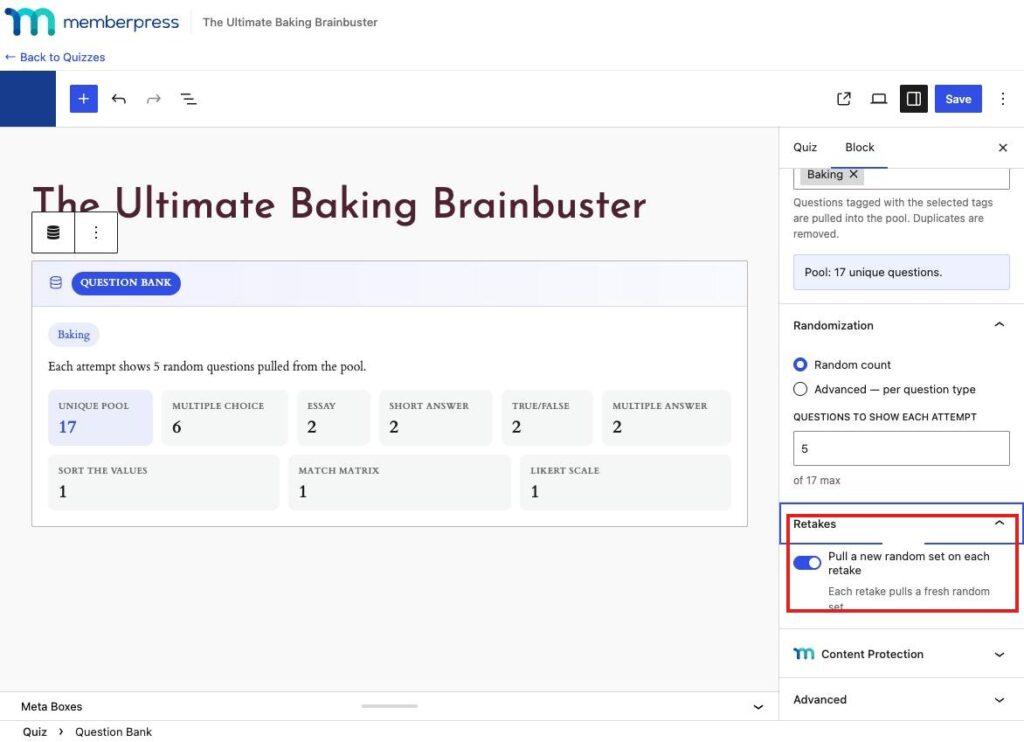
Flip that setting off, and a retake shows the exact same questions, in the same order, as the student’s first attempt.
Either way, your fixed questions behave the same on every attempt. This toggle only affects what gets pulled from the pool.
? IDEA ALERT! How YOU Can Use Question Bank
Online Course Creators
- Tag your question library by module or topic, then let each course-end quiz pull a fresh, randomized sample instead of you rebuilding a quiz for every cohort.
- Reuse the same core questions across a beginner and an advanced version of a course, editing them once when your material updates.
- Pull a few early-module questions into a later quiz as a refresher, so material from week one is still being tested by week eight.
Certification & Compliance Trainers
- Build a large tagged pool per certification topic so no two candidates sitting the exam at the same time see an identical test.
- Keep the same question pool for a whole certification cycle, and update individual questions without invalidating anyone’s already-completed attempt.
Professional Associations
- Maintain one shared bank of continuing-education questions across multiple member courses, tagged by credit type or topic area.
- Protect the integrity of credit-bearing exams by making sure the questions members compare notes on this month aren’t the ones showing up next month.
Corporate Training & L&D Teams
- Keep a single, centrally-managed question bank for company-wide compliance training, so a policy update means editing questions once instead of hunting through every department’s course.
- Use retake settings to control whether an employee who fails a compliance quiz sees the same questions again or a freshly randomized set.
Your Quizzes Just Got Smarter
Question Bank turns your quiz questions into an asset instead of one-off content you rebuild every time you launch a new course.
Write a question once, tag it, and reuse it everywhere it belongs, and trust that a randomized, per-student set is doing more to protect your results than a fixed quiz ever did.
MemberPress Quizzes just got an update that’s going to change the way you build quizzes, and it’s already there waiting for you if you’ve got Quizzes installed.
Already on MemberPress but on a plan below Growth? Upgrade to Growth to get Quizzes, Question Bank included.
On Growth or Scale already but haven’t switched Quizzes on? Head to your account dashboard and activate the add-on. Question Bank comes with it from day one.
Don’t have MemberPress yet? Get started with MemberPress Growth and Question Bank will already be there once you turn Quizzes on.

Get MemberPress Today!













Add a Comment