

Granting the team Owner access to your Firebase project allows them to configure push notifications, analytics, and other backend services for your MemberPress AppKit without restrictions.
This guide walks you through inviting the MemberPress team as an Owner collaborator in the Firebase Console.
Understanding Team Access Requirements
The MemberPress team requires specific Firebase project permissions for comprehensive backend service support and management.
Owner access level provides complete control over Firebase project configuration and services. Owner permissions enable team members to manage all aspects of backend setup and maintenance.
Push notification management requires owner access for Firebase Cloud Messaging configuration. The team configures notification delivery and messaging services.
Analytics configuration enables event tracking and user behavior monitoring setup. Owner access allows comprehensive analytics customization.
Backend service control provides management of authentication, database, and storage features. The team maintains proper backend functionality for app operations.
Continuous management maintains ongoing Firebase service operations and updates. Team access enables proactive support and configuration adjustments.
Adding MemberPress AppKit Team as Owner
Owner invitation grants the MemberPress team the necessary permissions for Firebase project configuration and management.
- Go to console.firebase.google.com and log in.
- Click the project you want to connect.
- Click the Settings gear icon beside Project Overview.
- Select Users and permissions from the menu.
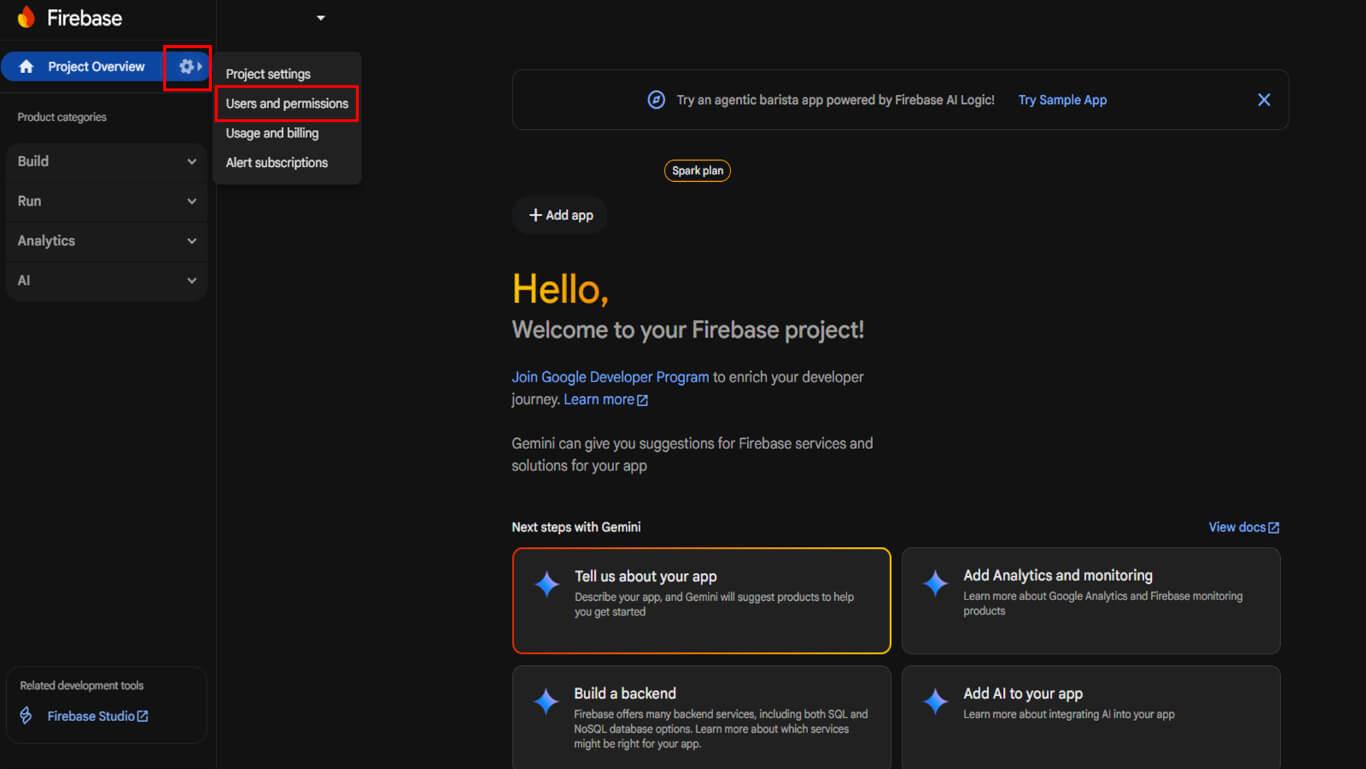
- Click Add member.
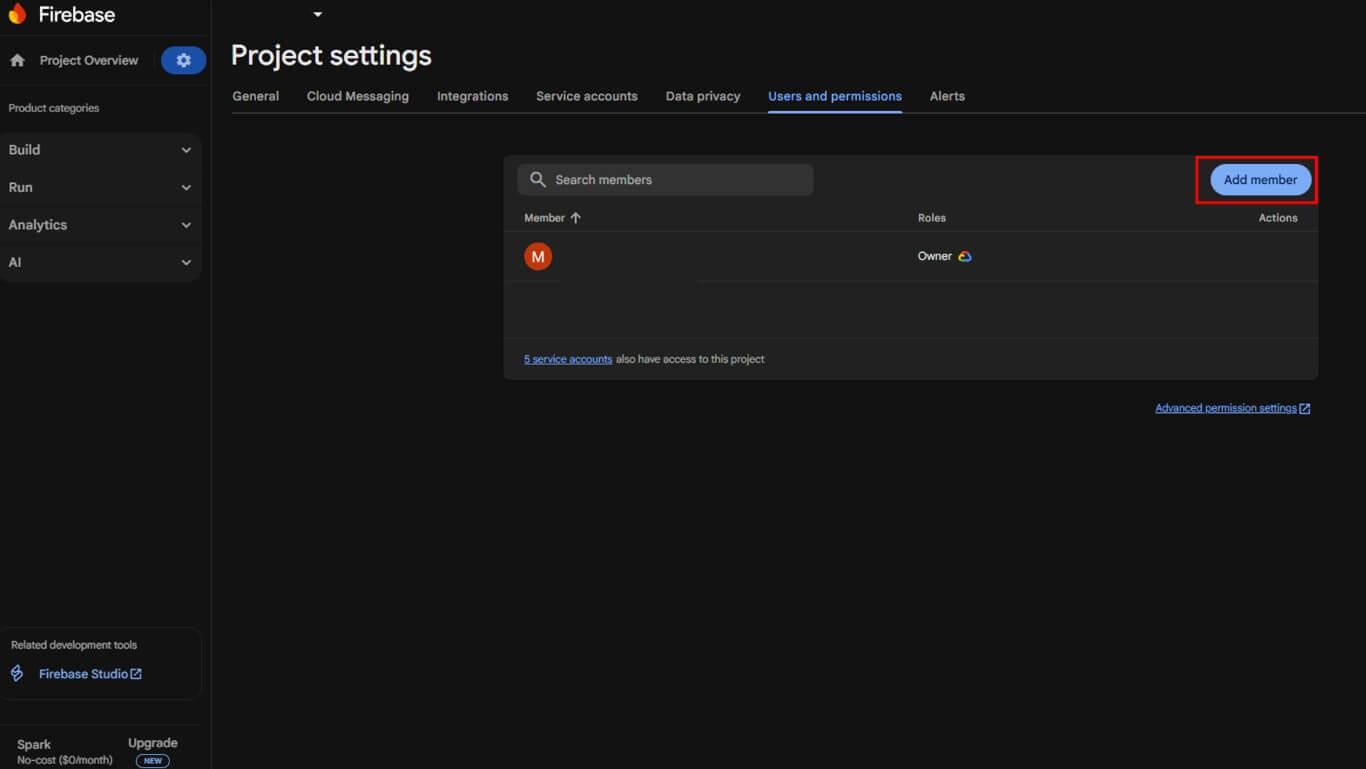
- For Email, enter appsup@memberpress.com.
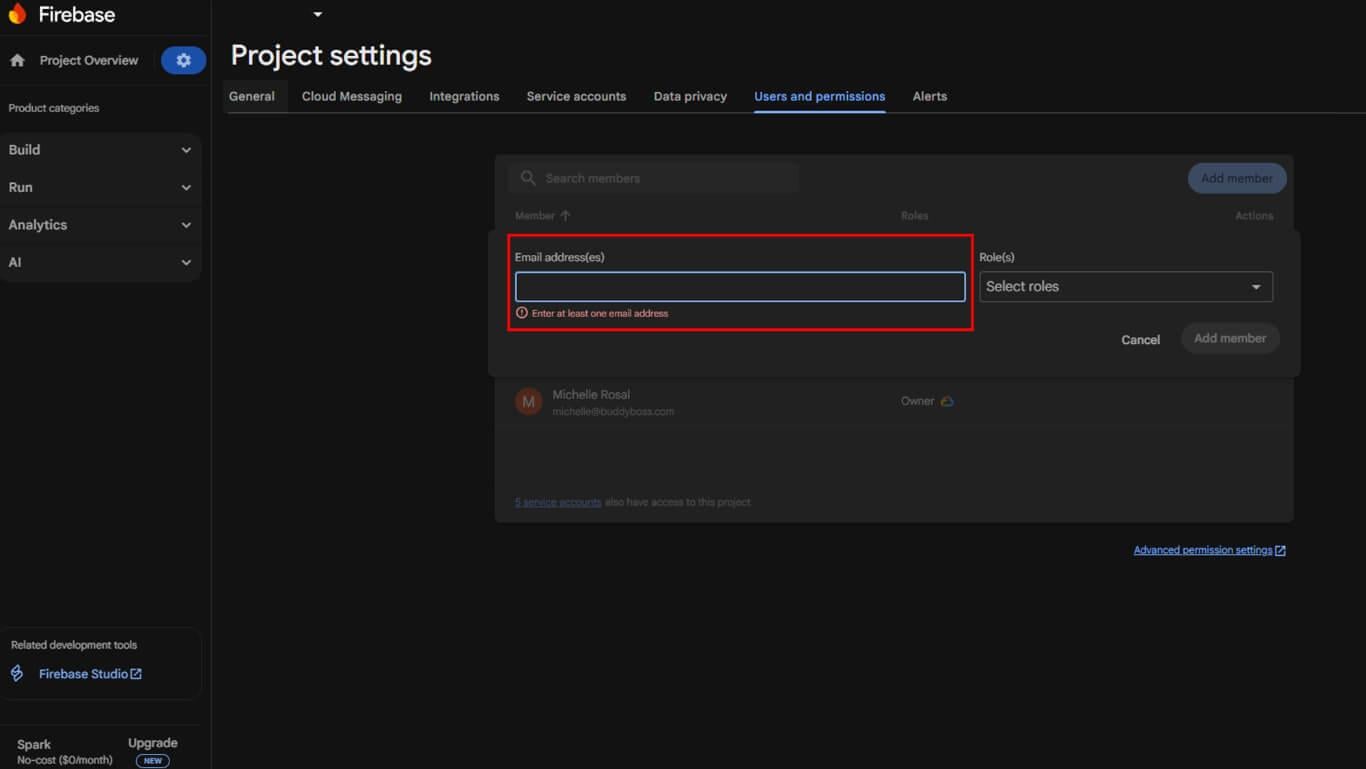
- Under Role, select Owner.
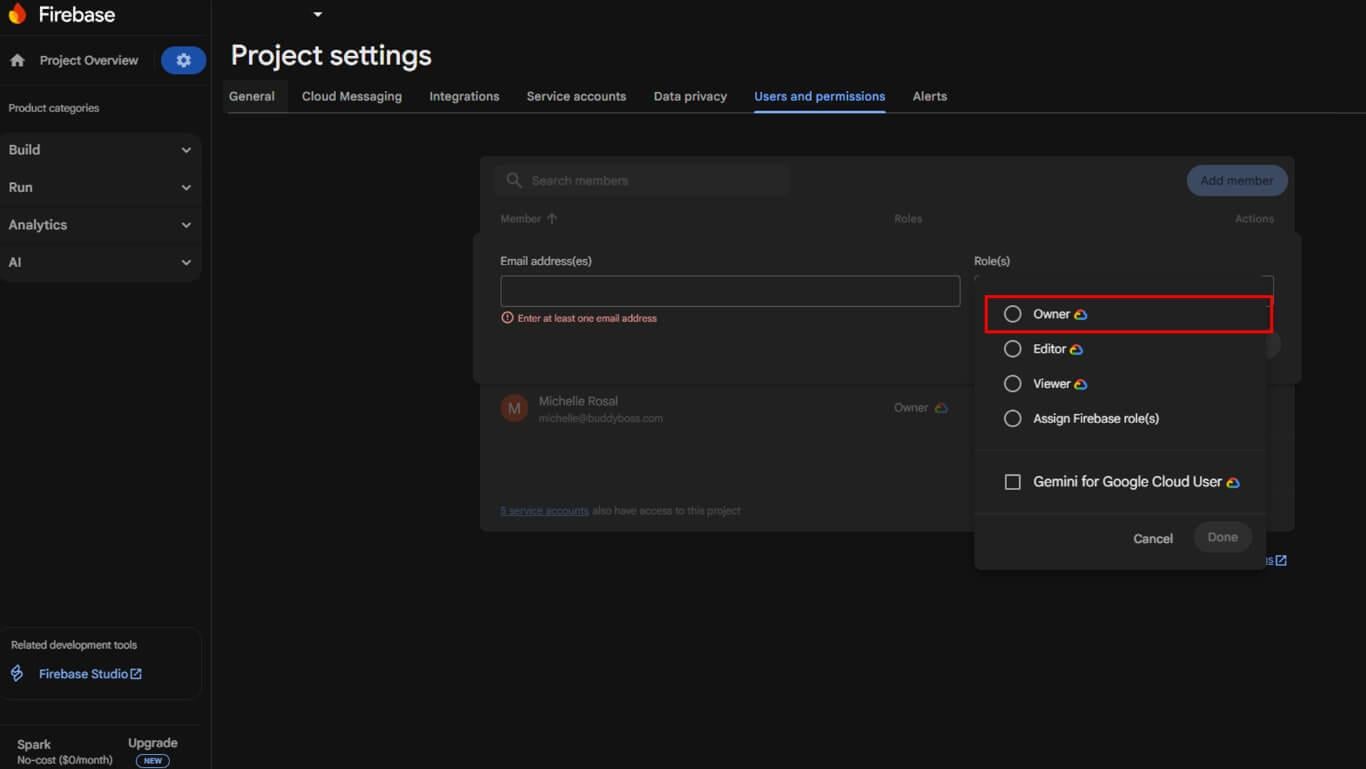
- Click Add member.
The MemberPress team will receive the invite and accept it, completing the setup.










