

Preparing the MemberPress iOS app for the Apple App Store requires proper MemberPress AppKit settings and App Store Connect. Configuration steps ensure compliance with Apple's guidelines and streamline the review process.
This document explains how to prepare the app in MemberPress AppKit, configure settings in App Store Connect, and submit for App Store review.
Understanding App Store Requirements
Apple App Store submission requires specific configurations and information before review approval. Apps must comply with Apple's guidelines, including privacy policies, age ratings, and content restrictions. In-app purchase configuration, privacy policy documentation, and reviewer access credentials are mandatory for submission. Proper preparation reduces rejection risk and accelerates approval timelines.
Setting Up In-App Purchases
In-app purchase configuration enables monetization through App Store billing when applicable.
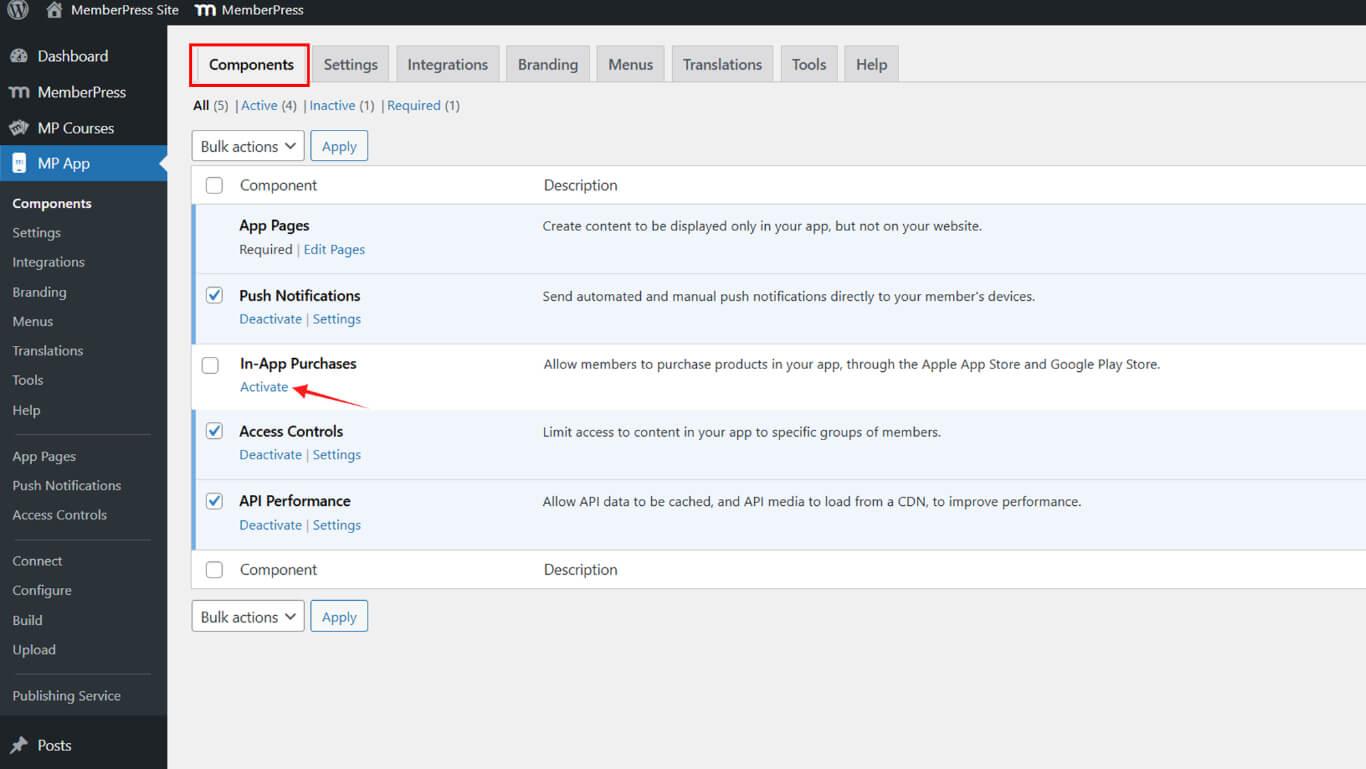
- Navigate to Dashboard > MP AppKit > Components.
- Activate In-App Purchases.
Generating iOS Release Build
iOS Release build creation prepares the app file for App Store submission.
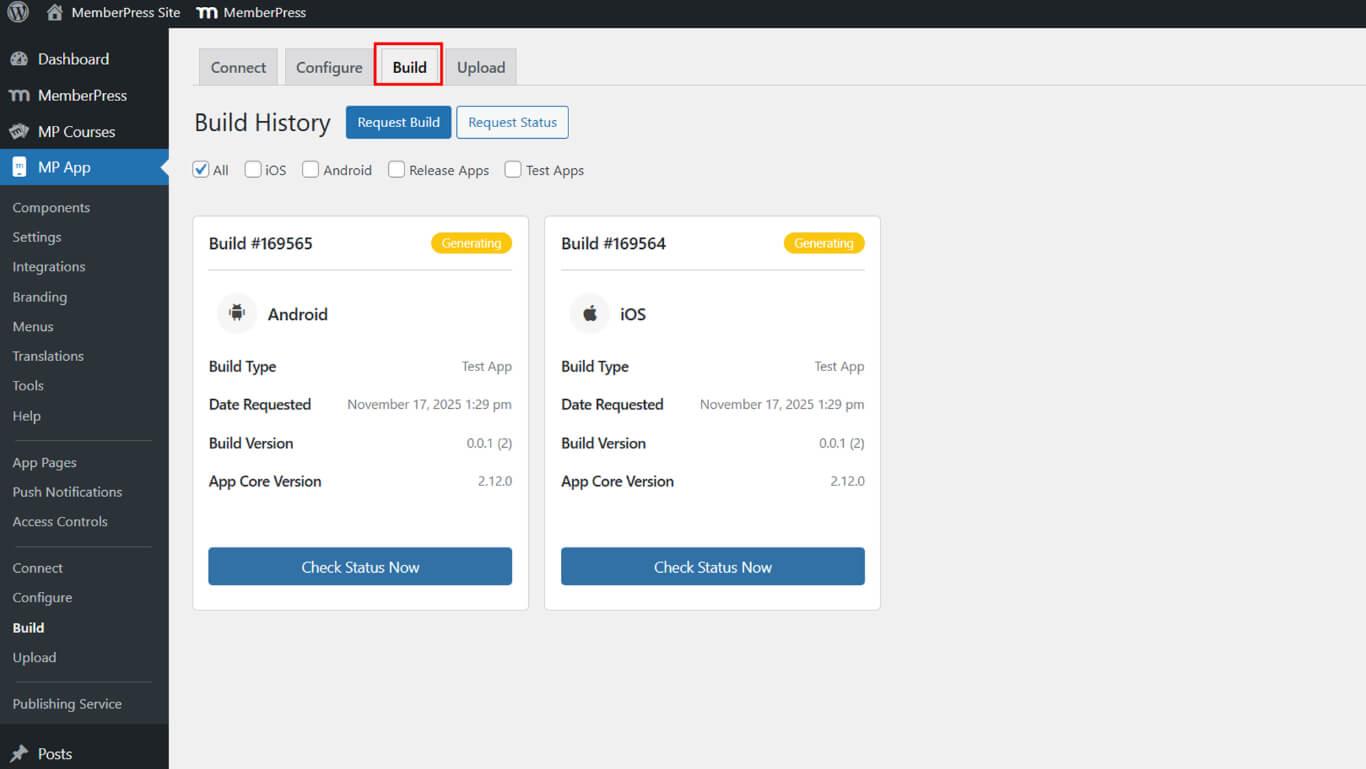
- Navigate to Dashboard > MP AppKit > Build.
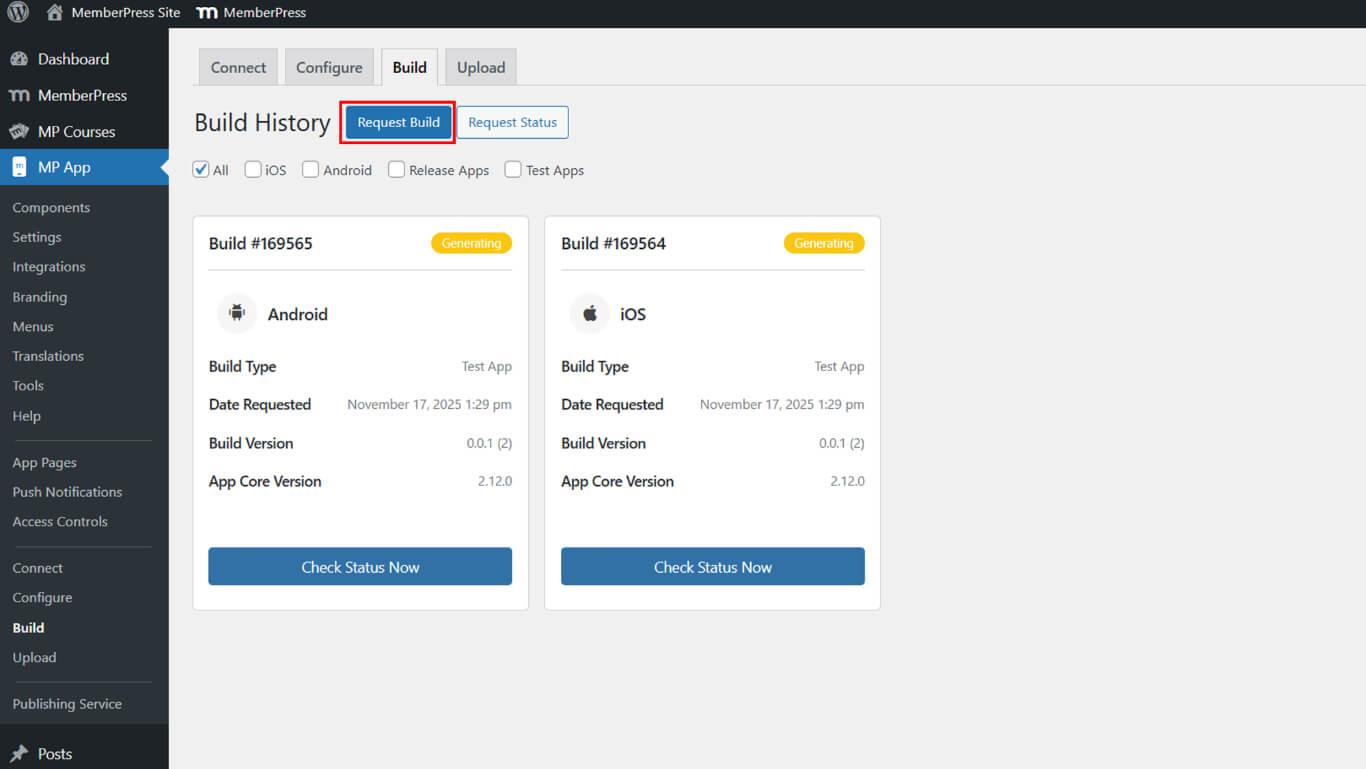
- Click the Request Build button.
- Check the iOS checkbox as the platform.
- Select Release App as the build type.
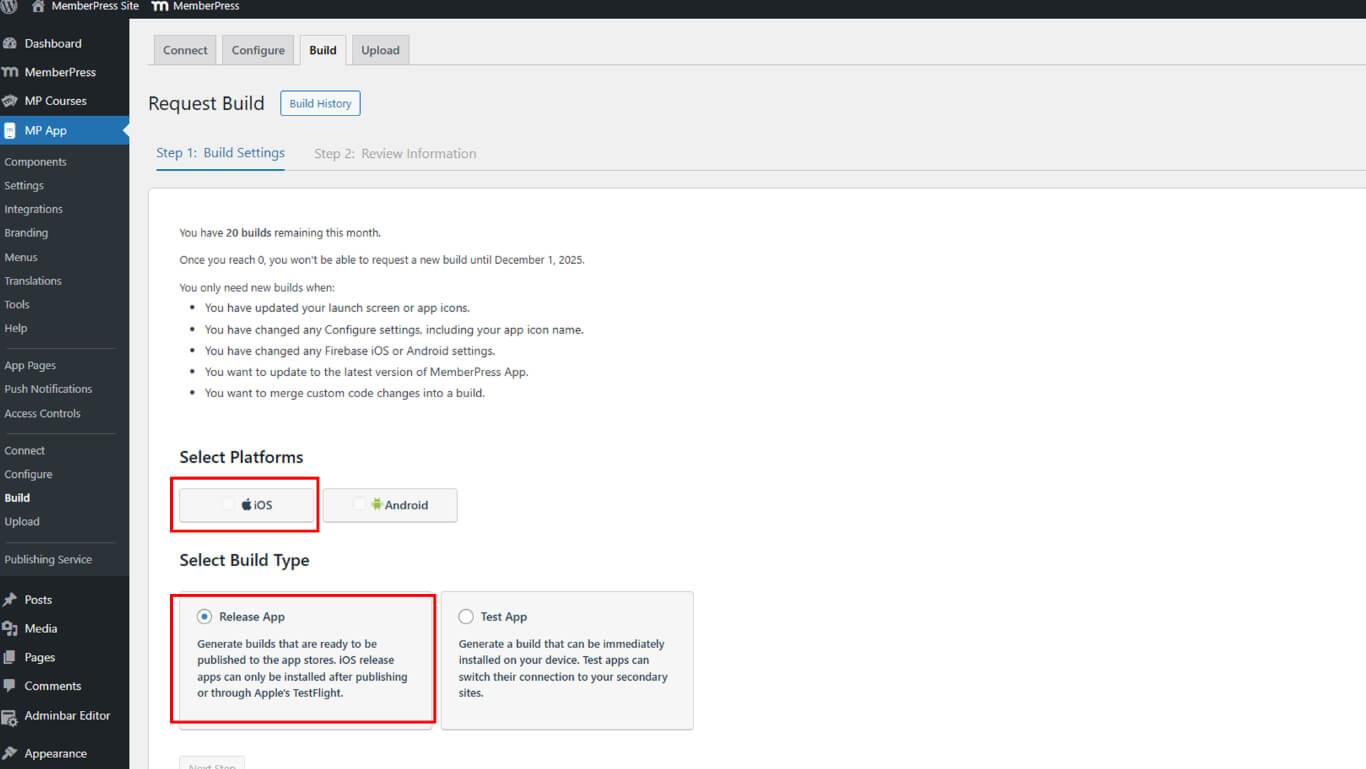
- Click Next to proceed.
- Click Send Build Request to submit the request.
- Monitor the build status under Build History.
Build completion typically occurs within 5-10 minutes after request submission.
Accessing App Information
App Information configuration establishes basic app details in App Store Connect.
- Log in to App Store Connect at appstoreconnect.apple.com.
- Click Apps in the navigation.
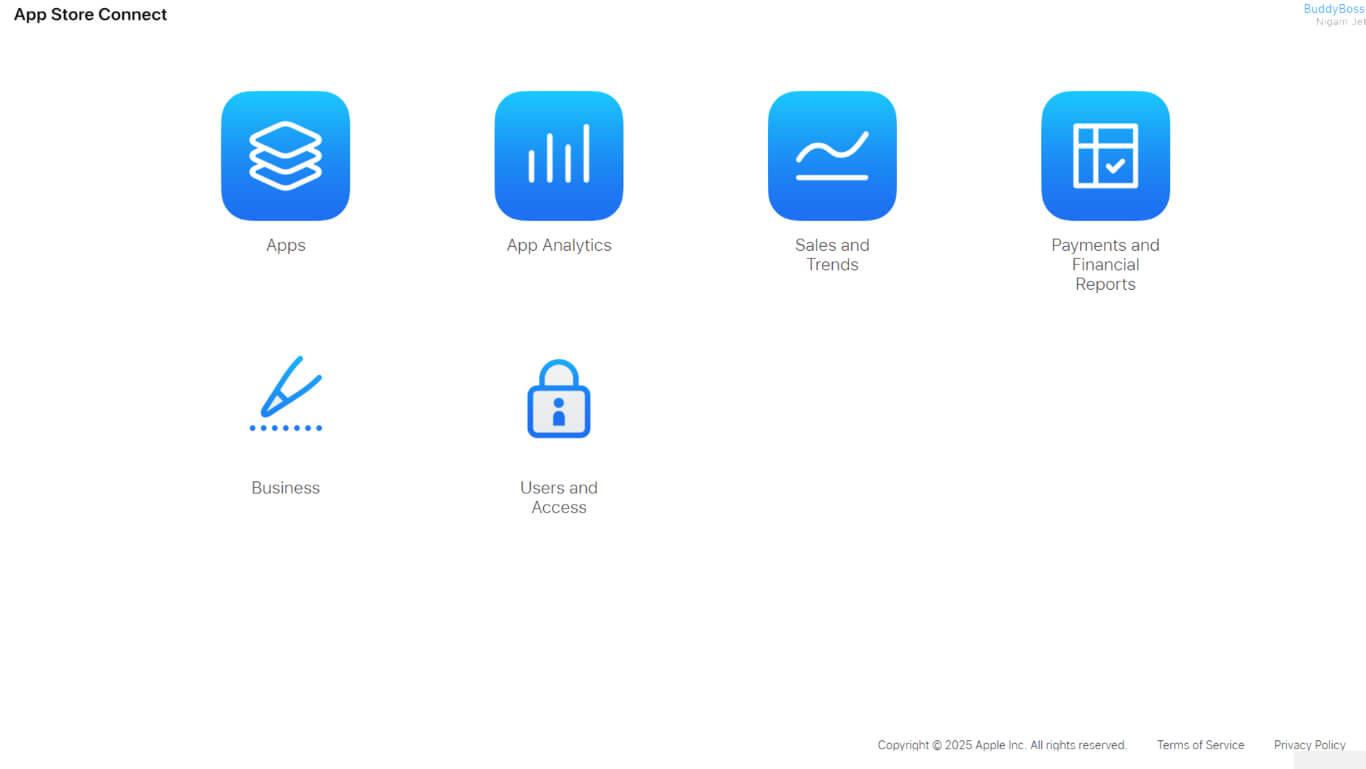
- Select the app from the apps list.
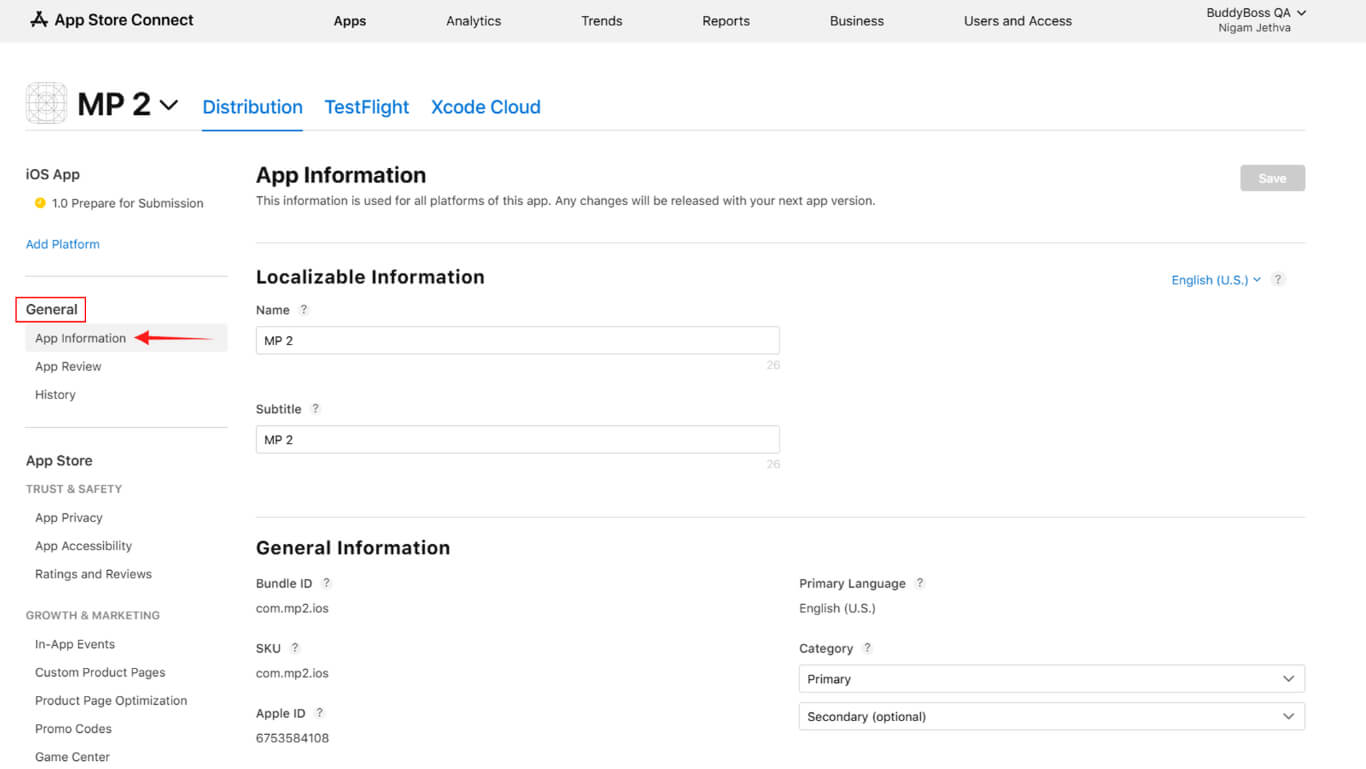
- Click App Information under the General section.
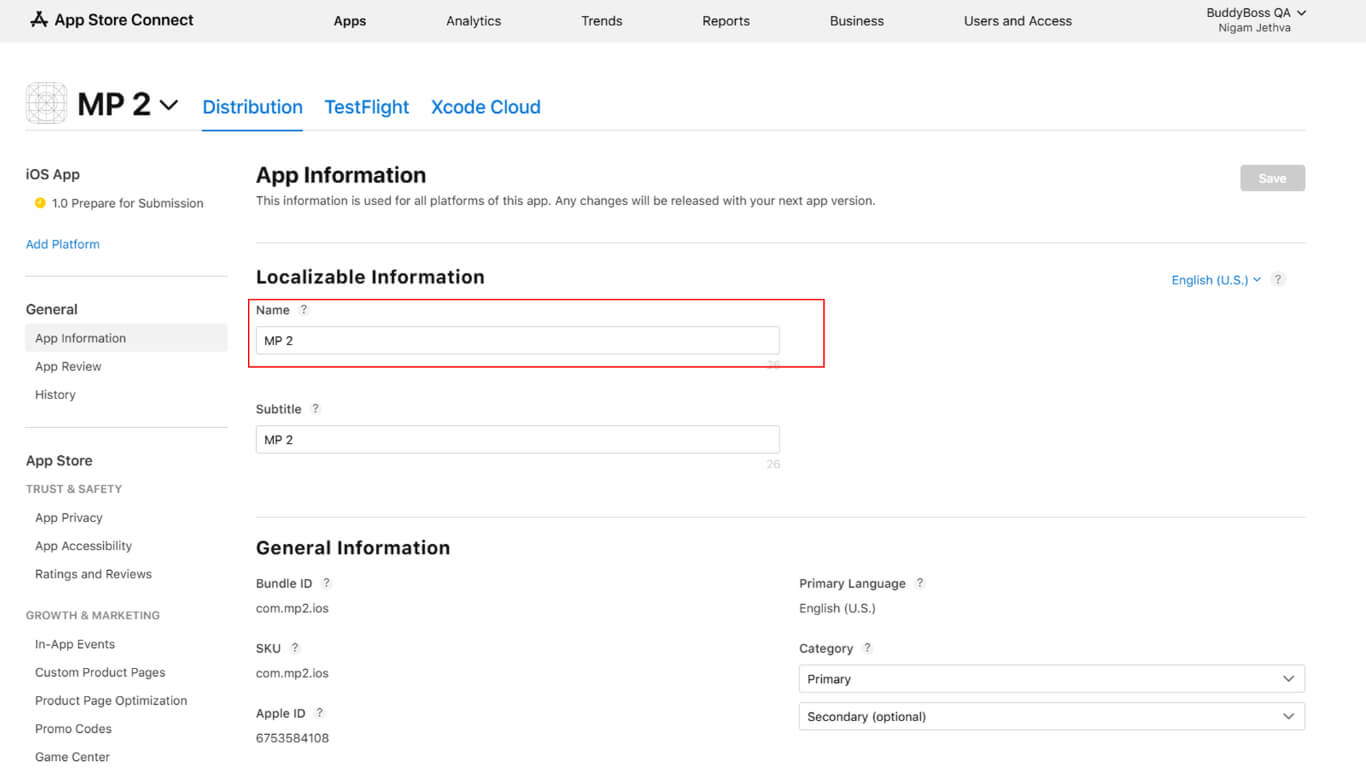
- Confirm or update the App name in the name field.
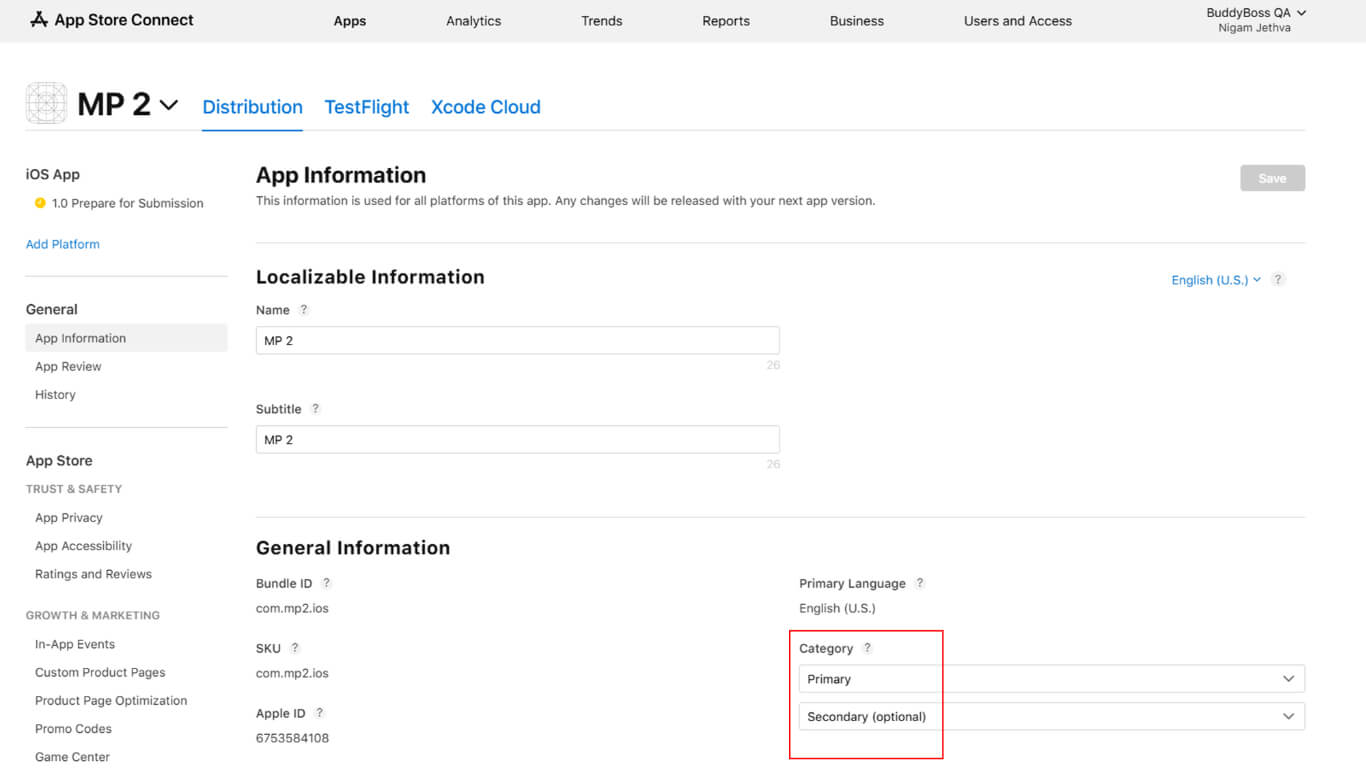
- Select the Primary category from the category dropdown.
- Select Secondary category if applicable.
- Indicate third-party content rights if the app contains licensed content.
- Select license agreement type:
- Apple's standard EULA for default terms;
- Custom EULA if providing a custom license agreement.
- Complete the Age rating questionnaire accurately.
- Click Save to store app information.
Setting Pricing and Availability
Pricing configuration determines app cost and regional availability.
- Navigate to Monetization > Pricing and Availability in App Store Connect.
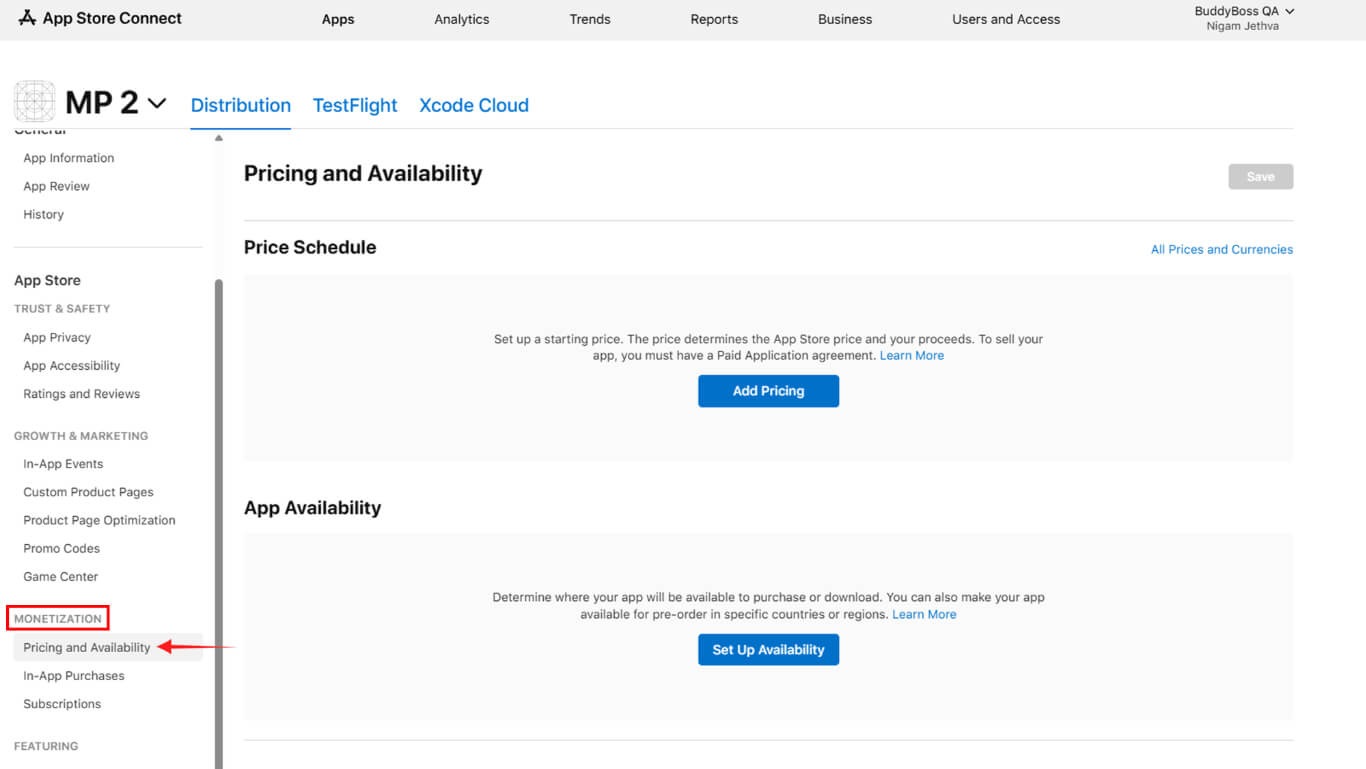
- Select price tier:
- Free for no-cost apps;
- Paid for apps requiring purchase.
- Complete the Paid Applications Agreement if selecting paid pricing.
- Configure availability options:
- All regions for worldwide availability;
- Selected regions for specific countries;
- Pre-order if enabling pre-release purchases.
- Click Next to review selections.
- Click Confirm to finalize pricing configuration.
Completing App Privacy Information
App Privacy configuration discloses data collection and usage practices.
- Navigate to App Privacy > Trust and Safety in App Store Connect.
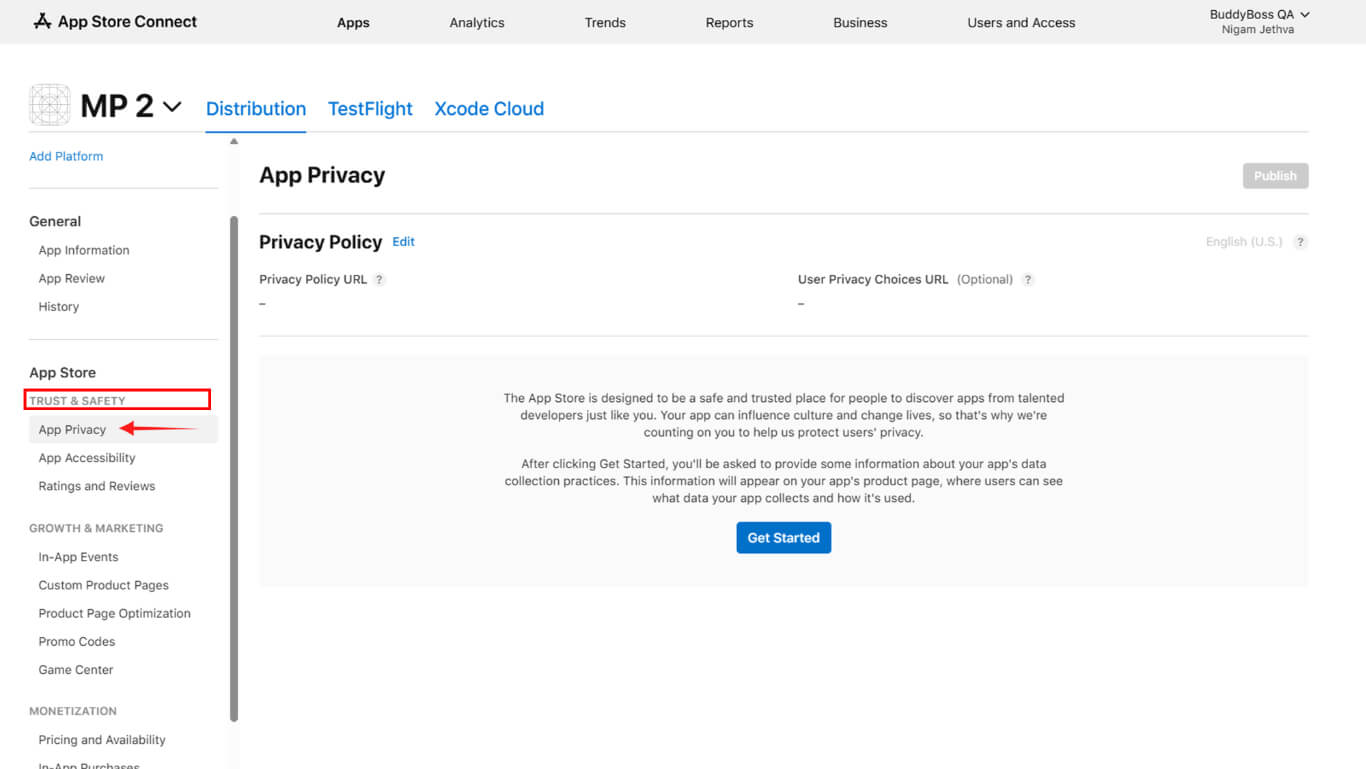
- Enter the complete Privacy Policy URL in the URL field.
- Click Get Started to begin the privacy questionnaire.
- Indicate all data types collected by the app.
- Specify the purpose for each data collection type.
- Indicate whether the data is linked to user identity.
- Indicate whether data is used for tracking purposes.
- Click Save after completing all questionnaire sections.
Preparing App Version
App version preparation creates the submission container for builds and metadata.
New apps include version 1.0, created automatically during initial setup. Existing apps require manual version creation for updates.
- Navigate to the app page in App Store Connect.
- Click the + button next to versions if creating an update.
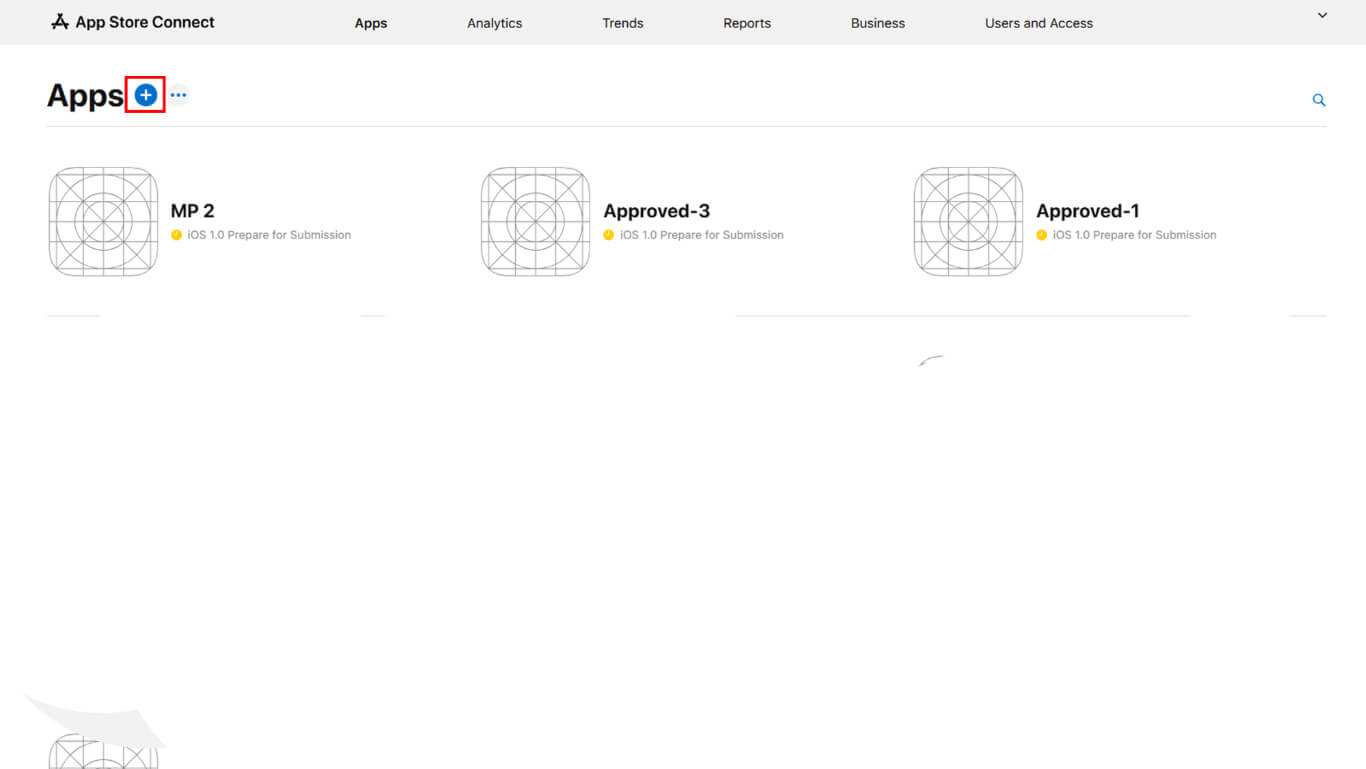
- Enter the new version number if prompted.
- Wait for any in-progress reviews to finish before creating new versions.
- Alternatively, cancel in-progress reviews before version creation.
Uploading Screenshots
Screenshot upload displays the app interface to potential users.
- Navigate to the version page in App Store Connect.
- Scroll to the Previews and Screenshots section.
- Click Add under the appropriate device size category.
- Upload at least one screenshot for the required display sizes:
- iPhone 6.5-inch: 1242×2688 pixels portrait or 2688×1242 pixels landscape;
- iPhone 6.9-inch: 1290×2796 pixels portrait or 2796×1290 pixels landscape.
- Verify screenshot format is JPG or PNG in RGB color space.
- Drag screenshots to reorder display sequence if multiple screenshots are uploaded.
Adding App Details
App details provide descriptive content for the App Store listing.
- Navigate to the version page in App Store Connect.
- Enter Promotional text highlighting key app features in the promotional text field.
- Enter a comprehensive Description explaining app functionality in the description field.
- Enter Keywords separated by commas for search optimization.
- Enter the Support URL linking to customer support resources.
- Enter the optional Marketing URL linking to the promotional website.
- Enter the Copyright information, including the year and the company name.
- Update the Version number if it is different from the initial version.
- Click Save to store app details.
Providing App Review Information
App Review Information enables Apple reviewers to test all app functionality.
- Navigate to the version page in App Store Connect.
- Scroll to the App Review Information section.
- Check Sign-In Required if the app requires authentication.
- Enter a valid Username in the demo account username field.
- Enter a valid Password in the demo account password field.
- Enter Review Notes explaining special testing instructions.
- Upload attachments if additional documentation assists the review.
- Enter the contact Name for reviewer communication.
- Enter the contact Phone Number for urgent reviewer questions.
- Enter the contact Email for reviewer correspondence.
- Click Save to store review information.
Selecting Release Options
Release options determine when the app becomes available after approval.
- Navigate to the version page in App Store Connect.
- Scroll to the Version Release section.
- Select release timing preference:
- Manual release to publish manually after approval;
- Automatic release to publish immediately after approval;
- Scheduled release to publish on a specific date and time.
- Enter the release date and time if selecting a scheduled release.
- Click Save to store release preferences.
Manual release provides control over exact publication timing after approval. Automatic release publishes apps immediately upon approval without additional action.
Submitting for Review
Review submission sends the app to Apple for evaluation.
- Navigate to Dashboard > MP AppKit > Publishing Service > Apple App Store in WordPress.
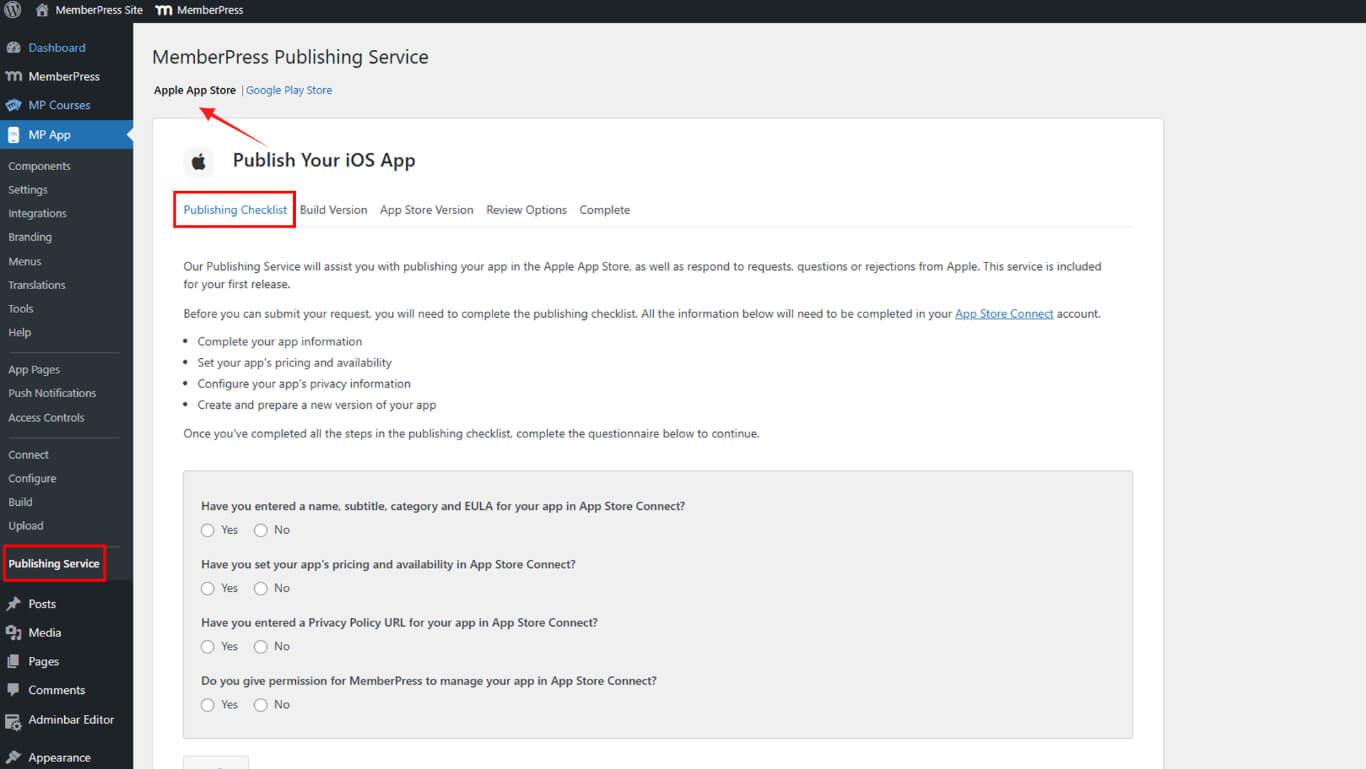
- Review the submission checklist to verify all requirements are met.
- Click Submit to begin the submission process.
- Optionally request pre-submission review to improve approval chances.
- Publishing Team uploads the build and prepares the release.
- Publishing Team submits app to Apple for review.
- Monitor submission status in App Store Connect.
The Publishing Team handles build upload, release preparation, and official submission to Apple. App status updates appear in App Store Connect during the review process.










