

Android App Links enable deep integration between the mobile app and website, allowing members to open specific URLs directly in the app. App Links configuration creates seamless mobile experiences and ensures community content links open in the correct context.
This document explains how to obtain certificate fingerprints, enable App Links, and verify configuration.
Understanding Android App Links
Android App Links connect website URLs to specific app screens. When members tap links on Android devices, content opens in the app rather than a web browser. This behavior creates seamless transitions between web and app experiences.
Obtaining SHA-256 Certificate Fingerprint
Certificate fingerprint retrieval from Google Play Console enables App Links verification.
- Log in to Google Play Console at play.google.com/console with the Google Developer account.
- Navigate to All apps in the console.
- Select the app from the apps list.
- Click the Test and Release tab.
- Navigate to App Integrity > App signing.
- Locate the SHA-256 certificate fingerprint for the App Signing Key.
- Copy the SHA-256 certificate fingerprint value.
The certificate fingerprint value will be used in the MemberPress App settings configuration.
Enabling Android App Links
App Links activation occurs through Android Settings configuration.
- Navigate to Dashboard > MP AppKit > Configure > Android Settings.
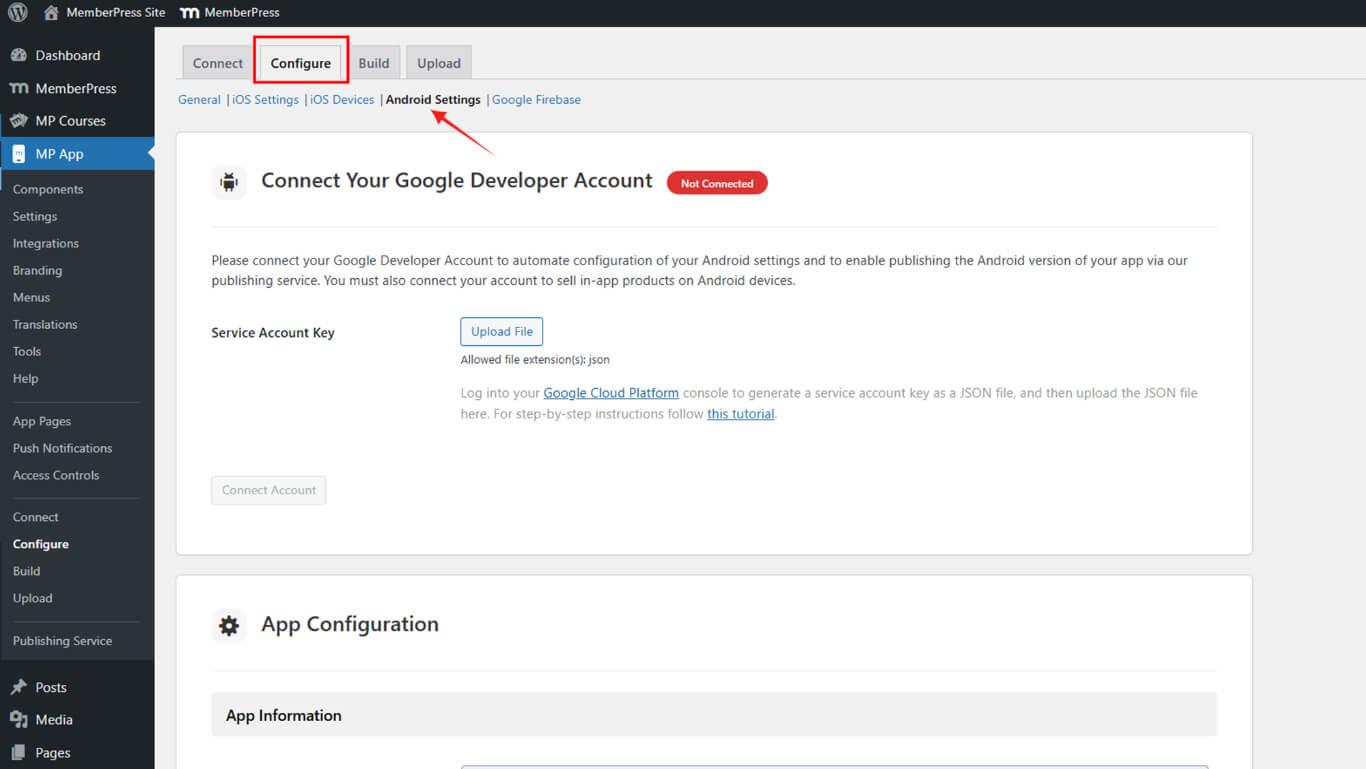
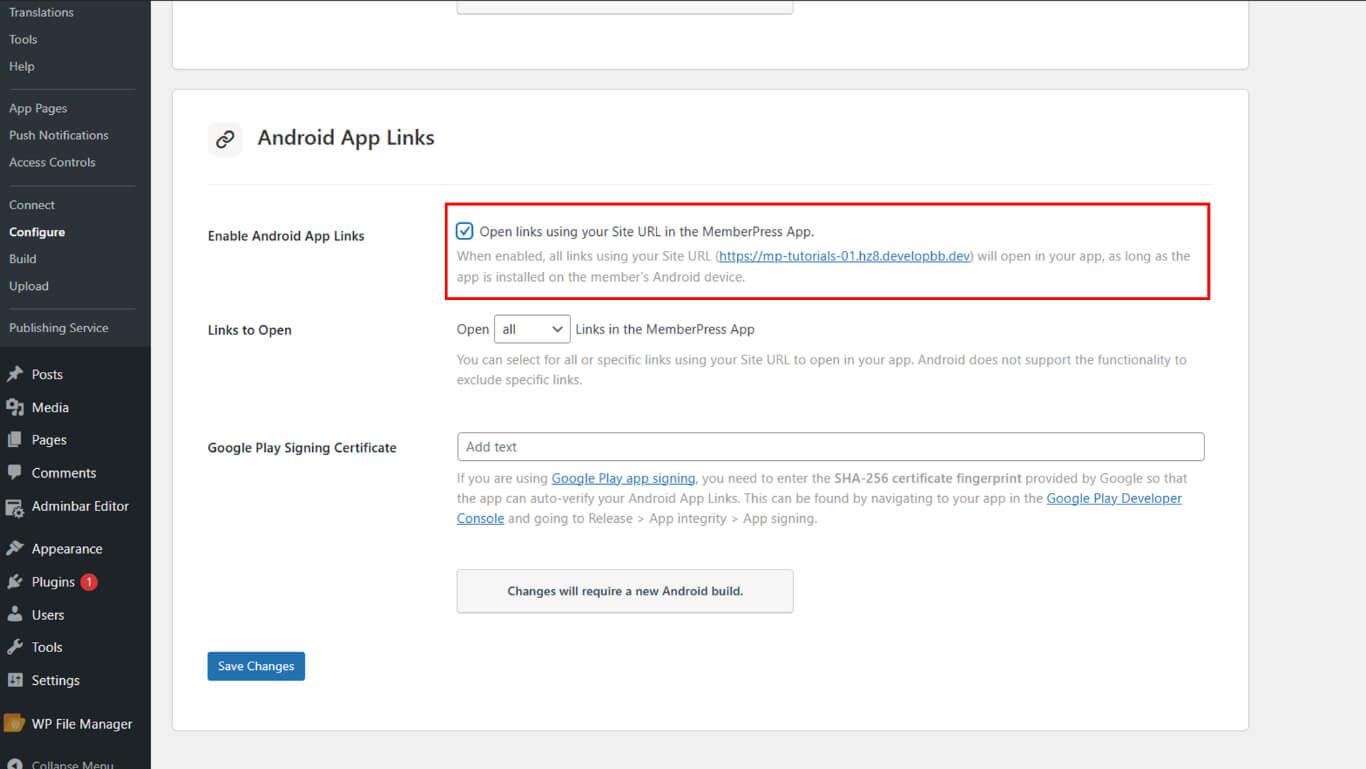
- Scroll to the Android App Link section.
- Check the Enable Android App Links checkbox.
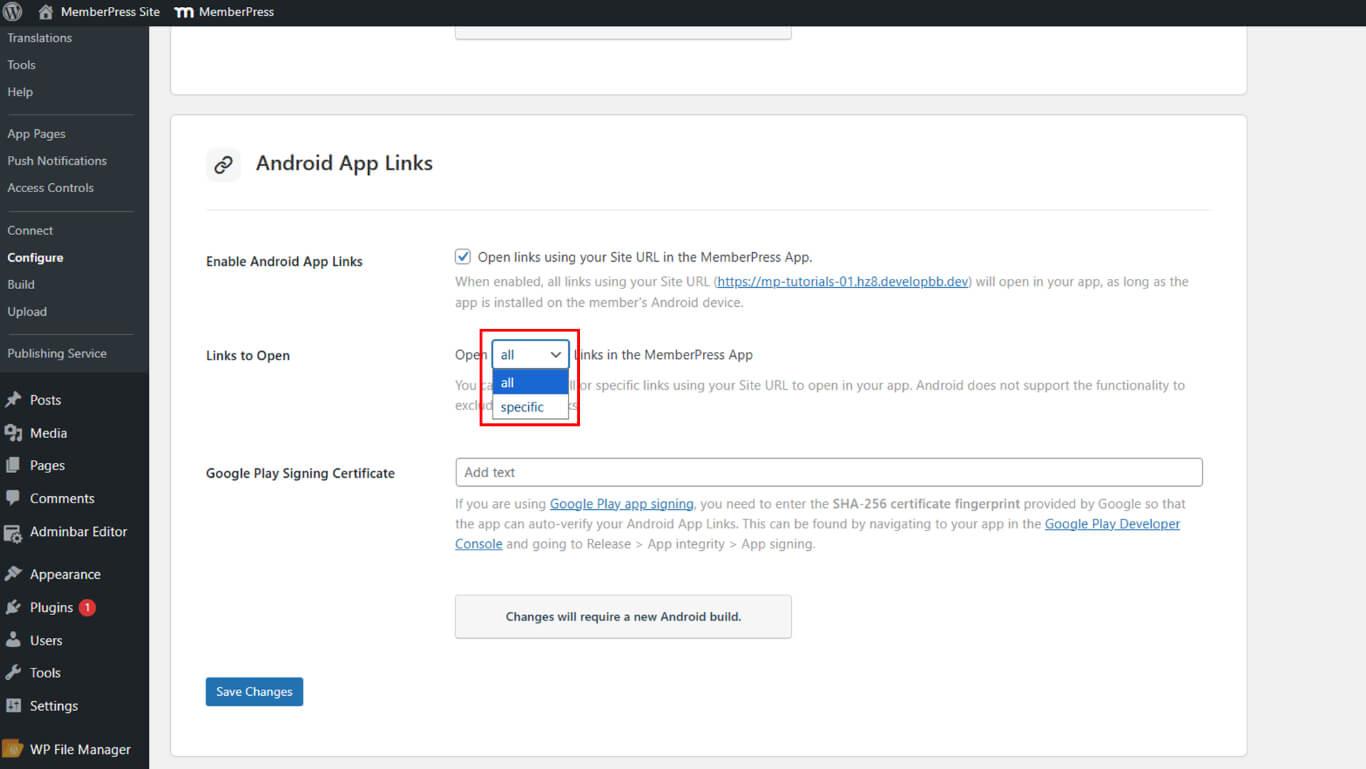
- Locate the Links to Open option.
- Select link handling preference:
- All to open all website links in the app;
- Specific links to open only selected URLs in the app.
- Paste the SHA-256 certificate fingerprint into the Google Play Signing Certificate field.
- Click Save Changes.
- Navigate to Dashboard > MP AppKit > Build.
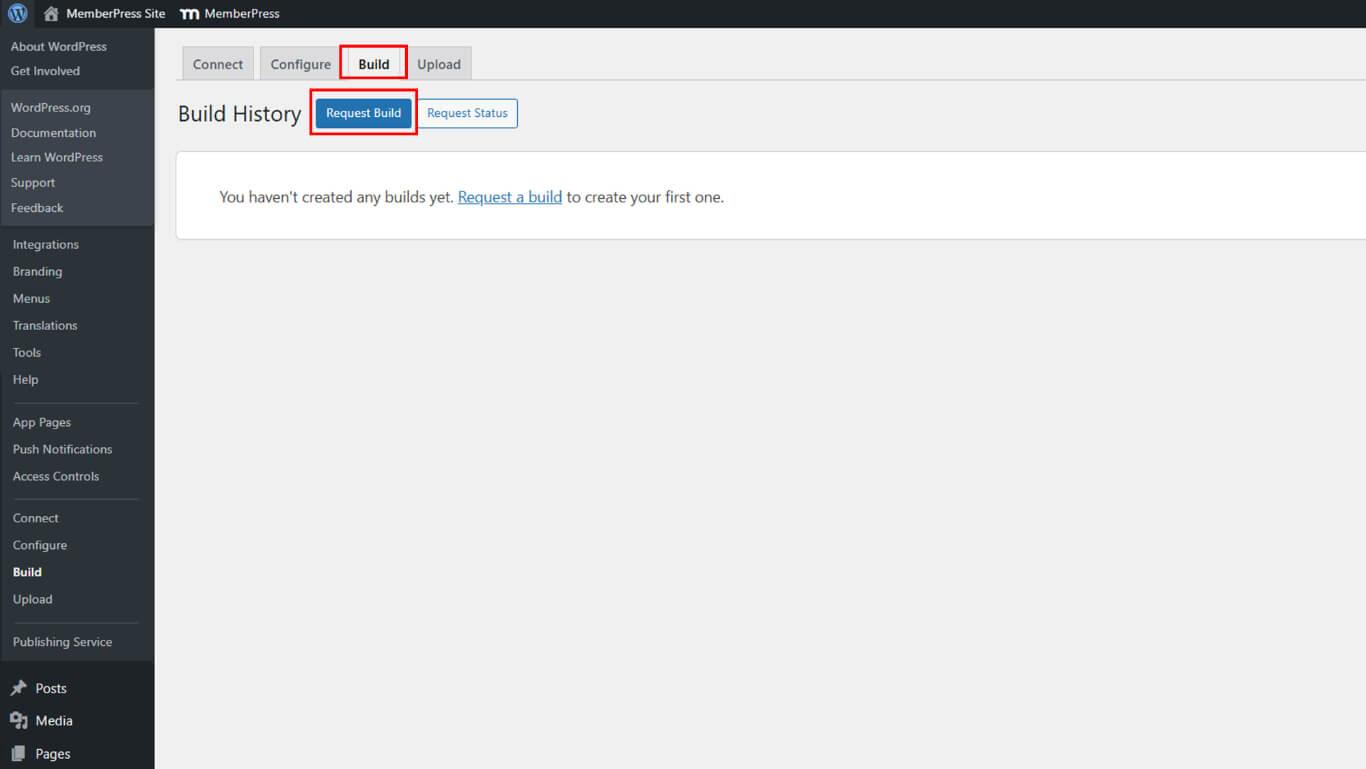
- Request a new Android build to apply App Links configuration.
Verifying Asset Links JSON File
Asset Links JSON file verification confirms proper App Links configuration.
- Open a web browser on any device.
- Navigate to https://yourdomain.com/.well-known/assetlinks.json/, replacing yourdomain.com with the actual site URL.
- Verify the JSON response displays in the browser.
- Confirm JSON includes an entry with the SHA-256 certificate fingerprint.
- Verify the package name appears in the JSON structure.
- Check that all App Signing keys added appear in the file.
A valid JSON response confirms that Android can verify the App Links association between the website and the app.










