

Android app configuration requires Application ID setup, KeyStore certificate generation, and Application ID registration in Google Play Console. This document explains how to configure Application ID, generate and import KeyStore certificates, and register the Application ID.
Understanding Application ID Requirements
Application ID uniquely identifies the app on the Google Play Store. Application ID must consist of at least two dot-separated segments following specific formatting rules. Proper Application ID configuration prevents conflicts with other applications.
Application ID formatting requirements include:
- At least two dot-separated segments;
- Each segment starts with a letter;
- Contains only letters, numbers, and underscores;
- Unused by any other app on Google Play;
- Test builds append .test to the Application ID.
Setting Application ID
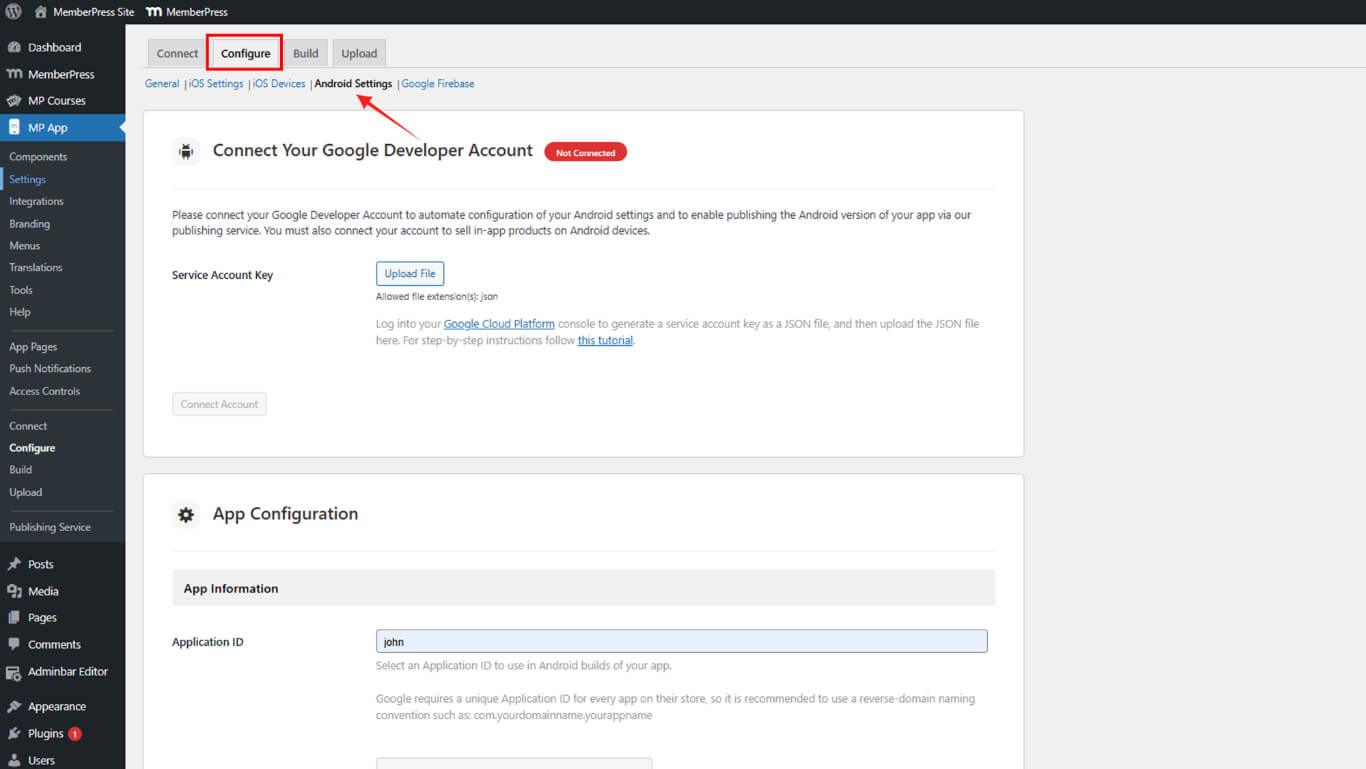
Application ID configuration occurs within Android Settings.
- Navigate to Dashboard > MP AppKit > Configure > Android Settings.
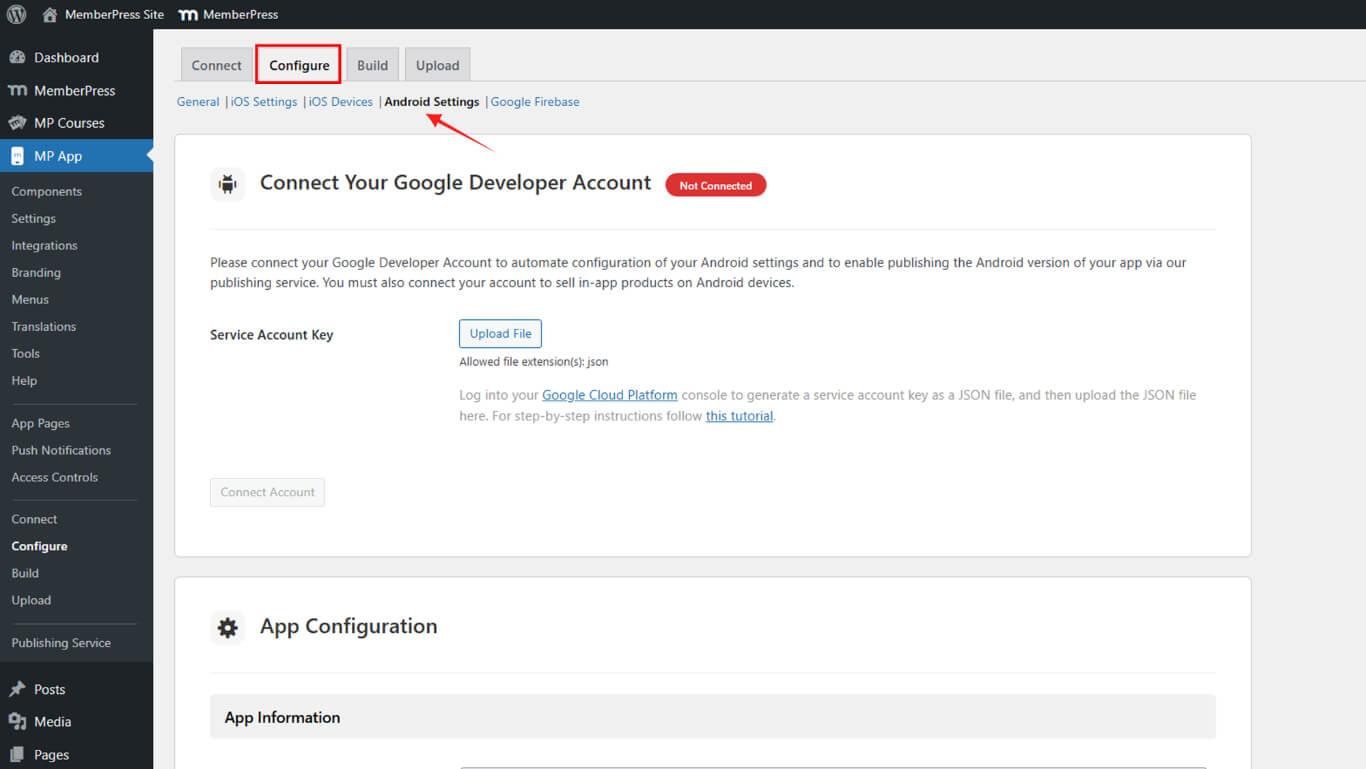
- Locate the App Configuration section.
- Enter the chosen Application ID in the Application ID field.
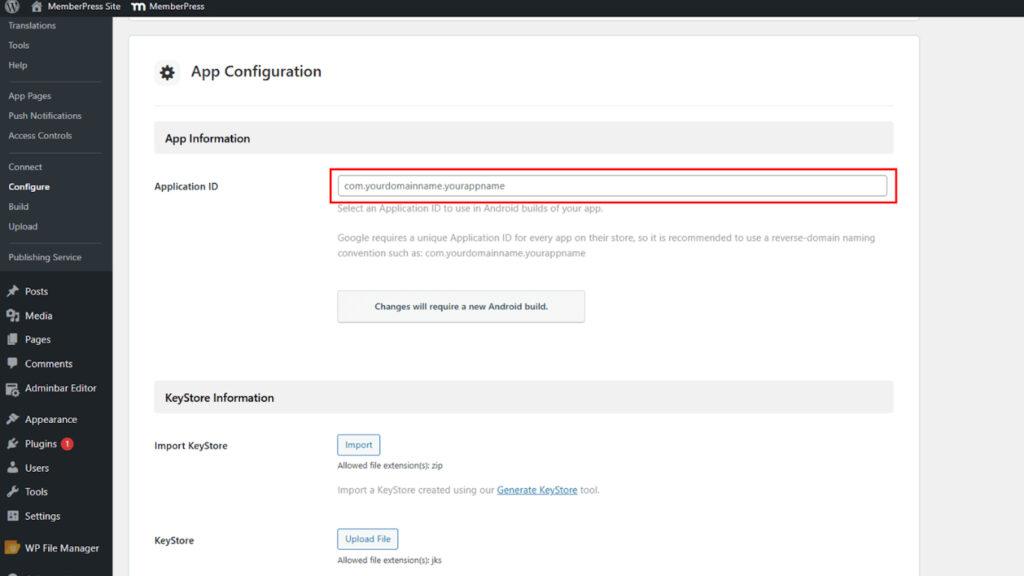
- Click Save Changes.
Application ID reservation occurs through Google Play Console registration to prevent conflicts with other applications.
Generating KeyStore Certificate
KeyStore certificate generation creates the signing certificate required for Android app builds.
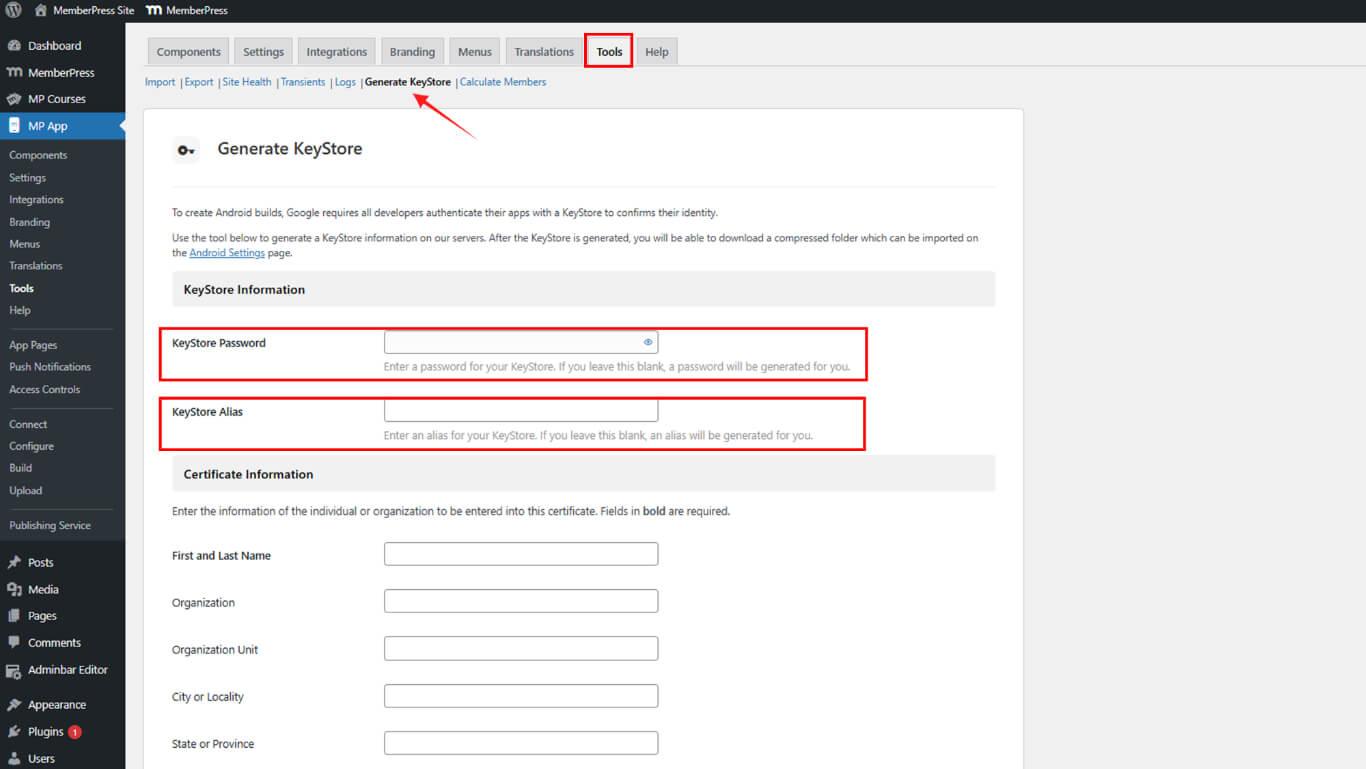
- Navigate to Dashboard > MP AppKit > Tools > Generate KeyStore.
- Enter a KeyStore Password in the password field.
- Enter a KeyStore Alias in the alias field or leave blank for automatic generation.
- Enter First Name in the first name field.
- Enter Last Name in the last name field.
- Optionally enter Organization in the organization field.
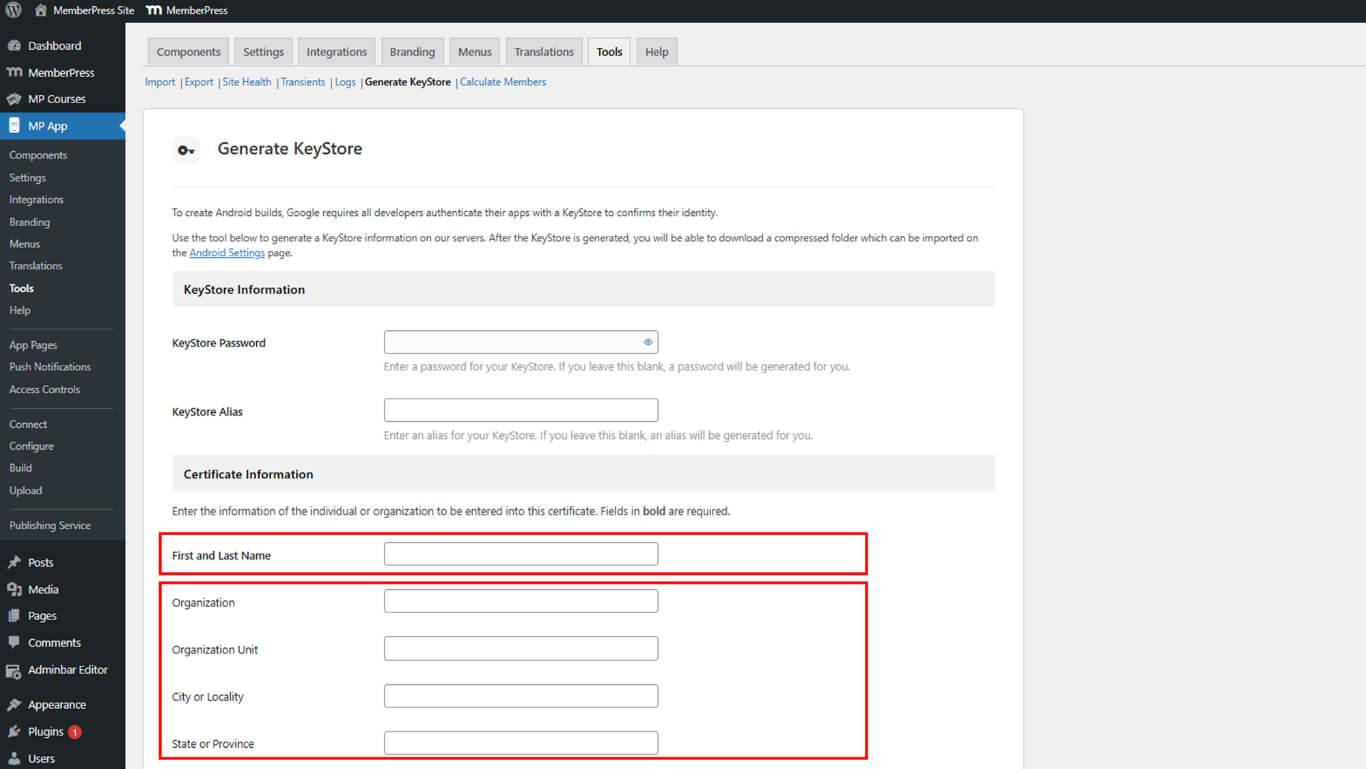
- Complete remaining certificate details as desired.
- Click Generate to create the KeyStore.
- Check the confirmation checkbox acknowledging KeyStore backup responsibility.
- Click Download to save the ZIP file containing the KeyStore.
Importing KeyStore Certificate
KeyStore import adds the generated certificate to WordPress for build signing.
- Navigate to Dashboard > MP AppKit > Configure > Android Settings.
- Locate the KeyStore Information section.
- Click Import to open the file selector.
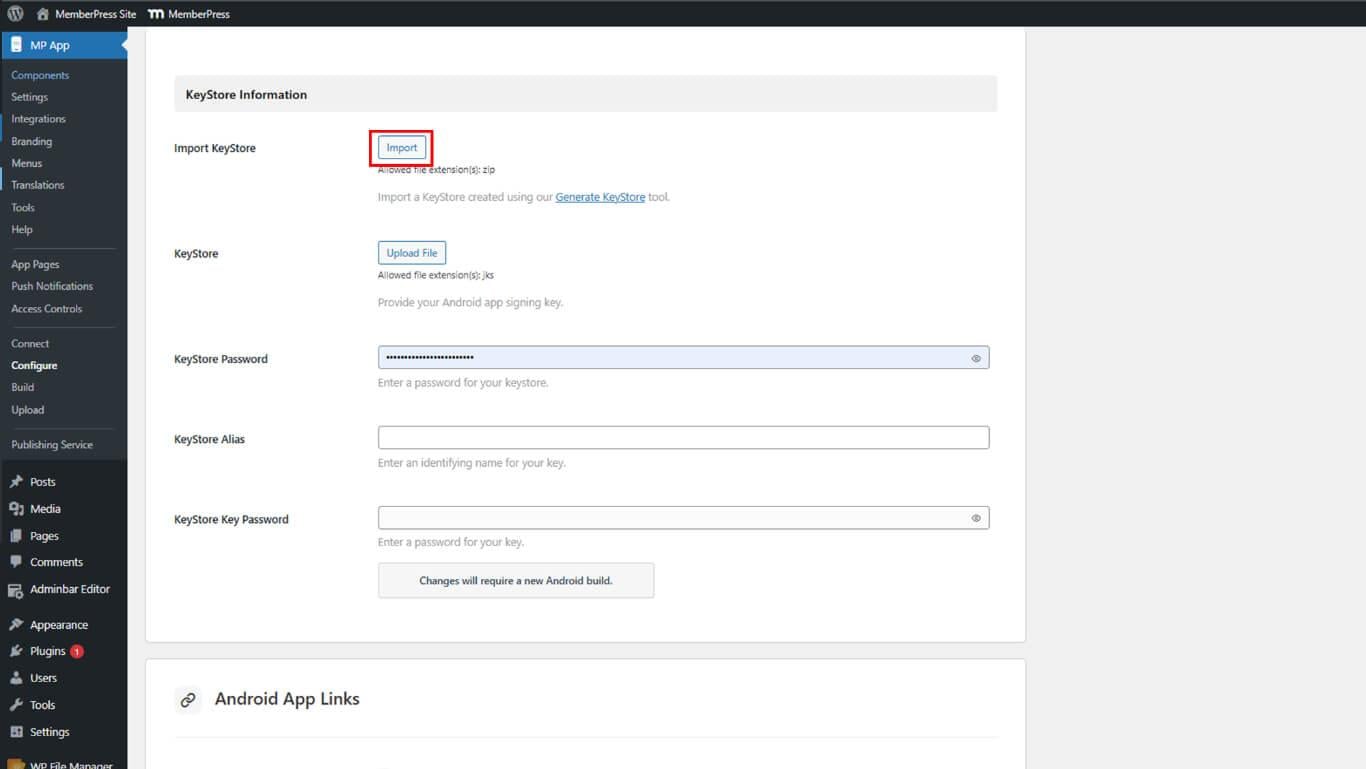
- Select the downloaded KeyStore ZIP file.
- Click Save Changes to finalize the import.
Registering Application ID with Google Play
Application ID registration reserves the identifier and prevents others from claiming it.
- Generate a Release App build under Dashboard > MP AppKit > Build.
- Log in to Google Play Console at play.google.com/console.
- Navigate to All apps and select the app.
- Click Release > Production in the sidebar.
- Click Create new release to start creating the release.
- Locate the App bundles section.
- Click Upload to open the file selector.
- Select the AAB file built with the Application ID.
- Click Save to register the Application ID.










