

Custom logos, splash screens, and icons enhance brand identity and user experience within mobile applications. MemberPress AppKit supports image customization for home screens, login pages, app icons, and launch screens.
This document explains recommended image specifications, branding guidelines, and configuration steps for all visual assets.
Understanding App Visual Assets
Visual assets create branded experiences across iOS and Android platforms. Different asset types serve specific purposes, including navigation branding, authentication screens, launch animations, and device home screen icons. Proper asset configuration ensures consistent branding throughout member interactions with the app.
Recommended Image Specifications
Different visual elements require specific dimensions and formats for optimal display.
| Element | Size (pixels) | Format |
| Home Screen Logo | 1200 × 180 | PNG or PSD |
| Login Logo | 1200 × 774 | PNG or PSD |
| Login Background | 2732 × 2732 | PNG or PSD |
| Registration Background | 2732 × 2732 | PNG or PSD |
| Launch Screen Background | 2732 × 2732 | PNG or PSD |
| iOS App Icon | 1024 × 1024 | PNG |
| Android App Icon | 1024 × 1024 | PNG |
| Android Adaptive Icon | 1024 × 1024 | PNG |
| Android Notification Icon | 256 × 256 | PNG |
Understanding AppKit Icon Requirements
Standard MemberPress AppKit Icon (iOS and Android)
- Size: 1024 × 1024 px
- Safe Zone: 682 × 682 px center
- Format: PNG (32-bit), sRGB
- iOS: No transparency
- Android: Transparency allowed
Android Adaptive Icon
Required on Android 8+ for shape flexibility and parallax.
- Foreground: Transparent logo, 1024 × 1024 px
- Background: Opaque image, 1024 × 1024 px
- Safe Zone: 683 × 683 px center (170 px margin)
Launch / Splash Screen
Displayed instantly on the MemberPress App startup.
- Size: 2732 × 2732 px
- Safe Zone: 1200 × 2732 px center
- Format: PNG (32-bit), sRGB
Login Screen
- Logo: Max 200 × 150 px within background
- Background: 2732 × 2732 px
- Format: PNG (32-bit), sRGB
Accessing Branding Settings
All image and icon configuration occurs within the branding settings interface.
- Navigate to Dashboard > MP AppKit > Branding > Images.
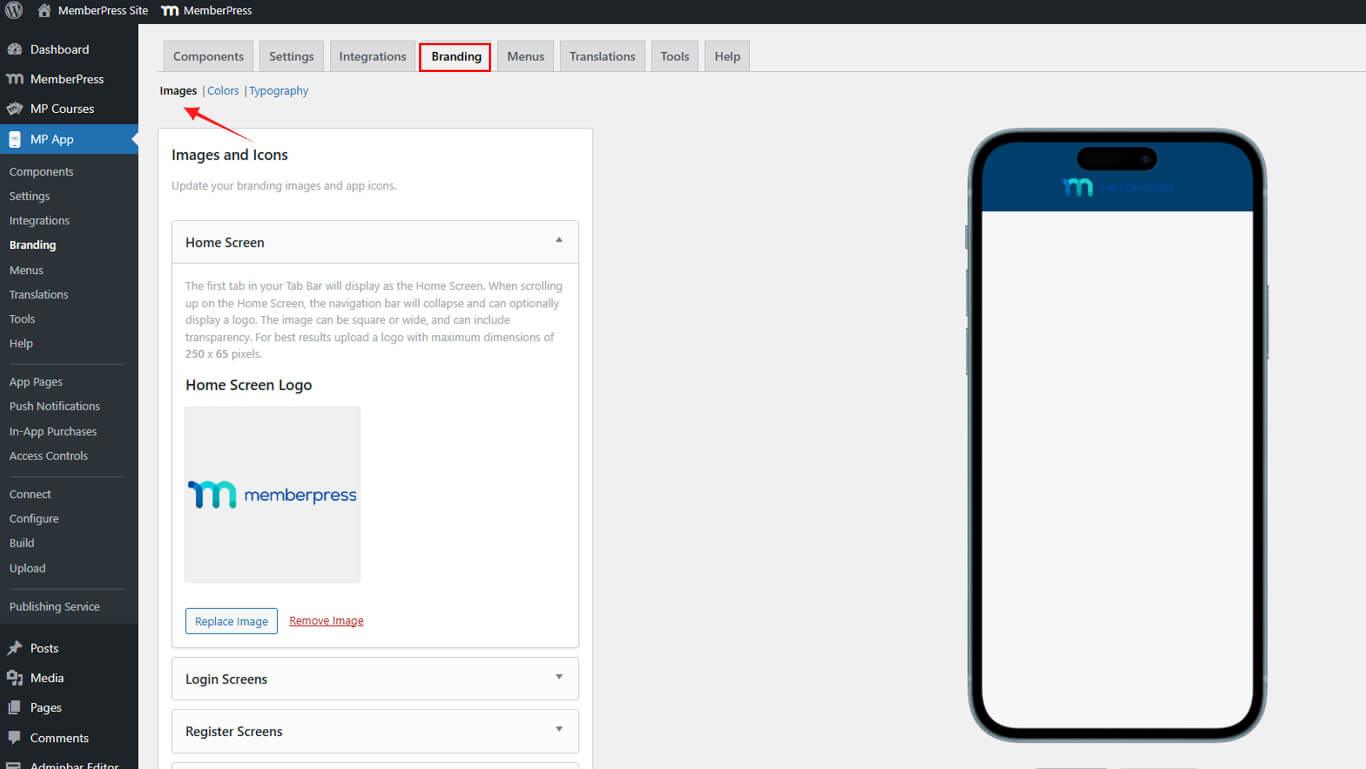
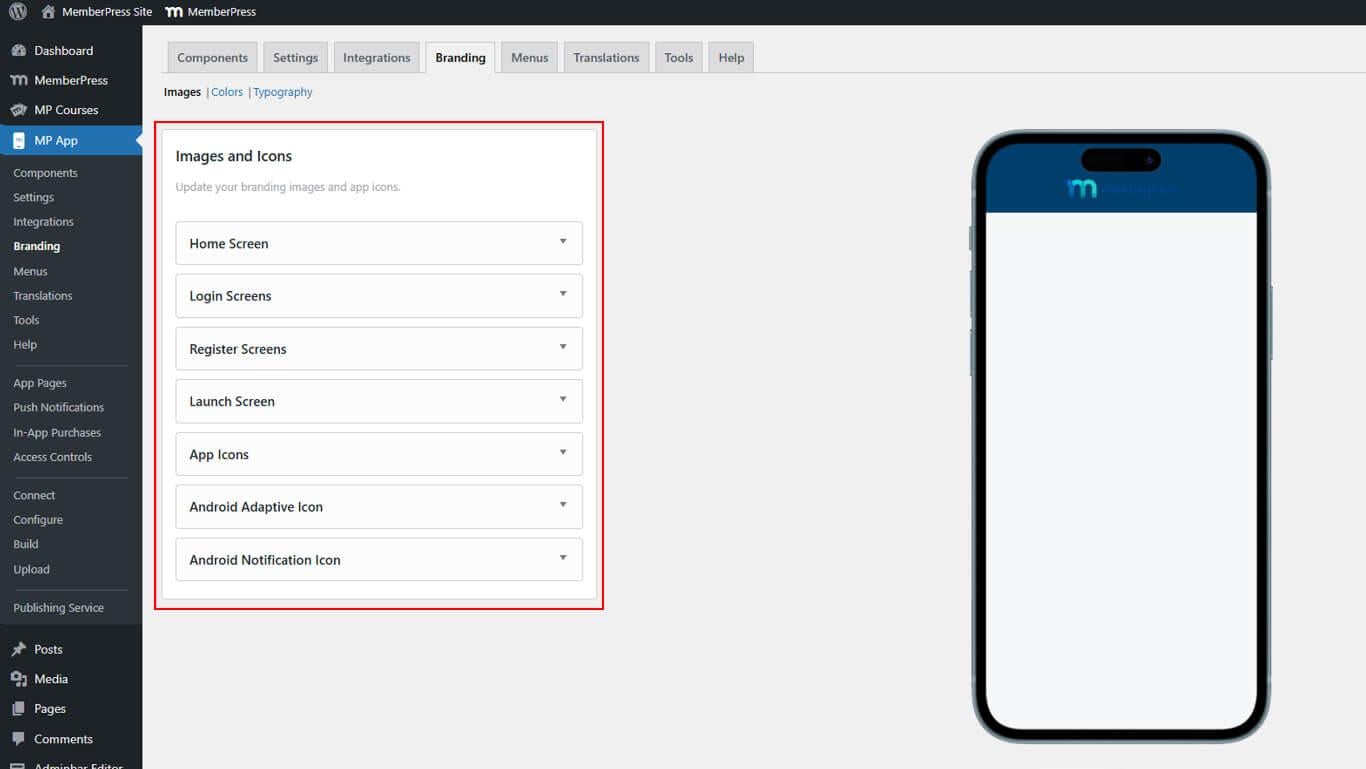
- Verify all configuration sections appear:
- Home Screen for navigation logo;
- Login Screens for authentication branding;
- Register Screens for registration branding;
- Launch Screen for splash screen configuration;
- App Icons for home screen icons;
- Android Adaptive Icons for adaptive icon layers;
- Notification Icon for the notification tray display.
Configuring Home Screen Logo
The home screen logo displays in app navigation headers.
- Navigate to Dashboard > MP AppKit > Branding > Images.
- Locate the Home Screen section.
- Click Upload Image.
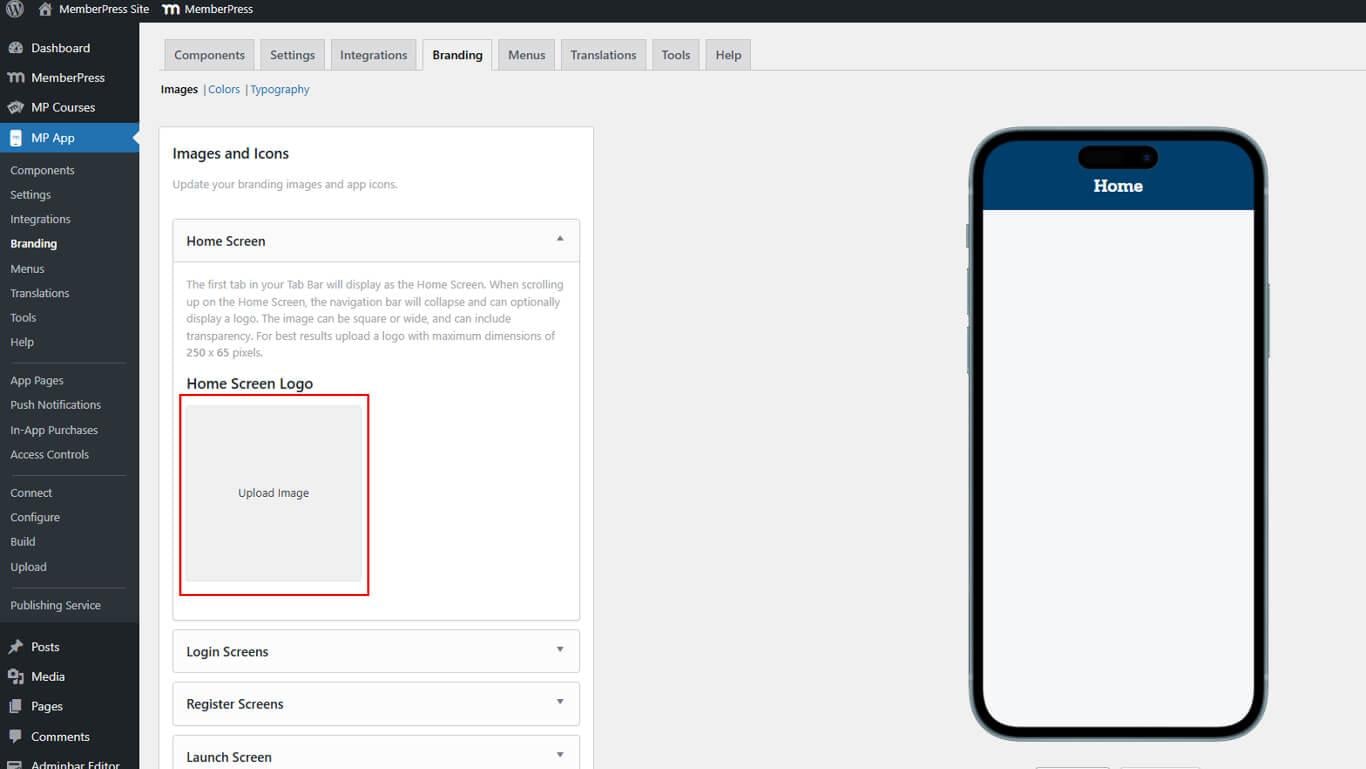
- Select the logo file from the device or media library.
- Resize the image using the cropping tool if needed.
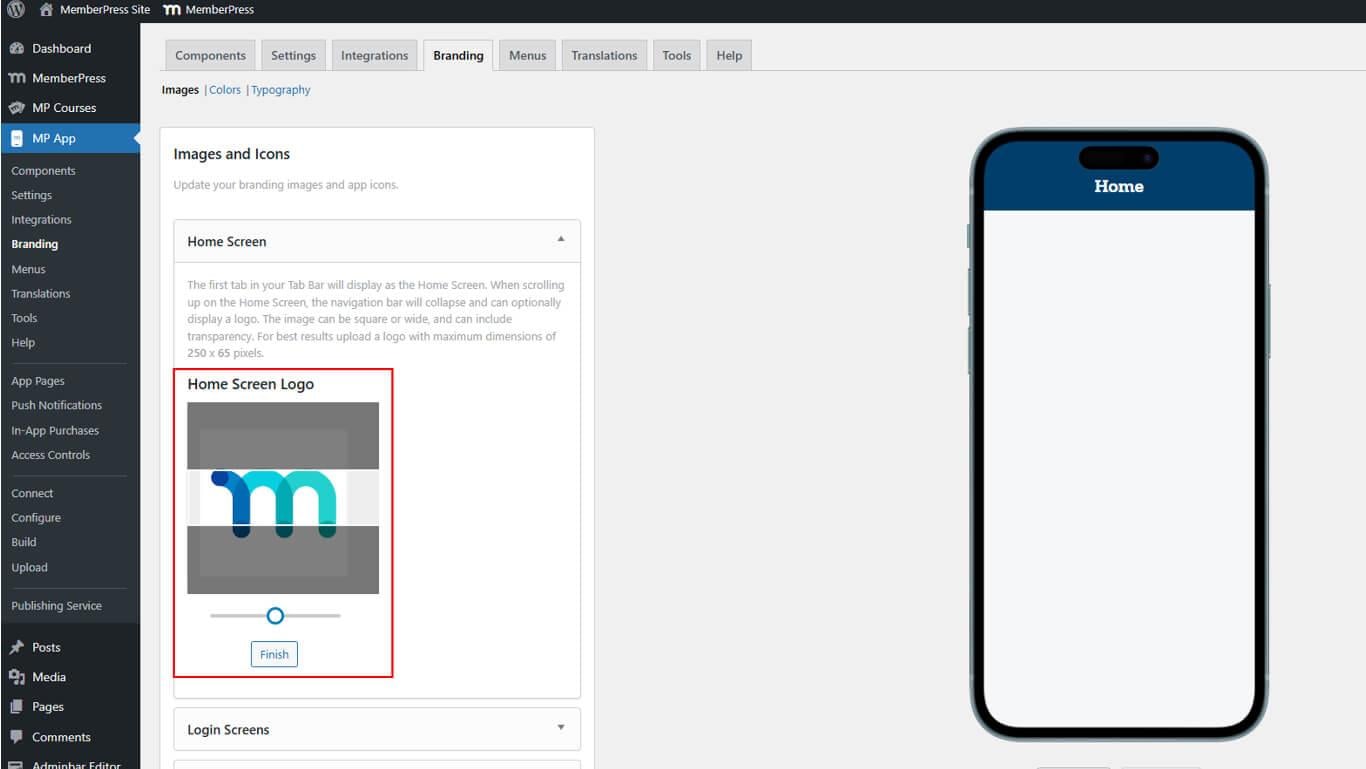
- Click Finish to complete the upload.
- Review the logo in iOS and Android preview mockups.
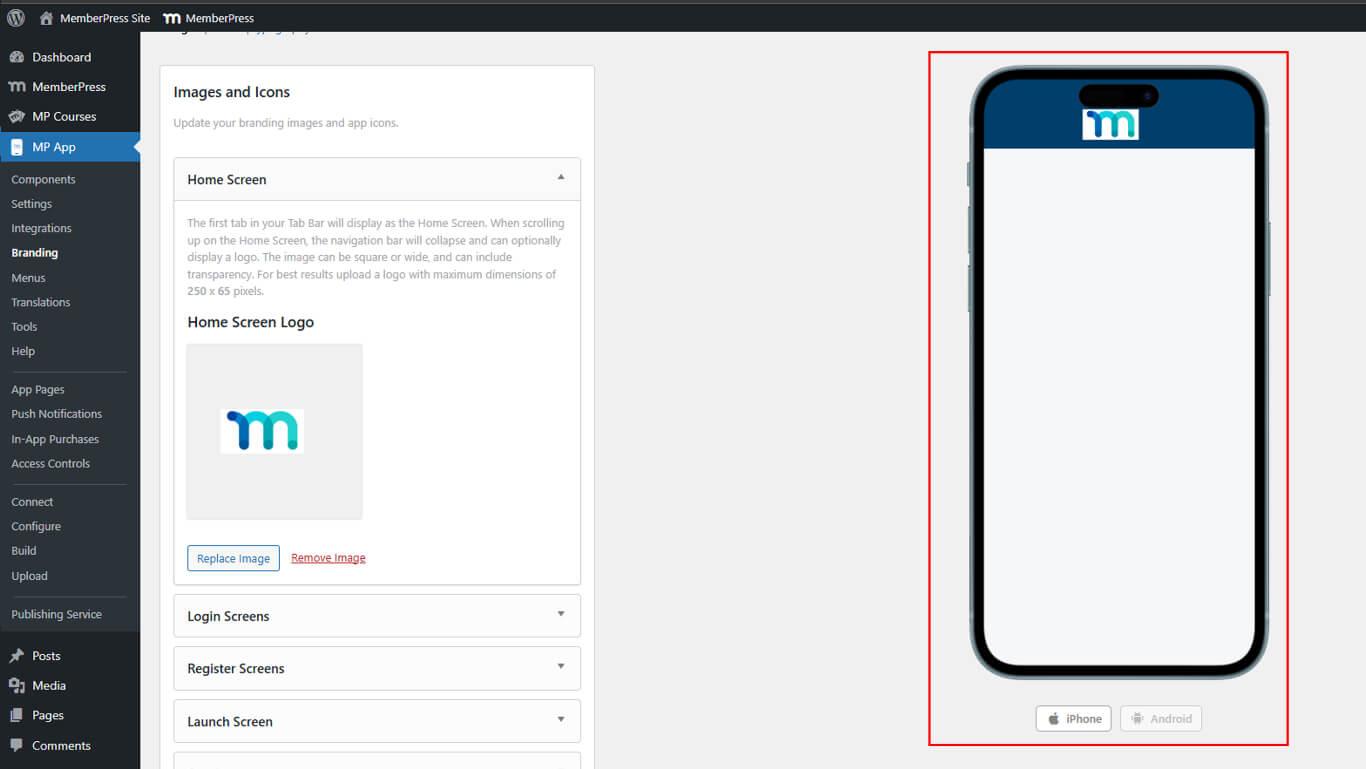
The home screen logo appears consistently across all app pages in the navigation header.
Configuring Login Screen Assets
Login screen assets include the logo and background images for authentication pages.
- Navigate to Dashboard > MP AppKit > Branding > Images.
- Locate the Login Screens section.
- Click Upload Image next to the Login Logo.
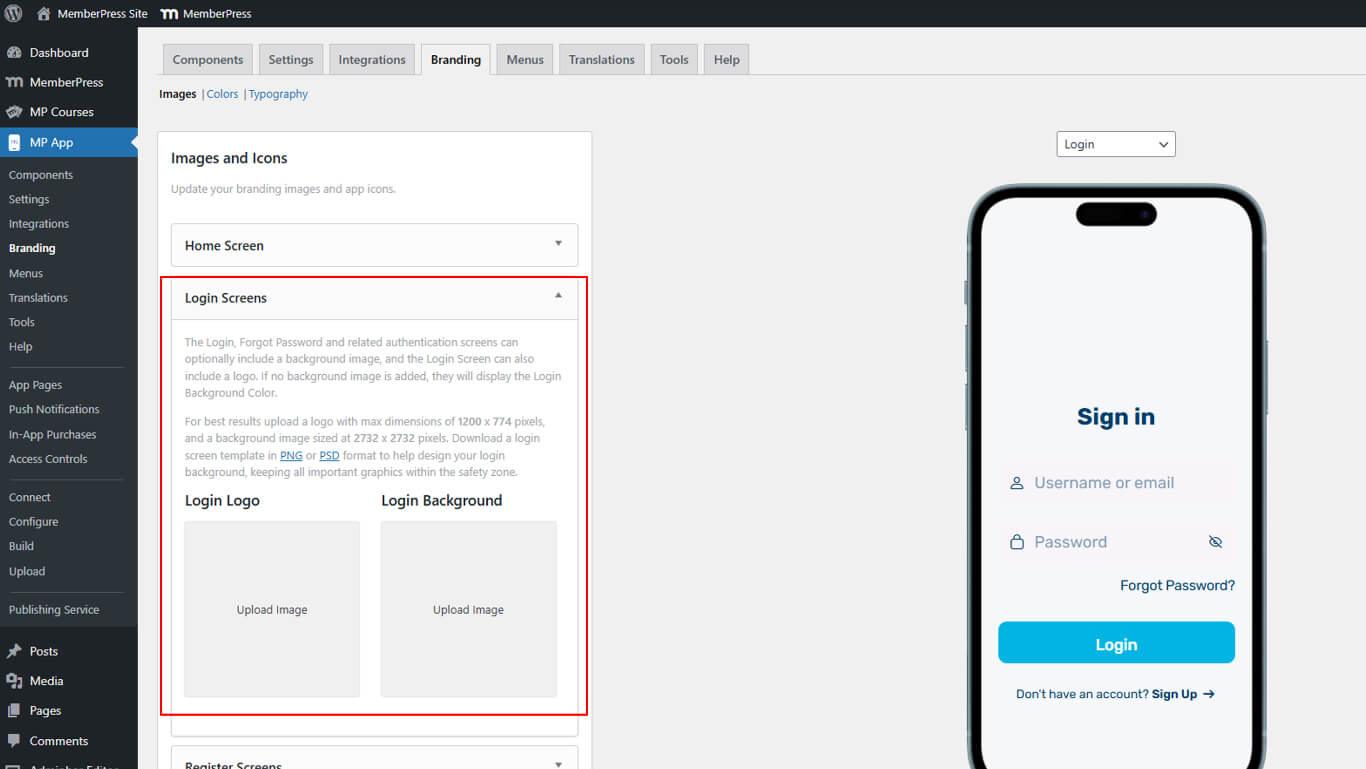
- Select the logo file and click Finish after any adjustments.
- Click Upload Image.
- Select the background file and click Finish after adjustments.
- Toggle between the Login and Forgot Password page previews.
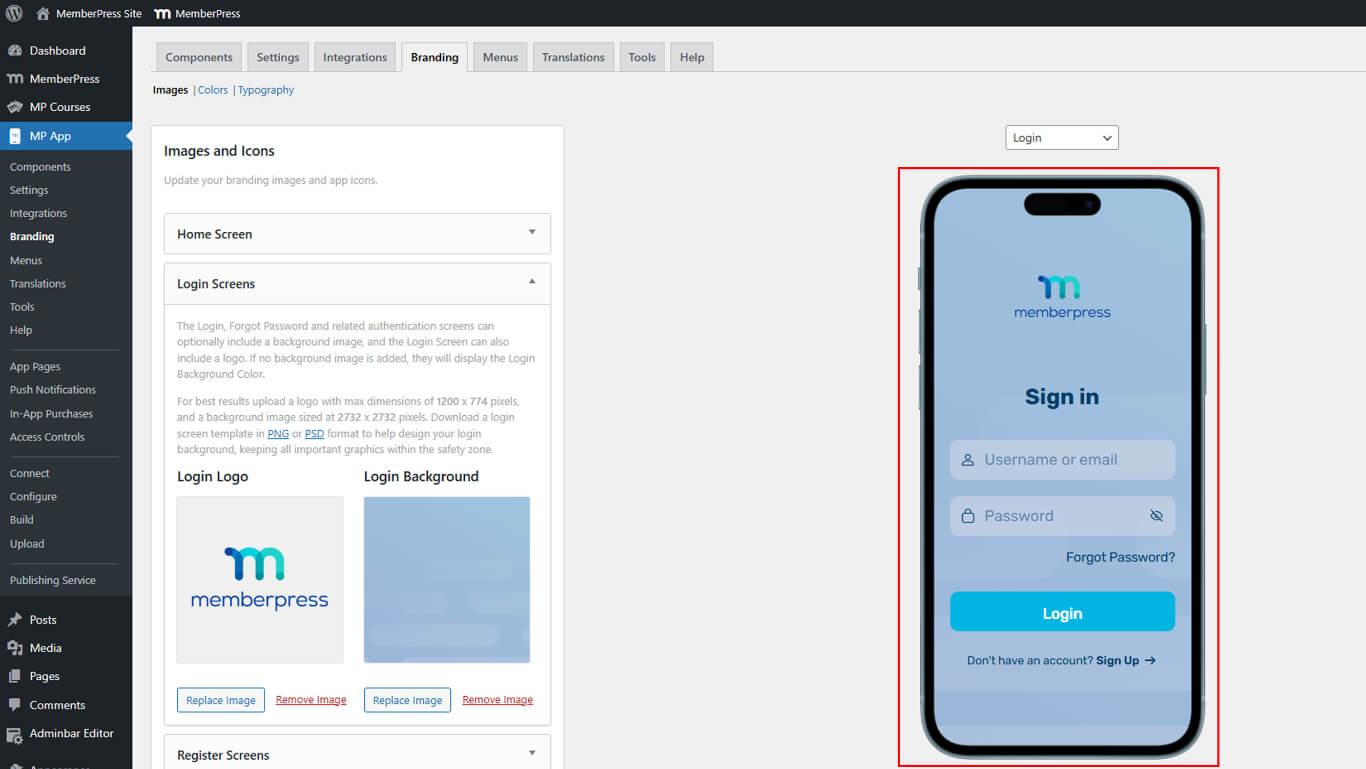
Login assets display on authentication pages, including login, forgot password, and password reset screens.
Configuring Registration Screen Assets
Registration screen assets include background images for account creation pages.
- Navigate to Dashboard > MP AppKit > Branding > Images.
- Locate the Register Screens section.
- Click Upload Images.
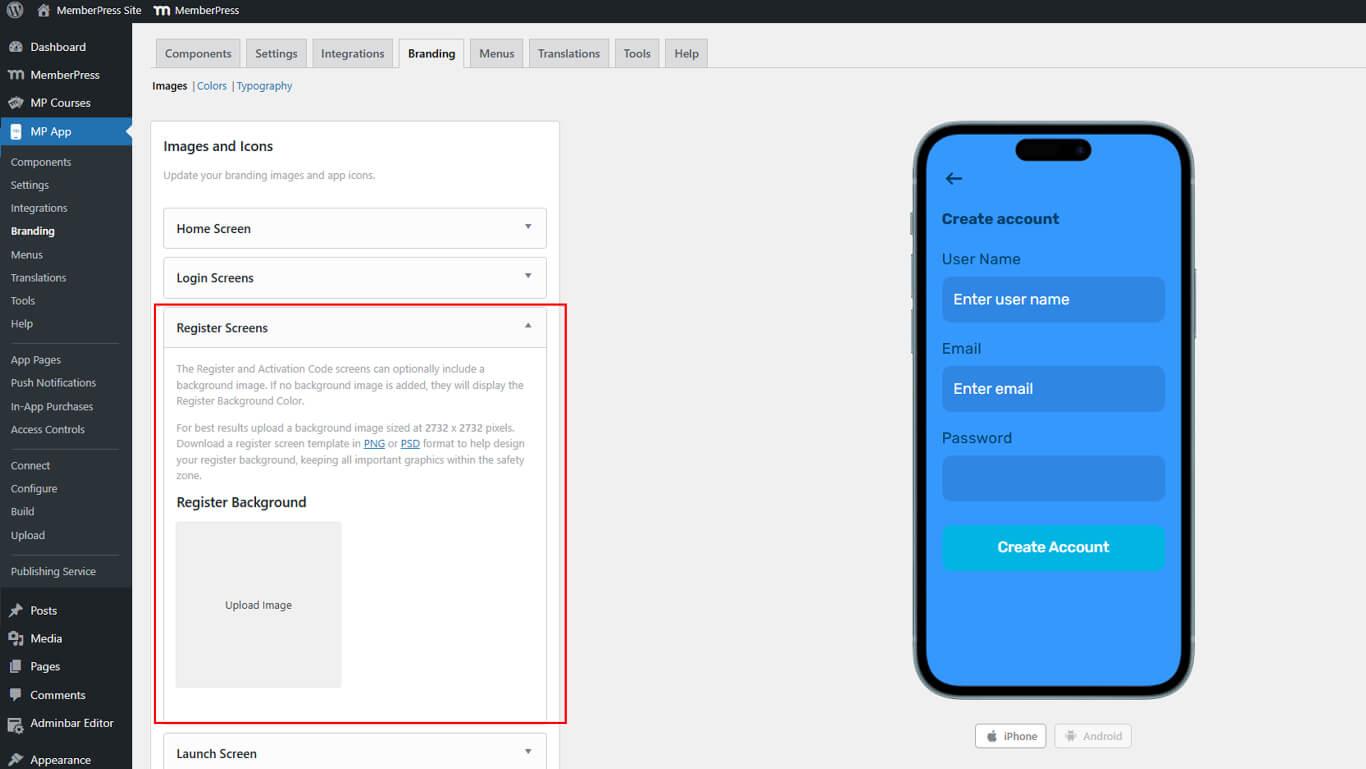
- Select the background file and click Finish after adjustments.
- Review the background in the registration page preview.
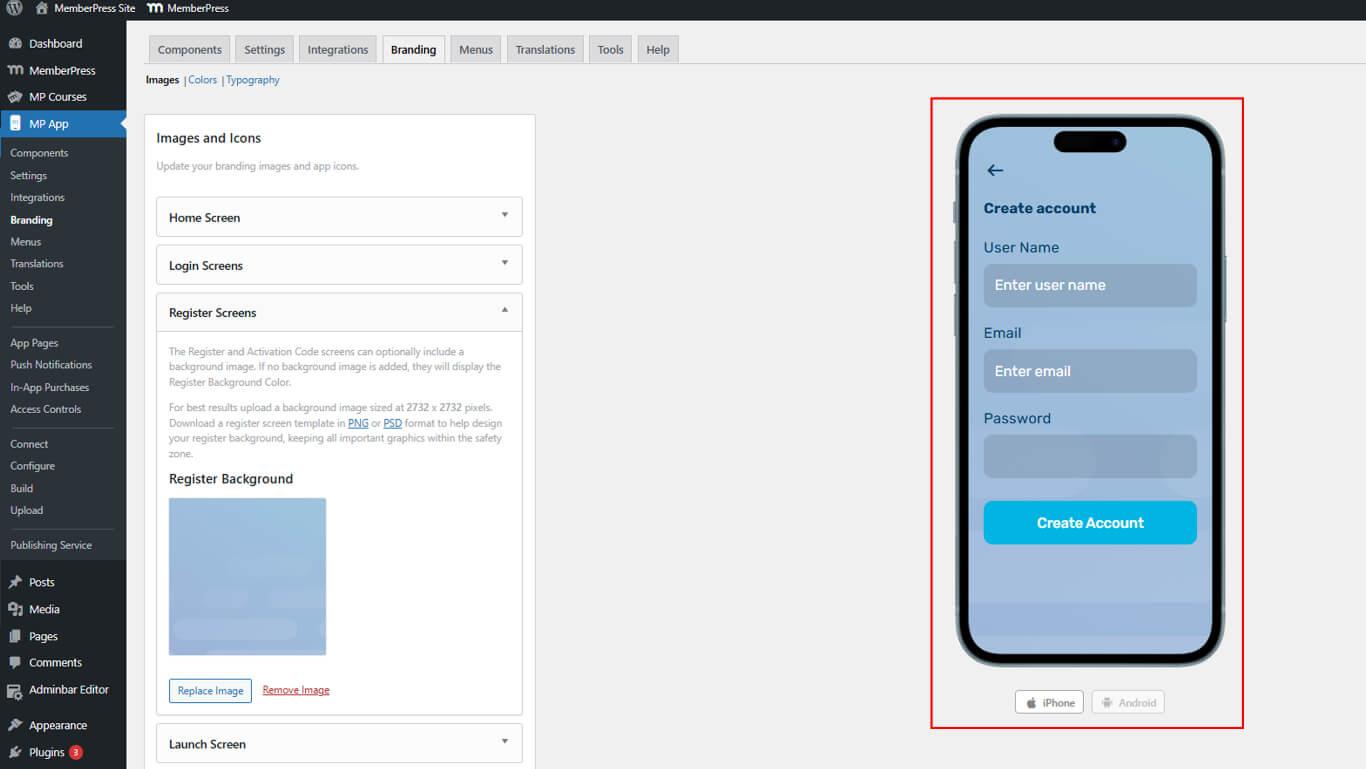
Using the same image for login and registration backgrounds creates consistent authentication branding.
Configuring Launch Screen Assets
Launch screen assets display during app initialization before content loads.
- Navigate to Dashboard > MP AppKit > Branding > Images.
- Locate the Launch Screen section.
- Click Upload Image.
- Select the background file.
- Check the Show Spinner checkbox to enable the loading animation.
- Select Spinner Color using the color picker.
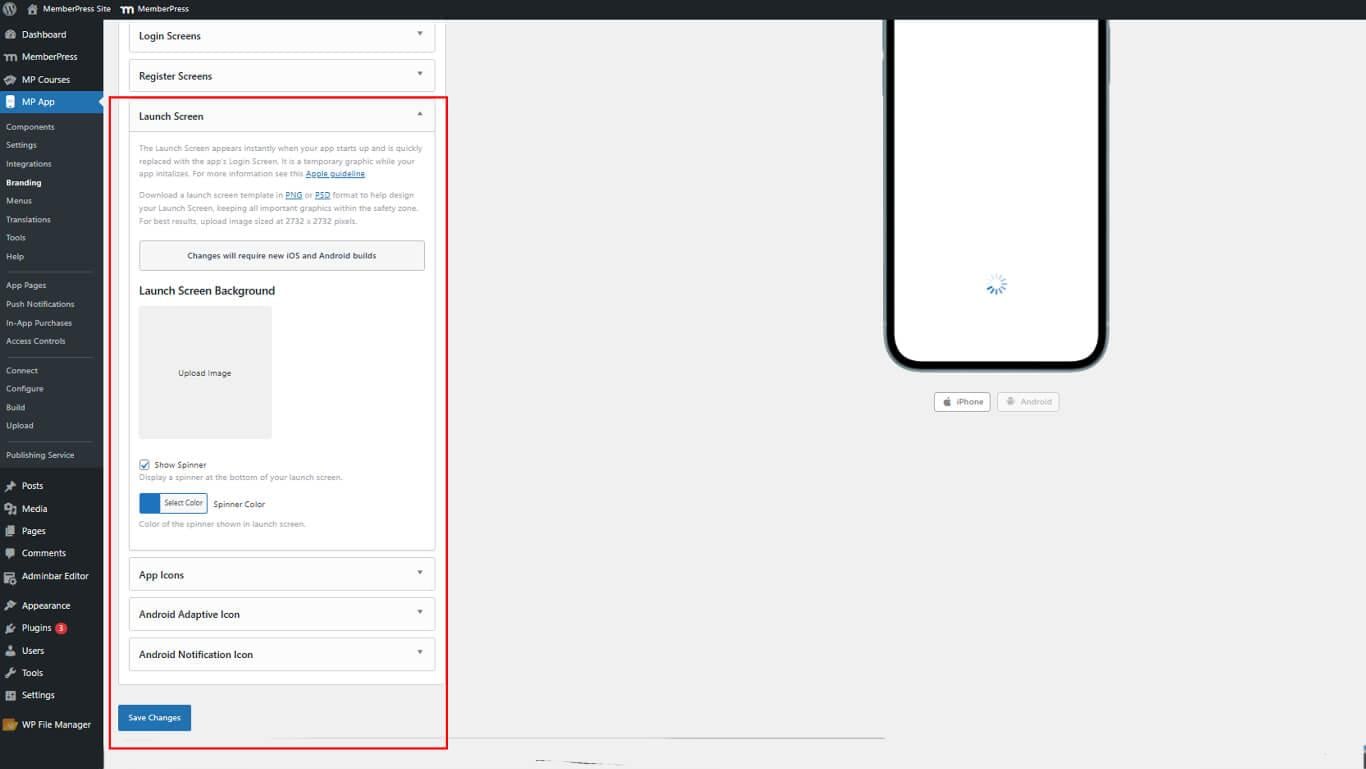
- Review the animated preview showing spinner behavior.
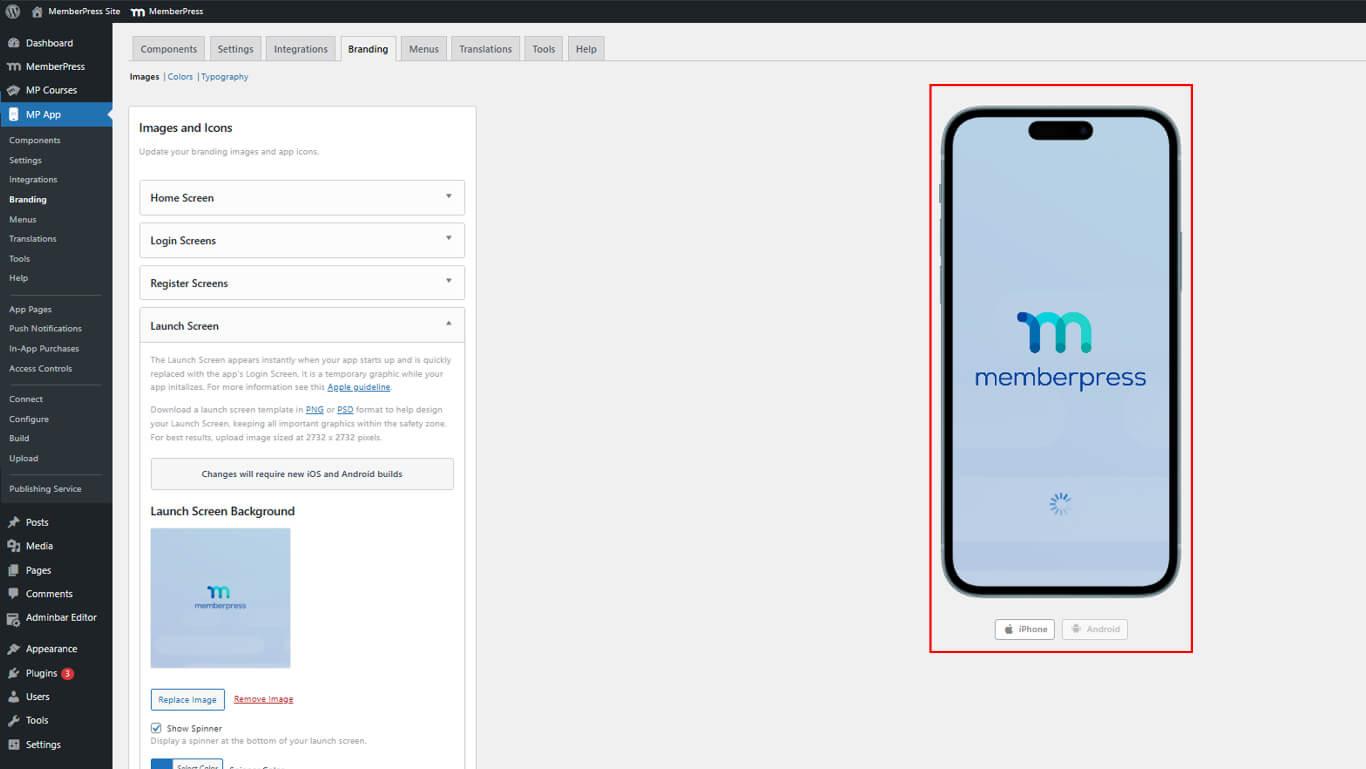
Configuring App Icons
App icons display on device home screens and in app stores.
- Navigate to Dashboard > MP AppKit > Branding > Images.
- Locate the App Icons section.
- Click Upload Image.
- Click the Upload Image next to the Android App Icon.
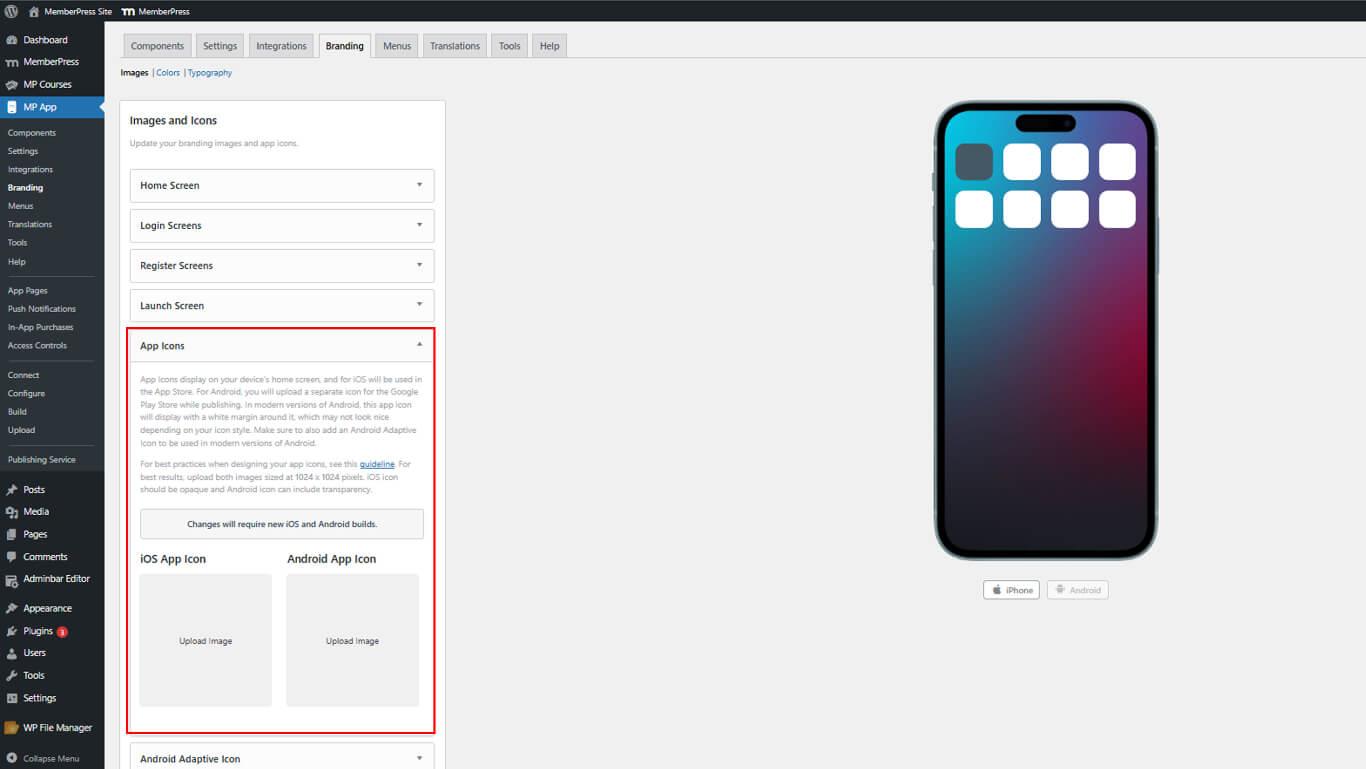
- Resize if needed and click Finish.
- Review icons in iPhone and Android device mockups.
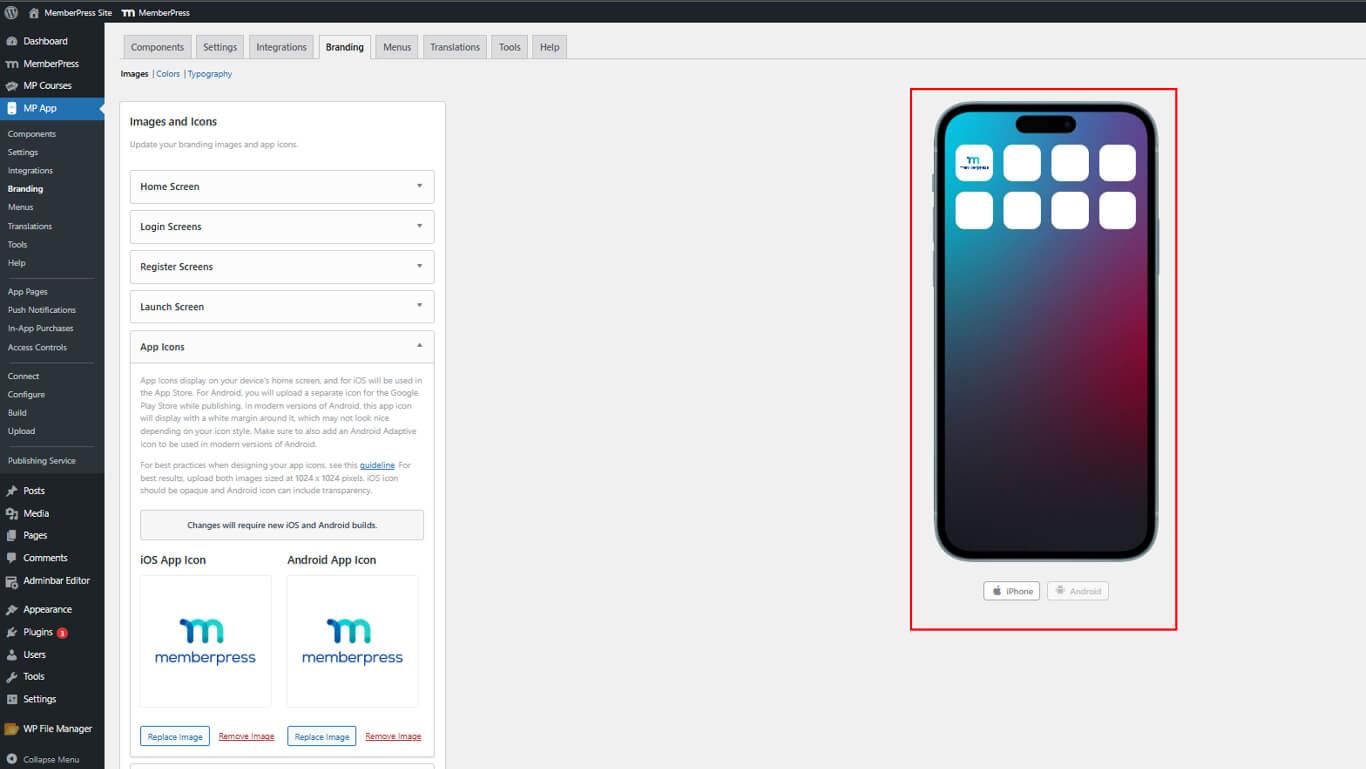
Separate iOS and Android icons allow platform-specific transparency handling.
Configuring Android Adaptive Icons
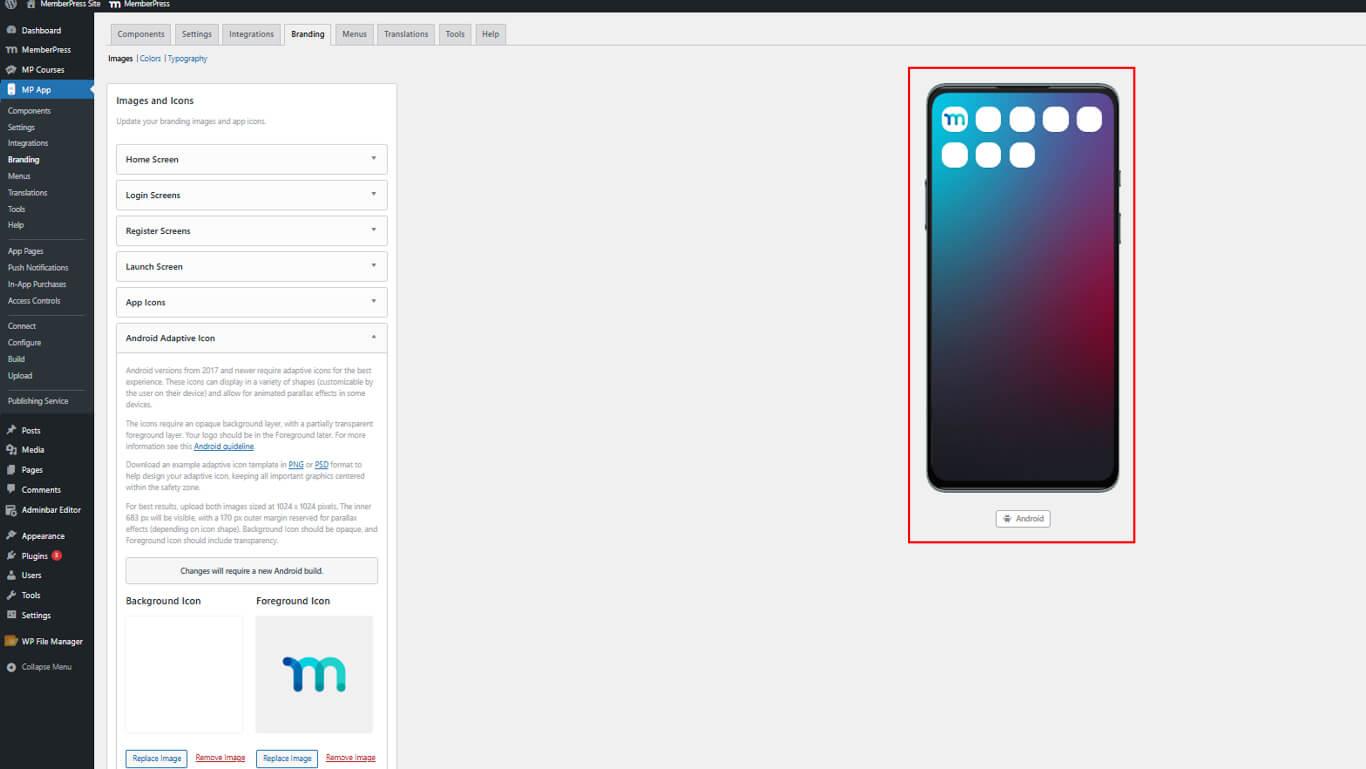
Android adaptive icons provide foreground and background layers for flexible display.
- Navigate to Dashboard > MP AppKit > Branding > Images.
- Locate the Android Adaptive Icon section.
- Click Upload Image.
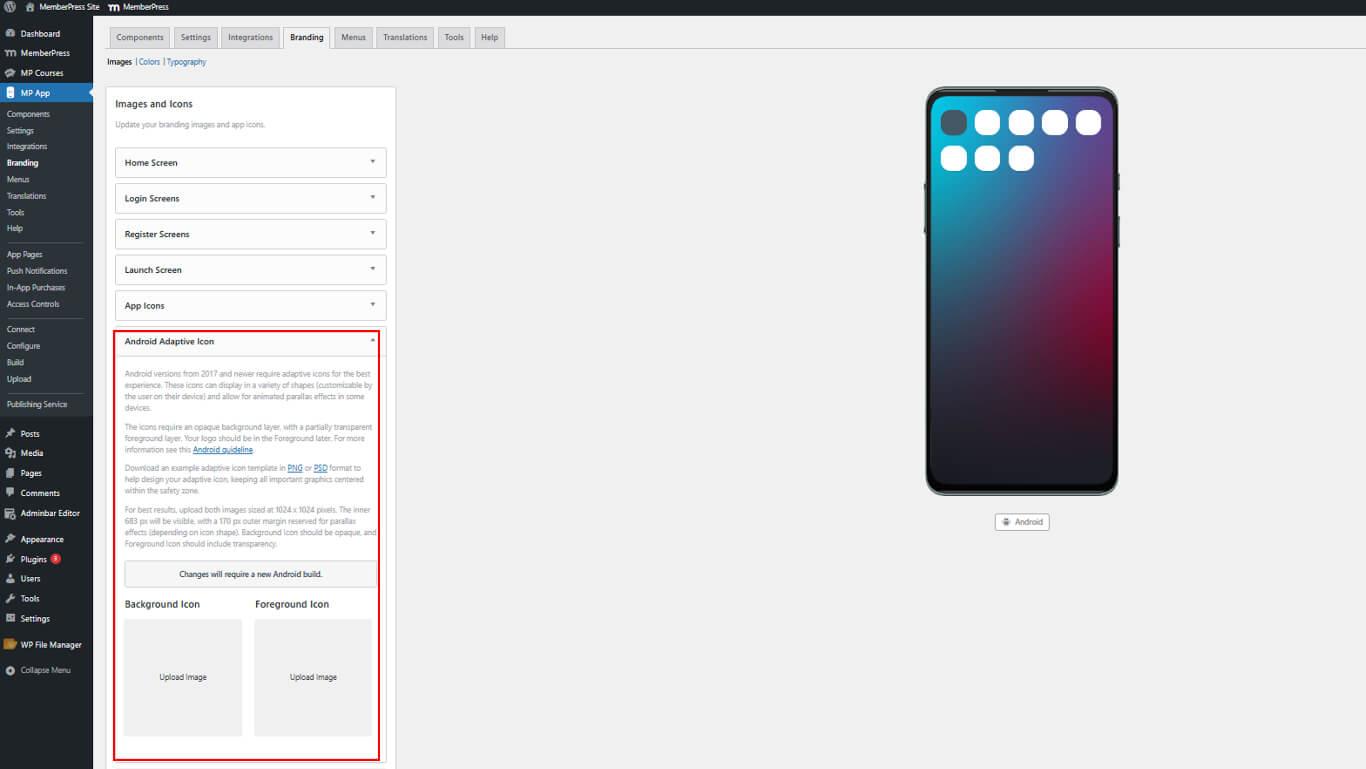
- Click Finish after any adjustments.
- Review the adaptive icon preview showing layer behavior.
Configuring Android Notification Icon
Notification icons display in the Android notification tray.
- Navigate to Dashboard > MP AppKit > Branding > Images.
- Locate the Notification Icon section.
- Click Upload Image.
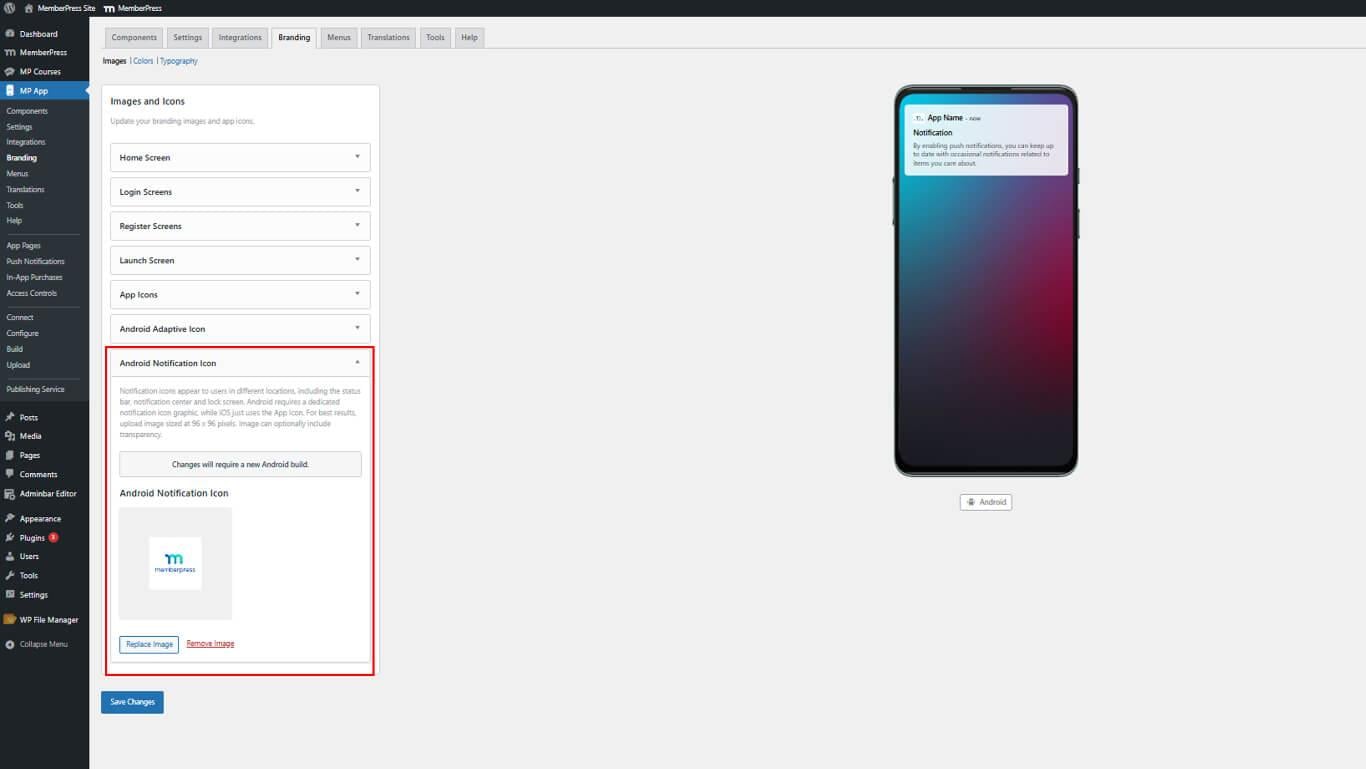
- Click Finish after any adjustments.
- Review the icon in the notification tray preview.
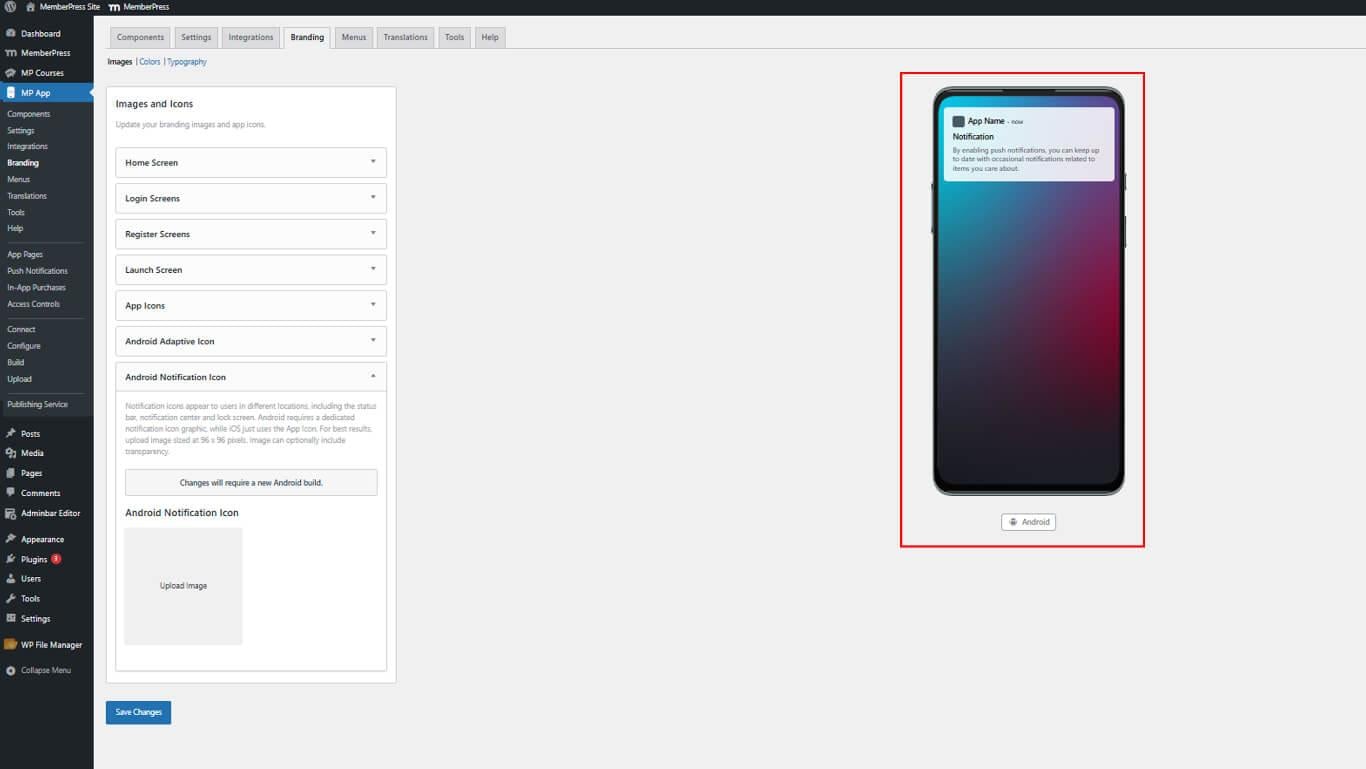
Notification icons should use simple, recognizable designs visible at small sizes.
Saving Configuration Changes
All image and icon uploads must be saved before taking effect.
- Scroll to the bottom of the Dashboard > MP AppKit > Branding > Images page.
- Click Save Changes.
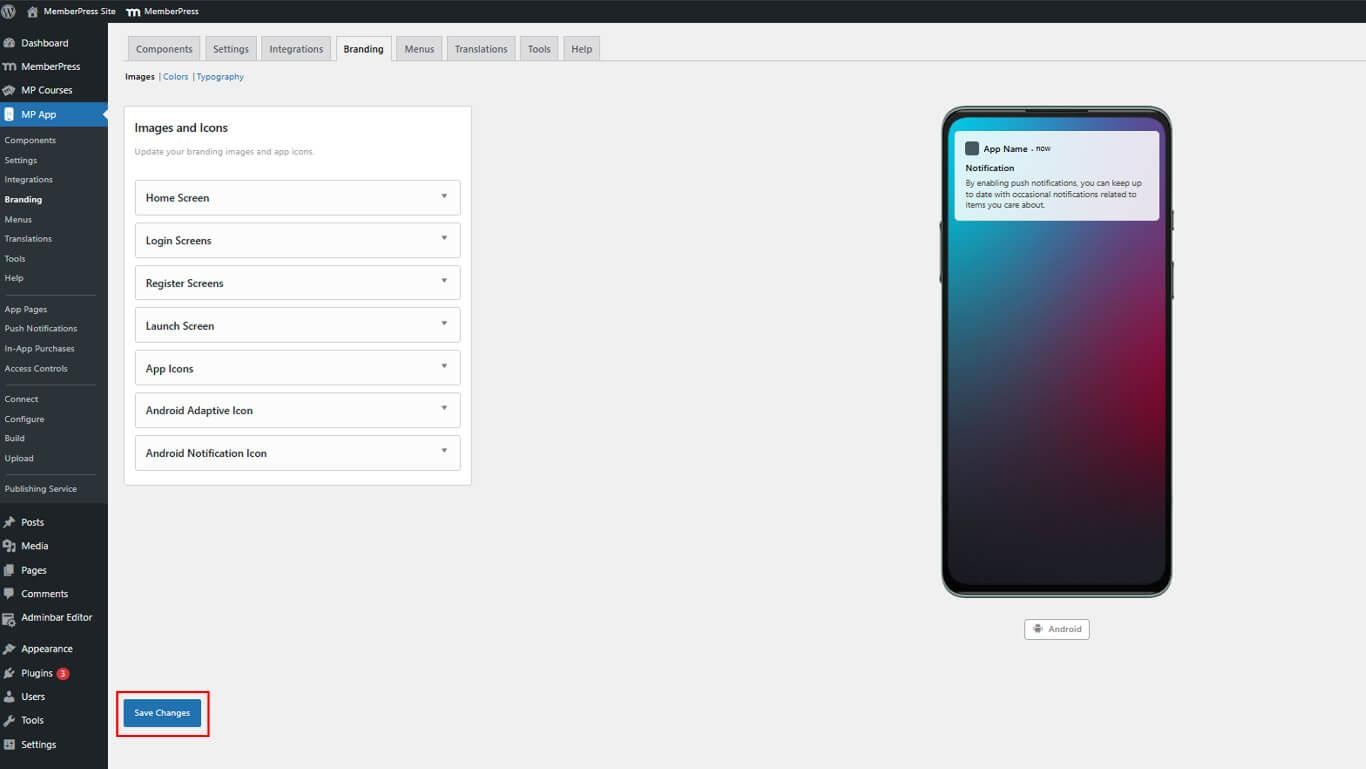
- Wait for the confirmation message indicating successful save.










