

Apple Universal Links enable website URLs to open directly in the iOS application, eliminating Safari redirects for seamless navigation. Universal Links configuration requires the Associated Domains capability in the Apple Developer account, provisioning profile regeneration, and plugin settings activation. This document explains how to enable Associated Domains, regenerate profiles, activate Universal Links, and verify configuration.
Understanding Apple Universal Links
Apple Universal Links connect website URLs to mobile app screens. When members tap links on iOS devices, content opens in the app rather than the Safari browser. This behavior creates seamless transitions between web and app experiences.
Enabling Associated Domains
The Associated Domains capability must be enabled in the Apple Developer account before the Universal Links function.
- Log in to the Apple Developer account at appleid.apple.com.
- Navigate to Certificates, Identifiers & Profiles section.
- Click Identifiers in the sidebar.
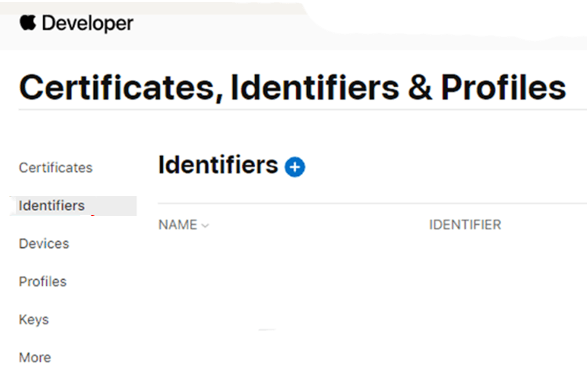
- Select the MemberPress App ID from the identifiers list.
- Click the Capabilities tab.
- Check the Associated Domains checkbox.
- Click Save to enable the capability.
Regenerating Provisioning Profiles
Provisioning profiles must be regenerated to include the Associated Domains capability.
- Navigate to Dashboard > MP AppKit > Configure > iOS Settings.
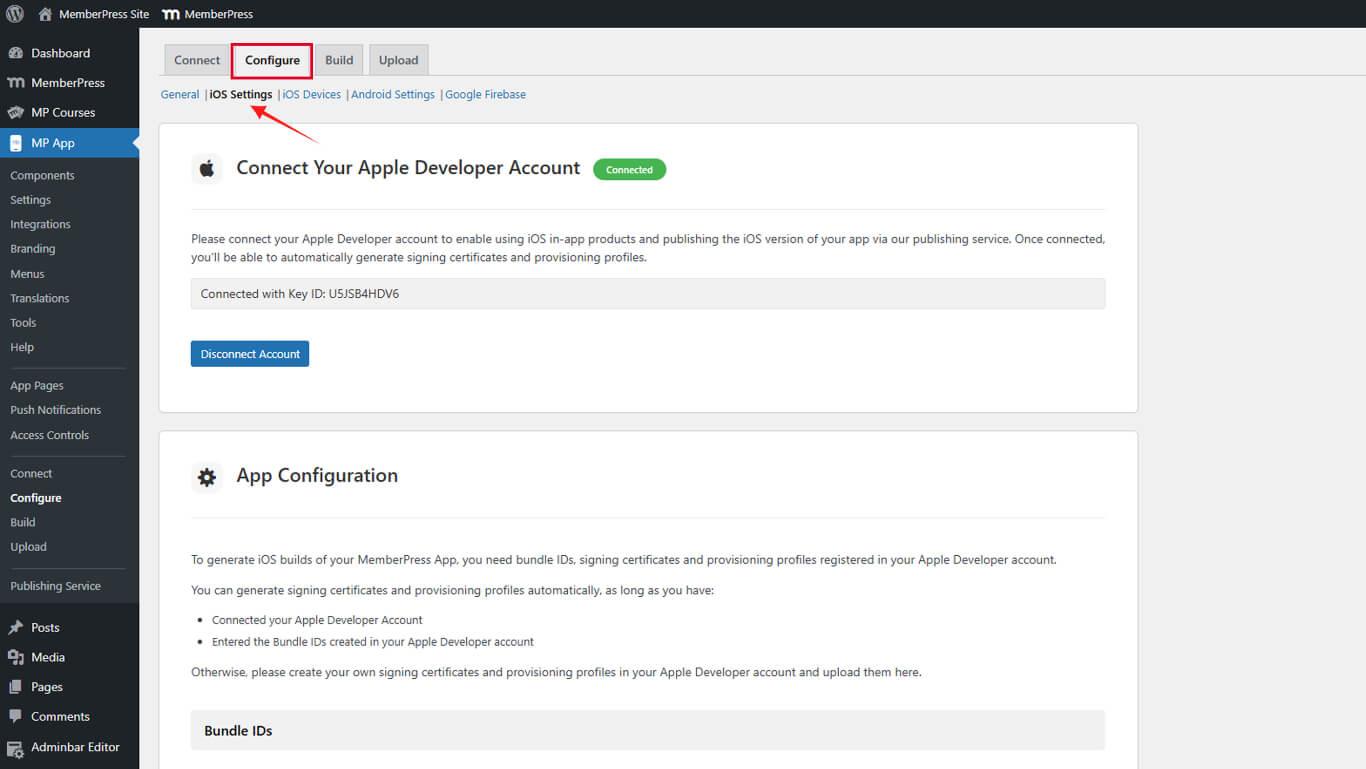
- Scroll to the Provisioning Profiles section.
- Uncheck the Automatically generate provisioning profiles checkbox.
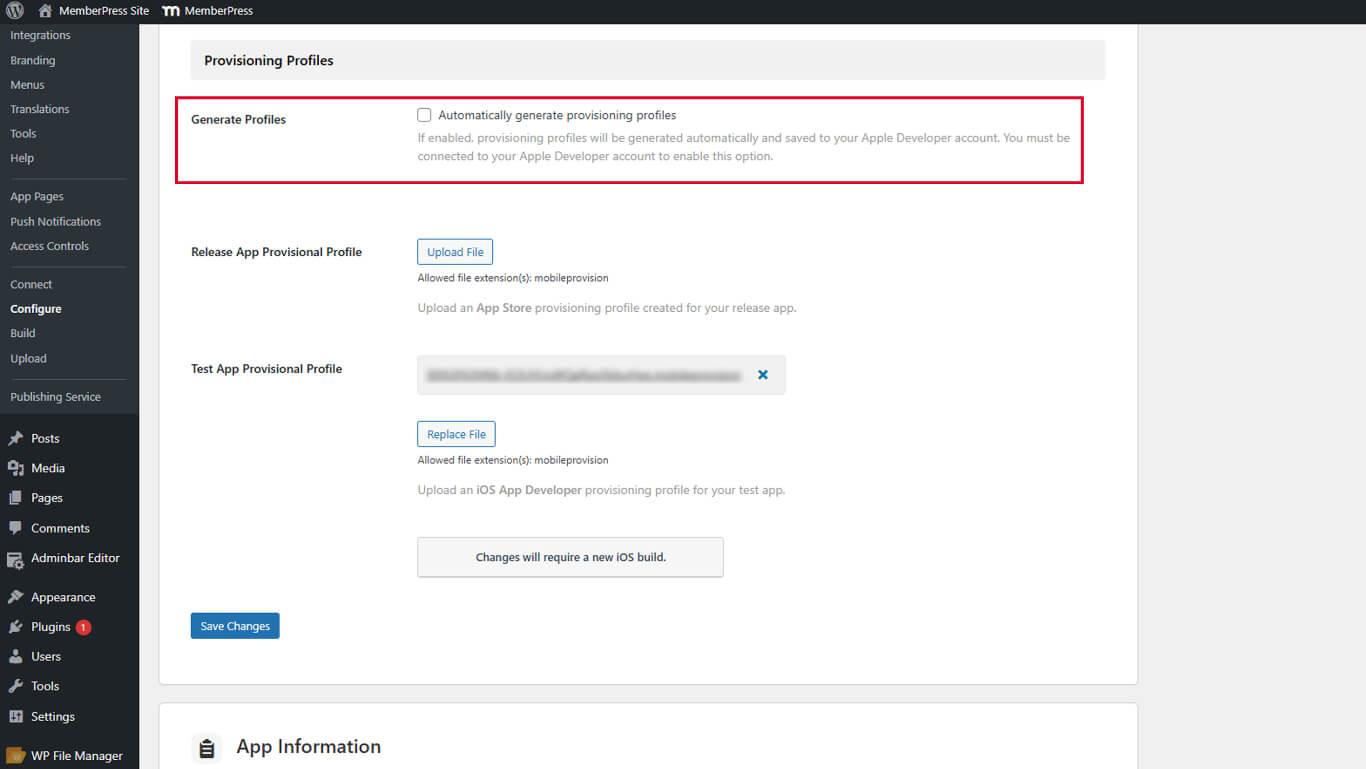
- Click Save Changes.
- Click the X next to each existing provisioning profile to delete it.
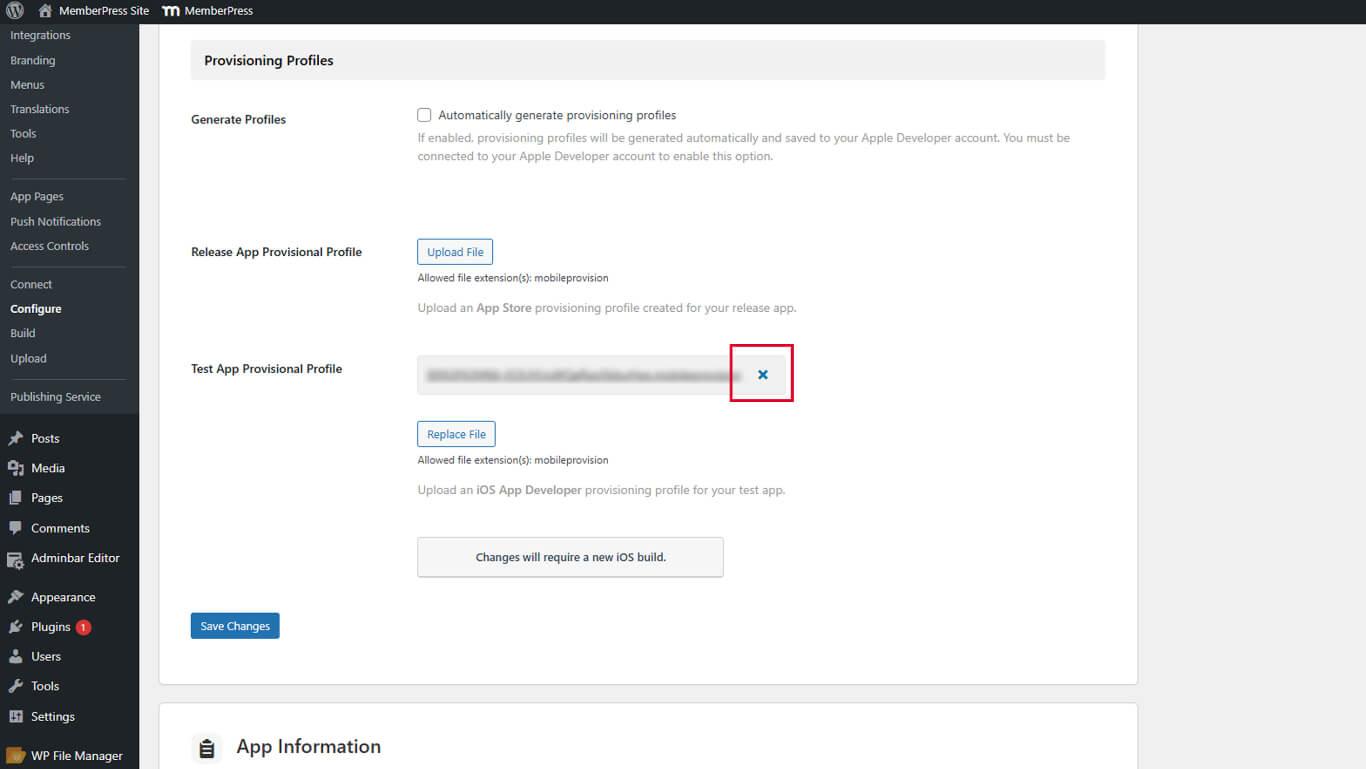
- Click Save Changes after deleting all profiles.
- Check the Automatically generate provisioning profiles checkbox.
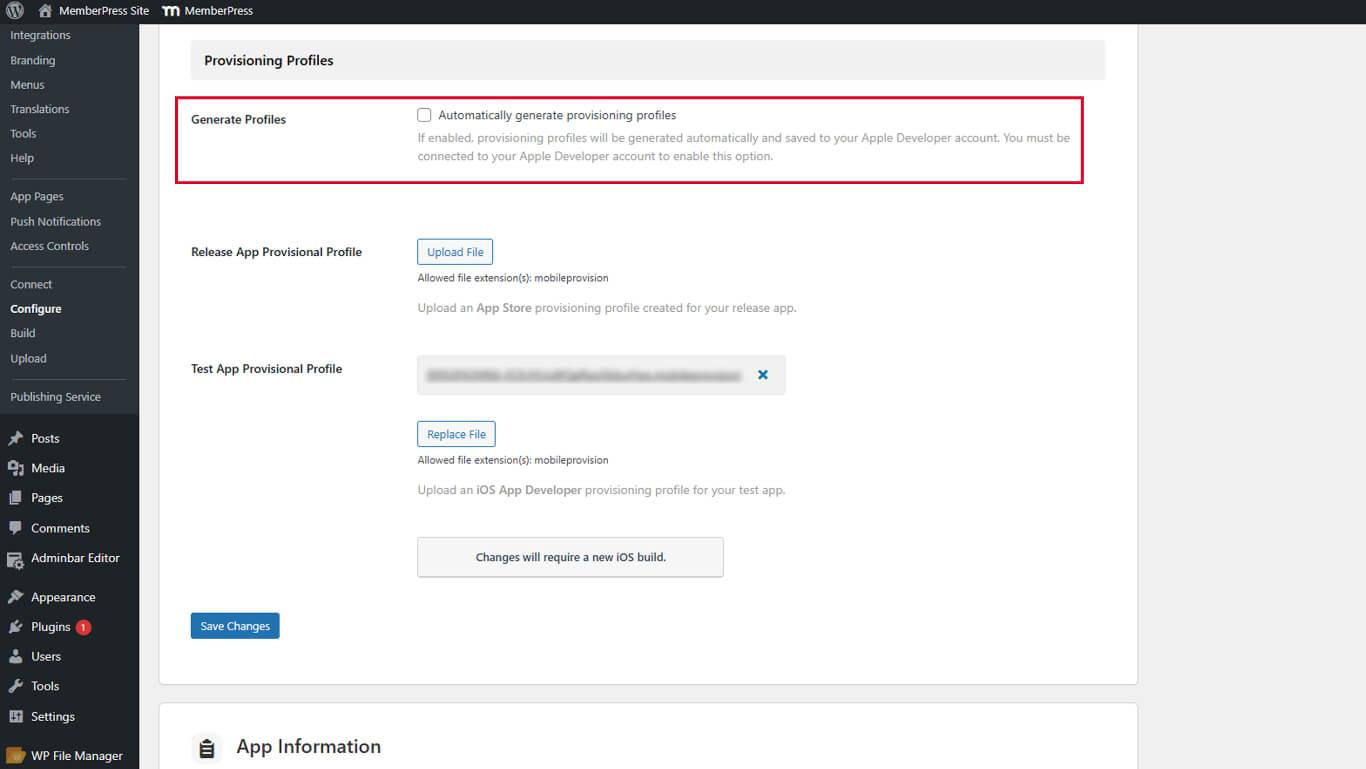
- Click Save Changes to create new profiles.
New provisioning profiles include the Associated Domains capability required for Universal Links.
Activating Universal Links
Universal Links activation occurs through iOS Settings configuration.
- Navigate to Dashboard > MP AppKit > Configure > iOS Settings.
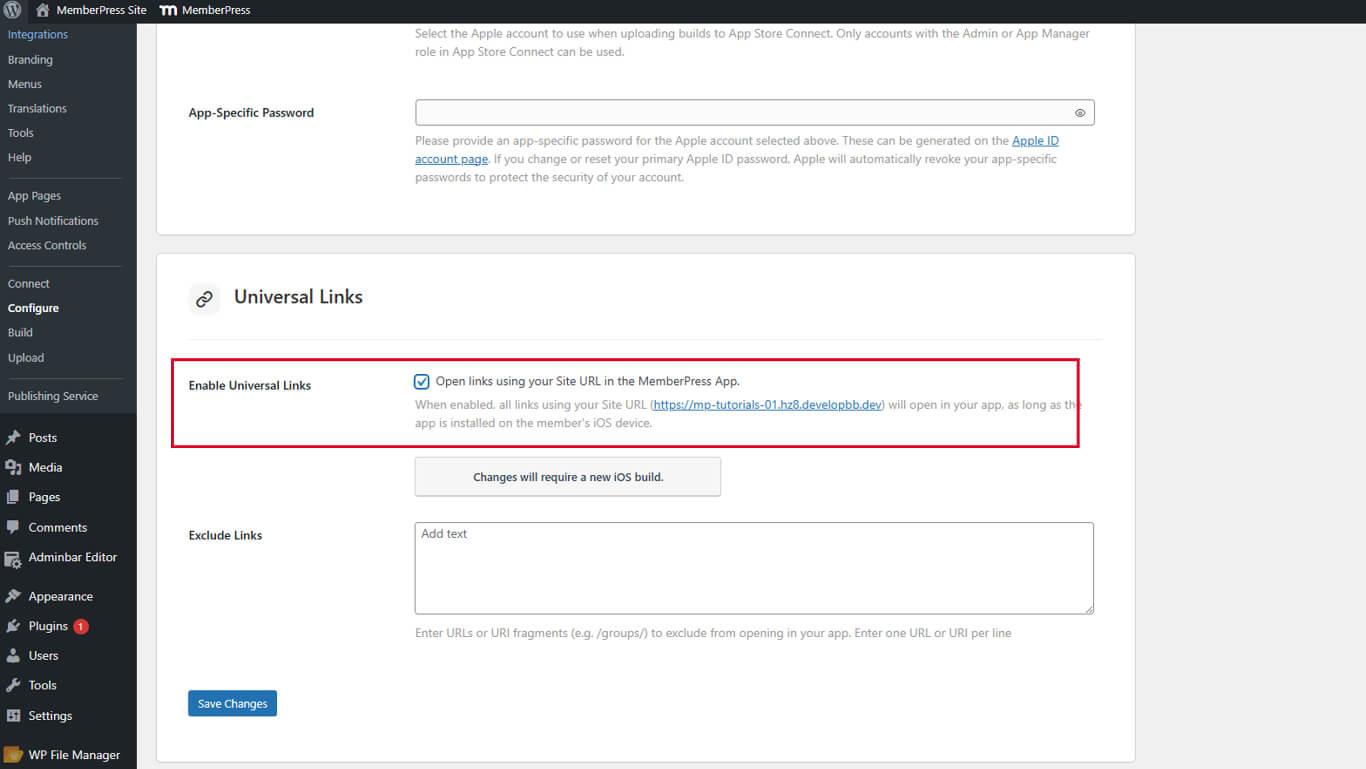
- Scroll to the Universal Links section.
- Check the Enable Universal Links checkbox.
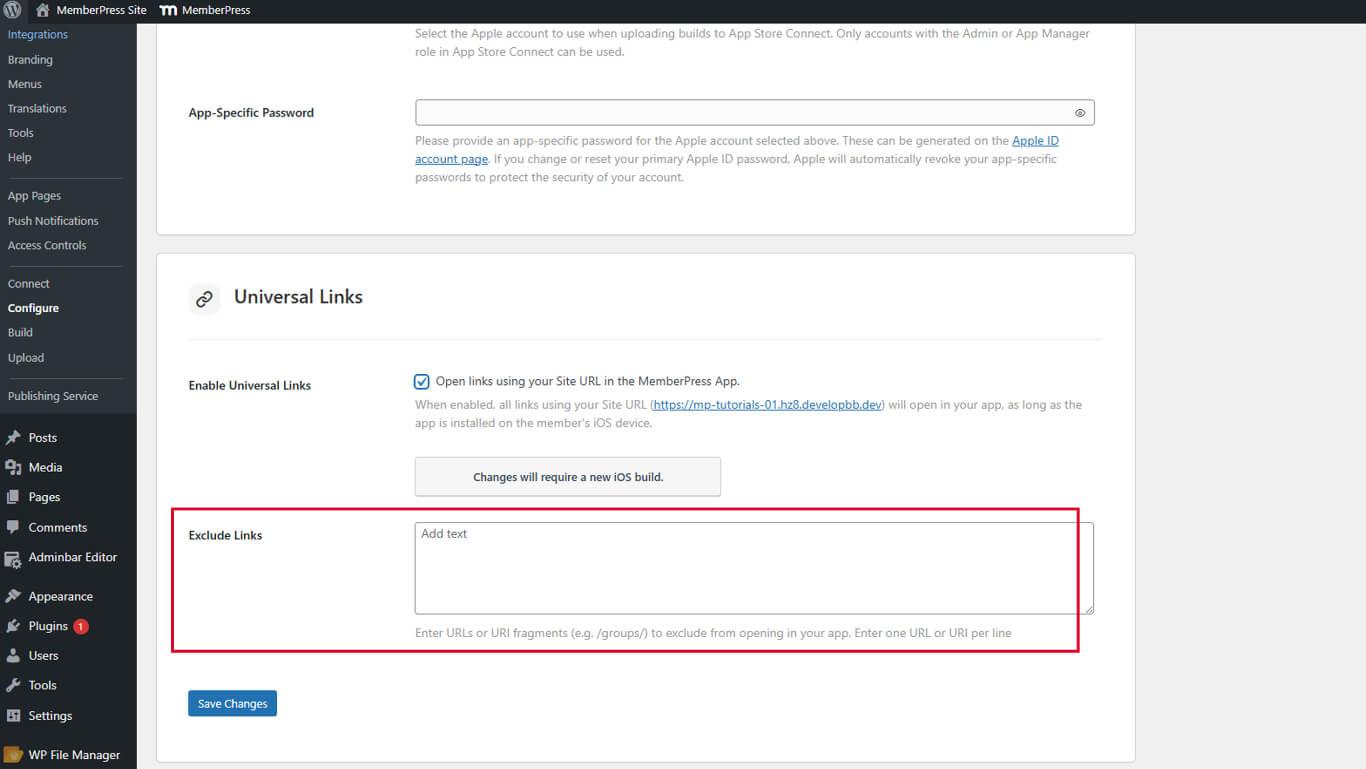
- Locate the Excluded Links field for optional URL exclusions.
- Enter URL patterns to exclude from app opening if needed.
- Click Save Changes.
Understanding Excluded Links
The Excluded Links field specifies URL patterns that should open in Safari instead of the app.
Enter URL patterns or paths that should not trigger app opening. Multiple exclusions can be listed with each pattern on a separate line.
Verifying Association File
Association file verification confirms proper Universal Links configuration.
- Open a web browser on any device.
- Navigate to https://yourdomain.com/.well-known/apple-app-site-association/, replacing yourdomain.com with the actual site URL.
- Verify the JSON response displays in the browser.
- Confirm JSON contains app identifiers in the response.
- Check that supported paths appear in the JSON structure.










