

General MemberPress AppKit settings control essential build configurations, including app icon display name and minimum version requirements. These settings ensure a consistent user experience and security across app installations.
This document explains how to configure app icon name and minimum build versions for version enforcement.
Understanding General Settings
General settings manage core app identification and version control features. App icon name determines text displayed beneath home screen icons and in push notifications. Minimum build version settings enforce version requirements, prompting outdated users to upgrade. These configurations maintain app security and feature compatibility across the user base.
Configuring App Icon Name
App icon name configuration determines text display beneath home screen icons.
- Navigate to Dashboard > MP AppKit > Configure > General.
- Locate the App Icon Name field.
- Enter the desired text for the home screen icon display.
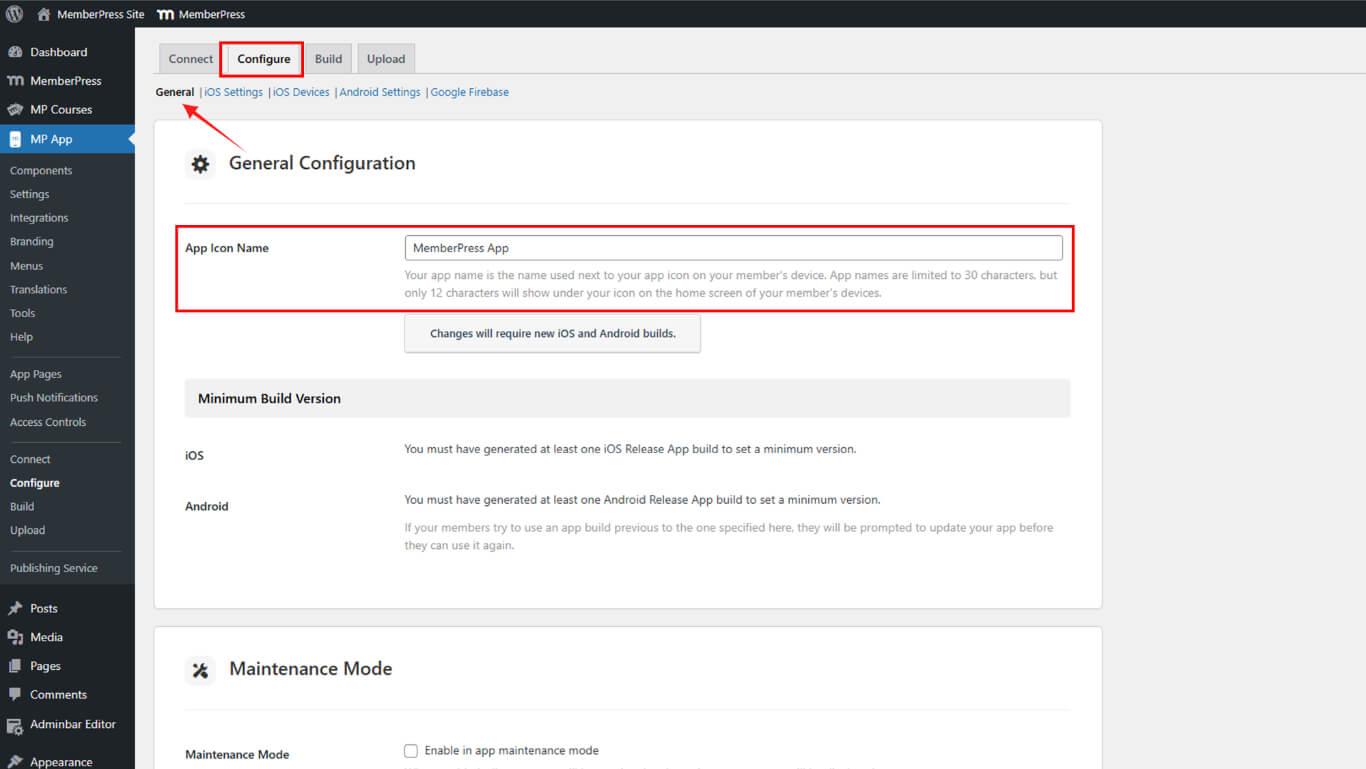
- Click Save Settings to store the configuration.
Understanding App Icon Name Requirements
App icon name follows specific display and character constraints.
Character limitations restrict icon name length based on the device operating system. iOS and Android have different maximum character displays beneath icons.
Display locations include home screen icons and push notification headers. Consistent naming improves brand recognition across all display contexts.
Update requirements necessitate new build generation and publication. Icon name changes do not update automatically on installed apps without a new build deployment.
Visibility impact affects user recognition and app identification on devices. Clear, concise names improve user experience and app accessibility.
Configuring Minimum Build Version
Minimum iOS build version enforces upgrade requirements for outdated iOS installations.
- Navigate to Dashboard > MP AppKit > Configure > General.
- Scroll to the Minimum iOS/Android Build Version section.
- Review available version options in the dropdown.
- Select the lowest version to support from the dropdown.
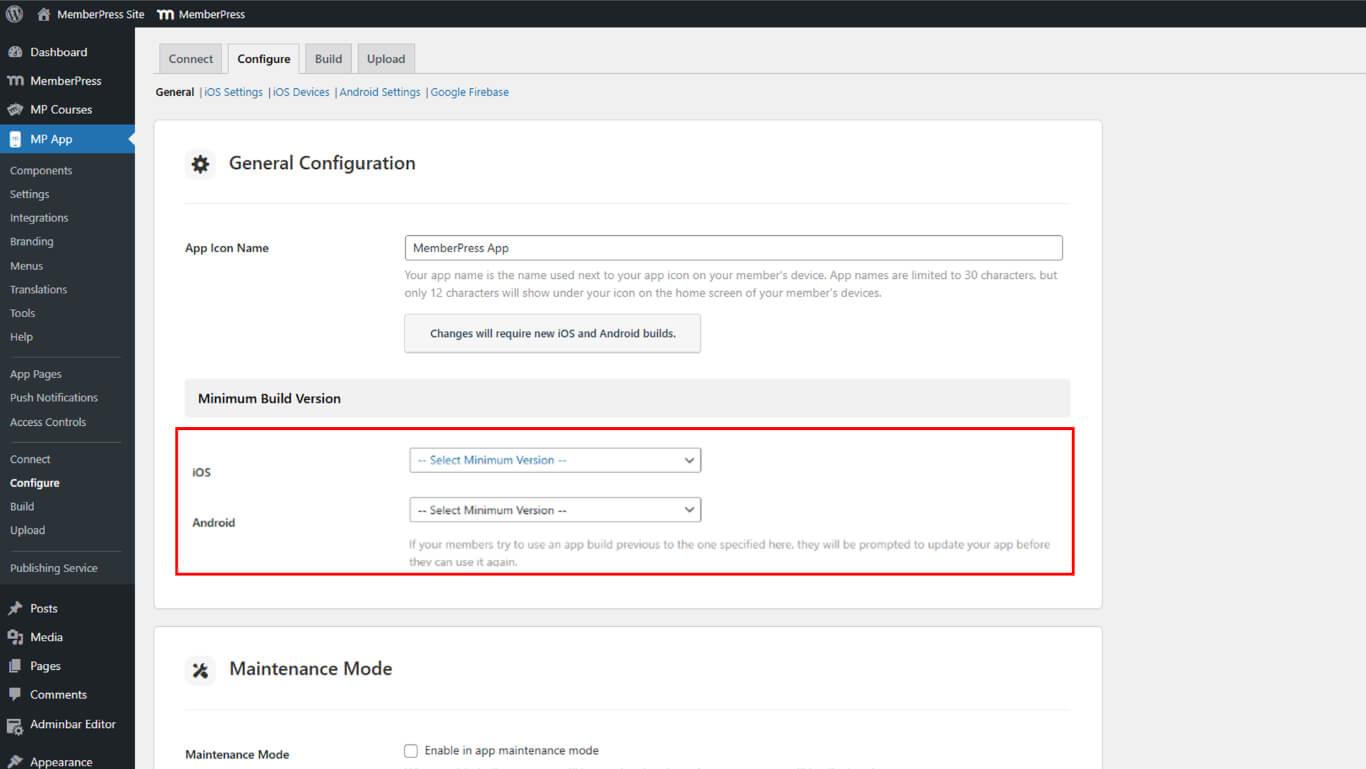
- Click Save Settings to enforce the minimum version requirement.
Understanding Minimum Build Version Enforcement
Minimum build version enforcement ensures users maintain compatible app versions.
Version checking occurs when users launch the app after the minimum version configuration. The app compares the installed version against the configured minimum version requirement.
Update prompts display to users running versions below the minimum requirement. Prompts direct users to app stores for required updates before app access.
Security maintenance protects users from known vulnerabilities in outdated versions. Version enforcement ensures critical security patches reach the entire user base.
Feature compatibility maintains consistent functionality across user installations. Outdated versions may lack features or integrations requiring newer code.
Gradual enforcement allows staged rollout of version requirements. Incremental minimum version increases prevent sudden access disruption for large user segments.
Verifying Installed Build Version
Build version verification confirms which version is currently installed on devices.
- Open the MemberPress iOS/Android app on the mobile device.
- Navigate to the app settings or menu.
- Tap Settings in the navigation.
- Tap About in the settings menu.
- Review the Version displayed in the About section.
- Compare the displayed version with the expected version number.
Version display shows the current installed build, enabling troubleshooting and verification. Users can confirm successful updates by checking version numbers in the about section.
Best Practices for General Settings
Effective general settings management maintains app security and user experience.
Test icon names on actual devices before publishing new builds. Icon name display varies across device models and operating system versions.
Communicate version requirements to users before enforcing new minimums. Advance notice allows users time to update before access restrictions apply.
Monitor version distribution through analytics before updating the minimum requirements. Ensure the majority of users have upgraded before enforcing new minimum versions.
Increment minimums gradually rather than in large jumps. Gradual increases reduce user disruption and support inquiry volume.
Document version changes for internal reference and support team knowledge. Clear records assist troubleshooting and user communication efforts.
Coordinate enforcement timing with major feature releases or security patches. Version requirements coinciding with valuable updates improve user compliance.










