

Google Fonts integration enables custom typography matching brand style guidelines. Font import requires a valid Google Fonts API key.
This document explains how to configure the API key, import fonts, and apply typography throughout the app.
Understanding Google Fonts Integration
Google Fonts provides extensive typeface options for app typography customization. API key configuration connects the app to the Google Fonts library. Imported fonts can be applied to various interface elements, including body text, headings, and navigation labels.
Configuring Google Fonts API Key
API key configuration enables font browsing and importing functionality.
- Navigate to Dashboard > MP AppKit > Integrations > Google Fonts.
- Click Get a Key next to the Google Fonts API Key field.
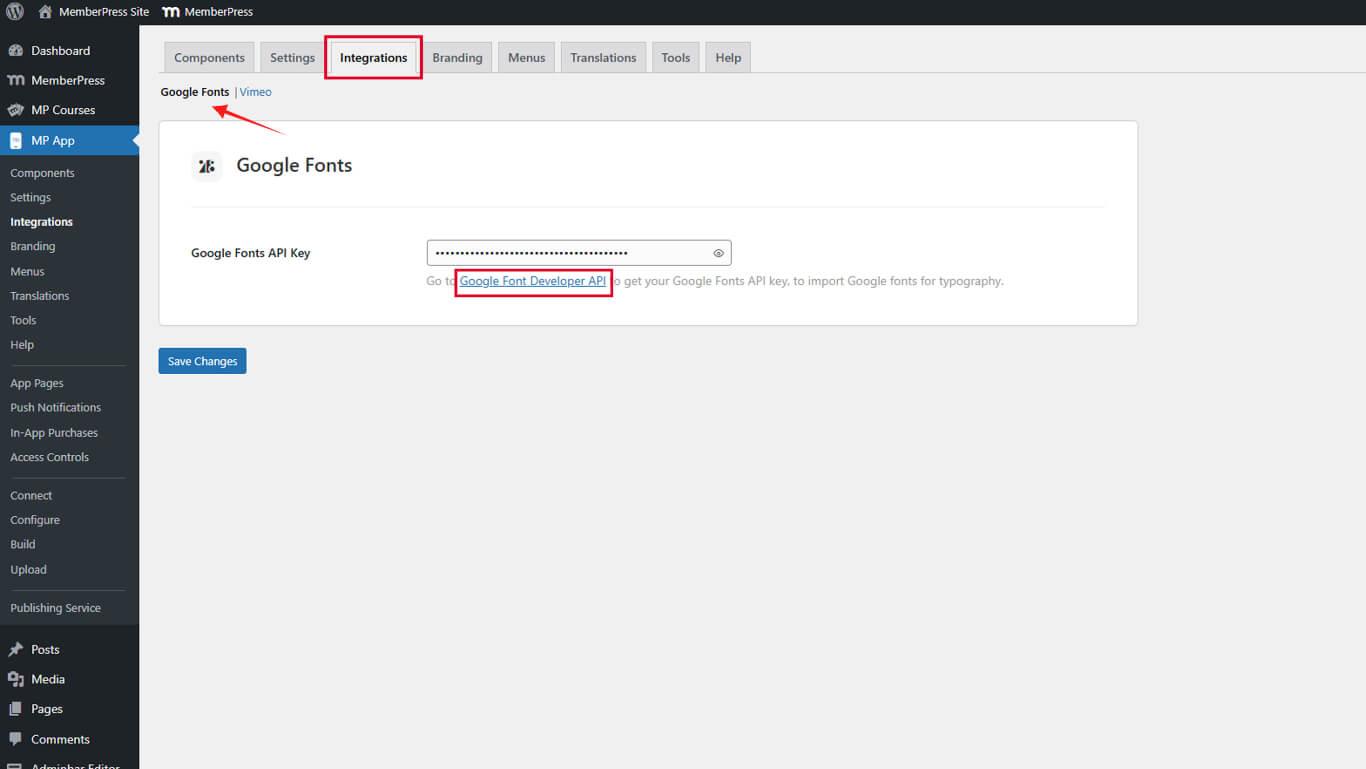
- The Google Developers Console opens in a new browser tab.
- Scroll down and click Get a Key on the Acquiring and using an API key page.
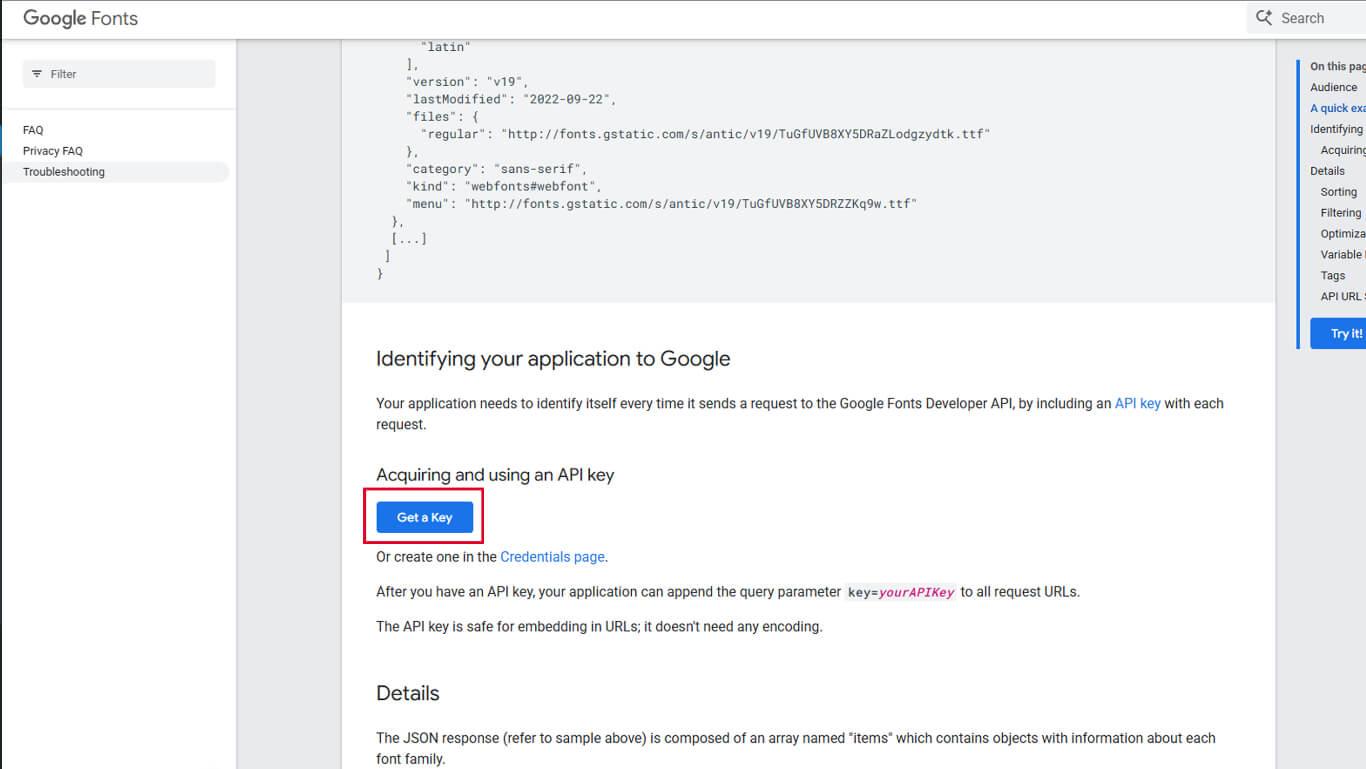
- Sign in with a Google account if prompted.
- Create a new project or select an existing project from the list.
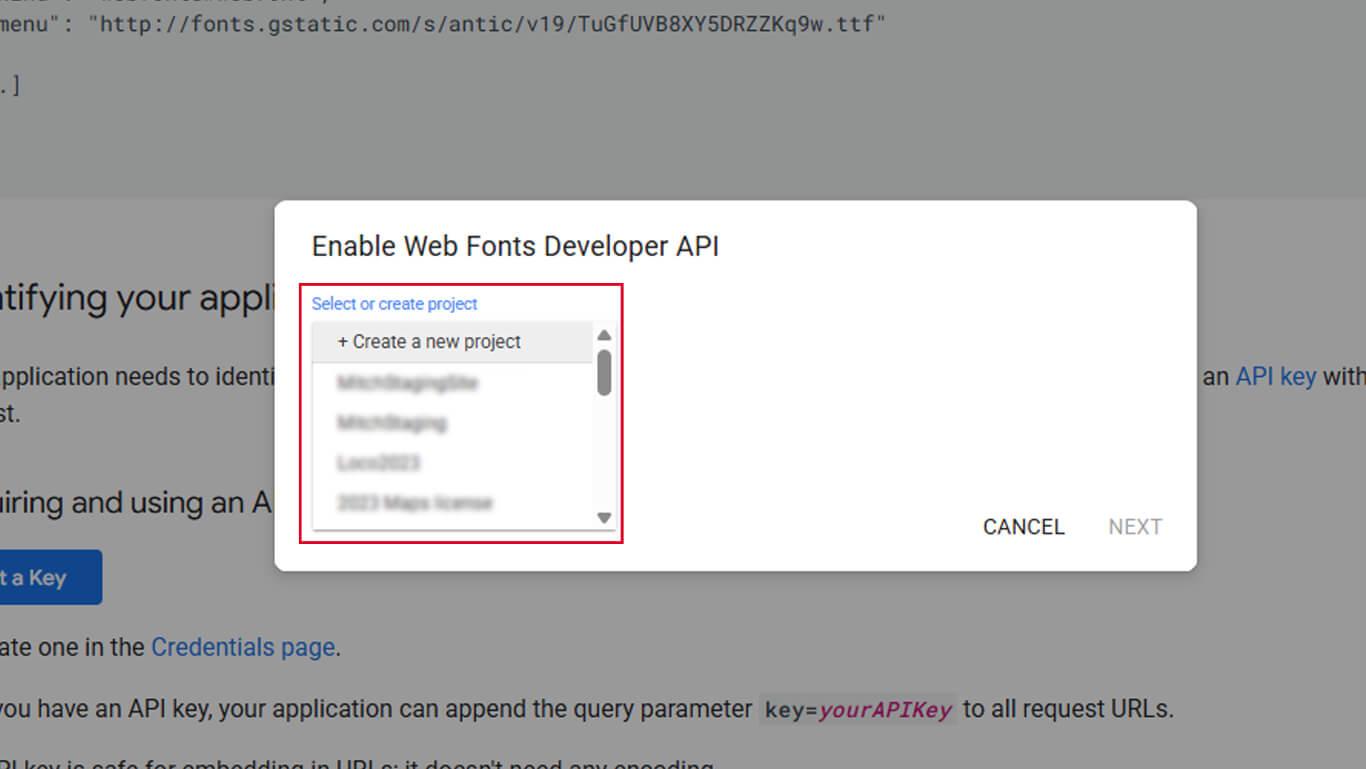
- Enter a project name in the project name field.
- Confirm API Enablement.
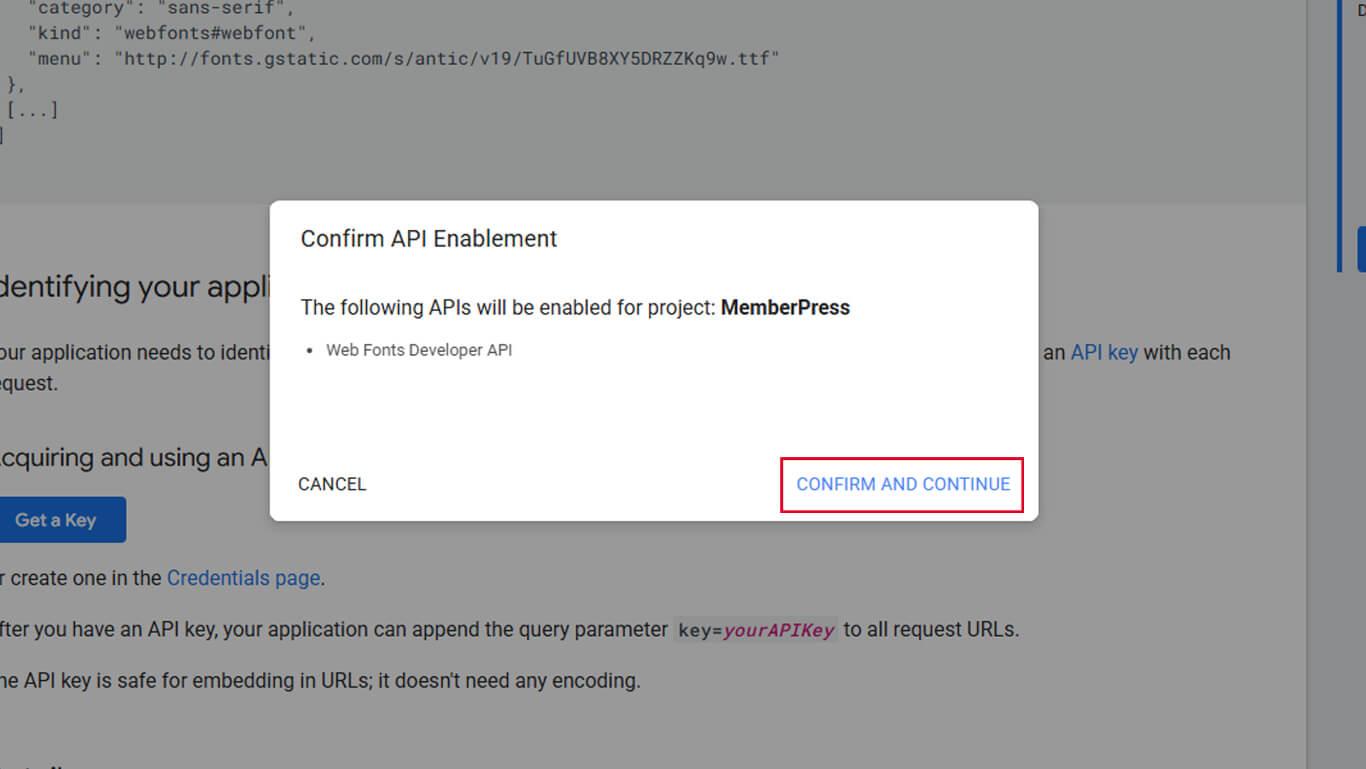
- Click Show Key.
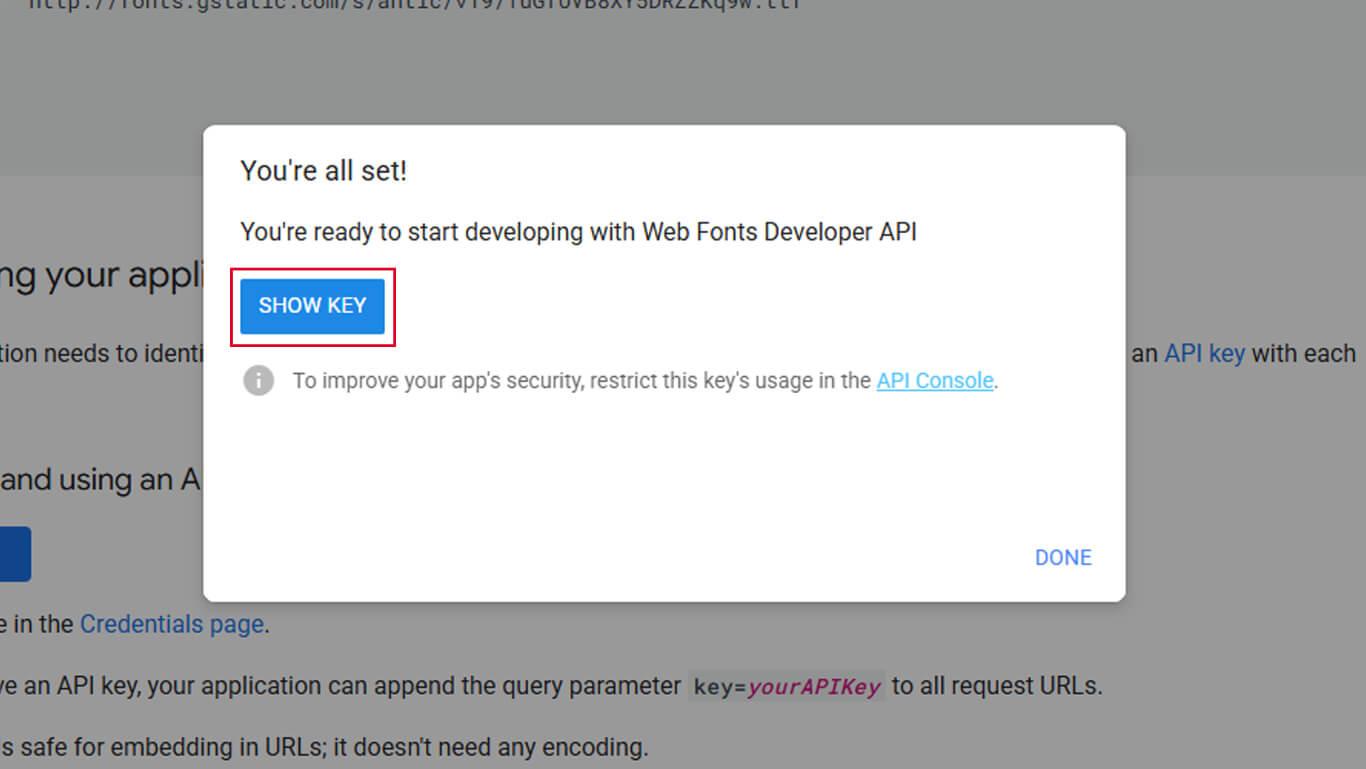
- Copy the generated API key from the displayed field.
- Return to Dashboard > MP AppKit > Integrations > Google Fonts.
- Paste the API key in the Google Fonts API Key field.
- Click Save Changes.
Importing Google Fonts
Font import adds typefaces to the available fonts list for app typography.
- Navigate to Dashboard > MP AppKit > Branding > Typography.
- Locate the Import Google Fonts section.
- Click Import Google Fonts to open the font browser.
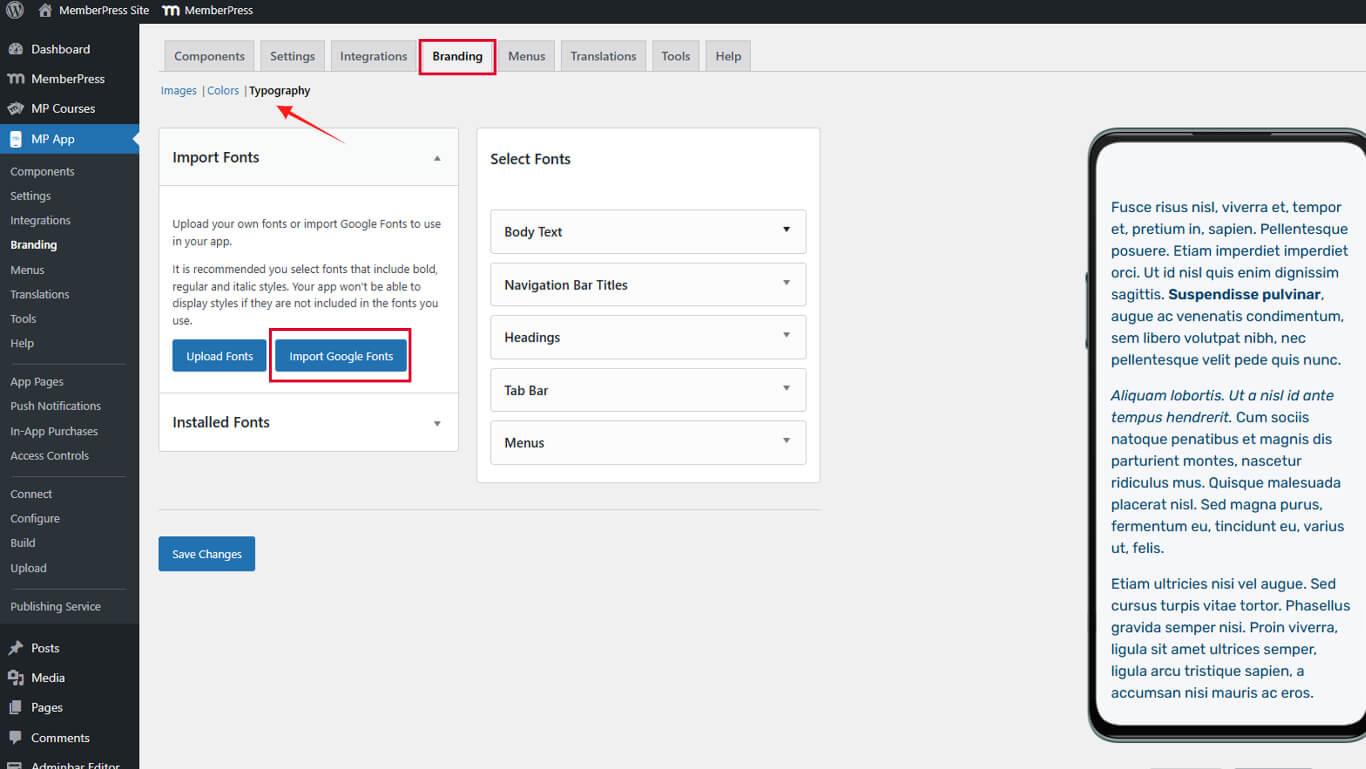
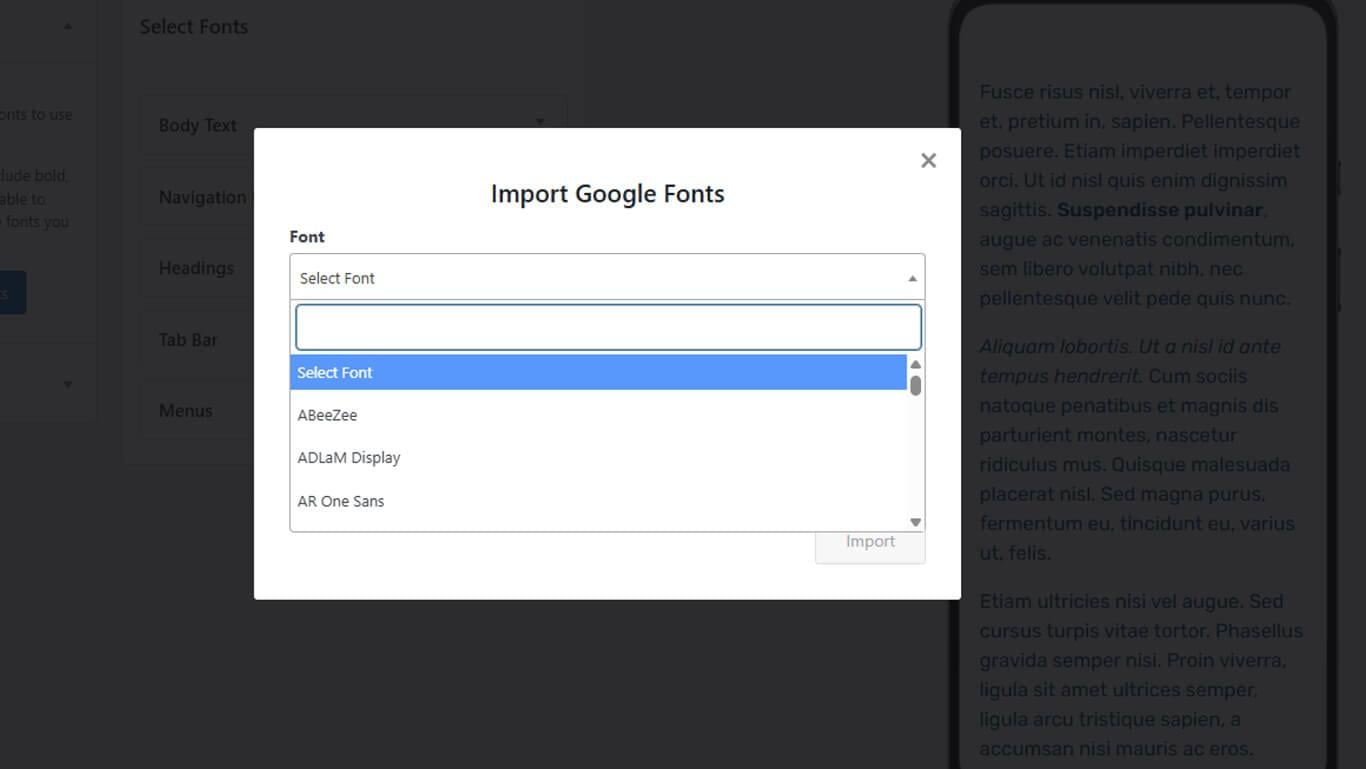
- Browse available fonts or use the search field to find specific typefaces.
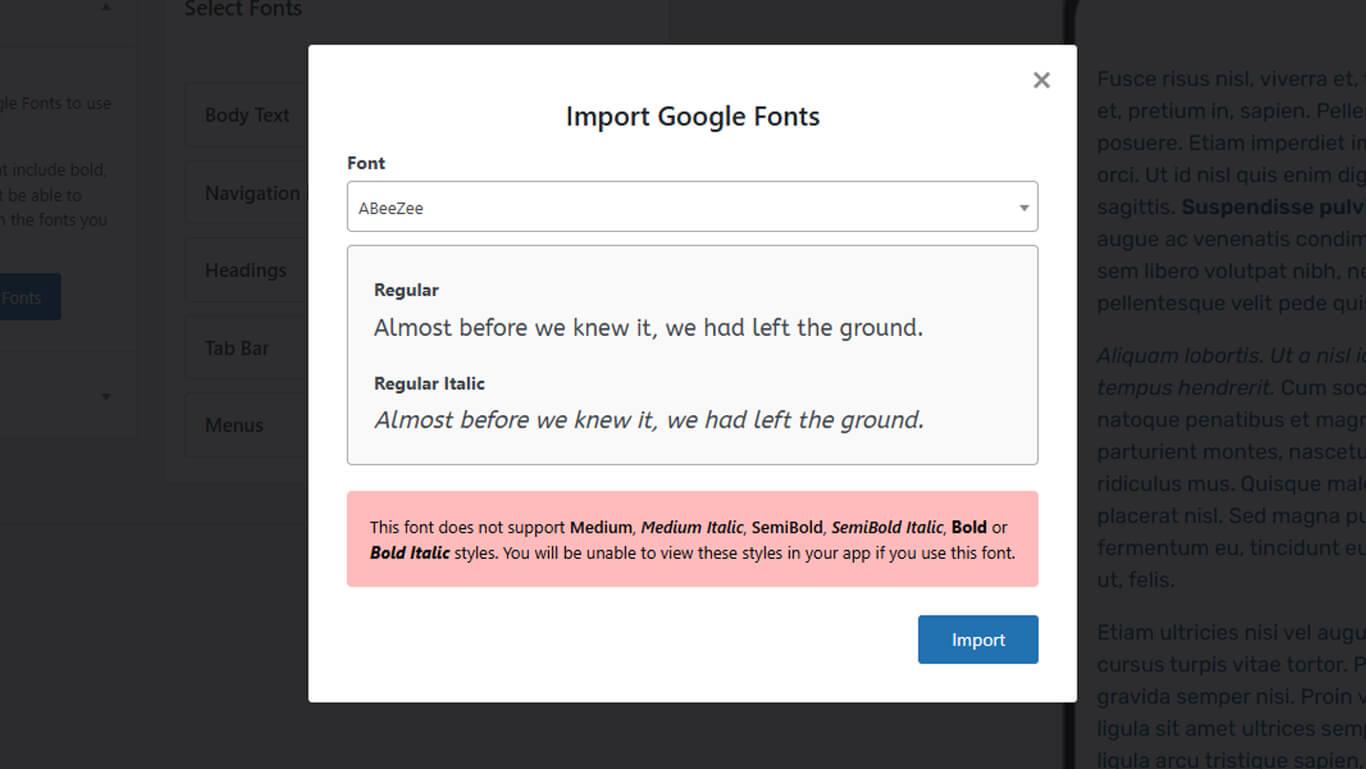
- Select the desired font from the search results or list.
- Click Import to add the font to the available fonts.
Applying Imported Fonts
Imported fonts appear in the typography settings for assignment to interface elements.
- Navigate to Dashboard > MP AppKit > Branding > Typography.
- Scroll to the interface element requiring font assignment.
- Select the desired font from the font family dropdown for:
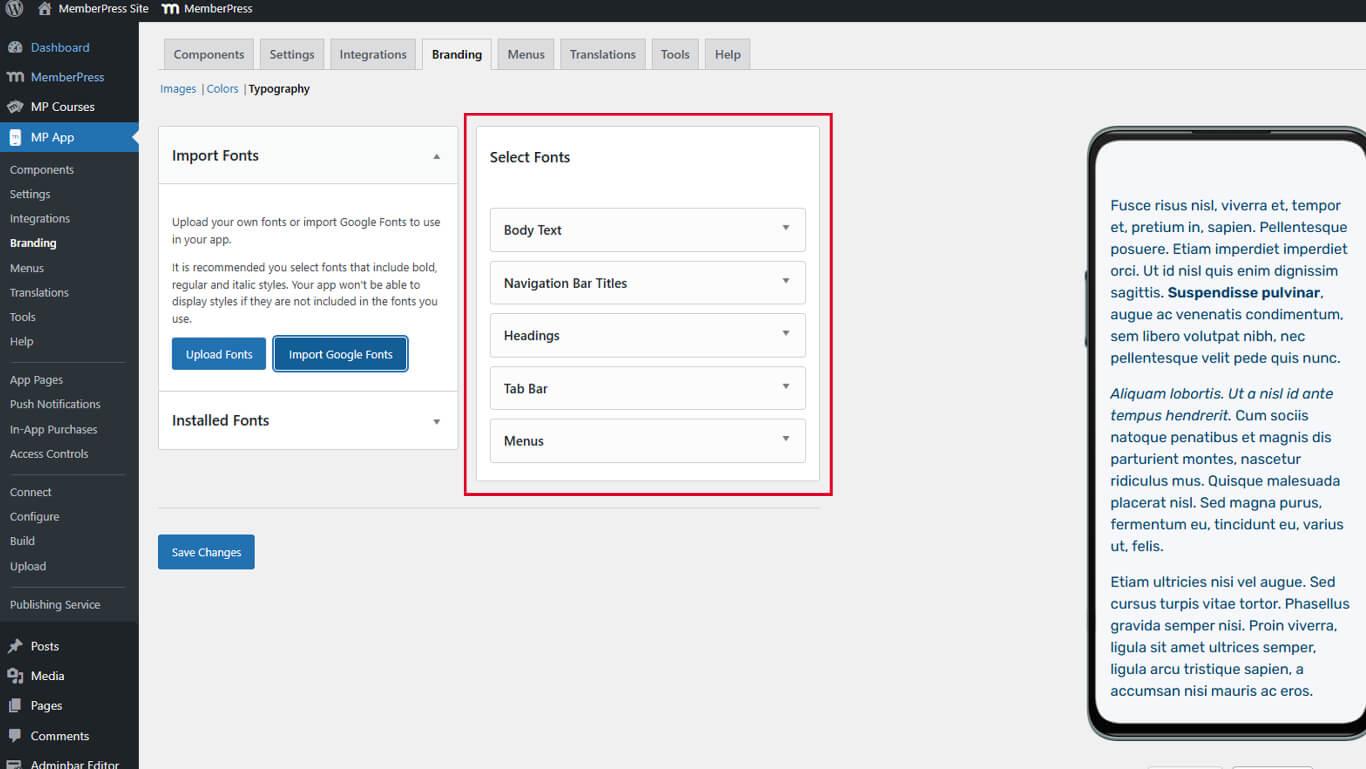
- Body Text for main content typography;
- Headings for H1 through H6 heading levels;
- Navigation Bar Titles for header text;
- Tab Bar Labels for bottom navigation text;
- Menus for menu item text.
- Adjust font sizes in the size fields if needed.
- Configure additional font styles as required.
- Click Save Changes to apply font selections.
Font changes apply globally across all app screens using the selected interface elements.










