

iOS MemberPress AppKit configuration establishes the foundation for build generation, in-app purchase synchronization, and app publication.
This document explains how to create Bundle IDs, automate signing certificates and provisioning profiles, register the app in App Store Connect, and configure credentials in WordPress.
Understanding Bundle Identifiers
Bundle IDs uniquely identify the app on iOS platforms. Bundle ID must use reverse-domain notation with at least two dot-separated segments. Test app Bundle IDs append .test to the release Bundle ID for testing isolation.
Creating Bundle Identifiers
Bundle ID creation occurs in the Apple Developer account.
- Sign in at developer.apple.com.
- Navigate to Certificates, Identifiers & Profiles.
- Click Identifiers in the sidebar.
- Click the + button to create a new identifier.
- Select App IDs from the identifier types.
- Click Continue to proceed.
- Enter a Description for the app identifier.
- Enter the Bundle ID using reverse-domain notation.
- Check Push Notifications in the capabilities list.
- Check Sign In with Apple in the capabilities list.
- Click Continue to review the configuration.
- Click Register to create the identifier.
- Repeat steps 3-12 for the test app Bundle ID, appending .test to the identifier.
Automating Signing Certificates
Signing certificate automation generates the required certificates for app signing.
- Navigate to Dashboard > MP AppKit > Configure > iOS Settings.
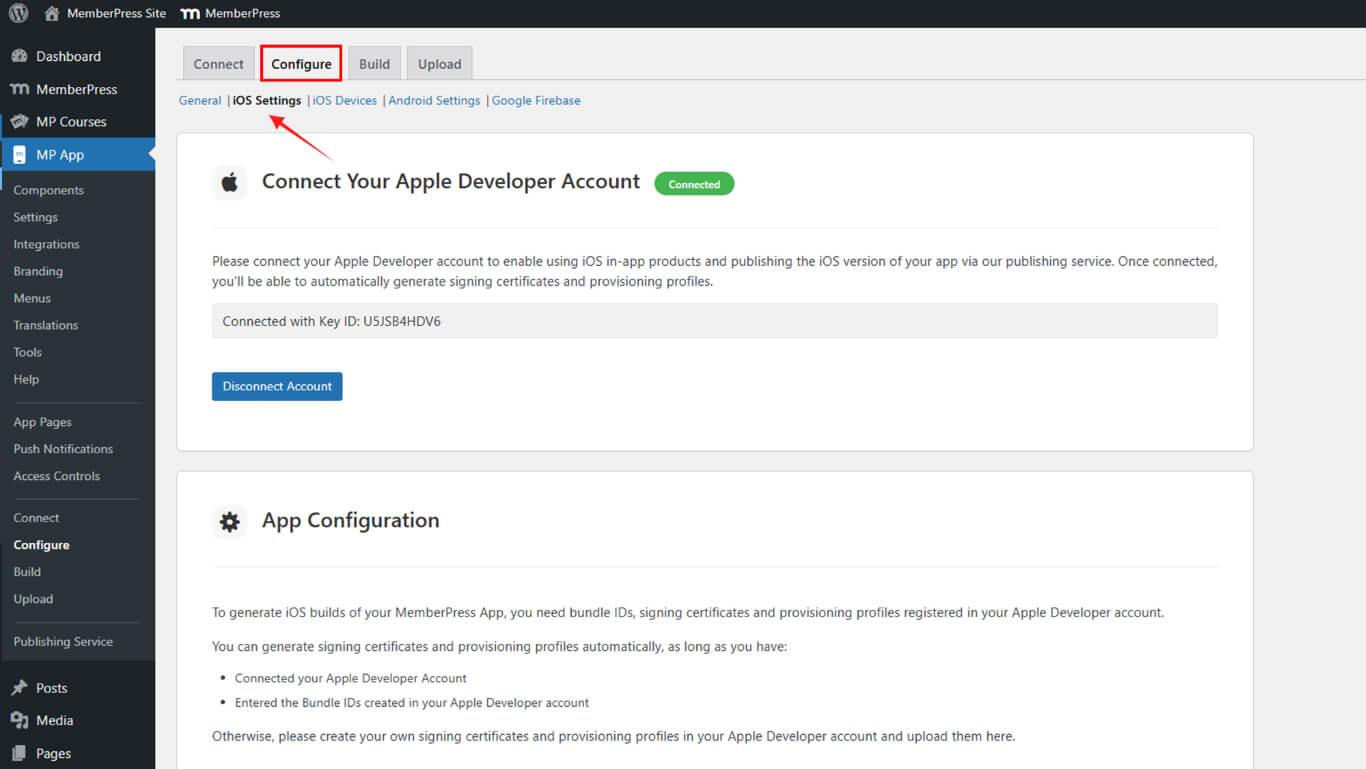
- Scroll to the Signing Certificates section.
- Check the Automatically generate signing certificates checkbox.
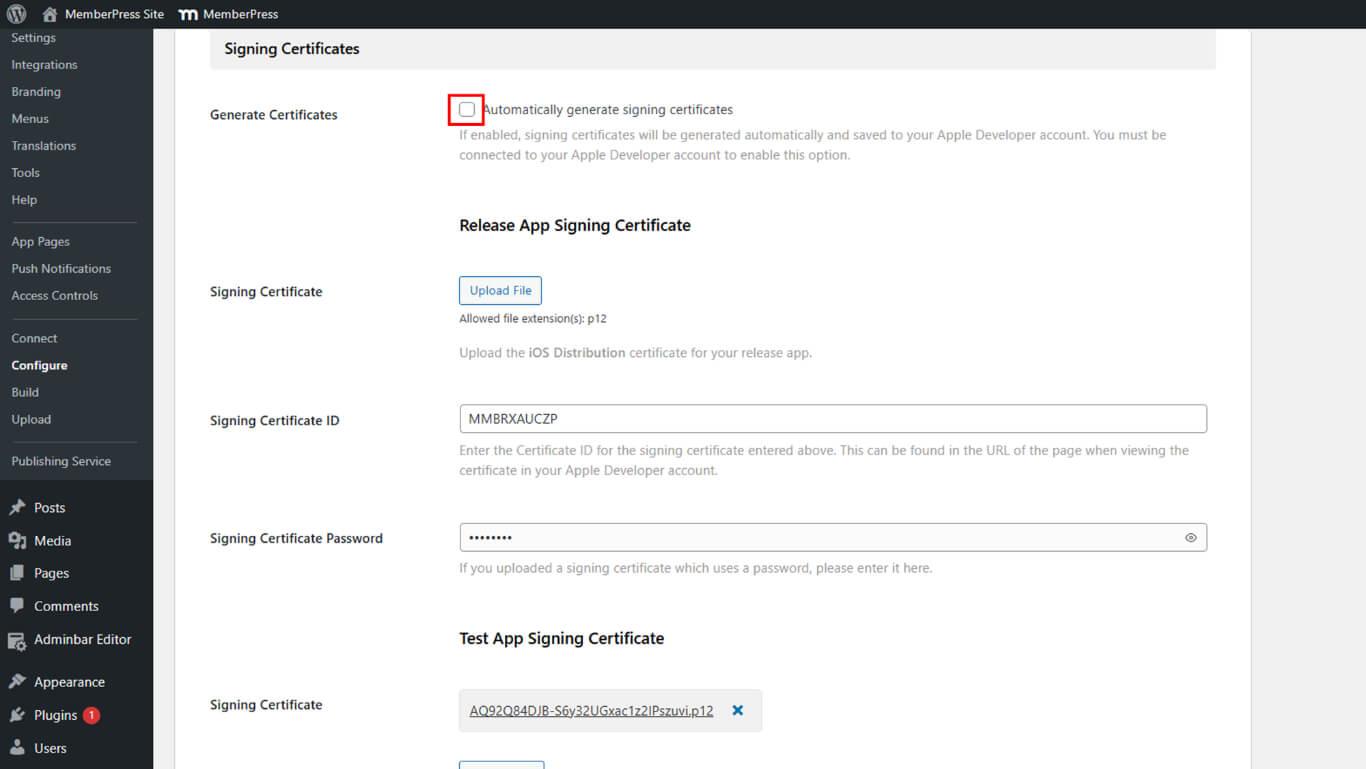
- Click Save Changes.
- Verify the Release signing certificate appears in the certificates list.
- Verify the Test signing certificate appears in the certificates list.
Automating Provisioning Profiles
Provisioning profile automation creates required profiles for app distribution.
- Navigate to Dashboard > MP AppKit > Configure > iOS Settings.
- Scroll to the Provisioning Profiles section.
- Check the Automatically generate provisioning profiles checkbox.
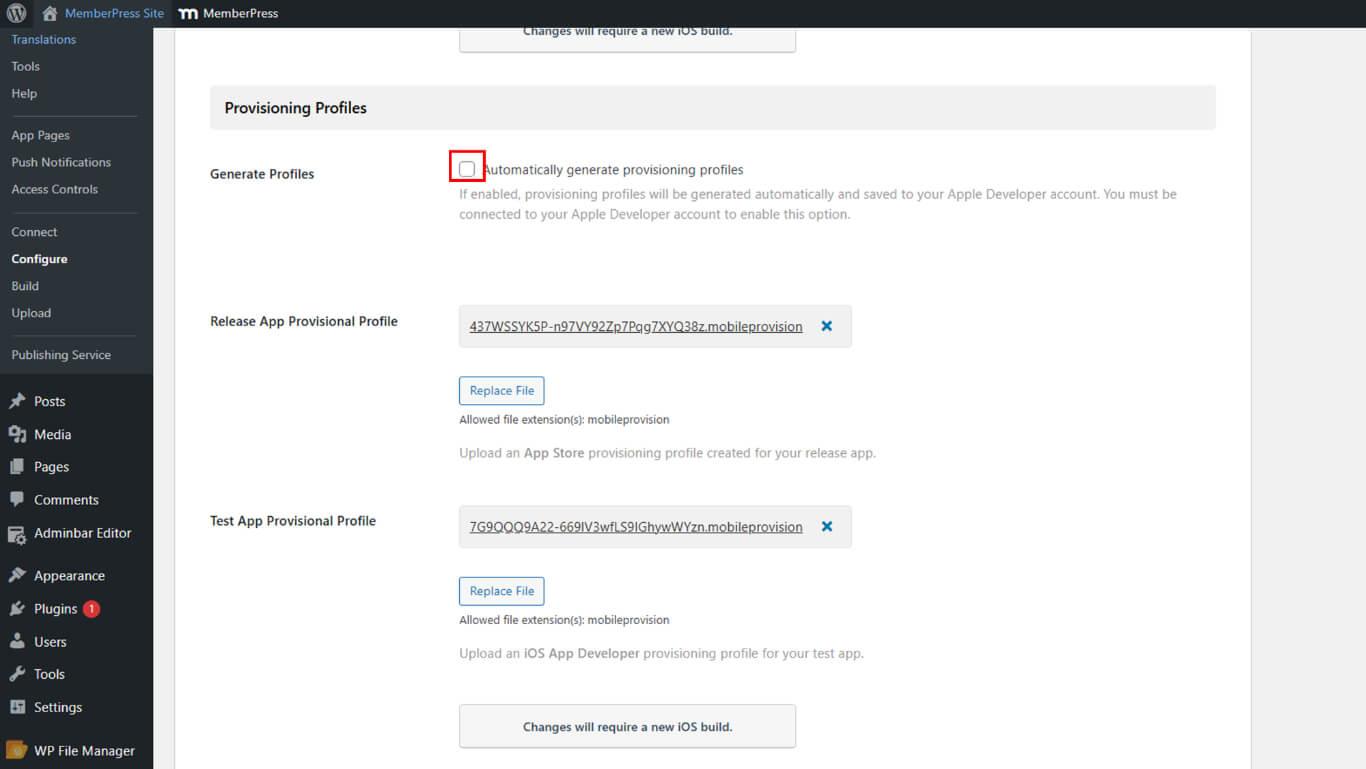
- Click Save Changes.
- Verify the Release provisioning profile appears in the profiles list.
- Verify the Test provisioning profile appears in the profiles list.
Registering App in App Store Connect
App registration in App Store Connect enables app submission and publication.
- Sign in at appstoreconnect.apple.com with your Apple Developer account.
- Click My Apps in the navigation.
- Click the + button to add a new app.
- Select New App from the dropdown menu.
- Select iOS as the platform.
- Enter the App Name in the name field.
- Select Primary Language from the language dropdown.
- Select the Release Bundle ID from the Bundle ID dropdown.
- Enter a SKU for internal tracking purposes.
- Set User Access to Full or Limited.
- Click Create to register the app.
Importing Bundle IDs into WordPress
Bundle IDs must be imported to WordPress for build configuration.
- Navigate to Dashboard > MP AppKit > Configure > iOS Settings.
- Scroll to the Bundle IDs section.
- Click Refresh Bundle IDs to retrieve identifiers from the Apple Developer account.
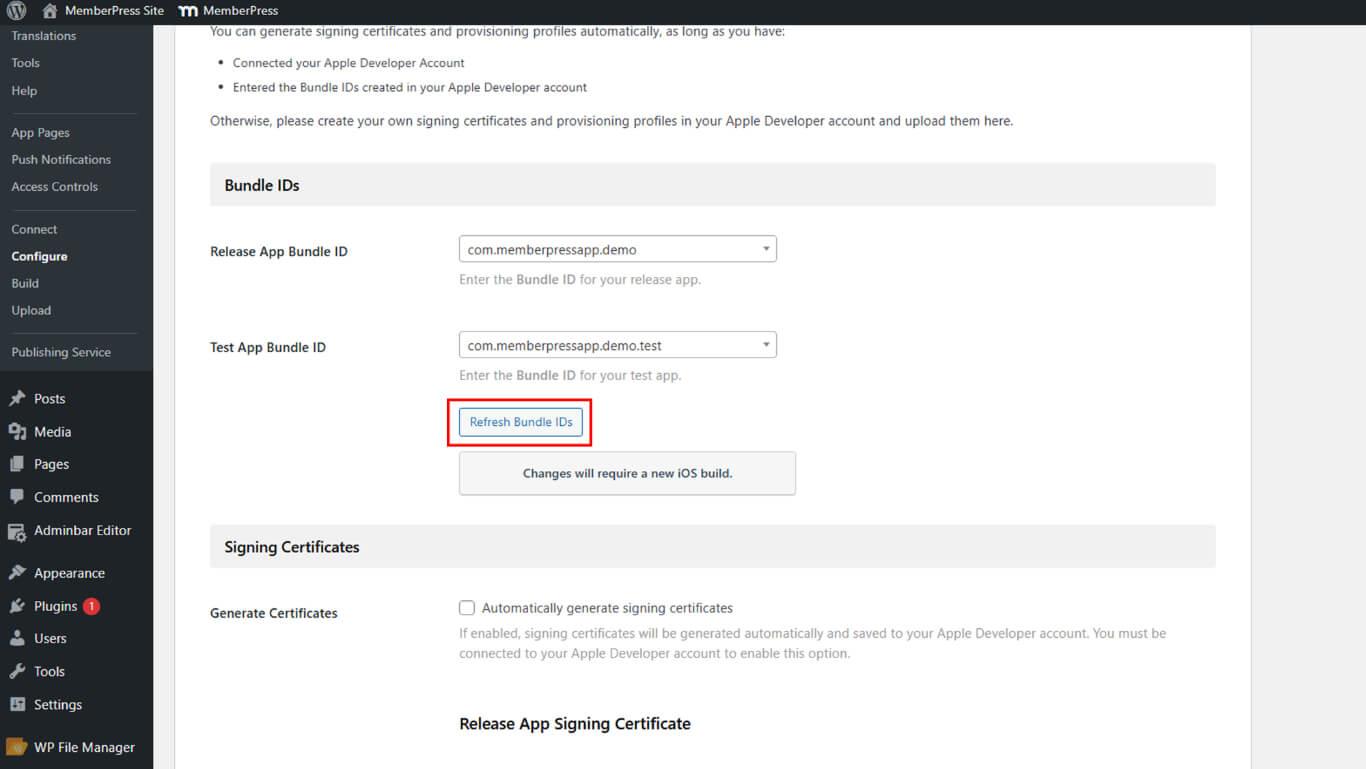
- Locate the Release App Bundle ID dropdown.
- Select the release Bundle ID from the dropdown options.
- Locate the Test App Bundle ID dropdown.
- Select the test Bundle ID from the dropdown options.
- Scroll to the App Information section.
- Navigate to App Store Connect to retrieve the Apple App ID.
- Copy the Apple App ID from App Information in App Store Connect.
- Paste the Apple App ID in the Apple App ID field in WordPress.
- Click Save Changes.
Generating App-Specific Shared Secret
App-Specific Shared Secret enables in-app purchase verification.
- Navigate to App Store Connect at appstoreconnect.apple.com.
- Click My Apps in the navigation.
- Select the registered app from the apps list.
- Scroll to the App-Specific Shared Secret section.
- Click Manage to open shared secret management.
- Click Generate App-Specific Shared Secret.
- Copy the generated secret value.
- Navigate to Dashboard > MP AppKit > Configure > iOS Settings in WordPress.
- Locate the App-Specific Shared Secret field.
- Paste the copied secret value into the field.
- Click Save Changes.










