

Push notifications deliver real-time alerts to members' mobile devices. These alerts inform members about new content, membership updates, and important account events.
This document explains how to enable push notifications, configure Firebase integration, manage automated notification types, and send manual notifications to members.
Understanding Push Notifications
Push notifications reach members instantly without requiring app usage. Notifications appear on device lock screens and notification centers. Members can tap notifications to open relevant app content directly. Firebase Cloud Messaging powers notification delivery across iOS and Android platforms. Proper configuration ensures reliable notification delivery and member engagement.
Enabling Push Notifications Component
Push Notifications must be activated before configuration can begin.
- Navigate to Dashboard > MP AppKit > Components.
- Locate Push Notifications in the components list.
- Toggle the Activate switch to On.
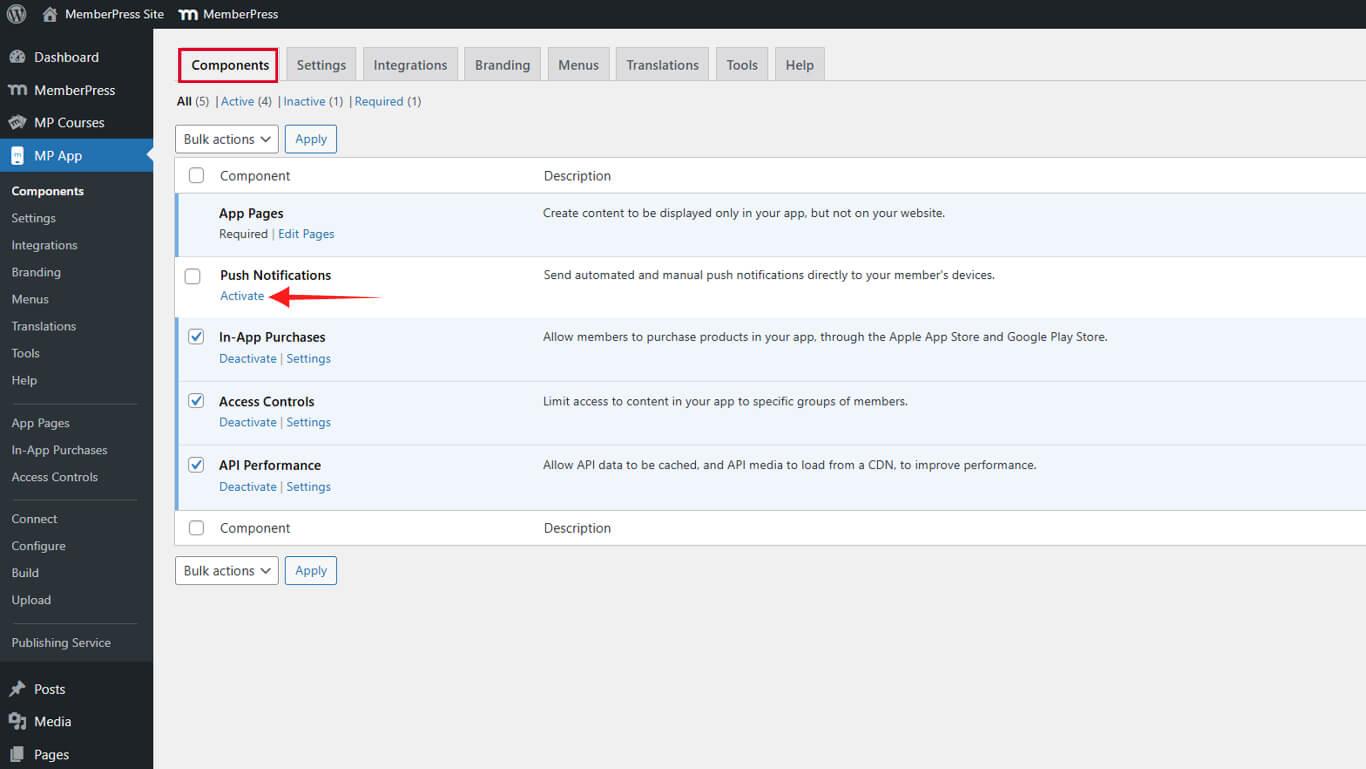
The Push Notifications menu appears in the WordPress Dashboard after activation.
Connecting Firebase for Notification Delivery
Firebase Cloud Messaging handles notification delivery to iOS and Android devices. Connection requires Firebase project configuration and credential upload.
Creating Firebase Project
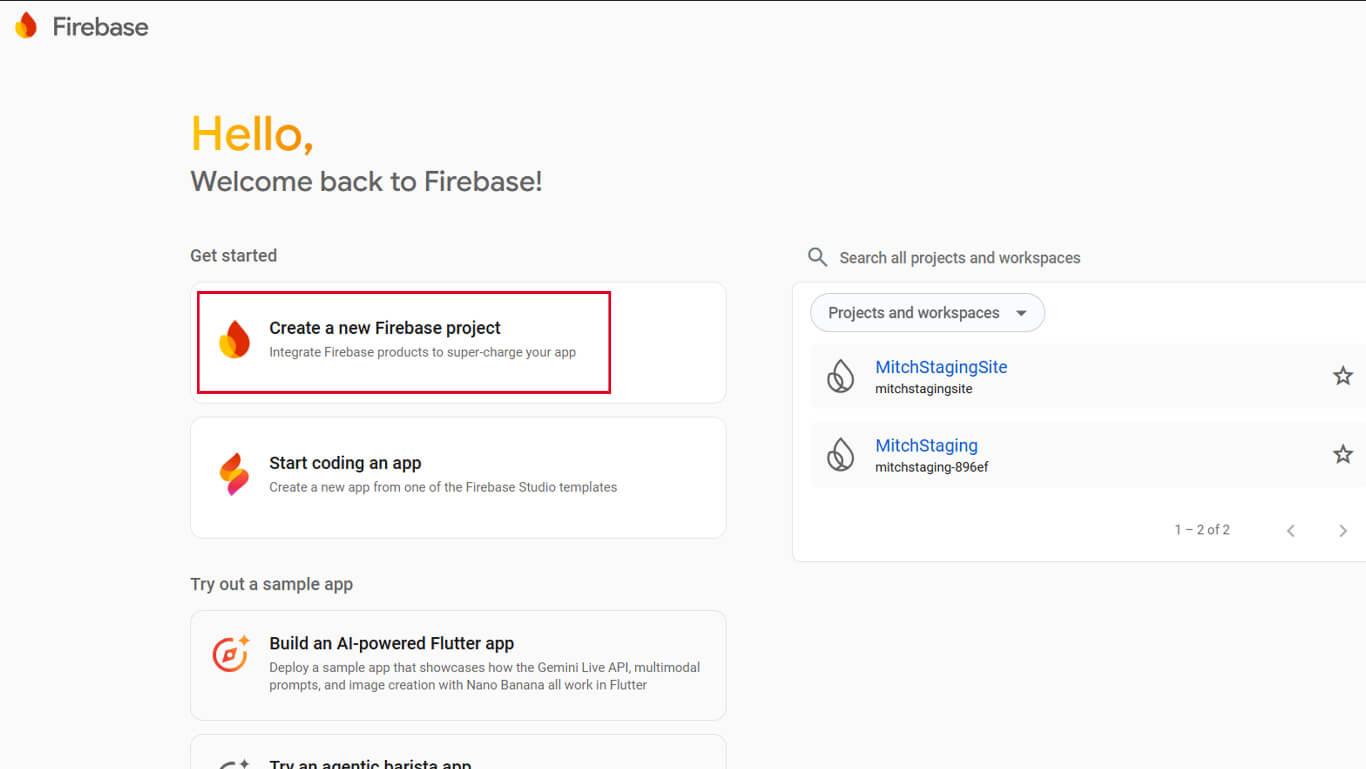
- Visit the Firebase Console at console.firebase.google.com.
- Click Create a new Firebase Project or select an existing project.
- Enter a project name and click Continue.
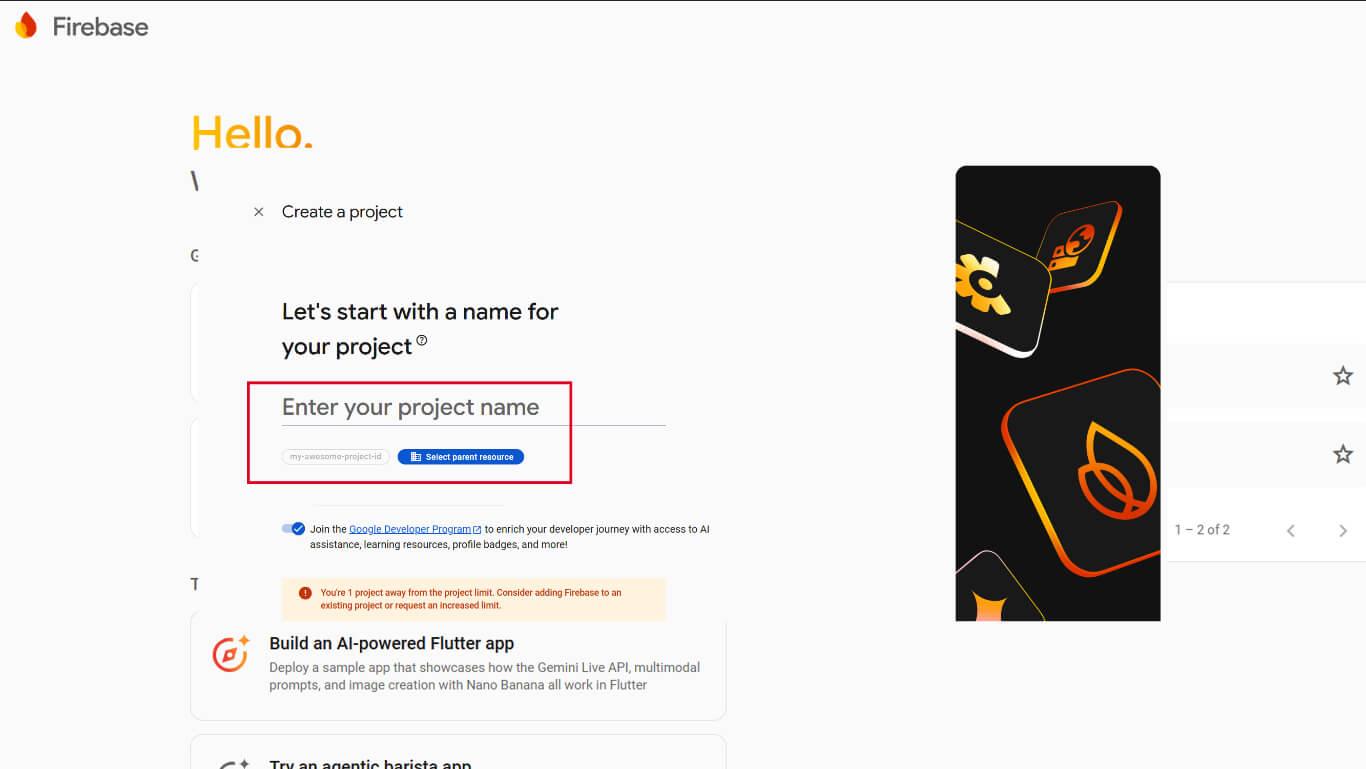
- Wait for the project creation to complete.
Firebase project setup provides the foundation for notification delivery infrastructure.
Adding iOS App to Firebase
- In the Firebase Console, select the created project.
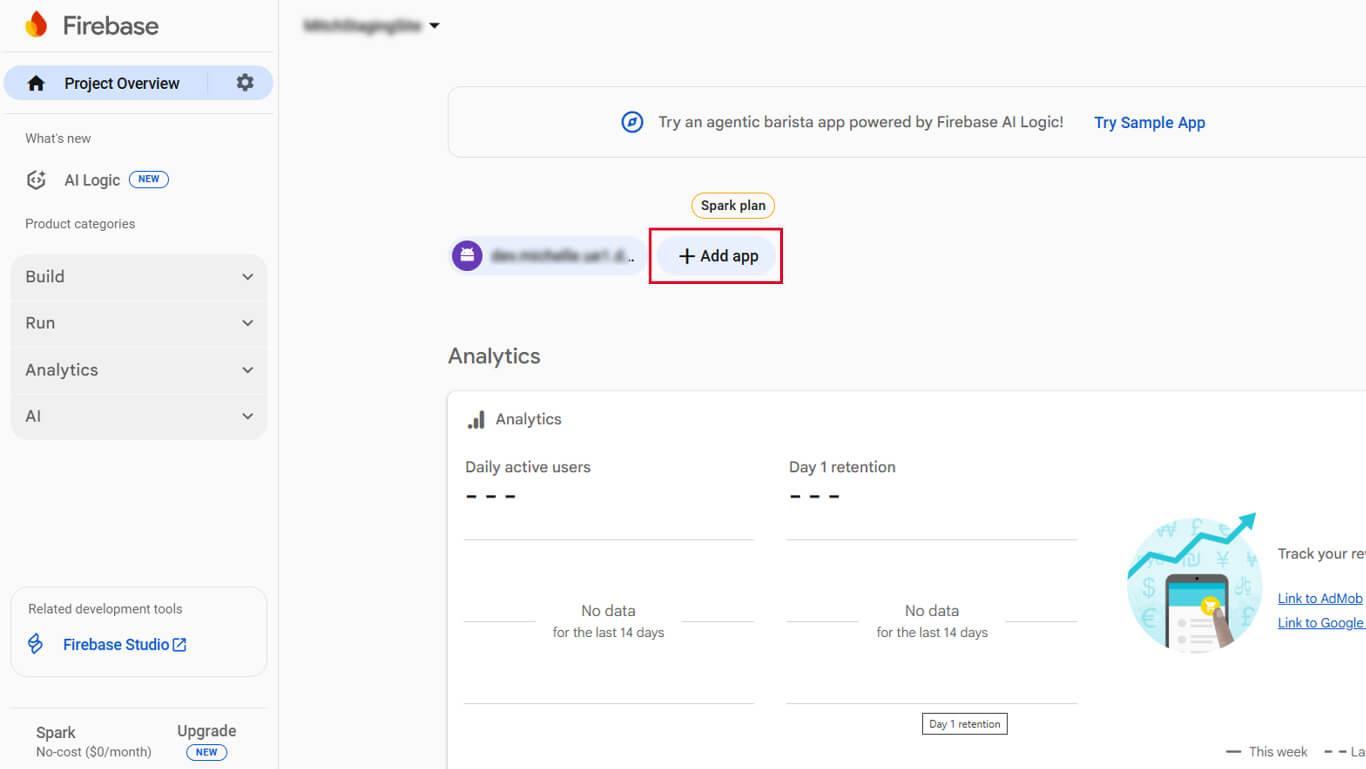
- Click Add App.
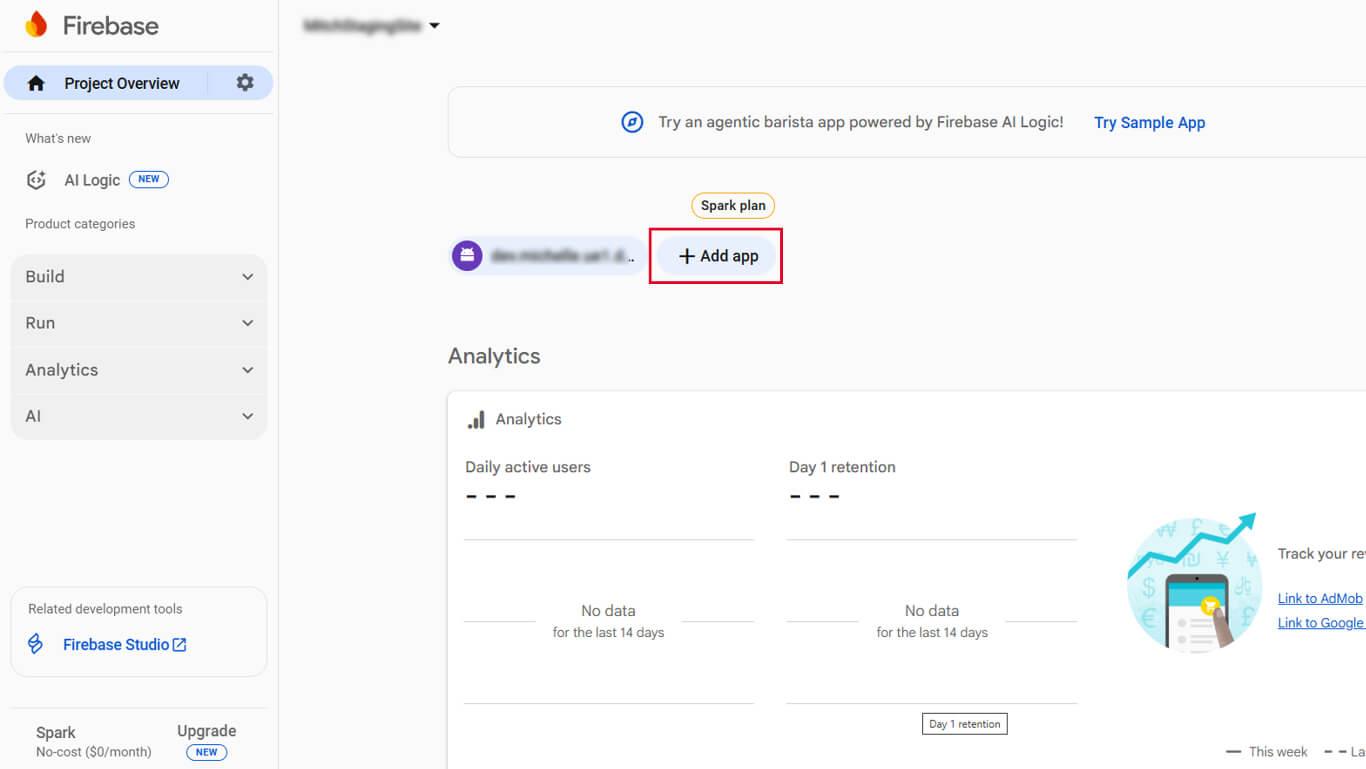
- Click the iOS icon to add an iOS app.
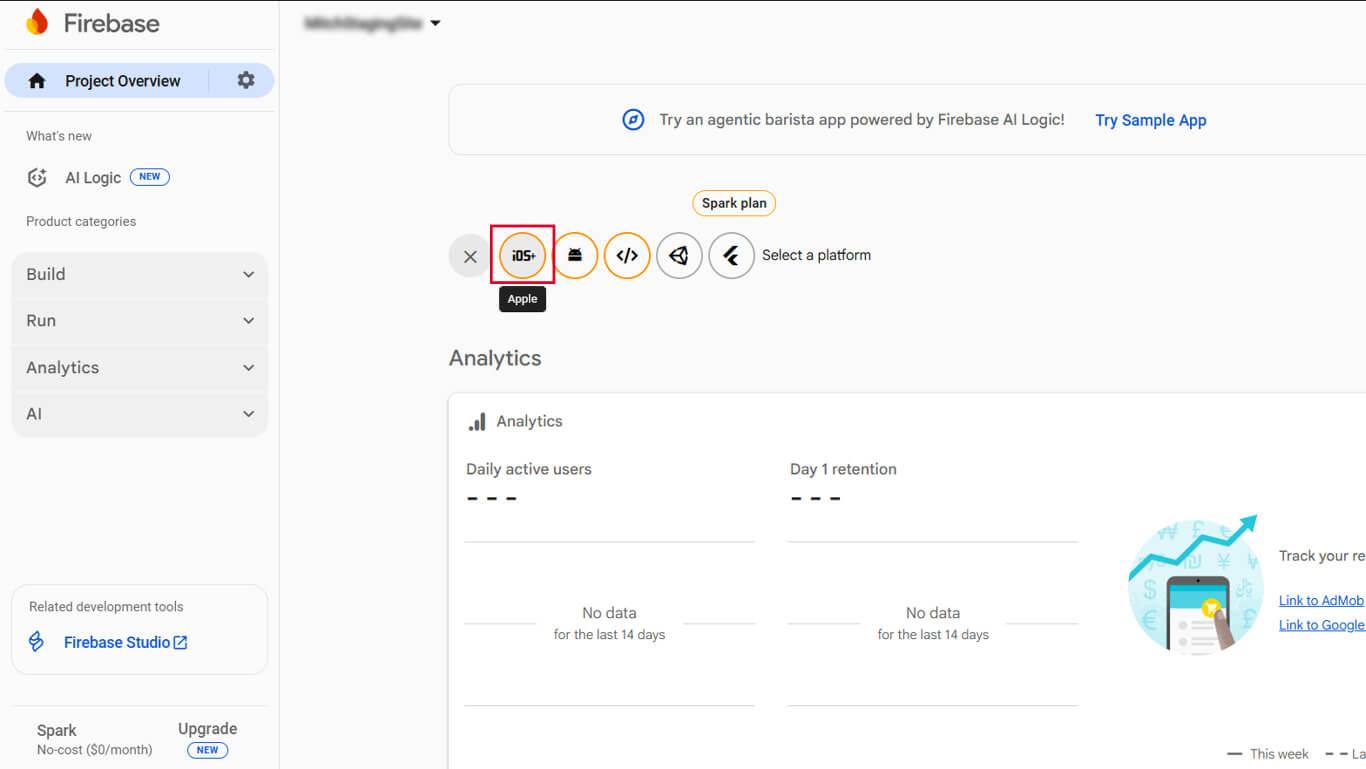
- Enter the iOS bundle ID from MemberPress App settings.
- Enter an app nickname and click Register App.
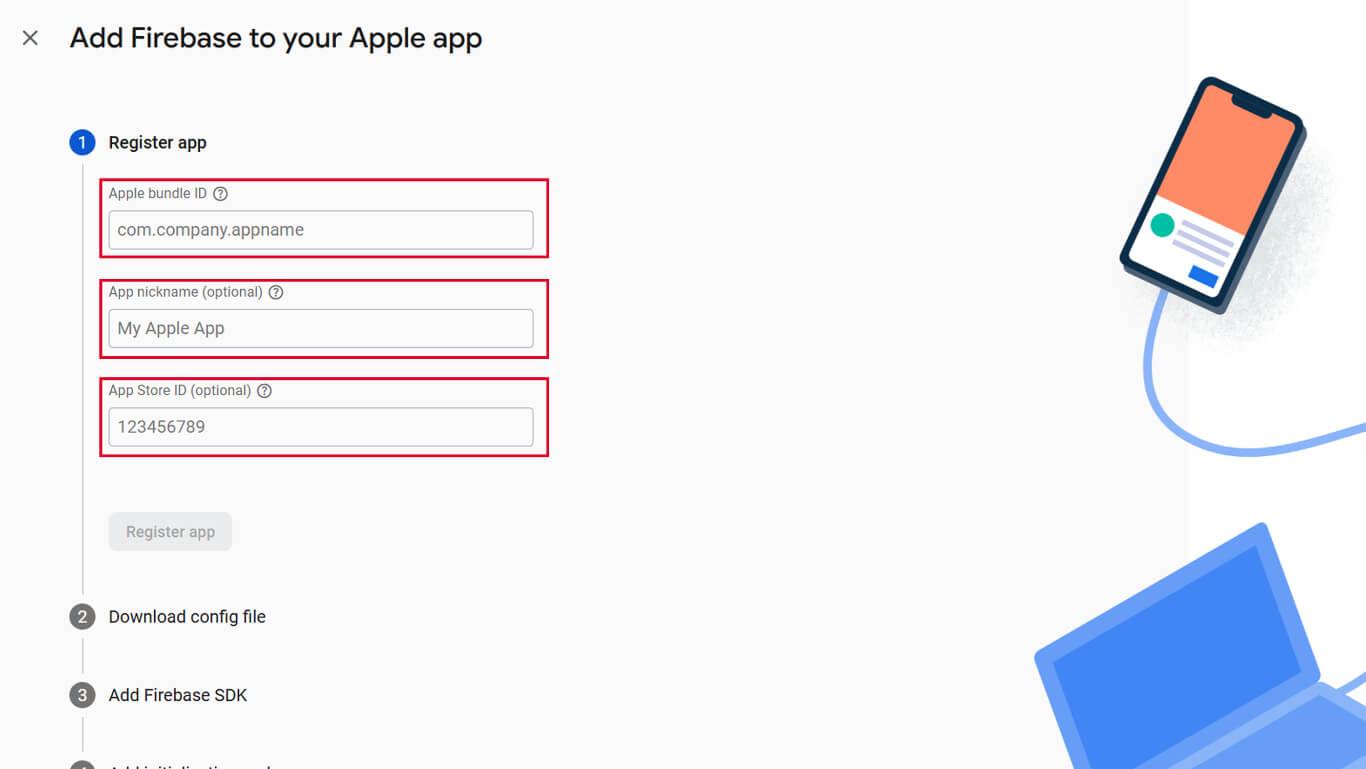
- Download the GoogleService-Info.plist file.
- Click Continue through the remaining setup steps.
Adding Android App to Firebase
- In the Firebase Console, select the project.
- Click Add App.
- Click the Android icon to add an Android app.
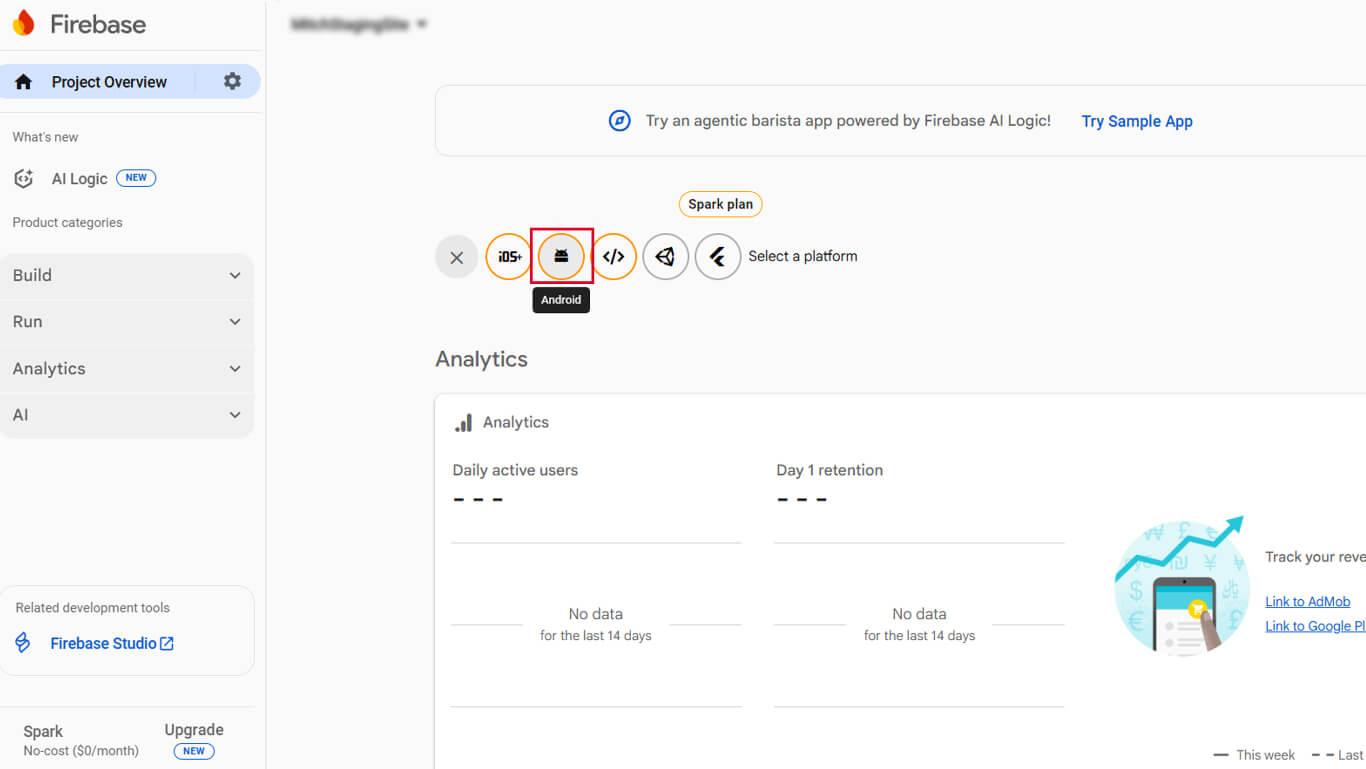
- Enter the Android package name from MemberPress AppKit settings.
- Enter an app nickname and click Register App.
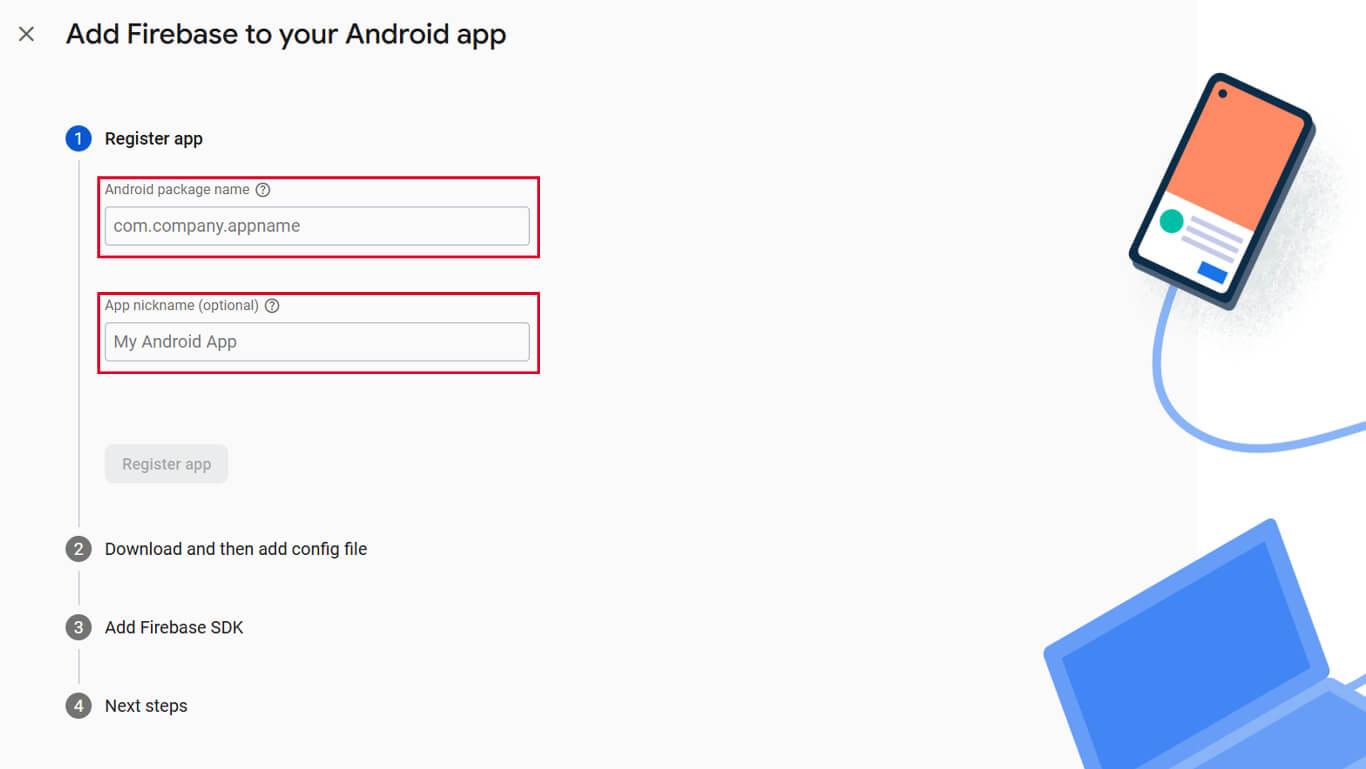
- Download the google-services.json file.
- Click Continue through the remaining setup steps.
Obtaining Firebase Server Credentials
- In the Firebase Console, navigate to Project Settings.
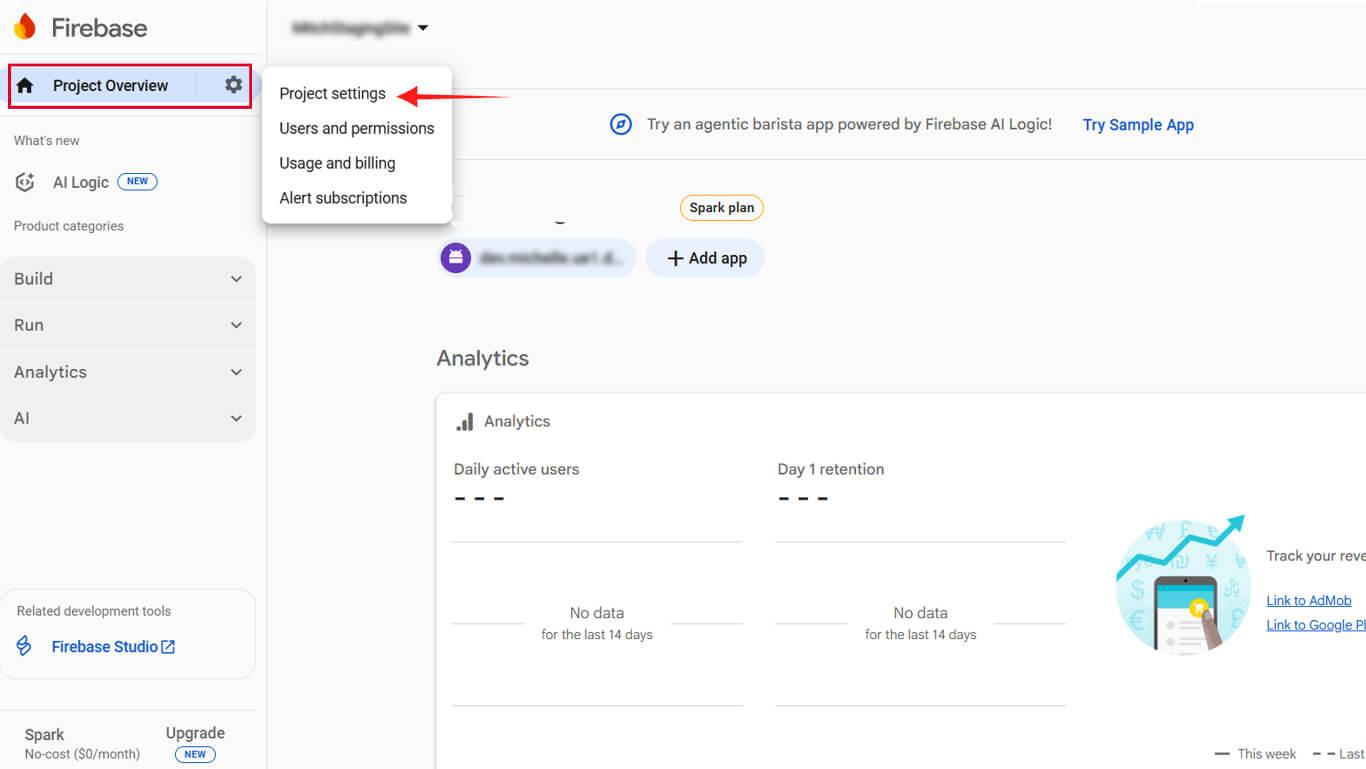
- Click the Cloud Messaging tab.
- Copy the Server Key value.
- Copy the Sender ID value.
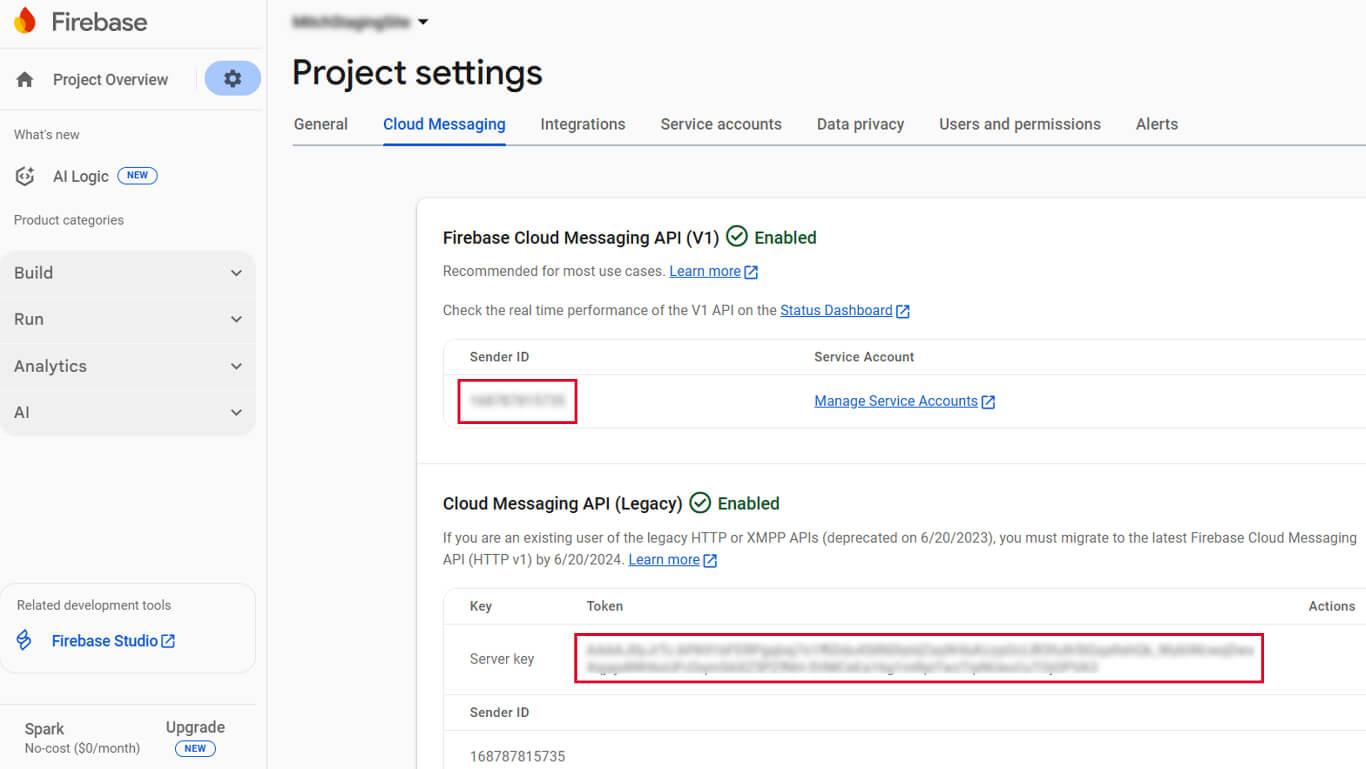
- Keep these values accessible for WordPress configuration.
Server credentials authenticate WordPress communication with Firebase servers.
Uploading Firebase Configuration to WordPress
- Navigate to Dashboard > MP AppKit > Configure > Google Firebase.
- Click Choose File under Android Configuration File.
- Select the downloaded google-services.json file.
- Click Choose File under iOS Configuration File.
- Select the downloaded GoogleService-Info.plist file.
- Enter the Server Key in the Server Key field.
- Enter the Sender ID in the Sender ID field.
- Click Save Changes.
Successful configuration enables push notification delivery to member devices.
Configuring Automated Notification Types
Automated notifications trigger based on specific events without manual intervention. Configuration determines which notification types members can receive.
- Navigate to Dashboard > MP AppKit > Settings > Push Notifications.
- Locate the Automatic Notifications section.
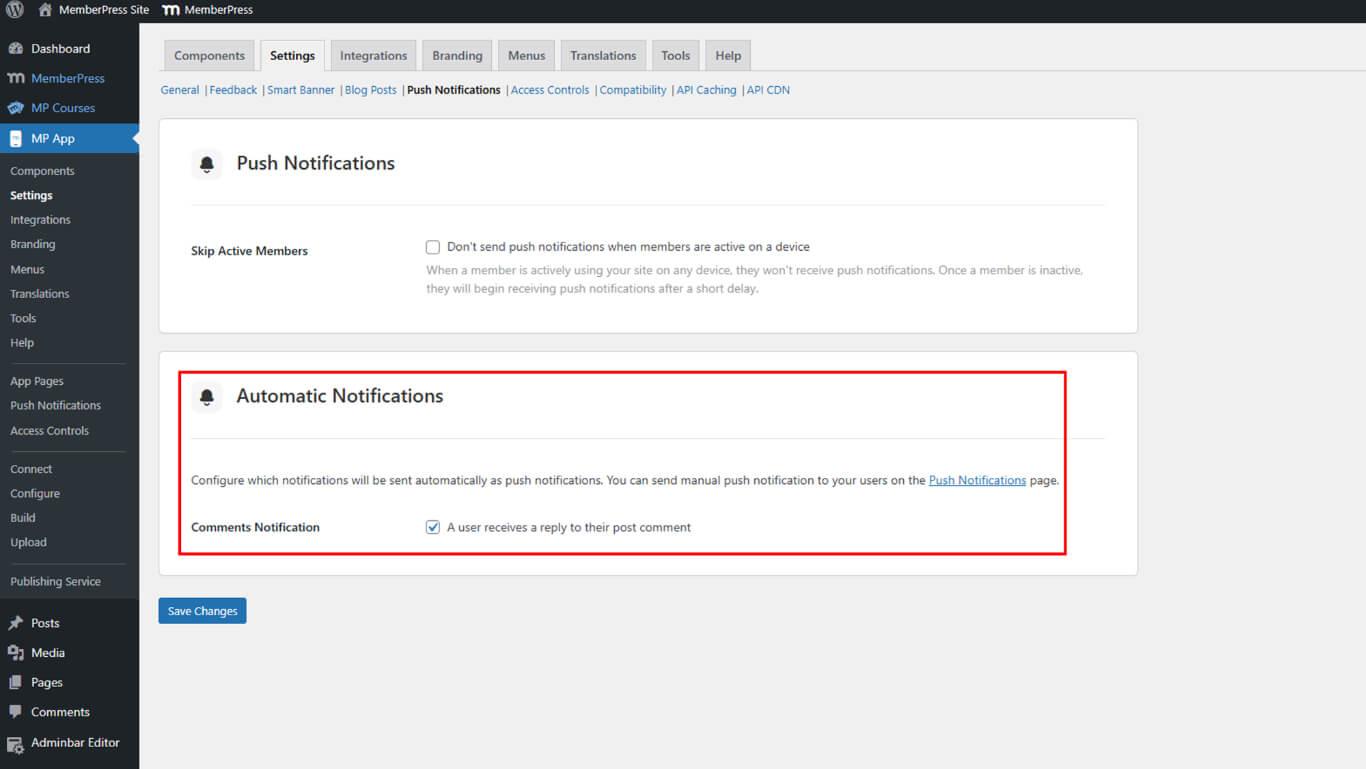
- Click Save Changes.










