

The Directory Block displays archive-style listings of WordPress content within app pages. This block creates organized content directories with customizable metadata, search functionality, and filtering options.
This document explains how to add the Directory Block, configure display settings, and optimize directory listings for member engagement.
Understanding the Directory Block
The Directory Block presents collections of WordPress posts, pages, or custom post types in structured list formats. Members can browse, search, and filter content within directories. The block supports featured images, author avatars, metadata display, and sorting options. Directory Blocks must occupy entire app pages without other blocks due to full-screen layout requirements.
Directory Block Limitations
Directory Blocks require exclusive page occupancy. Multiple blocks cannot coexist with Directory Blocks on the same page.
Single-block requirement: Directory Blocks must be the only block on an App Page. Adding additional blocks triggers configuration errors.
Full-screen layout: Directory Blocks utilize the complete screen space for optimal content browsing. Mixed layouts with other blocks compromise directory functionality.
Error prevention: Remove all other blocks before adding Directory Blocks. Add Directory Blocks only to empty App Pages.
Adding the Directory Block
Directory Blocks are added through the App Page editor interface.
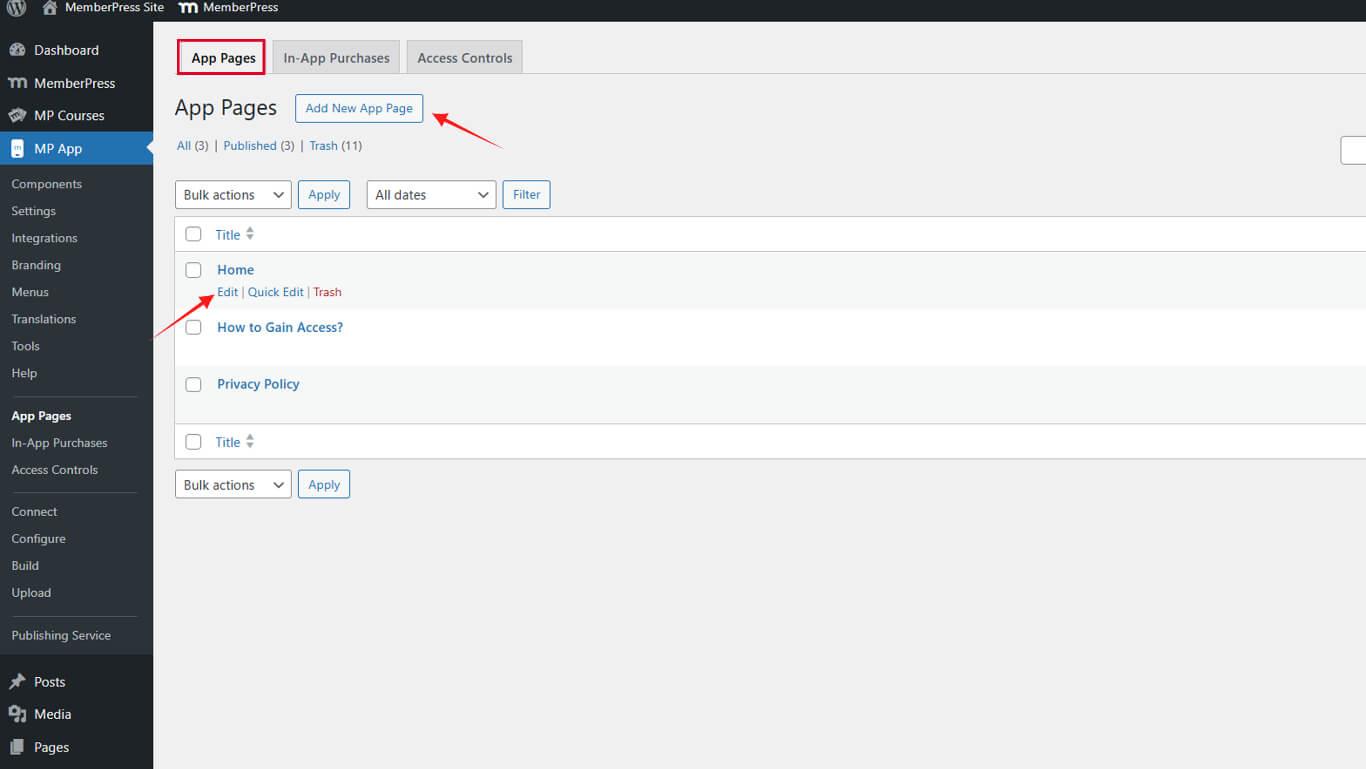
- Navigate to Dashboard > MP AppKit > App Pages.
- Click Add New to create a new App Page or Edit an existing empty page.
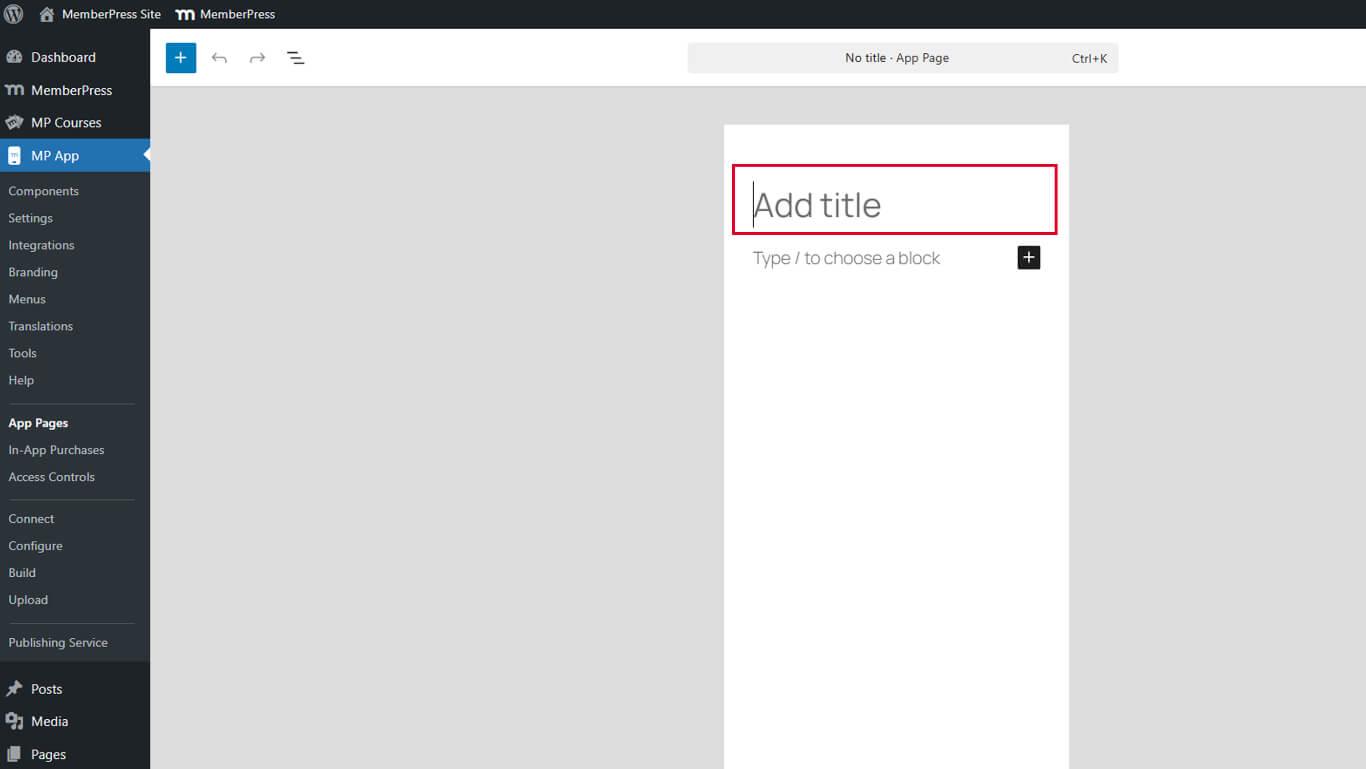
- Enter a page title in the Title field.
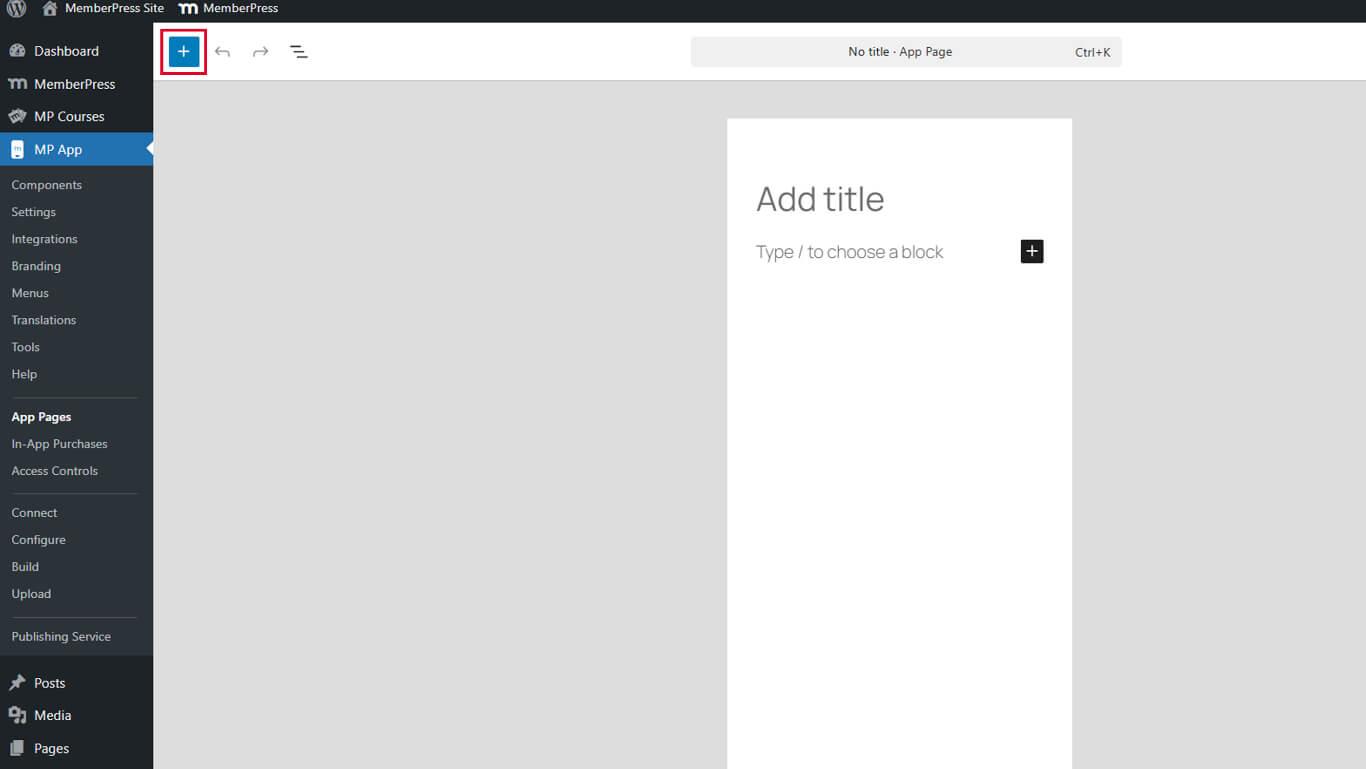
- Click the Toggle Block Inserter icon in the editor toolbar.
- Enter “Directory” in the block search field.
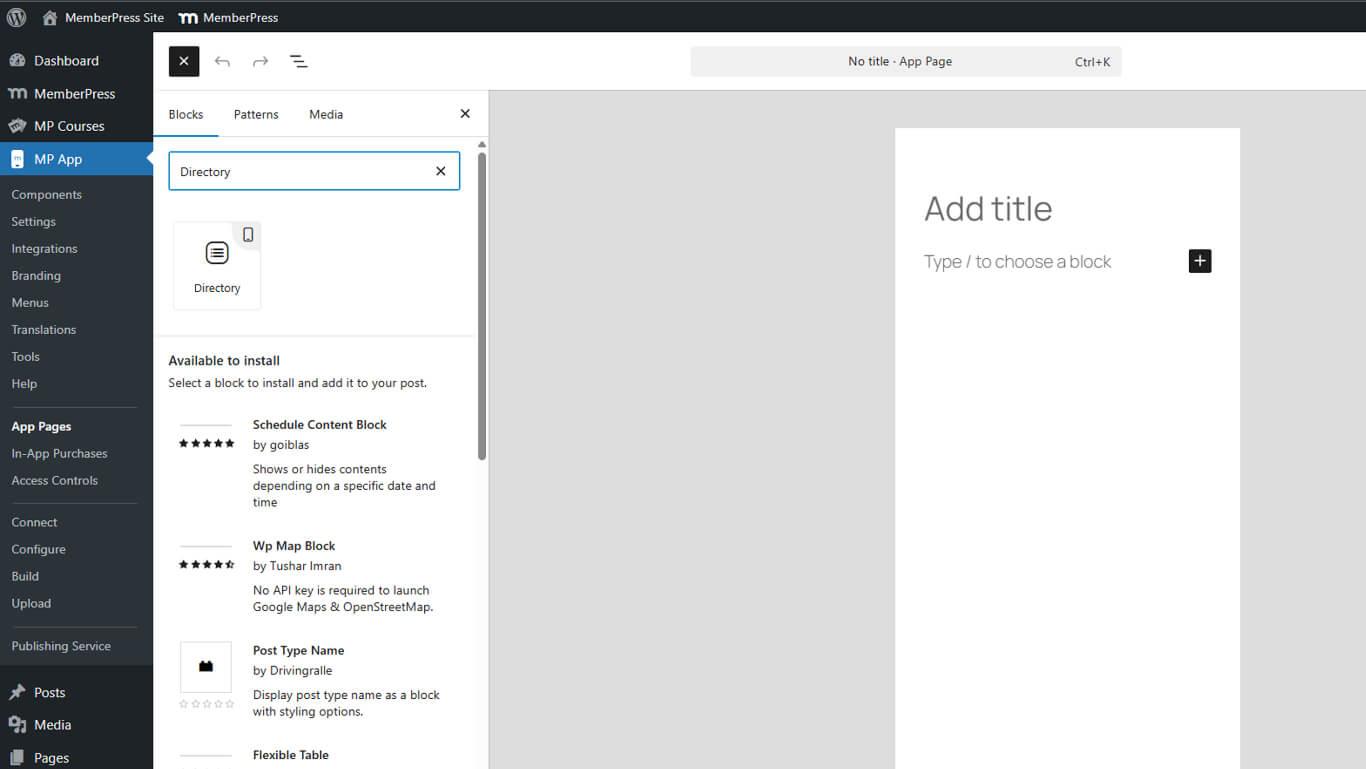
- Drag the Directory Block onto the page canvas.
- Click Publish or Update to save the page.
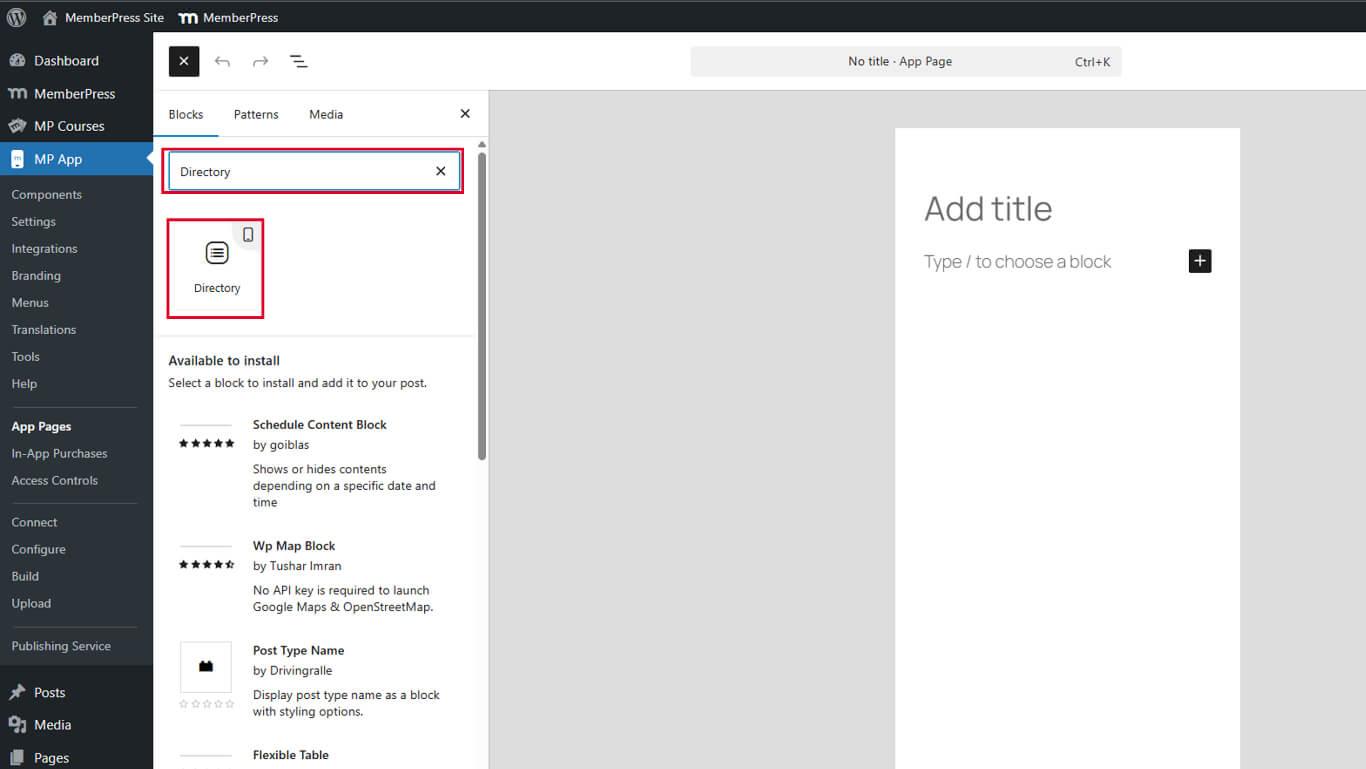
The Directory Block displays a skeleton preview with placeholder metadata labels after insertion.
Understanding Directory Preview
The skeleton preview shows the directory layout structure during configuration.
Placeholder labels indicate metadata field positions. Labels display as “META 1,” “META 2,” “META 3,” and “META 4” representing available metadata slots.
Layout preview demonstrates how the content will appear in the directory. Actual content populates these placeholders in the published app.
Configuration guidance helps identify customization opportunities. Placeholders visually indicate where metadata fields will display.
Configuring Directory Block Settings
Directory Block settings control content source, display options, and sorting behavior.
Selecting Post Type
Post type selection determines which content populates the directory.
- Select the Directory Block in the page editor.
- Locate the Block Settings sidebar on the right.
- Find the Select Post Type dropdown under Block Settings.
- Choose the desired post type from the available options:
- Posts for blog posts;
- Pages for WordPress pages;
- Custom Post Types for specialized content types.
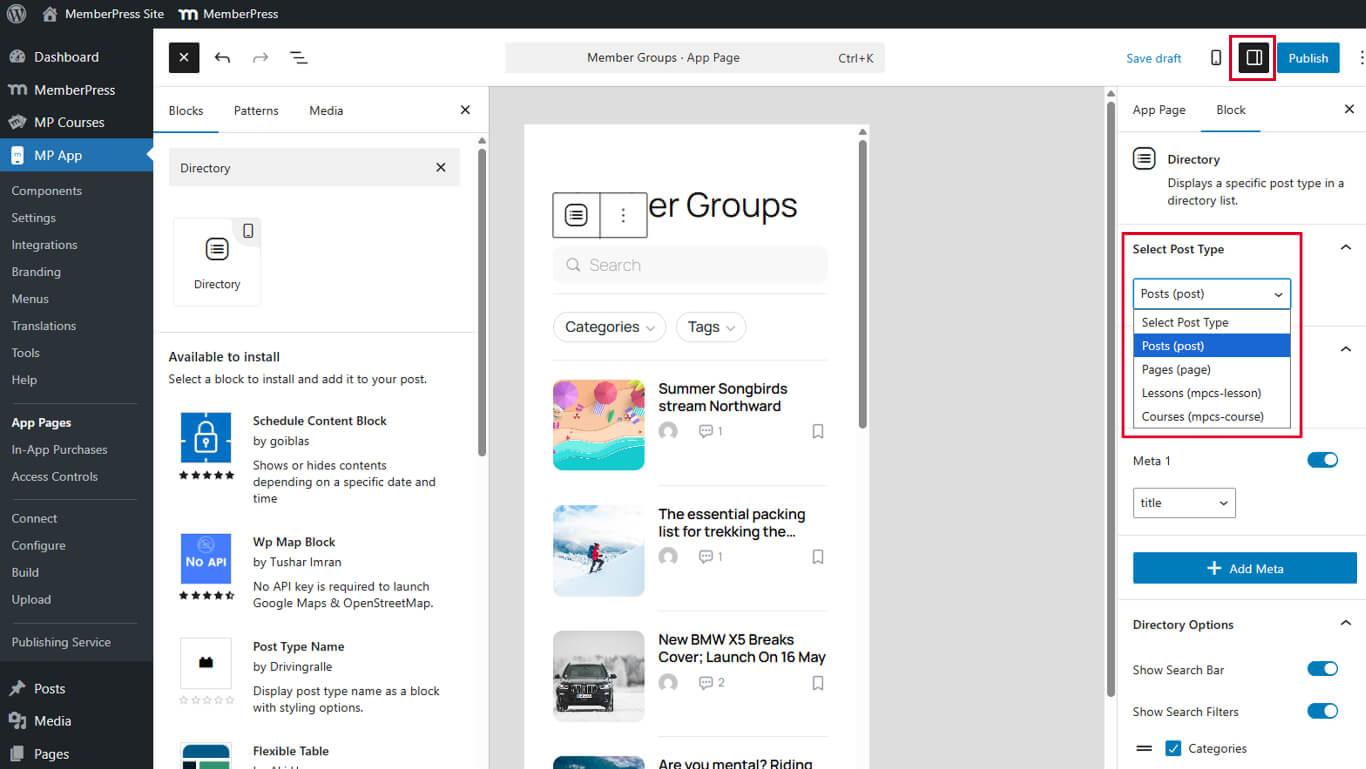
- Click Update/Publish to save the page.
Directory content updates immediately based on the selected post type.
Enabling Featured Images
Featured images provide visual context in directory listings.
- Select the Directory Block in the page editor.
- Locate the Show Featured Image toggle in Block Settings.
- Toggle the switch to On to enable featured image display.
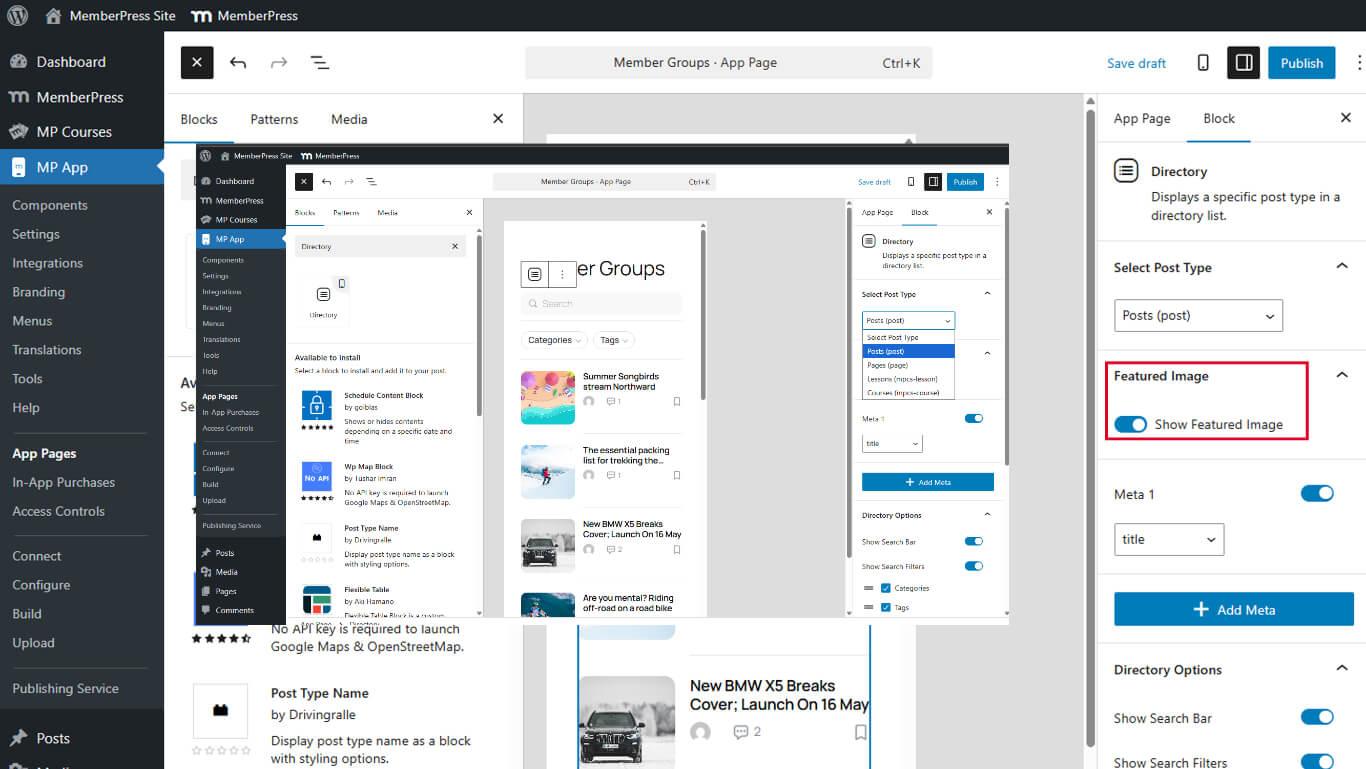
- Click Update to save the page.
Featured images display as thumbnails in directory list items when available. Content without featured images displays placeholder graphics.
Configuring Metadata Display
Metadata fields provide additional context about directory items. Up to four metadata fields can be displayed per item.
Adding First Metadata Field
- Select the Directory Block in the page editor.
- Scroll to the Metadata section in Block Settings.
- Toggle Meta 1 to On.
- Select the desired metadata field from the Meta 1 dropdown:
- Title
- Excerpt
- Content
- Author Name
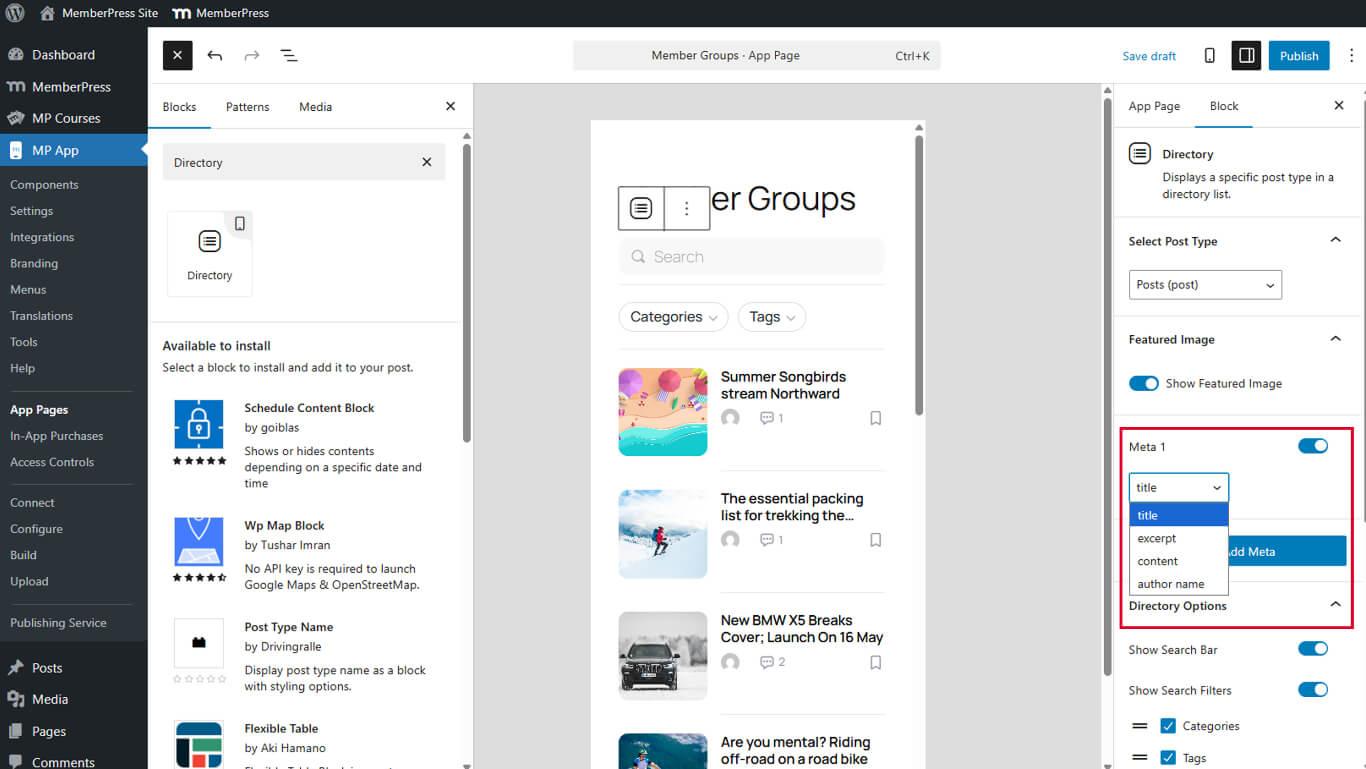
- Click Update to save the page.
The first metadata field displays in the META 1 placeholder position.
Adding Additional Metadata Fields
- Click Add Meta below the first metadata field.
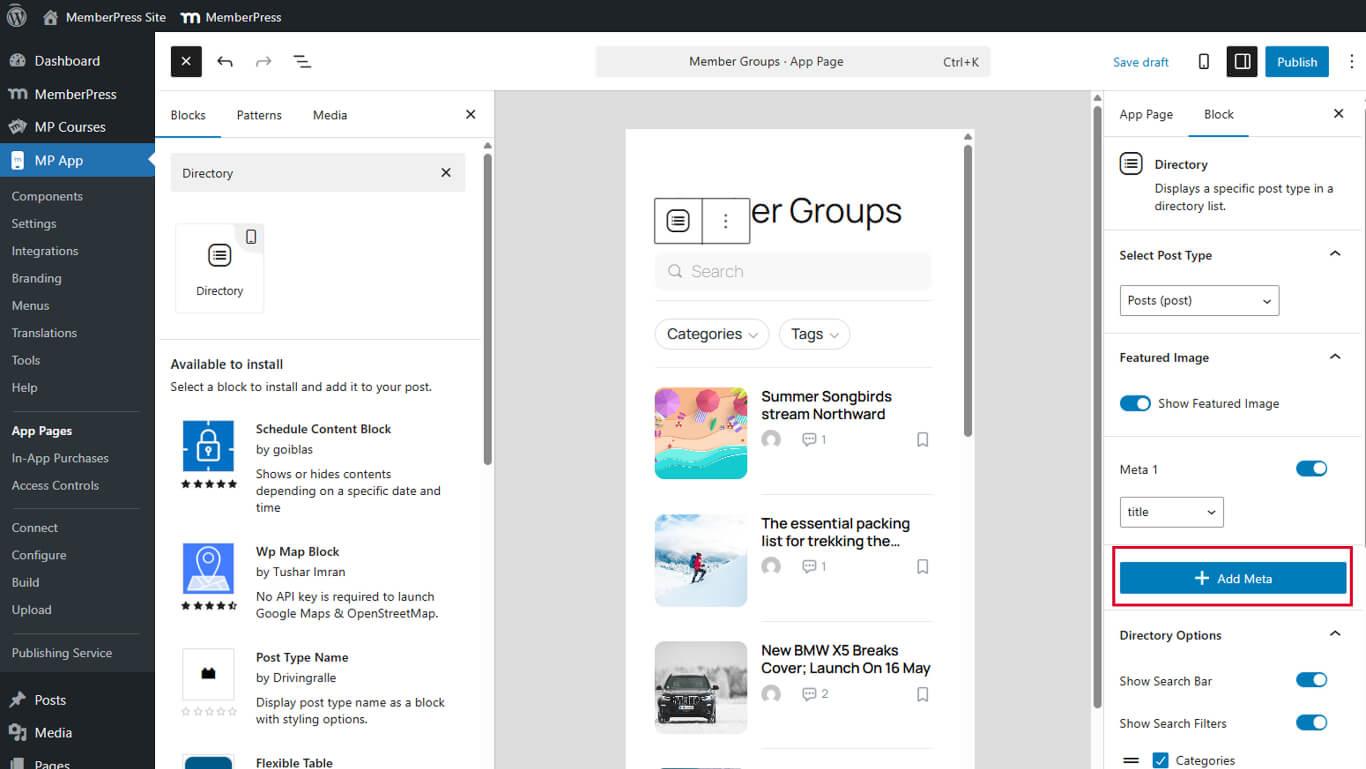
- Select the desired field from the dropdown.
- Repeat steps 1-3 to add up to four total metadata fields.
- Click Update to save the page.
Metadata fields display in the order they are added. Rearrange fields by adjusting their configuration order.
Configuring Directory Options
Directory options enable interactive features and display enhancements.
Enabling Search Functionality
Search bars allow members to find specific content within directories.
- Toggle Show Search Bar to On.
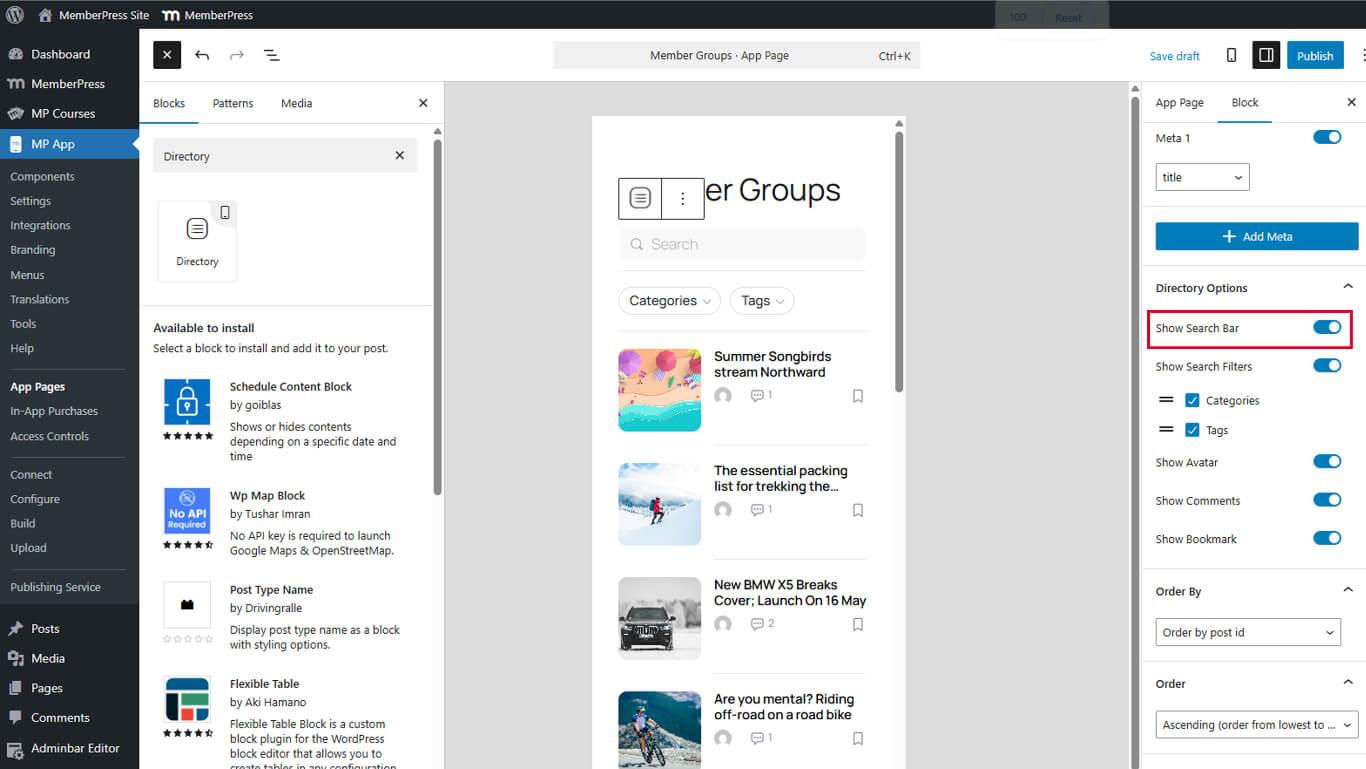
- Click Update to save the page.
Search bars appear at the top of directory screens in the published app.
Enabling Search Filters
Search filters refine search results by categories or taxonomies.
- Toggle Show Search Filter to On in Directory Options.
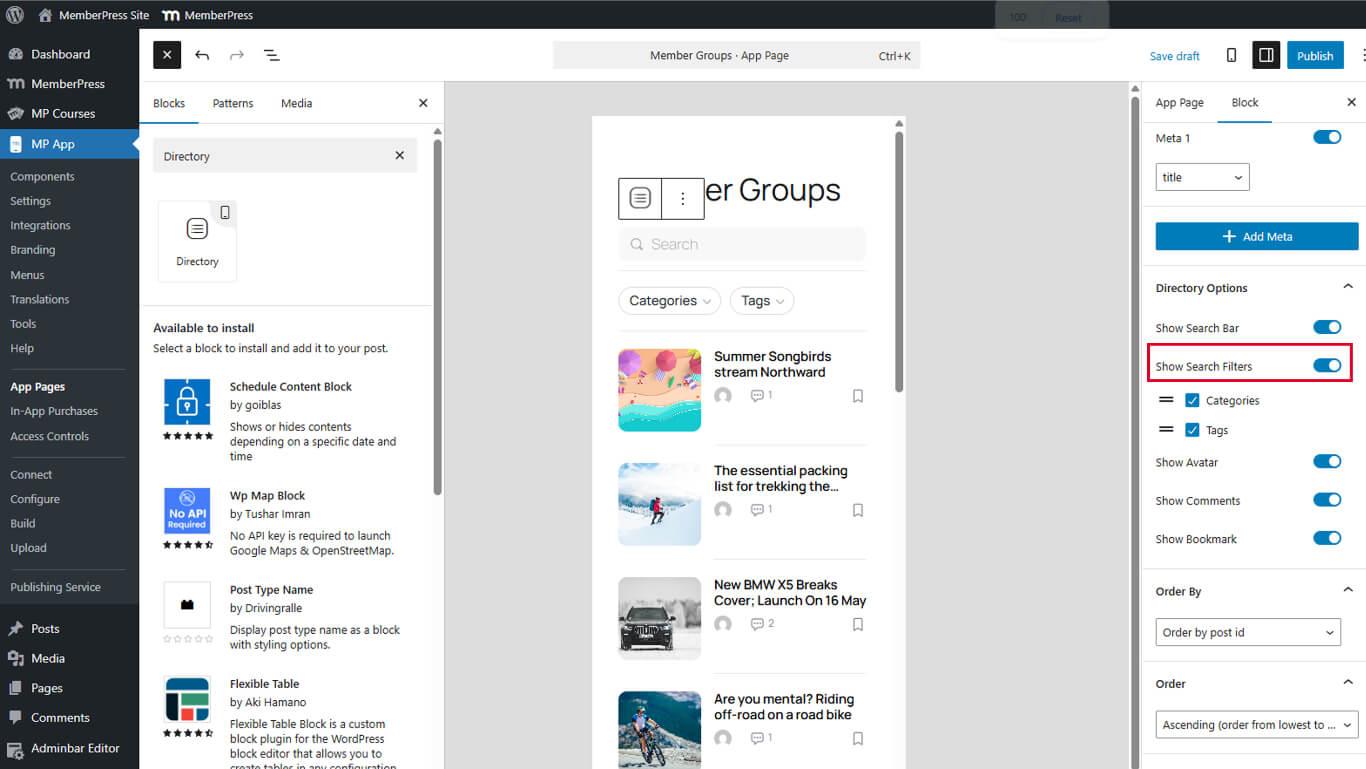
- Click Update to save the page.
Search filters appear alongside search bars when both options are enabled. Filters provide category or tag selections for narrowed results.
Enabling Author Avatars
Author avatars identify content creators visually in directory listings.
- Toggle Avatar to On in Directory Options.
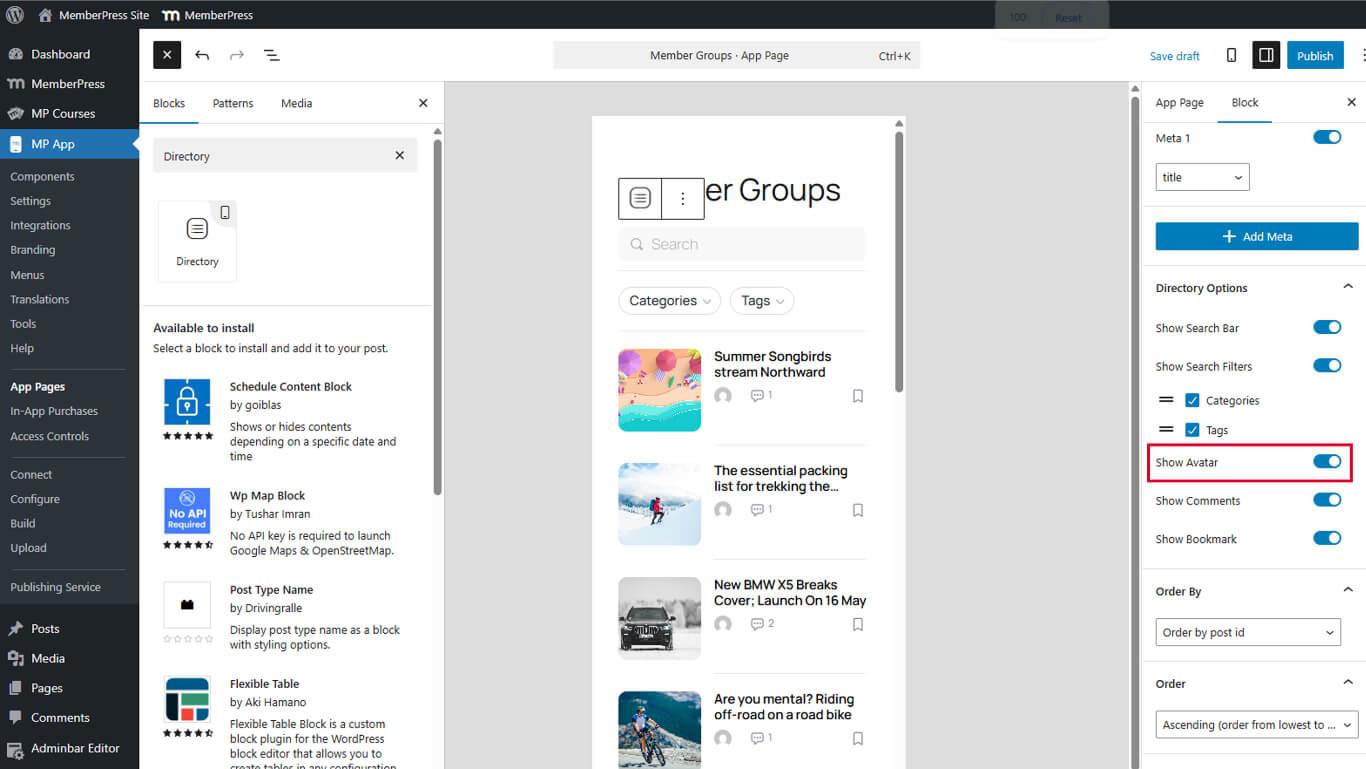
- Click Update to save the page.
Author avatars display as small circular images next to content titles. Avatars require author profile images configured in WordPress.
Enabling Comment Counts
Comment counts indicate discussion activity on content items.
- Toggle Show Comment to On in Directory Options.
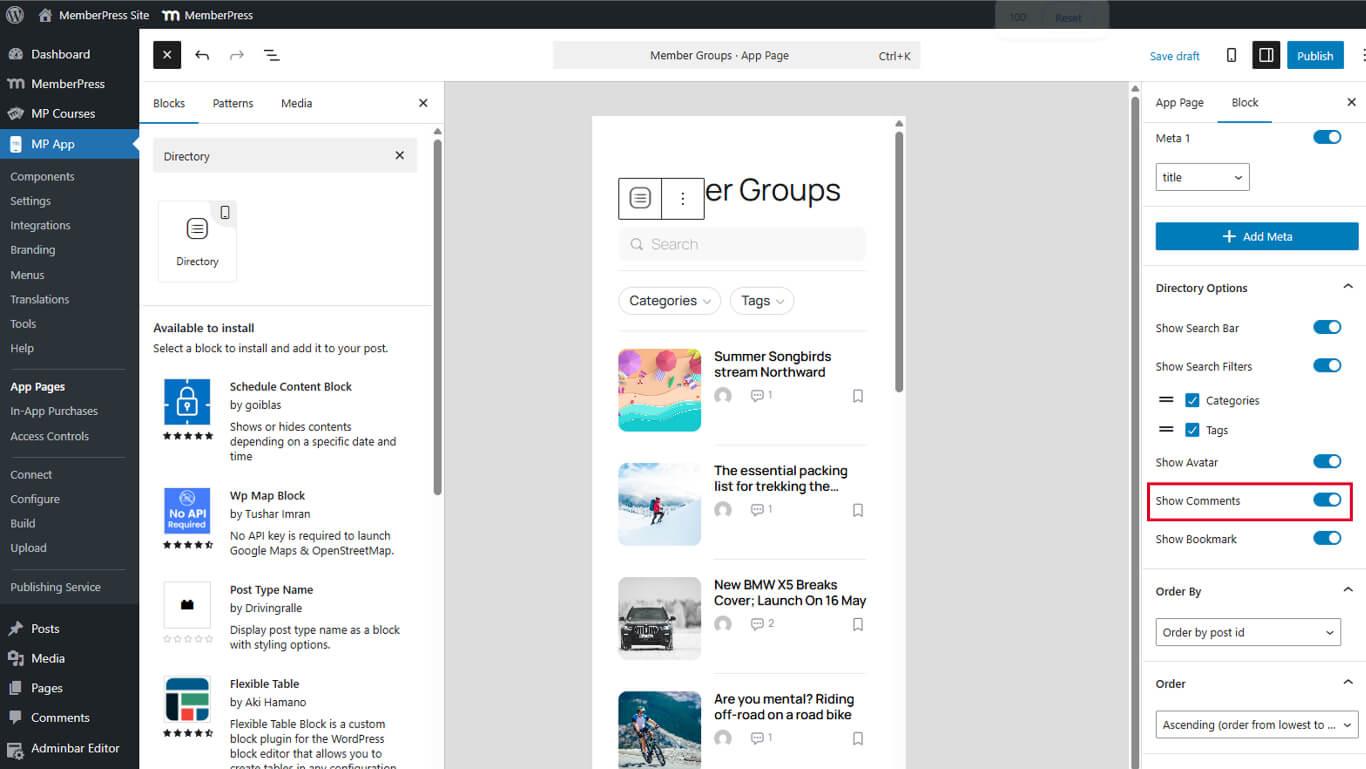
- Click Update to save the page.
Comment counts display as numbers with comment icons in directory listings. Counts update as members add comments.
Enabling Bookmarks
Bookmarks allow members to save content for later access.
- Toggle Show Bookmark to On in Directory Options.
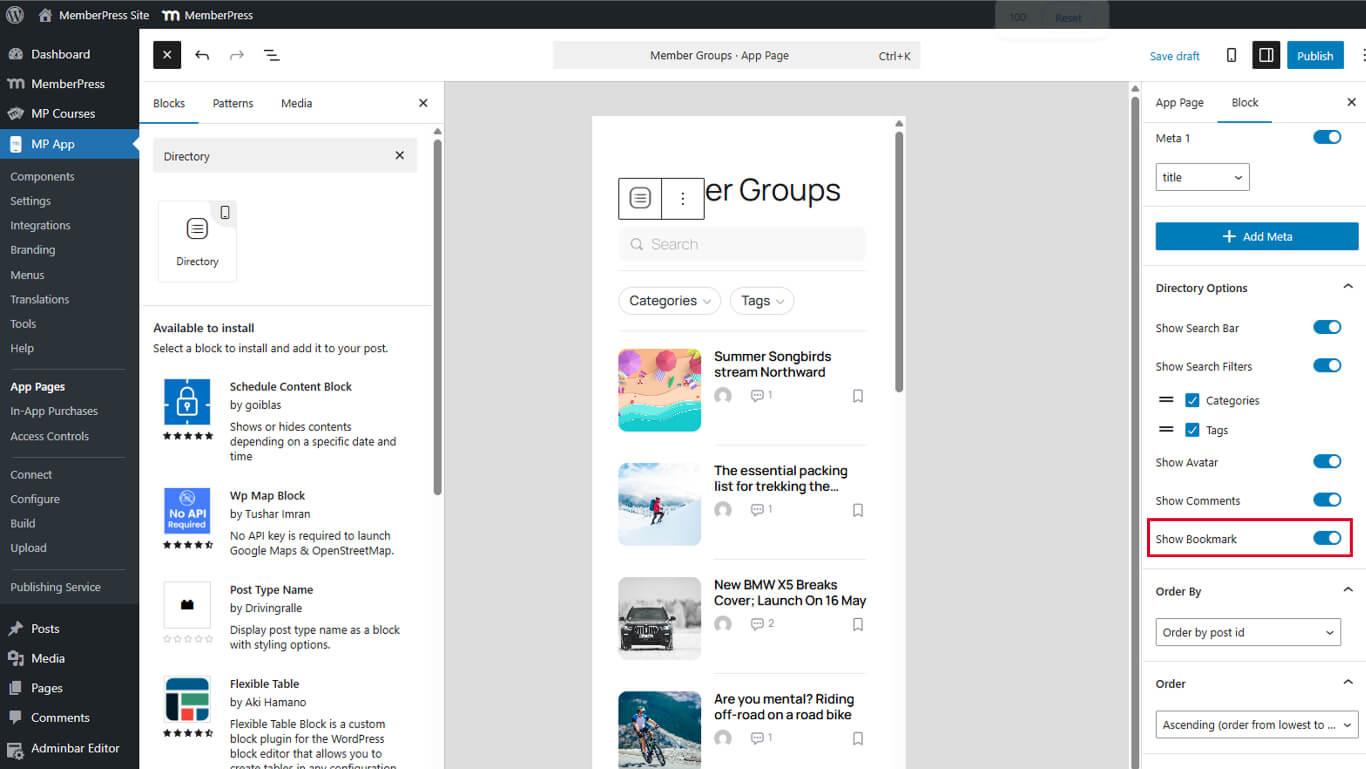
- Click Update to save the page.
Bookmark icons display in directory listings. Members tap icons to bookmark or unbookmark content.
Configuring Sorting Options
Sorting options control the order of content within directories.
Setting the Order By Field
- Select the Directory Block in the page editor.
- Locate the Order By dropdown in Block Settings.
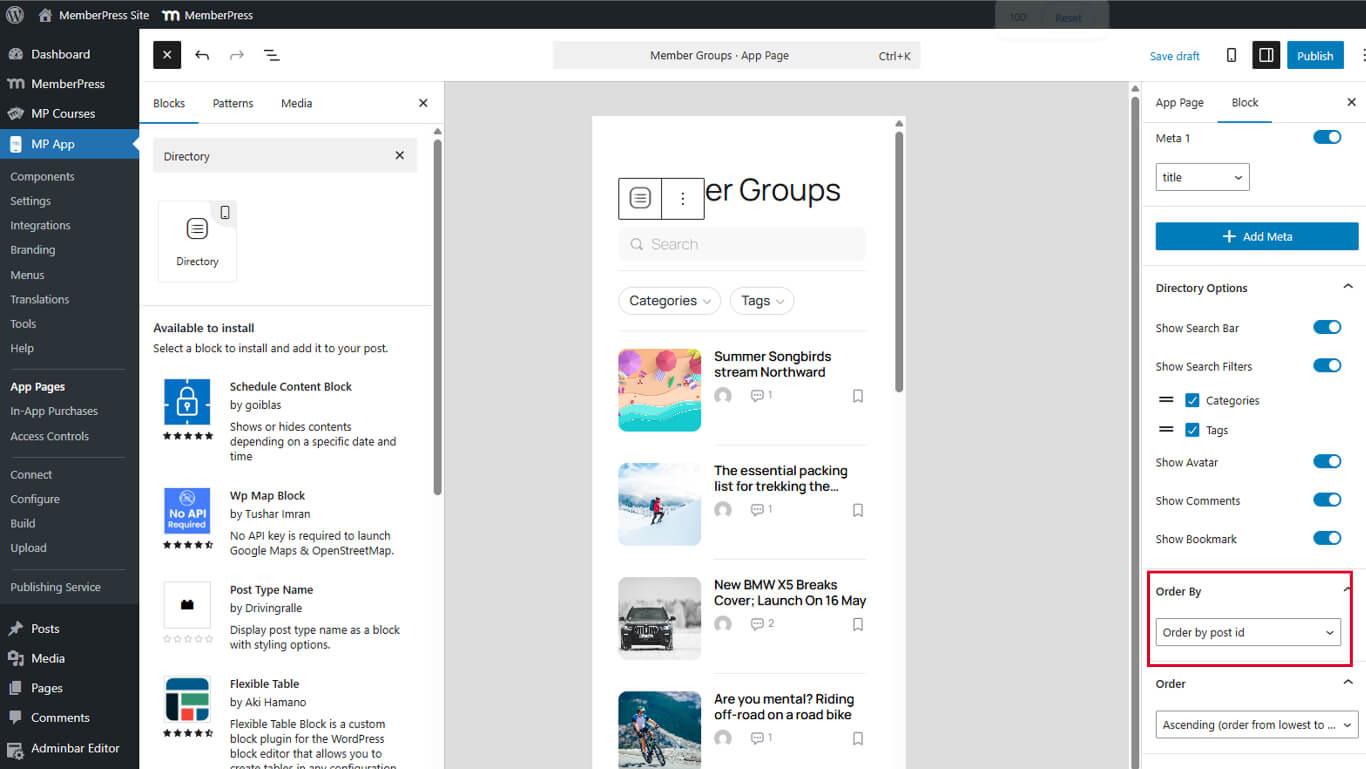
- Select the sorting field:
- Date for chronological sorting;
- Title for alphabetical sorting;
- Modified for recently updated content;
- Menu Order for manual ordering.
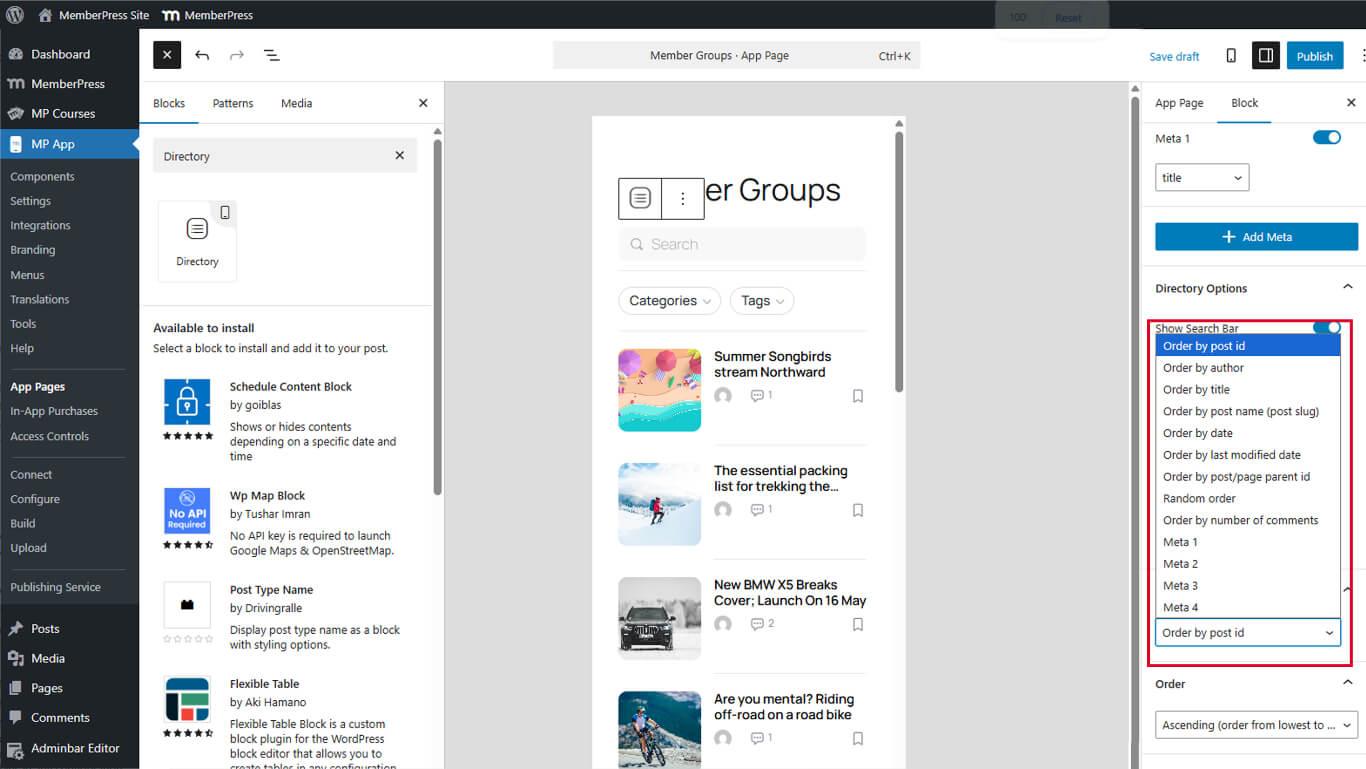
- Click Update to save the page.
The sort field determines which content attribute controls display order.
Setting Order Direction
- Locate the Order dropdown below Order By.
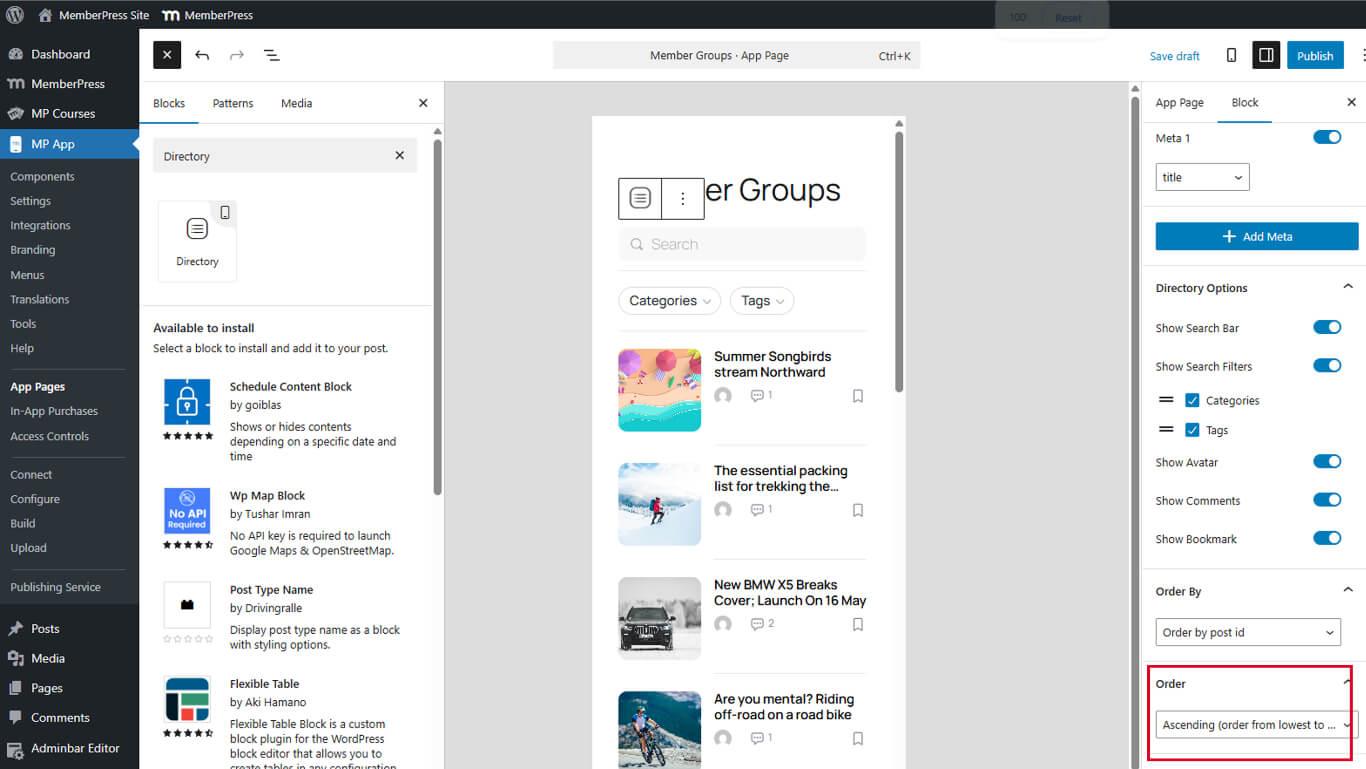
- Select the sort direction:
- Ascending for A-Z or oldest-first ordering;
- Descending for Z-A or newest-first ordering.
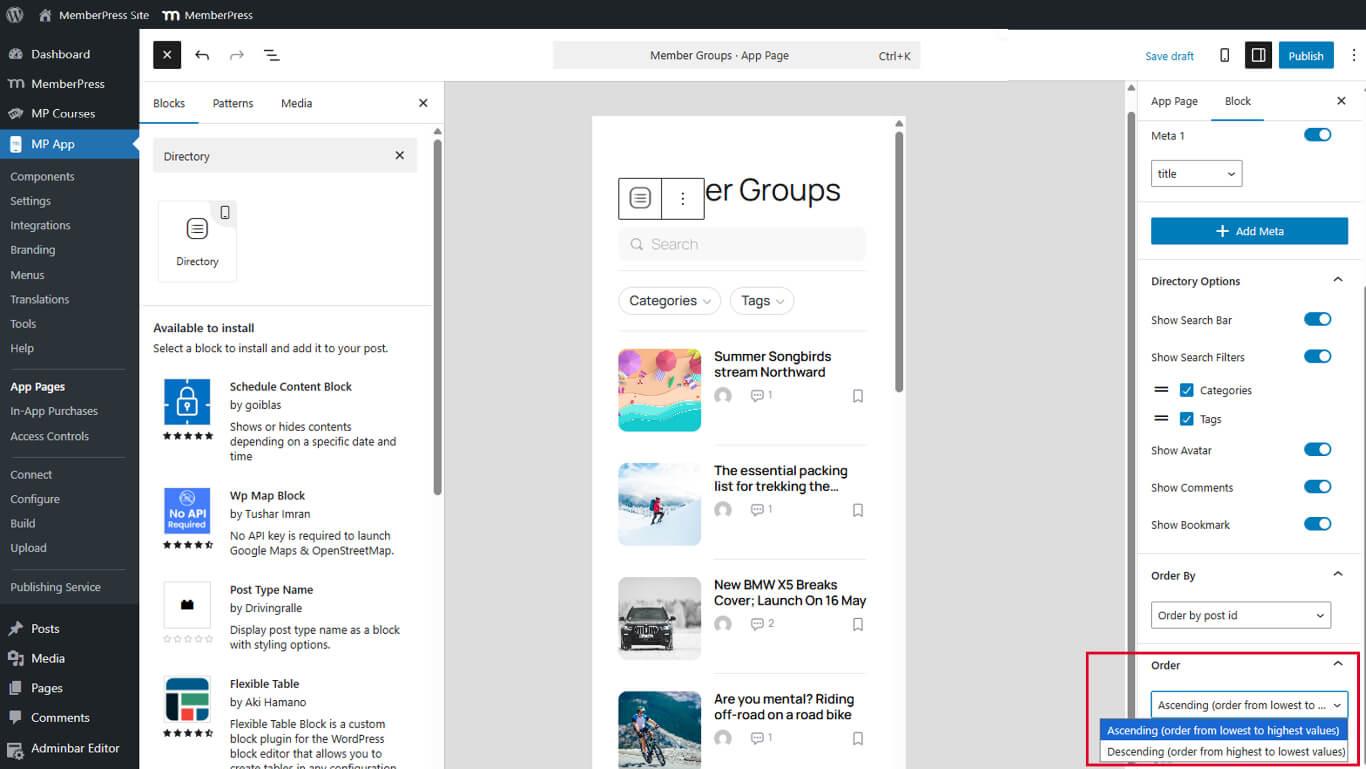
- Click Update to save the page.
Sorting (order) direction works in combination with the sort field. Date descending displays the newest content first.
Deleting Directory Blocks
Directory Blocks can be removed when no longer needed.
- Navigate to Dashboard > MP AppKit > App Pages.
- Open the page containing the Directory Block.
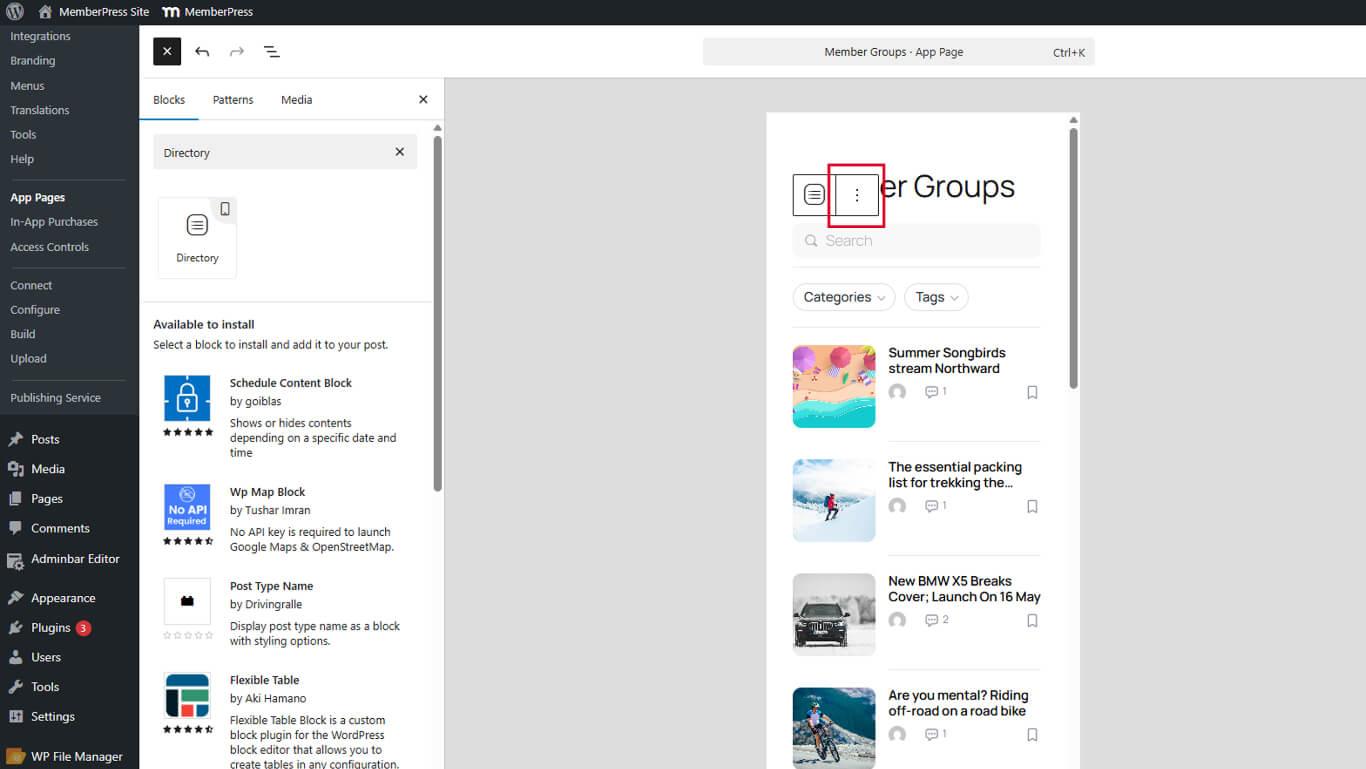
- Select the Directory Block in the editor.
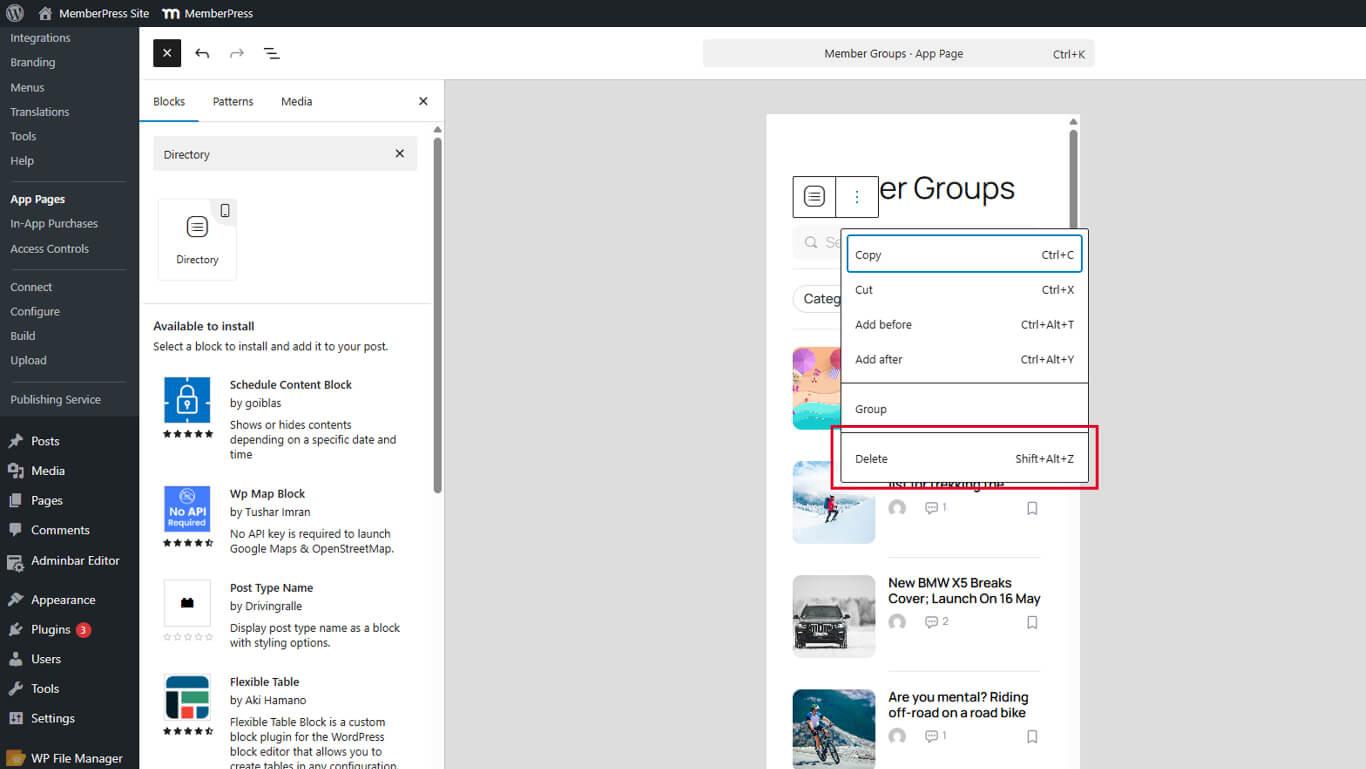
- Click the Options menu (three vertical dots) in the block toolbar.
- Click Delete.
- Click Update to save the page.
Removing Directory Blocks allows other block types to be added to the page.










